Manage Student Attendance
Submit student attendance for all advisory classes.
Required Permissions
- Manage Student Attendance - Permission to manage student attendance.
How to access the module?
To access the module, make sure you have the Manage Student Attendance permission. If it doesn’t appear in your portal, request access from your System Administrator.
Click the module tab to redirect to Manage Student's Attendance page.
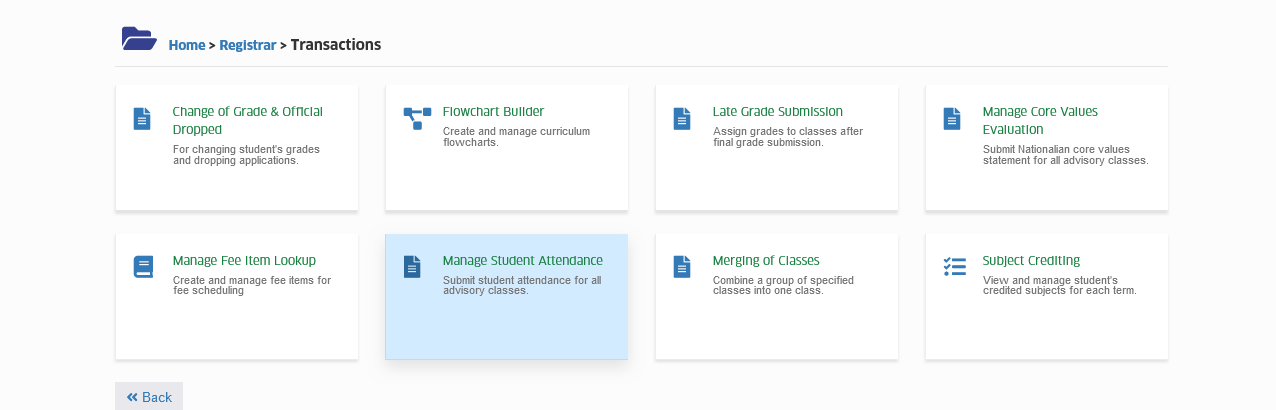
How to manage student's attendance?
For Class Advisers: Manage Student Attendance module is available during Online Grading period only.
For Registrar Personnel: Manage Student Attendance module is available anytime. This module is only used when the Class Advisers failed to submit the student attendance monitoring during submission of grades for Midterm and/or Final period.
Follow the steps below on how to manage students attendance.
STEP 1. In Manage Student Attendance listview page, displays the list of classes of the current year and term or you may select the Year and Term by using the filtering feature then click the button.
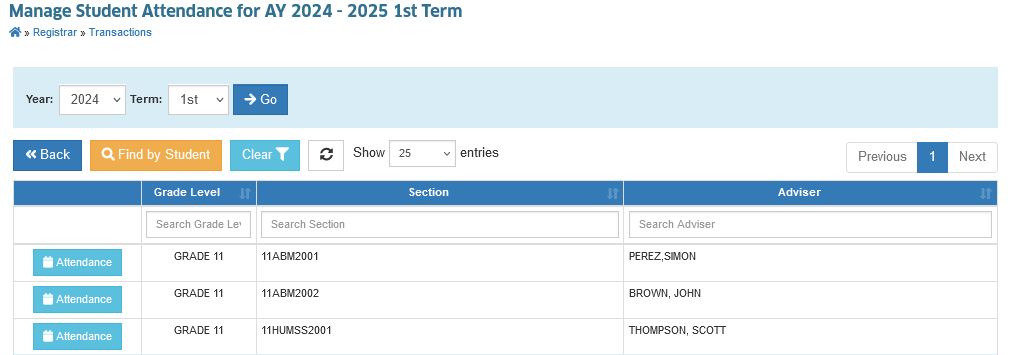
STEP 2. Click the button. You will be redirected to Monitor Daily Attendance page.
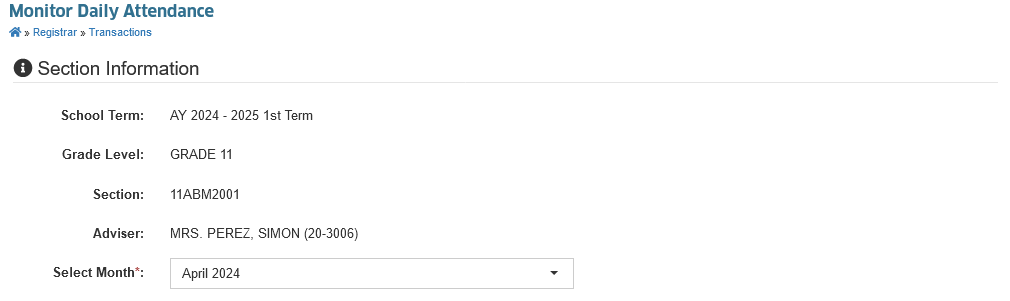
STEP 3. In Monitor Daily Attendance listview page, under the section information section, select the month you want to monitor by choosing from the dropdown list.
STEP 4. Under Student Attendance section manage the student attendance by clicking the Check All check box. Click again the specific check box of the date to change the attendance status.
- 1 click - sets the status as Present
- 2 click - sets the status as Tardy
- 3 click - sets the status as Absent
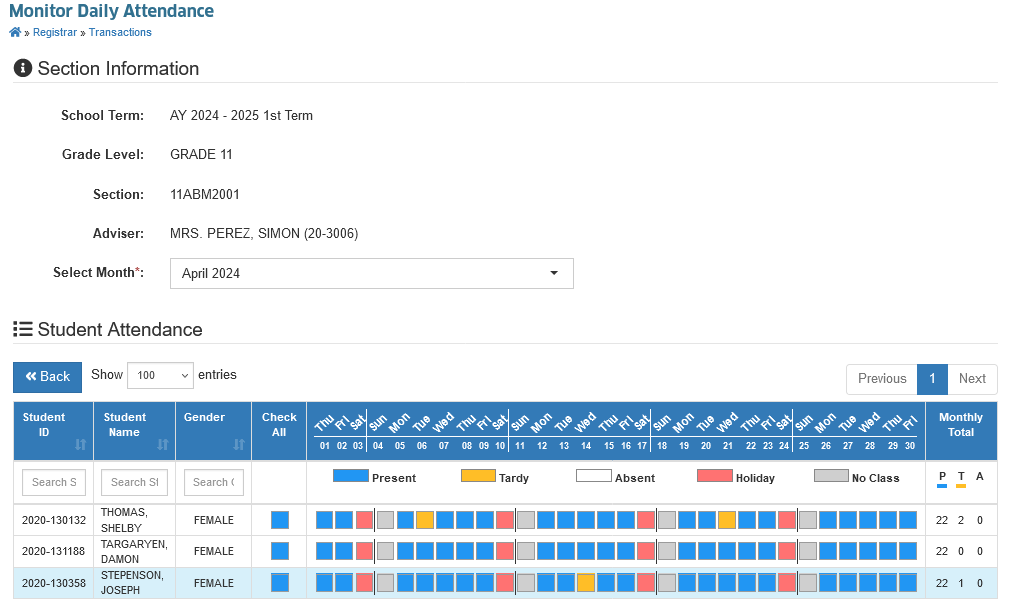
Each action is saved automatically.