Online Class Registration
Reservation and pre-registration to classes you wish to enroll on enrollment start.
The Online Class Registration module allows Continuing Students to register for classes in the upcoming term.
-
The Registrar's Office needs to update the student's strand yearly.
-
The Registrar's Office needs to update the student's year level
-
The Registrar's Office needs to open the Online Class Registration period in the Terms module (Annual/Trimestral).
-
The Registrar's Office needs to assign the students' fee schedule for the coming term.
-
Sections and class offerings will be set up by the Registrar's Office before the OCR period starts.
-
Students will be able to use this module if they have enrolled in subjects for the preceding term.
-
Online class registration is only available during the designated registration period. Important academic dates should always be checked on the school calendar.
-
Students must have no clearance issues with other departments before proceeding to class registration.
-
Students will use this module to register DURING 1st TERM ONLY.
Module Features
-
Section Selection - Easily browse and select from available section.
-
Add to List/Class Bucket - Enables students to add selected classes to a Class Bucket for easy review before finalizing their selections
-
History Logs - Maintains a log of all registration actions. This allows students to track their registration history and review any changes made over time.
-
View Temporary Assessment - Displays a temporary assessment of tuition and fees based on the selected classes.
Required Permission
- Online Class Registration - This permission allows the users to access and register for classes to take for the next term. With this permission, the user may utilize all the above mentioned Module Feature.
How to access the module
To access the module, make sure you have the Online Class Registration permission. If it doesn’t appear in your portal, request access from your System Administrator.
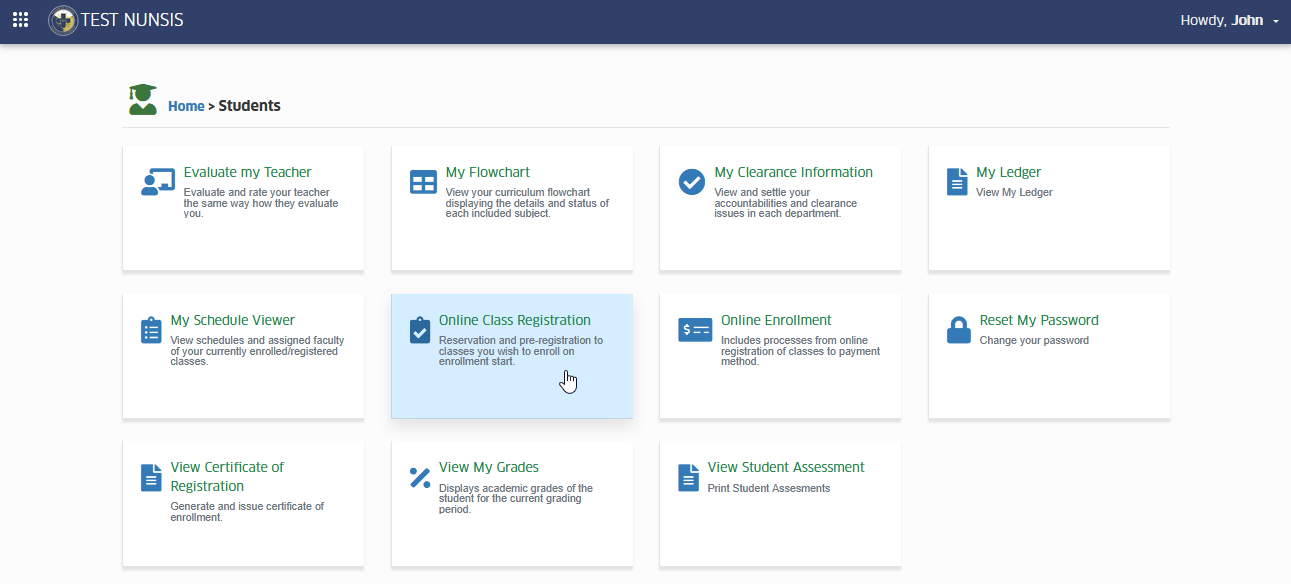
To access the module go to Students > Online Class Registration
Click the module tab to redirect to Online Class Registration page.
How to use the module?
In this guide, the process of registering for classes using the Online Class Registration module will be explained. Through this module, available sections can be searched, and pre-registration can be completed to reserve a slot in the enrollment.
To register for sections, follow the steps outlined below.
STEP 1. Login to NUIS Student portal.
STEP 2. From the available modules on student portal, select Online Class Registration module.
STEP 3. Read and understand the reminders and aggreement. Click the button to proceed to Online Class registration page.
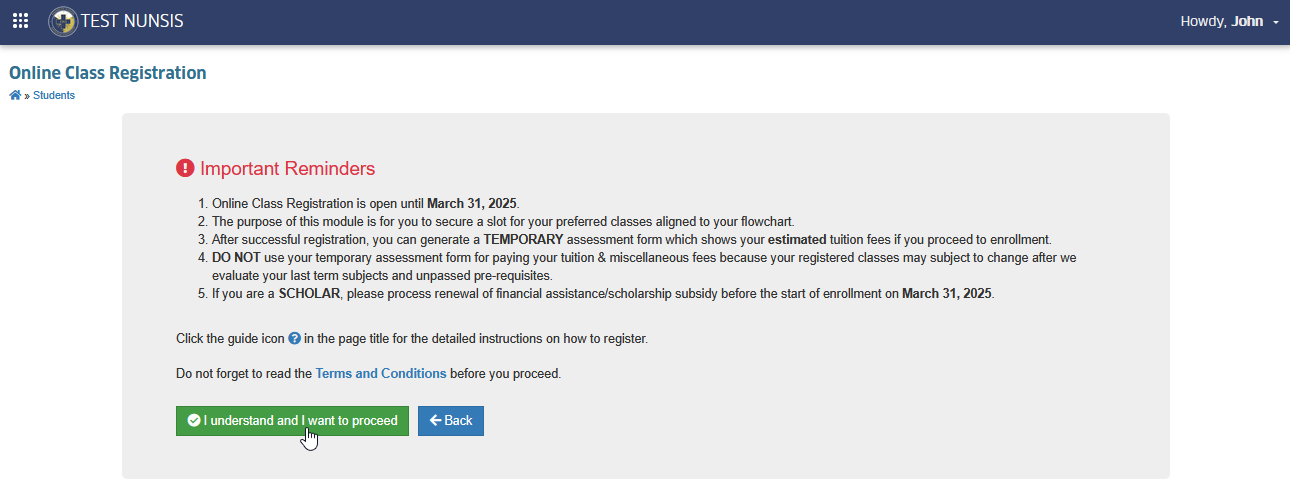
STEP 4. In Online Class Registration page, scroll down to Enrollment Evaluation section and click on the Register tab.
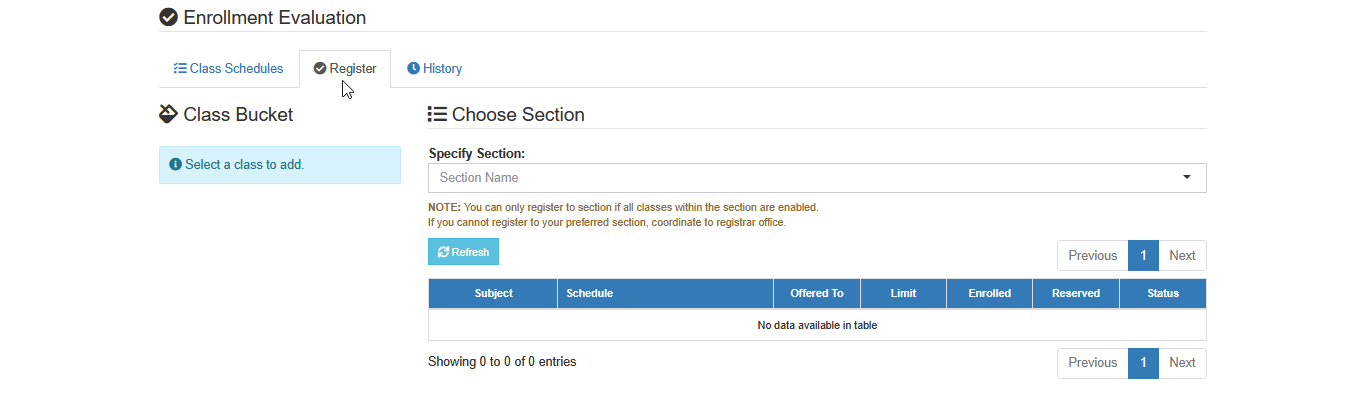
STEP 5. Specify and look for the preferred section name.
STEP 6. Make sure that all classes falling under the specified section are enabled.
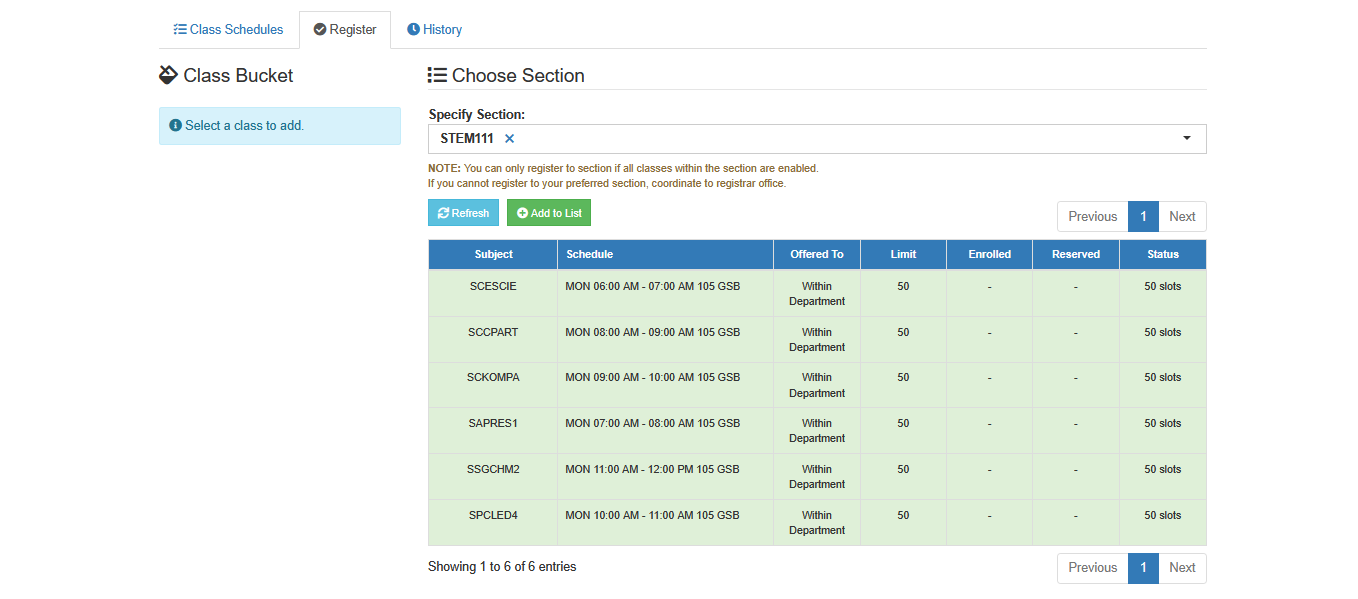
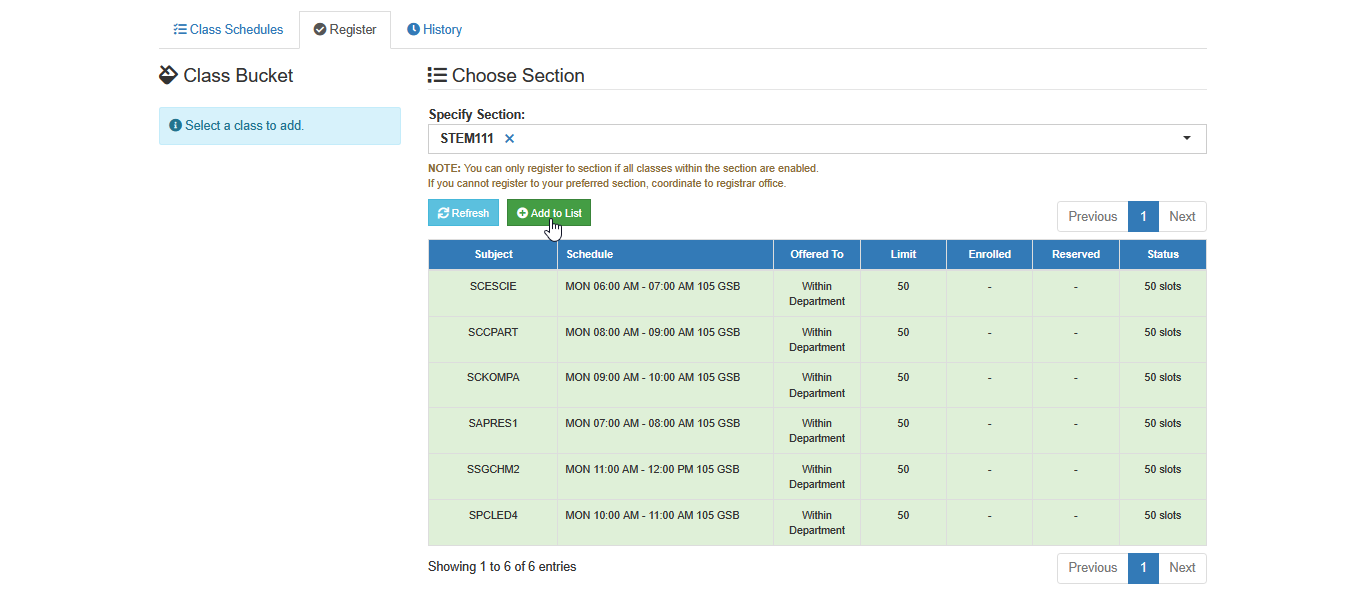
STEP 7. Click button to add all the classes in the Class Bucket.
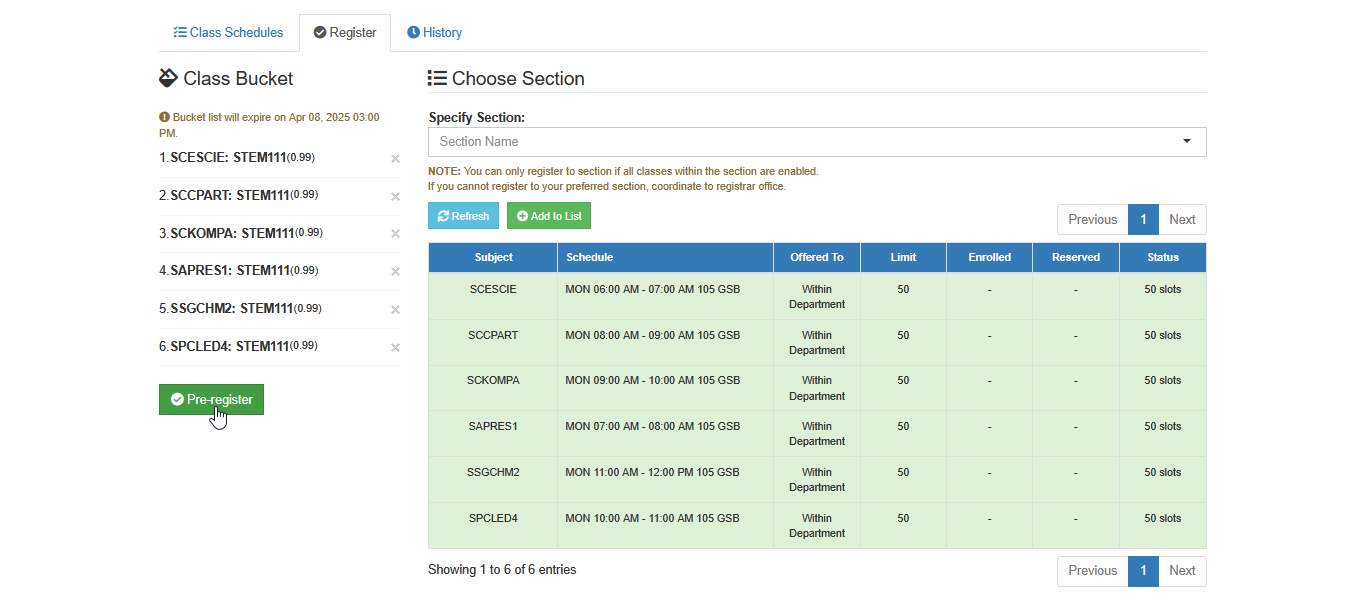
STEP 8. All subjects within the section should be added in the class bucket. Click the button to pre-register the list.Review the selected classes.
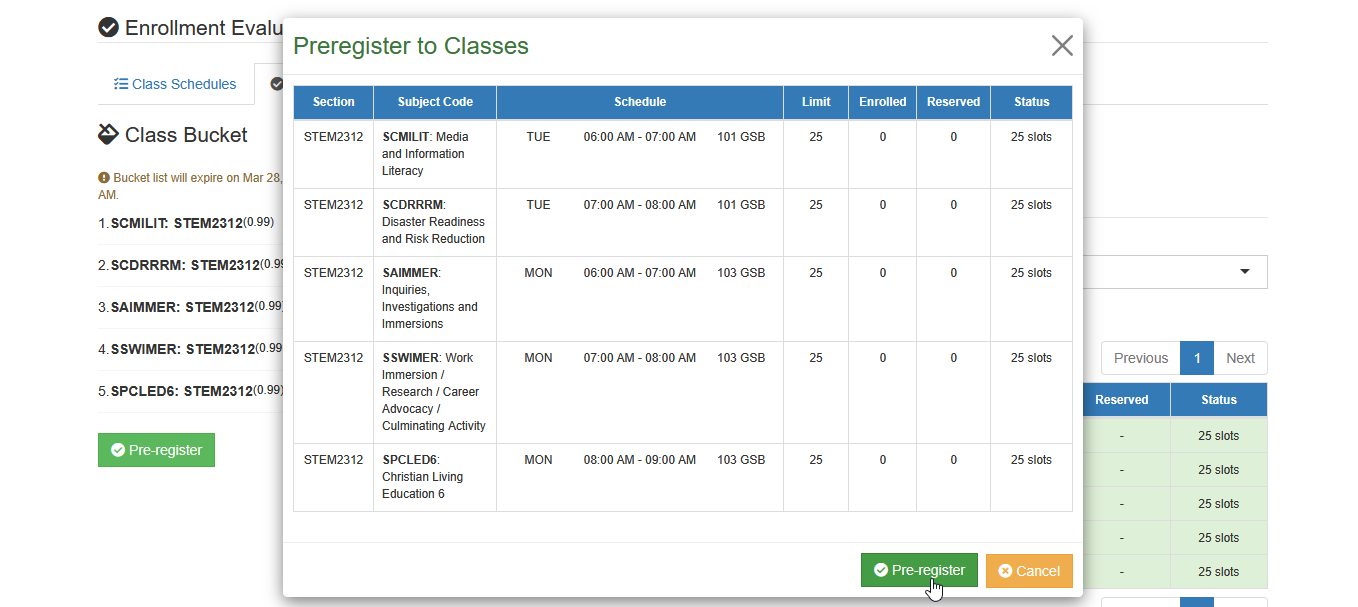
STEP 9. A confirmation prompt will appear, displaying all subjects to be registered. Click the button to proceed.
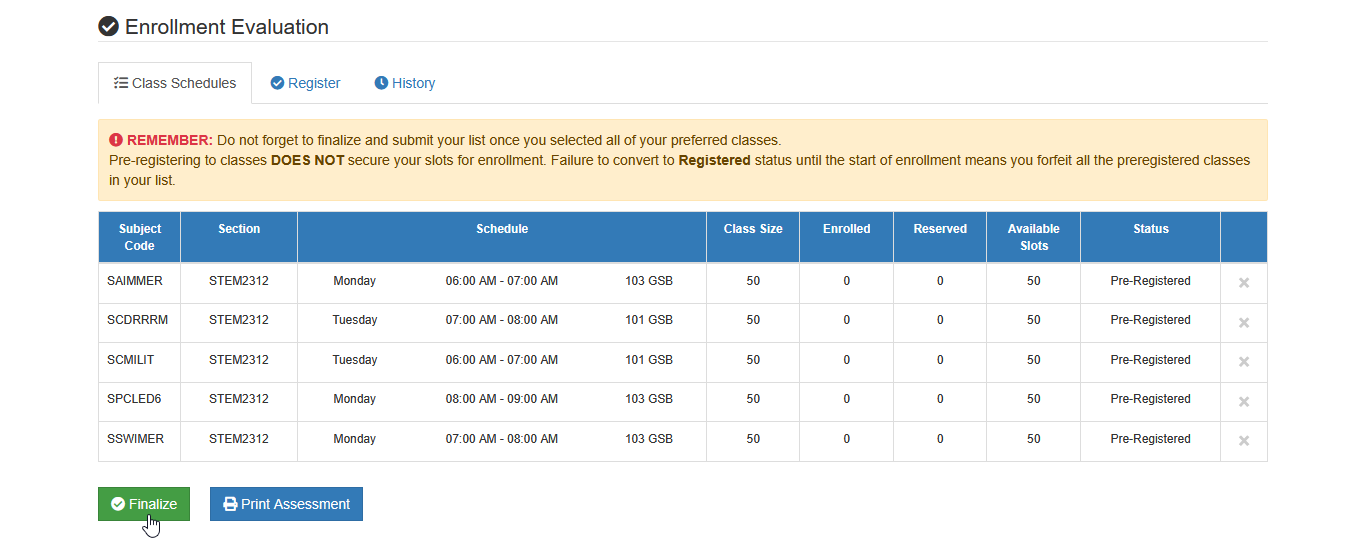
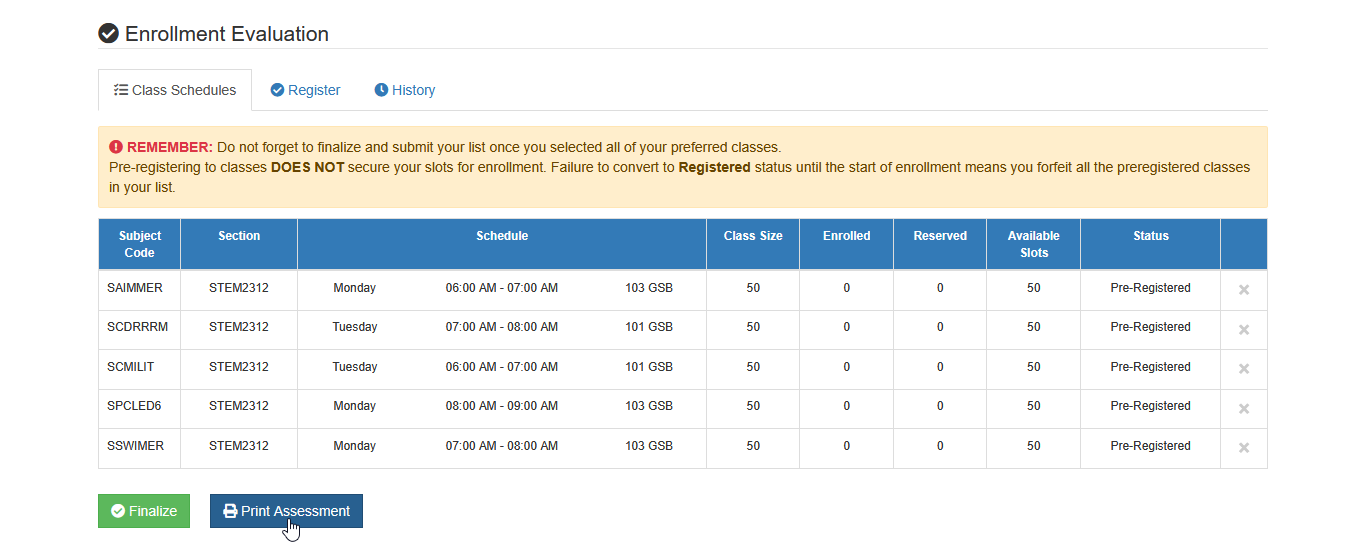
STEP 10. After pre-registration, students should finalize the list to officially register for enrollment. This will reserve the student's slot in the section. Click the button to submit the final list for registration.
-
Do not forget to Finalize and submit the list of subjects to be registered.
-
Pre-registering for classes DOES NOT secure slots for enrollment. Failure to convert to Registered status before the start of enrollment will result in all preregistered classes on the list being forfeited.
Students may view their sample assessment by clicking the button.
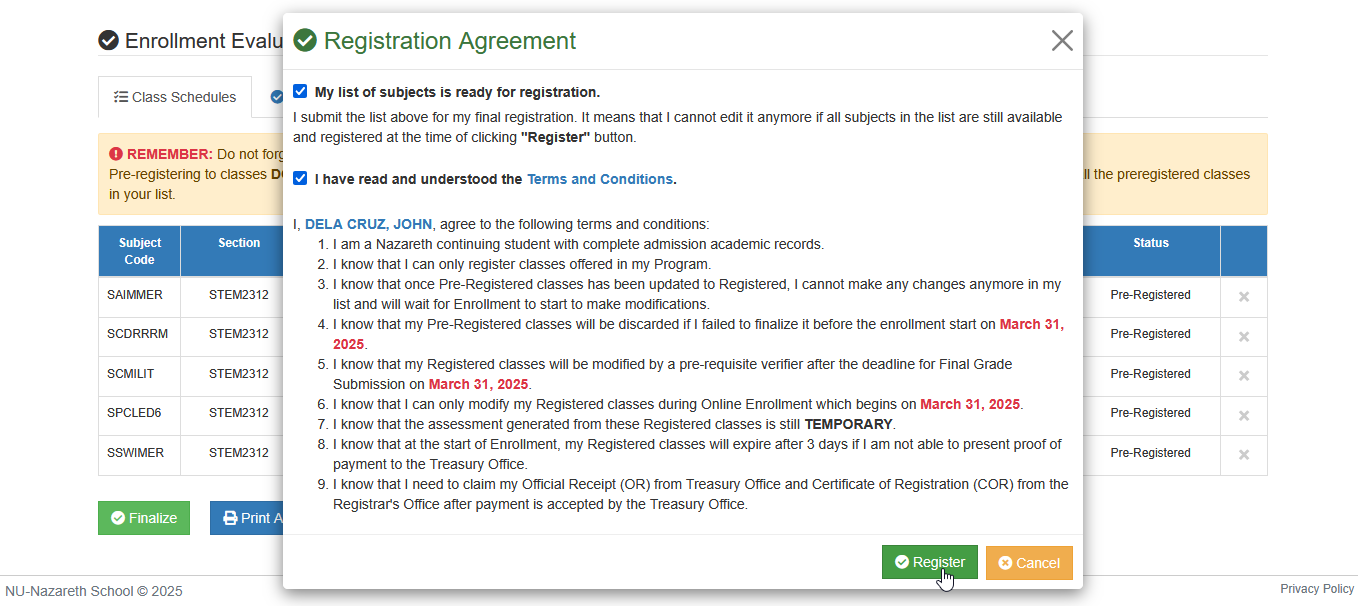
STEP 11. The Registration Agreement prompt will appear. Read and understand the rules for registration. Click the button to save the registration.
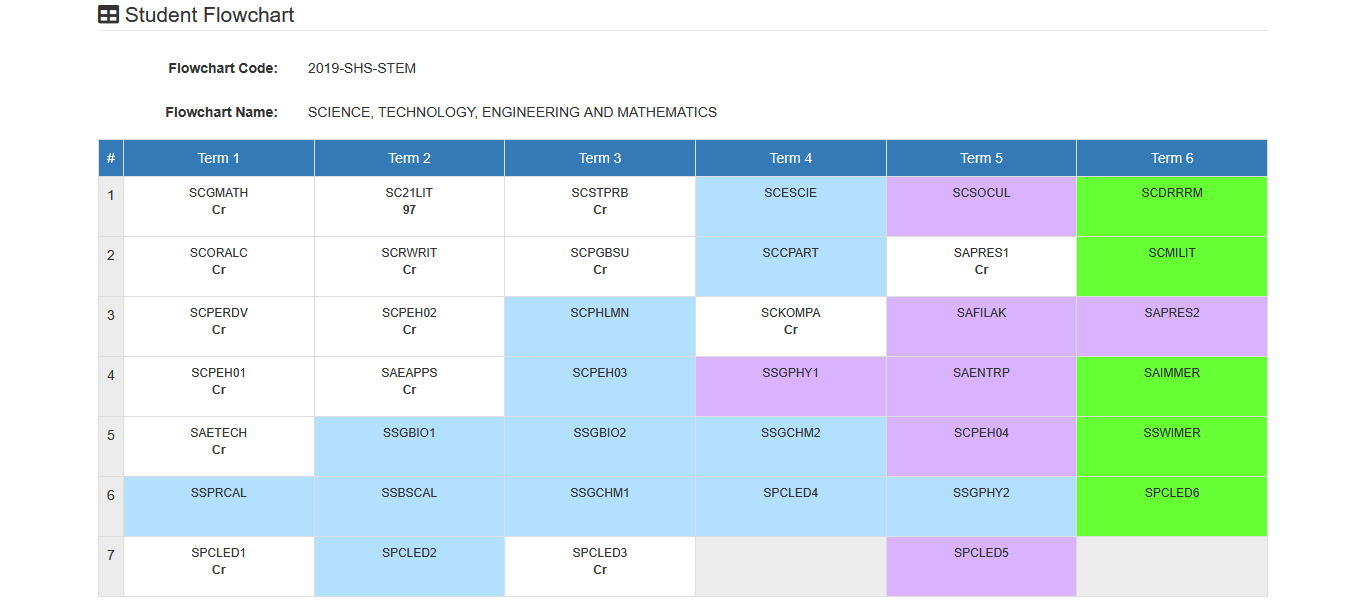
The list of subjects has been successfully registered. The subjects will now have the status of Registered (green background).
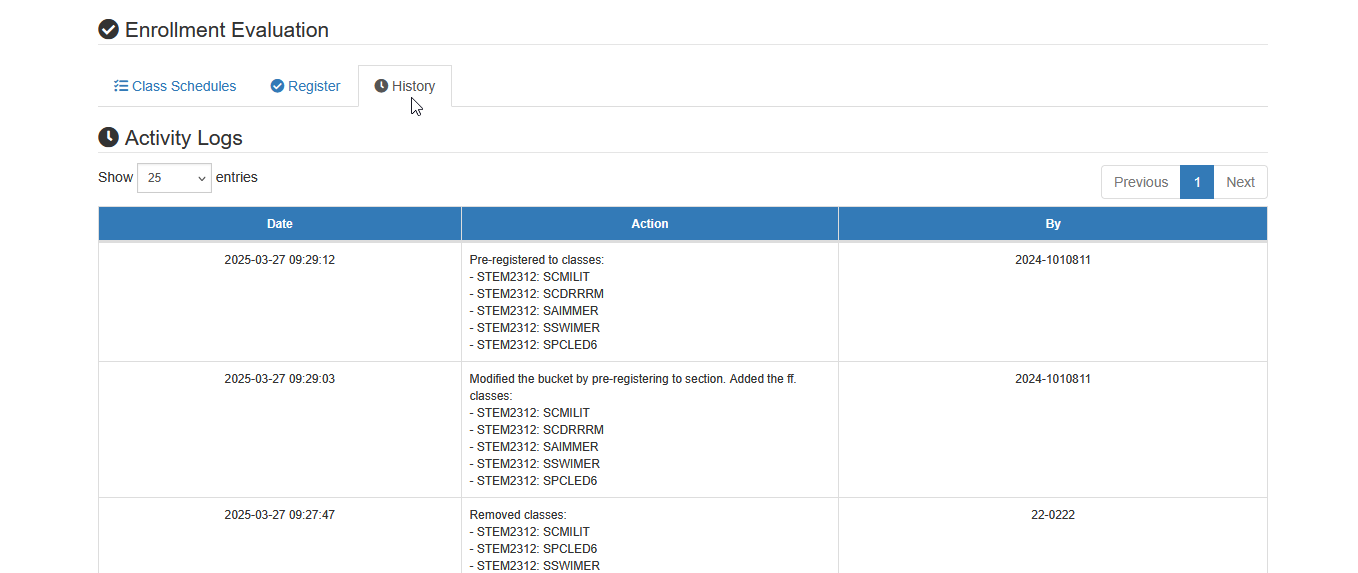
Check History of Registration
In this module, users have the ability to review their registration history, providing them with a comprehensive overview of their past activities. By navigating to the History tab, users can easily access a detailed list of all previously completed registrations. This feature is designed to help users track their participation, verify their registration details, and ensure that all necessary records are available for reference. Whether it's for administrative purposes, tracking progress, or simply reviewing past actions, the History tab serves as a central hub for managing and revisiting registration data.
By utilizing this feature, users can efficiently navigate through their registration history and make informed decisions based on past interactions.
Frequently Asked Questions
You are not allowed to take class of a subject if you haven't passed its prerequisites yet.
Yes, you are still allowed to modify your class schedules once you submitted the bucket. However, you will no longer be allowed to modify once you finalize your class schedules. You have to wait for Enrollment period to do that or you need to seek assistance from Registrar's Office.
Check the Class’ status column why it is disabled. If you believe you are allowed to take that disabled class, coordinate with your Registrar personnel, otherwise, select other sections.
It’s possible that your fee schedules are being prepared yet by the Treasury & Registrar Office. Coordinate with their office or wait until Enrollment period starts
You are not yet advised to pay your registered classes during Class Registration period. Wait for the Enrollment period to settle your payments.
For more questions or concerns, email us at nuis@national-u.edu.ph