Online Enrollment
Includes processes from online registration of classes to payment method.
The Online Enrollment module streamlines the course enrollment and payment process, allowing students to register and pay for classes quickly and efficiently. With this module, students can view available courses, check prerequisites, select their desired classes, and finalize their registration all from a user-friendly interface. Once the final list of subjects has been registered, students can proceed to the payment section to review fees and choose their preferred payment method, ensuring smooth financial processing
-
Online Enrollment is only available during designated enrollment period.
-
This module is used by Continuing Students only.
-
For students with scholarship grants, the scholarship should be renewed first before proceeding with enrollment to ensure the correct computation of total matriculation fees.
-
Returning Student's may use this module to proceed to payment for their enrollment.
-
Students will use this module to enroll DURING 1st TERM ONLY.
-
All subjects taken in the preceding term must have encoded grades.
Module Features
-
Section Selection - Easily browse and select from available section.
-
Prerequisite Verification - Automatically checks prerequisites for the selected classes, ensuring students meet course requirements before registering.
-
Add to List/Class Bucket - Enables students to add chosen classes to a Class Bucket for easy review before finalizing their selections.
-
History Logs - Maintains a log of all registration actions. This allows students to track their registration history and review any changes made over time.
-
Payment Processing - After selecting courses, go to payment section to view total fees and choose from available payment methods for easy checkout.
Required Permission
- Online Enrollment - Allows the students to access and manage the online enrollment process. With this permission, user can browse available course, add or remove classes, and proceed through the payment steps.
How to access the module
To access the module, make sure you have the Online Enrollment permission. If it doesn’t appear in your portal, request access from your System Administrator.
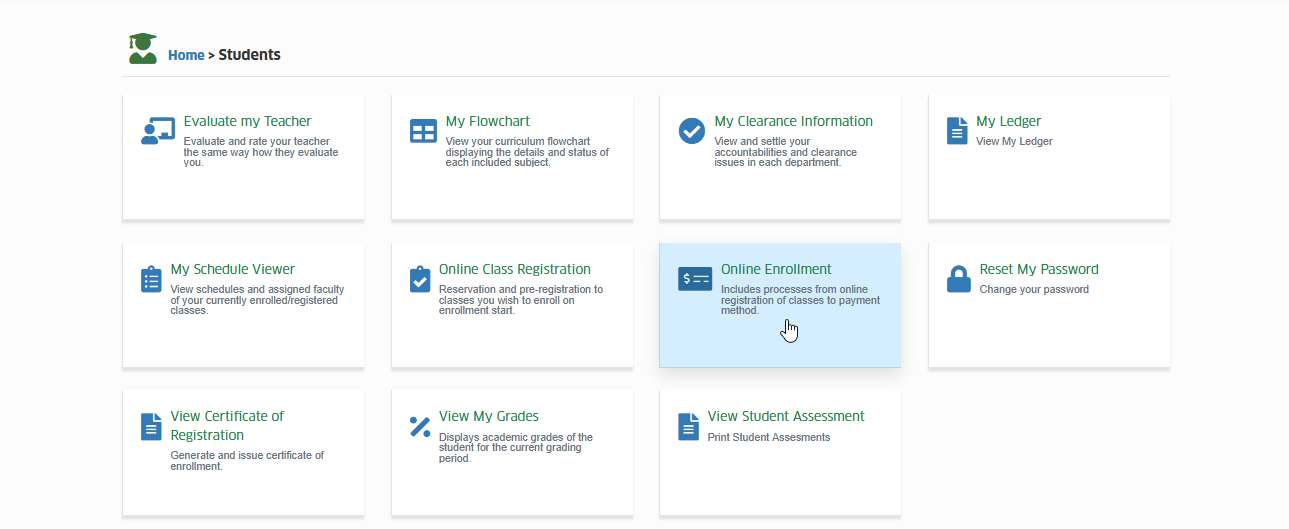
To access the module go to Students > Online Enrollment
Click the module tab to redirect to Online Enrollment page.
How to Enroll the Registered subjects
Online Enrollment and Online Class Registration are the same, the online difference is that: in Online Enrollment, students can proceed to make payment or upload proof of payment for their registered subjects.
Follow the steps below to enroll if the registered subjects during Online Class Registration were not modified due to following reasons:
-
Prerequisite validation - Before proceeding to payment, the system will verify whether the student has passed all prerequisite subjects.
-
Change in subject information - The registered class may be modified if there is an update to the subject's information, such as changes in schedule, instructor, or course details.
STEP 1. Login to NUIS and go to Students > Online Enrollment.
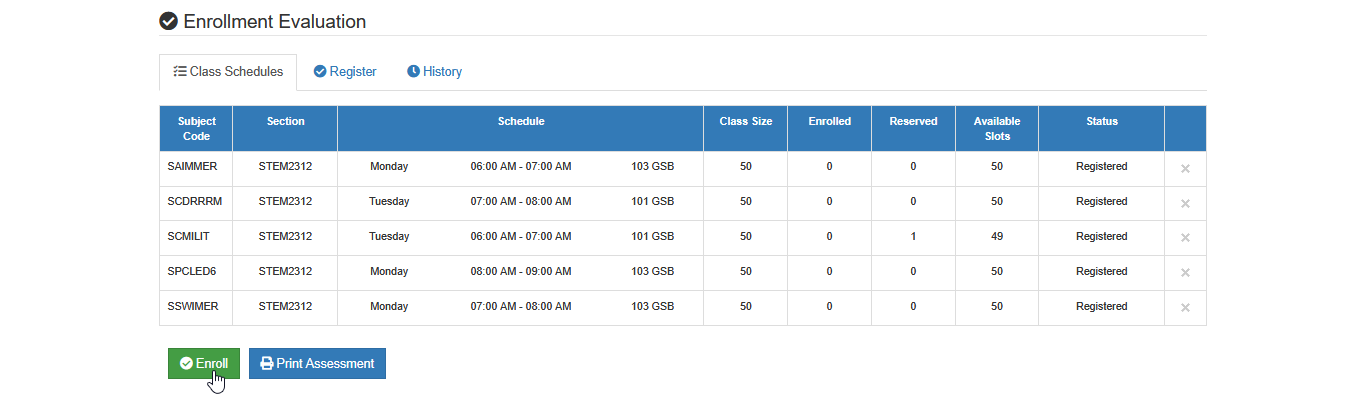
STEP 2. In Online Enrollment page, in Class Schedules tab, under Enrollment Evaluation section, review all registered subjects and click the button.
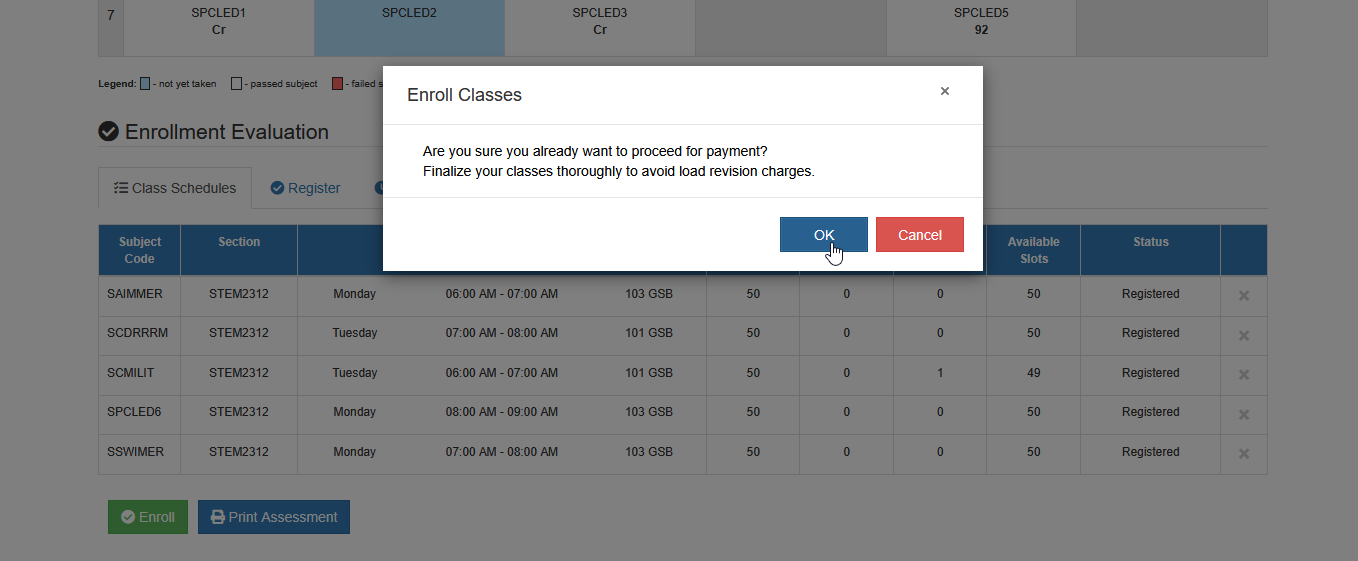
STEP 3. Confirm the action by clicking button.
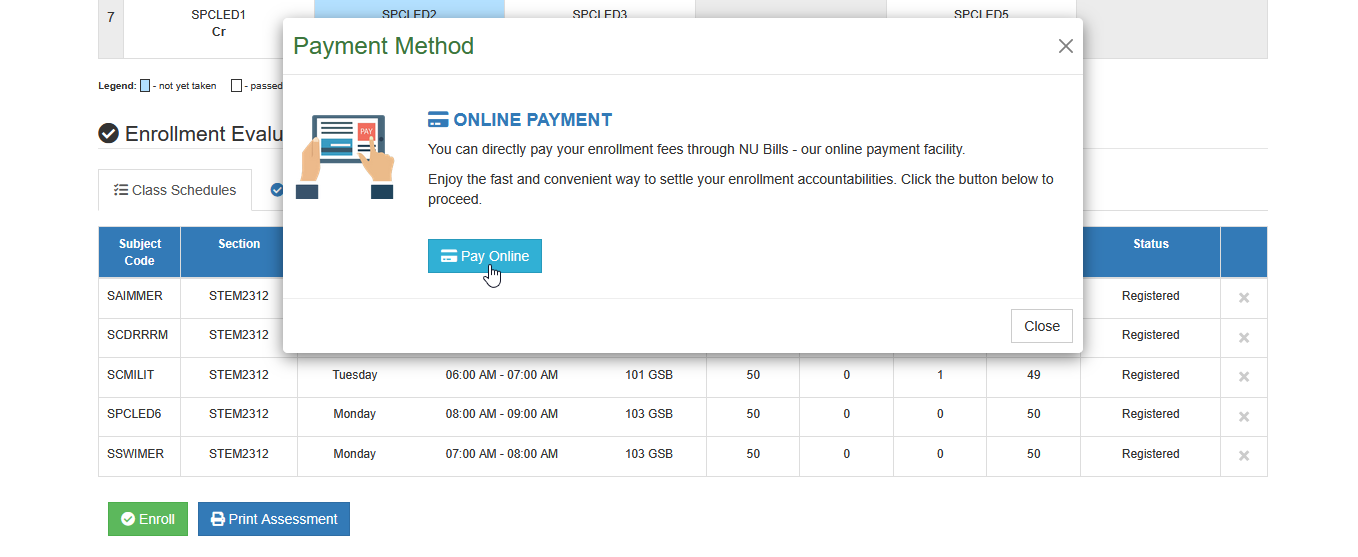
STEP 4. A prompt will appear, displaying the payment method option. Click the button to redirect to NU Bills portal.
How to Pay Online
If the student, guardian or the employee selected the online payment method. Follow the simple guide to pay matriculation online.
STEP 1. Login to NU Bills portal using the credentials required for each account type.
| Account Type | Credentials |
|---|---|
| Student | NU student account (microsoft credentials) |
| Employee | NU employee account (microsoft credentials) |
| Applicant | NU Quest account credentials |
| Guest | NU Bills Account credentials |
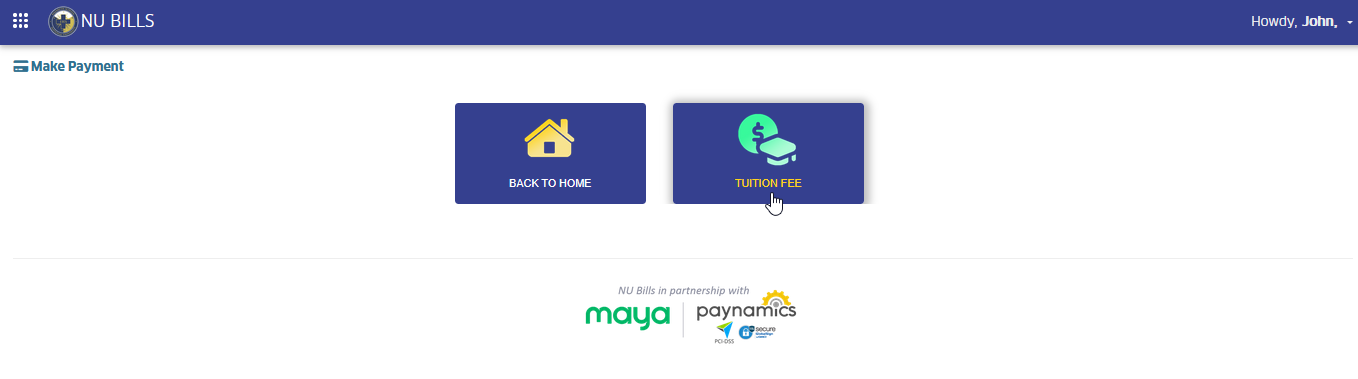
STEP 2. In NU BILLS portal, go to PAY > TUITION FEE. The page will redirect to Pay Enrollment Fees page.
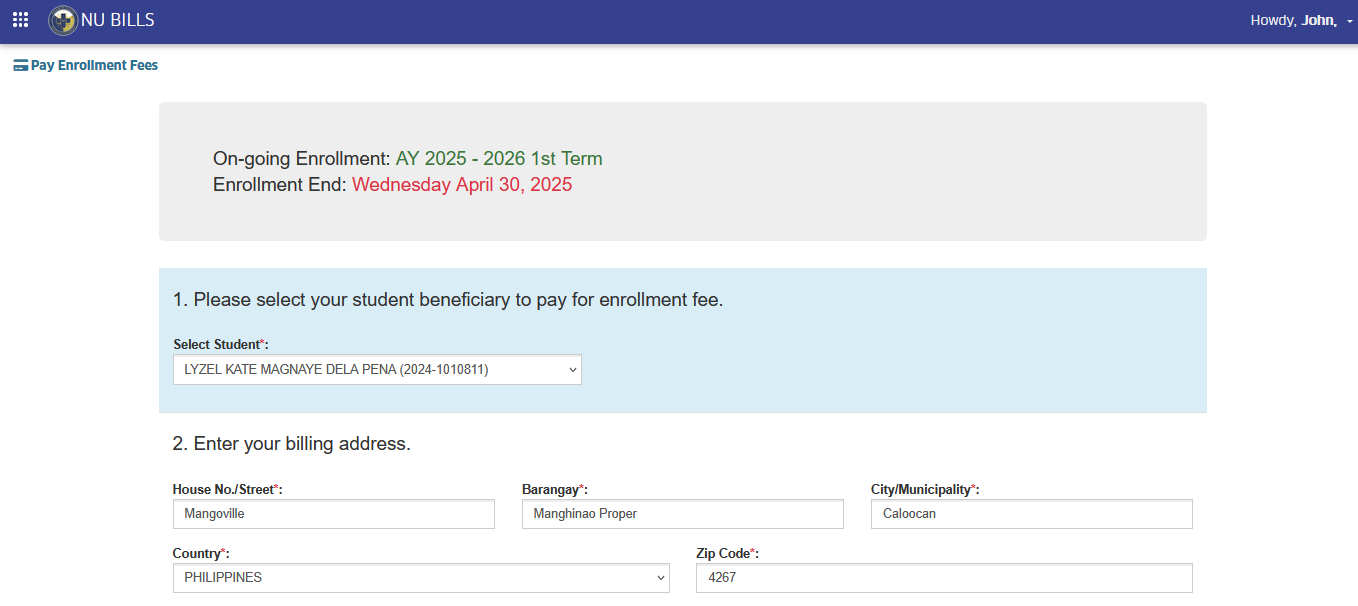
STEP 3. On the Pay Enrollment Fees page, the student’s name should be entered in the student selection field, and the billing address should be provided. Ensure all required fields are filled out.
STEP 4. Select payment option. Choose from the available payment option during enrollment period.
Auto-Enroll: Full Matriculation Payment
-
This payment option is only available during enrollment period.
-
Cash payment discount is automatically deducted from the total fees if payment is made on or before Cash Payment Due Date.
-
User cannot modify the amount.
Auto-Enroll: Installment Payment
-
This payment option is only available during enrollment period.
-
User cannot modify the down payment amount set by the Treasury Office.
Balance Payment
- User can enter his/her preferred amount.
STEP 5. Confirm the selected payment option. Click the button and proceed to payment. Agree to Terms and Conditions by clicking the button.
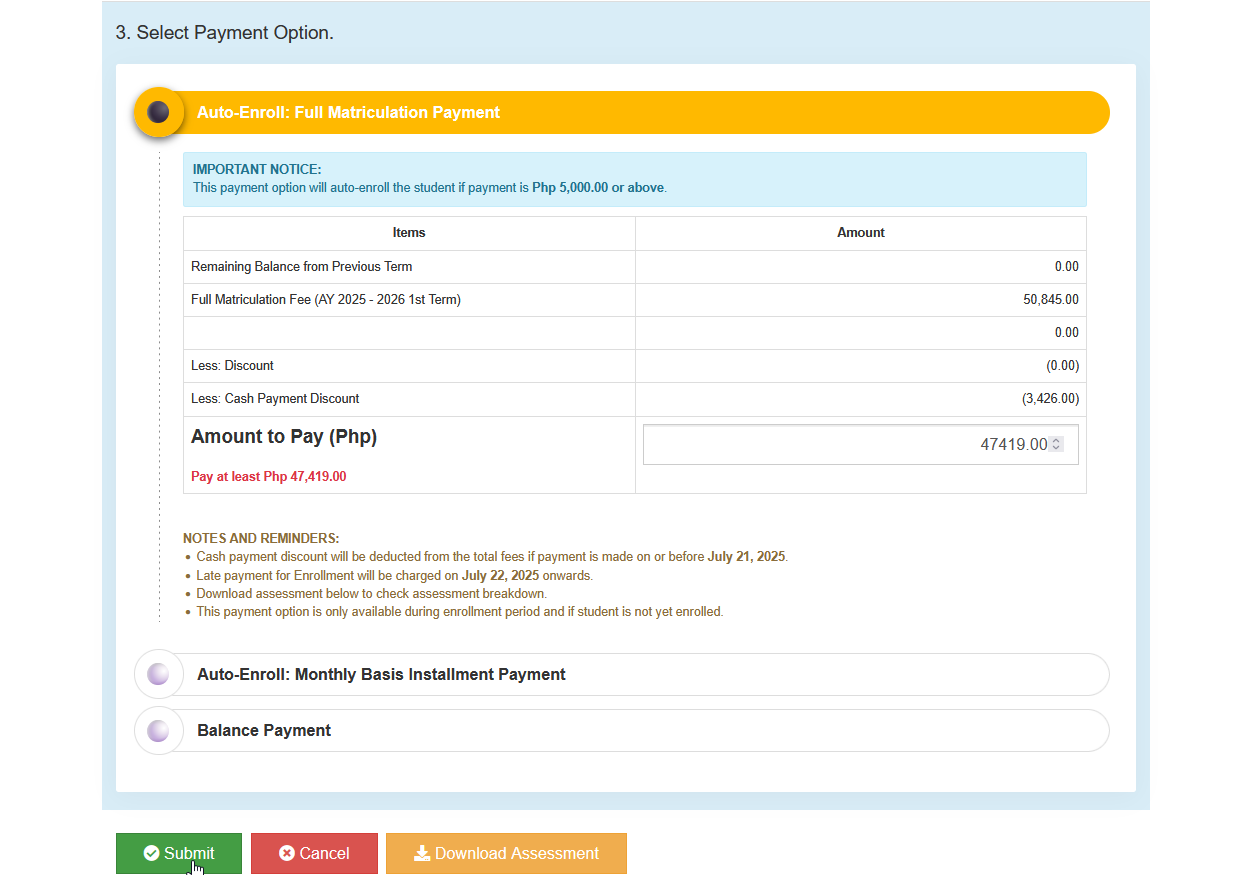
User may download a copy of the assessment by clicking the button.
STEP 6. Make payment using the preferred payment channels availble in payment gateways.
Frequently Asked Questions
Refer to the School Academic Calendar for the schedule of Enrollment period. Or, you may coordinate with your Registrar's Office.
During Enrollment period, students are given the chance to finalize their class schedules for enrollment. They are still allowed to add or remove classes which had been pre-registered during Online Class Registration.
If you are already enrolled and wish to revise your class schedule, please coordinate with the Registrar's office on your campus for a load revision
For more questions or concerns, email us at nuis@national-u.edu.ph