Create an account
Create an account to submit your National University admission application.
How to create quest account?
Follow the steps below on how to create a quest account.
-
In your browser, type in this URL. onlineapp.national-u.edu.ph you will be redirected in National University Onlineapp main page.
-
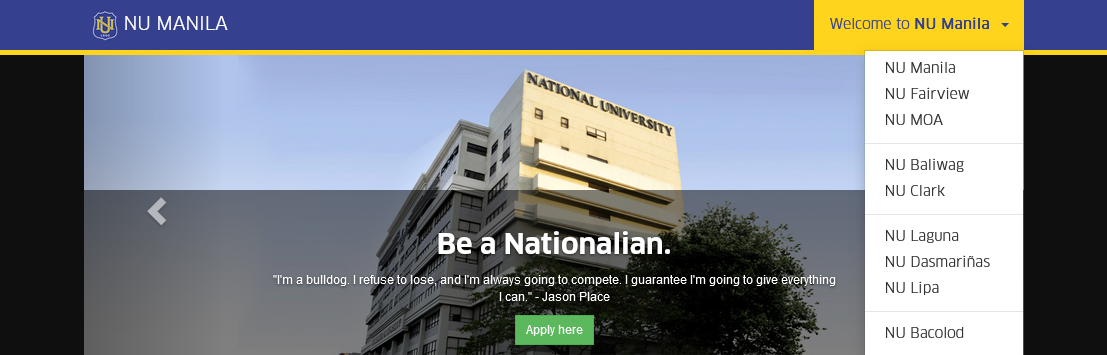
In onlineapp main page, select your preferred campus by clicking the dropdown list of National University campuses.
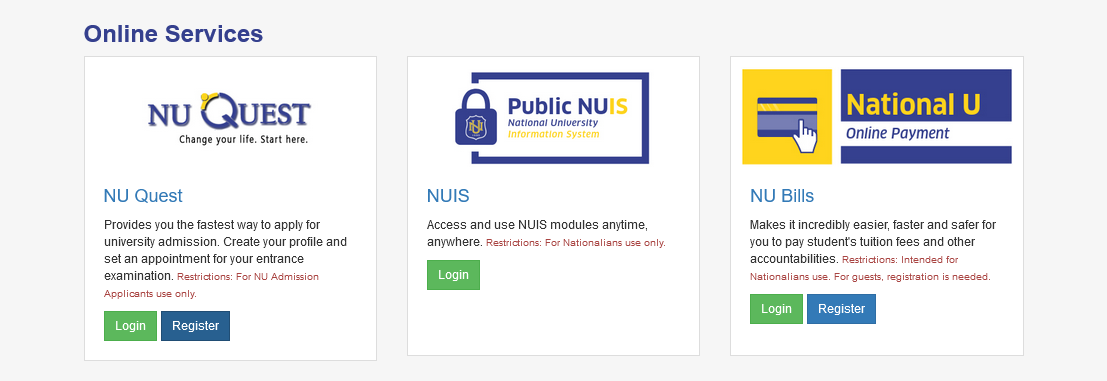
- Once you are already in your preferred campus onlineapp, click the button under NU Quest. You will be redirected to NU Quest Online Application registration page.
Online Application Registration page fields.
| Field | Description | Required |
|---|---|---|
| Campus | The applicants preferred NU campus. | Yes |
| Academic Year | Academic Year | Yes |
| Academic Term | Academic Term the applicant wants to apply. | Yes |
| Applying For | The applicants entry level. Select from the choices on the dropdown list. | Yes |
| Academic Program | The applicants preferred program you want to take. Select from the dropdown list of program offering. | Yes |
| First Name | The applicants First Name. | Yes |
| Middle Name | The applicants Middle Name. Leave it blank if not applicable. | No |
| Last Name | The applicants Last name. | Yes |
| Date of Birth | The applicants date of birth | Yes |
| Email Address | Personal email address. this will be the recipient of the activation link to use the NU Quest account. | Yes |
- Provide your correct and complete information in the required fields. Agree to Data Privacy Agreement by clicking the checkbox, and click the button to submit the registration.
Success
NU Quest online application has been succesfully submitted. The verification/activation link will be sent to the applicants registered personal email address.
NOTE: Verification link has three (3) days validity.
- Activate the account by clicking the button in the email that the applicant will receive.
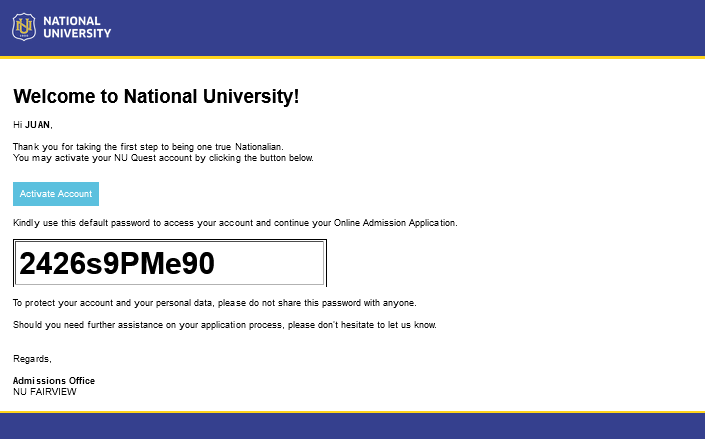
- After activation, proceed to Login and answer the initial survey.