Evaluate Student Level
The Evaluate Student Level module is used by Registrar Personnel to promote students to their next academic level. This feature helps keep student records updated and ensures that students are tagged correctly for enrollment in the upcoming term.
Required Permissions
-
View xrefStudentLevel - Allows the user to access the module and view student level records.
-
Add xrefStudentLevel - Allows the user to promote students to the next academic level and save the changes in the system.
-
Delete xrefStudentLevel - Allows the user to remove or undo a student level record if necessary (e.g., when a promotion was done by mistake).
How to Access the Module
To access the module, make sure you have the View xrefStudentLevel permission. If it doesn’t appear in your portal, request access from your System Administrator.
In NUIS-SHS portal, go to Registrar > Evaluation Tools > Evaluate Student Level. Click the module tab to redirect to the Student Level Evaluation list view page.
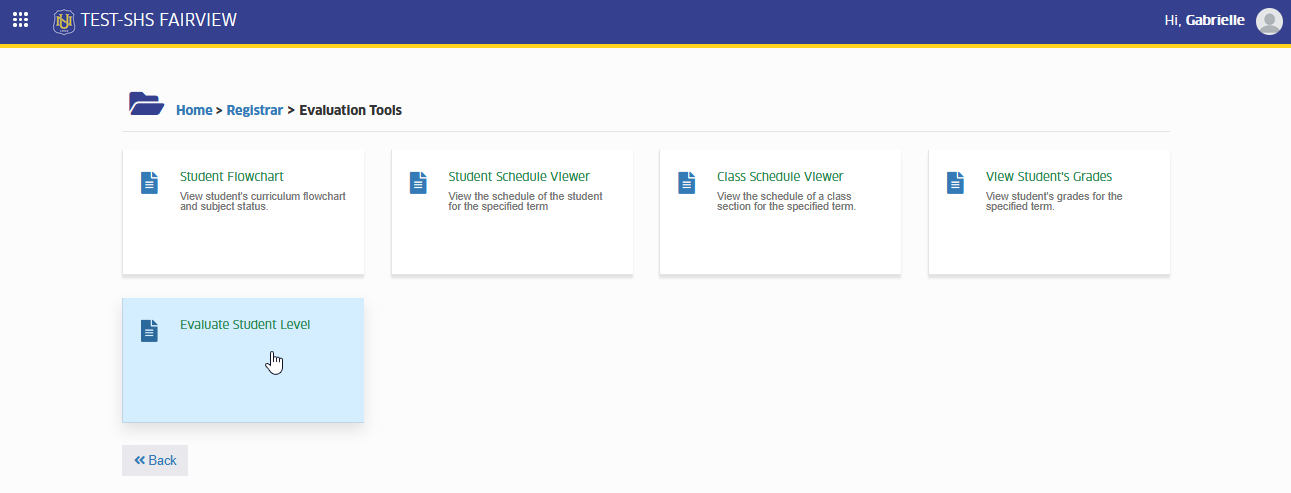
How to Promote a Student
Follow the steps below to promote a student to the next academic level.
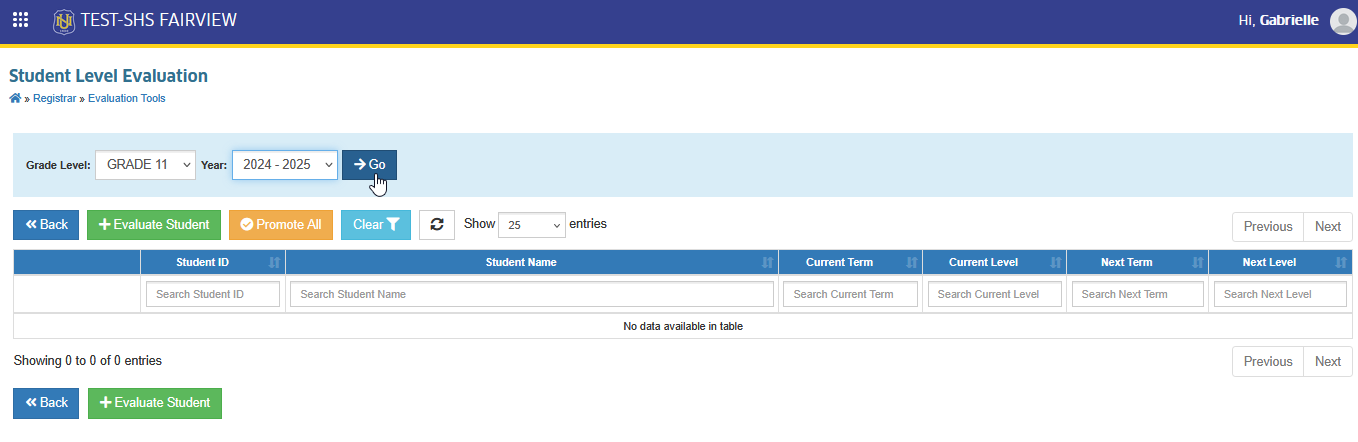
STEP 1. On the Student Level Evaluation page, select the Grade Level and Year of the students you want to promote, then click button. This will display all students with selected grade level for the specified academic year.
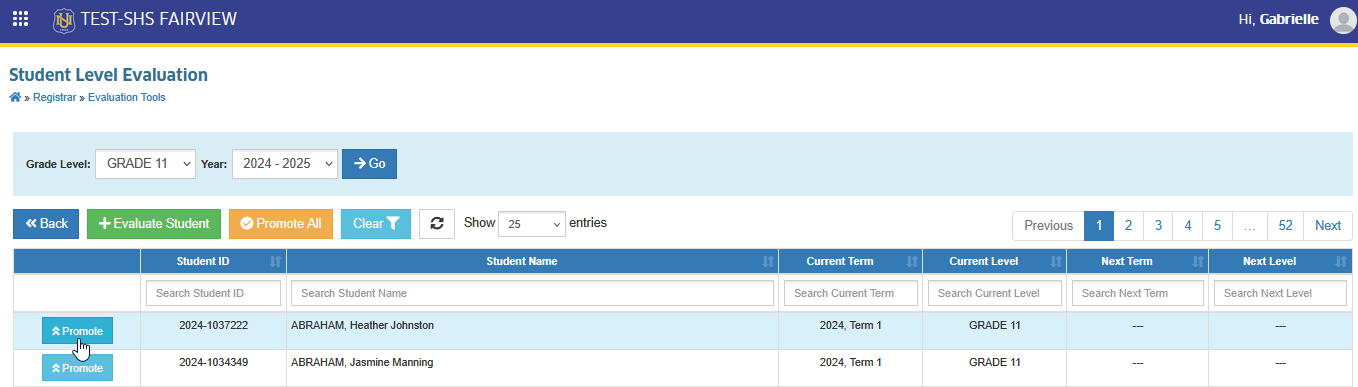
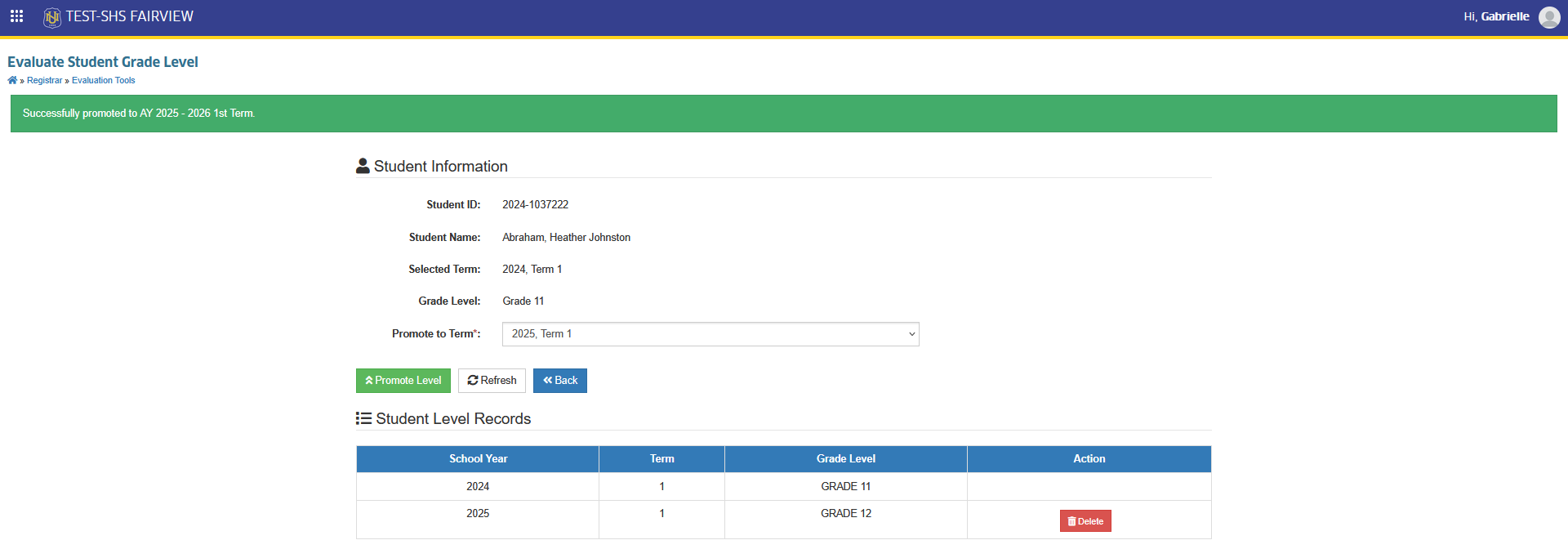
STEP 2. Click the button beside the student you want to promote. You will be redirected to the Evaluate Student Grade Level page.
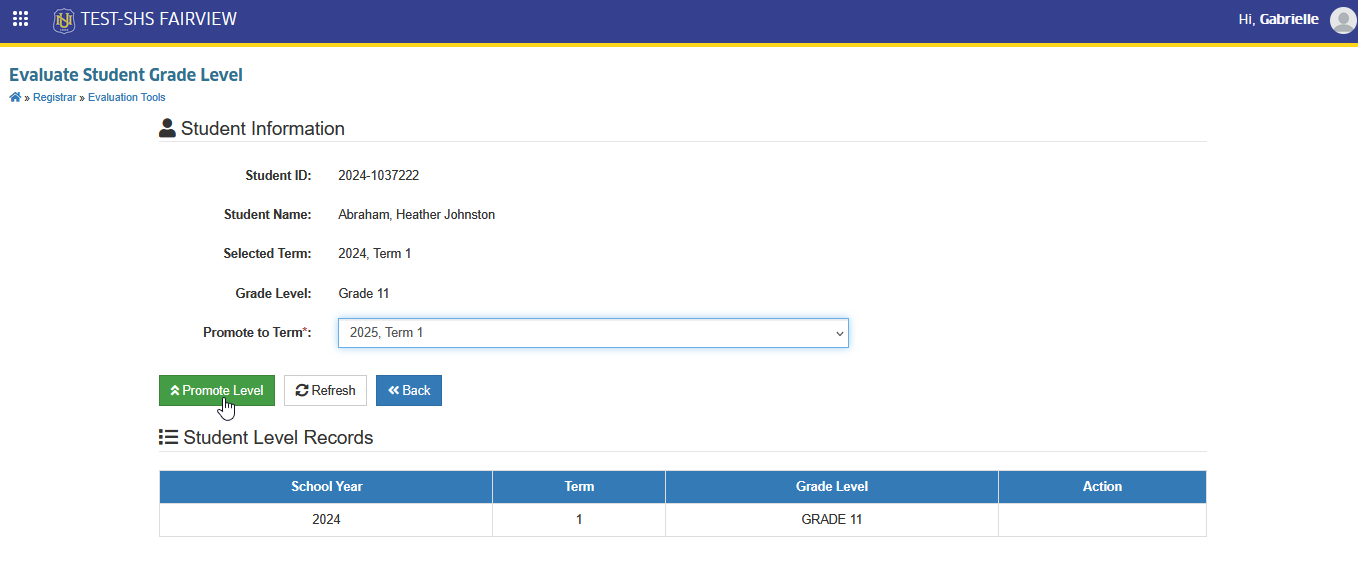
STEP 3. In the Promote to Term dropdown, select the Year and Term, then click the button.
After promoting a student, a system notification will appear confirming the successful promotion to the next academic level for the new academic year.
How to Promote All Students
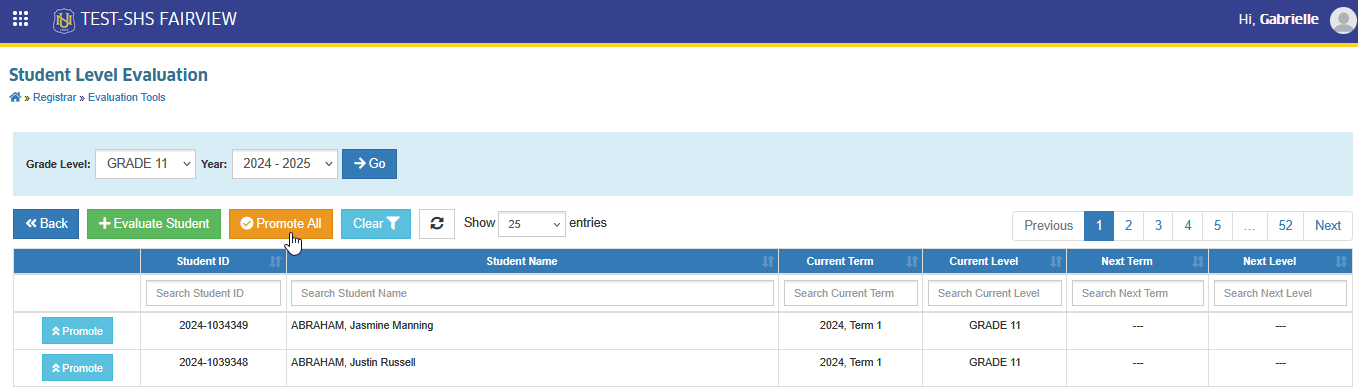
Follow the steps below to promote all students.
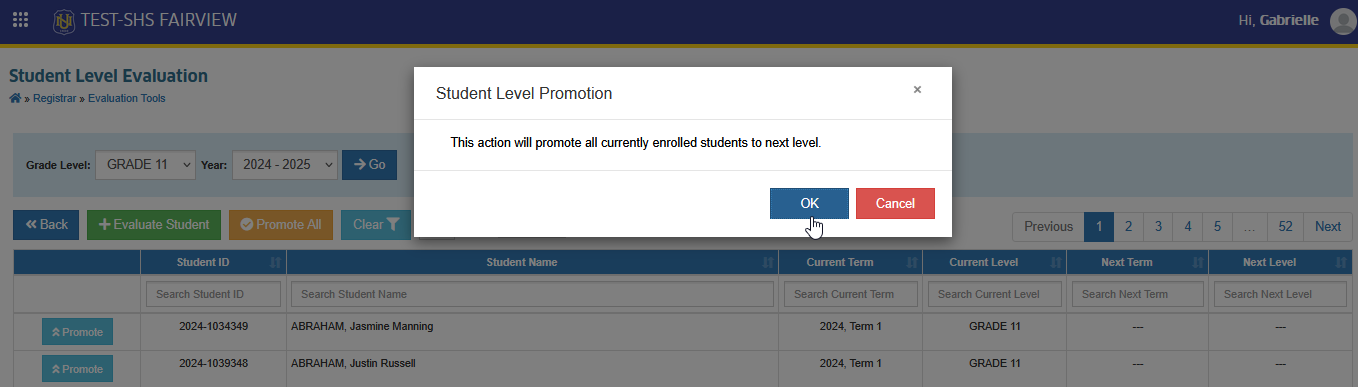
STEP 1. On the Student Level Evaluation page, click the button. A Student Level Promotion confirmation prompt will appear.
STEP 2. Confirm your action by clicking the button.
How to Manually Add Student's Level
Follow the Steps below to add a student level
STEP 1. On the Student Level Evaluation page, click the button. You will be redirected to the Manage Student's Level page.
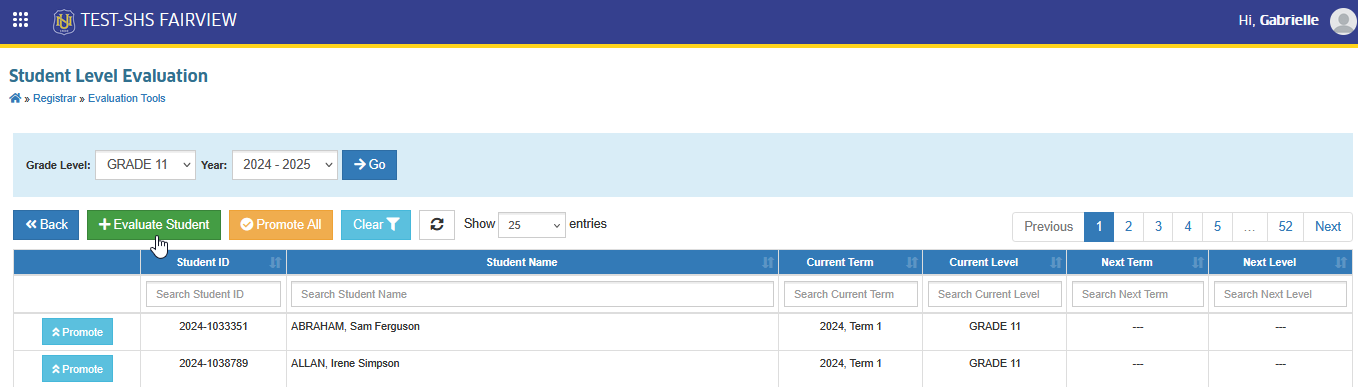
STEP 2. On the Manage Student's Level page, search for the student by entering the student ID.
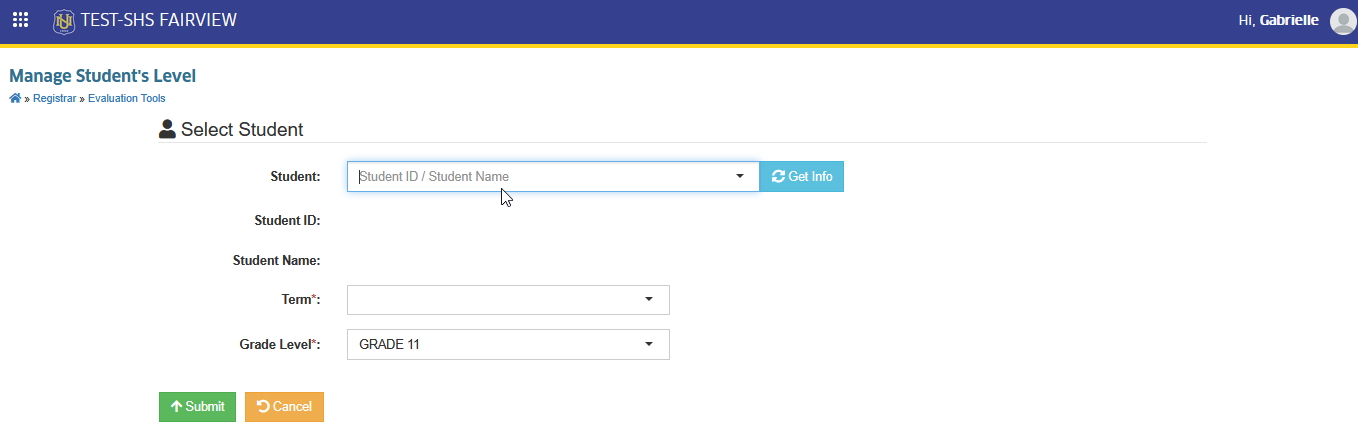
STEP 3. Select the Year and Term you want to add in the Term field.
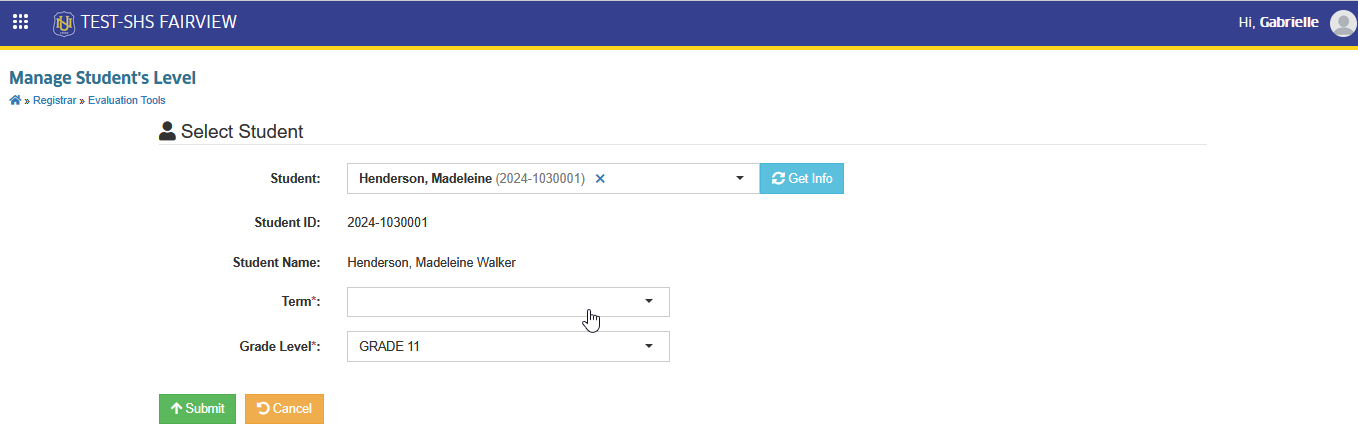
STEP 4. Click the button to save the record.
How to Remove or Delete Student's Year Level
Follow the steps below to remove or delete a student level record.
STEP 1. On the Student Level Evaluation page, click the button. You will be redirected to the Manage Student's Level page.
STEP 2. On the Manage Student's Level page, search for the student by entering the student ID.
STEP 3. In the Student Level Records section page, of the page, click the button beside the record you want to remove.

Once confirmed, the selected student level record will be deleted from the system.
For more questions or concerns, email us at nu-desk@national-u.edu.ph