Payment Channels
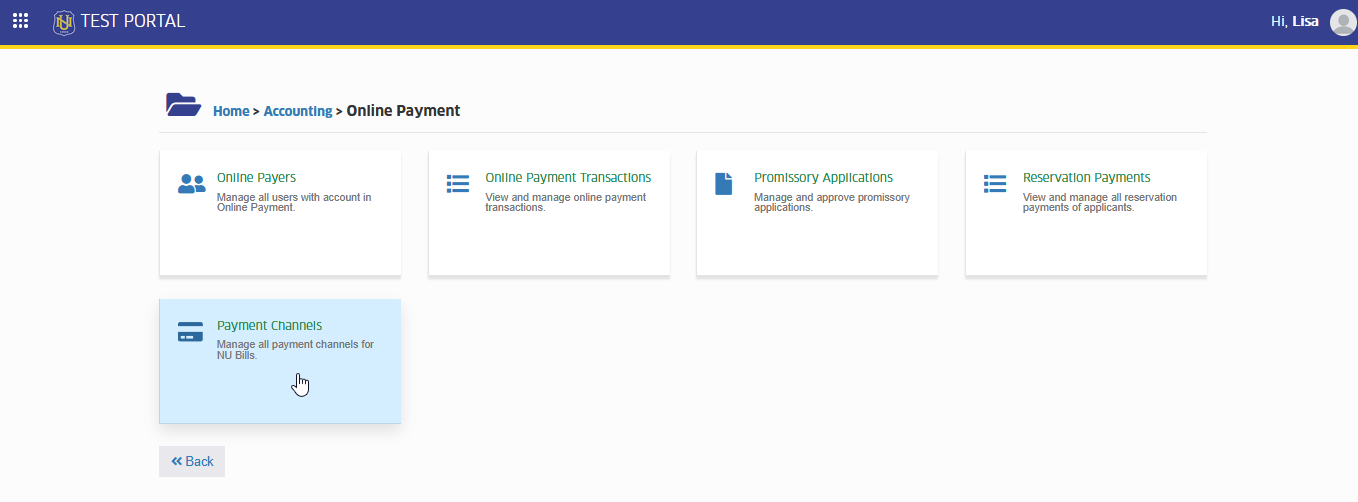
Manage all payment channels for NU Bills.
The Payment Channels module is designed for use by the Treasury Office personnel to manage the payment options available for their campus. Through this module, Treasury Office personnel can enable or disable specific payment channels, such as banks, e-wallets, or over-the-counter services, ensuring that only active and reliable options are available.
Required Permissions
This section details the permissions needed by users to access and perform specific actions within the payment channels module.
-
Add Payment Channels - This permission allows the user to create new payment channels within the system.
-
Delete Payment Channels - This permission allows the user to permanently remove existing payment channels from the system.
-
Edit Payment Channels - This permission allows the user to modify the details and setting of an existing payment channel within the system. It also allows the user to export and download an offline copy of the payment channels record.
-
View Payment Channels - This permission allows the user to view the details and status of existing payment channels within the system.
How to Access the module?
To access the module, make sure you have the View Payment Channels permission. If it doesn’t appear in your portal, request access from your System Administrator.
To access the module go to Accounting > Online Payment > Payment Channels
Click the module tab to redirect to Payment Channels Matrix page.
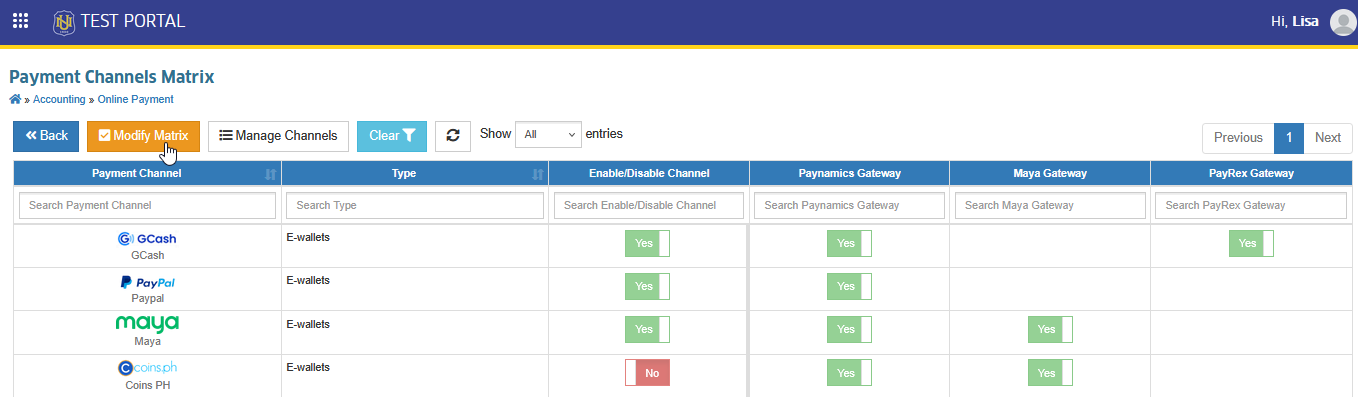
The default Payment Channels Matrix was set by the NUIS Administrator. To add new payment channel for specific payment gateway, kindly request for assistance in NU Desk by emailing the concern to nu-desk@national-u.edu.ph
How to Modify Payment Channel Matrix?
In this section, instruction will be provided on how the Payment Channel Matrix can be modified. This section outlines how the users can enable and disable payment channels and payment gateways.
How to Enable/Disable Payment Channels?
Follow the steps below on how to enable and disable payment channels.
STEP 1. In Payment Channels Matrix listview page, click the button to change the payment channel settings.
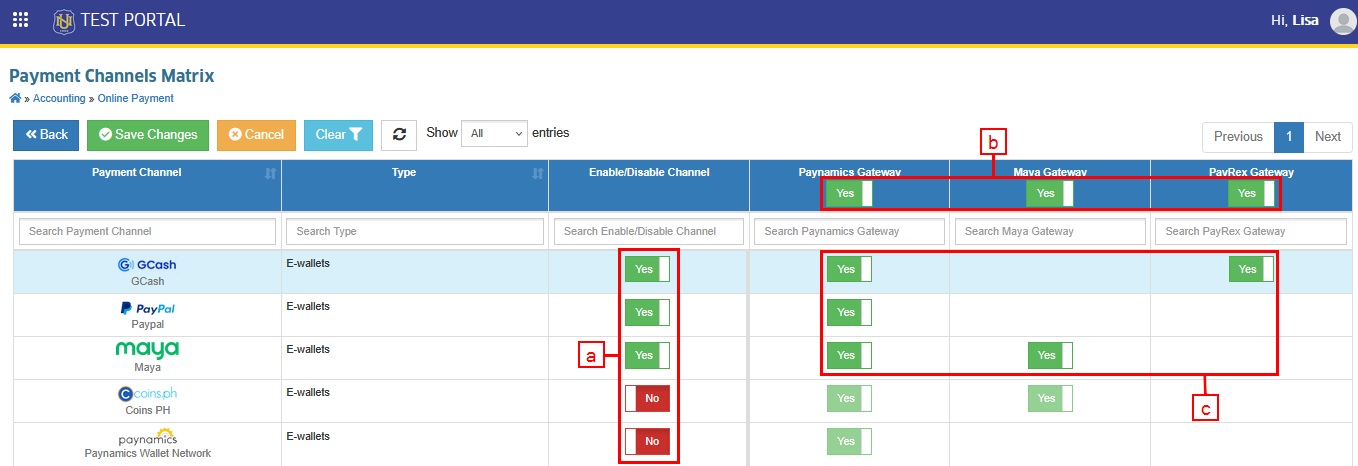
STEP 2. Toggle the checkbox to:
-
a. Enable/Disable payment channels.
-
b. Enable/Disable payment gateways.
-
c. Enable/Disable specific channel in specific payment gateway.
STEP 3. Once done with the modification in the payment channel settings, click the button to save the modified settings.
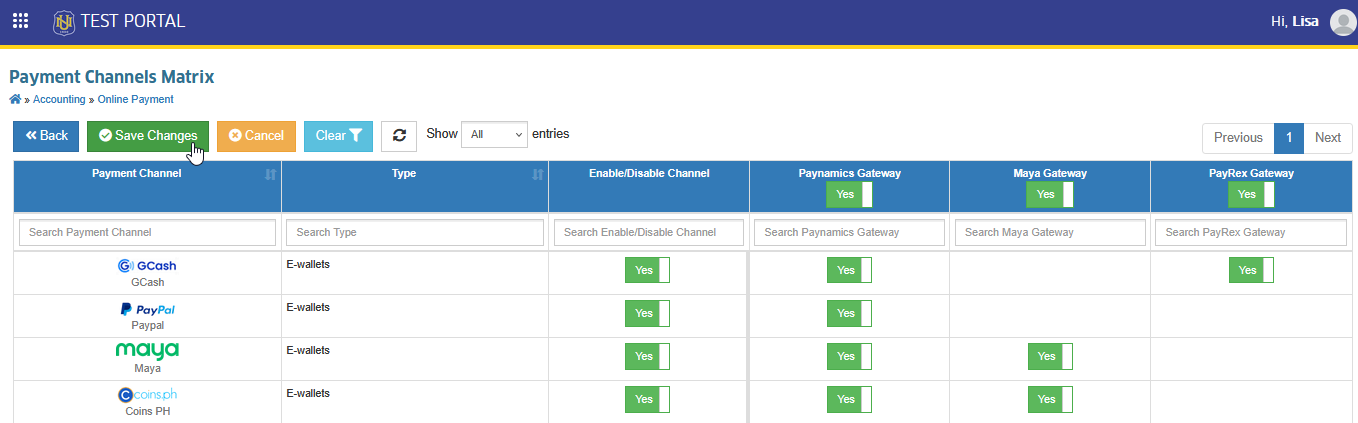
All changes in this module will automatically reflect in NU Bills.
For more questions or concerns, email us at nu-desk@national-u.edu.ph