Faculty Manual
The Faculty Manual module allows authorized personnel to manage faculty manuals in the system. This includes uploading new manuals, editing existing ones, and removing outdated files. Manuals uploaded here can be accessed with specific groups of users who are allowed to view or download them.
Required Permission
Add Faculty Manual - Allows the user to upload new faculty manuals and set which user groups are allowed to view or download them.
Delete Faculty Manual - Allows the user to permanently remove existing faculty manuals from the system.
Edit Faculty Manual - Allows the user to update faculty manual details, replace uploaded files, and modify user group access settings.
View Faculty Manual - Allows the user to view and download faculty manuals assigned to their user group.
Intended Users
-
HR Personnel
-
SQM Personnel
Purpose of the Module
This module is used to:
-
Upload official faculty manuals
-
Update or replace existing manuals
-
Delete manuals that are no longer needed
-
Control which user groups can view or download each manual
How to Access the Module
To access the module, make sure you have the View Faculty Manual permission. If it doesn’t appear in your portal, request access from your System Administrator.
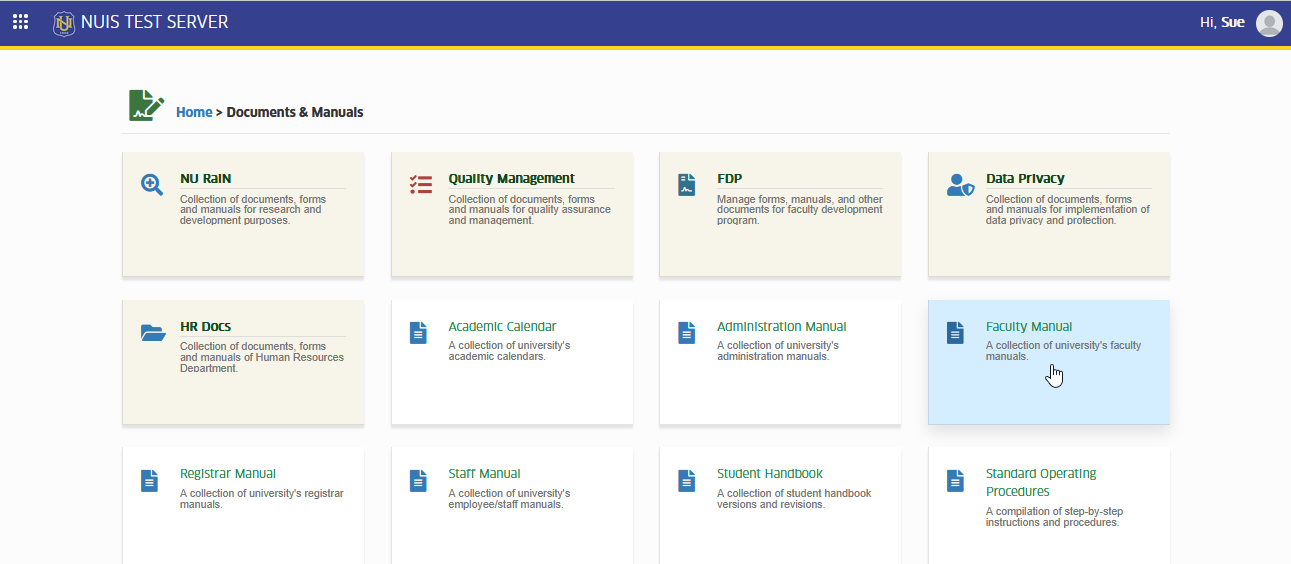
In NUIS portal, go to Documents & Manuals > Faculty Manual. Click the module tab to redirect to the Faculty Manual page.
Managing Faculty Manual
This section explains how authorized users can upload, edit, and delete faculty manuals, as well as manage which user groups are allowed to view or download each manual.
Upload Faculty Manual
Follow the steps below to upload new faculty manual.
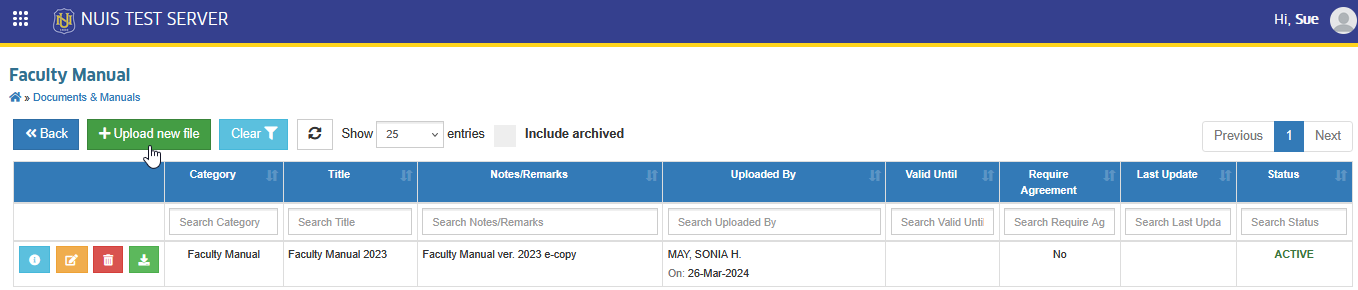
STEP 1. On the Faculty Manual page, locate and click the button. The system will redirect to Upload New Manual page.
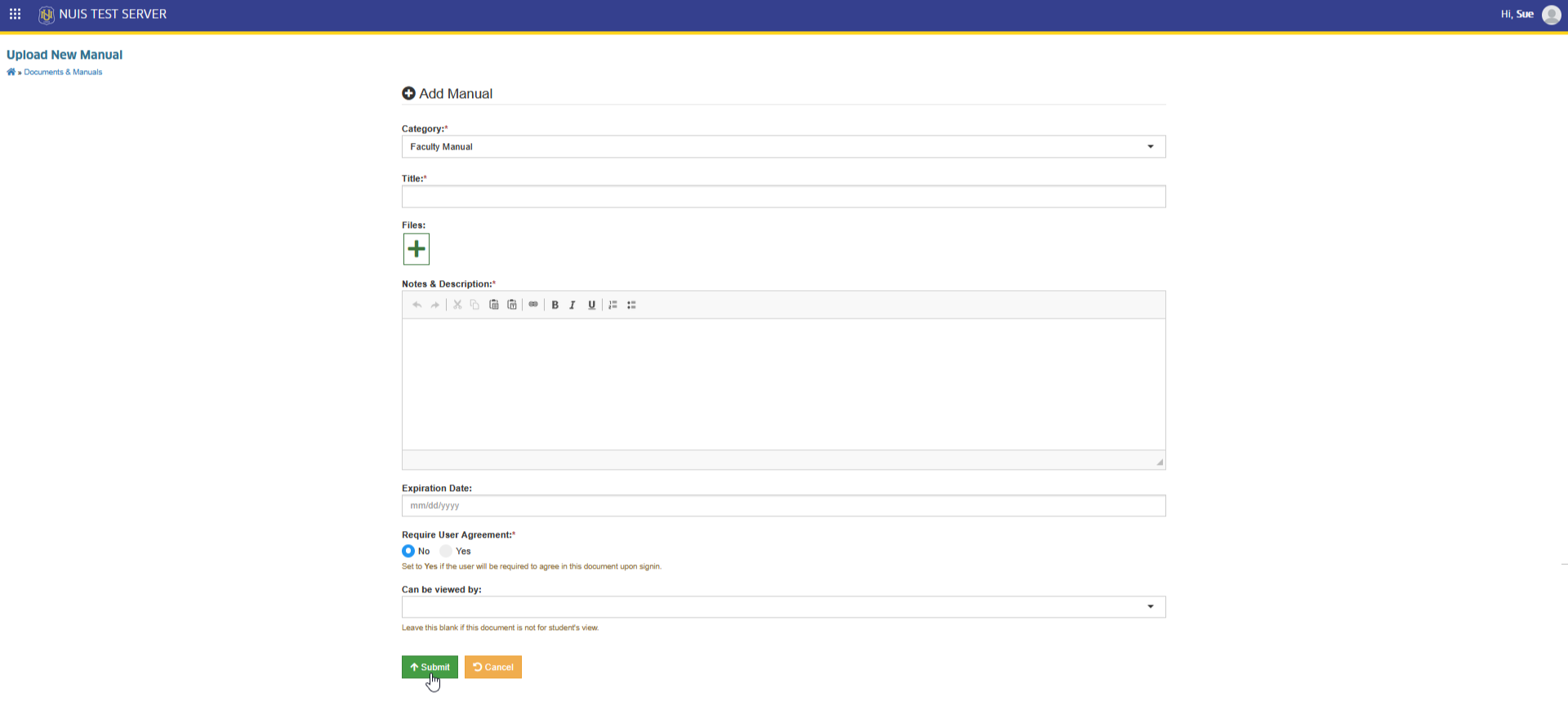
STEP 2. In Upload New Manual page, fill out the required fields:
| Field Name | Description |
|---|---|
| Title | Enter the official name of the faculty manual. |
| Files | Browse your device and select the file you want to upload as the faculty manual |
| Notes & Description | Provide a brief description or important notes about the manual to help users understand its purpose or contents |
| Expiration Date | Set the date when the manual expire. |
| Require User Agreement | Select Yes if users are required to agree to the document before viewing or downloading it. Select No if no agreement is needed. |
| Can Be Viewed By | Select which student group (s) are allowed to view document. Leave this blank if the document is not intended for student access |
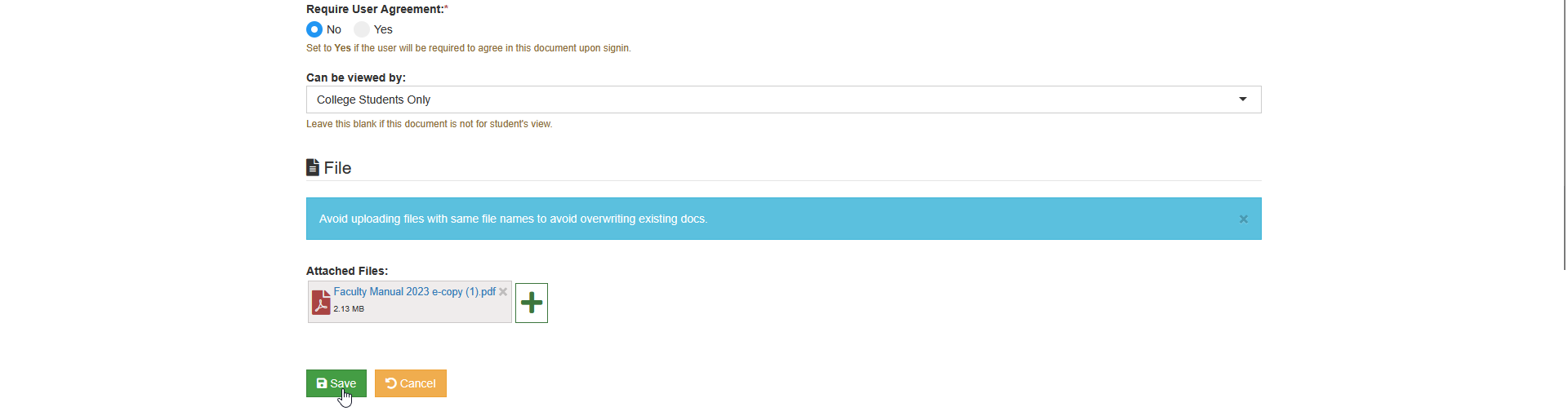
STEP 3. Click the button to save the record.
Edit Faculty Manual
Follow the steps below to edit faculty manual
STEP 1. Locate the manual you want to update.
STEP 2. Click the button of the record you want to modify. The system will redirect to Edit Faculty Manual page.

STEP 3. On the Edit Faculty Manual page, update the manual details, file, or allowed user groups as needed.
STEP 4. Click the button to save changes.
Delete Faculty Manual
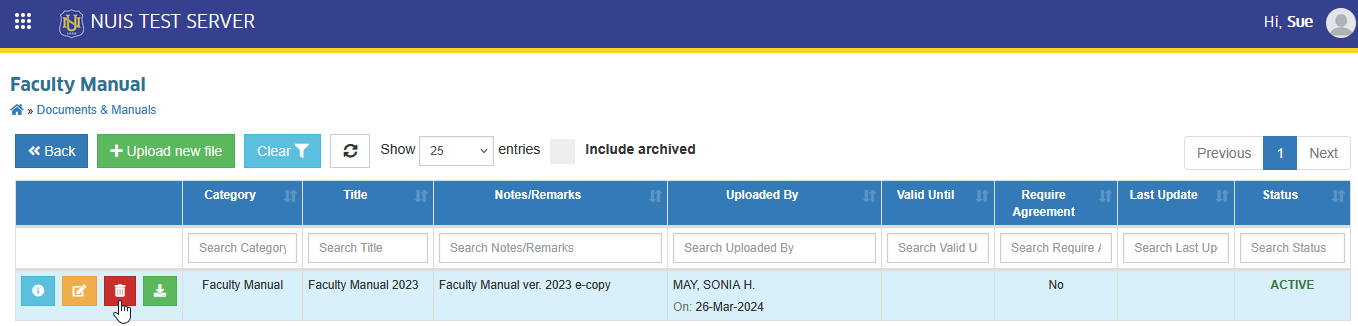
Follow the steps below to delete faculty manual record.
STEP 1. Locate the manual you want to remove.
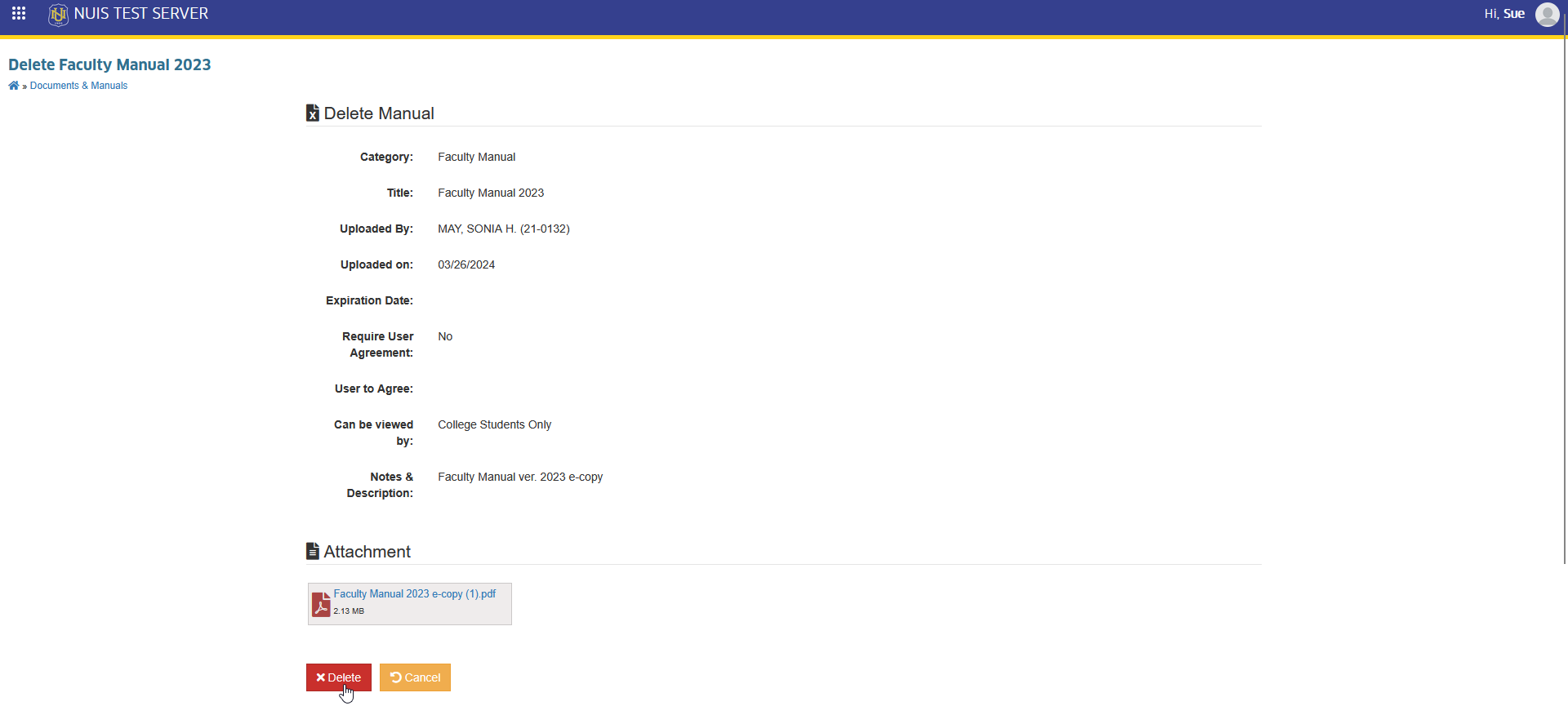
STEP 2. Click the button of the record you want to remove. The system will redirect to Delete Faculty Manual page.
STEP 3. On the Delete Faculty Manual page, confirm the removal of record by clicking the button.
For more questions or concerns, email us at nu-desk@national-u.edu.ph