Approval of OB & Leave Applications
Manage all leave applications filed by employees under supervision.
Approval of OB & Leaves are assigned to immediate superior only.
Review of OB & Leaves is not necessary.
To revoke the approve leave application, coordinate with the campus HR personnel.
Required Permissions
-
Approval of Leave Applications - This permission allow the user to view the module and approve leave applications of the users subordinate.
-
Review of Leave Applications - This permission allows the user to undo the approved leave application.
How to access the module?
To access the module, make sure you have the Approval of OB & Leave Applications permission. If it doesn’t appear in your portal, request access from your System Administrator.
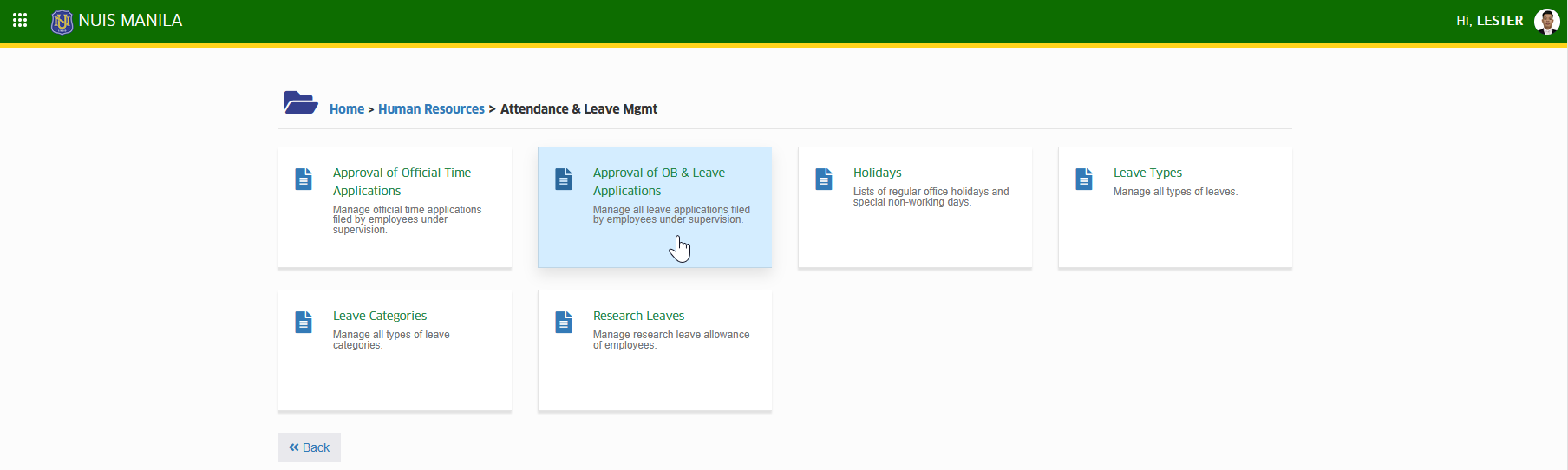
To access the module go to Human Resources > Attendance & Leave Mgmt > Approval of OB & Leave Applications
Click the module tab to redirect to Approval: OB & Leave Applications page.
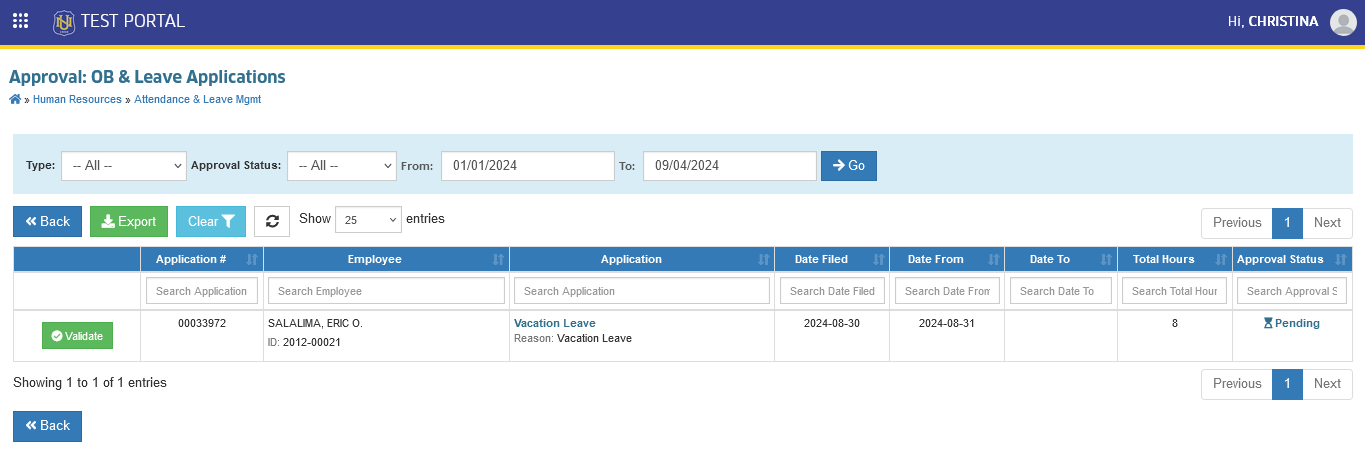
How to approve leave applications?
Follow the steps below on how to approve leave applications in NUIS.
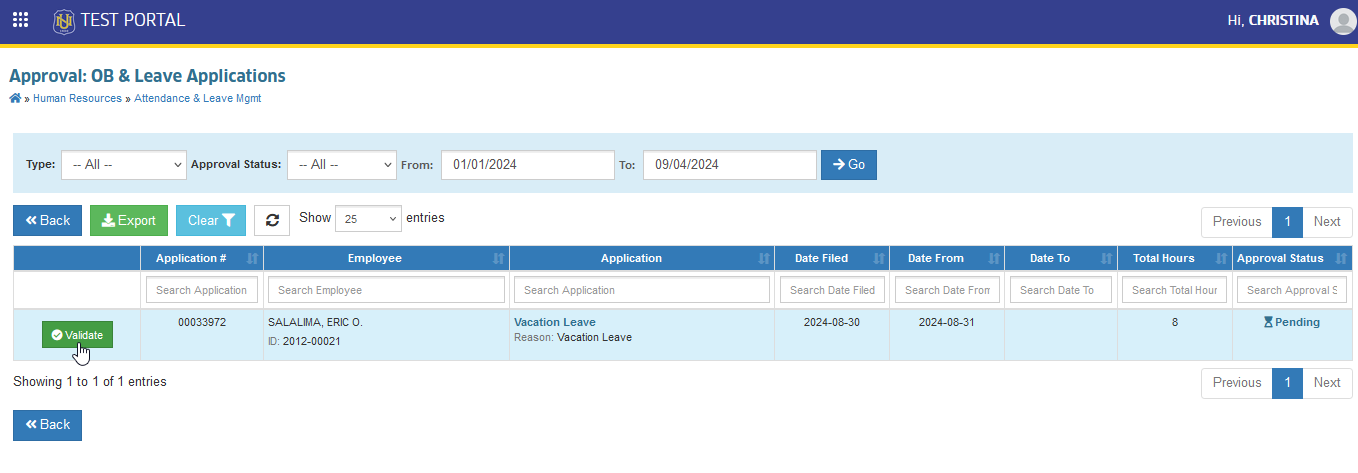
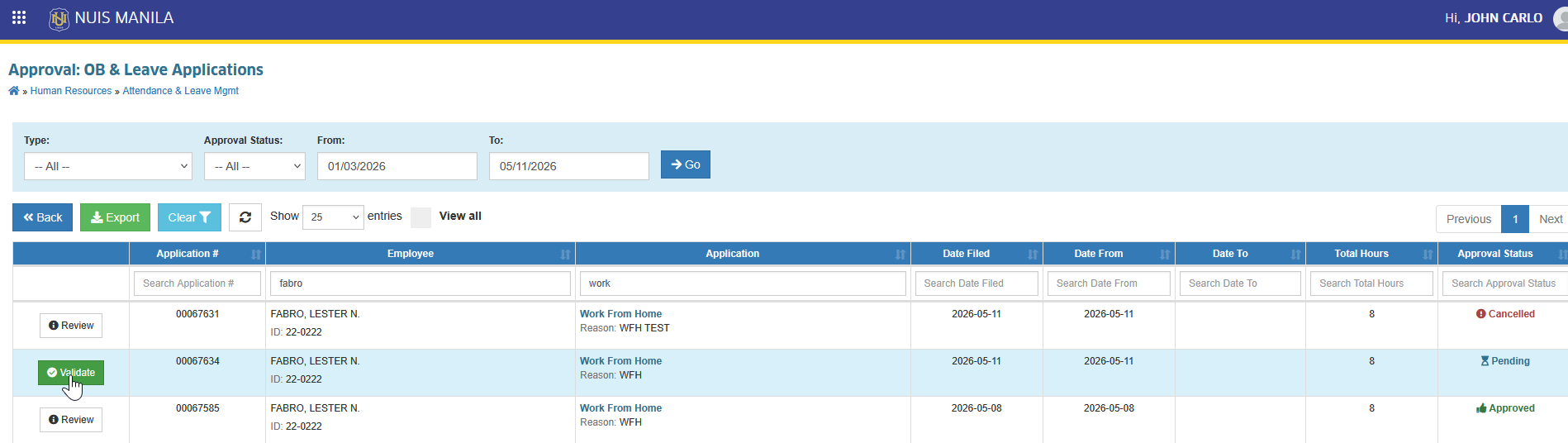
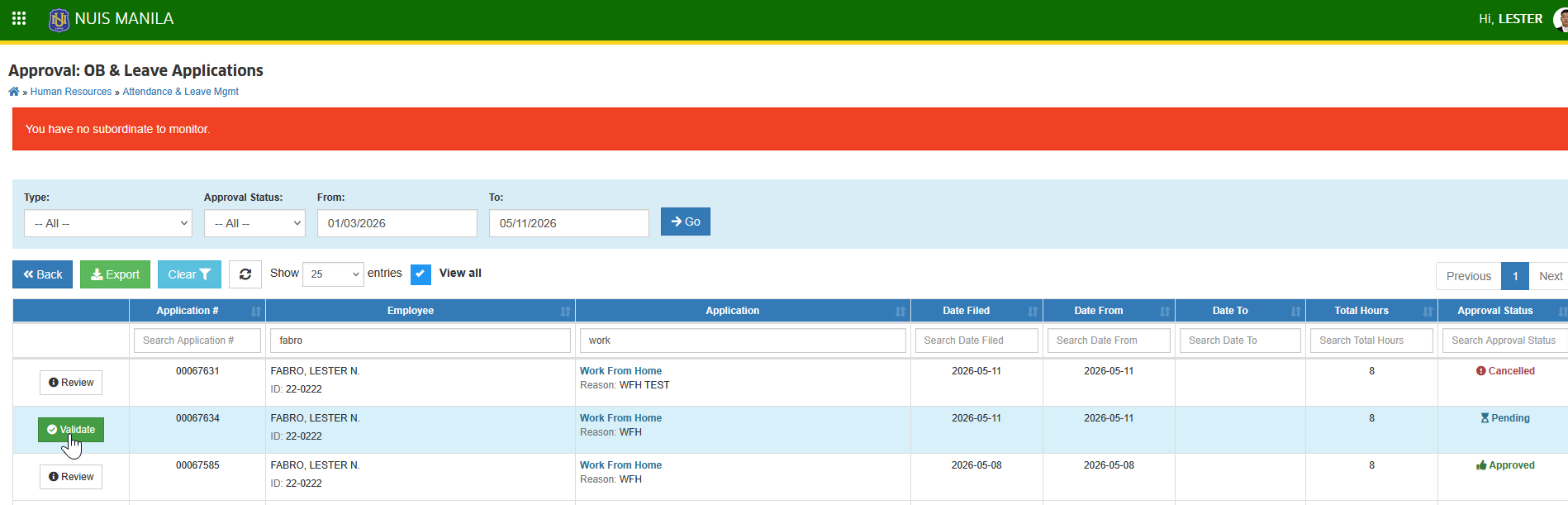
STEP 1. In Approval: OB & Leave Applications page, all leave applications of the user's subordinate will be displayed. Click the corresponding button to validate the application.
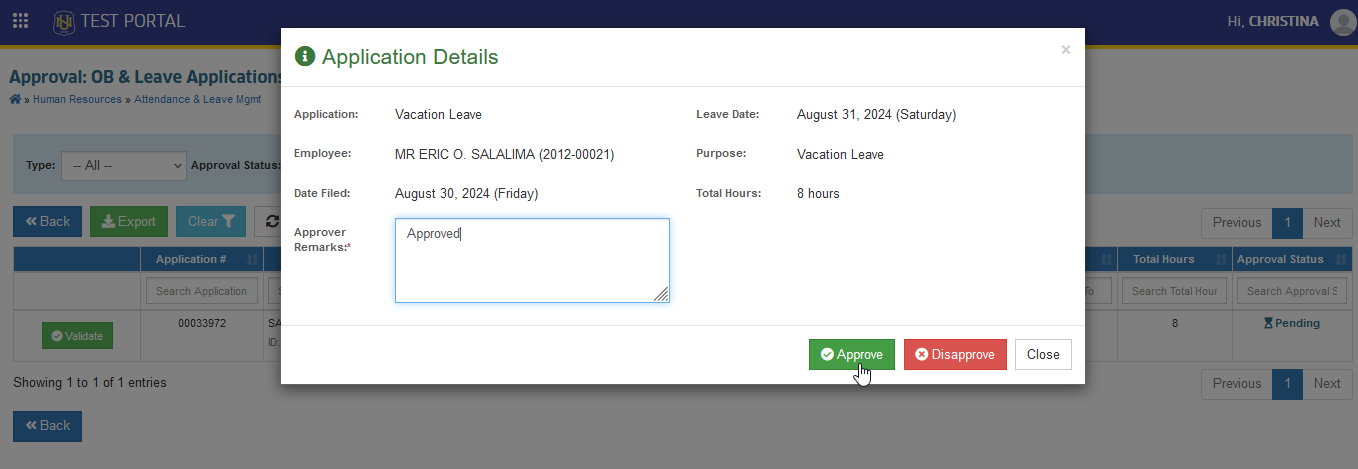
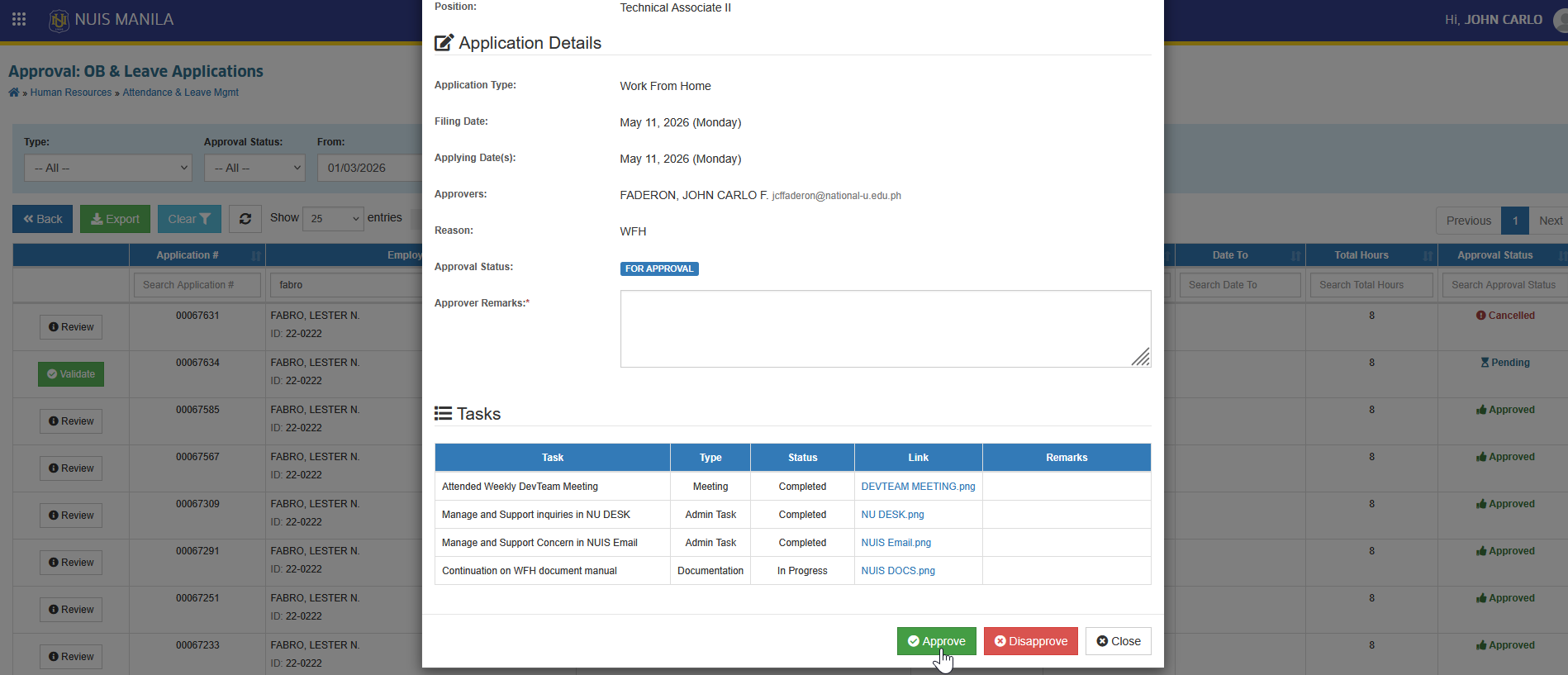
STEP 2. Approve the leave application by providing the Appovers remarks and by clicking the button in the Application Details prompt.
Once the application has been approve, this will send an email notification to the applicant.
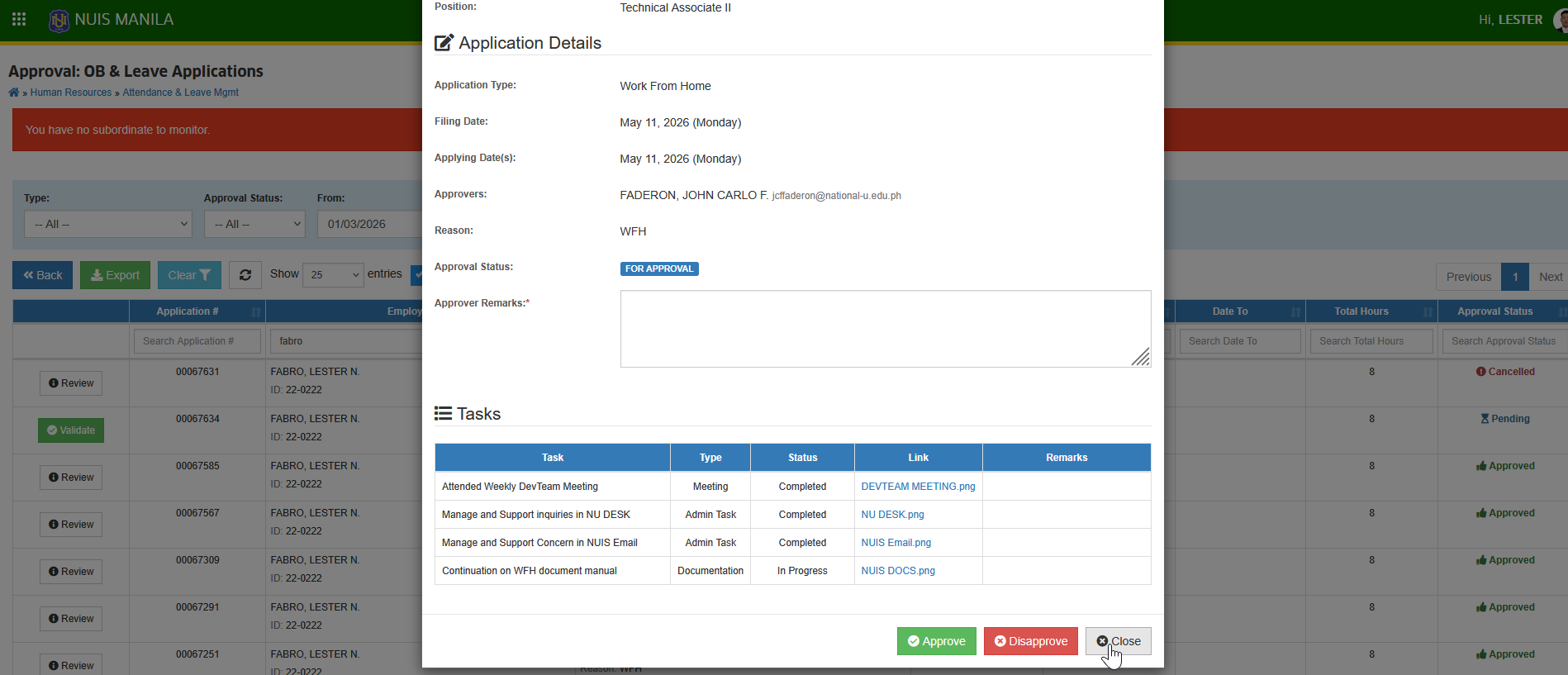
How to Approve WFH Applications
Step-by-step guide for approvers to review, validate, and process submitted Work From Home (WFH) leave applications.
STEP 1. Go to Human Resource > Attendance & Leave Mgmt > Approval of OB & Leave Application
STEP 2. Locate the WFH leave application you want to review, then click the corresponding button.
STEP 3. Review the application details, including submitted tasks and attachment. You may click the attachment links to view supporting documents. Enter your remarks and click the button.
How to Revoke Approved Application
There may be instances where an approved application needs to be revoked due to errors, changes in dates of leaves, or other reasons. This guide oultines the process of canceling the approved leave.
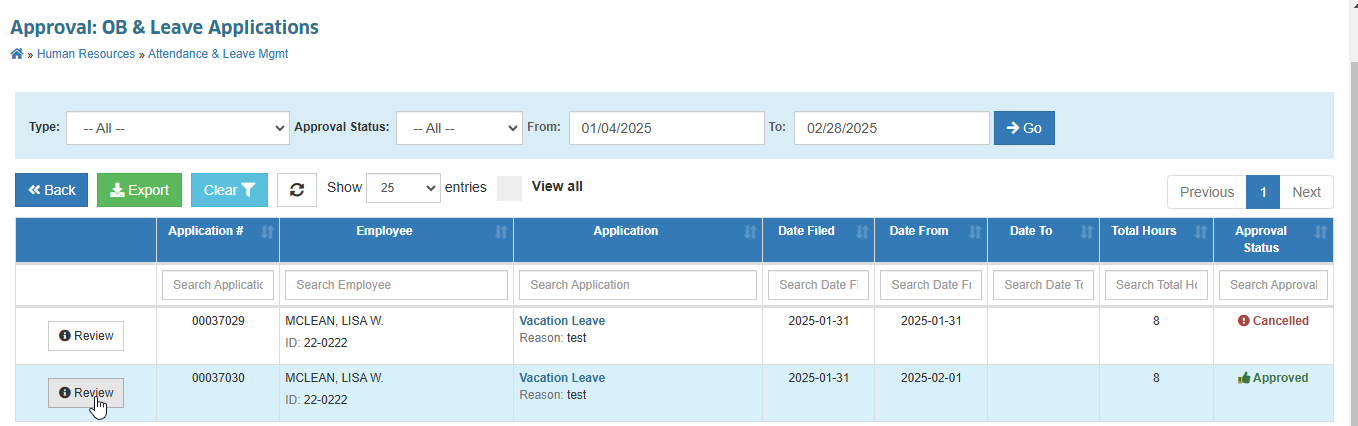
STEP 1. Locate the Approved Application. In OB & Leave Applications page, look for the approve application that will be revoked.
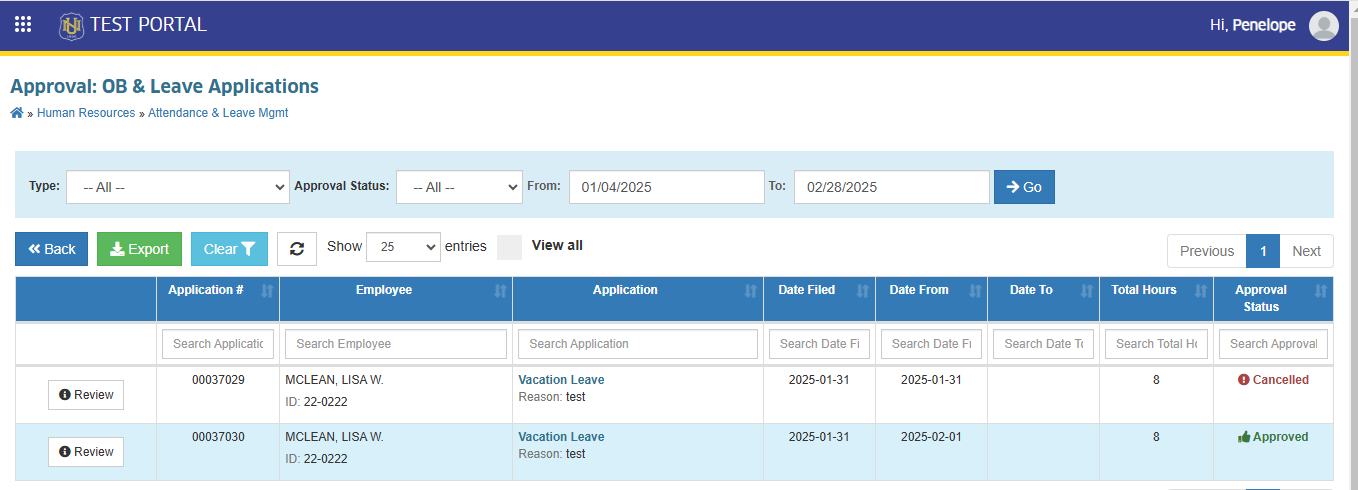
STEP 2. Click the corresponding button of the application that will revoked.
STEP 3. The Application Details window will pop-up. Locate and click the button and confirm the action to cancel the approved leave application.
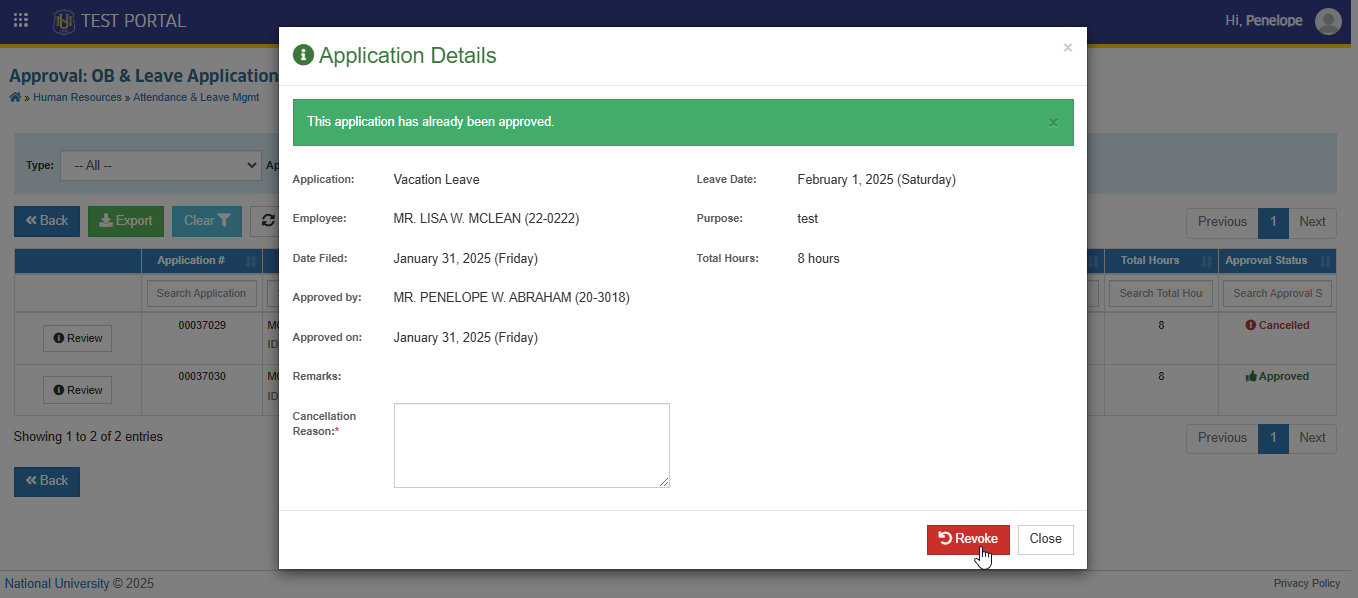
Cancellation Reason must be indicated to proceed with the cancellation of approved leave.
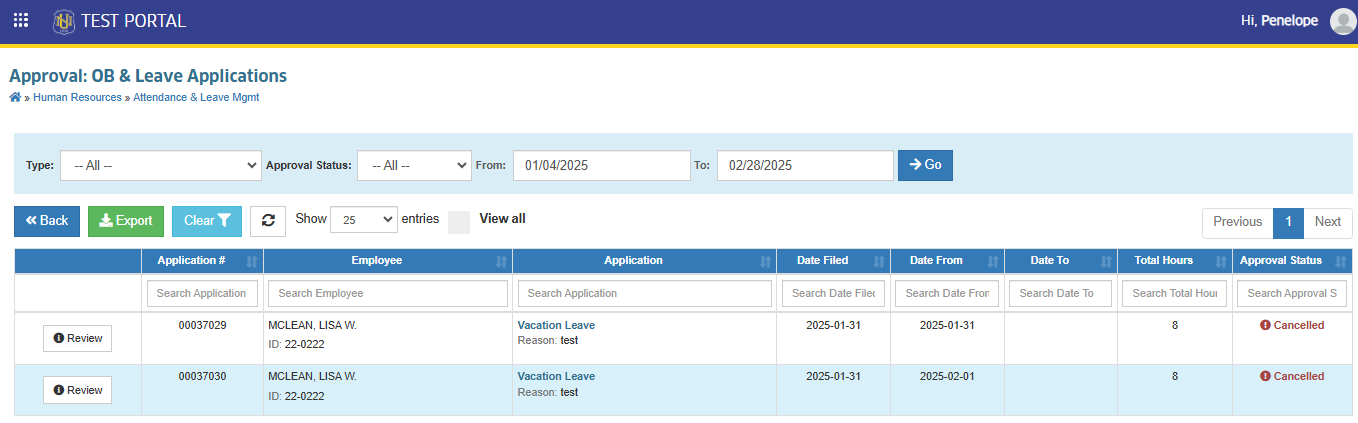
STEP 4. After the previous action, the page will redirect to OB & Leave Applications module, The revoked application will now have the Cancelled approval status. This is the indication that the process is already completed. Leave credits that was used by the specific application will be added back to available leave credit of the employee.
HR Monitoring
Step-by-step guide for HR personnel to monitor, review, and manage submitted Work From Home (WFH) leave applications for tracking, compliance, and reporting purposes.
STEP 1. Go to Human Resource > Attendance & Leave Mgmt > Approval of OB & Leave Application
STEP 2. In the Approval: OB & Leave Applications page, enable the View All to display all leave applications.
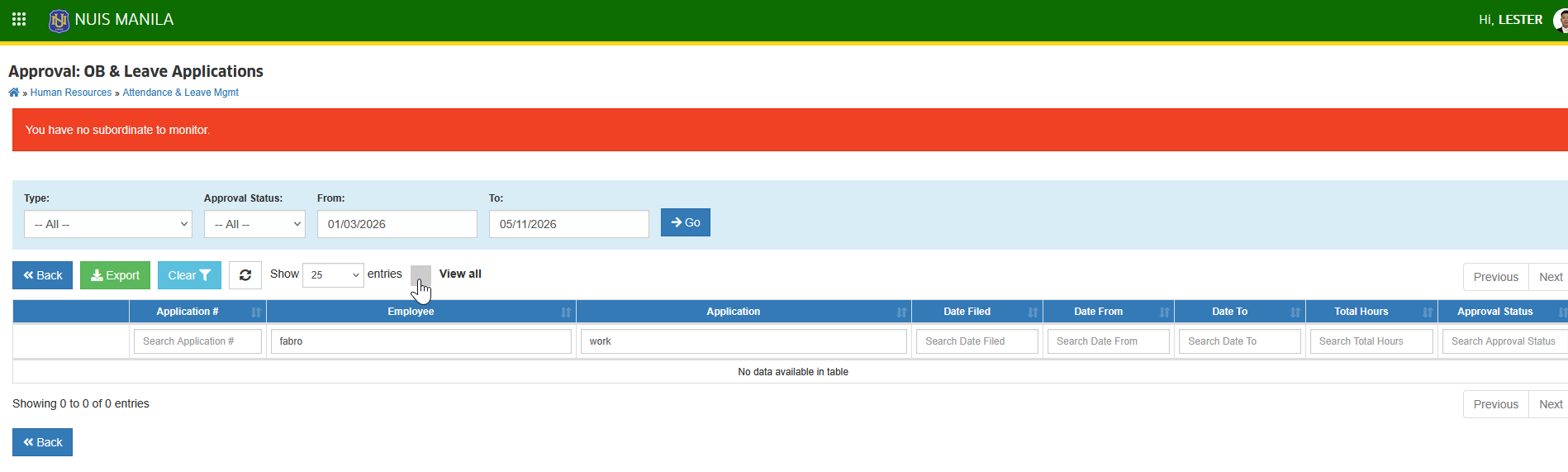
STEP 3. For easier searching, use the filtering feature to quickly locate employees' WFH leave application. Click the corresponding button to view application details, including the WFH Output attachments for verification.
STEP 4. Review all application details, including the WFH file attachments and supporting documents. After reviewing, click the button to exit the details view.