Departments
The Departments module is used by Human Resource Personnel(HR) to manage and keep a record of all departments in the university—both academic and administrative.
This is where HR can also set official department email address for system notifications, view department members, assign Unit Heads, and assign Program Chairs (for academic departments).
Required Permissions
-
Add Department - Allows the user to create a new department in the system.
-
Delete Department - Grants the user the ability to delete a department from the system
Departments that are already referenced in other records (e.g., users, programs, processes) cannot be deleted. In such cases it is recommended to archive the record instead of deleting, to maintain data integrity.
-
Edit Department - Enables the user to modify the department information, such as name, type, department email, and leadership assignments.
-
View Department - Allows the user to access and view the list of departments and their details, including members, unit head, and program chairs (if applicable).
How to Access the Module
To access the module, make sure you have the View Department permission. If it doesn’t appear in your portal, request access from your System Administrator.
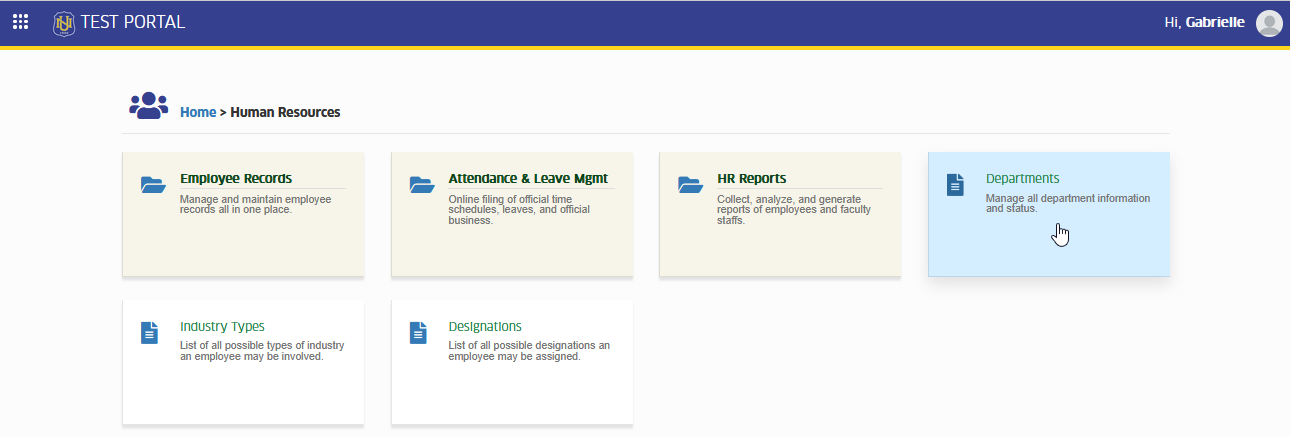
Go to Human Resources > Departments. Click the module tab to redirect to Departments and Colleges page.
What Can You Do in This Module?
Here's what HR personnel can manage through this module:
Add New Departments
This section allows HR personnel to create new department record in the system. You can specify whether the department is academic or administrative and optionally mark it as a Program Offering Department (for academic departments that offer degree programs).
You will also be required to enter the department's official email address, which will be used for system-generated notifications.
Follow the instruction on how to add new department record.
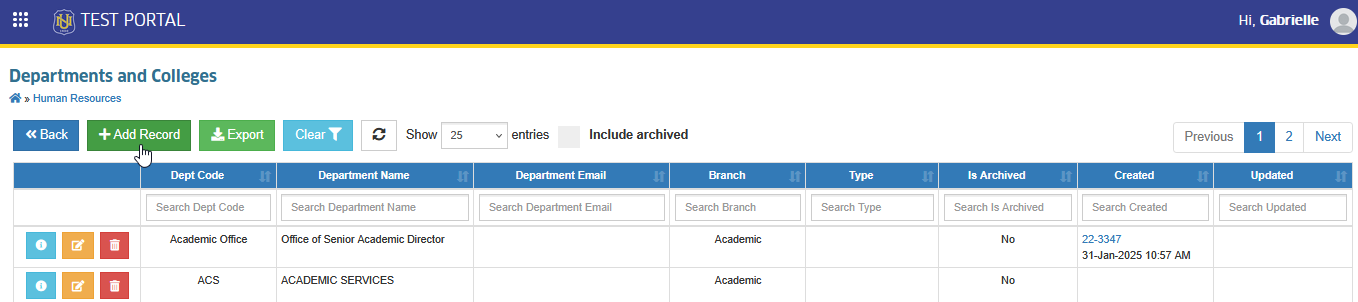
STEP 1. In the Departments and Colleges list view page, locate and click the button. This will take you to the Add Department page.
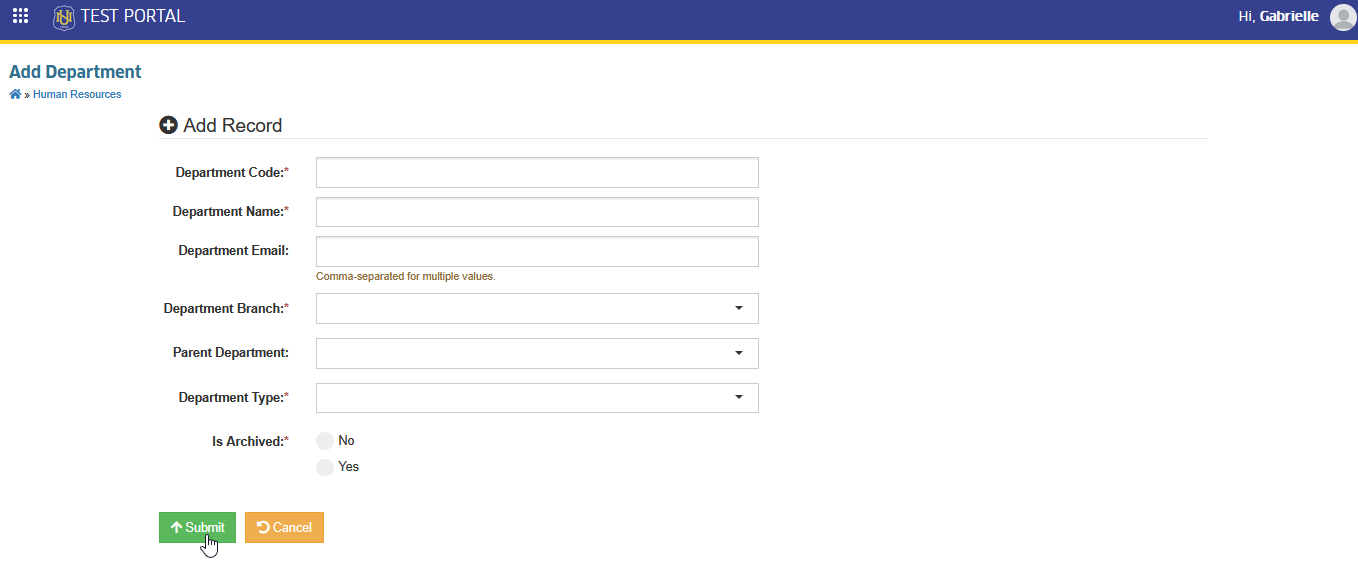
STEP 2. On the Add Department page, fill in all the required fields.
| Field Name | Description | Is Required |
|---|---|---|
| Department Code | A short, unique identifier for the department (e.g., HR, REG, ADM). Used for internal reference and system processes. | Yes |
| Department Name | The full name of department (e.g., Human Resource, Registrar, Admission). | Yes |
| Department Email | The official email address used for system notifications related to the department. | Yes |
| Department Branch | Indicates whether the department is Administrative or Academic. | Yes |
| Parent Department | The main of higher-level department this unit reports to, if applicable. Required if the department is a sub-unit. | No |
| Department Type | Specify the role of academic department. - Program Offering - An academic department that delivers and manages specific degree programs or courses including assigning faculty and overseeing curriculum. - Administrative Support - A department or unit that does not offer programs but provides services, coordination or support to other academic units within the college or university. | Yes |
| Is Archived | Choose No if it is still active, otherwise, Yes. | Yes |
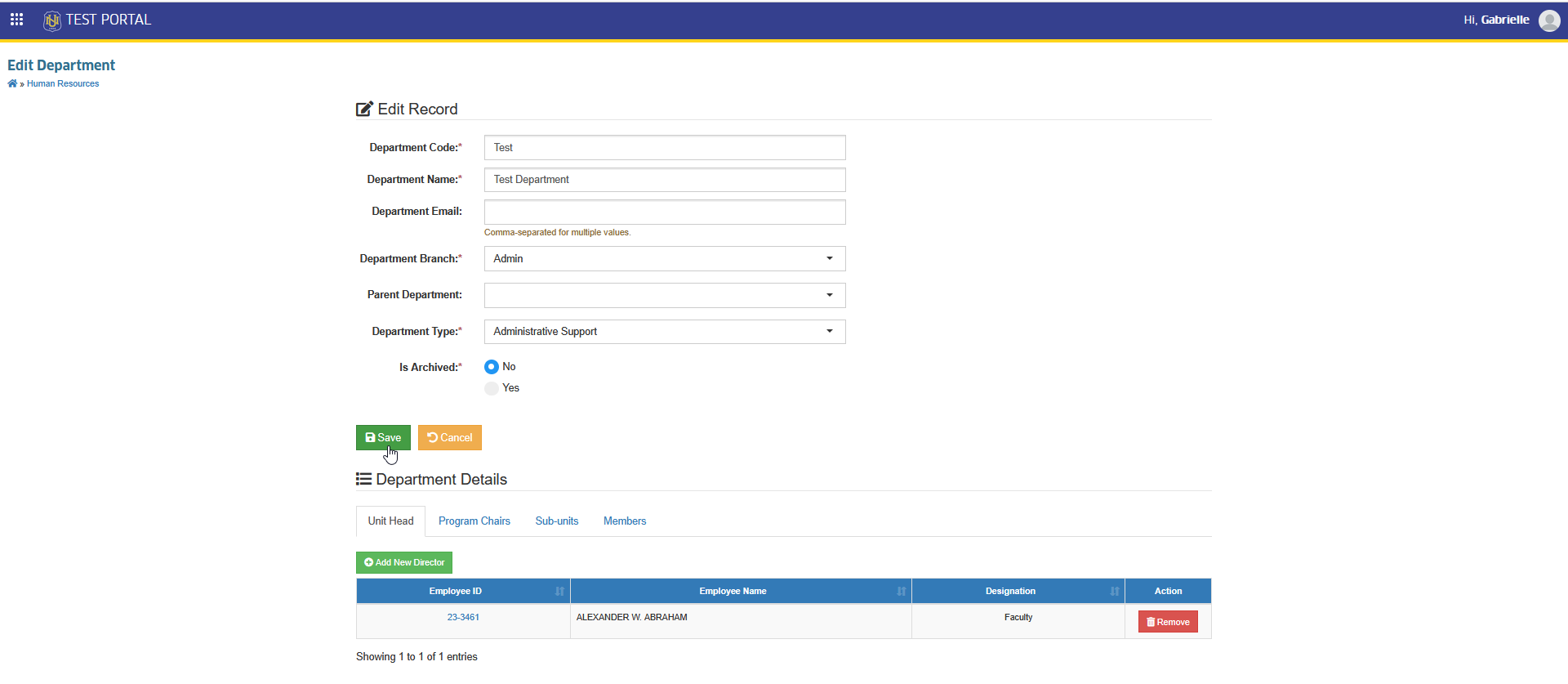
STEP 3. Click the button. This will redirect you to the Edit Department page.
STEP 4. On the Edit Department page, scroll down to the Department Details section. Notice the Tabs available in this section.
-
Unit Head - Displays the assigned unit head for the selected department.
-
Program Chairs - For academic or college departments, this tab displays the program chairs assigned to each program under the department.
-
Sub-units - If the department is a parent department, this tab displays all its sub-units.
-
Members - Displays all employees assigned to the specific department.
Edit Department Details
This section guides you through updating an existing department's details. You can modify information such as the department name, type, official email address, parent department, and leadership assignments. Editing ensures that the department's record stays accurate and reflects any organizational changes.
Follow the instructions below on how to modify existing department record.
STEP 1. In the Departments and Colleges list view page, click the corresponding button of the department you want to modify. This will redirect you to Edit Department page.

STEP 2. On the Edit Department page, update the necessary details.
STEP 3. Click the button to apply and save the updates to the record.
Remove or Delete Department record
This section explains how to remove a department record from the system. Deletion is only allowed if the department is not referenced by other records (e.g., employees, programs, or processes). If the department is already in use, it cannot be deleted — it is recommended to archive the record instead to maintain data integrity.
Follow the steps below on how to delete department records that are not referenced by other records.
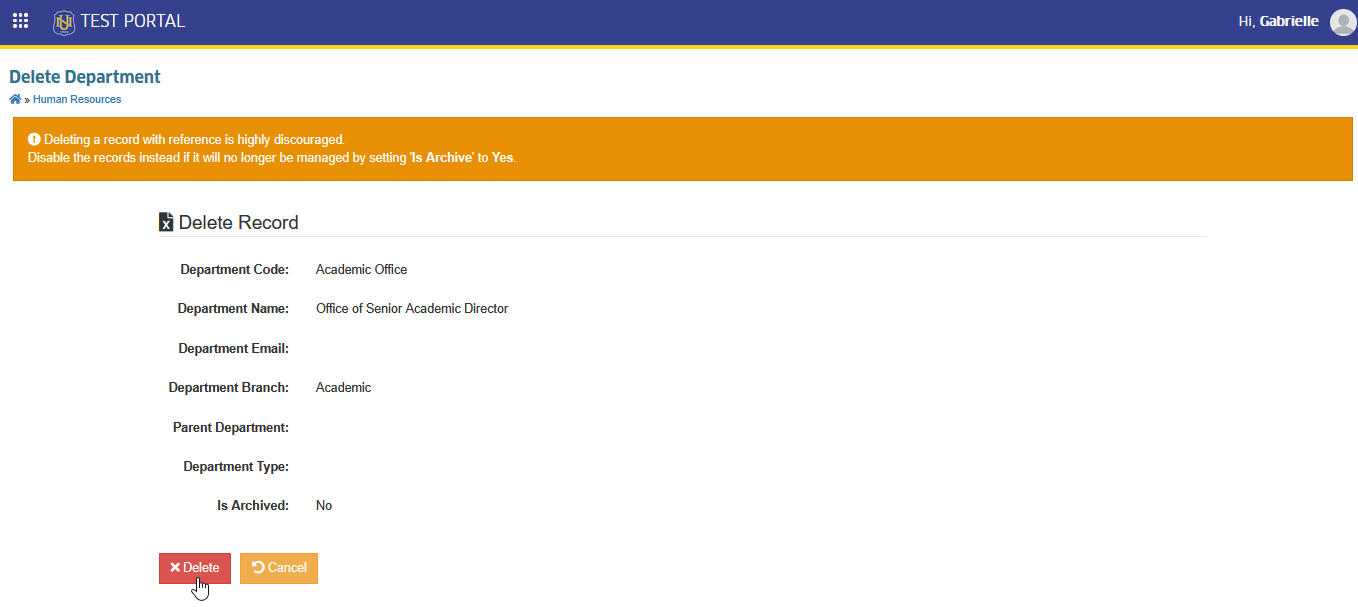
STEP 1. In the Departments and Colleges list view page, click the corresponding button of the department you want to remove. This will redirect you to Delete Department page.

STEP 2. In the Delete Department page, Click the button to delete the record.
Appoint Unit Heads to the Department
This section explains how to assign unit heads of a department. Follow the steps below on how to update the assigned unit heads.
STEP 1. In the Departments and Colleges list view page, click the corresponding button of the department you want to modify. This will redirect you to Edit Department page.
STEP 2. On the Edit Department page, scroll down to the Department Details section. Go to Unit Head tab.
STEP 3. In Unit Head tab, click button to assign them.

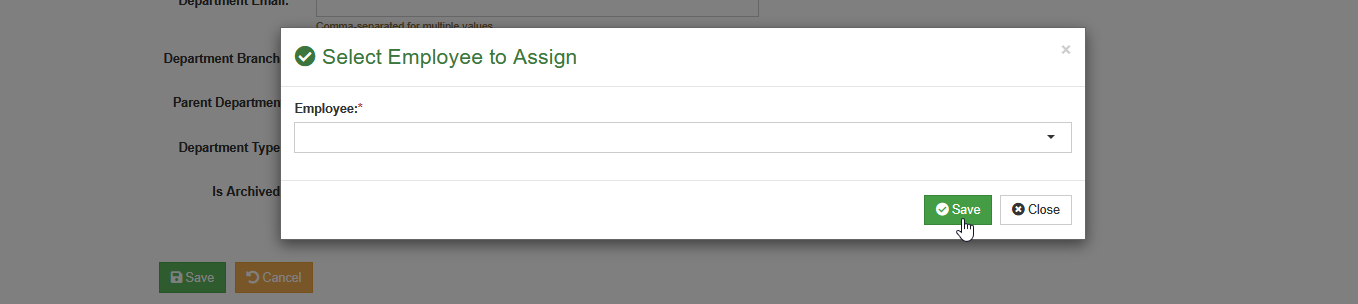
STEP 4. Select the employee from the dropdown list, then click the button to assign them as the department's director.
Change or Update Unit Heads to the Department
This section explains the steps to change or update the unit head assigned to a department. This is useful when there is a change in leadership or when correcting an existing assignment to keep department records accurate.
STEP 1. In Edit Department page, scroll down to Department Details section and go to Unit Head tab. Click button to assign them.

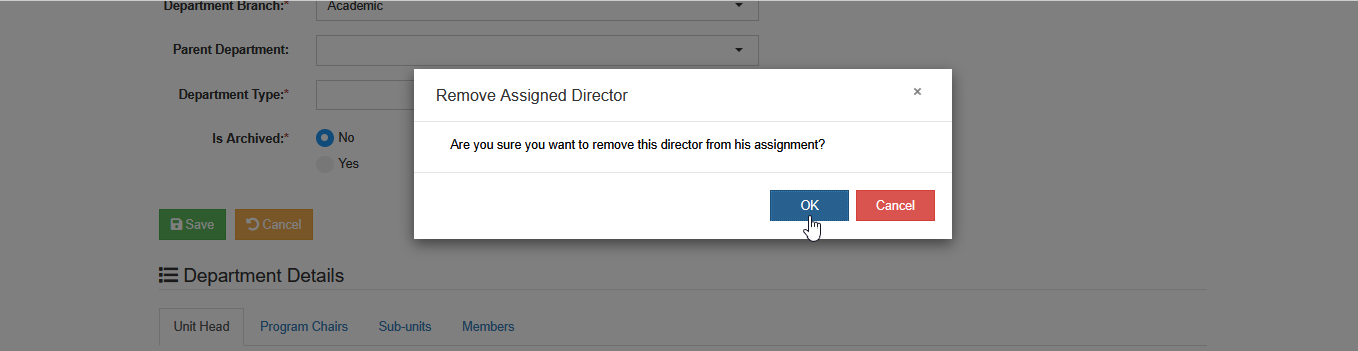
STEP 2. After adding the new unit head, click the corresponding button next to the previous unit head to remove them from the assignment.

STEP 3. Confirm the removal by clicking the button in the confirmation prompt.
Appoint Program Chairs to the College
This section outlines the steps to assign program chairs to each program under an academic or college department. Appointing program chairs ensures proper leadership and management at the program level within the department.
Follow the steps below to assign program chairs.
STEP 1. In the Departments and Colleges list view page, click the corresponding button of the department you want to modify. This will redirect you to Edit Department page.
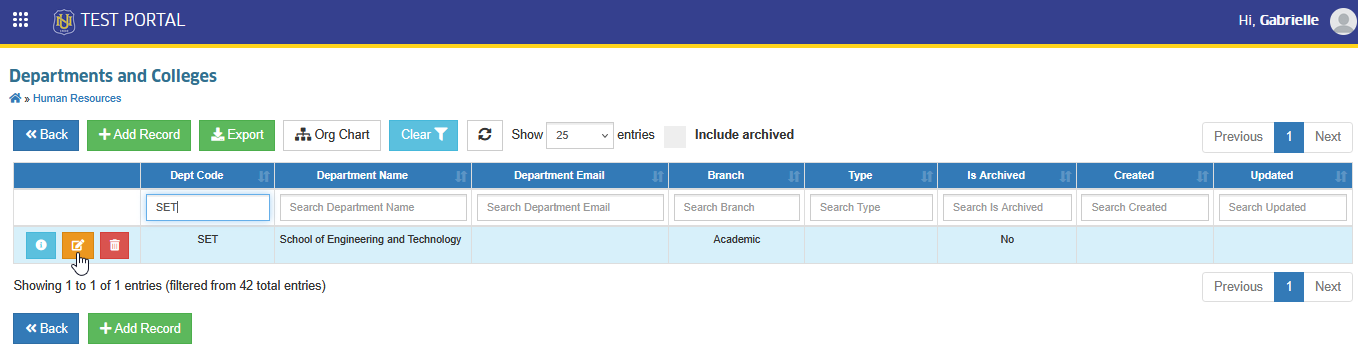
STEP 2. In Edit Department page, scroll down to Department Details section and go to Program Chairs tab.
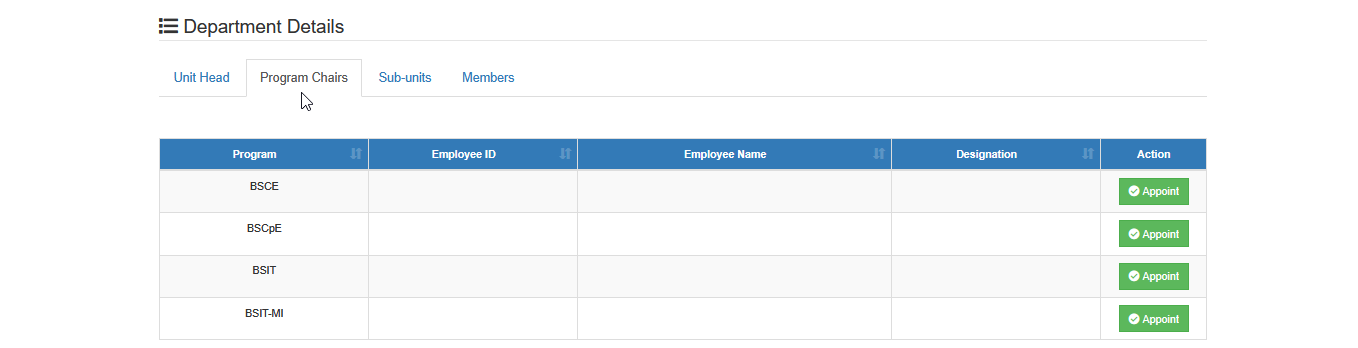
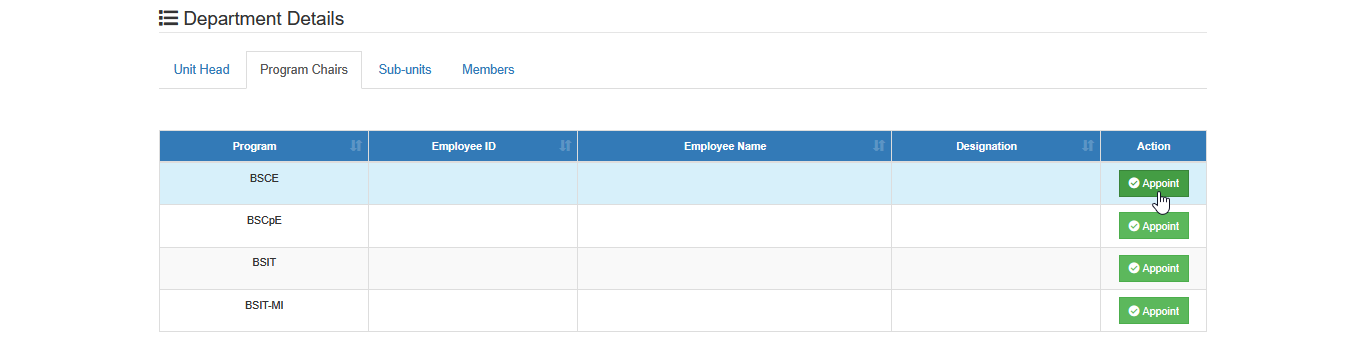
STEP 3. In the Program Chairs tab, click button to assign program chair.
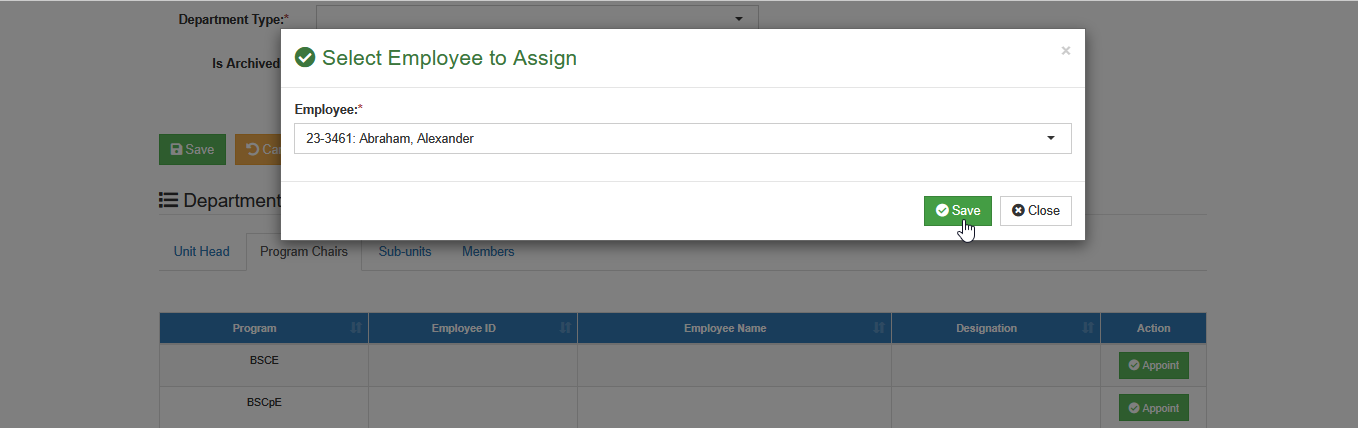
STEP 4. Select the employee from the dropdown list, then click the button to assign them as the program chair.
Update or Change Program Chairs to the College
To update the program chair assigned to specific program of the college, follow the steps below:
STEP 1. In Edit Department page, scroll down to Department Details section and go to Program Chairs tab.
STEP 2. In the Program Chairs tab, remove the currently assigned program chair for the program by clicking the button.

STEP 3. Assign new program chair by following the steps on how to appoint program chairs.
Department's Organizational Chart
This section displays the hierarchy of positions within the department, including the unit head, sub-units, program chairs (if applicable), and members. It provides a visual representation of the department’s structure, making it easier to understand reporting lines and leadership roles.
In the Departments and Colleges list view page, click the button to view the department's orgranizational chart.

For more questions or concerns, email us at nu-desk@national-u.edu.ph