Faculty Loading Reports
The Faculty Loading Reports module is designed for Program Chair (PC), Deans, HR, FSO personnel. It allows you to generate detailed reports of faculty teaching loads—whether per faculty, per department, or per subject.
This module also comes with an export feature so you can easily download reports in PDF or Excel format.
What You Can Do in This Module
-
Generate faculty loads per faculty – View the teaching assignments of a specific faculty member.
-
Generate faculty loads per department – Get a list of all faculty loads under a certain department.
-
Generate faculty loads per subject – See which faculty are handling specific subjects.
-
Export reports – Download the generated report in PDF or Excel for easy sharing, printing, or record-keeping.
Required Permissions
- Faculty Loading Reports - Grants access to generate and view faculty loading reports by faculty, department, or subject, with the option to export reports to PDF or Excel.
How to access the module?
To access the module, make sure you have the Faculty Loading Reports permission. If it doesn’t appear in your portal, request access from your System Administrator.
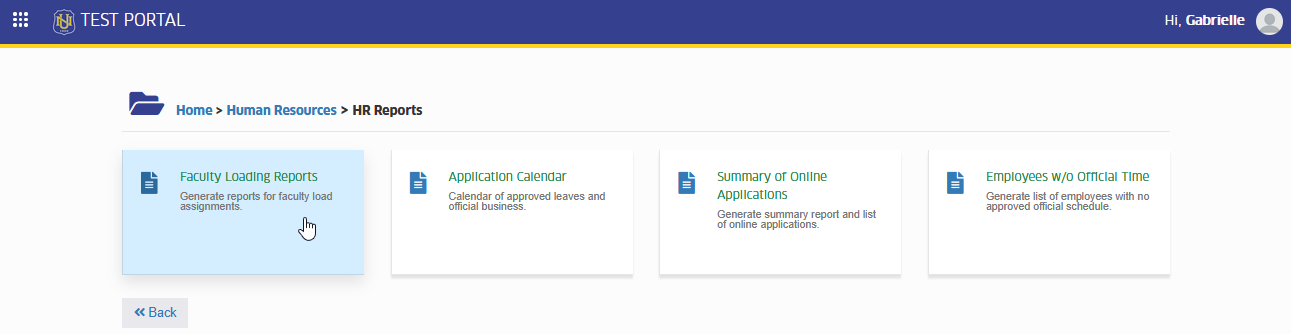
To access the module go to Human Resources > HR Reports > Faculty Loading Reports
Click the module tab to redirect to Faculty Loading Reports page.
How to Use the Module
This module lets you create different types of faculty loading reports depending on what you need. You can generate reports per faculty, per department, or per subject. Each report can also be exported to PDF or Excel for easy sharing and record-keeping.
How to Generate Loads per Faculty
This option lets you generate a report of a specific faculty member’s teaching load. It shows the list of subjects they are handling for the selected school year and semester, which you can view on screen or export to PDF/Excel for documentation.
Follow the instructions below to generate a faculty load report for a specific instructor.
STEP 1. In the Faculty Loading Reports page, make sure you are in the Report per Instructor tab.
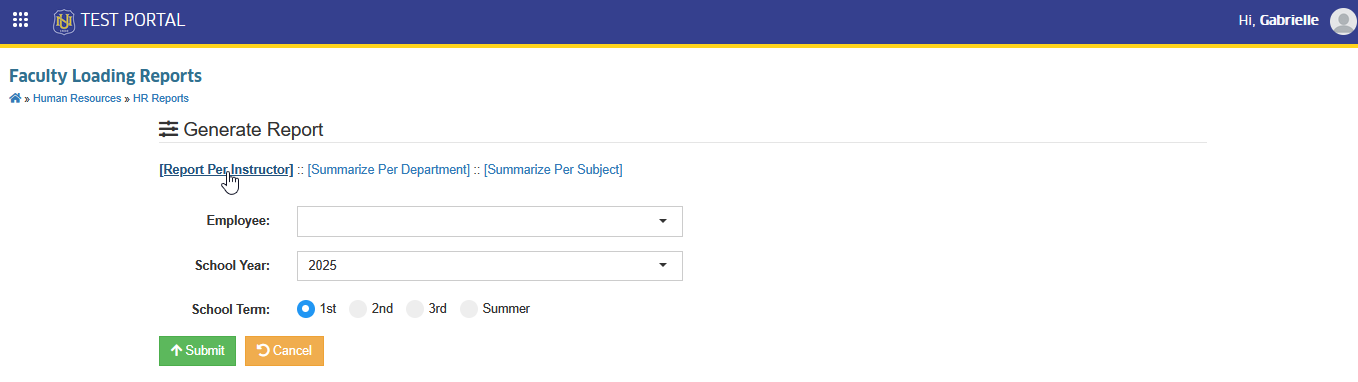
STEP 2. Choose the faculty member from the list or search by name. Also, specify the year and term you want to generate.
STEP 3. Click the button to display the report. This action will redirect you to Faculty Loading Report per Instructor page.
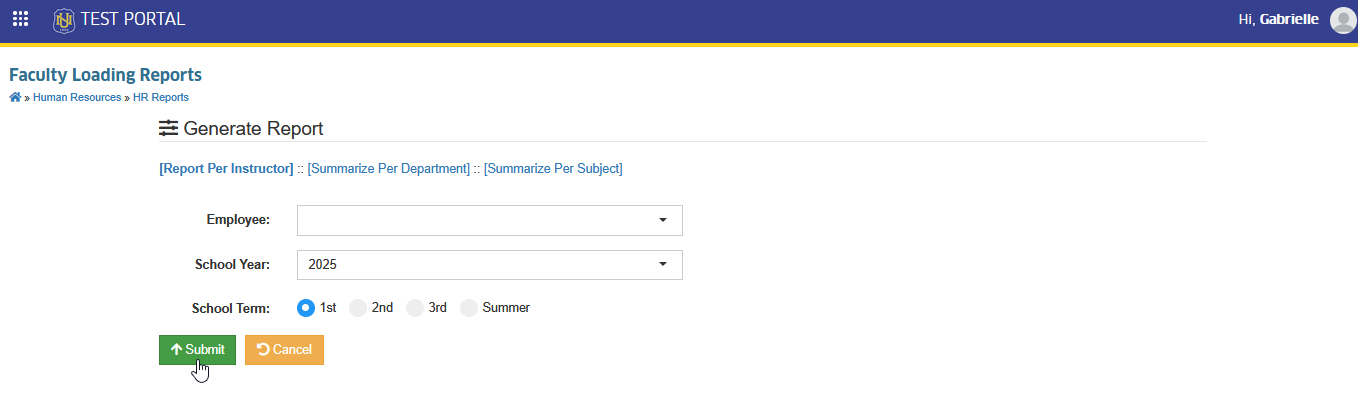
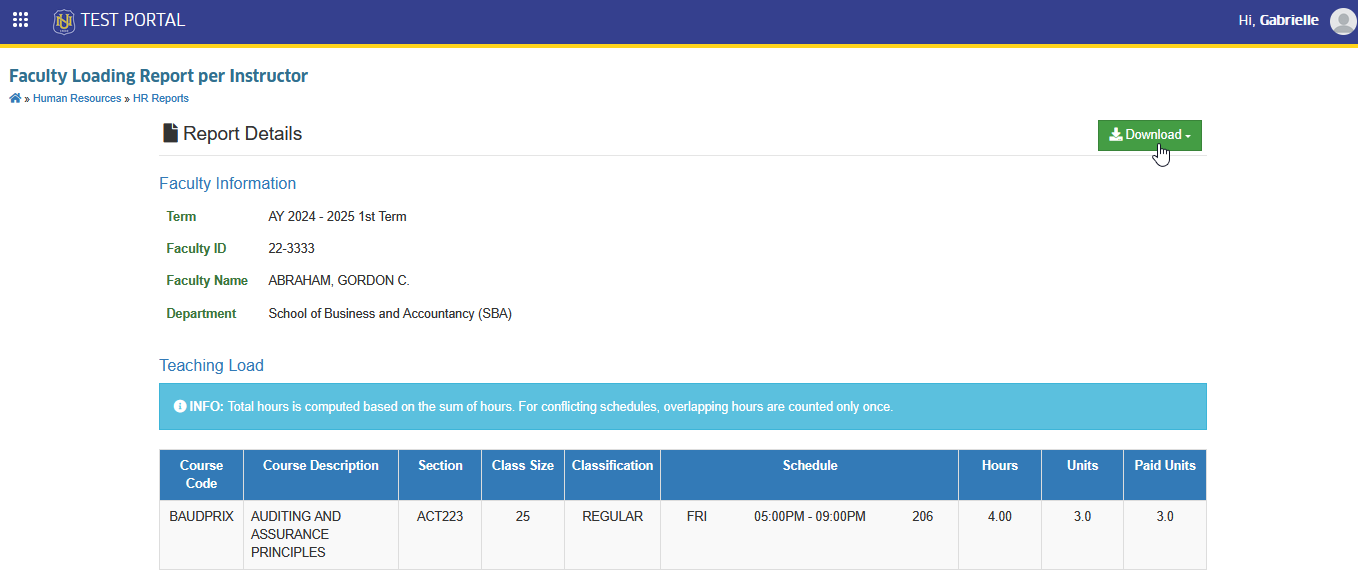
STEP 4. In Faculty Loading Report per Instructor page, download the report by clicking the button.
How to Generate Faculty Loads per Department
Follow the instructions below to generate faculty load reports for a specific department.
STEP 1. In the Faculty Loading Reports page, go to the Summarize per Department tab.
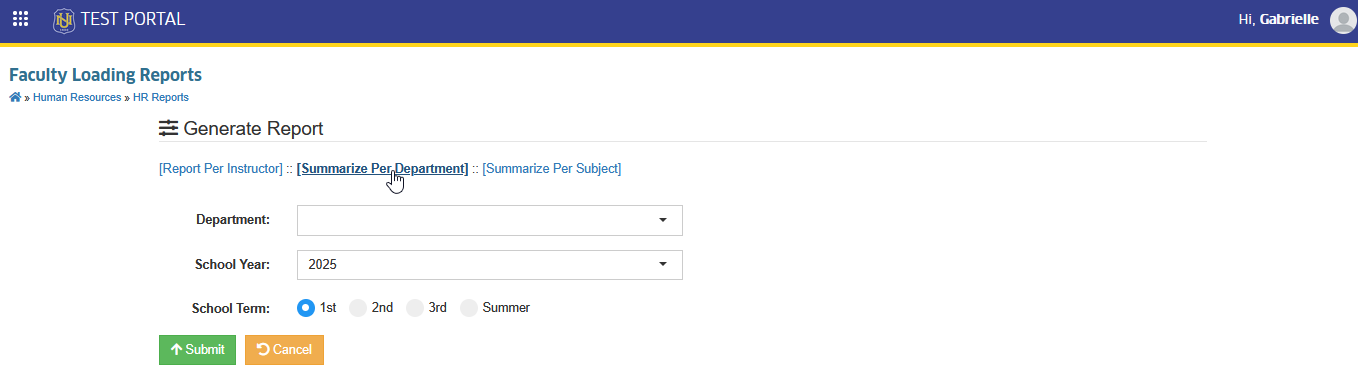
STEP 2. Select the department you want to generate a report for. Also, specify the year and term.
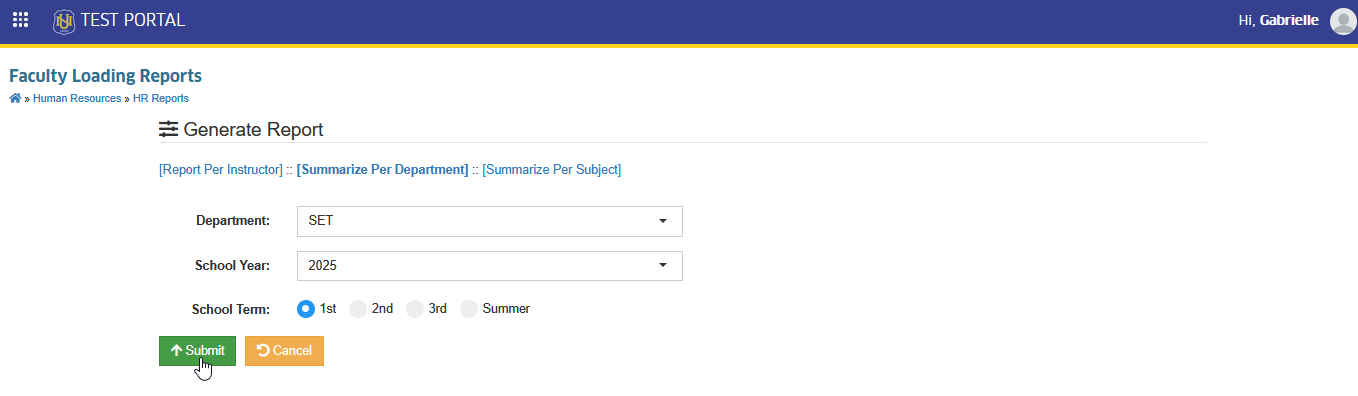
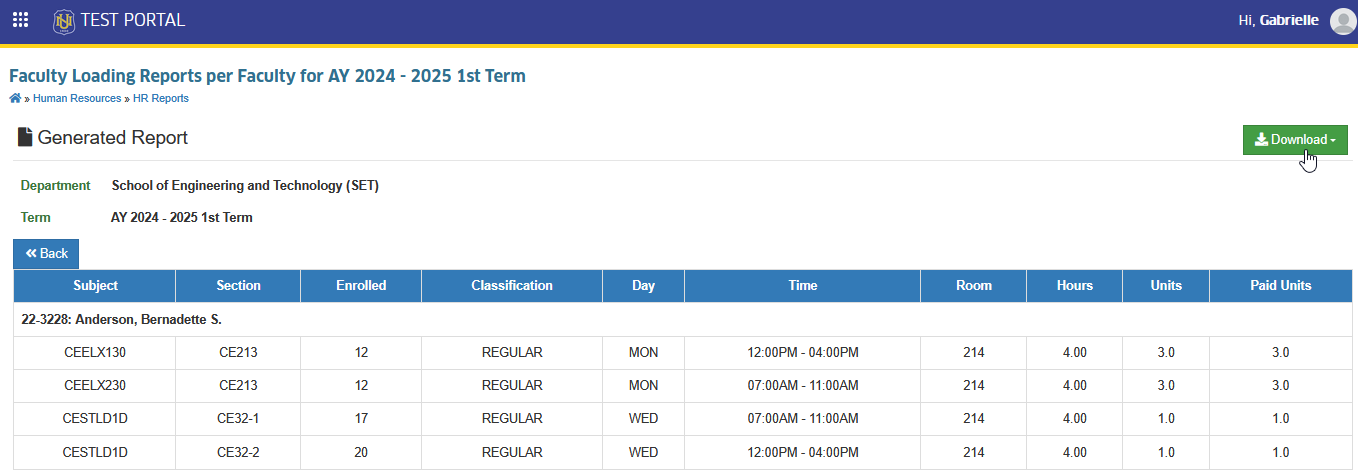
STEP 3. Click the button. This action will redirect you to the Faculty Loading Report per Department page.
STEP 4. In the Faculty Loading Report per Department page, download the report by clicking the button.
How to Generate Faculty Loads per Subject
Follow the instructions below to generate faculty load reports per subject.
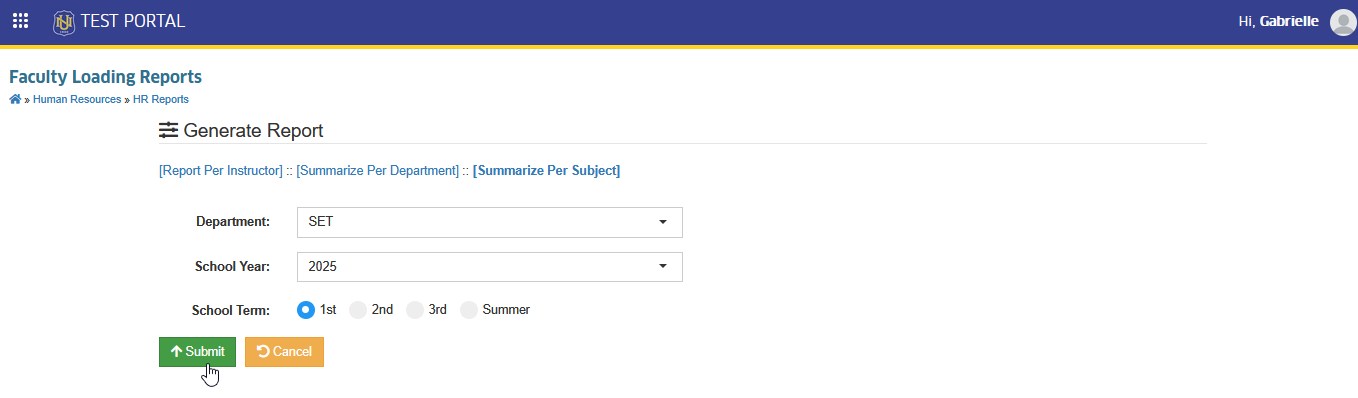
STEP 1. In the Faculty Loading Reports page, go to the Summarize per Subject tab.
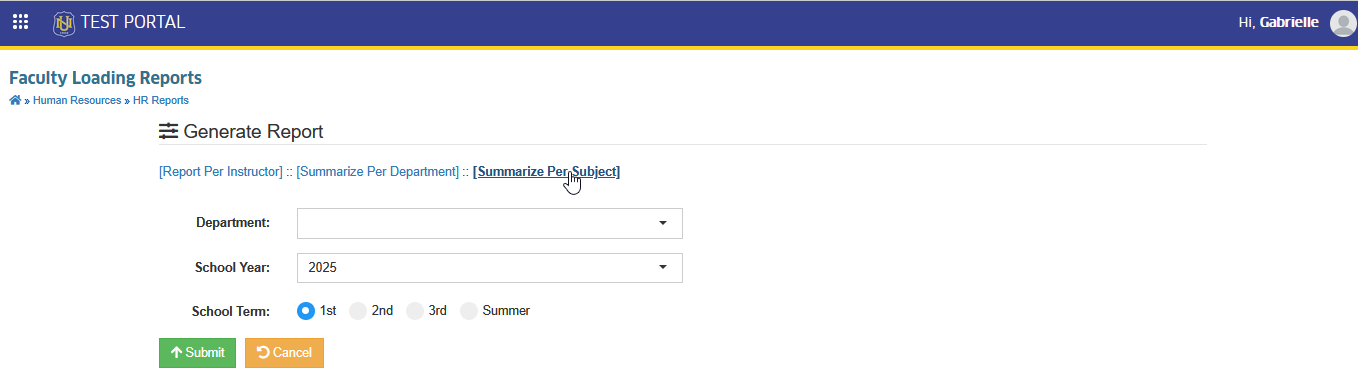
STEP 2. Choose the departmen from the list. Also, specify the year and term.
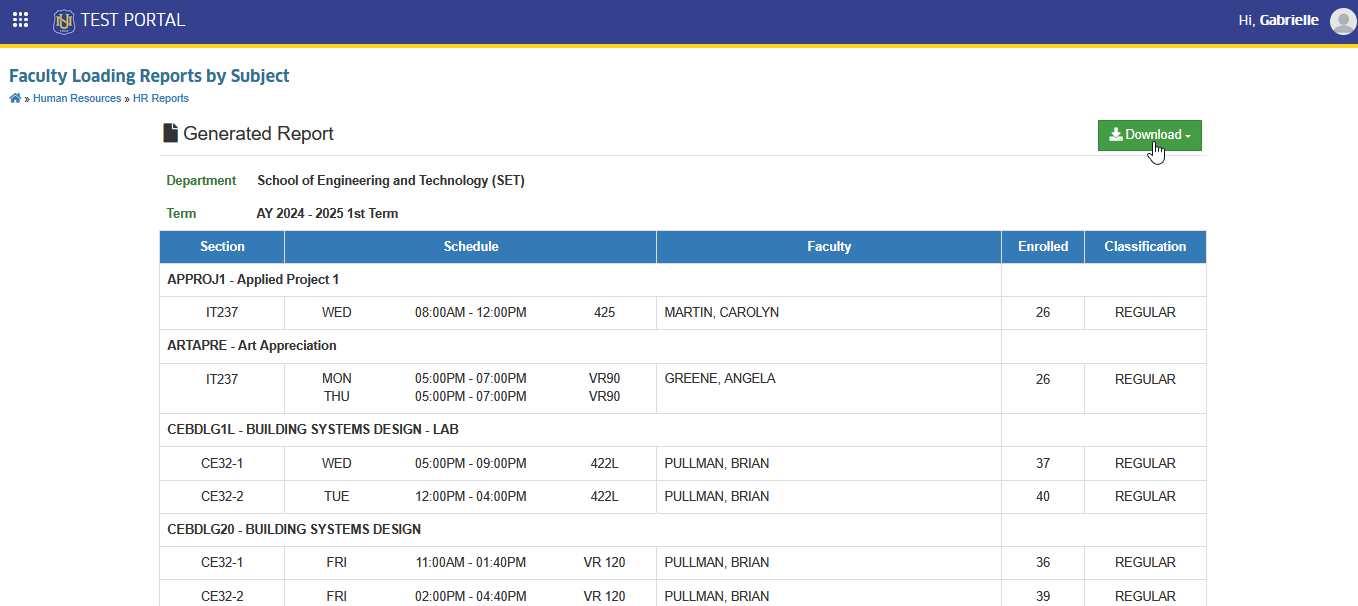
STEP 3. Click the button. This action will redirect you to the Faculty Loading Report by Subject page.
STEP 4. In the Faculty Loading Report by Subject page, download the report by clicking the button.
For more questions or concerns, email us at nu-desk@national-u.edu.ph