Holidays
Lists of regular office holidays and special non-working days.
HR personnel managed this module. All national holidays should be recorded in this module for accurate computation of employee's leave credits.
Required Permissions
-
Add Holiday - This permission allows the user to add holiday.
-
Delete Holiday - This permission allows the user to delete a holiday record.
-
Edit Holiday - This permission allows the user to edit an existing record.
-
View Holiday - This permission allows the user to access/download offline data of the leave types module.
How to access the module?
To access the module, make sure you have the View Holiday permission. If it doesn’t appear in your portal, request access from your System Administrator.
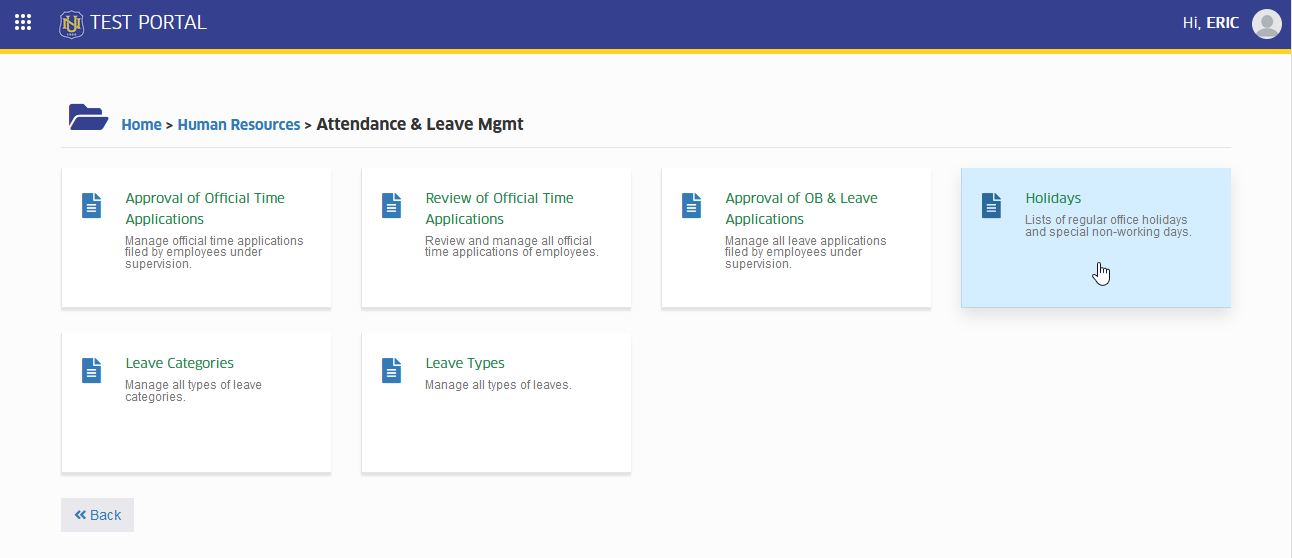
To access the module go to Human Resources > Attendance & Leave Mgmt > Holidays
Click the module tab to redirect to Holidays page.
Manage Leave Types module
HR personnel is in charge of this module. The user can utilize all of the module's features if their user role has all of the previously mentioned permissions.
How to Add Holidays?
When there is a need to add new holiday, follow the steps below.
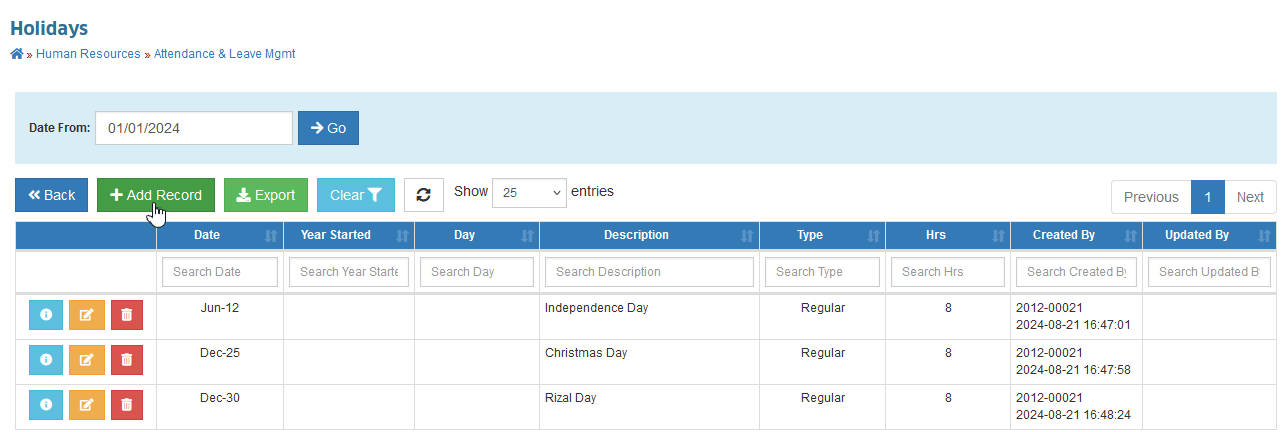
STEP 1. In Holidays listview page, click the button located at the top of the holidays table. User will be redirected to Add Holiday page.
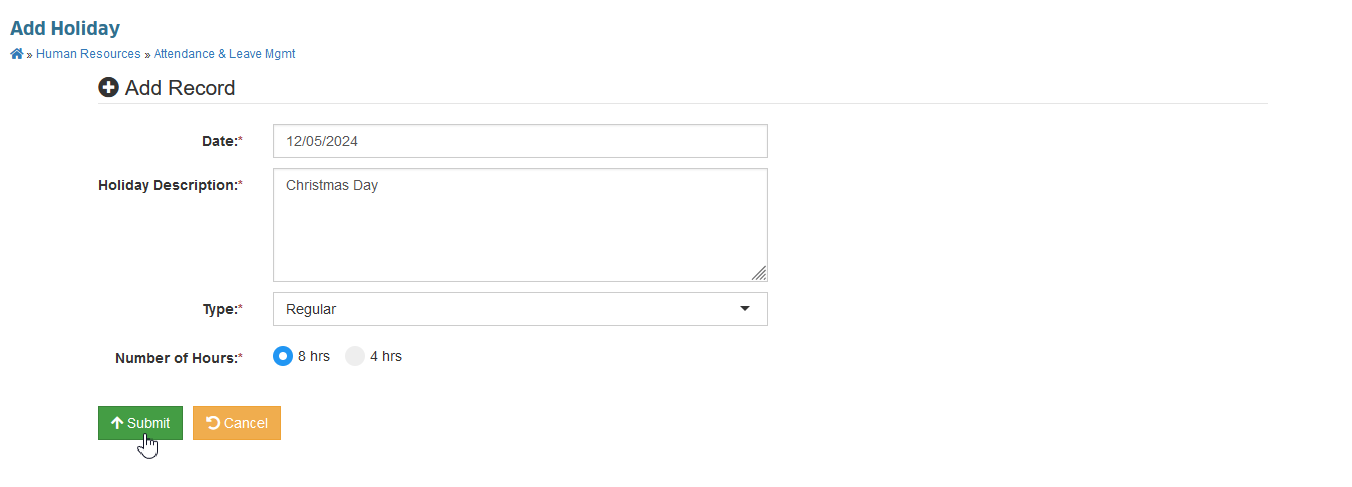
STEP 2. After being redirected to Add Holiday page, encode the leave categories information in the forms required field. For reference, see the table below.
| Field Name | Description | Required |
|---|---|---|
| Date | The date of the holiday | Yes |
| Holiday Description | The description of the holiday | Yes |
| Type | The holiday type (Regular or Special) | Yes |
| Number of Hours | The duration of the holiday (8 hrs or 4 hrs) | Yes |
STEP 3. After the encoding of the required information, click the button to save the new record.
How to Edit Holidays?
When there is a need to update a holidays record, follow the steps below.
STEP 1. In the Holidays listview page, click the corresponding button of the record you want to modify.
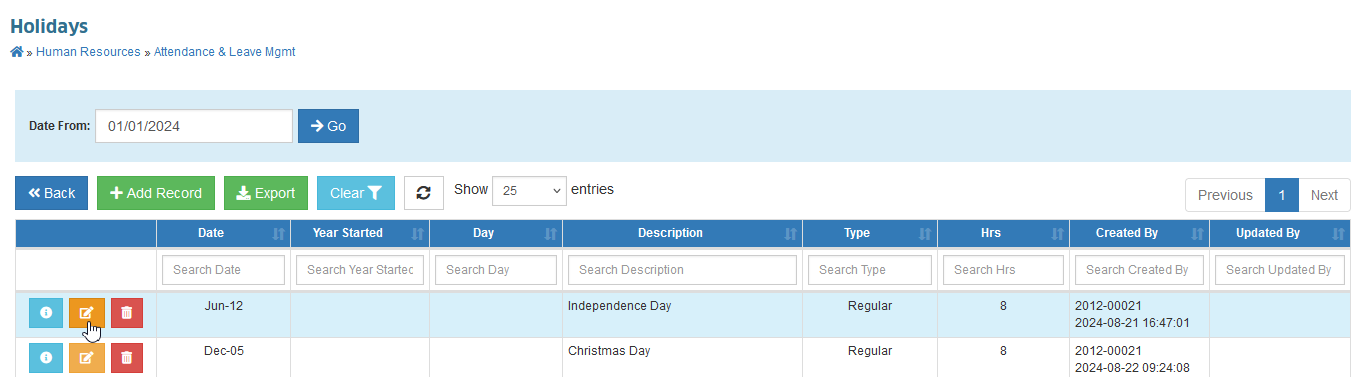
STEP 2. The page will redirect to Edit Holiday page, update the information needed and click the button to save the changes.
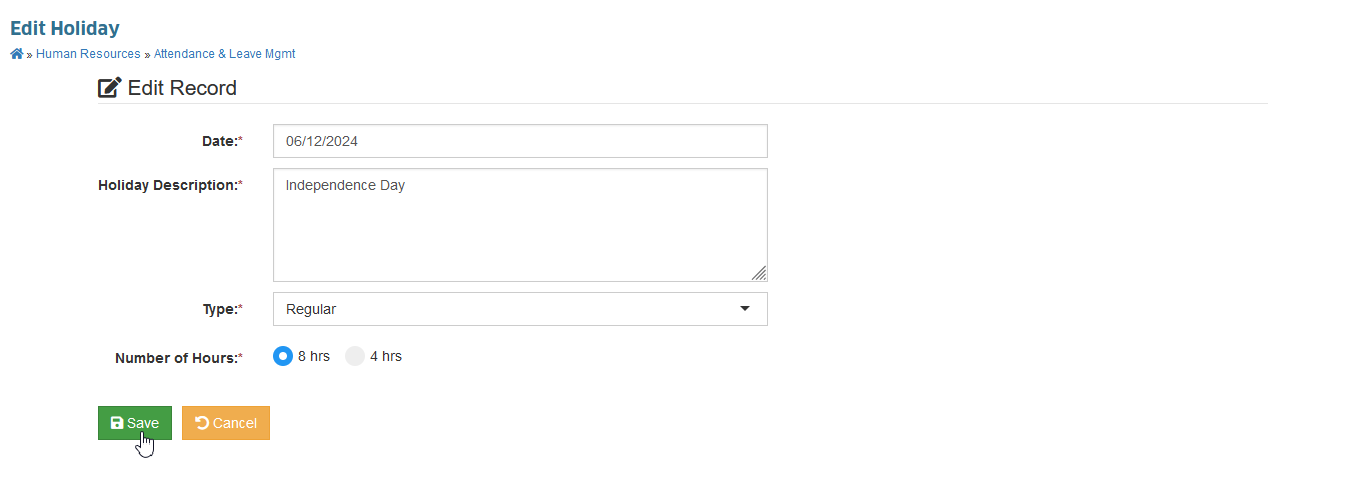
How to Delete Leave Types?
Follow the steps below on how to delete a holiday record.
STEP 1. In Holidays listview page, click the corresponding button of the record you want to remove.
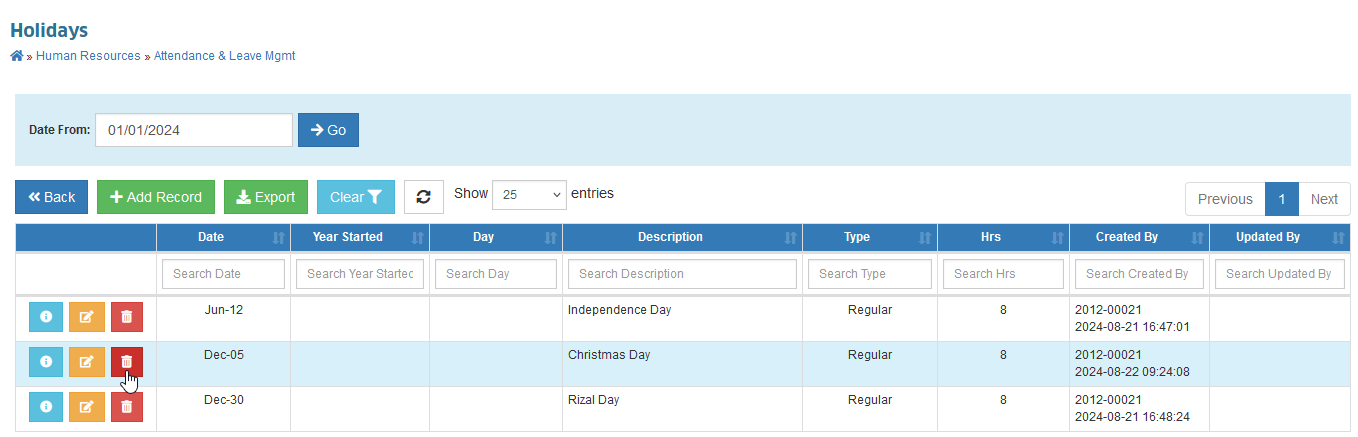
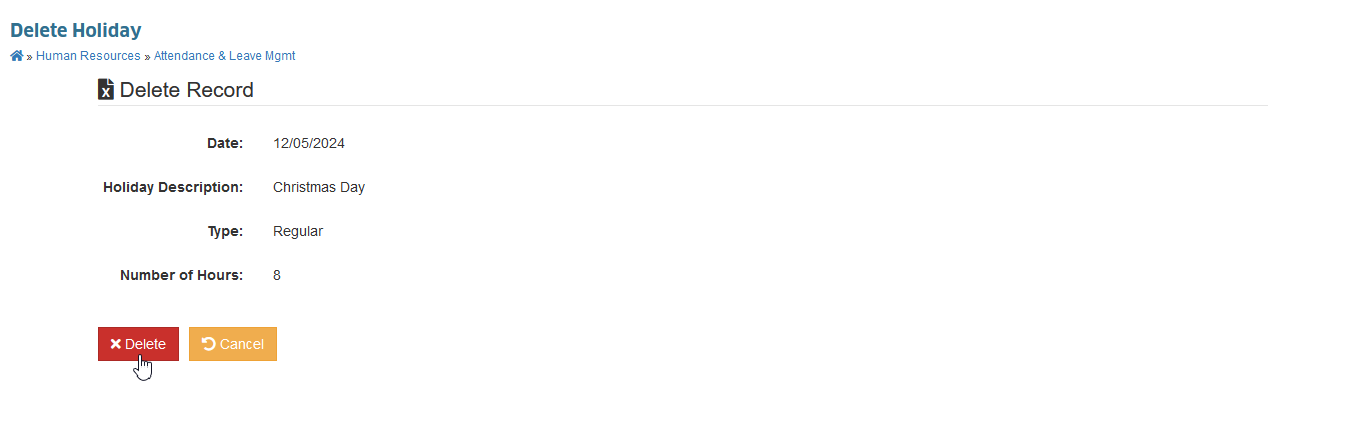
STEP 2. The page will redirect to Delete Holiday page, click the button to confirm the deletion.