Research Leaves
Manage research leave allowance of employees.
This module is used to manage research leave credits for all ASP researches at National University.
Required Permission
This section details the permissions needed by users to access and perform specific actions within the research leave module.
-
Add Research Leaves - This permission allows the user to add research leave credits to specific employee.
-
Delete Research Leaves - This permission allows the user to delete research leave credits of specific employee.
-
Edit Research Leaves - This permission allows the user to edit research leave credits for specific employee.
-
View Research Leaves - This permission allows the user to access the research leave module.
How to Access the module?
To access the module, make sure you have the View Research Leaves permission. If it doesn’t appear in your portal, request access from your System Administrator.
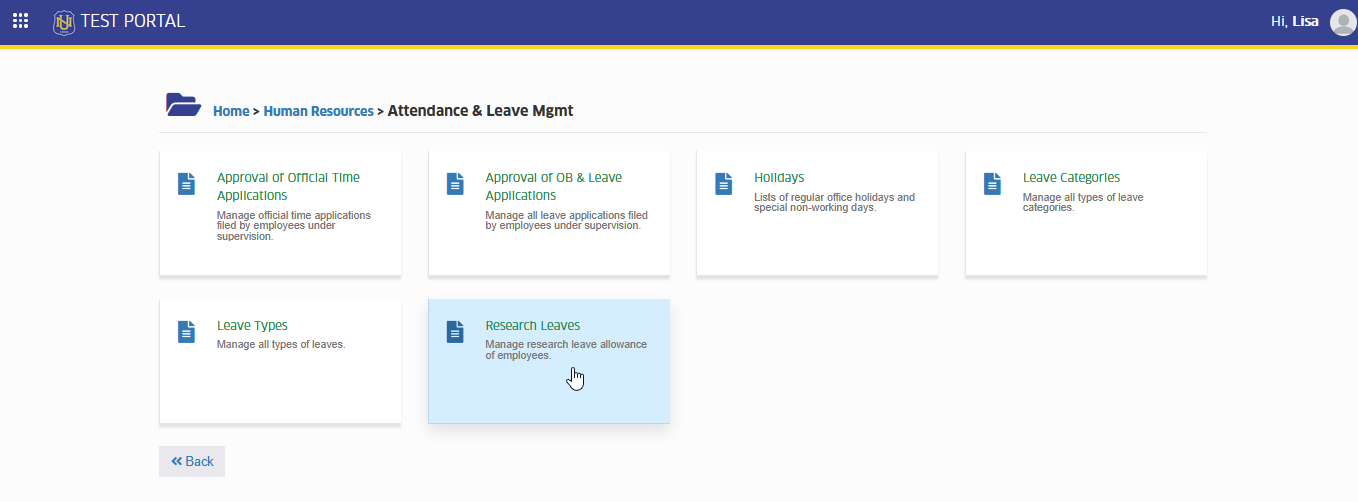
To access the module go to Human Resources > Attendance & Leave Mgmt > Research Leaves
Click the module tab to redirect to Research Leave Allowance page.
Manage Research Leave Credits
This module will be managed by RDO (Research and Development Office) personnel, who will be responsible for recording the research leave credits of ASP (Admin Support Personnel) researchers.
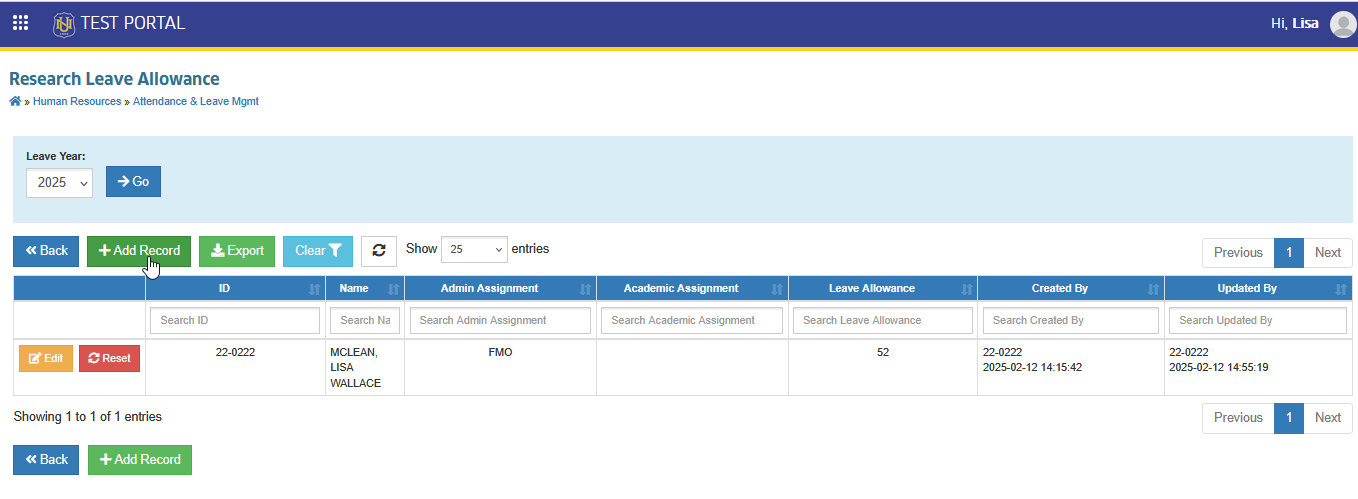
Users with the permissions listed above will be able to:
-
Add Employee's Research Leave Credits
-
Edit Employee's Research Leave Credits
-
Delete Employee's Research Leave Credits
-
Export Data for Offline back up.
How to Add Research Leave Credits to Employees
This section provides step-by-step instructions on how to add research leave credits to employees. It guides RDO personnel through the process encoding of leave credits for ASP researchers in the system.
STEP 1. In Research Leave Allowance list view page, click the button located at the top of the table. Manage Research Leave Allowance form will pop up.
STEP 2. Complete the required field in Manage Research Leave Allowance page.
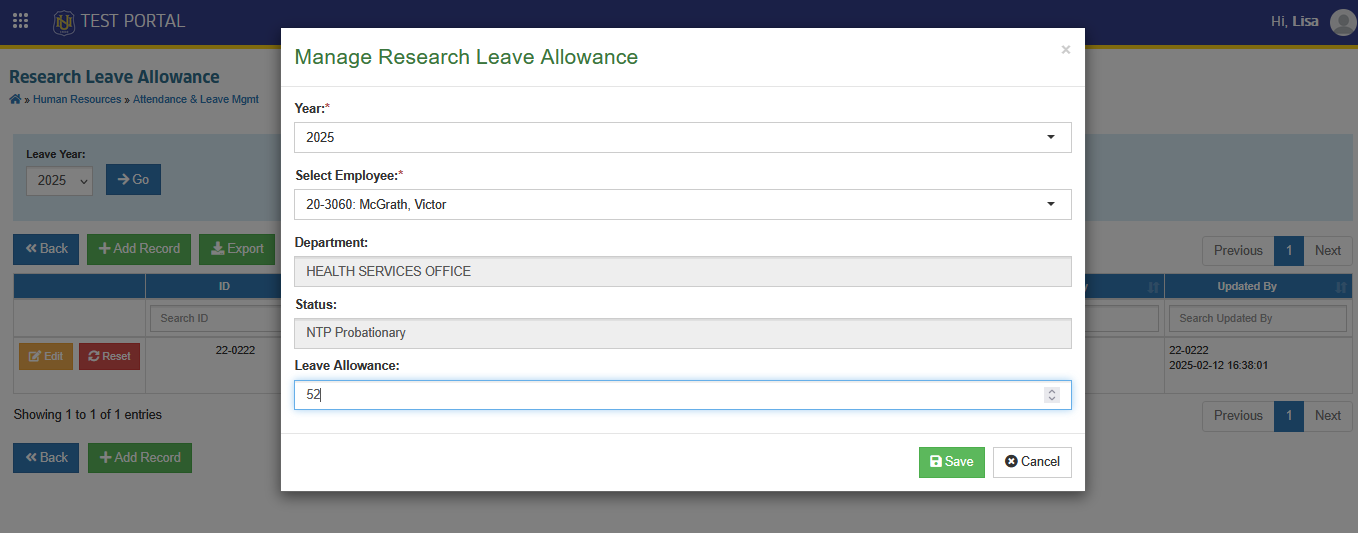
The maximum research leave credits is 52 hours only.
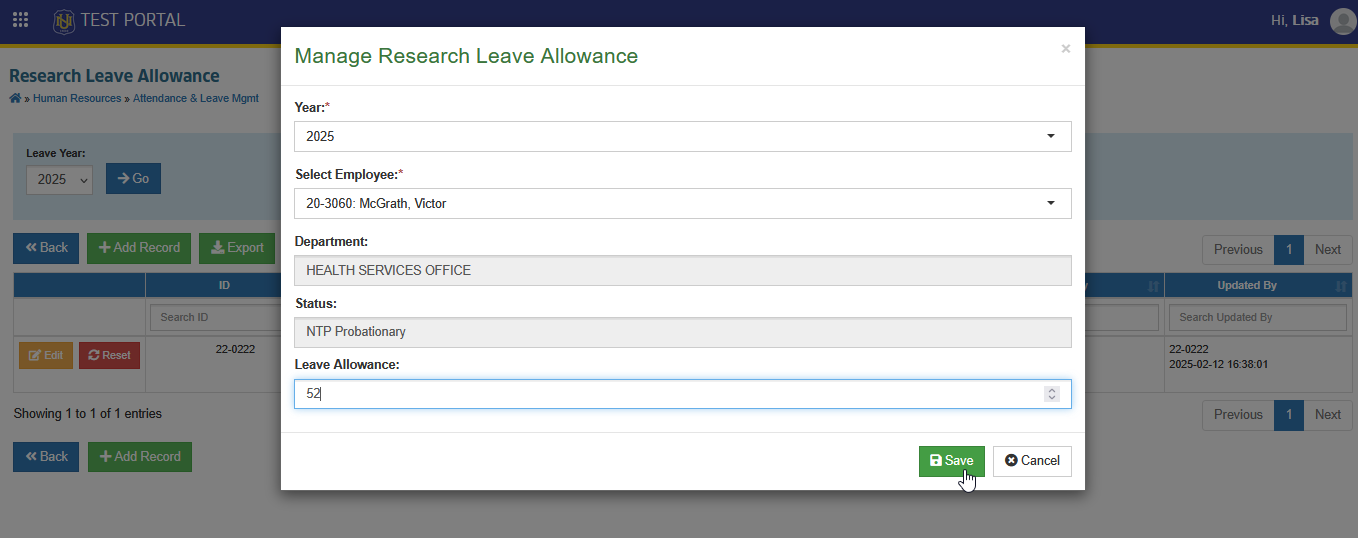
STEP 3. Click the button to save the record in the system.
How to Edit Employee's Research Leave Credits
This section provides step-by-step instructions on how to edit an employee's research leave credits. It guides RDO personnel through the process of updating or modifying existing leave credits for ASP (Admin Support Personnel) researchers in the system.
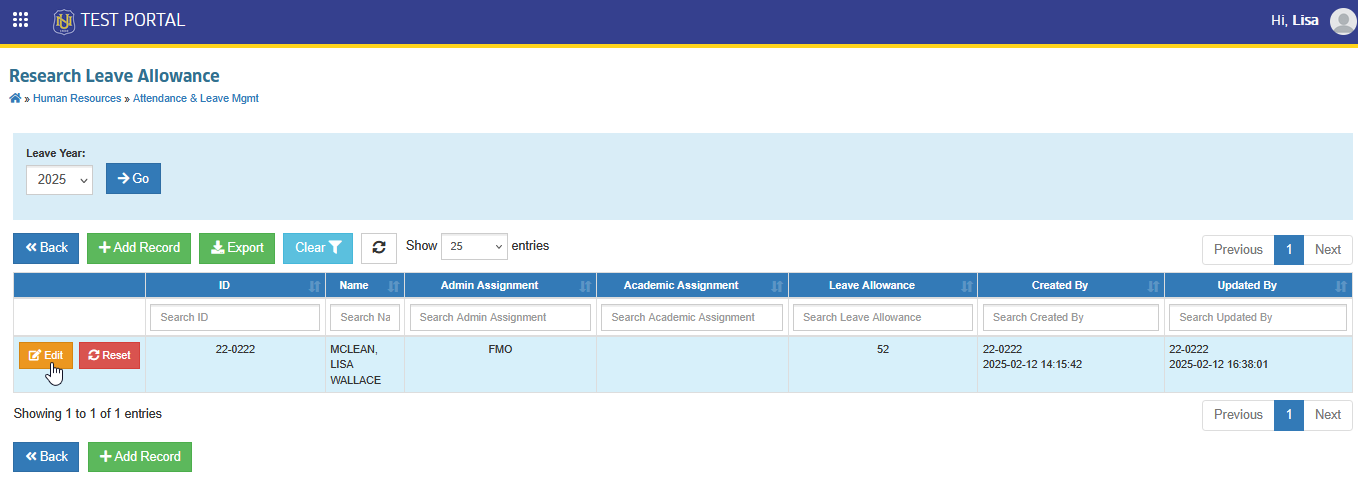
STEP 1 In Research Leave Allowance page, under the actions column, locate and click the button of the record you want to modify. Manage Research Leave Allowance prompt will pop up.
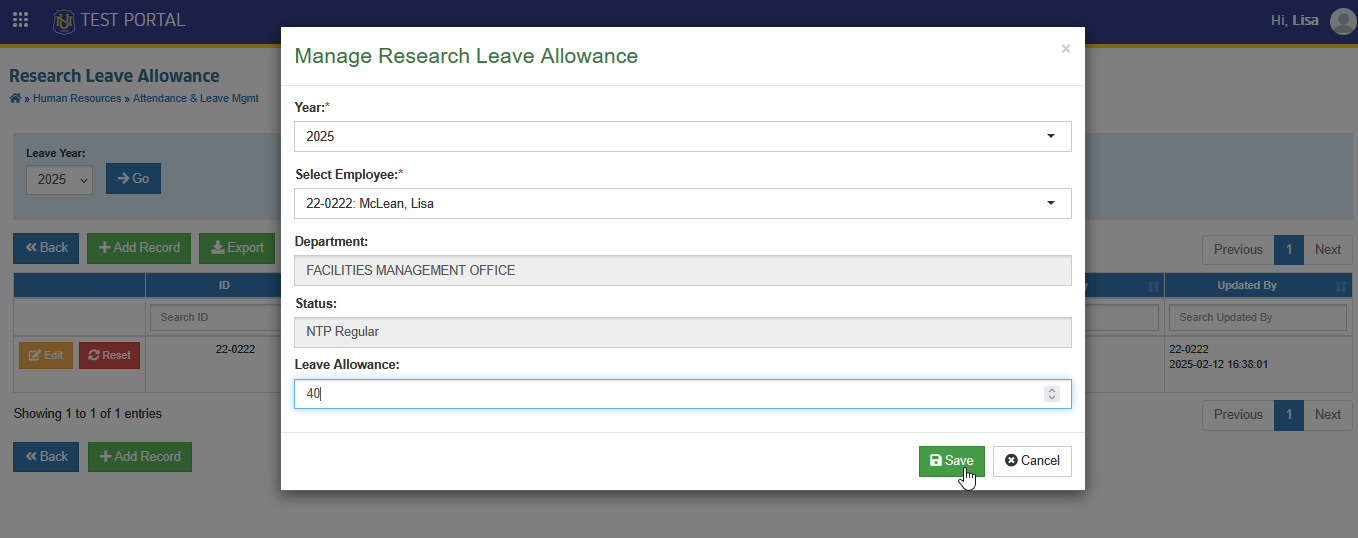
STEP 2. In Manage Research Leave Allowance page, modify the record that needs to be updated. Click the button to save the record in the system.
How to Reset Employee's Research Leave Credits
This section explains the process of resetting an employee's research leave credits.
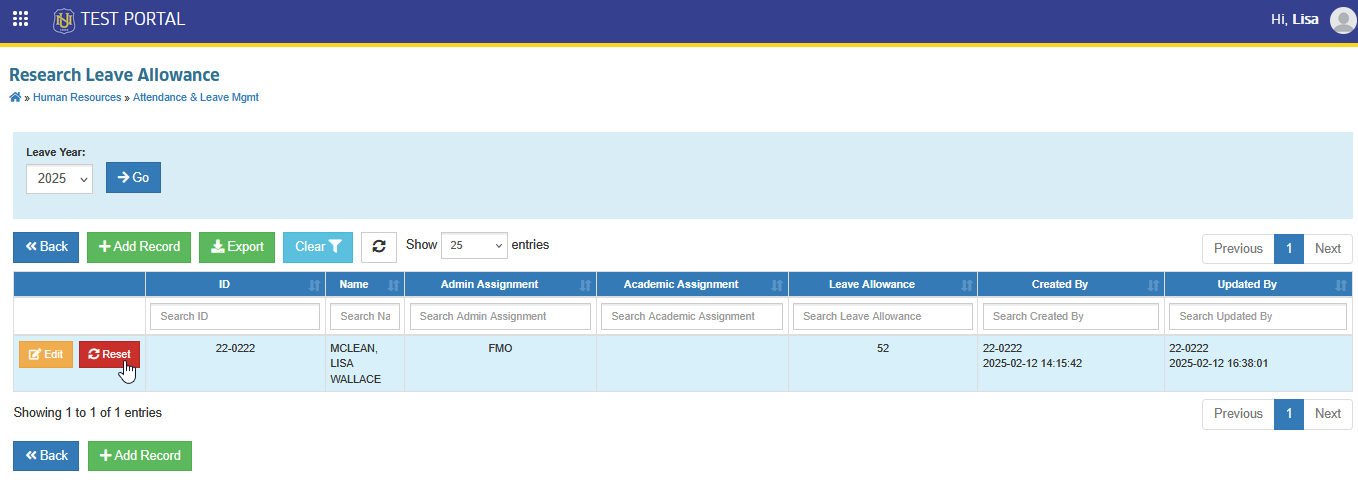
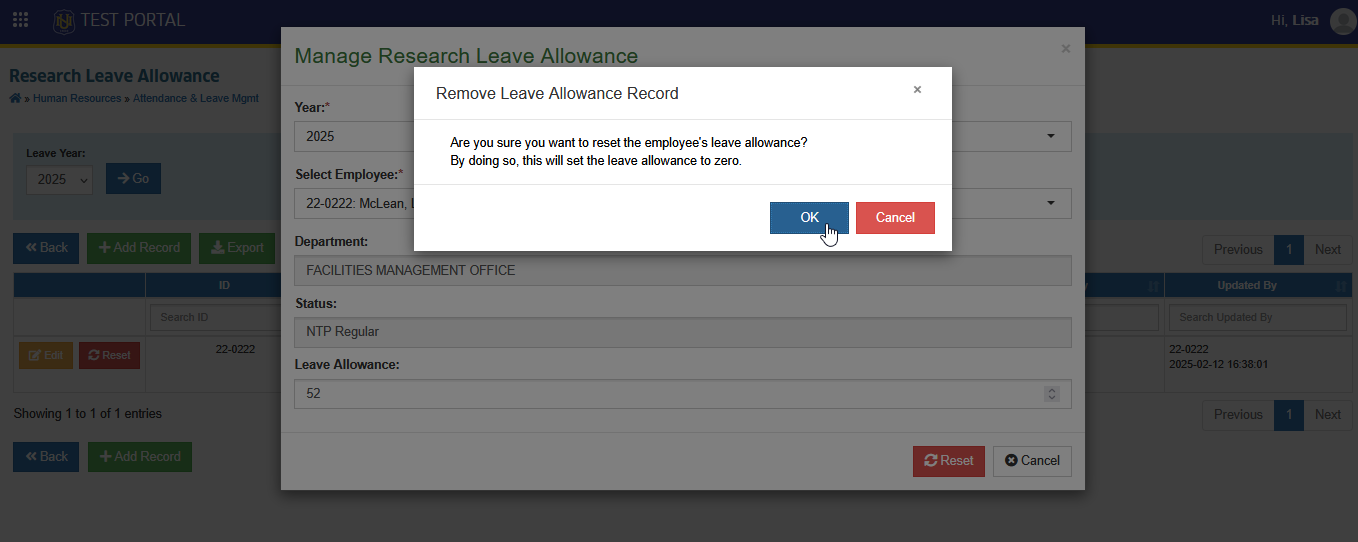
STEP 1. In Research Leave Allowance page, search for the employee and click the button under the actions column.
STEP 2. Manage Leave Allowance promt will pop up, confirm the reseting by clicing the button located at the bottom right side of the prompt.
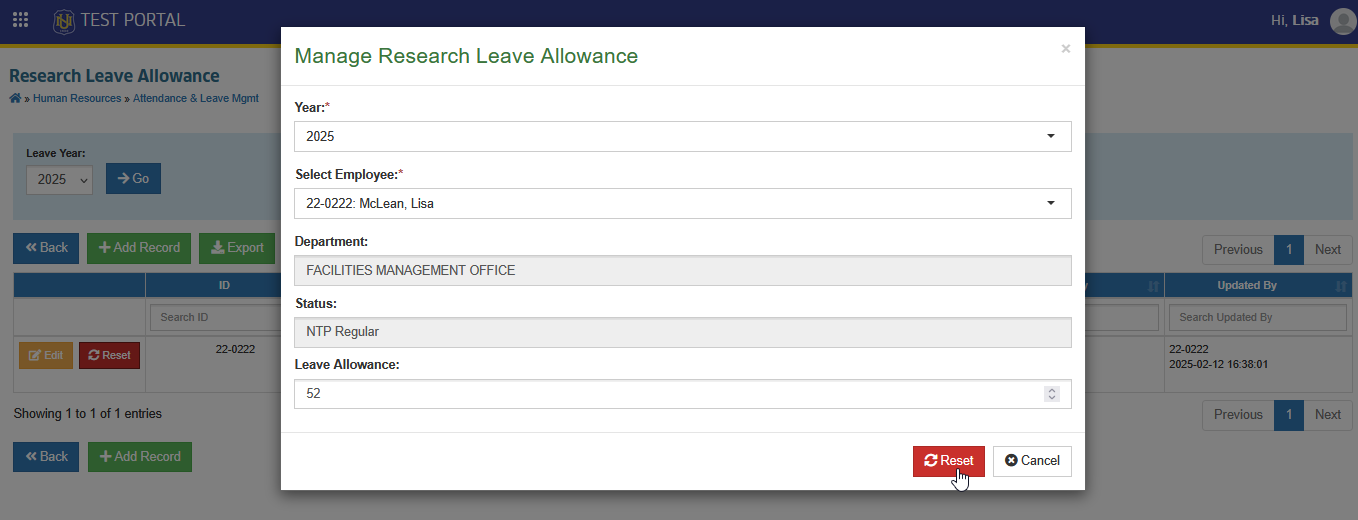
STEP 3. Confirm the resetting by clicking the button
-
Once the reset is complete, the employee's research leave details will be removed.
-
Employees with research leave credits will continue to follow the current leave application process in NUIS. Research Leave must be selected when applying for leave.
For more questions or concerns, email us at nu-desk@national-u.edu.ph