Room Reservations
The Room Reservation module allows FMO personnel to create and manage room reservations for presentations, meetings, and other activities.
Through this module, users can record reservations and keep track of scheduled room usage to avoid conflicts and ensure proper room allocation.
FMO personnel can view, add, edit, and delete reservation records in the system.
Required Permission
Add Room Reservations - Allows the user to create and record new room reservation requests in the system.
Delete Room Reservations - Allows the user to remove room reservation records from the system.
Edit Room Reservations - Allows the user to modify or update the details of existing room reservation records.
View Room Reservations - Allows the user to view the list and details of all room reservation records in the module.
How to Access the Module
To access the module, make sure you have the View Room Reservations permission. If it doesn’t appear in your portal, request access from your System Administrator.
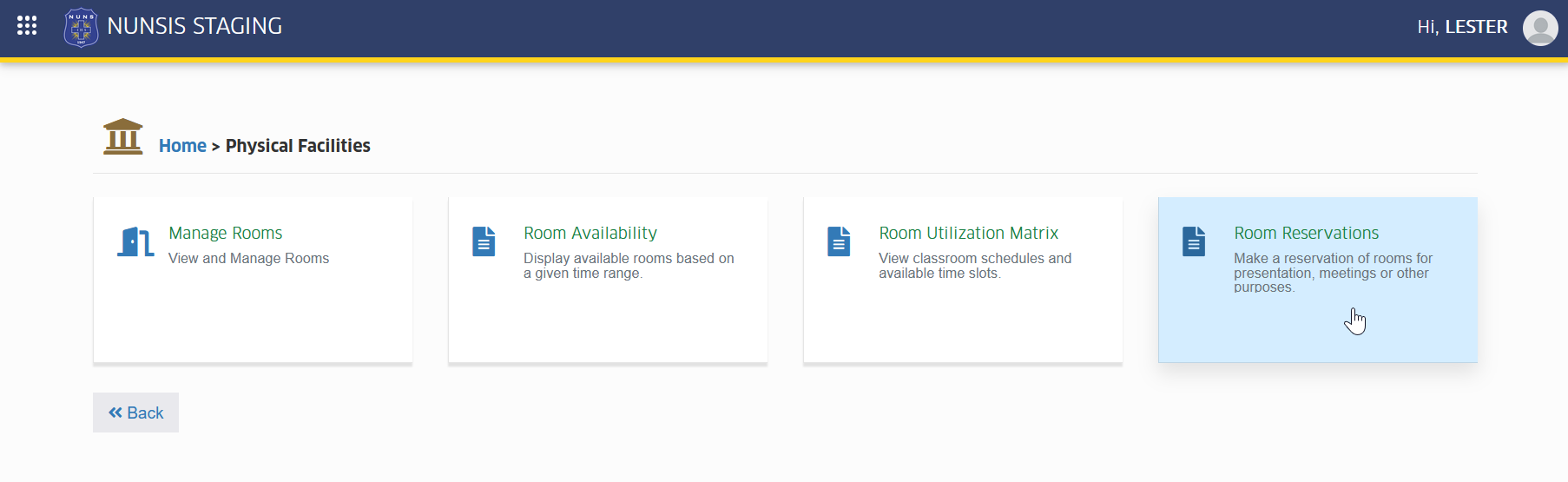
In NUNSIS portal, go to Physical Facilities > Room Reservations. Click the module tab to redirect to the Room Reservations list view page.
How to Use the Module
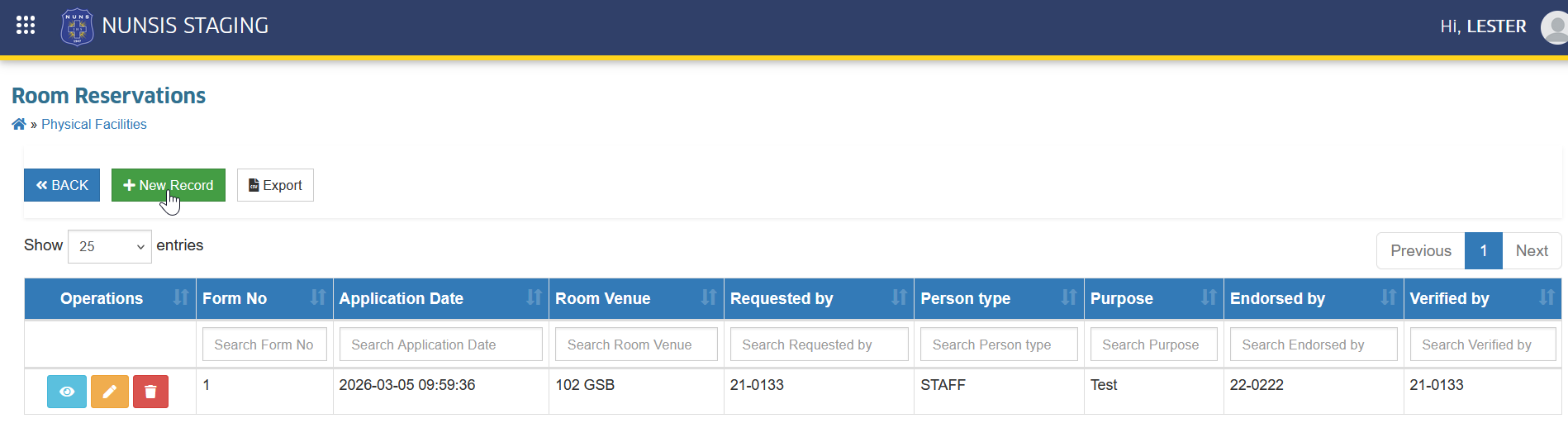
This section provides the basic instructions for using the Room Reservation module. It guides users on how to perform the main actions in the module, including adding, editing, deleting, and viewing room reservation records. Follow the steps in the succeeding sections to complete each task.
Adding a Room Reservation
This section explains how to create a new room reservation record in the system. Follow the steps below to enter the reservation details and save the request.
STEP 1. On the Room Reservations page, locate and click the button. The system will redirect to Edit Room Reservation page.
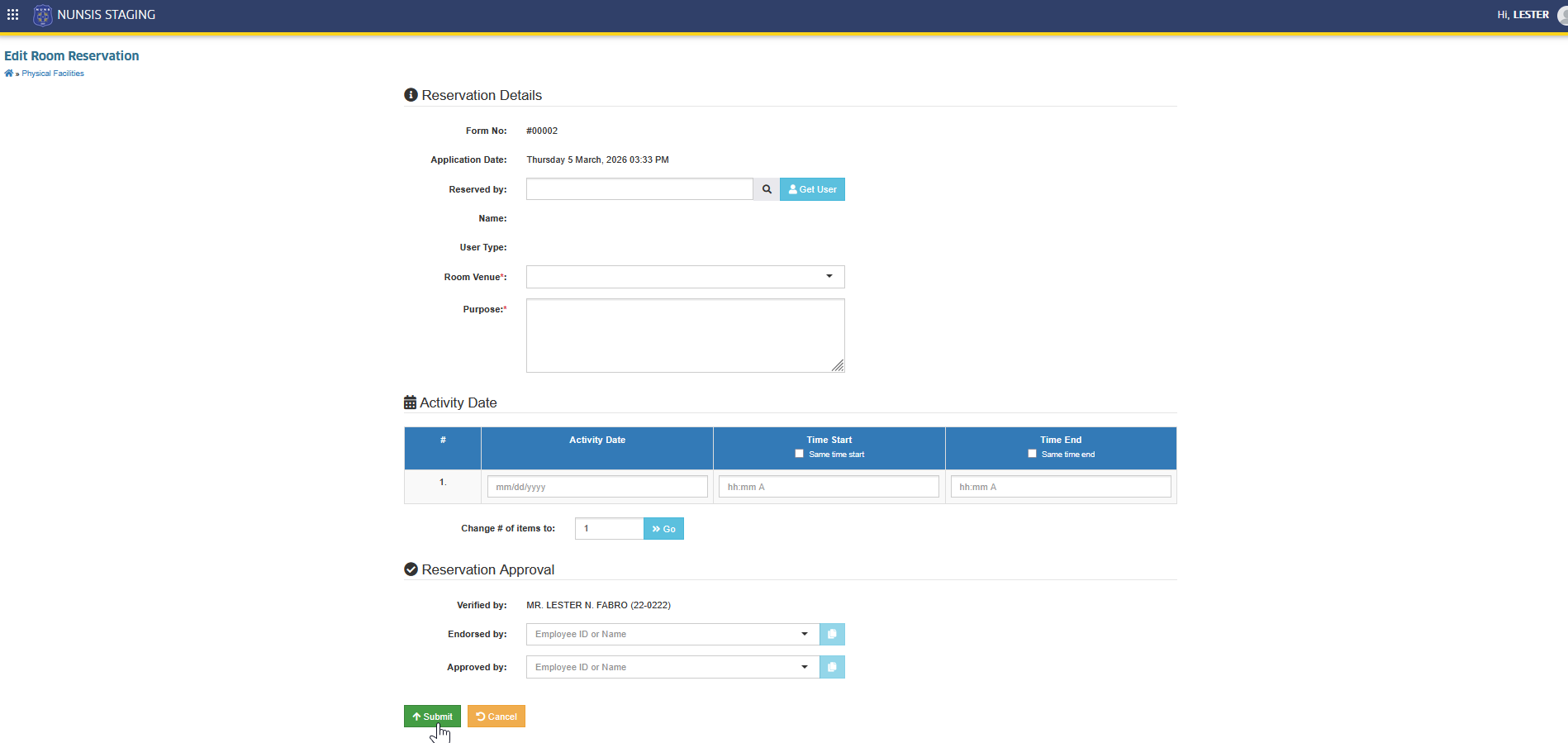
STEP 2. Fill out the required information in the page.
| Field Name | Description | Is Required |
|---|---|---|
| Reserved By | Indicates the name of the person who requested or made the room reservation. | Yes |
| Room Venue | Select the room where the activity will take place from the dropdown list of available rooms. | Yes |
| Purpose | Enter the reason or purpose of the room reservation. | Yes |
| Activity Date | Specify the date of the activity, including the start time and end time of the reservation. | Yes |
| Endorsed By | Select the employee who endorsed the room reservation request from the dropdown list. | Yes |
| Approved By | Select the employee who approved the room reservation from the dropdown list. | Yes |
STEP 3. Once completed, click the button to submit and save the new record.
Editing a Room Reservation
This section explains how to update the details of an existing room reservation record. Follow the steps below to modify the reservation information.
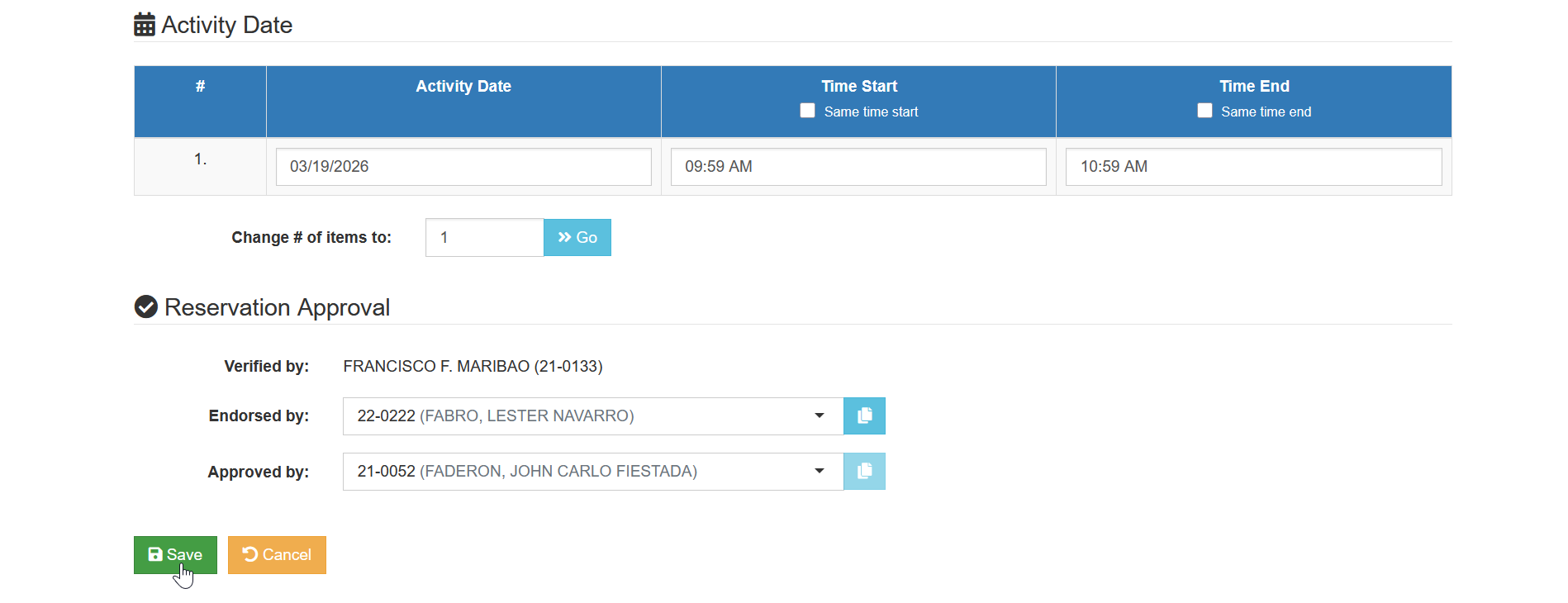
STEP 1. On the Room Reservations page, click the corresponding button of the record to update. The system will redirect to Edit Room Reservation page.
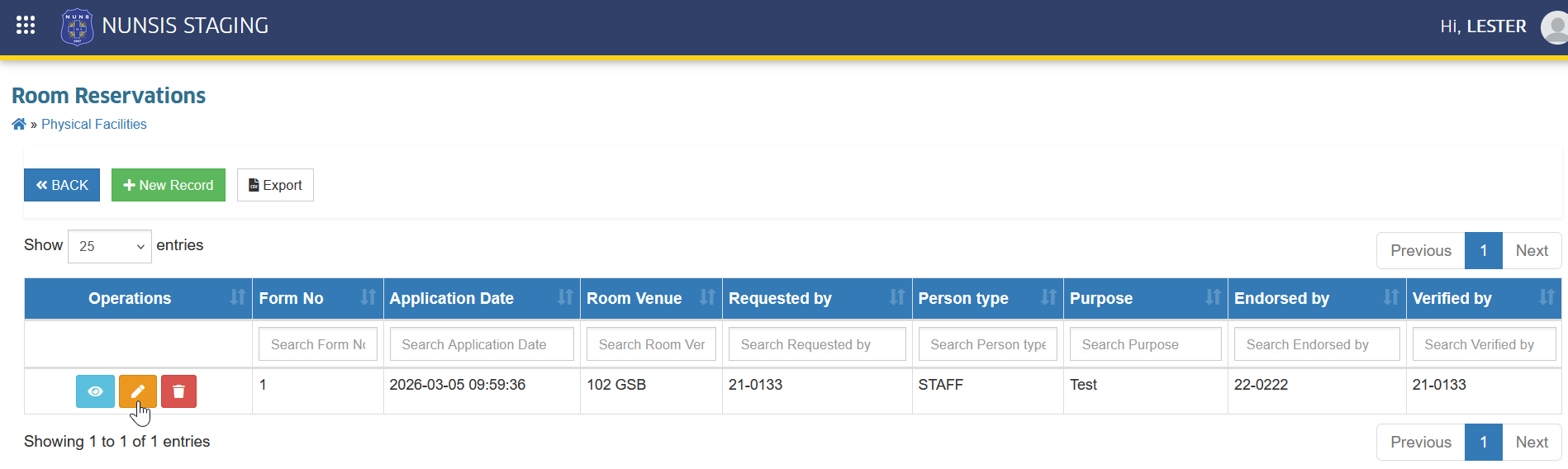
STEP 2. Update the necessary information and click the button to save the changes.
Deleting a Room Reservation
This section explains how to remove a room reservation record from the system. Follow the steps below to delete the selected reservation.
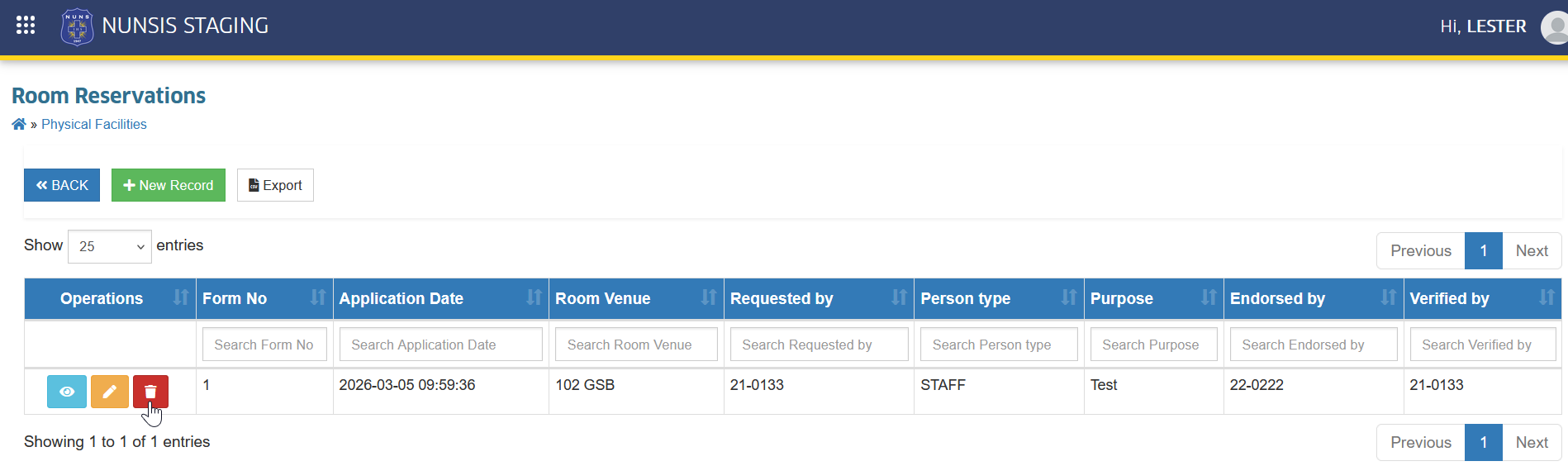
STEP 1. On the Room Reservations page, click the corresponding button of the record to remove. The system will redirect to Delete Room Reservation page.
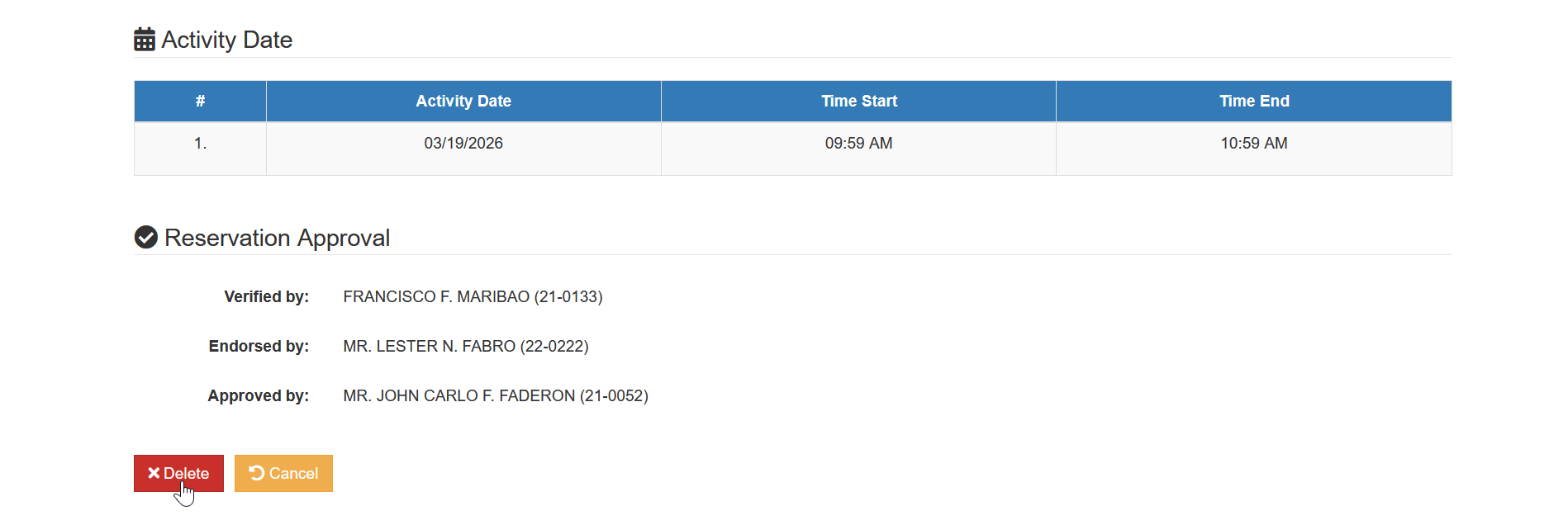
STEP 2. Confirm the deletion by clicking the button.
Export Room Reservation Record
Follow the steps below to download the room reservation record for offline backup.
STEP 1. On the Room Reservations page, locate and click the button. The system will redirect to Export Room Reservations page.
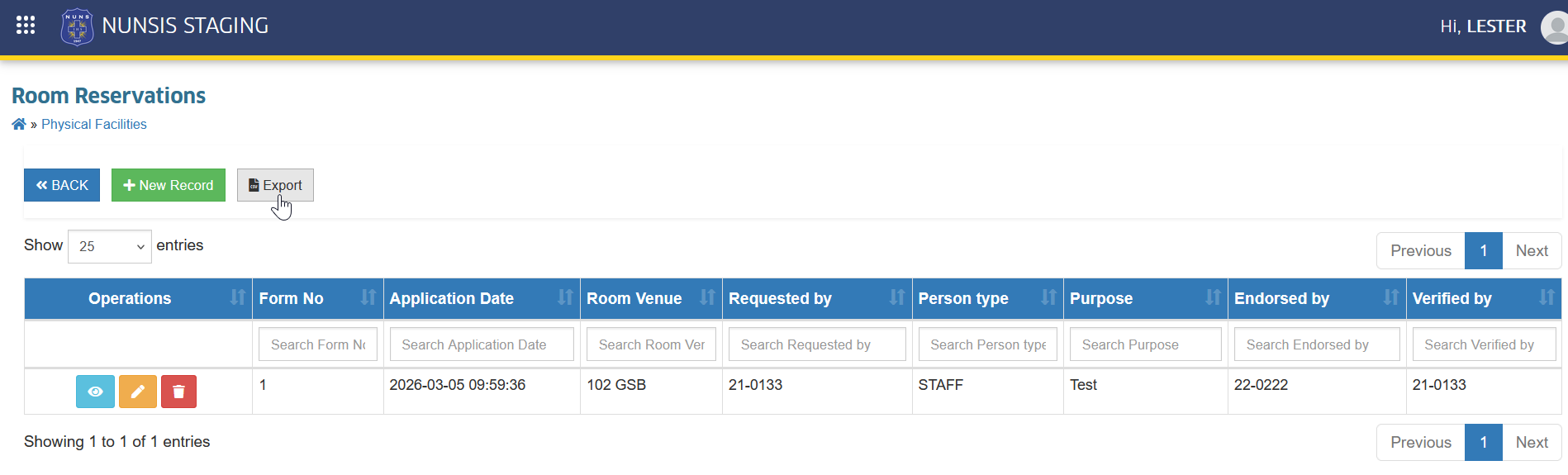
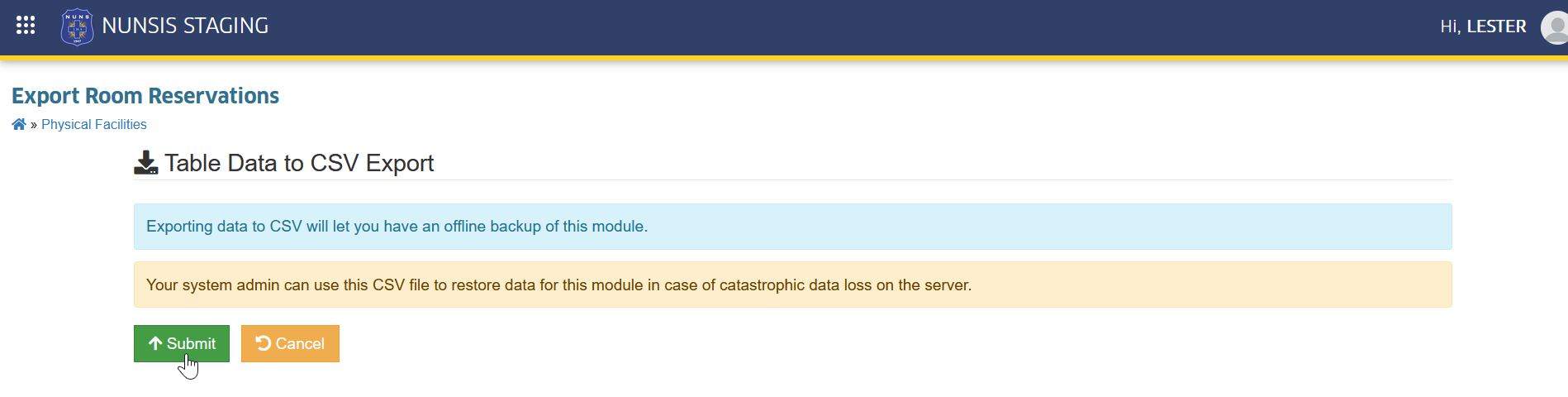
STEP 2. In the Export Room Reservations page, click the button. This action will generate the CSV file of the record.
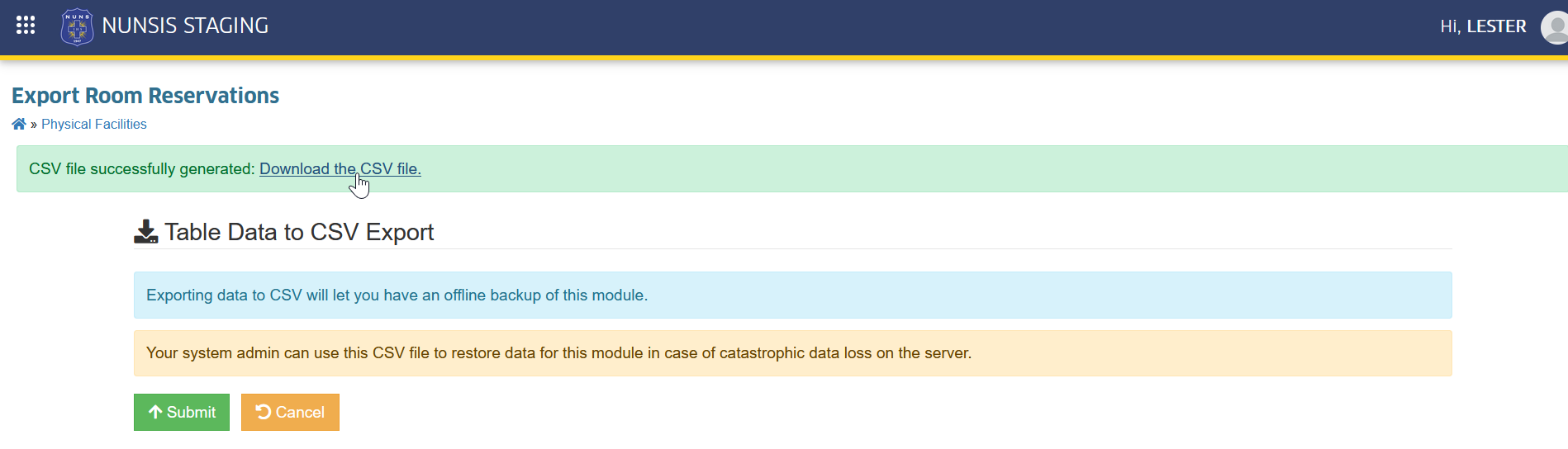
STEP 3. Download the CSV File by clicking the link.
For more questions or concerns, email us at nu-desk@national-u.edu.ph