Uploading a New Document or Manual

Uploading a document or manual in NUIS allows campuses to centralize important academic, administrative, or operational guidelines.
Each document must be categorized properly (e.g., Data Privacy, Quality Management, etc.) so users can easily locate and access them.
Necessary Permissions
To upload or manage a manual or document in NUIS, the user must have the following permissions, depending on document category:
- View <Document Category> – Allows viewing of all existing manuals or documents per category.
- Add <Document Category> – Enables uploading and assigning new manuals or documents to categories.
- Edit <Document Category> – Required only if creating or modifying document entries.
- Delete <Document Category> – Allow deletion of document entries.
<Document Category> is any category available in the system. Each category has its own set of permissions.
How to Upload a New Manual or Document
STEP 1. Log in to the system using an account with the required permissions.
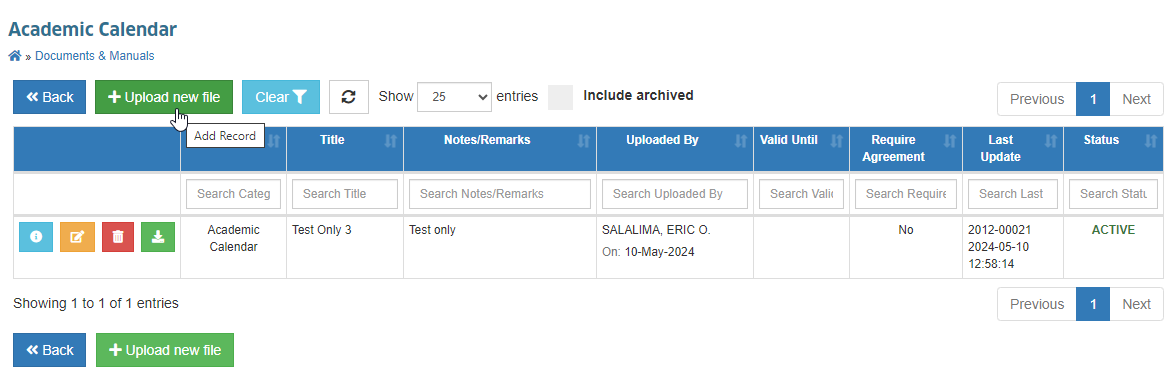
STEP 2. Go to Documents & Manuals module group.
STEP 3. Select the Category where the document will be uploaded (e.g., Academic Calendar, Student Handbook, etc.).
STEP 4. Click the Upload Document button. You will be redirected to Upload New Manual page.
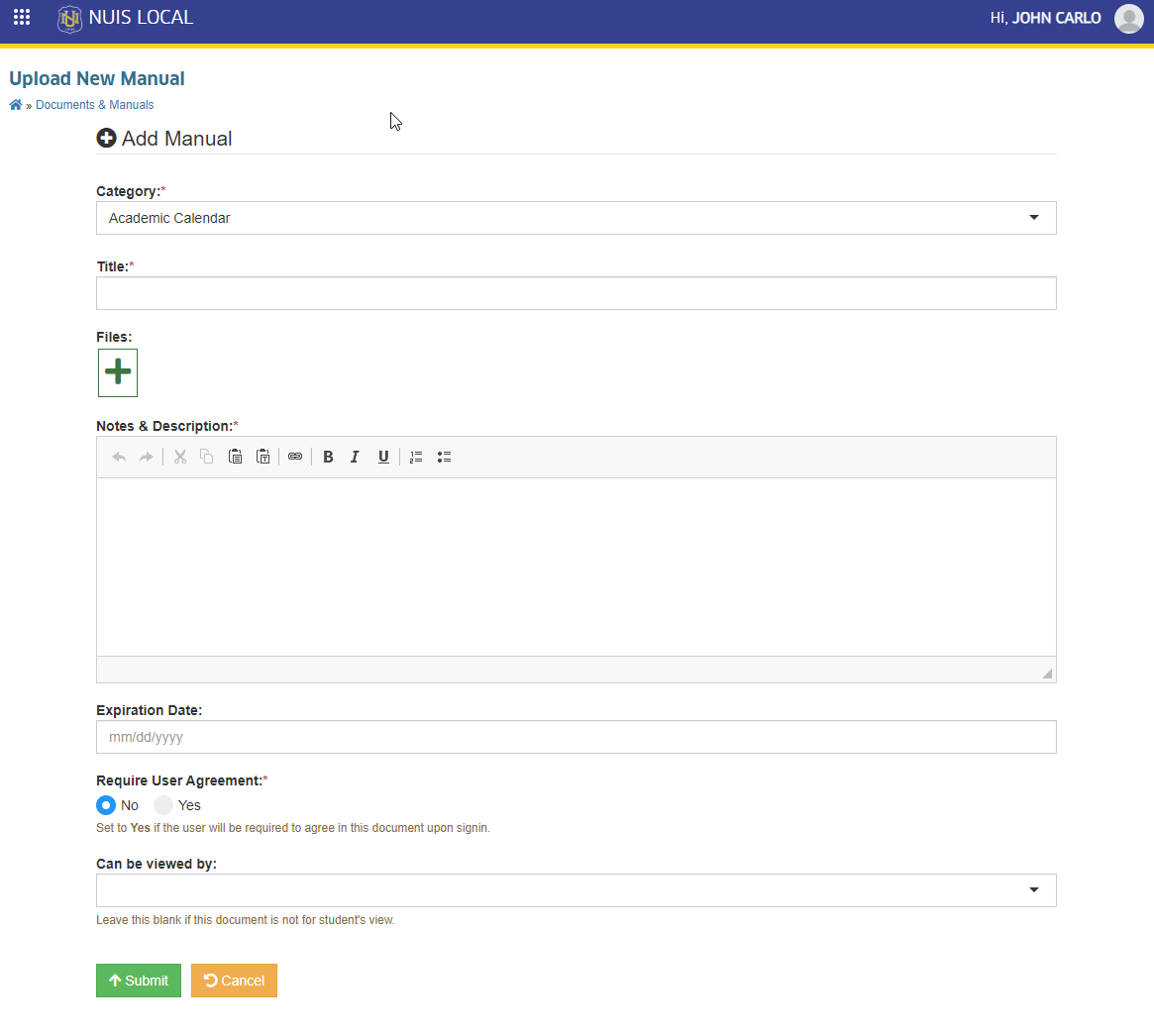
STEP 5. Fill in the form fields:
- Category – Choose the appropriate category for the document.
- Title – Enter a descriptive title of the manual or document.
- Files – Click the + icon to upload the file (PDF, DOCX, XLSX).
- Notes & Description – Provide a summary or details about the document.
- Expiration Date – Optional. Set if the document is only valid until a certain date.
- Require User Agreement – Select Yes if users must agree to this document upon login.
- User to Agree – Specify the user group required to agree (e.g., All Users, Students, Employees).
- Can be viewed by – Choose who can view the document. This is only applicable if the document is intended for students' view.
STEP 6. Click Save to upload the document.
STEP 7. Verify that the new document appears in the selected category list.
Please be reminded of the following guides:
- Always upload under the correct category so users can easily locate the document.
- Provide a clear title and description to avoid confusion.
- If the document requires acceptance, set Require User Agreement = Yes.
- Leave Can be viewed by blank if the document should not be visible to students.
Effect on Document Access
When a manual or document is uploaded:
- It appears immediately in the selected category under the Document Management module.
- Users with View Document Management permissions can download and read the file.
- If Require User Agreement = Yes, users must confirm their agreement upon login before proceeding.
- Updated versions replace old files, ensuring only the latest copy is available.