Medical Records Module – List View and Filtering Enhancements

The Medical Records module has been enhanced to improve visibility, tracking, and review of patient medical records across terms and patient types.
These updates focus on better data presentation, easier filtering, and improved monitoring of medical activities per term.
Overview of Changes
The following improvements were implemented in the Medical Records module:
- A new List View page that displays all medical records conducted per term.
- Added filtering options by Patient Type (Employee, SHS, College) and Term.
- Updated the Patient Medical Records view from a card-based layout to a table view for better readability and comparison.
Necessary Permissions
To access and use the updated Medical Records features, the user must have the appropriate permissions:
- View Medical Form – Allows viewing of all medical records in list and patient views.
- Add Medical Form – Enables creation of new medical records.
- Edit Medical Form – Required for updating existing medical records.
- Delete Medical Form – Allows deletion of medical records, if applicable.
Permission names may vary depending on system configuration, but access to the Medical Records module is required to view these enhancements.
Medical Records List View (Per Term)
The new List View page provides a centralized view of all medical records conducted within a selected term.
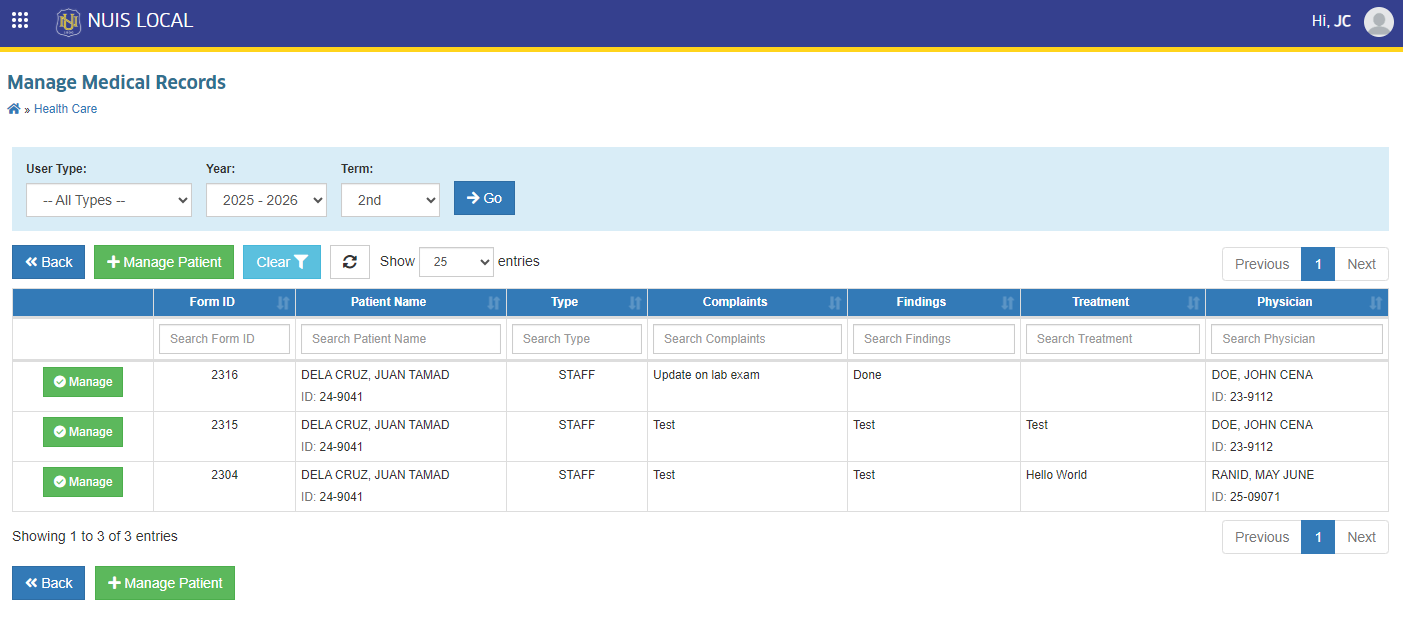
Purpose
- Monitor medical activities per term
- Easily review and audit records across different patient types
- Reduce the need to open individual patient profiles for summary checks
How to Access
STEP 1. Log in to the system using an account with Medical Records permissions.
STEP 2. Navigate to the Health Care module group.
STEP 3. Click Medical Records. You will be redirected to the Medical Records List View page.
Using Filters
The List View page includes filtering tools to quickly narrow down records.
Available Filters
- Patient Type – Filter records by:
- Employee
- Senior High School (SHS)
- College
- Term – Select the academic term to display medical records conducted within that period.
How to Filter Records
STEP 1. Select the desired Term from the Term dropdown.
STEP 2. Choose a Patient Type (Employee, SHS, or College).
STEP 3. Click Go button.
STEP 4. The list automatically updates to display only matching records.
How to Manage Patient's Records
The process of managing a patient's medical records remains the same as before. No major workflow changes were introduced; only user interface improvements were applied.
With the addition of the Medical Records List View page, managing patient records can now be accessed directly from this page.
How to Manage Records
STEP 1. Go to the Medical Records List View page.
STEP 2. Click the Manage Patient button located at the top of the table.
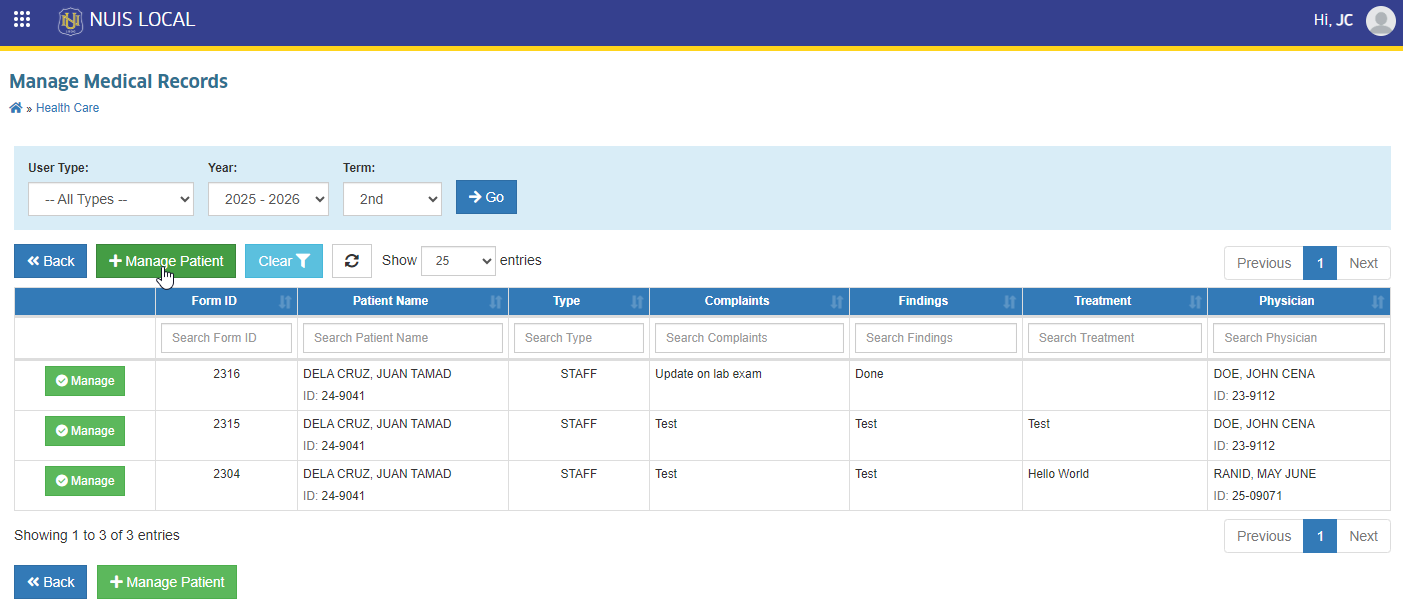
STEP 3. Look for the patient record you want to manage. If the patient cannot be found in the search function, manually specify the patient's ID.
STEP 4. You will be redirected to the patient's medical records page. Proceed with the same process as before for adding, editing, or reviewing medical records.
Updated Patient Medical Records View
The Patient Medical Records section has been updated from a card-style layout to a table view.
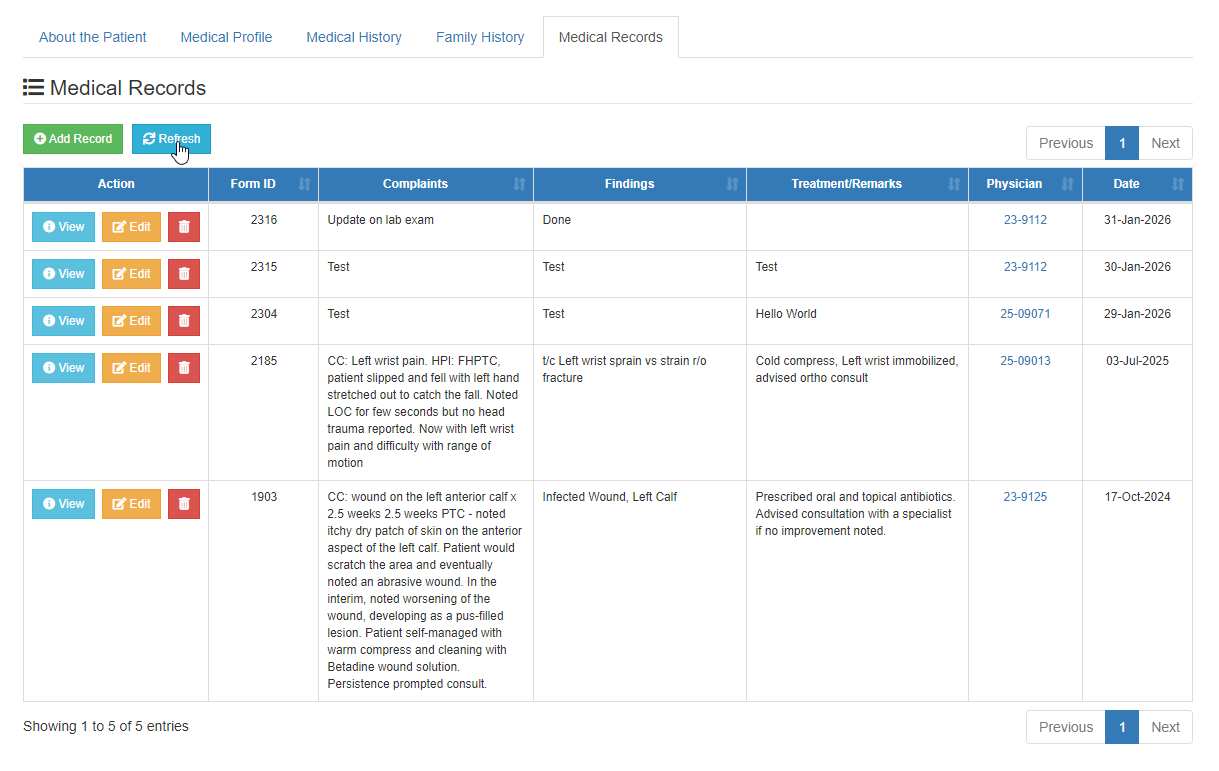
What Changed
- Removed card-based display of individual medical entries
- Introduced a table layout showing all records in a structured format
Benefits of Table View
- View all medical records at once without excessive scrolling
- Easier comparison of dates, diagnoses, and procedures
- Improved readability for users handling large volumes of records
Table Information Typically Includes
- Form ID
- Complaints
- Findings / Diagnosis
- Treatments / Remarks
- Physician
- Date of Consultation
- This initial update is in preparation for the upcoming reports to be included in the system.
- Always select the correct term when reviewing records.
- Use filters to avoid overlooking relevant medical entries.
- Ensure proper permissions are assigned to maintain data privacy and integrity.