QR Code Implementation in Enrollment Assessment Forms

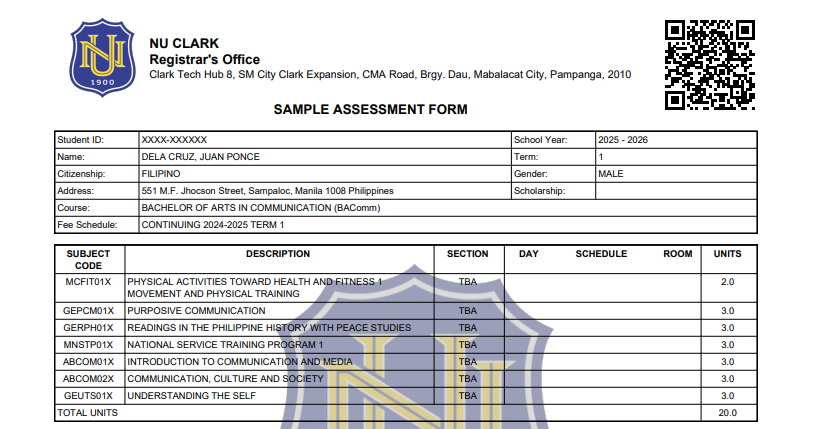
The Assessment Form and Certificate of Registration (COR) have been enhanced with QR Code verification to improve document authenticity and validation. This feature allows users to verify enrollment and assessment details against the latest system data.
Overview of Changes
The following enhancements were implemented:
- QR Code added to Assessment Form and Certificate of Registration (COR).
- Public Verification Portal for validating enrollment and assessment details.
- Real-time comparison of document values with system records to detect outdated or altered documents.
Purpose and Benefits
- Authenticity Verification – Confirms that documents are system-generated and valid.
- Real-Time Validation – Retrieves the latest assessment data from the system.
- Tampering Detection – Identifies altered or outdated printed documents.
- Operational Efficiency – Reduces manual verification requests by offices and external partners.
Enrollment Assessment Verification Portal
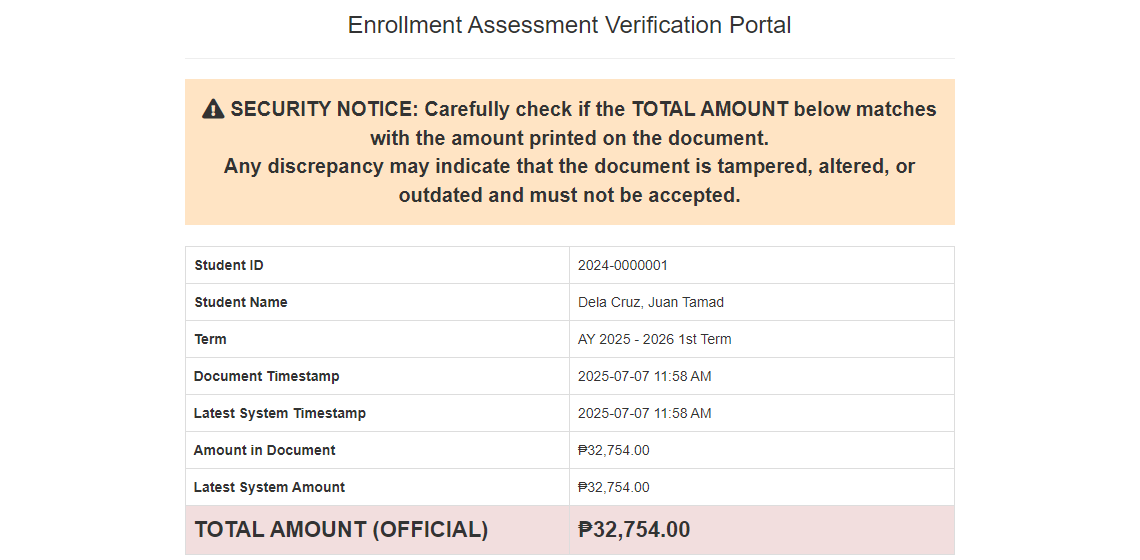
When the QR Code is scanned, the user is redirected to the Enrollment Assessment Verification Portal. This page displays official system data for comparison with the printed document.
How to Verify a Document
STEP 1. Scan the QR Code using a mobile device or QR scanner.
STEP 2. Check if Student ID, Name, and Term match the printed document.
STEP 3. Compare the TOTAL AMOUNT (OFFICIAL) with the printed amount.
STEP 4. If any detail does not match, the document is INVALID or OUTDATED.
The verification portal always retrieves the latest assessment data from the system.
Printed or saved copies may not reflect recent updates.
Possible Errors When Scanning
QR Code Scan Issues
- QR not detected: low resolution or blurred print. Reprint with higher quality.
- QR cropped: incorrect layout margins. Adjust PDF template.
- Camera cannot focus: glossy paper or low contrast. Use matte print and high-contrast QR.
Verification Portal Errors
- Token Not Found: token is invalid or expired. Regenerate document.
- Document Outdated: assessment updated after printing. Request reissued document.
- Amount Mismatch: document is possibly altered. Reject and notify Registrar Office.
- System Error: portal unavailable. Retry later or contact IT Support.
- Always rely on the TOTAL AMOUNT (OFFICIAL) from the verification portal.
- Reject documents with mismatched details or amounts.
- Ensure QR Codes remain readable in all generated documents.