Applicant Tracker
The Applicant Tracker module helps the Enrollment Team track the progress of student applications from submission to enrollment. It shows each student’s application status, including whether they have:
-
Been approved by Admission
-
Been imported as a student and assigned a student ID
-
Been approved to enroll
-
Been issued a Student Assessment
-
Officially enrolled
-
Been issued a Certificate of Registration (COR)
This allows the team to easily monitor and follow up on applications.
Required Permission
-
Applicant Tracker – Lets Admission and Registrar personnel view student application statuses.
-
Applicant Tracker Admin – Lets non-Admission and non-Registrar personnel view all student application statuses.
Key Features
1. View Student Application Status
-
Displays all student applications and their current stage.
-
Status indicators include: Imported, Admission Approved, Enrollment Approved, Assessment Issued, Enrolled, COR Issued.
2. Search and Filter Applications
-
Search by student name, application ID, or status.
-
Filter to view applications at a specific stage.
3. Monitor Progress and Follow-Up
-
Quickly identify applications pending approval or action.
-
Helps ensure no application is delayed.
How to Access the Module
To access the module, make sure you have the Applicant Tracker permission. If it doesn’t appear in your portal, request access from your System Administrator.
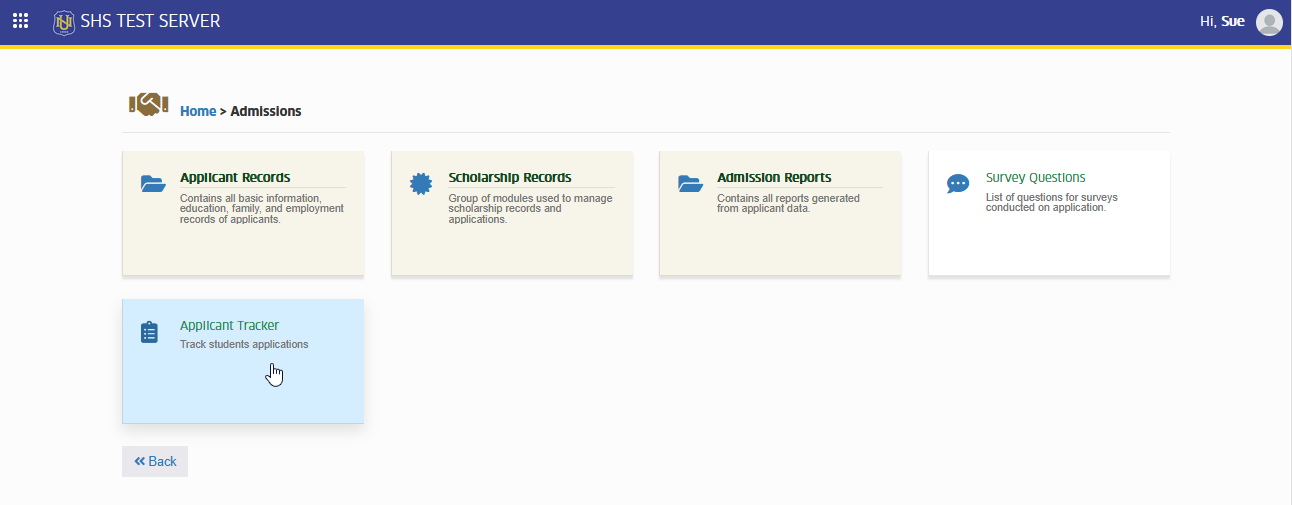
In NUIS-SHS portal, go to Admission > Applicant Tracker. Click the module tab to redirect to the Applicant Tracker page.
How to Use the Module
STEP 1. Open the Module
- Go to the Applicant Tracker page.
STEP 2. Check the Application List
-
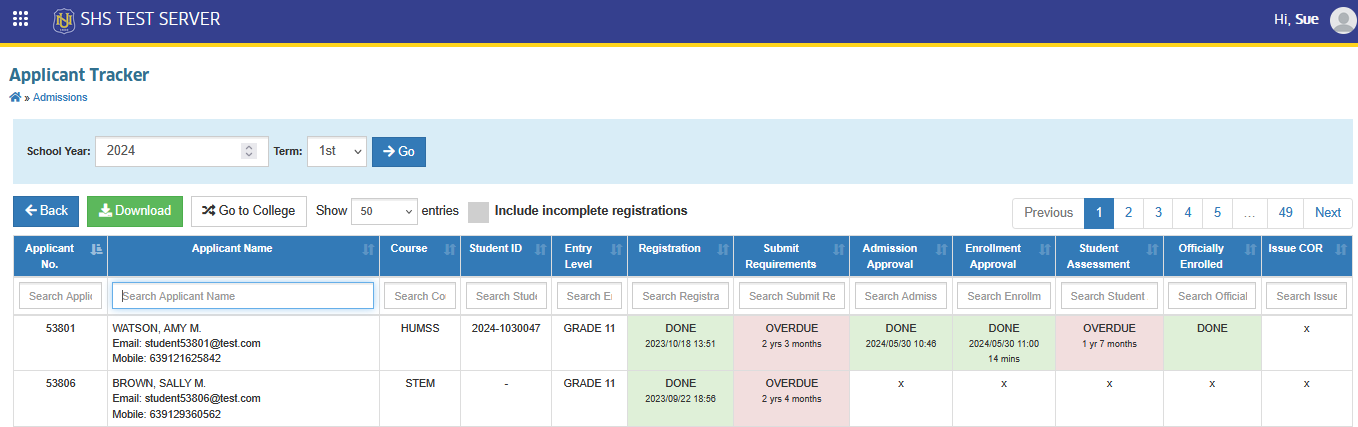
All student applications will appear with their current status.
-
Status columns:
-
Imported – Application added to the system and student ID assigned.
-
Admission Approved – Approved by Admission Office.
-
Enrollment Approved – Cleared to enroll.
-
Assessment Issued – Student Assessment generated.
-
Enrolled – Student officially enrolled.
-
COR Issued – Certificate of Registration issued.
-
STEP 3. Search or Filter Applications
-
Use the search box to find a student application by name or ID.
-
Apply filters to narrow down applications by status.
STEP 4. Follow Up
-
Identify applications that are pending in any stage.
-
Coordinate with relevant offices to complete pending steps.
How to Download Report
This feature allows the Enrollment Team to download a report of student applications and their current statuses. The report can be used for monitoring, record-keeping, and coordination with other offices.
STEP 1. Open the Applicant Tracker module.
STEP 2. Click the button.
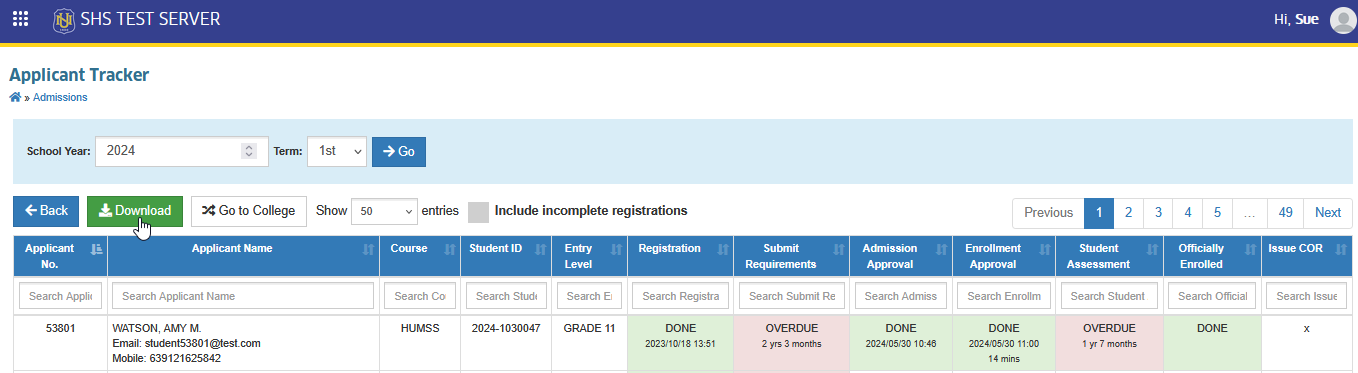
STEP 3. The system will generate and download the report with the displayed application data.
For more questions or concerns, email us at nu-desk@national-u.edu.ph