Survey Questions
The Survey Questions module is used by the Admission Office to manage the survey questions answered by Senior High School applicants (Grade 11 and Grade 12) during their admission application in NU Quest.
This module allows the office to create, update, and control survey questions, as well as manage the possible answers for each question.
Required Permission
Survey Questions Permissions
Add SurveyQuestions - Allows the user to create new survey questions that will appear in the NU Quest admission application.
Delete SurveyQuestions - Allows the user to permanently remove existing survey questions from the system.
Edit SurveyQuestions - Allows the user to update or modify the details of existing survey questions.
View SurveyQuestions - Allows the user to view the list and details of all survey questions.
Survey Choices Permissions
Add SurveyChoices - Allows the user to add new answer choices to a survey question.
Delete SurveyChoices - Allows the user to remove existing answer choices from a survey question.
Edit SurveyChoices - Allows the user to update or modify existing answer choices of a survey question.
View SurveyChoices - Allows the user to view all answer choices associated with a survey question.
Purpose of the Module
Using this module, the Admission Office can:
-
Add new survey questions
-
Edit existing survey questions
-
Delete survey questions
Survey questions with existing applicant answers cannot be deleted
-
Deactivate survey questions when they are no longer needed
-
Manage answers for each survey question:
-
Add answers
-
Edit answers
-
Delete answers
Answer choices with existing applicant responses cannot be deleted
-
Enable or disable answer choices when necessary
-
Archive answers choices for record purposes
-
How to Access the Module
To access the module, make sure you have the View SurveyQuestions permission. If it doesn’t appear in your portal, request access from your System Administrator.
In NUIS-SHS portal, go to Admission > Survey Questions. Click the module tab to redirect to the SHS Survey Questions listview page.
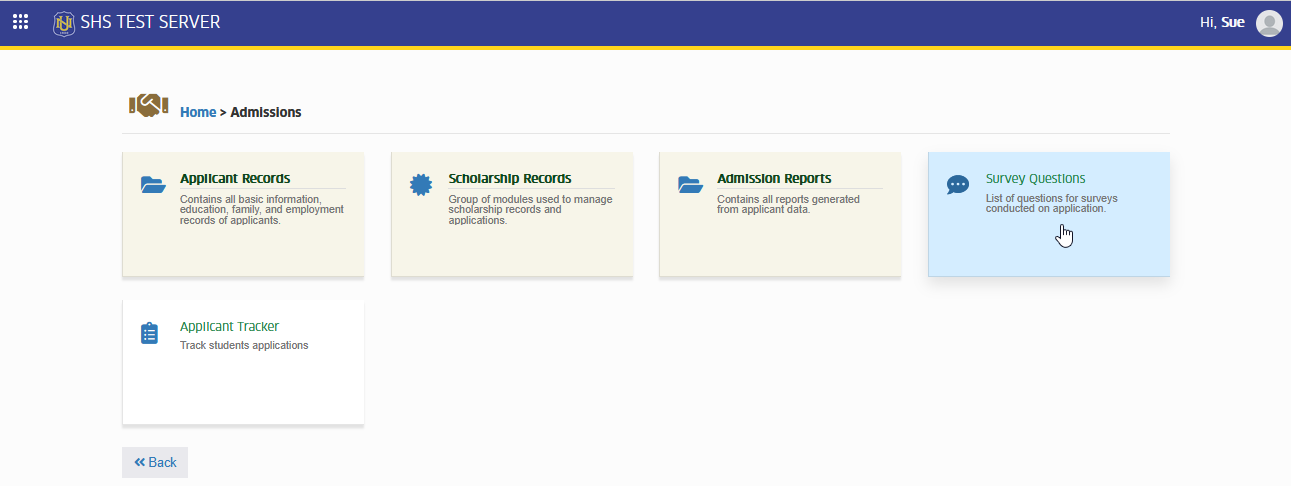
Managing Surver Questions
This section allows the Admission Office to manage survey questions for Senior High School applicants in NU Quest. It covers adding new questions, editing existing ones, deactivating questions, and deleting questions that do not have applicant responses.
Add Survey Questions
Follow the steps below to add new survey questions
STEP 1. On the Survey Questions page, locate and click the button. The system will redirect to theAdd Survey Question page.

STEP 2. In Add Survey Question page, fill out the required fields:
| Field Name | Description |
|---|---|
| Question | Enter the text of the survey question that applicants will answer. |
| Is Shown | Select YES to make question visible to applicants in NU Quest. Select NO to hide it temporarily. |
STEP 3. Click the to save the new record. After submission, the system redirects to the Edit Survey Questions page.
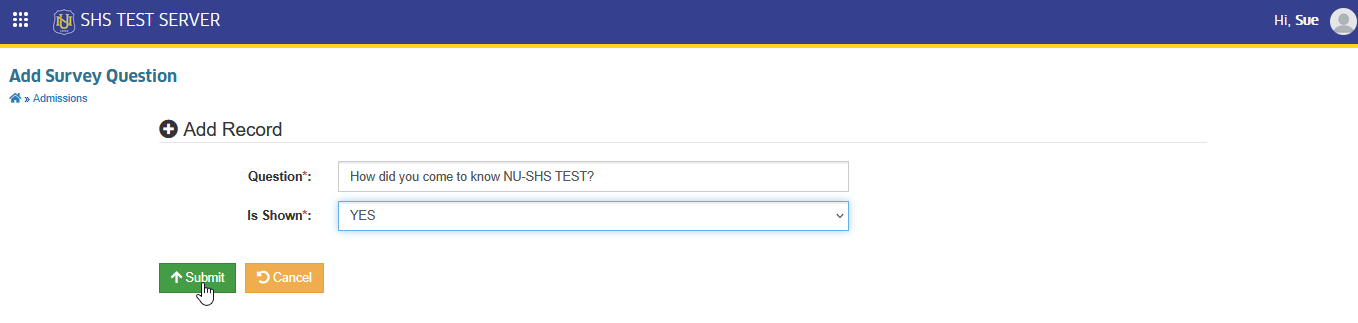
STEP 4. On the Edit Survey Questions page, add all answer choices for the newly created survey question.
Edit Survey Questions
Follow the steps below to edit existing survey questions
STEP 1. On the Survey Questions page, click the corresponding button of the question record to modify. The system will redirect to the Edit Survey QUestion page.
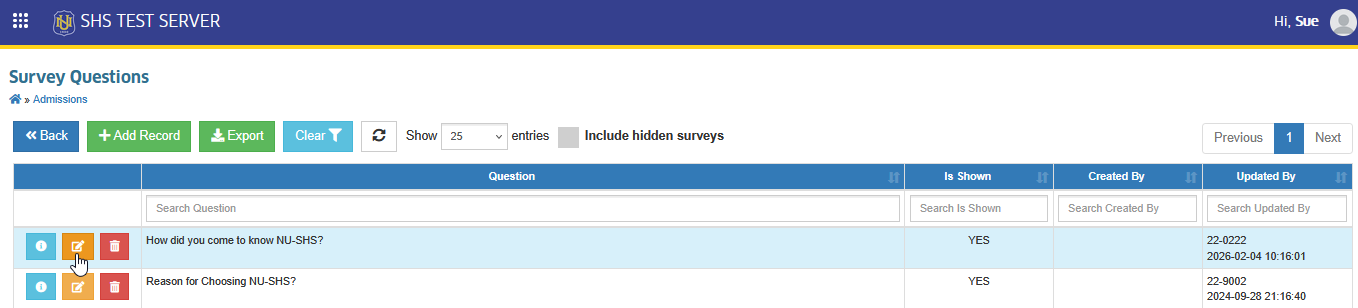
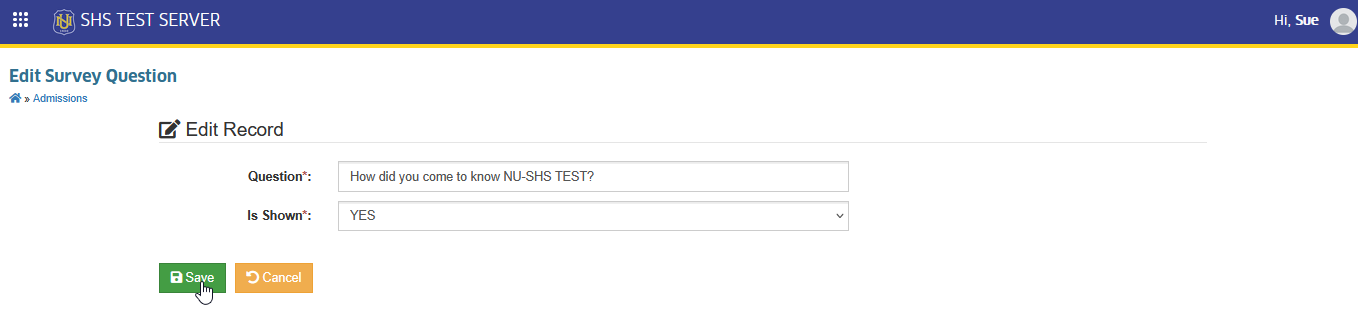
STEP 2. On the Edit Survey Questions page, update the necessary informtaion in the fields provided.
STEP 3. Click the button to save changes.
Delete Survey Questions
Follow the steps below to delete survey question record.
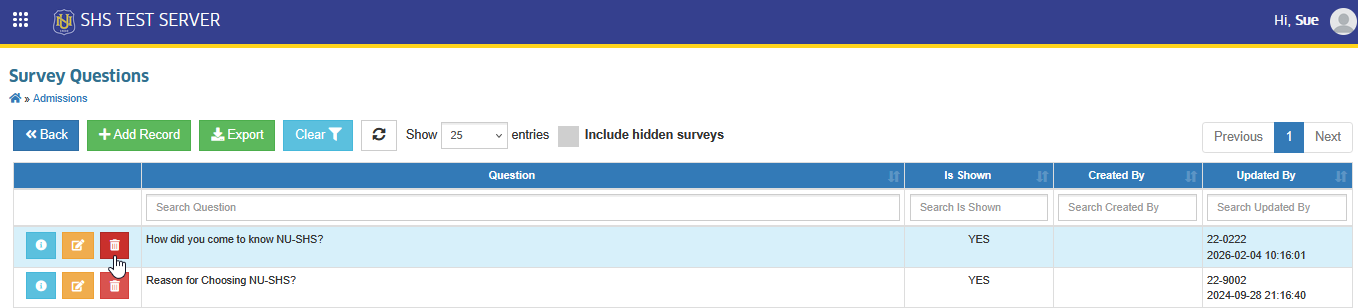
STEP 1. On the Survey Questions page, click the corresponding button of the question record to remove. The system will redirect to the Delete Survey QUestion page.
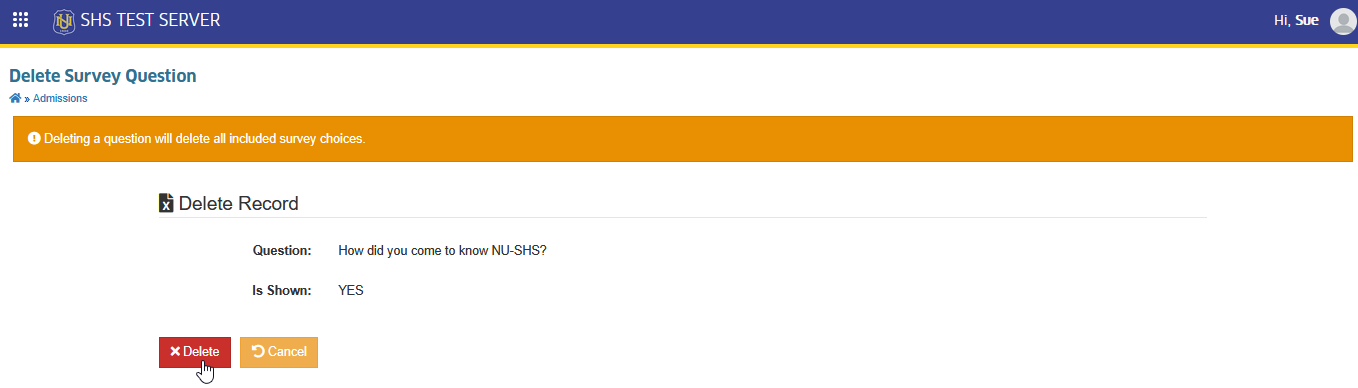
STEP 2. Confirm the deletion by clicking the button.
-
Deleting a question will delete all included survey choices.
-
Survey questions with existing applicant answers cannot be deleted
Deactivate Survey Questions
Follow the steps below on how to set survey question as inactive.
STEP 1. STEP 1. On the Survey Questions page, click the corresponding button of the question record to modify. The system will redirect to the Edit Survey QUestion page.
STEP 2. In the Is Shown field, set the value to NO.
STEP 3. Click the button to save changes.
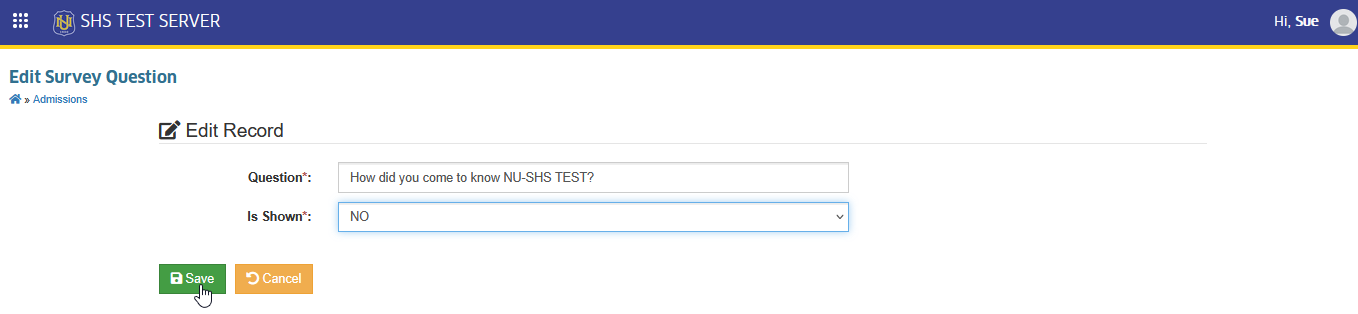
The question will no longer be visible to applicants in NU Quest.
To view inactive survey question, click the check box located at the upper part of the list view page.

Managing Survey Choices
This section allows the Admission Office to manage the answer choices linked to each survey question. These answers will be available for applicants to select during the admission process.
Add Survey Choices
Follow the steps below to add new survey choices
STEP 1. STEP 1. On the Survey Questions page, click the corresponding button of the question record to modify. The system will redirect to the Edit Survey Question page.
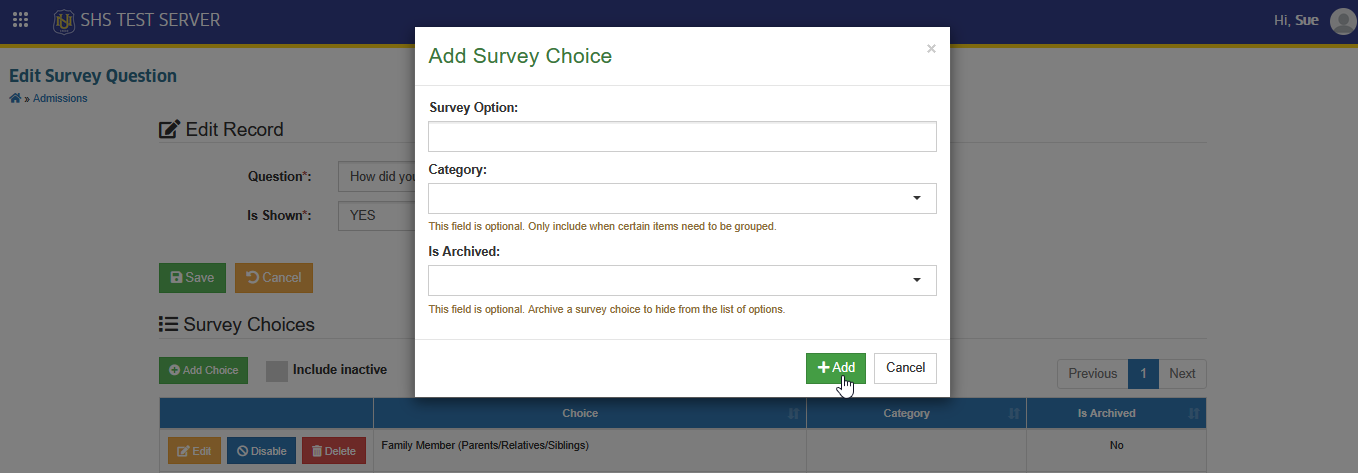
STEP 2. On the Edit Survey Question page, under the Survey Choices section, click the button. The Add Survey Choice prompt will appear.
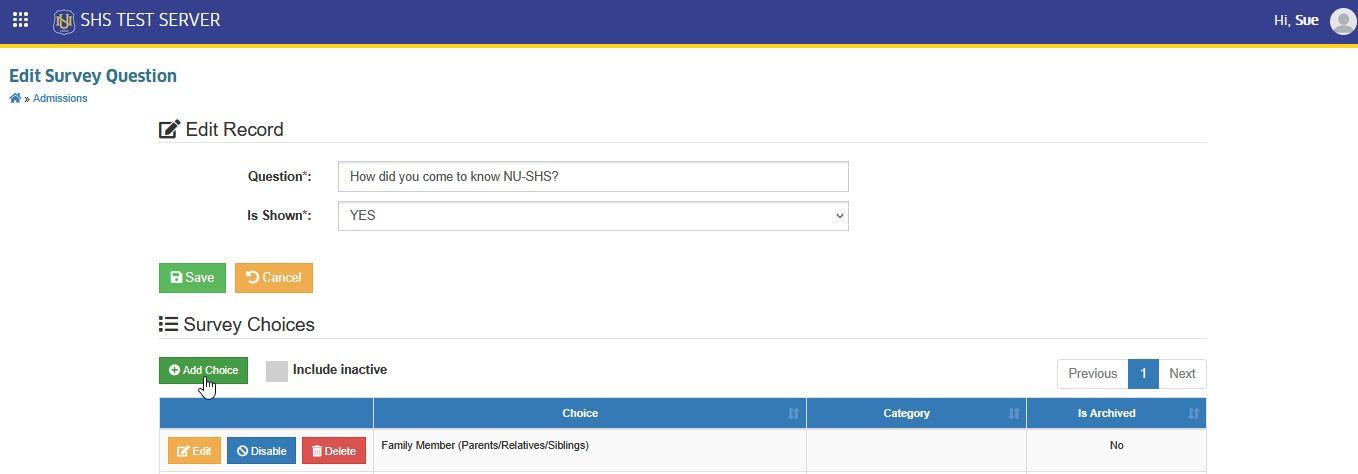
STEP 3. In Add Survey Choice prompt, fill out the required fields:
| Field Name | Description |
|---|---|
| Survey Option | Enter the text of the answer choice that applicants can select for the survey question. |
| Category | Select a category to group related survey options. This field is used only when grouping is needed.A new category may also be added by typing category name and clicking Add... |
| Is Archived | Select YES to archive the survey option and hide it from the list of available choices. Select NO to keep the survey option active and visible. |
STEP 4. Click button to add new choice.
Edit Survey Choice
Follow the steps below to edit existing survey choice.
STEP 1. On the Survey Questions page, click the corresponding button of the question record to modify. The system will redirect to the Edit Survey Question page.
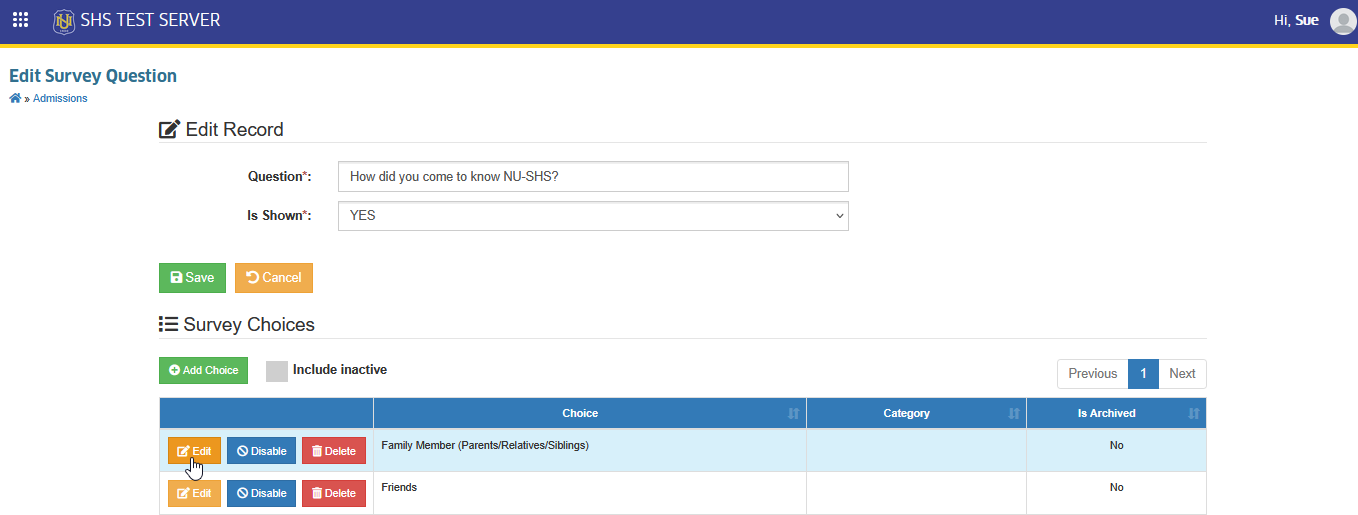
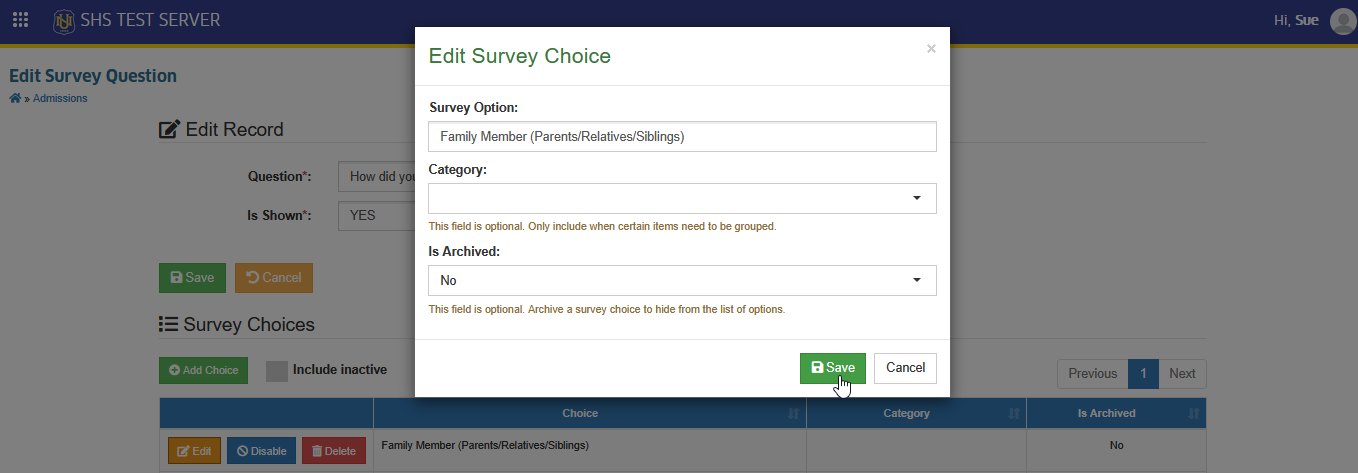
STEP 2. On the Edit Survey Question page, under the Survey Choices section, click the corresponding button of the survey choice to update. The Edit Survey Choice prompt will appear.
STEP 3. Update the necessary information.
STEP 4. Click the button to save changes.
Delete Survey Choice
Follow the steps below to delete survey choice record.
STEP 1. On the Edit Survey Question page, under the Survey Choices section, click the corresponding button of the survey choice to remove. The Delete Survey Choice prompt will appear.
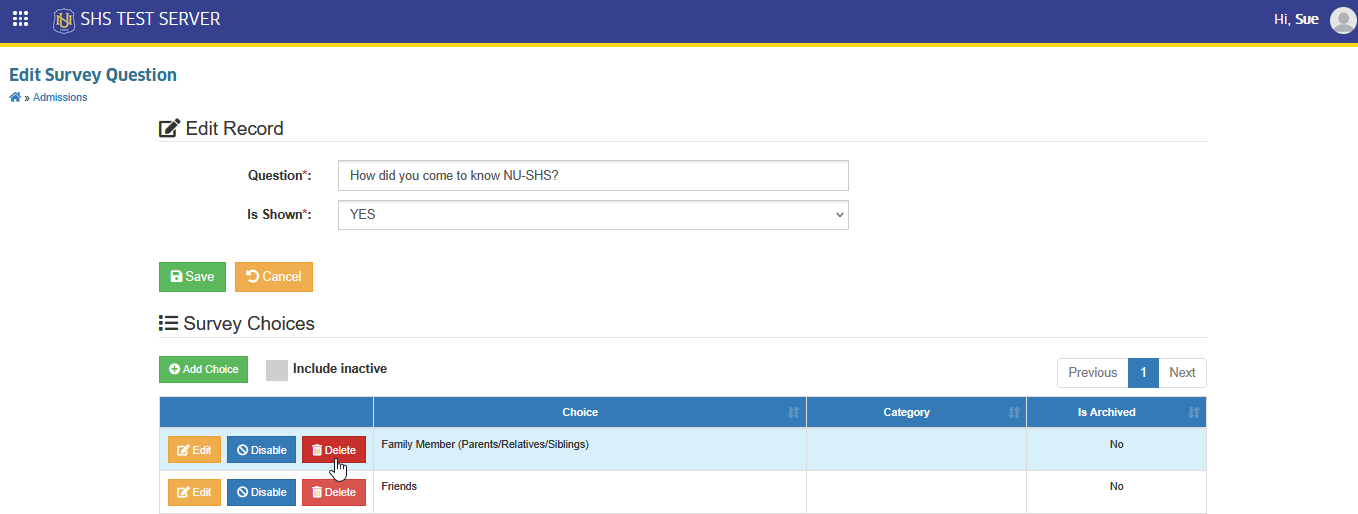
STEP 2. Confirm the deletion by clicking the in the Delete Survey Choice prompt.
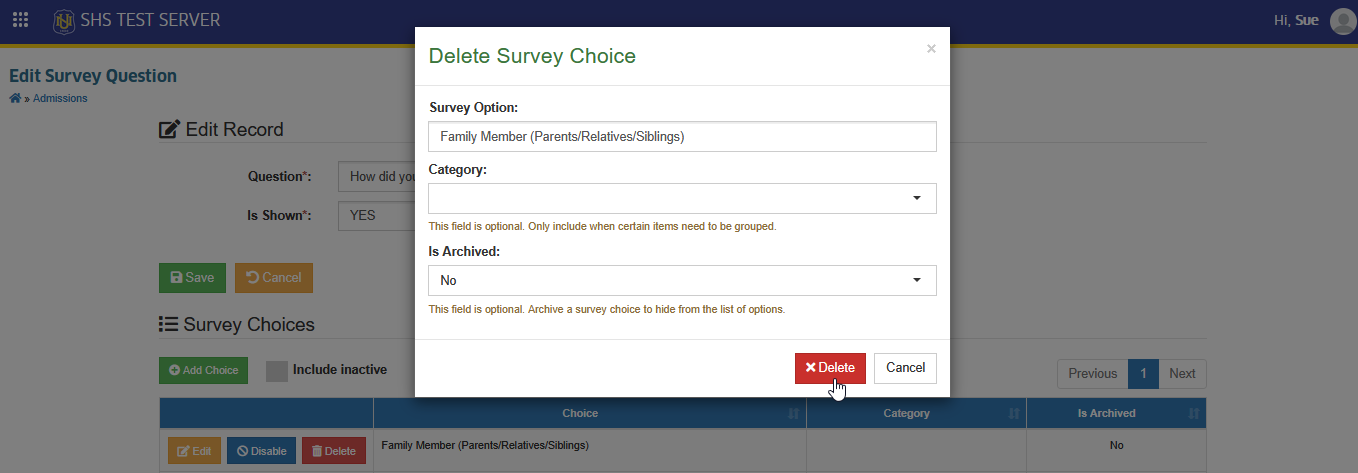
Removal of the record is not allowed if it is referenced by another record.
Disable Survey Choice
Follow the steps below to disable specific choices
STEP 1. On the Edit Survey Question page, under the Survey Choices section, click the corresponding button of the survey choice to disable it.

STEP 2. Confirm the action in the prompt that appears.
Enable Survey Choice
Follow the steps below to enable specific choices
STEP 1. On the Edit Survey Question page, under the Survey Choices section, click the button to show all inactive choices.

STEP 2. On the actions column, click the corresponding button of the survey choice to enable.

STEP 3. Confirm the action in the prompt that appears.
For more questions or concerns, email us at nu-desk@national-u.edu.ph