Voucher
The Voucher module is used to manage Senior High School (SHS) vouchers. This module allows the Registrar Office to configure voucher details, assign required documents to applicants, and manage which fee items will be discounted when a voucher is applied.
Voucher codes and voucher names used in this module are official codes and names issued by the Department of Education (DepEd).
Only active vouchers will be available in NU Quest for applicants to select, apply for, and upload the required documents.
Required Permission
-
Add VoucherHdr - Allows the user to create a new SHS voucher record.
-
Delete VoucherHdr - Allows the user to remove an existing SHS voucher record from the system.
-
Edit VoucherHdr - Allows the user to update details of an existing SHS voucher, including requirements and discounted fee items.
-
View VoucherHdr -Allows the user to access the Voucher module and view SHS voucher details.
Who Can Use This Module
This module is managed exclusively by the Registrar Office.
Only authorized Registrar personnel are allowed to :
-
Create and update voucher records
-
add or modify voucher requirements
-
Manage discounted fee items for vouchers
How to Access the Module
To access the module, make sure you have the View VoucherHdr permission. If it doesn’t appear in your portal, request access from your System Administrator.
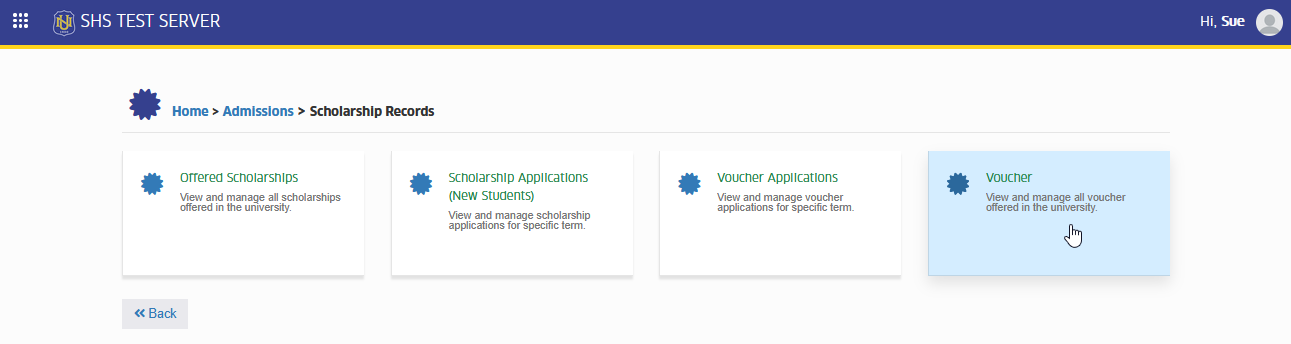
In NUIS-SHS portal, go to Admission > Scholarship Records > Voucher. Click the module tab to redirect to the list of vouchers page.
How to Use the Module
This section provides step-by-step instructions on how the Registrar Office can manage SHS vouchers in the system. It explains how to create, update, and delete voucher records, as well as how to assign applicant requirements and configure the fee items that will be discounted by each voucher.
The following topics are covered in this section:
-
How to add a new voucher record
-
How to edit an existing voucher record
-
How to manage voucher requirements
-
How to manage discounted fee items of a voucher
-
How to delete a voucher record
How to add a new voucher record
This section explains how the Registrar Office can create a new SHS voucher using the official DepEd voucher code and name. It includes setting the voucher status and saving the voucher record in the system.
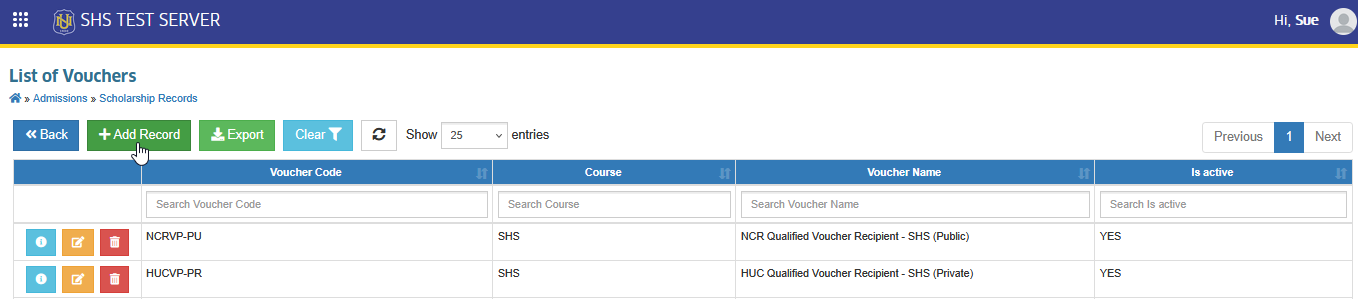
STEP 1. On the Voucher list view page, click the button. This will redirect the user to the Add Voucher page.
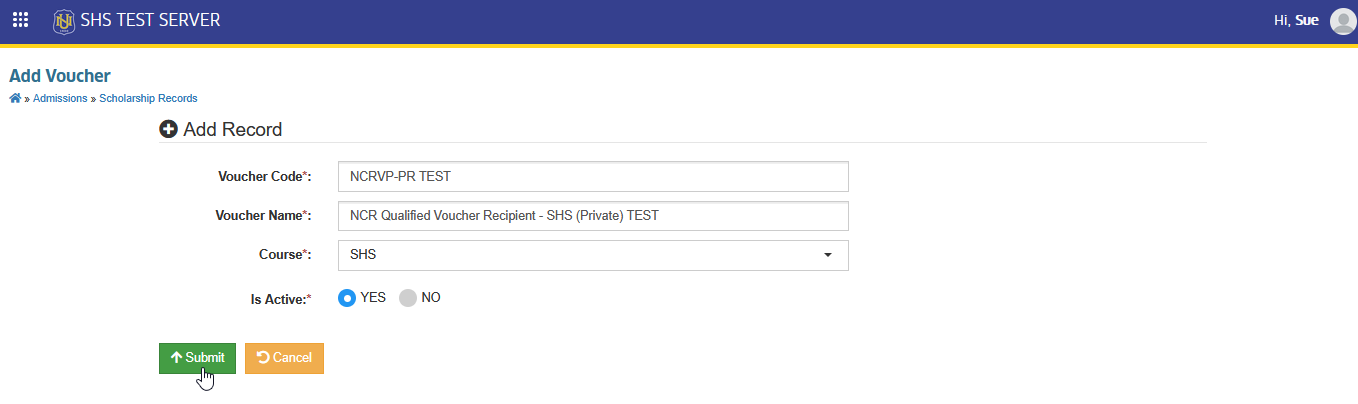
STEP 2. On the Add Voucher page, enter the required voucher information in the appropriate fields.
| Field Name | Description |
|---|---|
| Voucher Code | The official DepEd voucher code. This code uniquely identifies the voucher in the system. |
| Voucher Name | The official DepEd voucher name. This is the name that will appear for the applicants in NU Quest. |
| Course | The course for the voucher. For SHS vouchers, the only option available is SHS. |
| Is Active | Set whether the voucher is active or inactive. Yes makes the voucher available in NU Quest for applicants to apply, while No hides it from applicants. |
STEP 3. Click button to save the record.
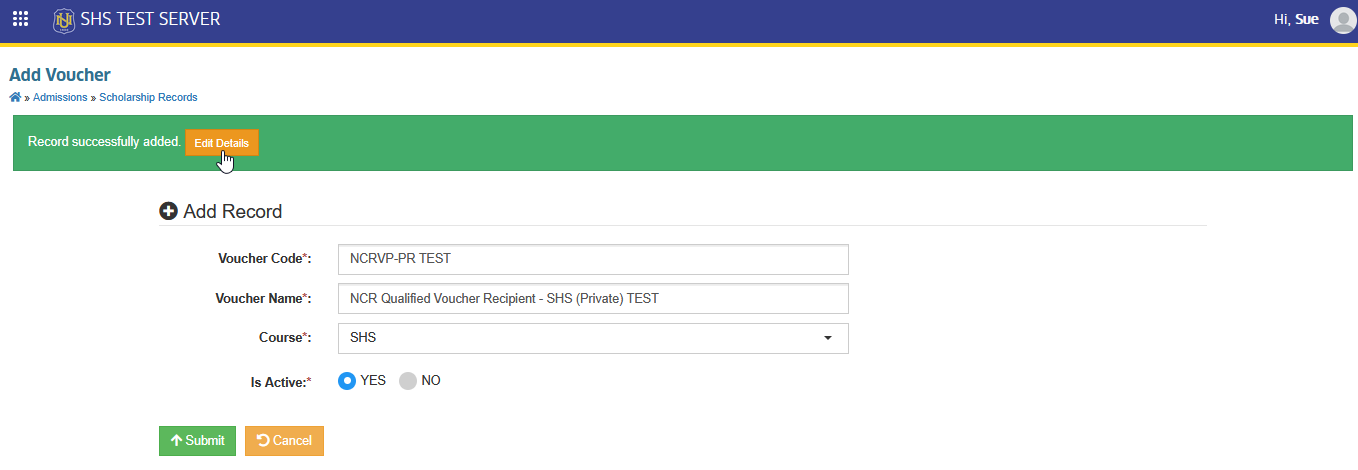
STEP 4. The record will be successfuly added. Click the button to manage the voucher requirements and discounted fee items.
How to edit an existing voucher record
This section guides users on how to update the details of an existing voucher, such as voucher information, requirements, and discounted fee items.
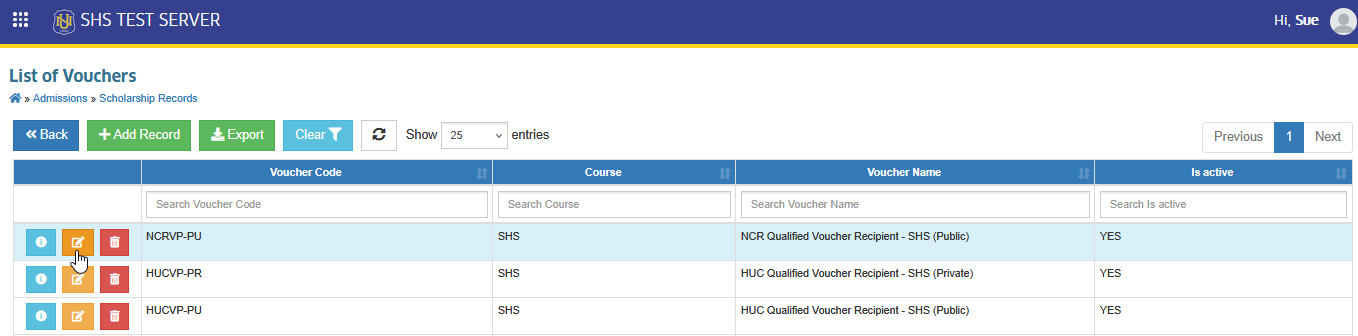
STEP 1. On the Voucher list view page, click the corresponding button of the record you want to update. This will redirect the user to the Edit Voucher page.
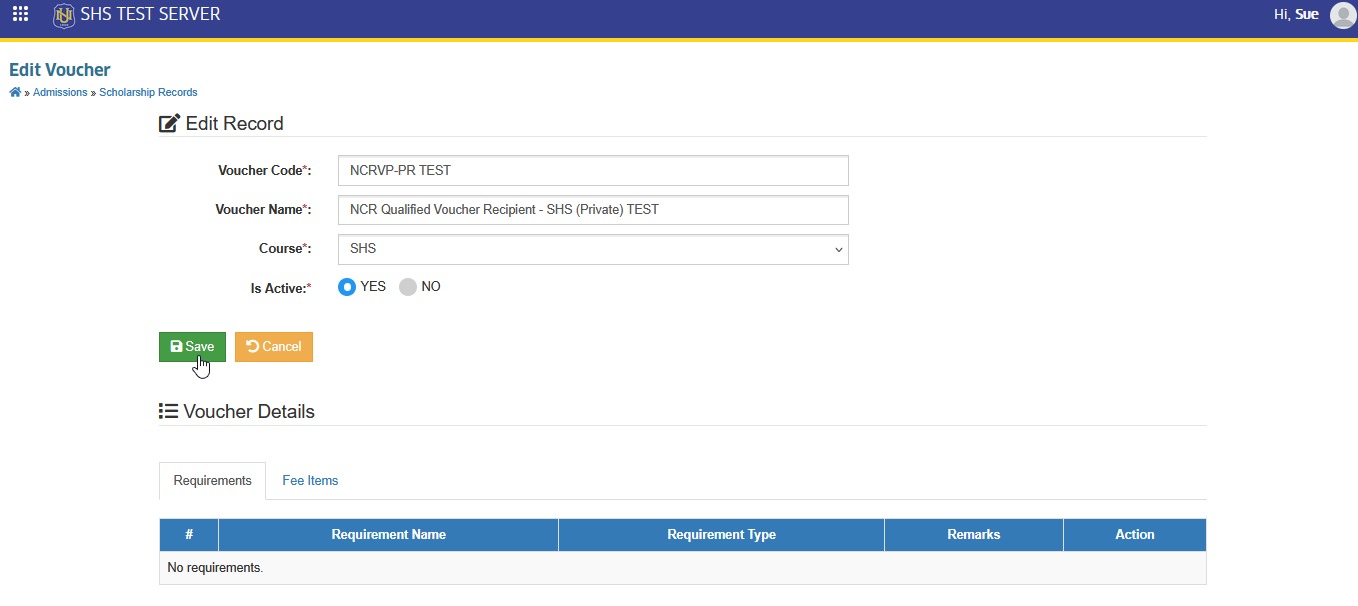
STEP 2. On the Edit Voucher page, make the necessary modifications. Once done, click the button to update the record.
How to manage voucher requirements
This section describes how to add, update, or remove the list of required documents that applicants must submit when applying for a voucher.
STEP 1 Follow the steps on How to edit and existing voucher record.
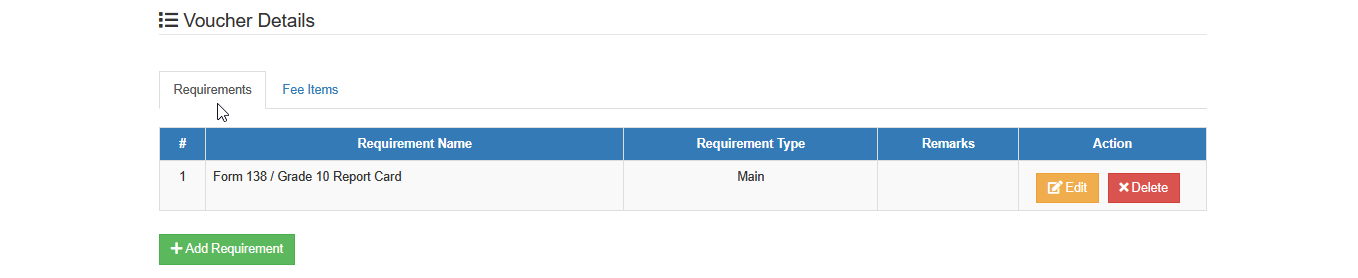
STEP 2. On the Edit Voucher page, scroll down to the Voucher Details section and click the Requirements Tab.
How to add new requirement
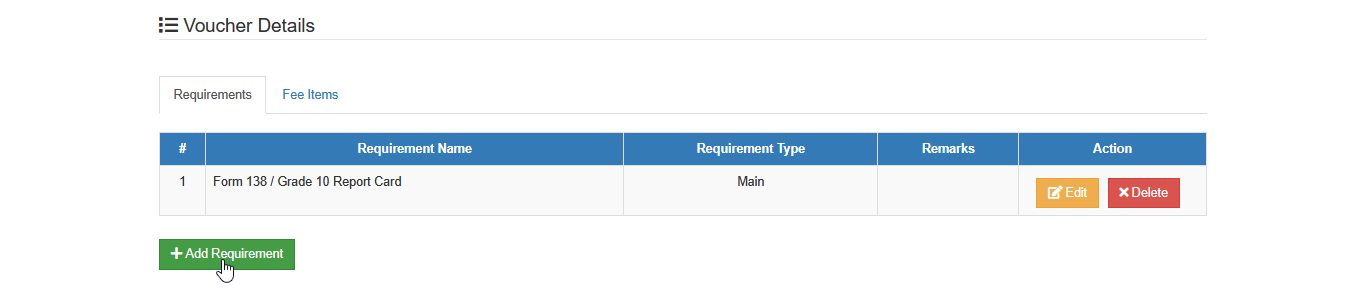
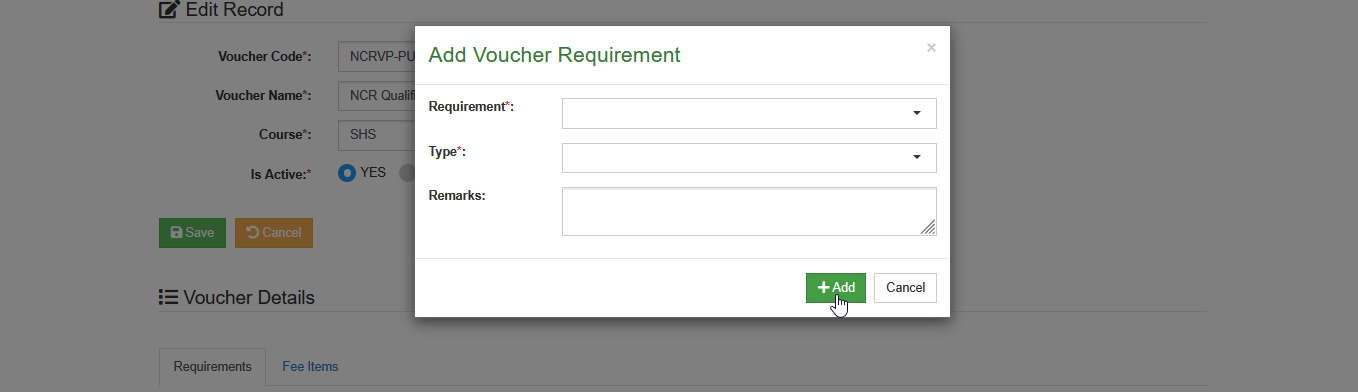
STEP 1. On the Requirements tab, click the button. This will open the Add Voucher Requirement prompt.
STEP 2. Enter the Requirement information:
| Field Name | Description |
|---|---|
| Requirement | Select a requirement from the system's list of available requirements. These are the documents that applicants must submit or upload to apply for the voucher discount. |
| Type | Choose wheter the requirement is a Main Requirement or an Additional. |
| Remarks | Optional field to add any notes or clarification about the requirement. |
STEP 3. Click the button to save the requirement.
How to update a requirement
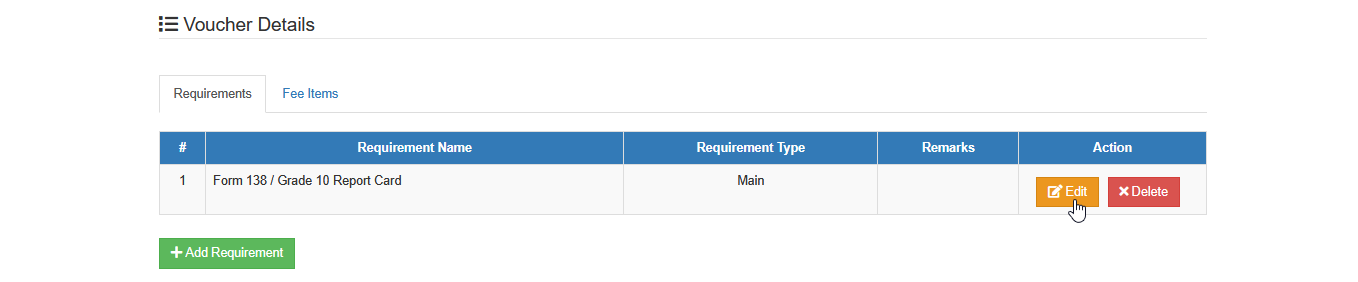
STEP 1. On the Requirements tab, click the corresponding button of the requirement you want to update. This will open the Edit Voucher Requirement prompt.
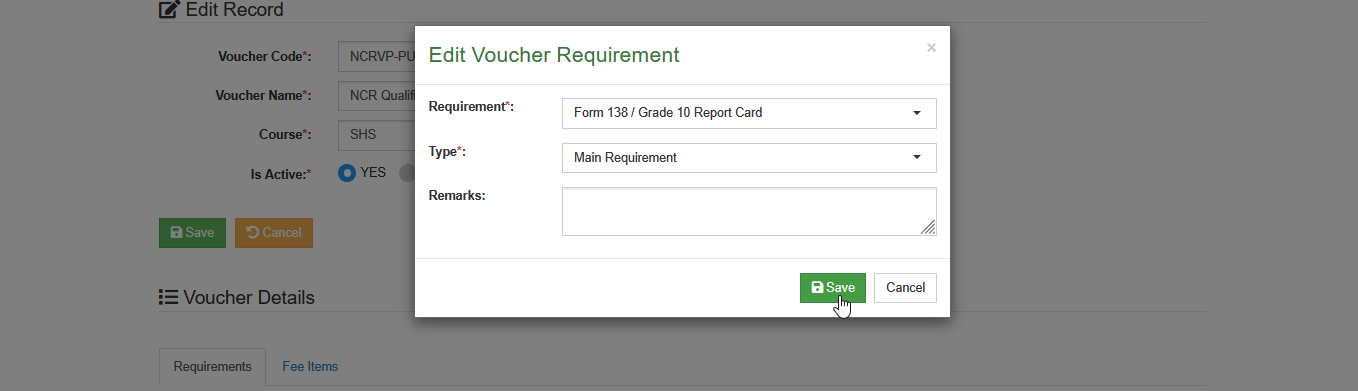
STEP 2. On the Edit Voucher Requirement prompt, make the necessary changes. Then click the button to update the requirement record.
How to remove a requirement
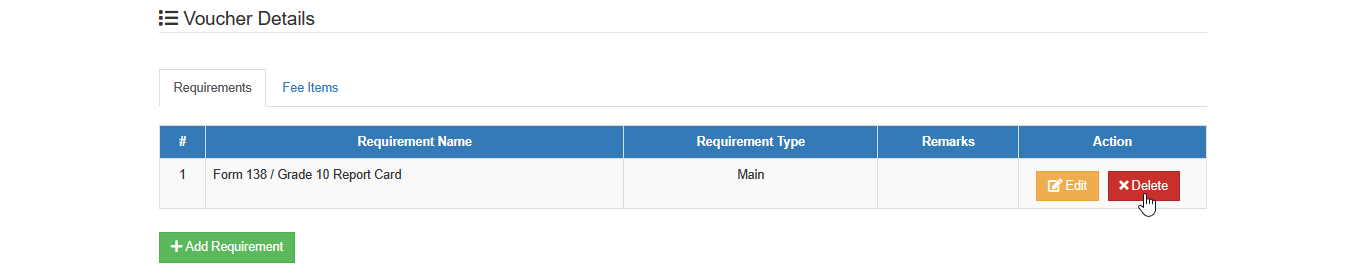
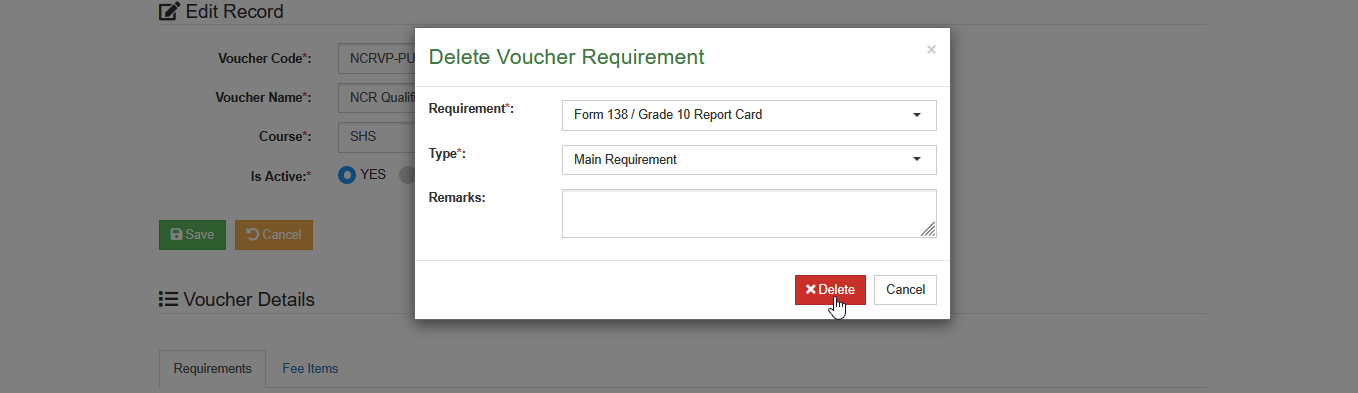
STEP 1. On the Requirements tab, click the corresponding button of the requirement you want to remove. This will open the Delete Voucher Requirement prompt.
STEP 2. On the Delete Voucher Requirement prompt, review the details. Then click the button to remove the requirement record.
How to manage fee items of a voucher
This section explains how to add, update, or remove fee items that will be discounted when the voucher is applied to an eligible SHS applicant.
STEP 1 Follow the steps on How to edit and existing voucher record.
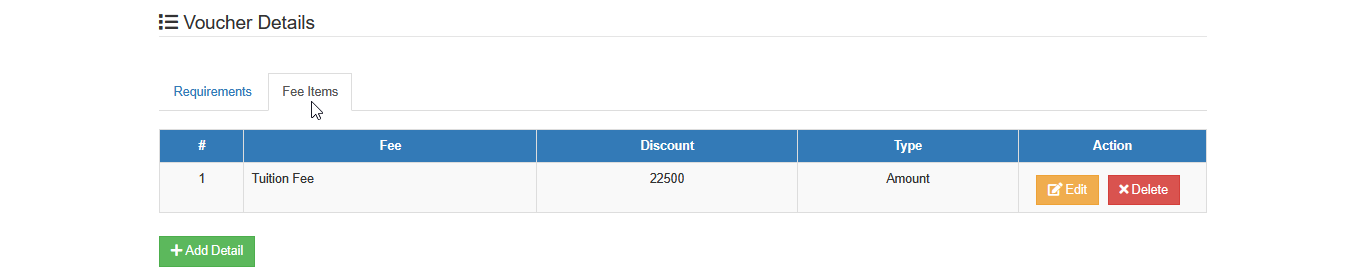
STEP 2. On the Edit Voucher page, scroll down to the Voucher Details section and click the Fee Items Tab.
How to add fee item
STEP 1. On the Fee Items tab, click the button. This will open the Add Voucher Detail prompt.
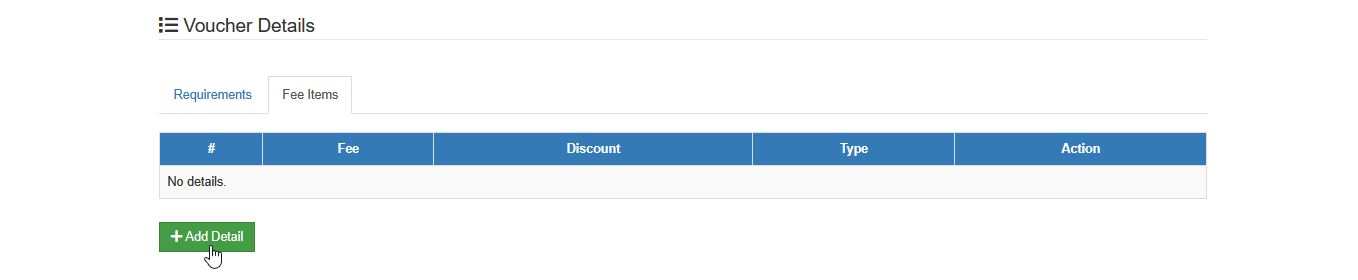
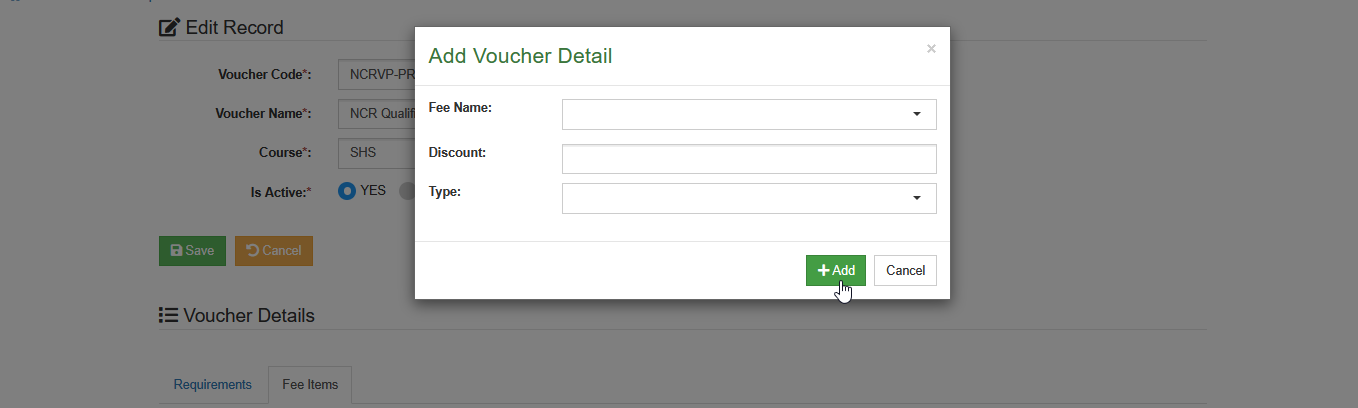
STEP 2. Enter the required voucher detail:
| Field Name | Description |
|---|---|
| Fee Name | Select a fee item from the system's list of available fee items. This is the fee that will be discounted when the voucher is applied. |
| Discount | Enter the value of the discount to be applied to the selected fee item. This can be a fixed amount or percentage, depending on the Type field. |
| Type | Select the type of discount: Amount for fixed value, or Percent for a percentage-based discount. |
STEP 3. Click the button to save the fee item detail.
How to update a fee item detail
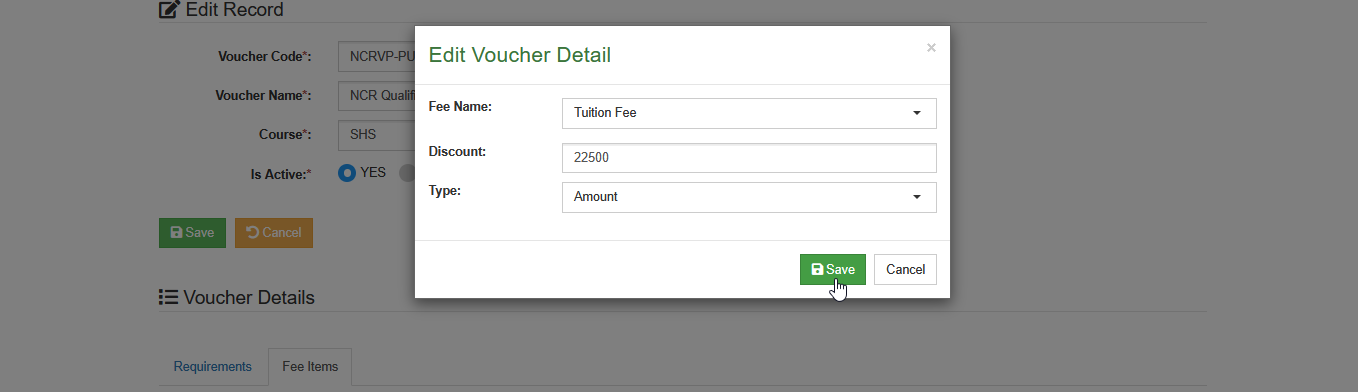
STEP 1. On the Fee Items tab, click the corresponding button of the fee item you want to update. This will open the Edit Voucher Detail prompt.
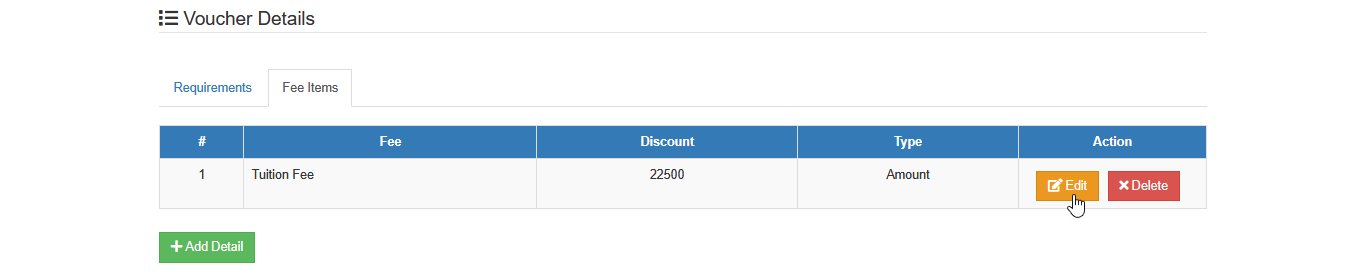
STEP 2. On the Edit Voucher Detail prompt, make the necessary changes. Then click the button to update the fee item detail.
How to remove a fee item
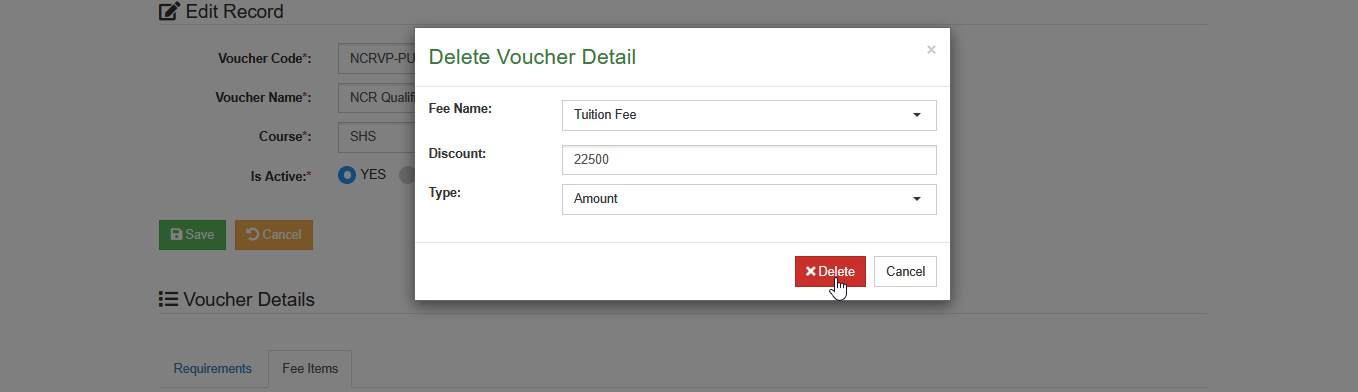
STEP 1. On the Fee Items tab, click the corresponding button of the fee item you want to remove. This will open the Delete Voucher Detail prompt.
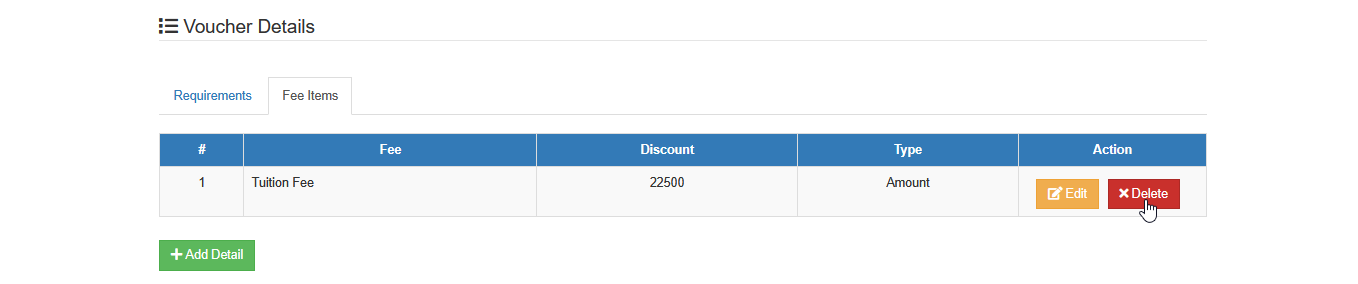
STEP 2. On the Delete Voucher Detail prompt, review the details. Then click the button to remove the fee item.
How to delete a voucher record
This section provides instructions on how to remove an existing voucher record from the system when it is no longer needed.
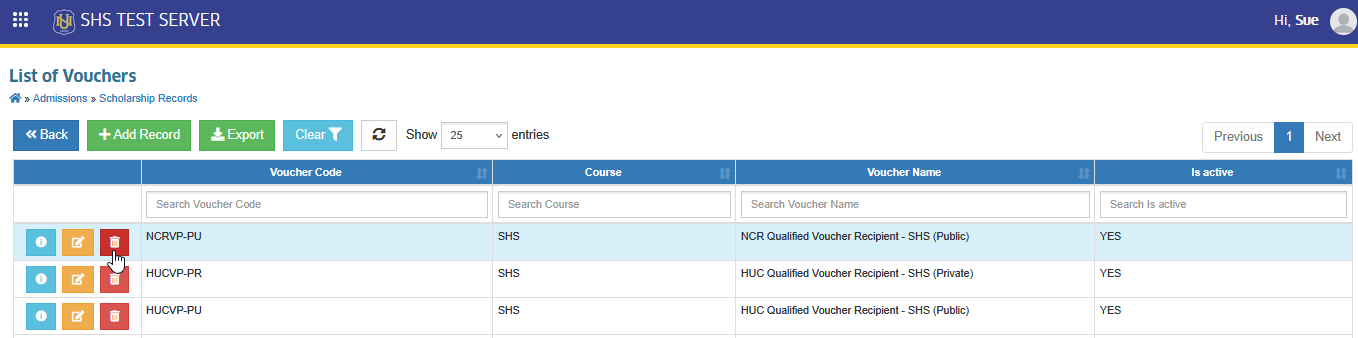
STEP 1. On the Voucher list view page, click the corresponding button of the record you want to remove. This will redirect the user to the Delete Voucher page.
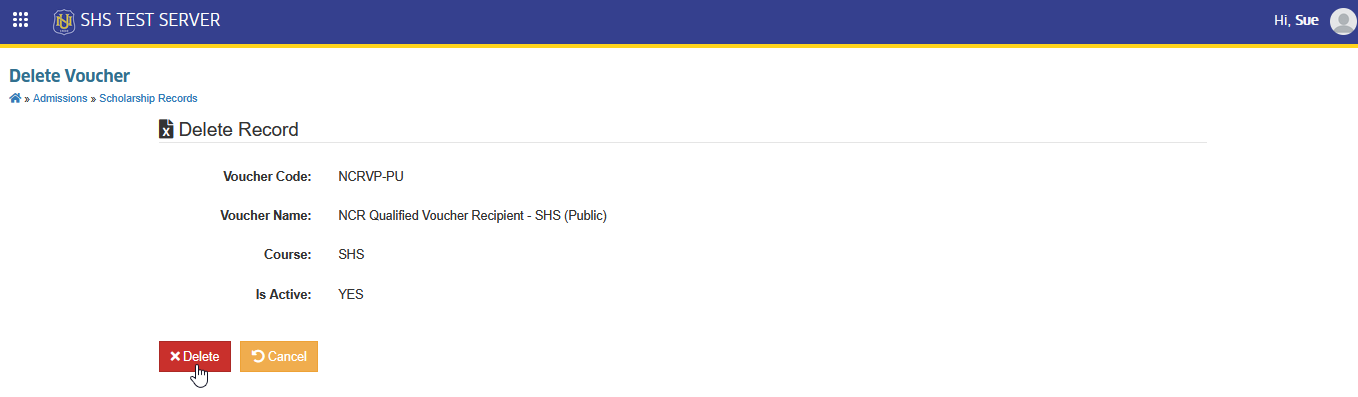
STEP 2. On the Delete Voucher page, review the details. Once confirmed, click the button to permanently remove the voucher record.
For more questions or concerns, email us at nu-desk@national-u.edu.ph