Voucher Applications
The Voucher Applications module is used by Registrar Personnel to manage and process voucher applications submitted by applicants through NU Quest.
All voucher applications, including the uploaded requirements, are displayed in this module for verification and approval. Once approved, the voucher discount is automatically included in the student’s assessment and reflected as a voucher discount.
Voucher applications for SHS students are processed once per school year, since SHS assessments are valid for one (1) year.
Required Permission
-
Voucher Applications - Allows the user to access and view all voucher applications submitted through NU Quest, including application details and uploaded requirements.
-
Edit Voucher Applications - Allows the user to edit or update voucher application information before approval.
-
Approve Voucher Applications - Allows the user to approve or disapprove voucher applications. Approved applications will automatically apply the voucher discount to the student’s assessment.
Module Users
- Registrar Personnel
Purpose of the Module
This module allows Registrar Personnel to:
-
Review voucher applications from NU Quest
-
Verify uploaded requirements
-
Delete application if necessary
-
Edit or update application details if needed
-
Approve or disapprove voucher applications
How to Access the Module
To access the module, make sure you have the Voucher Applications permission. If it doesn’t appear in your portal, request access from your System Administrator.
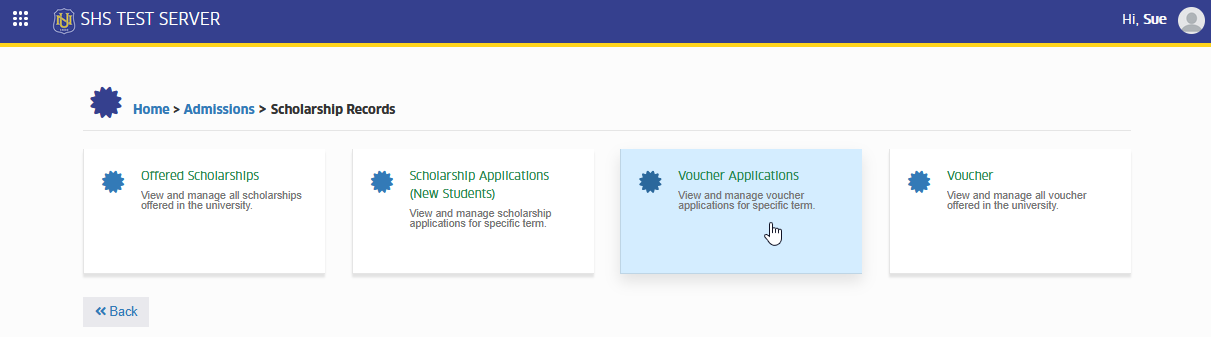
In NUIS-SHS portal, go to Admission > Scholarship Records > Voucher Applications. Click the module tab to redirect to the SHS Voucher Applications listview page.
Application Status
- Applications that have been submitted and are awaiting validation by the Registrar before approval or disapproval.
- Applications that have been reviewed and approved. The voucher discount is already applied and reflected in the student’s assessment.
- Applications that have been reviewed but were not approved by the Registrar.
How to Use the Module
This section guides Registrar Personnel through the step-by-step process of viewing, validating, updating, approving, or disapproving voucher applications submitted through NU Quest. It explains how to manage applications, verify uploaded requirements, and ensure that approved voucher discounts are correctly reflected in the student’s assessment.
Viewing Voucher Applications
This section explains how to view all voucher applications submitted through NU Quest. It guides Registrar Personnel on how to browse the application list, use filters to search for specific applications, and access application details and uploaded requirements for verification.
STEP 1. Open the Voucher Applications module.
STEP 2. The system will display all voucher applications submitted through NU Quest. Use the filtering feature to easily search for a specific application.
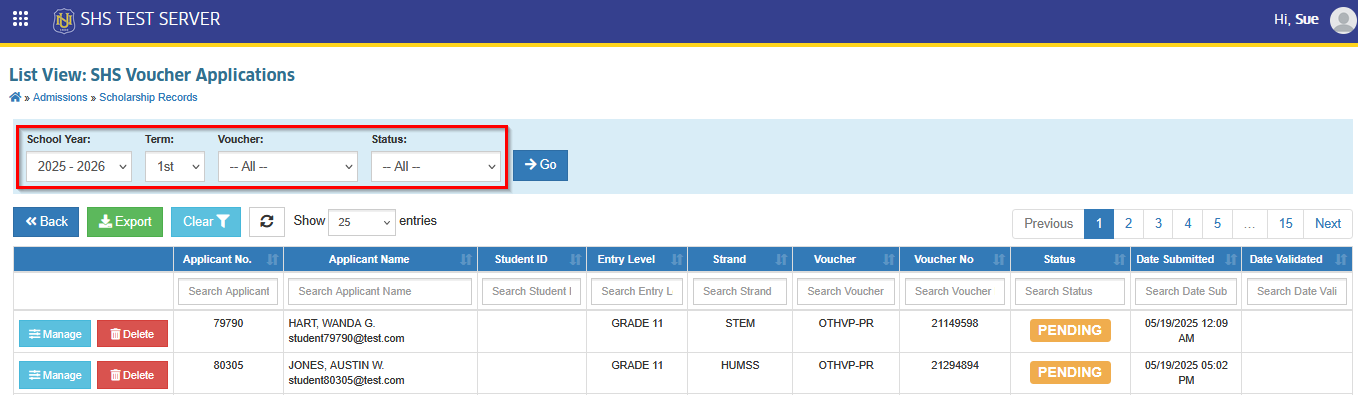
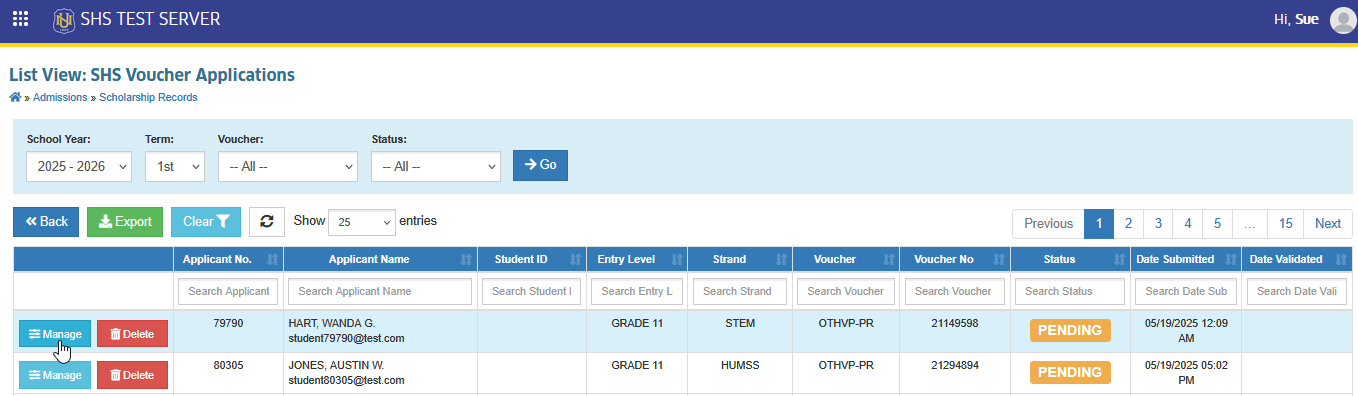
STEP 3. Click the corresponding button to view the application details and uploaded requirements.
Deleting an Application
This section explains how Registrar Personnel can remove a voucher application from the system. It guides users on selecting the application, using the Delete button, and confirming the action.
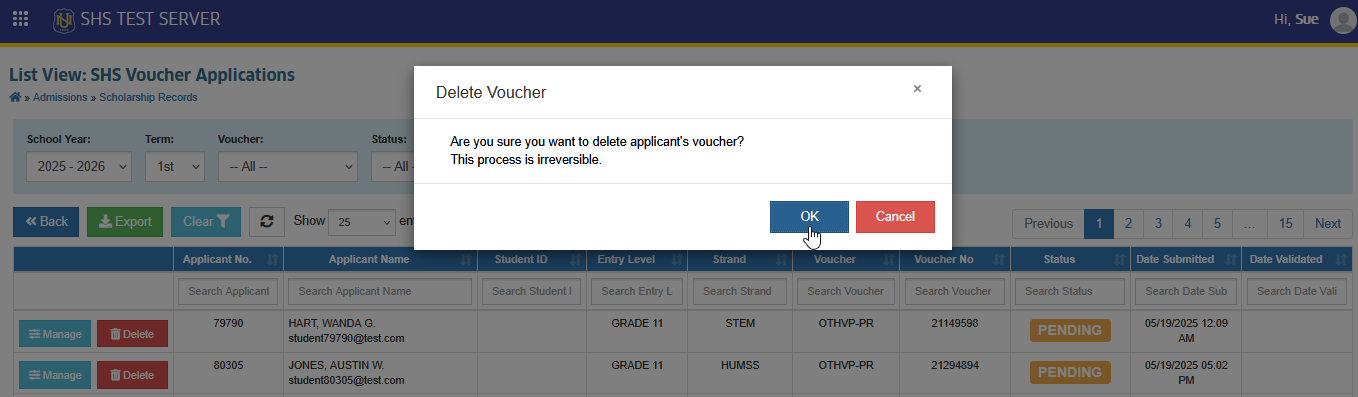
Note: Deletion is permanent and cannot be undone, so applications should be reviewed carefully before removal.
STEP 1. On the Voucher Application list view page, click the corresponding button of the application you want to remove. The Delete Voucher confirmation prompt will appear.
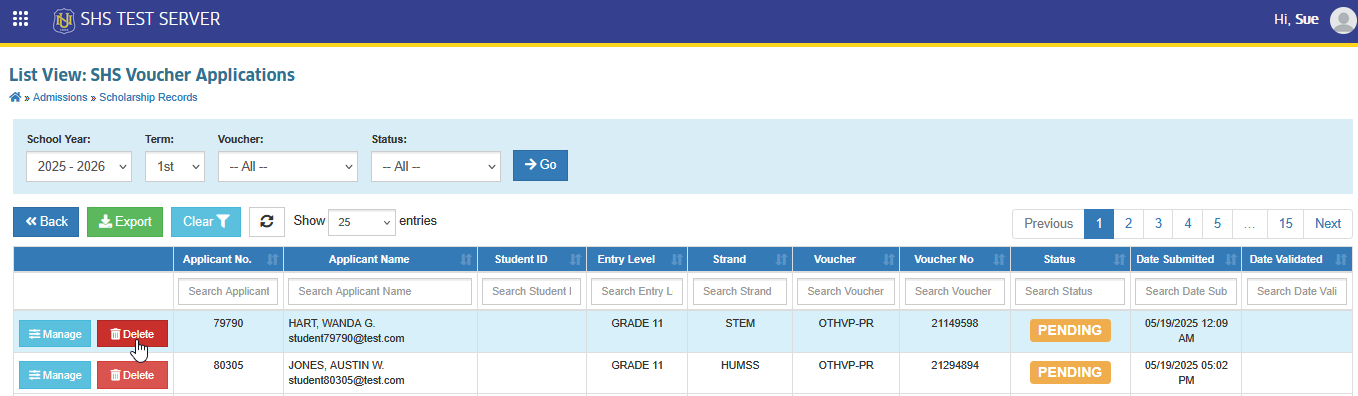
STEP 2. In the confirmation prompt, click the button to proceed. Make sure to review the application first, as this action is irreversible.
Editing / Updating a Voucher Application
This section explains how Registrar Personnel can edit or update the details of a voucher application. It guides users on accessing the application, making necessary changes to information or uploaded requirements.
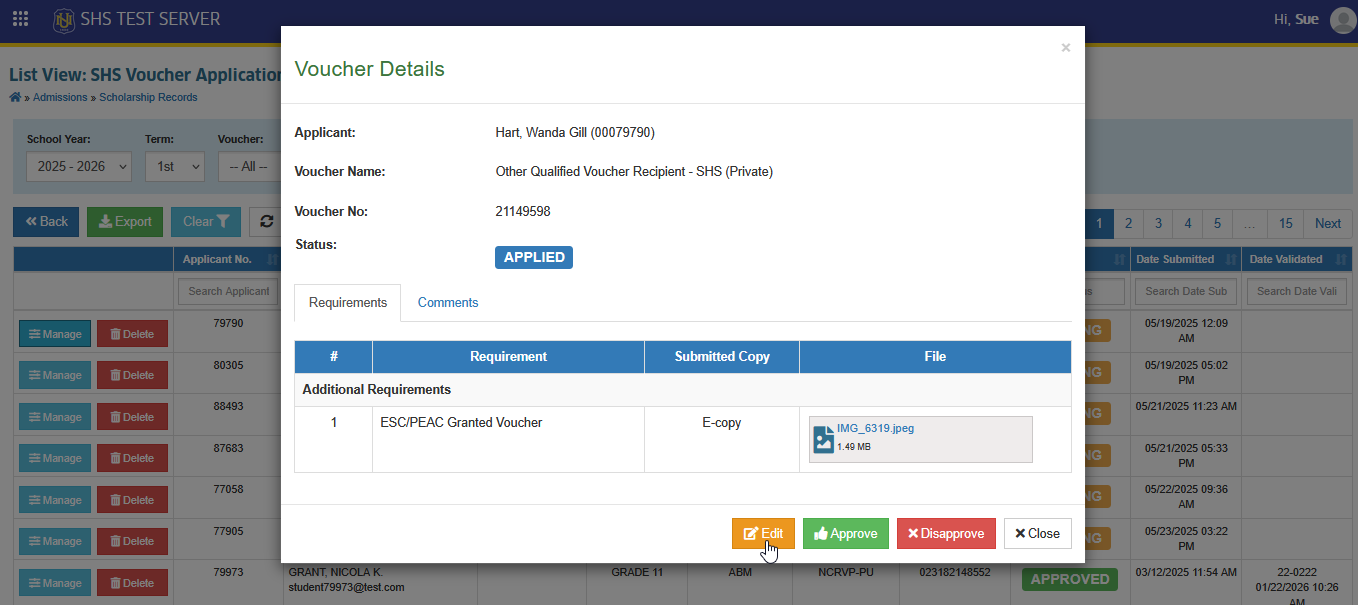
STEP 1. From the Voucher Application list, select the application you want to update. Click the button to view the application details.
STEP 2. In the Voucher Details prompt, click the button.
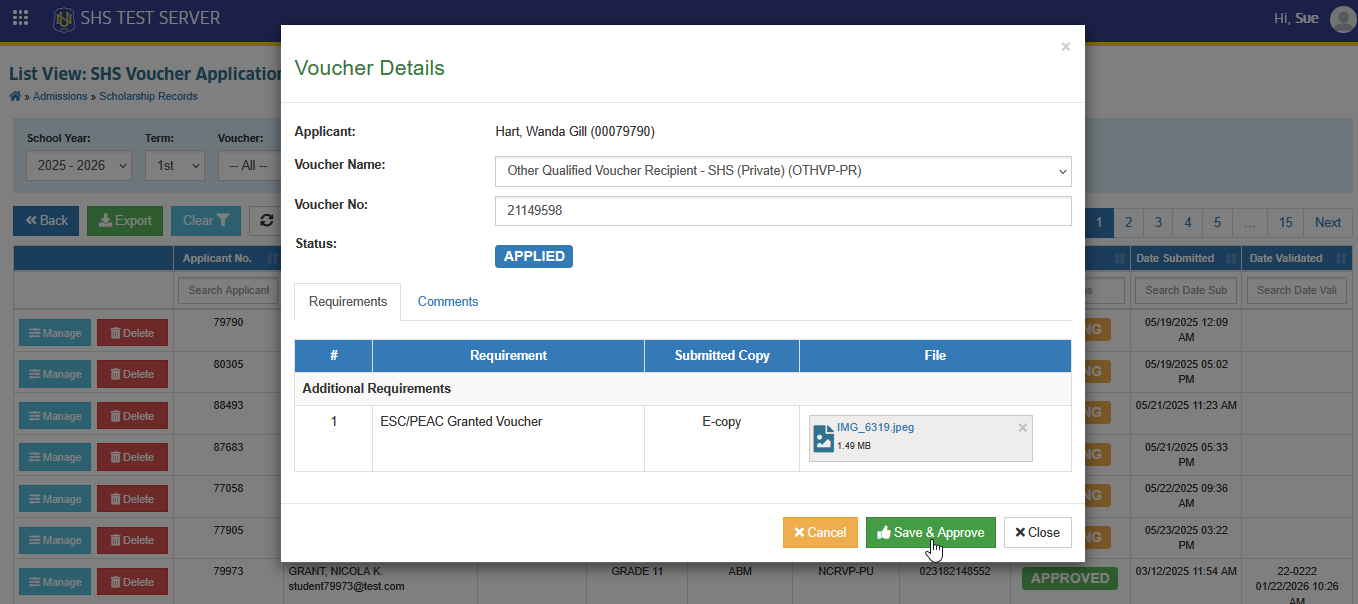
STEP 3. Update the necessary information and/or uploaded requirements.
STEP 4. Click the button to save changes and approve the application.
Approving a Voucher Application
This section explains how Registrar Personnel can approve a voucher application. Approval confirms that the application and its uploaded requirements have been verified. Once approved, the voucher discount is automatically applied and reflected in the student’s assessment.
STEP 1. From the Voucher Application list, select the application you want to validate. Click the button to view the application details.
STEP 2. Review the application details and uploaded requirements.
STEP 3. Click the button.
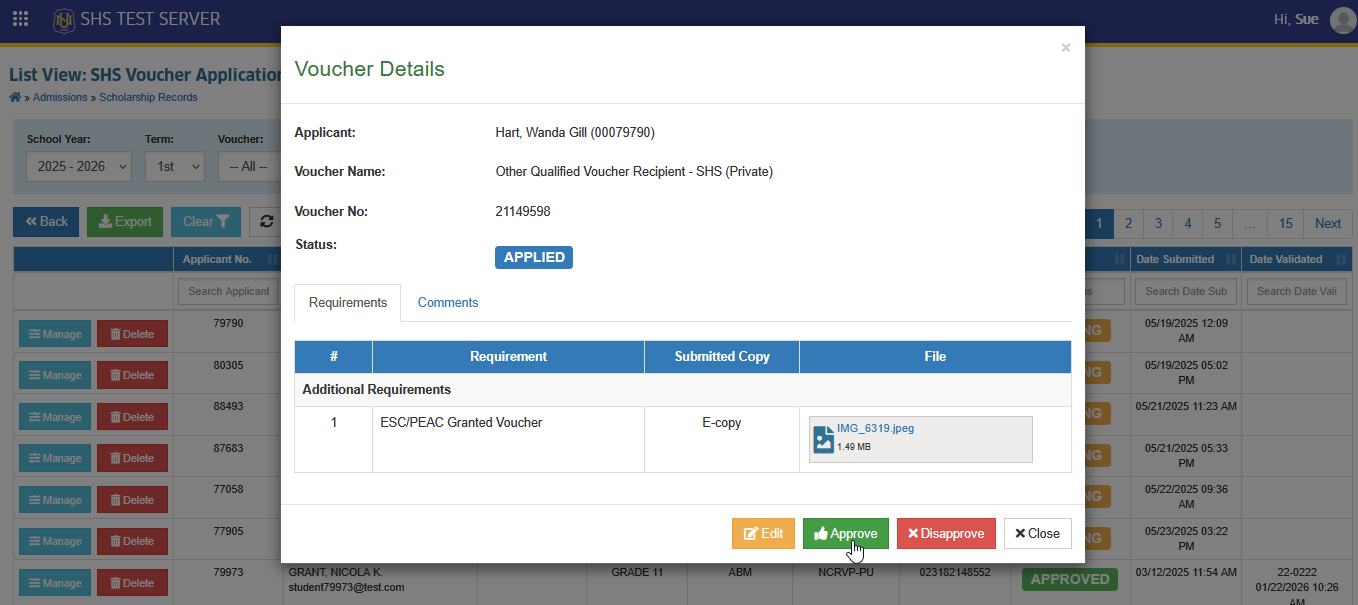
STEP 4. The application status will be updated to .
Once approved:
The voucher discount will be included in the student’s assessment.
The voucher discount will be reflected automatically in the assessment.
Disapproving a Voucher Application
This section explains how Registrar Personnel can disapprove a voucher application. Disapproval is used when an application or its uploaded requirements do not meet the necessary criteria. Once disapproved, the application status is updated accordingly, and the voucher discount will not be applied to the student’s assessment.
STEP 1. From the Voucher Application list, select the application you want to validate. Click the button to view the application details.
STEP 2. Review the application details and uploaded requirements.
STEP 3. Click the button.
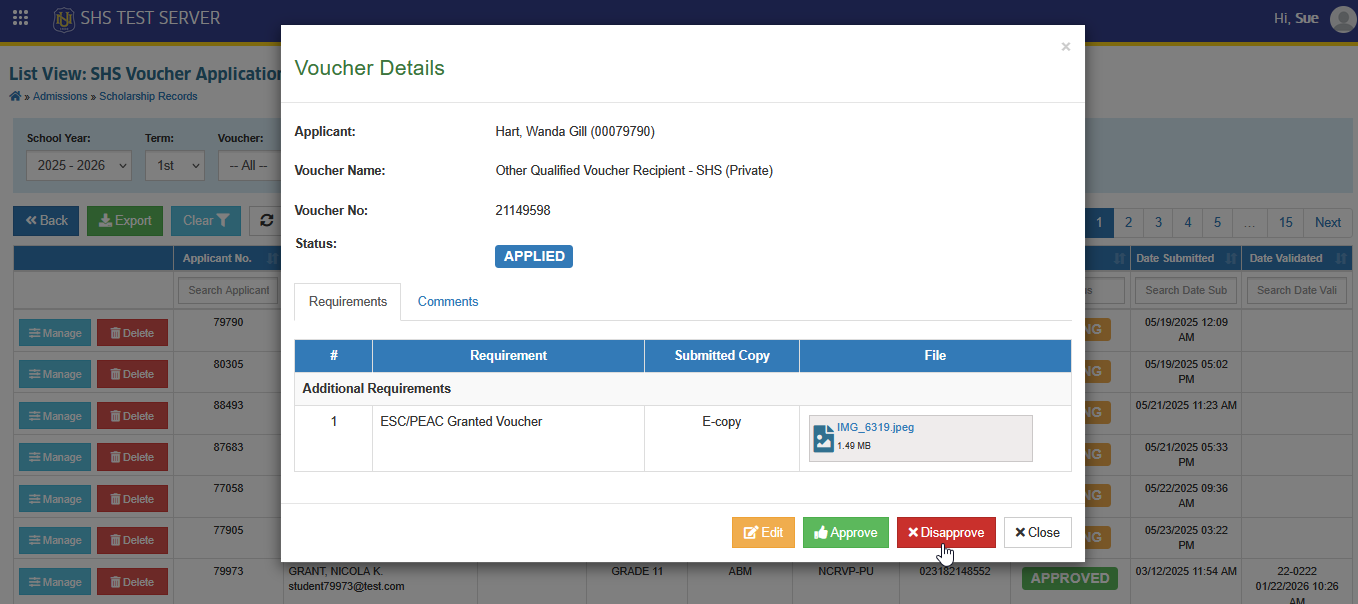
STEP 4. The application status will be updated to .
Once an application is disapproved, this action cannot be undone. If the applicant wishes to reapply, the Registrar Personnel can delete the disapproved application and advise the applicant to submit a new voucher application.
Undo Approval
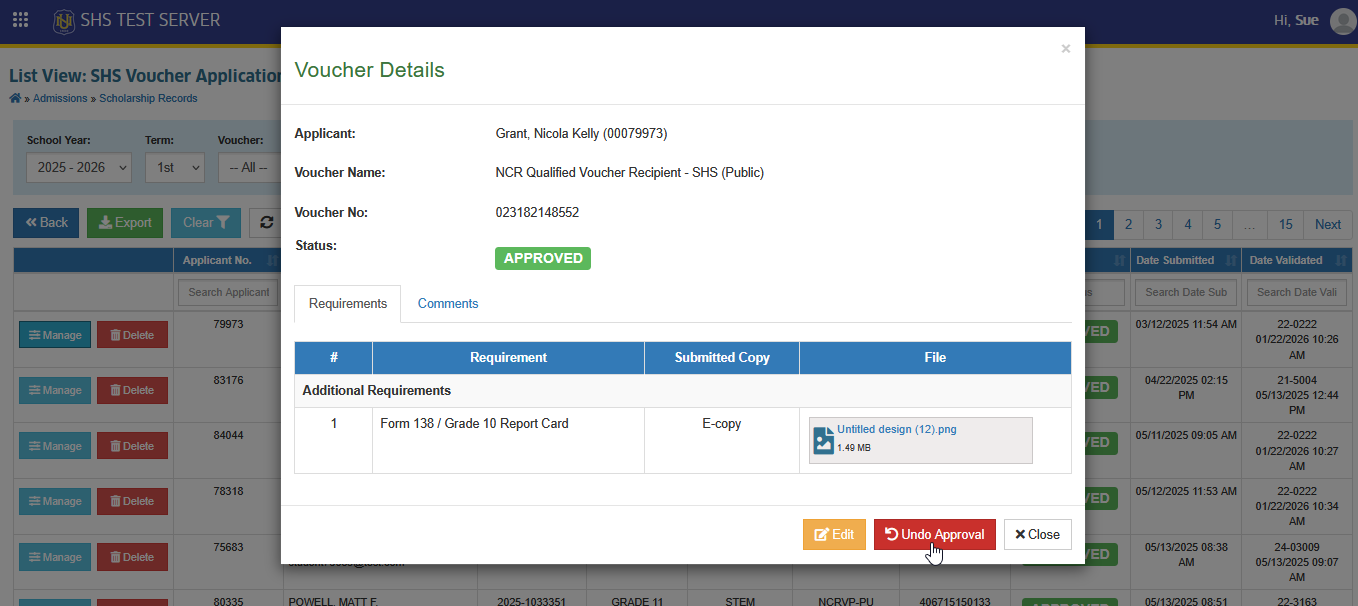
This section explains how Registrar Personnel can undo the approval of a voucher application. Undoing an approval removes the voucher discount from the student’s assessment and allows the application to be reviewed, edited, or corrected before re-approval.
STEP 1. From the Voucher Applications list, select the application that was previously approved. Click the button to view the application details.
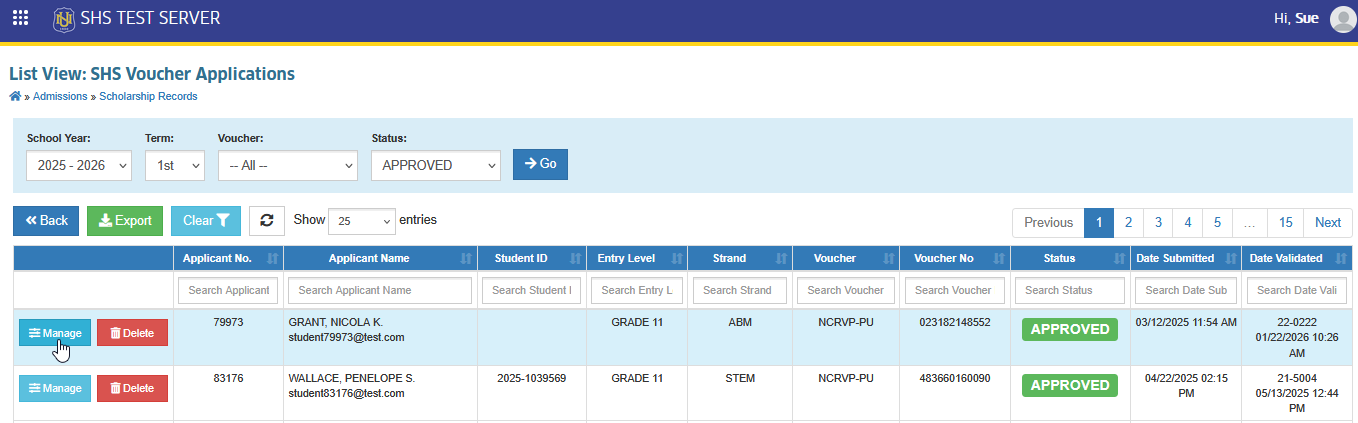
STEP 2. Click the button.
STEP 3. Confirm the action in the prompt that appears.
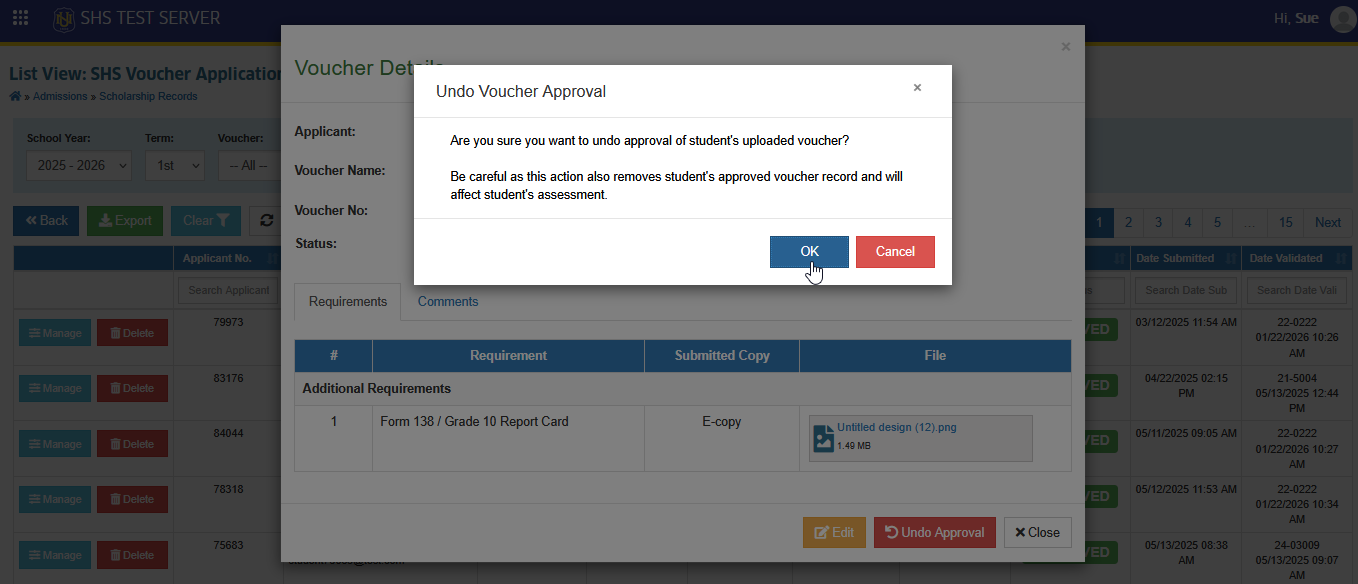
STEP 4. The application status will change back to , and the voucher discount will be removed from the student’s assessment.
After undoing approval, the application can be updated and re-approved if necessary.
For more questions or concerns, email us at nu-desk@national-u.edu.ph