Form 9
Generate and issue student's Form 9.
Required Permissions
- View Form 9 - Permission to view issued Form 9 to the students.
- Add Form 9 - Permission to add/issue new Form 9 to students.
- Edit Form 9 - Permission to edit the issued Form 9 to the students.
- Delete Form 9 - Permission to delete the issued Form 9 to the students.
Configuration & Setup
These are the modules you need to setup before you properly issue Form 9 to the students.
-
Manage School Days - in Terms module, manage the school days by following the instructions on how to manage school days. Refer to NUIS-SHS: Manage School Days for the guide on how to set school days. The Registrar personnel should manage the school days.
-
Manage Student Attendance - In order to generate the correct data for Form 9, the Registrar personnel should manage the attendance of the students in Manage Student Attendance module. Refer to NUIS-SHS: Manage Student Attendance for the guide on how to manage student attendance.
How to access the module?
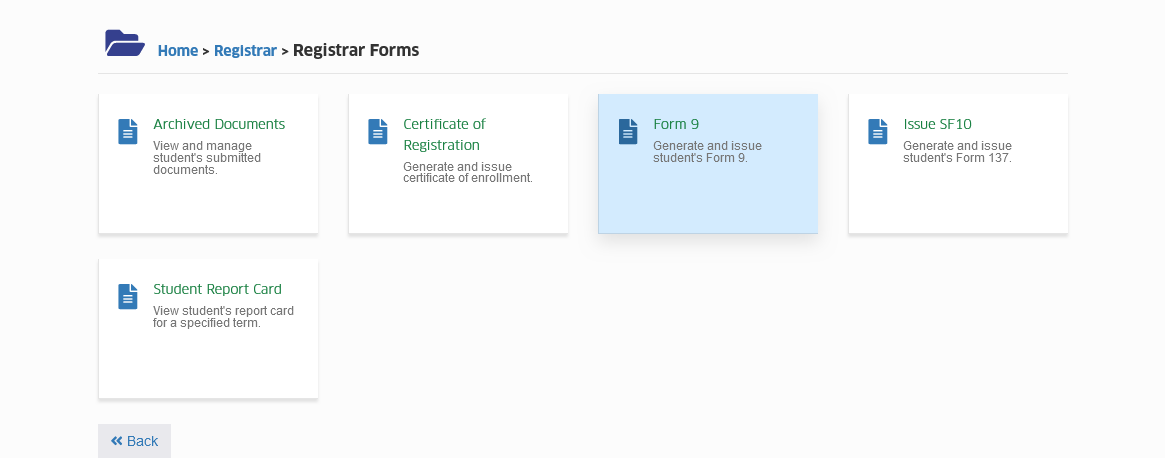
To access the module, make sure you have the View Form 9 permission. If it doesn't appear in your portal, request access from your System Administrator.
Click the module tab to redirect to Form 9 Issuance page.
How to issue Form 9?
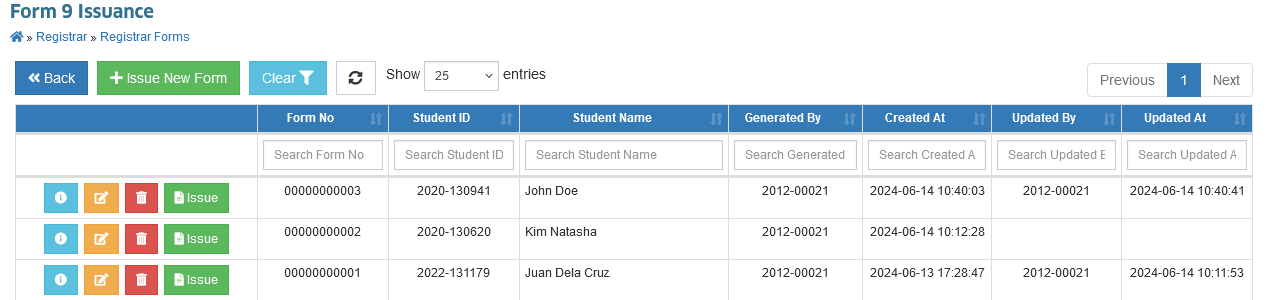
Follow the steps below on how to issue Form 9.
STEP 1. In Form 9 Issuance page, click on the button. You will be redirected to Generate Form 9 page.
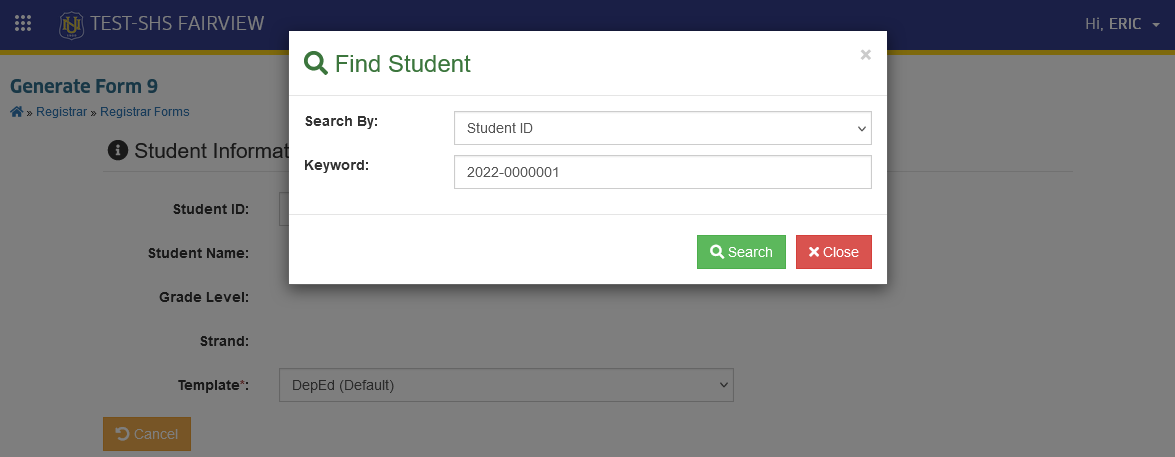
STEP 2. Select the student by clicking the button. Select your preferred identifier and keyword from the list then click the button.
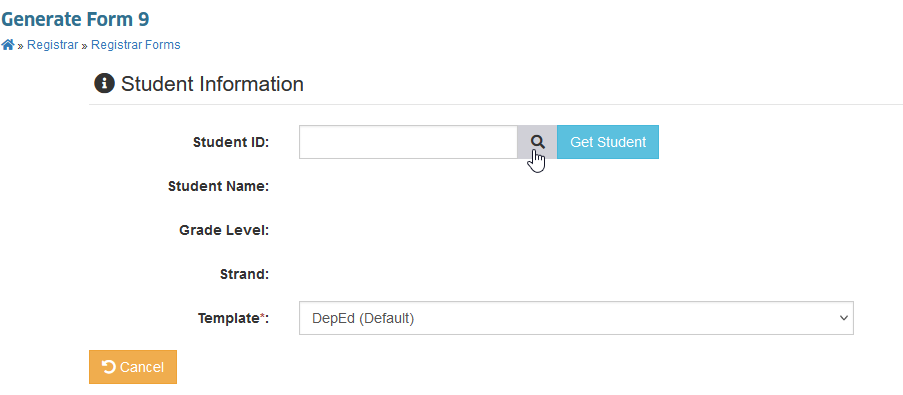
STEP 3. Double check the student's information and form signatories. Then, click the button to generate the form.
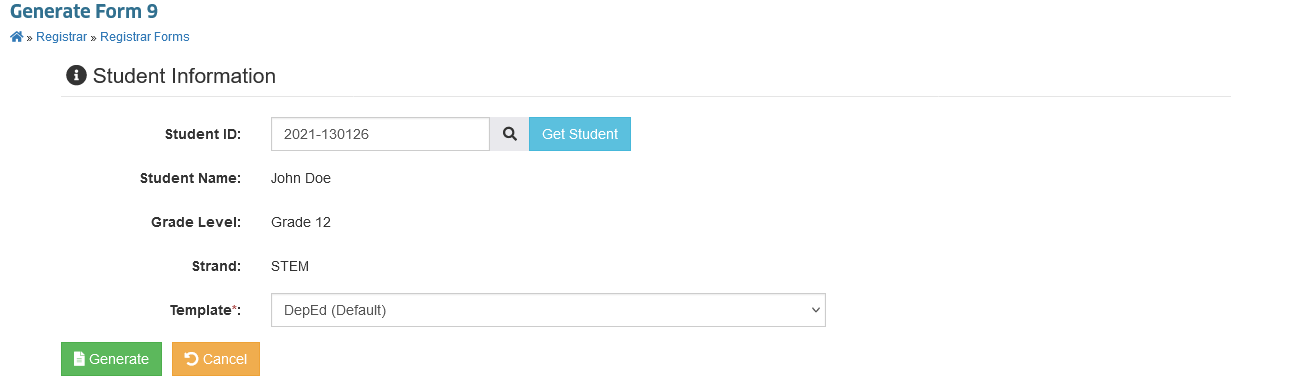
STEP 4. Click the button to generate a downloadable Form 9.
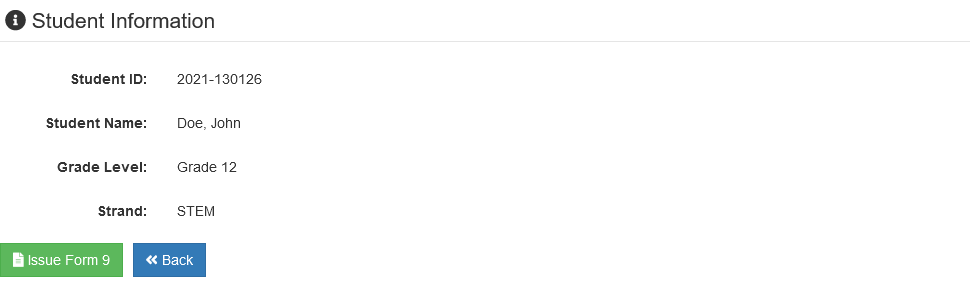
How to modify Form 9?
Follow the steps below on how to modify the issued Form 9.
STEP 1. In the Form 9 Issuance page, under the actions column, click the corresponding button of the existing Form 9 record you want to modify. You will be redirected to Edit Student's Form 9 page.
STEP 2. In Edit Student's Form 9 page, proceed with the modification then click the button to save the changes. You will be redirected to View Form 9 page.
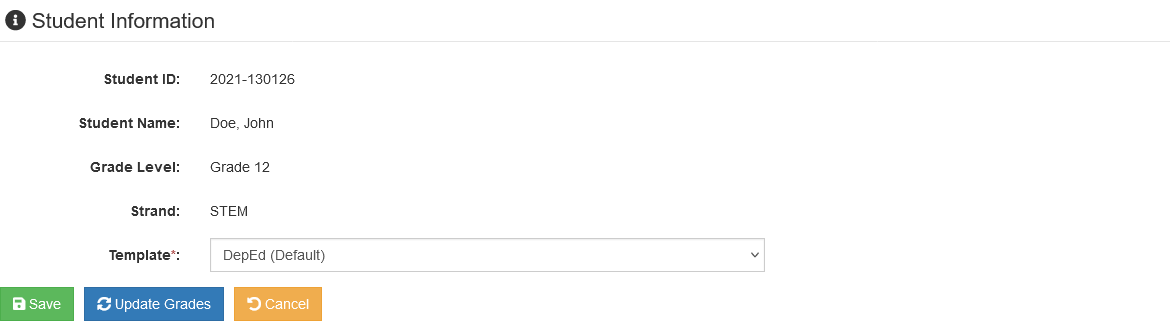
STEP 3. In View Form 9 page, click the button to generate a downloadable Form 9.
STEP 4. Click the button to go back to main page.
How to delete the issued Form 9?
Follow the steps below on how to delete the issued Form 9.
STEP 1. In the Form 9 Issuance page, under actions column, click the button corresponding to the student's Form 9 you want to delete. You will be redirected to Delete Student's Form 9 page.
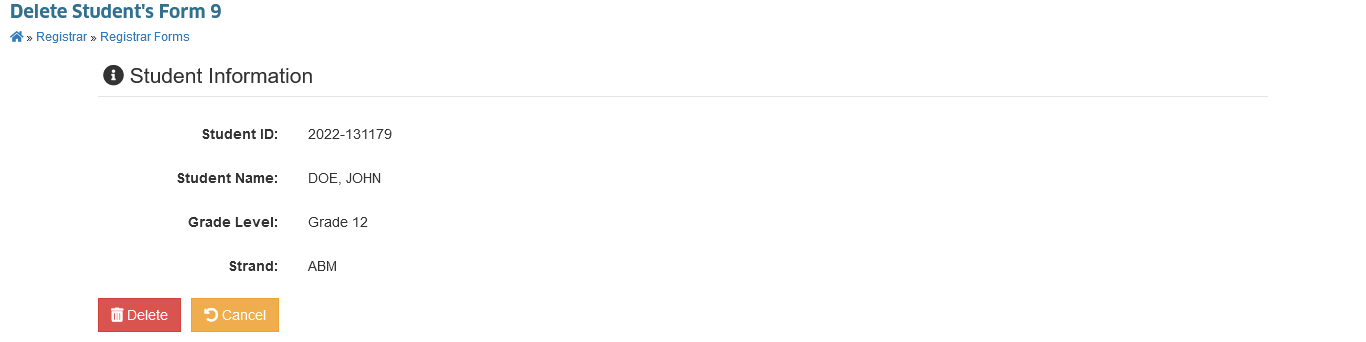
STEP 2. Click the button, to proceed with the deletion of issued Form 9.