Manage Terms
Manage academic terms, registration and enrollment periods.
Required Permissions
- View Term - Permission to view Term record.
- Add Term - Permission to add Term and School Days record.
- Edit Term - Permission to edit an existing Term record.
- Delete Term - Permission to delete an existing Term record.
How to access the module?
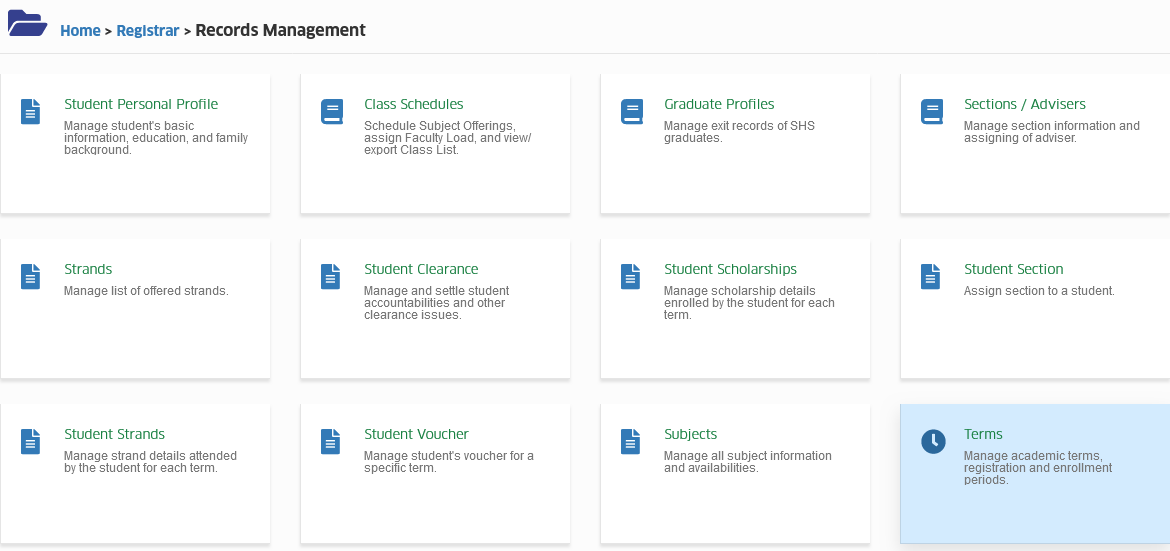
To access the module, make sure you have the View Term permission. If it doesn’t appear in your portal, request access from your System Administrator.
Click the module tab to redirect to Manage Terms page.
How to add term record?
To add a new Term record, make sure you have Add Term permission in your current user role. If the feature doesn't appear in your portal, request access from your System Administrator.
Follow the steps below on how to add Term record.
STEP 1. In Manage Term page, click the button. You will be redirected to Add Term page.
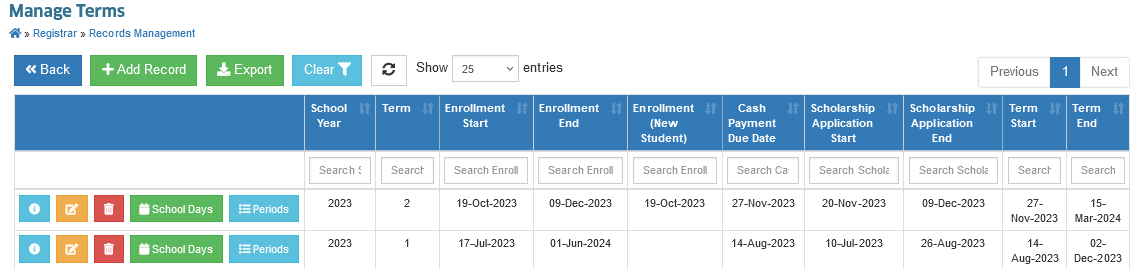
STEP 2. In Add Term page, enter the necessary information/dates needed.
| Field | Description |
|---|---|
| School Year | The Academic Year. |
| Term | The School Term (e.g. 1, 2, 3, Summer). |
| New Student Enrolment | Starting date of enrollment for new students. |
| Enrollment Start | Starting date of enrollment for continuing students. |
| Enrollment End | Last date for enrollment |
| Term Start | Official starting date of a term. |
| Term End | Official last date of a term. |
| Scholarship Application Start | The starting date of application of scholarship for continuing students. |
| Scholarship Application End | The last date of application of scholarship for continuing students. |
| Cash Payment Due Date | The cash payment due date. Coordinate with the Treasury Office for the date. |
STEP 3. Click button to save the new record.
How to edit an existing term record?
To edit an existing Term record, make sure you have Edit Term permission in your current user role. If the feature doesn't appear in your portal, request access from your System Administrator.
Follow the steps below on how to edit an existing term record.
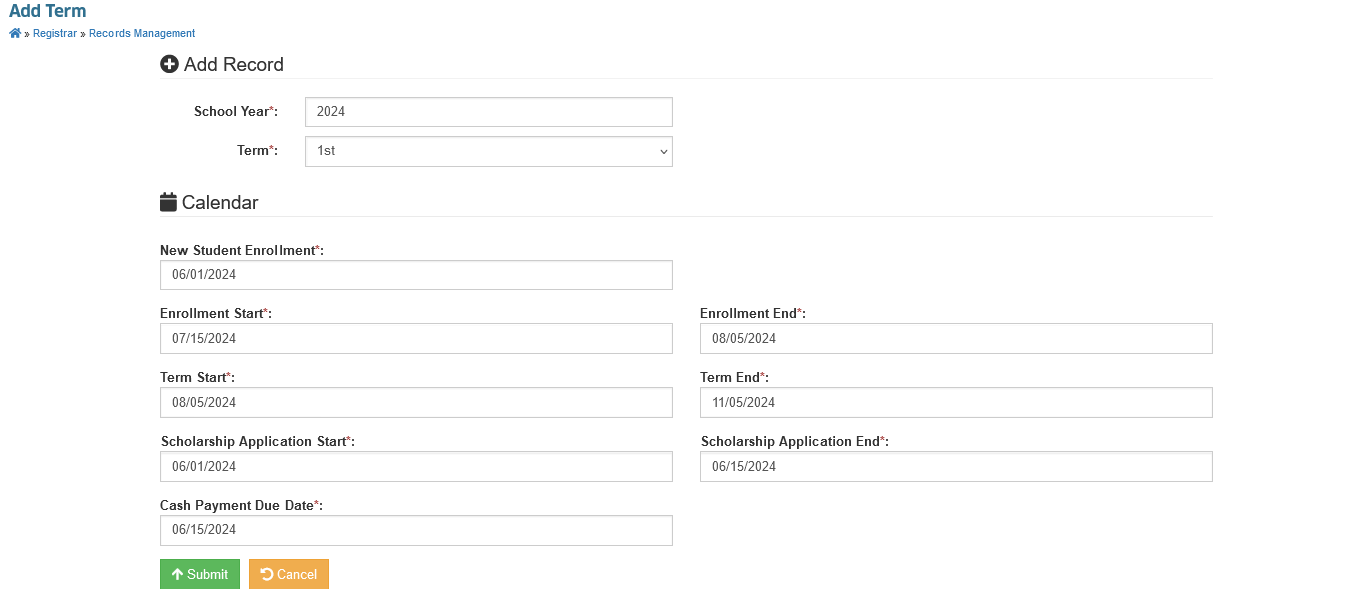
STEP 1. In the Manage Terms page, under the actions column, click the button corresponding to the term record you want to modify. You will be redirected to Edit Term page.
STEP 2. In Edit Term page, modify the information you want to change.
STEP 3. Click the button to save changes.
How to delete an existing term record?
To delete an existing Term record, make sure you have Delete Term permission in your current user role. If the feature doesn't appear in your portal, request access from your System Administrator.
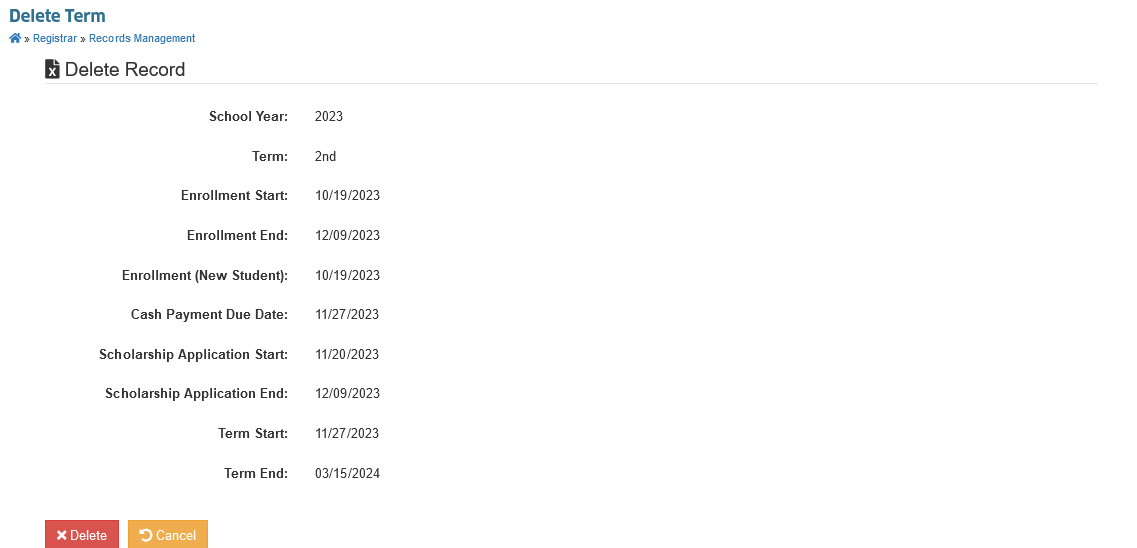
Follow the steps below on how to delete an existing term record.
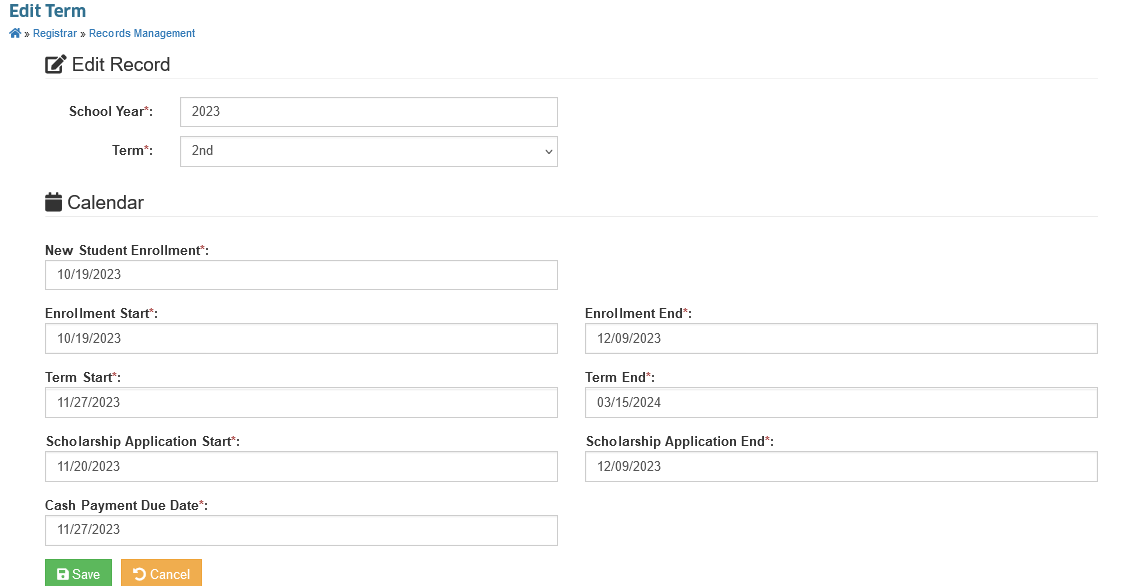
STEP 1. In the Manage Term page, under actions column, click the button corresponding term record you want you want to delete. You will be redirected to Delete Term page.
STEP 2. Click the button, to proceed with the deletion of term.
How to Manage School Days?
To manage school days, make sure you have Add Term permission in your current user role. If the feature doesn't appear in your portal, request access from your System Administrator.
Follow the steps below on how to manage term's school days.
STEP 1. In Manage Term page, click the button corresponding to the term you want to manage. You will be redirected to Manage School Days page of that specific term.
STEP 2. In Manage School Days page, manage the school days by clicking or selecting the date range.
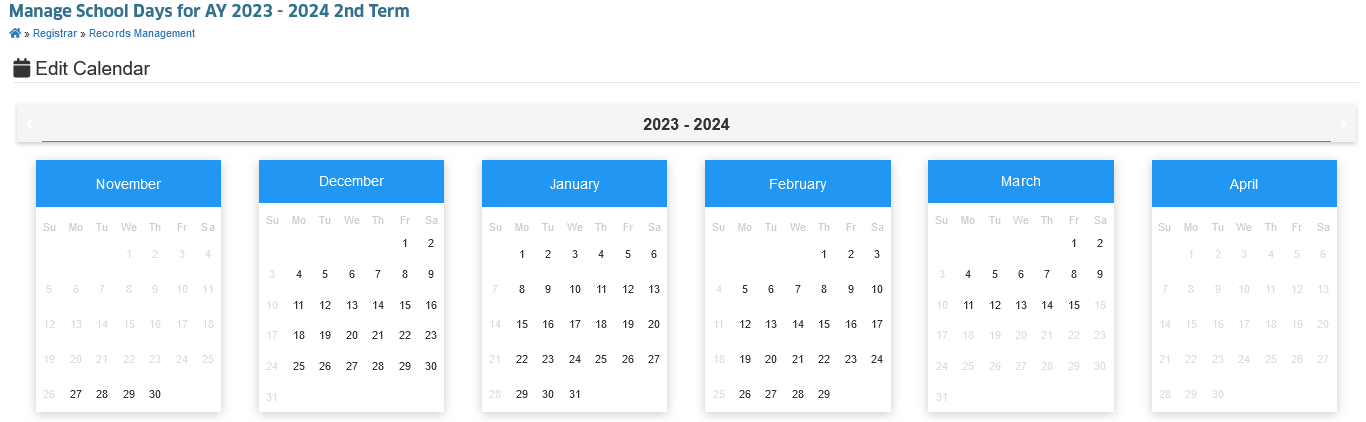
STEP 3. When the prompt appears, choose from the following actions to set the selected date/date-range:
- - click to set the selected dates as school days,
- - click to set the selected dates as non-school days (holidays, special non-working days), or
- - click to reset the selected dates (no event).
All actions are autosaved.