Student Strands
The Student Strands module is used by Registrar Personnel to manage and record the strand attended by a student for each term. This ensures that a student’s academic strand history is accurate and properly documented per term.
Required Permissions
Student Strands Permission
Add xrefstudentcourse - Allows the user to add a new student strand record for a specific term.
Delete xrefstudentcourse - Allows the user to remove an existing student strand record from the system.
Edit xrefstudentcourse - Allows the user to update or modify an existing student strand record.
View xrefstudentcourse - Allows the user to view student strand records per term without making changes.
Purpose of the Module
This module allows the registrar to:
-
View student strand records per term
-
Add or update the strand attended by a student
-
Maintain accurate strand history for academic reference and reporting
How to Access the Module
To access the module, make sure you have the View xrefstudentcourse permission. If it doesn’t appear in your portal, request access from your System Administrator.
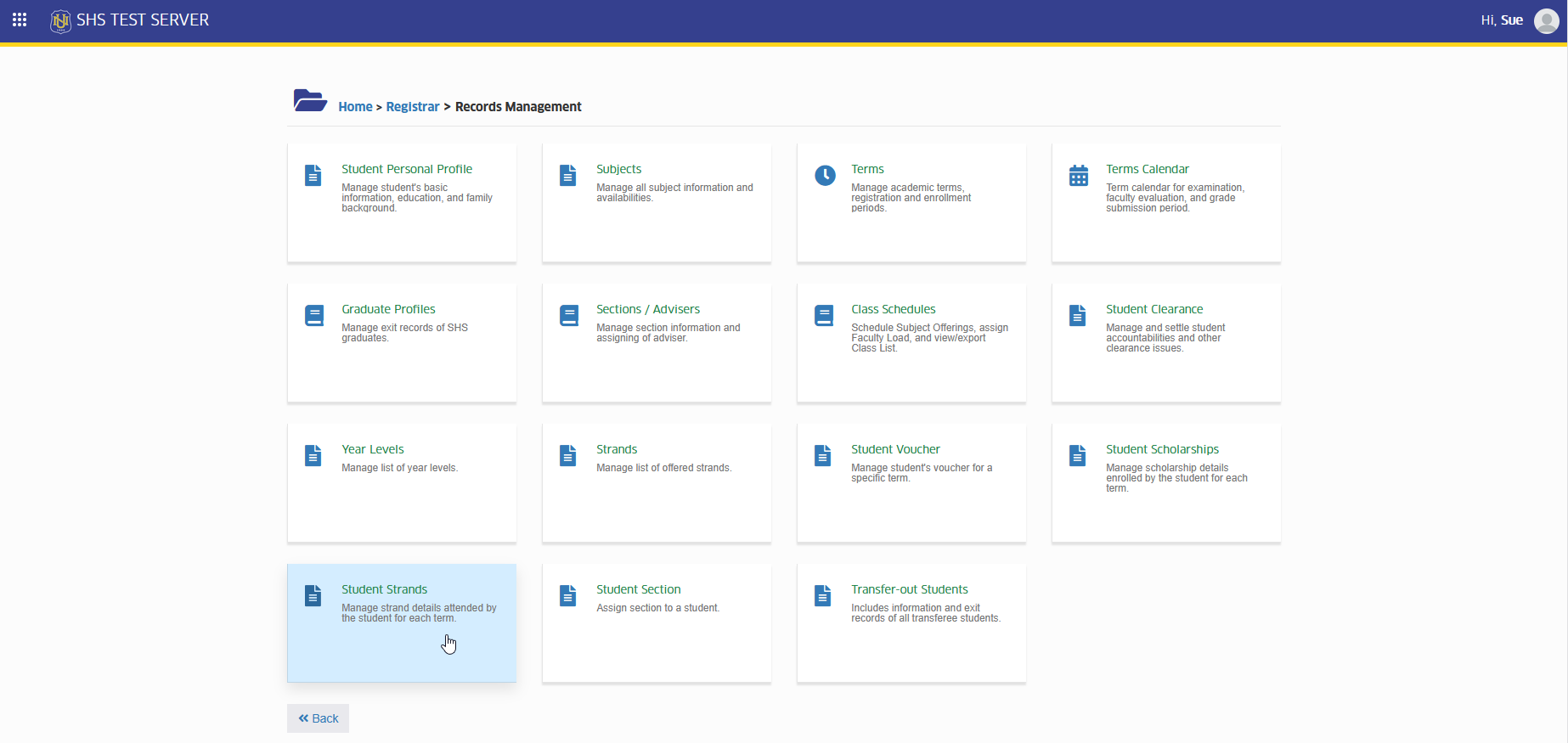
In NUIS-SHS portal, go to Registrar > Records Management > Student Strand. Click the module tab to redirect to the Student Strands list view page.
How to Use the Student Strands Module
This section guides Registrar Personnel on how to view, add, update, and manage student strand records for each term. It provides step-by-step instructions to ensure strand information is recorded accurately and maintained properly.
View Student Strand Records
Follow the steps below to view student's strand records.
STEP 1. On the Student Strands list view page, select the school year and term to view.
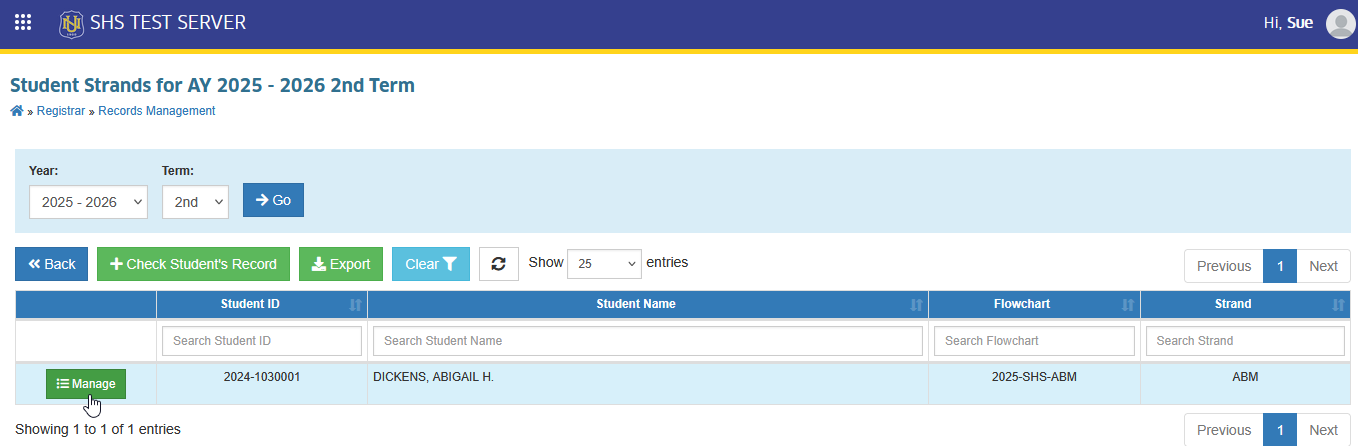
STEP 2. Use the filtering feature to search for a specific student, then click the button. The system will redirect to the Manage Student Strand Records page.
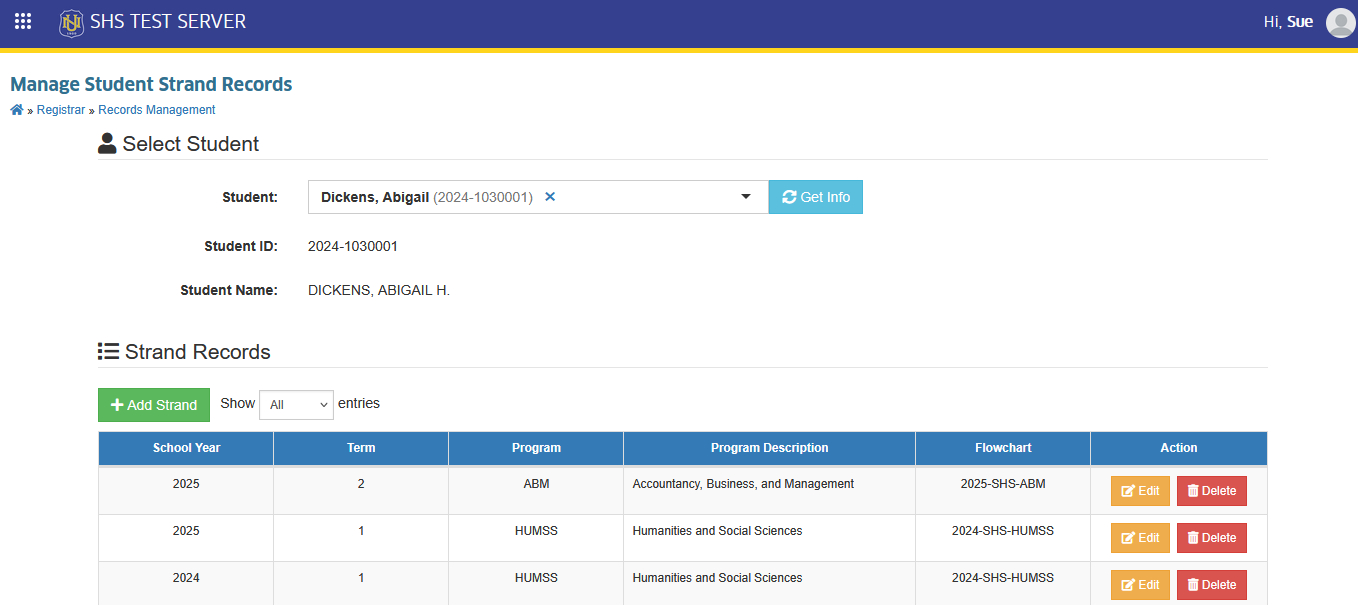
STEP 3. On the Manage Student Strand Records page, the user will be able to view the student's strand record.
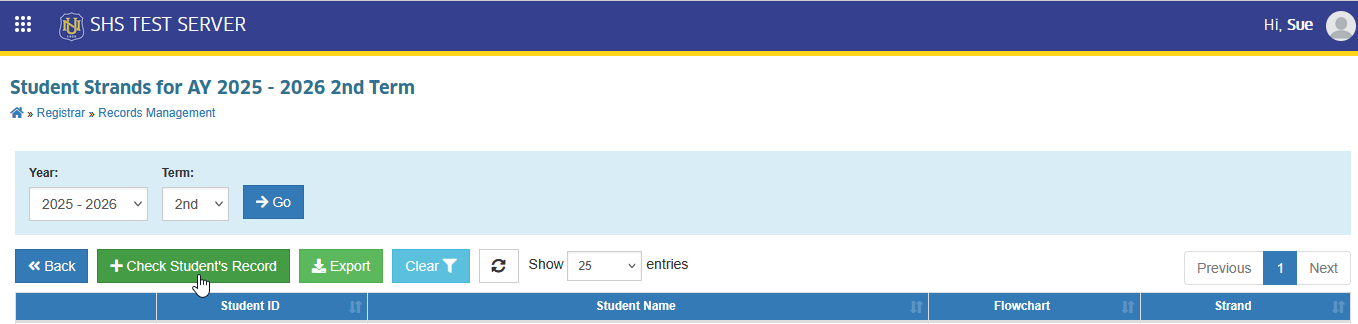
If student has no strand record and cannot be search using the filtering feature, click the button and enter the student ID to process.
Add a Student Strand
Follow the steps below to add student strand record.
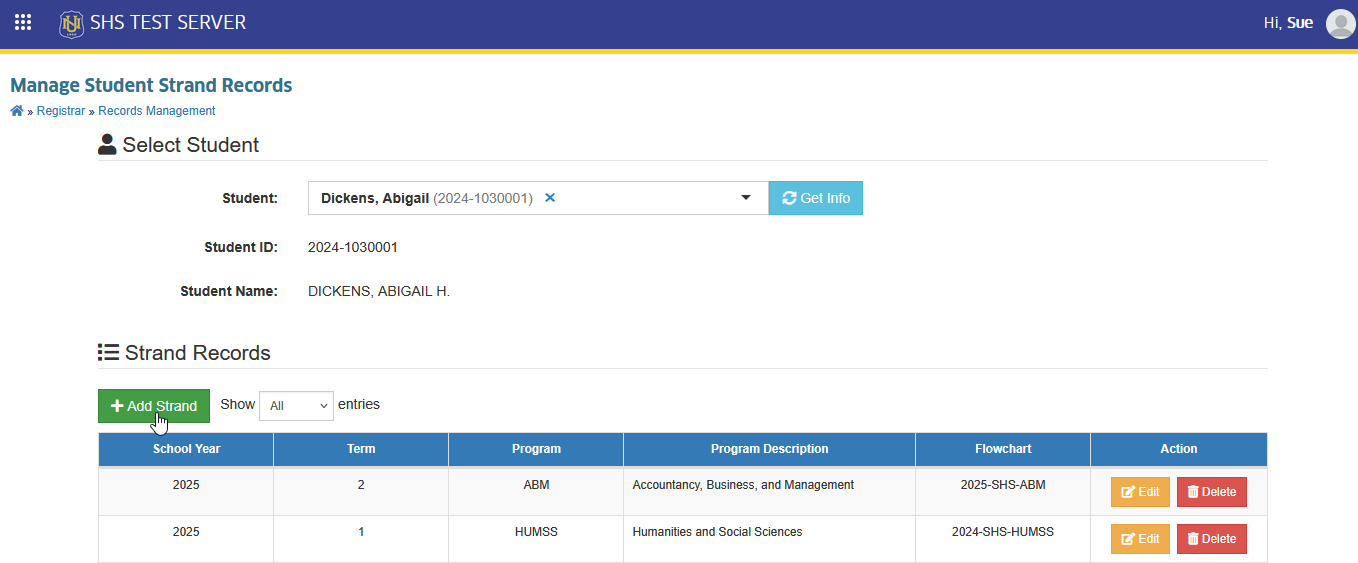
STEP 1. On the Student Strands page, search for the student and click the button. The system will redirect to Manage Student Strand Records page.
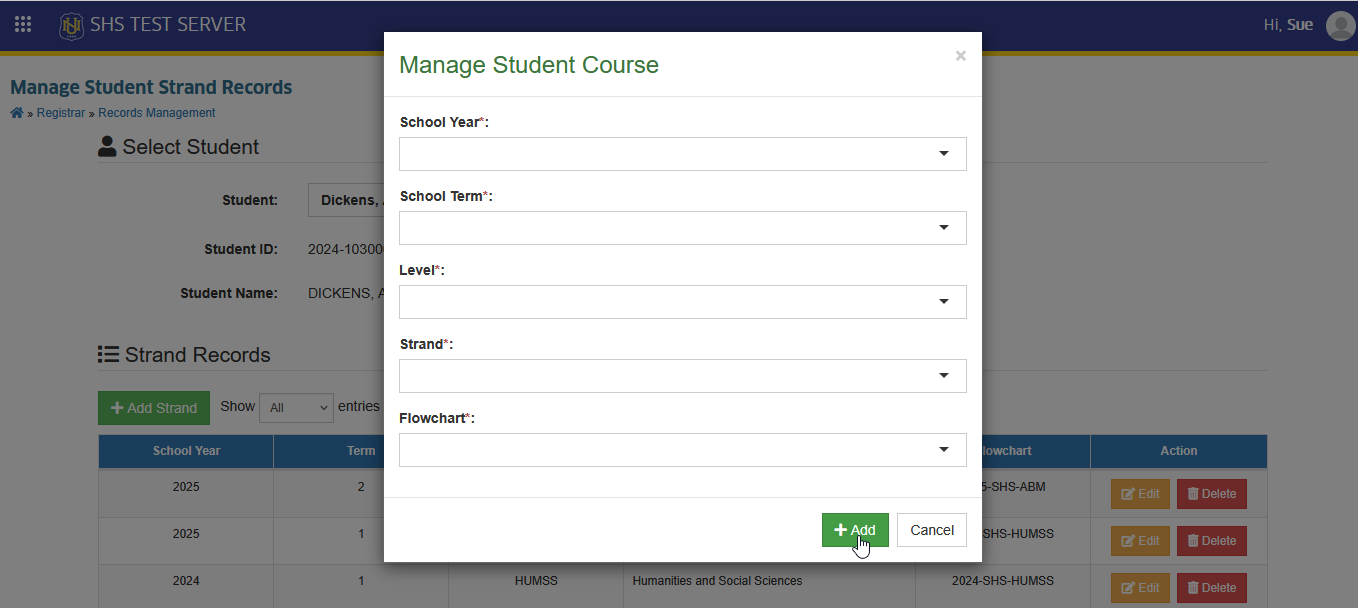
STEP 2. On the Manage Student Strand Records page, locate and click the button. The Manage Student Course prompt will appear.
STEP 3. Fill out the required information in the prompt.
| Field Name | Description |
|---|---|
| School Year | Select the academic year when the student attended the strand |
| School Term | Select the specific term within the chosen school year when the strand was taken. |
| Level | Select the student's academic level. |
| Strand | Select the academic strand attended by the student for the selected school year and term. |
| Flowchart | Select the flowchart that corresponds to the student's strand and academic level for proper subject tracking. |
STEP 4. Click the button to save the new record.
Update a Student Strand
Follow the steps below to update a student's strand record.
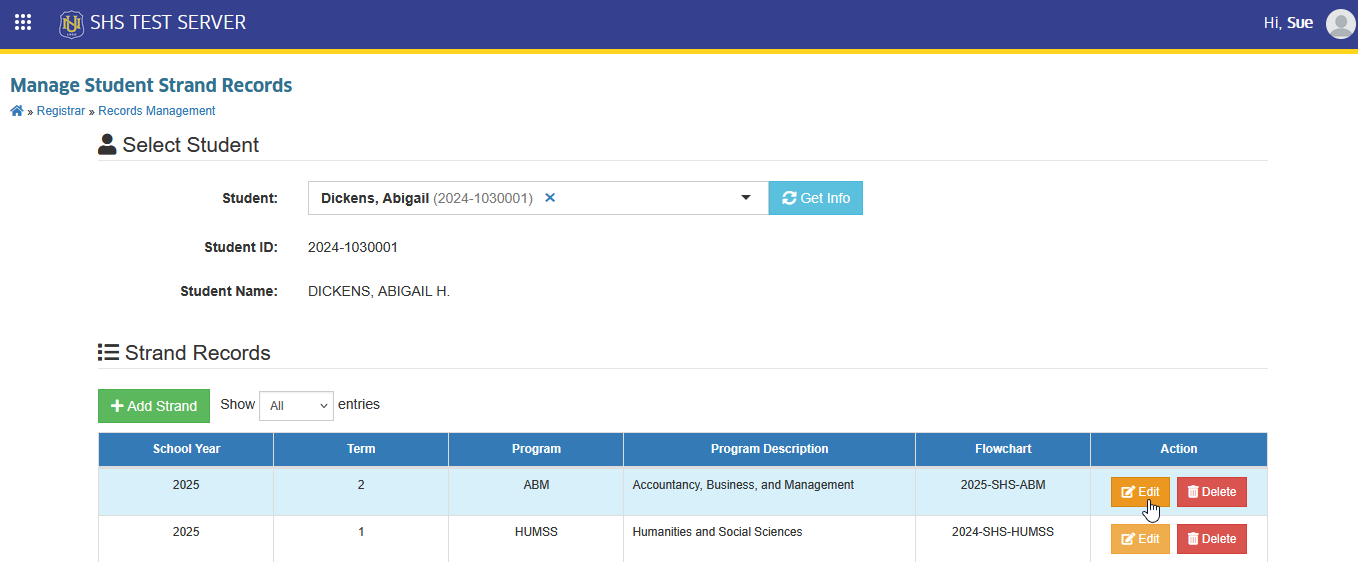
STEP 1. On the Student Strands page, search for the student and click the button. The system will redirect to Manage Student Strand Records page.
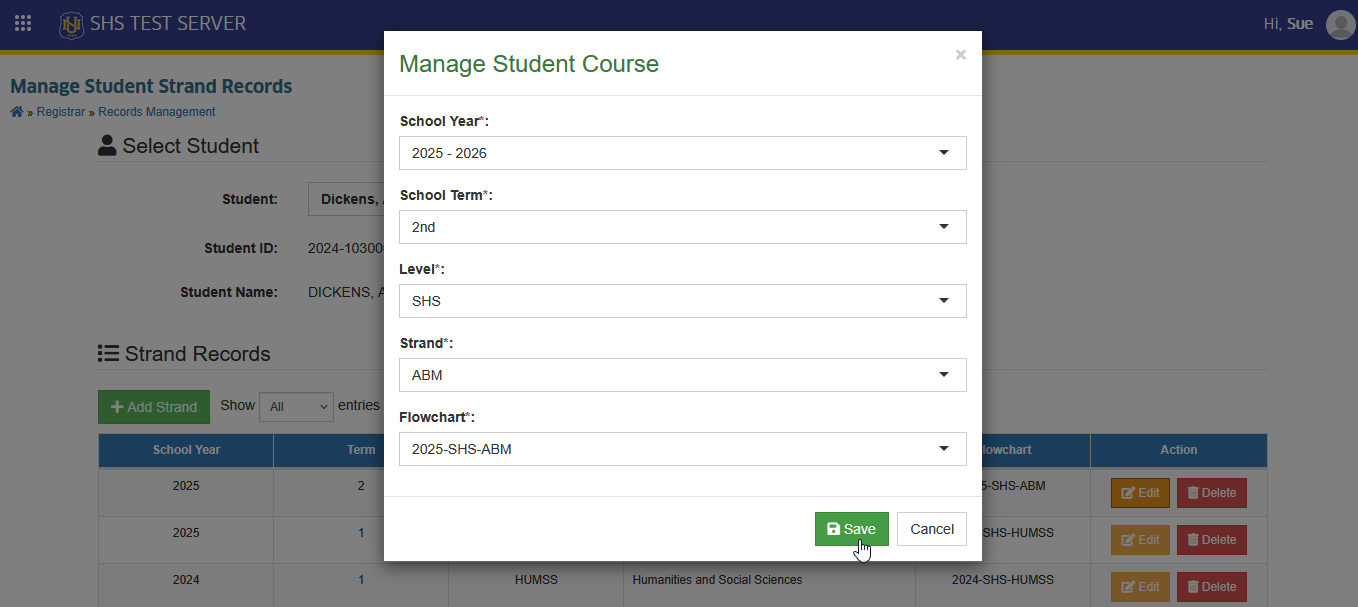
STEP 2. On the Manage Student Strand Records page, under Strand Records section, locate and click the corresponding button of the record to be modified. The Manage Student Course prompt will appear.
STEP 3. Update the necessary information, then click the button to save the changes.
Delete Strand Record
Follow the steps below to remove strand record.
STEP 1. On the Student Strands page, search for the student and click the button. The system will redirect to Manage Student Strand Records page.
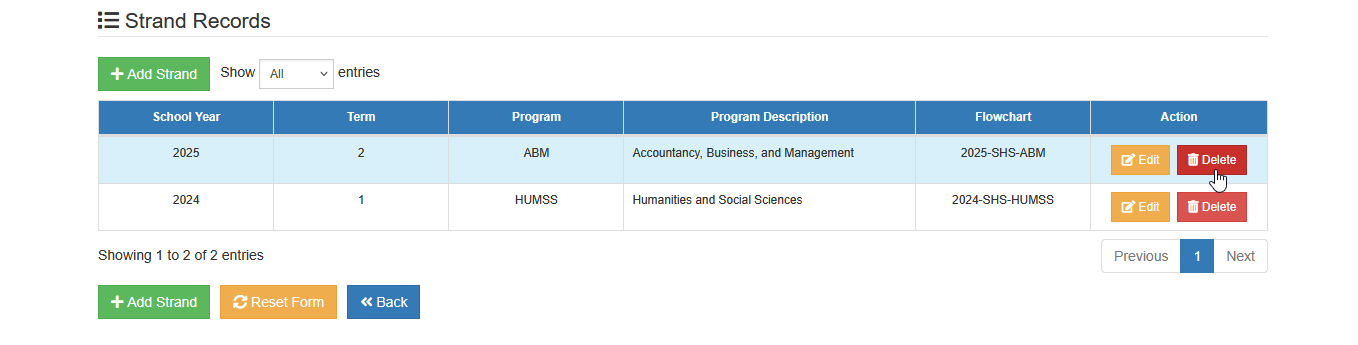
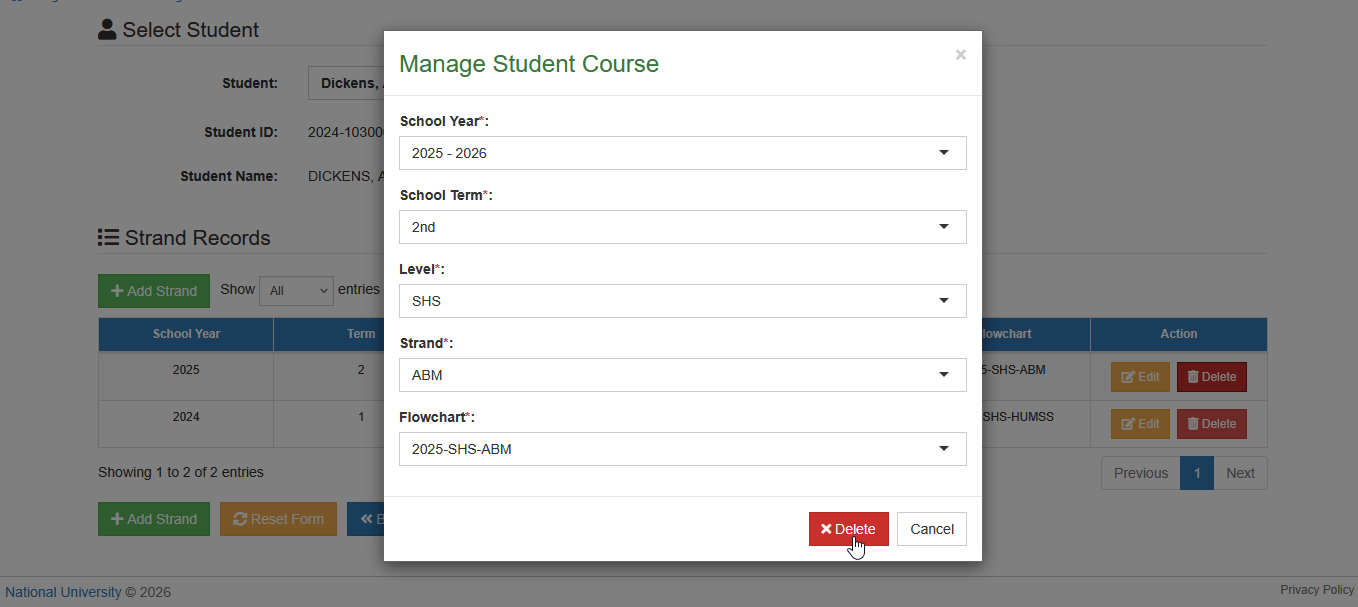
STEP 2. On the Manage Student Strand Records page, under Strand Records section, locate and click the corresponding button of the record to be removed. The Manage Student Course prompt will appear.
STEP 3. Confirm the deletion by clicking the button on the prompt.
For more questions or concerns, email us at nu-desk@national-u.edu.ph