Student Voucher
The Student Voucher module is where SHS vouchers of students are managed. Through this module, you can easily check, update, and organize voucher details. It’s mainly used by registrar personnel who need to handle student voucher records.
What You Can Do in This Module
-
View Student Vouchers - See the list of SHS student vouchers that are recorded in the system.
-
Edit Student Vouchers - Modify the voucher information of students.
-
Remove a Voucher - Delete a voucher record that is no longer valid or mistakenly added.
-
Renew a Voucher - Update or renew a voucher so that it stays valid for the student’s use.
Required Permissions
-
View xrefStudentVoucher - Allows the user to see the list and details of SHS student vouchers in the system.
-
Add xrefStudentVoucher - Lets the user to renew an existing voucher for a student.
-
Edit xrefStudentVoucher - Gives the user the ability to update or modify voucher information.
-
Delete xrefStudentVoucher - Allows the user to remove or delete voucher record from the system.
How to Access the Module
To access the module, make sure you have the View xrefStudentVoucher permission. If it doesn’t appear in your portal, request access from your System Administrator.
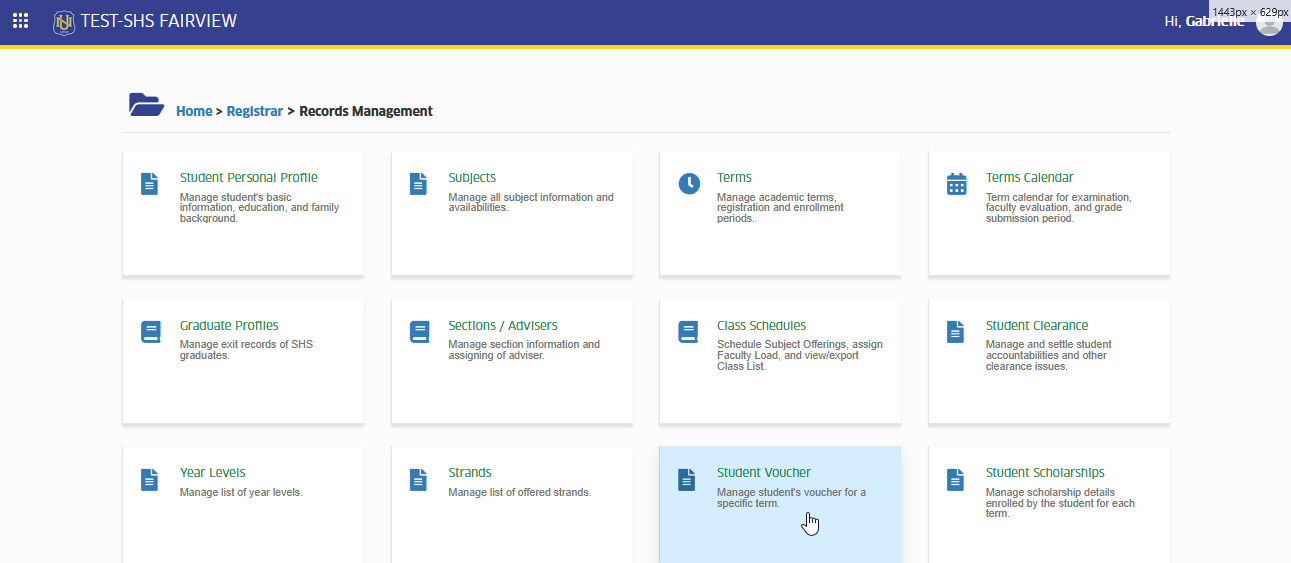
In NUIS-SHS portal, go to Registrar > Records Management > Student Voucher. Click the module tab to redirect to the Student Voucher list view page.
How to Use the Module
This section will guide you through the basic steps of using the Student Voucher module. Here, you’ll learn how to view, renew, edit, and remove student vouchers. Each step is laid out in an easy-to-follow way so you can quickly understand how to manage SHS student vouchers without any hassle.
Renew Student Voucher
Follow the steps below to renew student's vouchers.
-
Renewal of vouchers is done annually.
-
Check thoroughly the students' status with failing or incomplete grades before renewing their vouchers.
-
If you are not sure yet whether to renew the student's voucher, you may do selective importing.
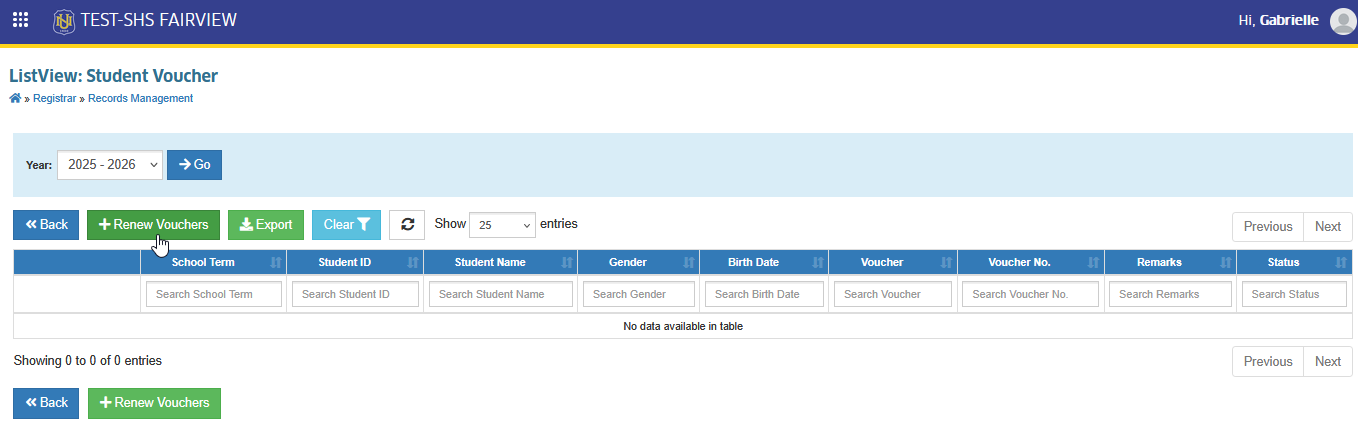
STEP 1. In the Student Voucher list view page, click the button. You will be redirect to the Renew Student Vouchers page.
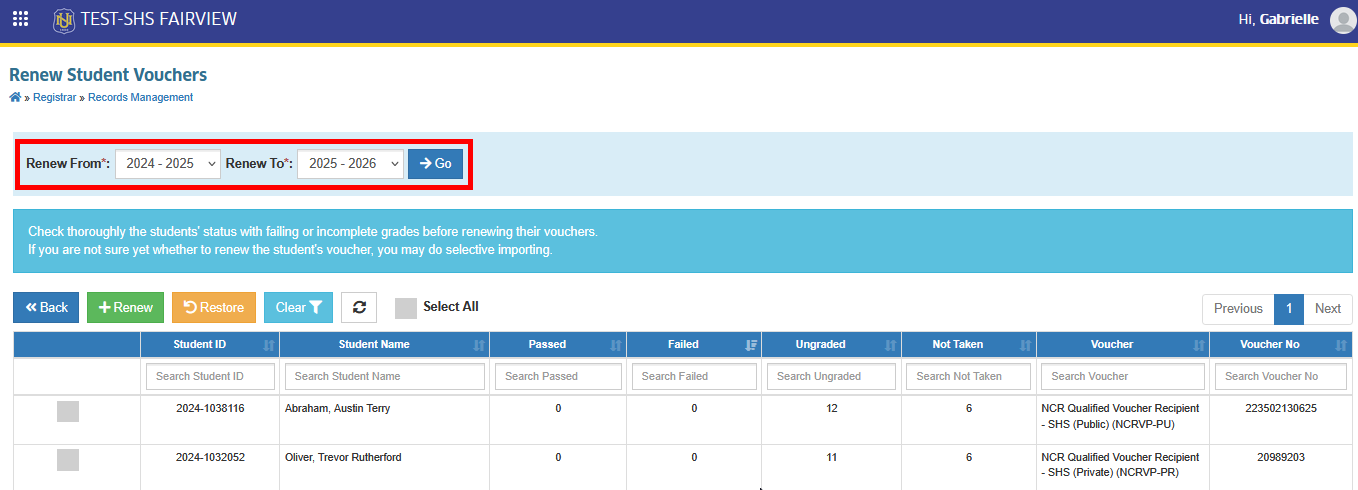
STEP 2. On the Renew Student Vouchers page, fill in the Renew from and Renew to fields. This will display all students with voucher record from the previous term.
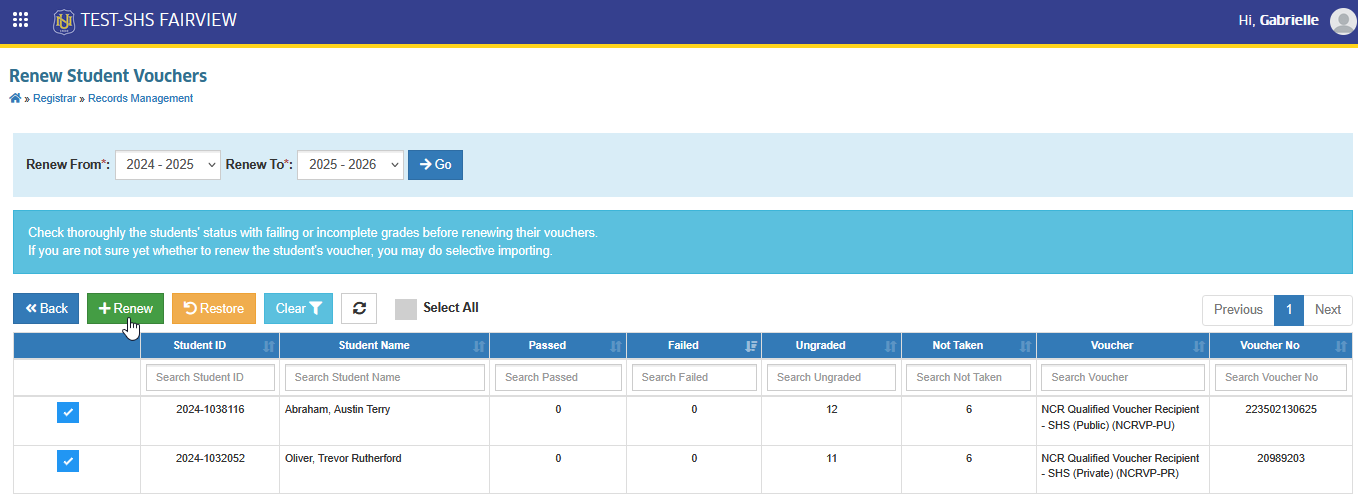
STEP 3. From the list, select the students whose vouchers you want to renew. Then, click the button.
STEP 4. After a system notification confirms that the renewal was successful, go back to the Student Voucher list view page. You should now see the renewed vouchers included in the list.
Update Student Voucher's Information
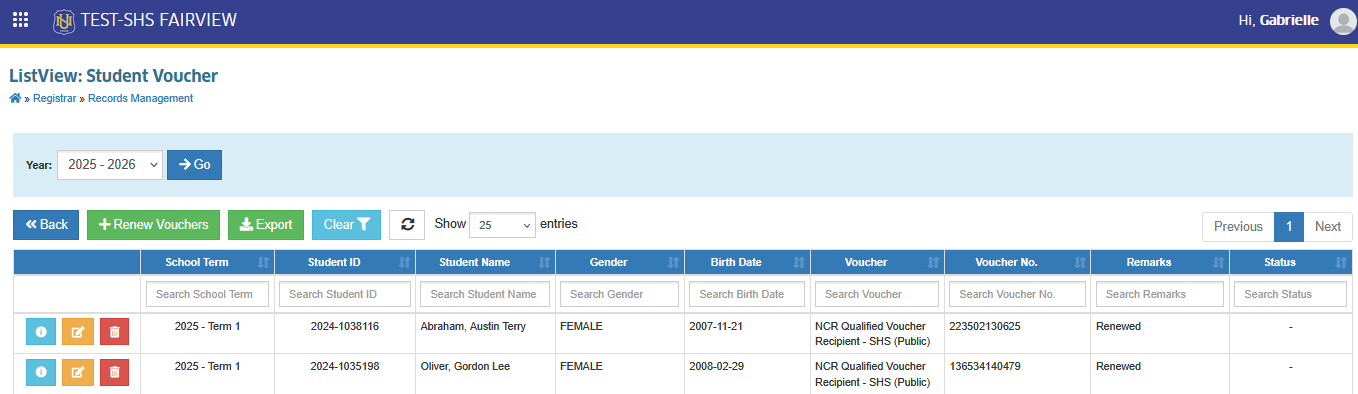
Follow the steps below to edit or update the detail of a student's voucher.
STEP 1. In the Student Voucher list view page, click the button. You will be redirect to the Edit Student Voucher page.
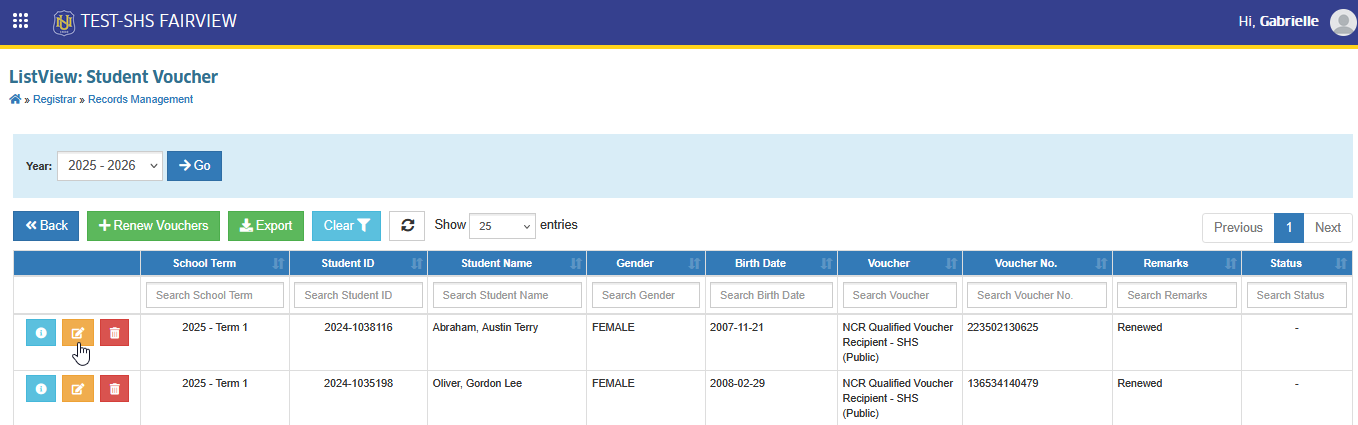
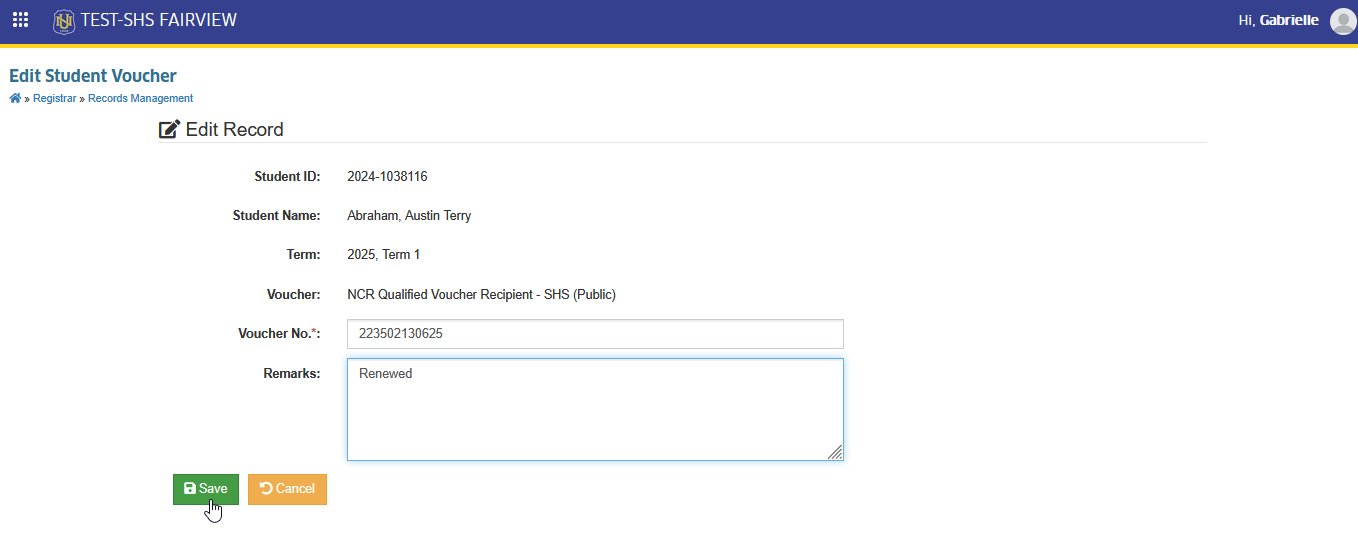
STEP 2. On the Edit Student Voucher page, update the information that needs to be changed.
STEP 3. Click the button to apply and save the changes.
Remove Student's Voucher
Follow the steps below to delete or remove a student's voucher from the system.
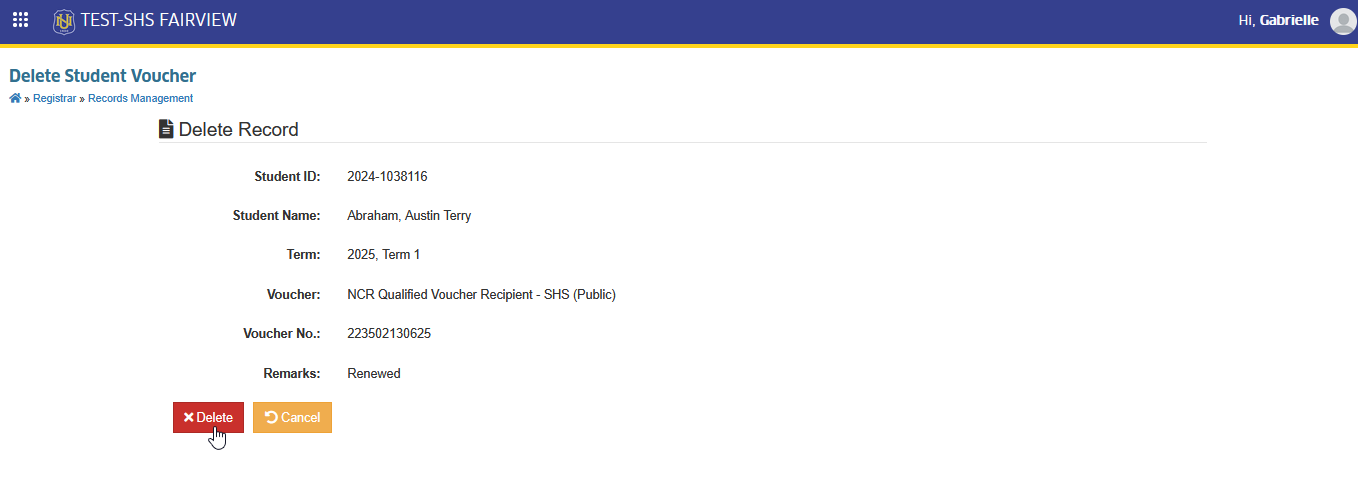
STEP 1. In the Student Voucher list view page, click the button. You will be redirect to the Delete Student Voucher page.
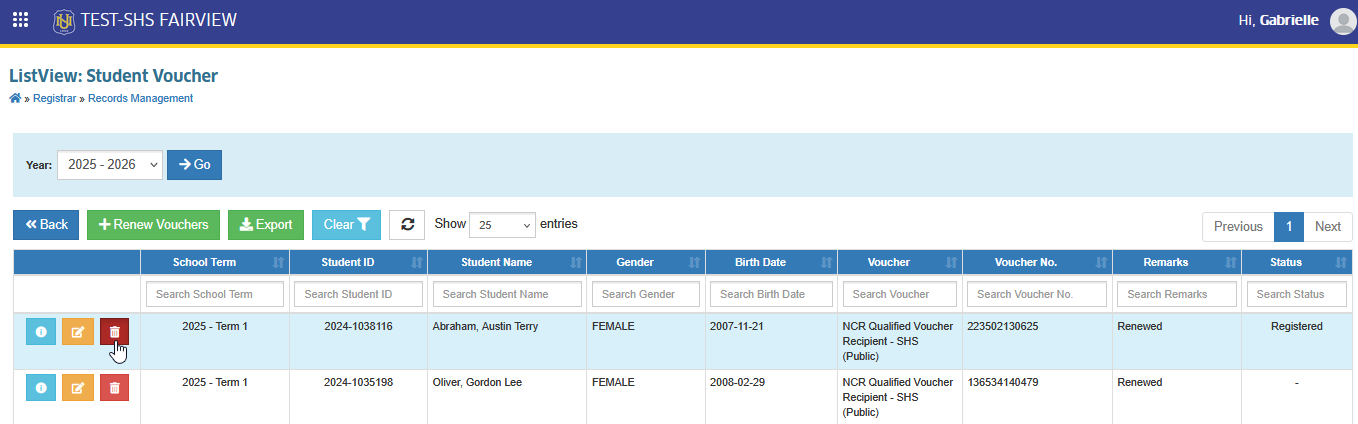
STEP 2. On the Delete Student Voucher page, confirm the removal by clicking the button.
Restore Student's Voucher
Follow the steps below to restore a student's voucher record that has been removed.
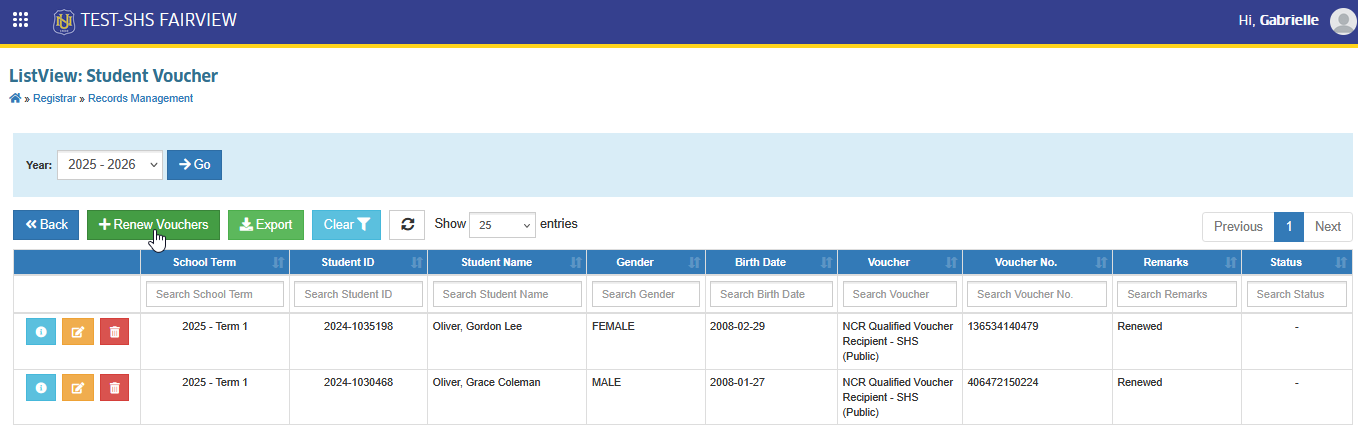
STEP 1. In the Student Voucher list view page, click the button. You will be redirect to the Renew Student Vouchers page.
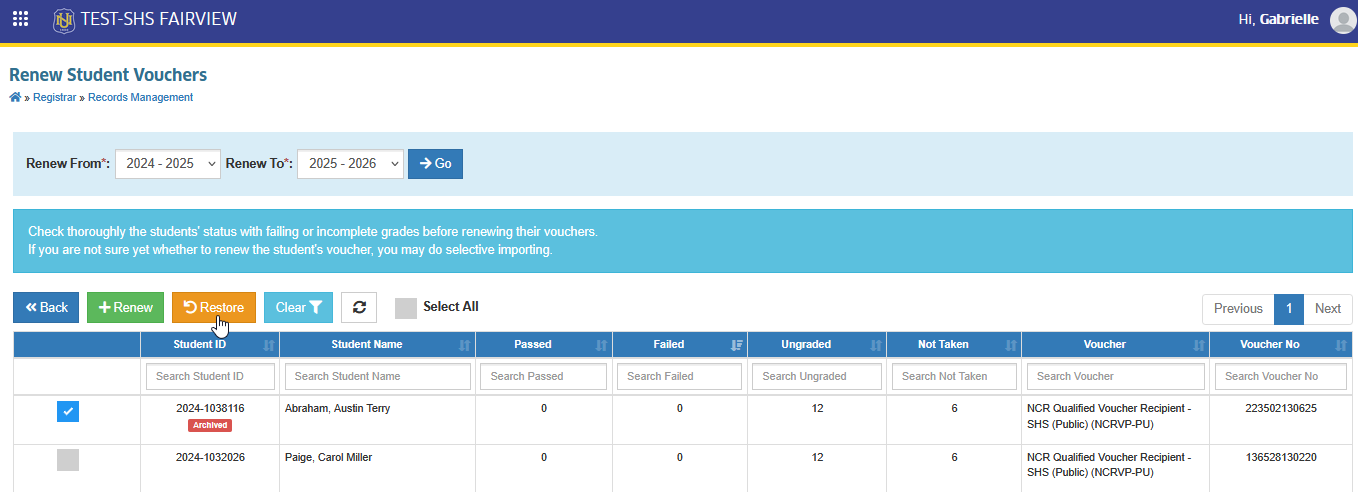
STEP 2. On the Renew Student Vouchers page, search for the student. A voucher that has been removed will show an label in the student ID. Select that student, then click the button.
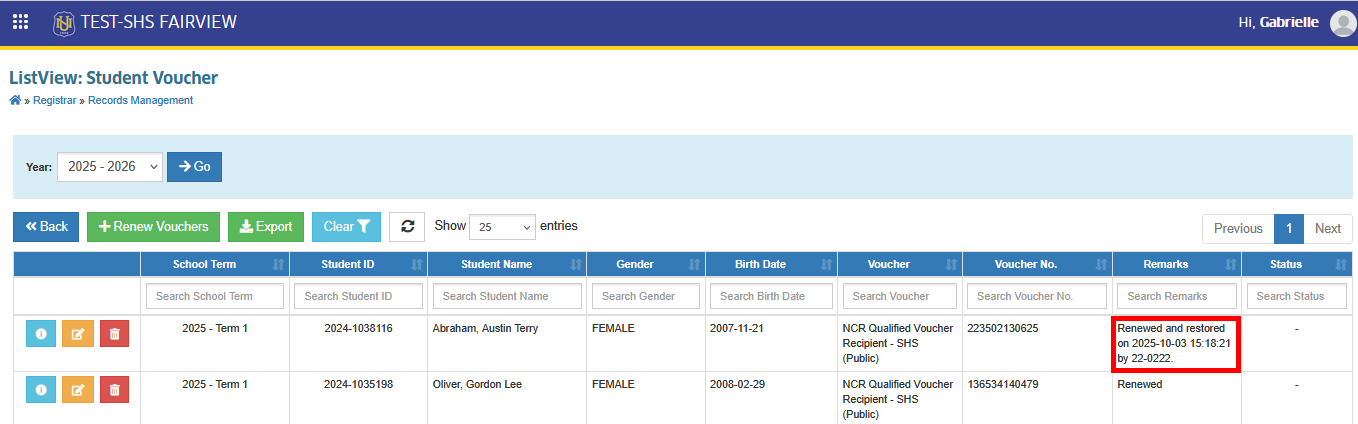
STEP 3. Once the system notification confirms that the restoration was successful, return to the Student Voucher list view page. You should now see the restored vouchers included in the list.
For more questions or concerns, email us at nu-desk@national-u.edu.ph