Diagnosis
The Diagnosis module provides a list of possible diagnoses used during medical evaluations. It allows HSO personnel to view, add, edit, delete, and export diagnosis records for efficient patient assessment and record management.
Required Permissions
Add Diagnosis - Allows the user to create and save new diagnosis records in the module.
Delete Diagnosis - Allows the user to remove diagnosis records from the module.
Edit Diagnosis -Allows the user to modify or update existing diagnosis information.
View Diagnosis - Allows the user to access and view the list of diagnosis records.
How to Access the Module
To access the module, make sure you have the View Diagnosis permission. If it doesn’t appear in your portal, request access from your System Administrator.
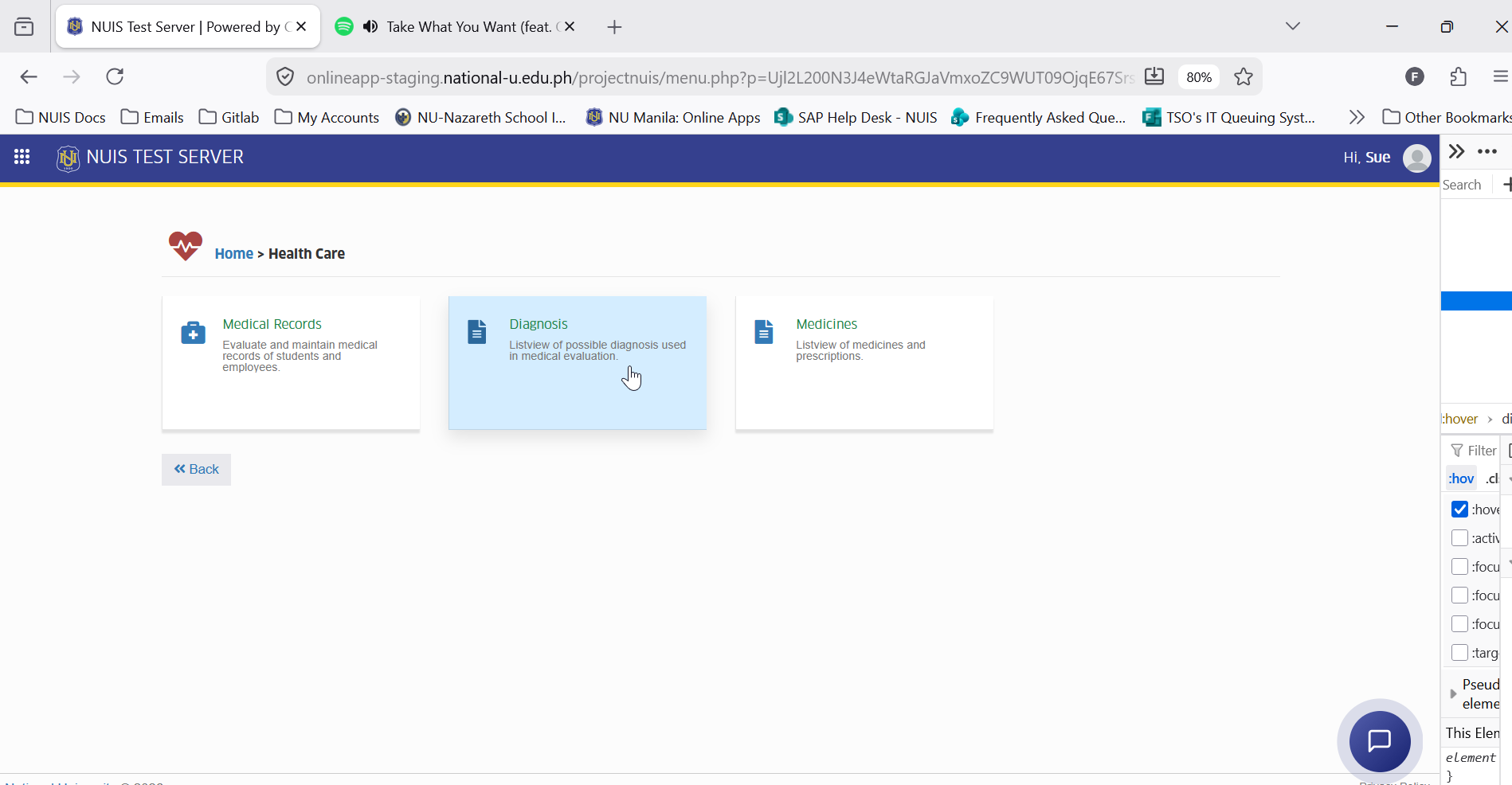
In NUIS portal, go to Health Care > Diagnosis. Click the module tab to redirect to the Manage Medicines list view page.
How to Use the Module
This section provides step-by-step instructions on how to navigate and perform actions within the module. It guides users through the available functions to ensure tasks are completed properly and efficiently.
Adding a Diagnosis Record
Follow the steps below to create and save a new diagnosis record in the module.
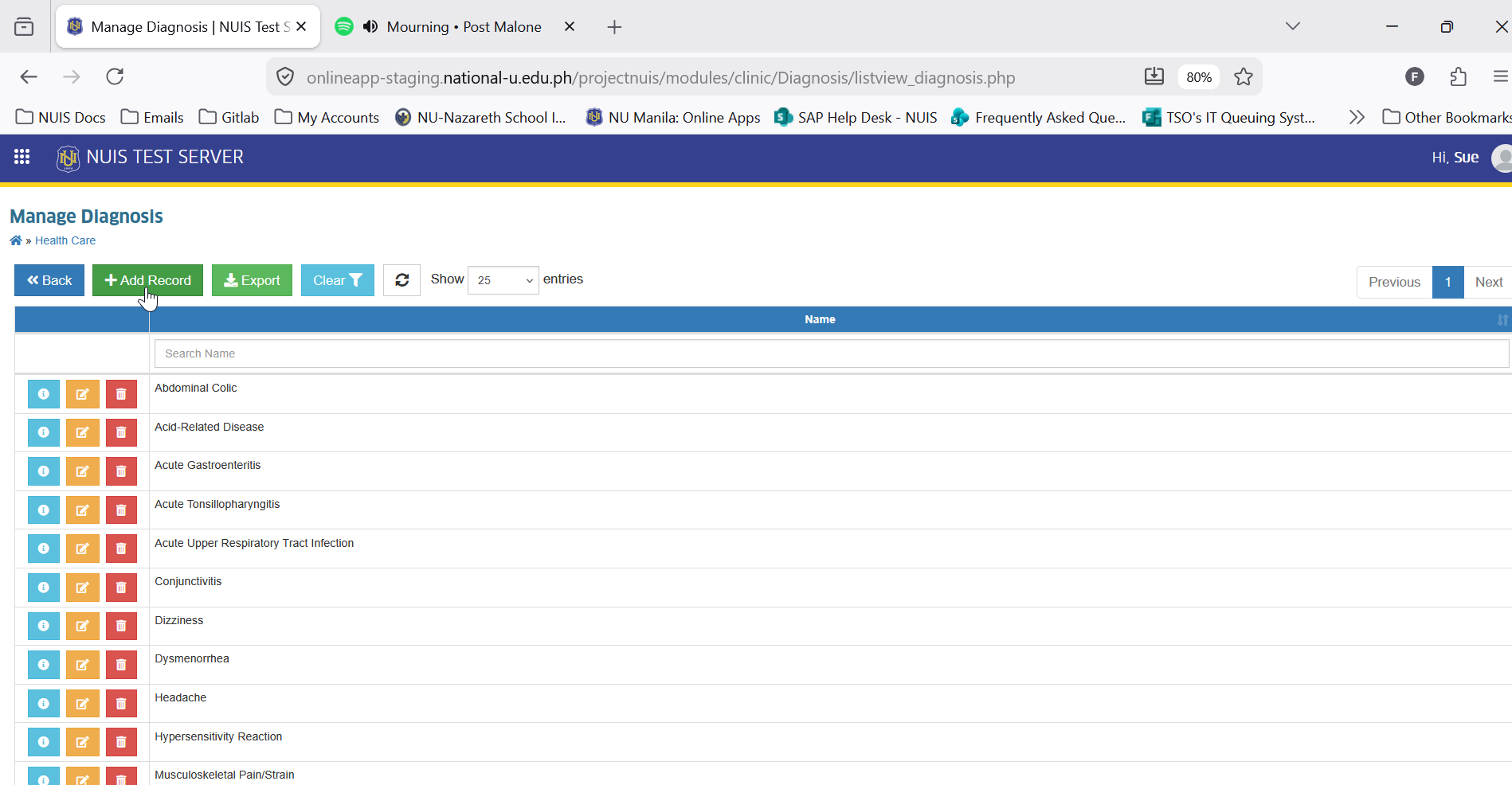
STEP 1. On the Manage Diagnosis page, locate and click the button. You will be redirected to Add Diagnosis page.
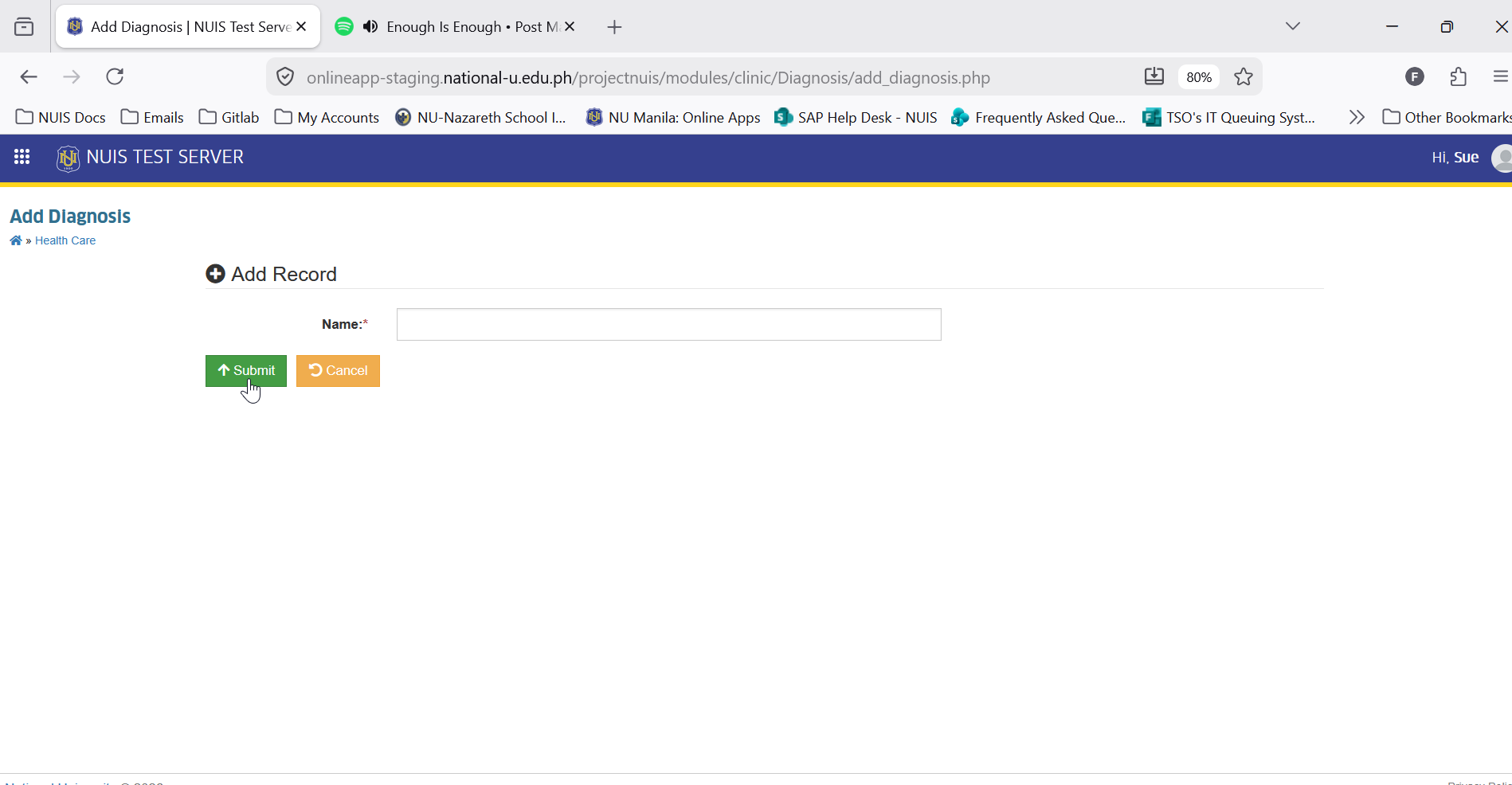
STEP 2. On the Add Diagnosis page, encode the Diagnosis Name.
STEP 3. Click the button to save the record.
Editing a Diagnosis Record
Follow the steps below to update or modify an existing diagnosis record in the module.
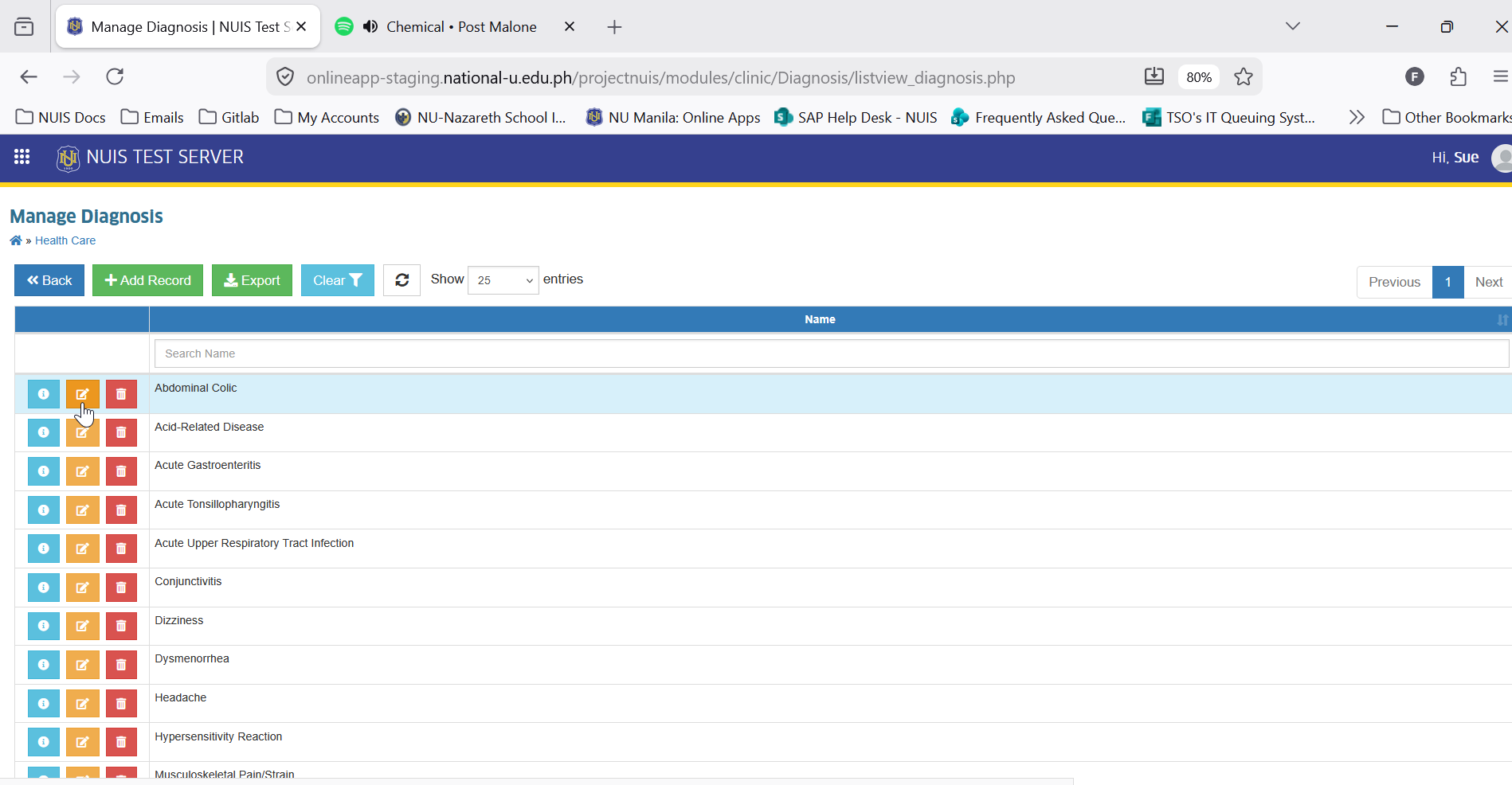
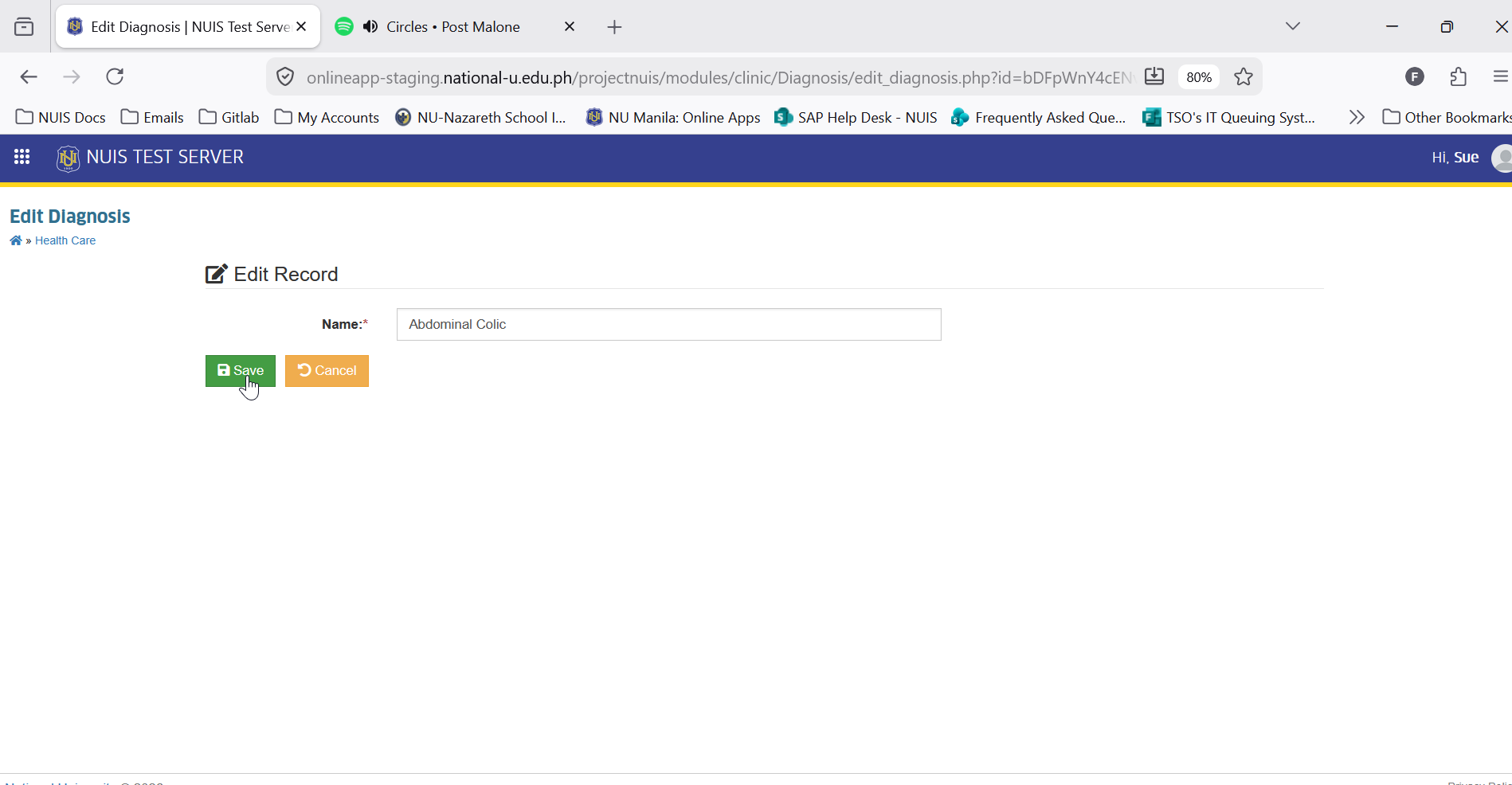
STEP 1. On the Manage Diagnosis page, click the corresponding button. You will be redirected to Edit Diagnosis page.
STEP 2. Update the necessary information.
STEP 3. Click the button to apply changes.
Deleting a Diagnosis Record
Follow the steps below to remove an existing diagnosis record from the module.
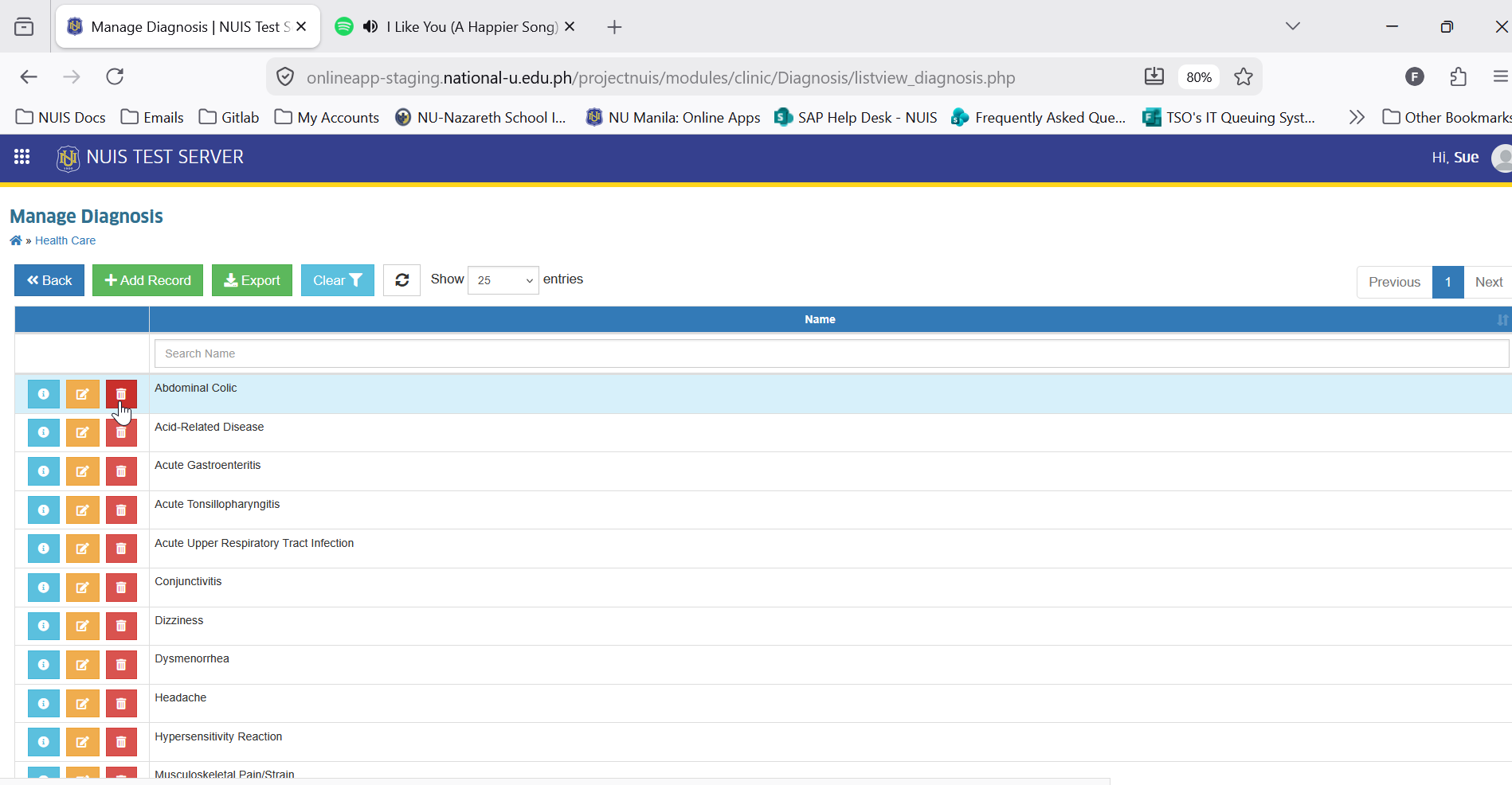
STEP 1. On the Manage Diagnosis page, click the corresponding button. You will be redirected to Delete Diagnosis page.
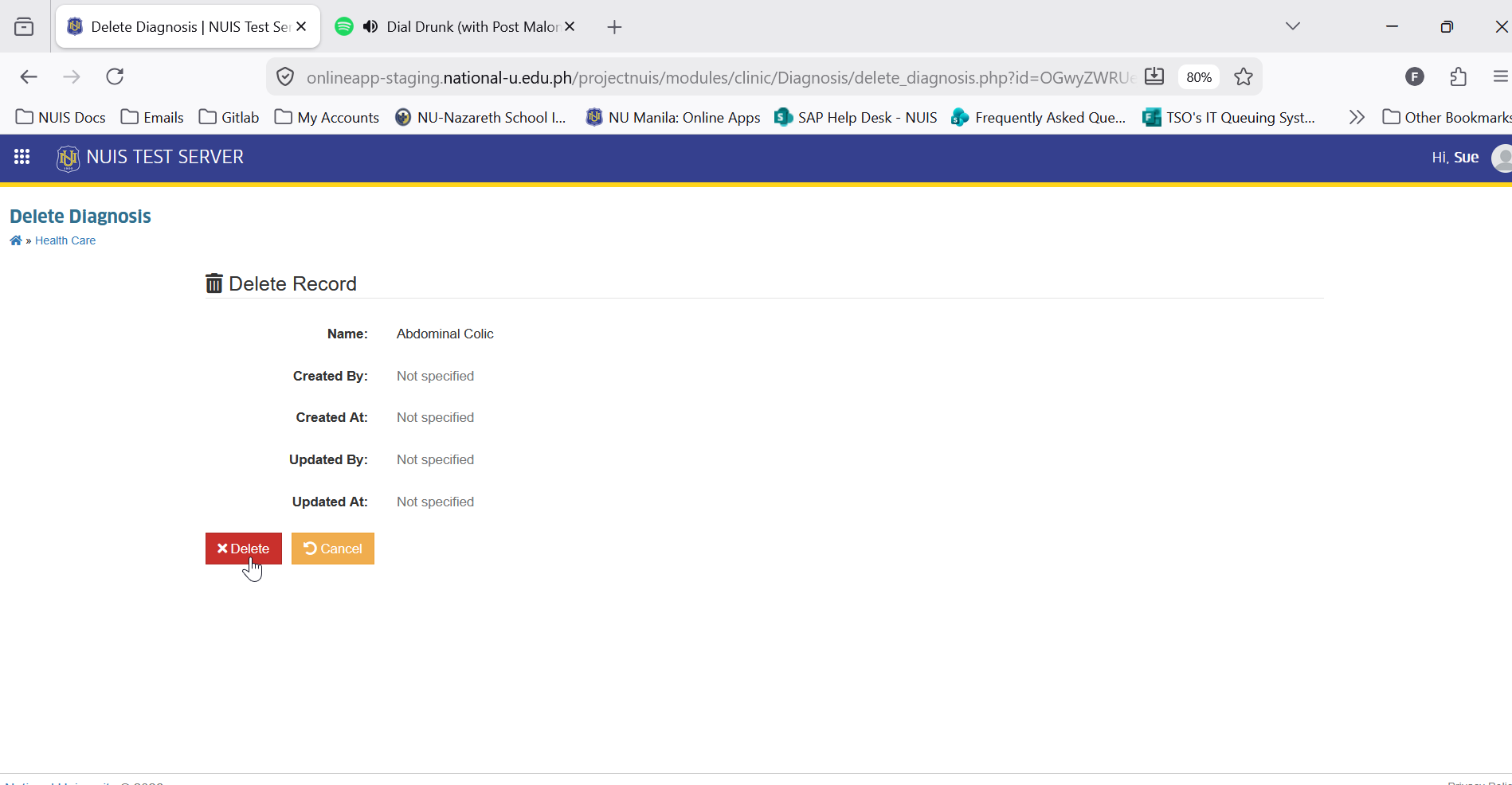
STEP 2. Confirm the action by clicking the button.
Exporting Diagnosis Records
Follow the steps below to download and save the list of diagnosis records from the module.
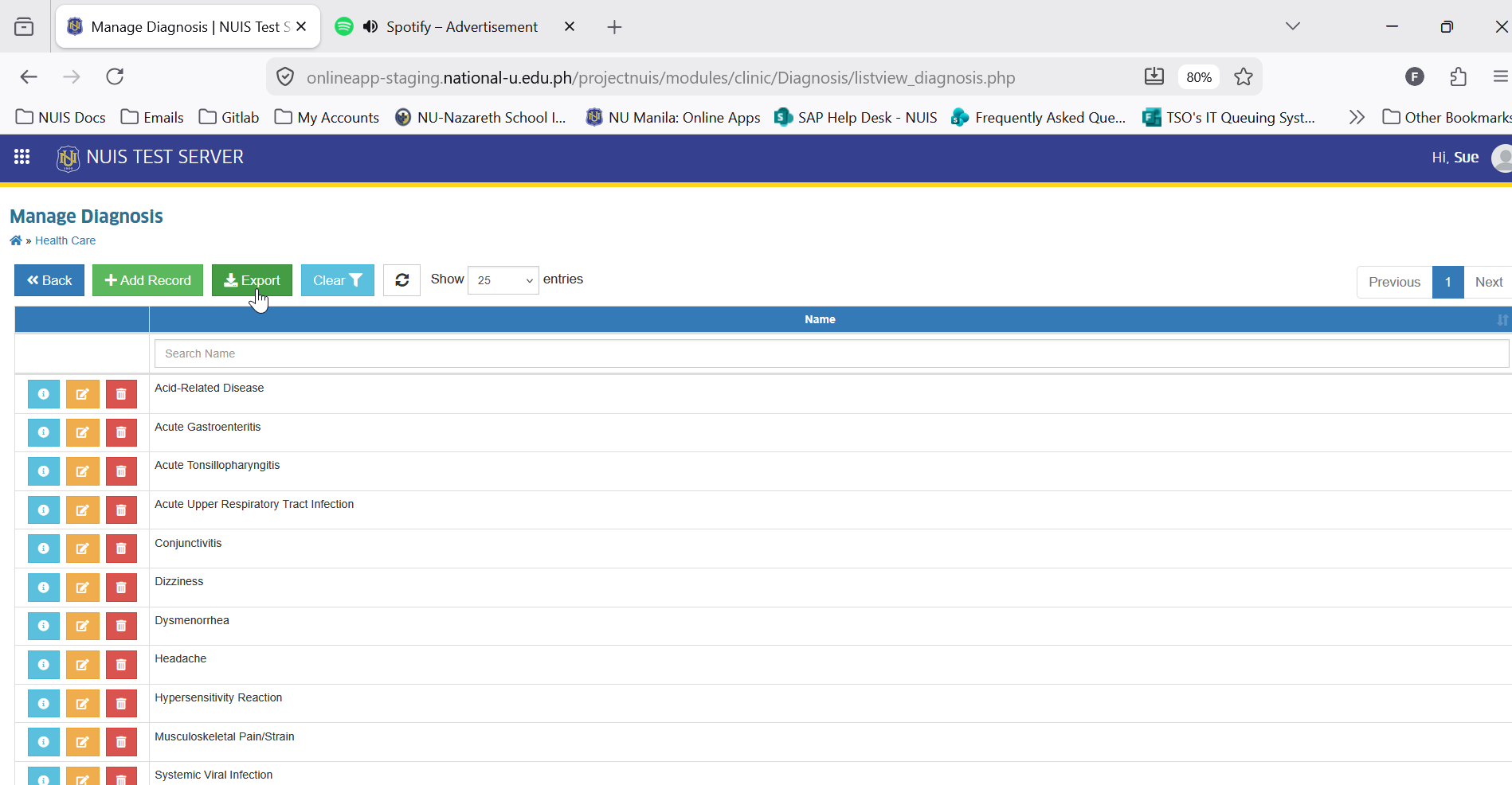
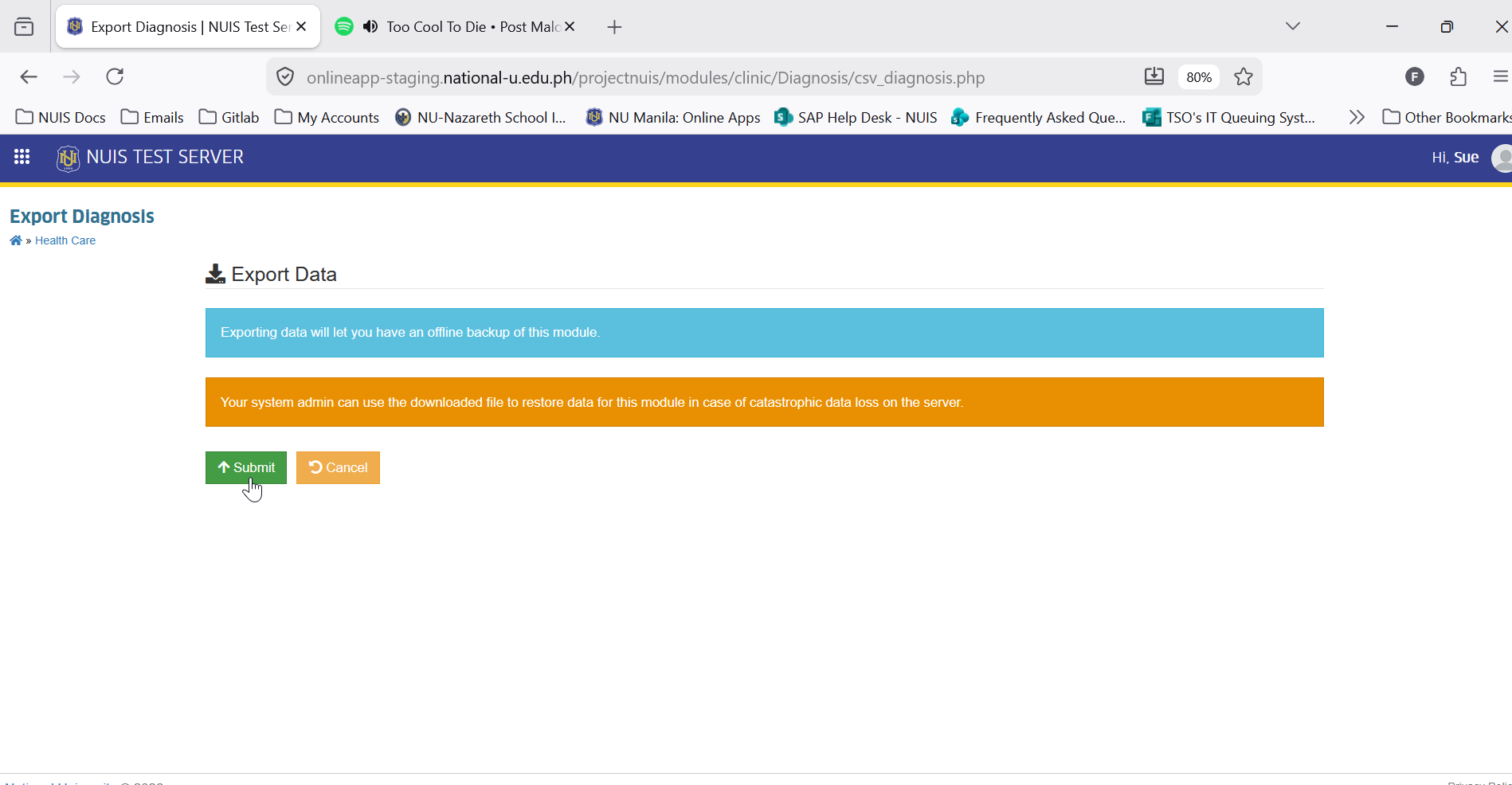
STEP 1. On the Manage Diagnosis page, locate and click the button. You will be redirected to Export Diagnosis page.
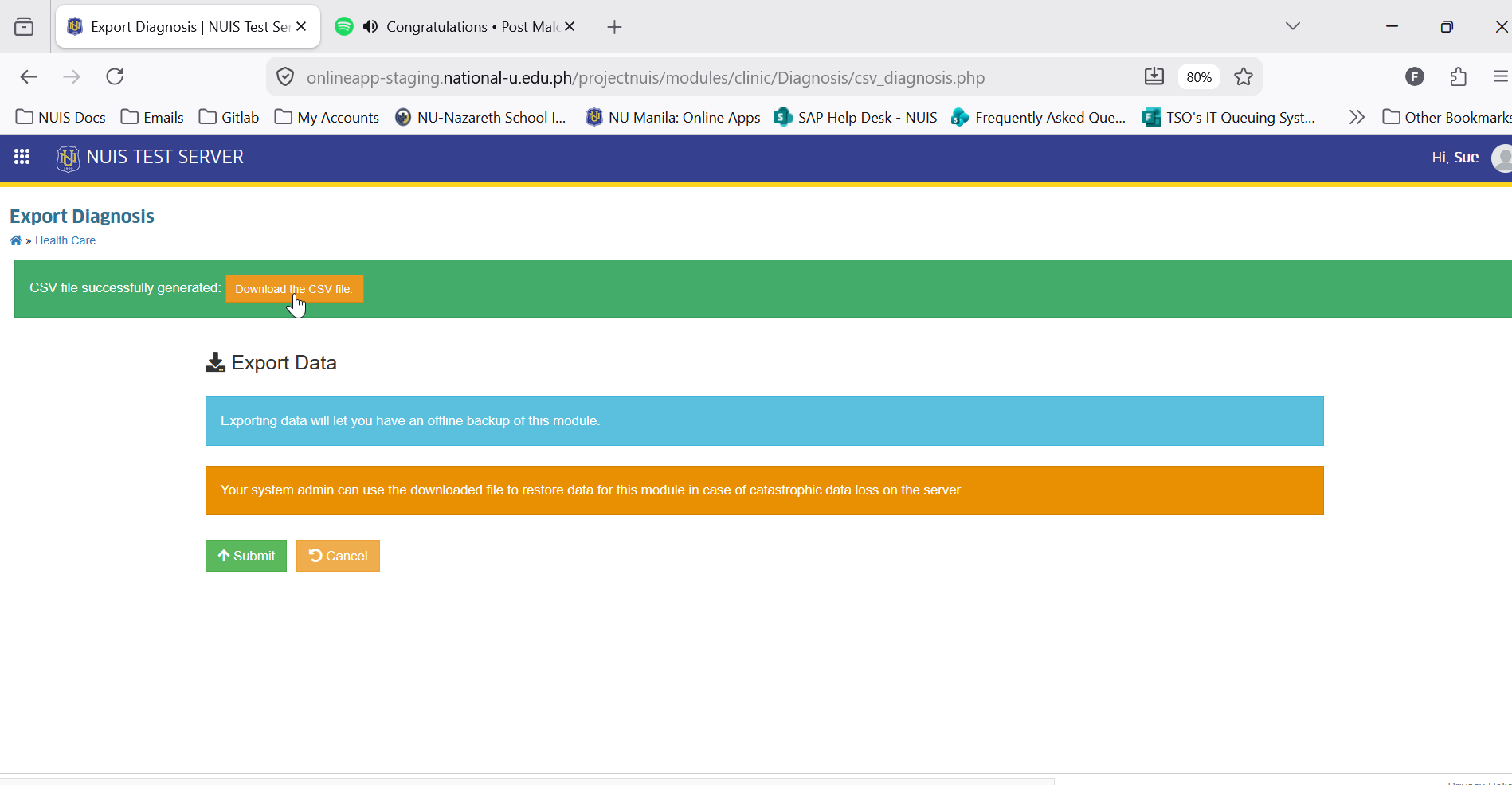
STEP 2. On the Export Diagnosis page, click the button. This action will generate a CSV file of the record.
STEP 3. After the CSV File has been generated, click the to download the file.
For more questions or concerns, email us at nu-desk@national-u.edu.ph