Medicines
The Medicine module allows Health Service Office (HSO) personnel to manage the list of medicines available in the system. This includes adding new medicines, updating existing records, and removing outdated entries. It also keeps track of each medicine’s dosage for proper reference.
Required Permissions
Add Medicine - Allows the user to create and save new medicine records in the system, including its name and dosage.
Delete Medicine - Allows the user to remove existing medicine records from the system.
Edit Medicine -Allows the user to update or modify existing medicine records, such as correcting the name or dosage.
View Medicine - Allows the user to view the list of medicines and their corresponding details in the system.
How to Access the Module
To access the module, make sure you have the View Medicine permission. If it doesn’t appear in your portal, request access from your System Administrator.
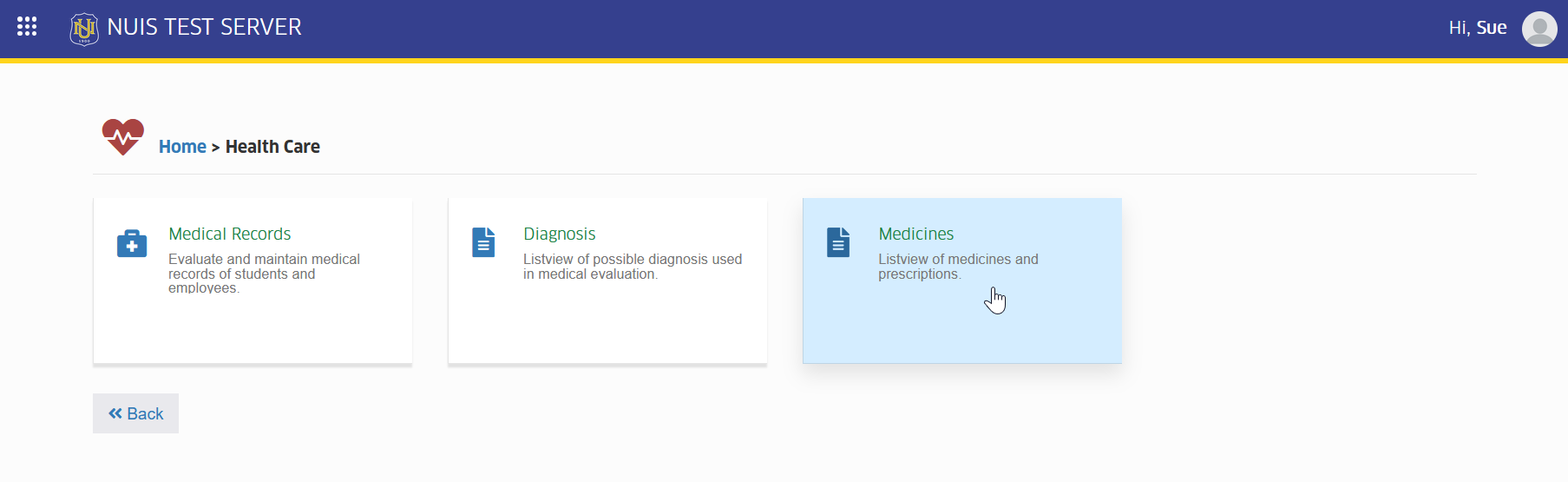
In NUIS portal, go to Health Care > Medical Medicine. Click the module tab to redirect to the Manage Medicines list view page.
How to Use the Module
This section provides step-by-step instructions on how to manage medicine records in the module. It guides users on how to view, add, edit, and delete medicines, ensuring that all information is entered and maintained accurately in the system.
Viewing Medicine Records
This section guides users on how to access and review the list of available medicines in the system. It helps users check medicine names and their corresponding dosages for reference and verification.
STEP 1. Go to the Medicines Module.
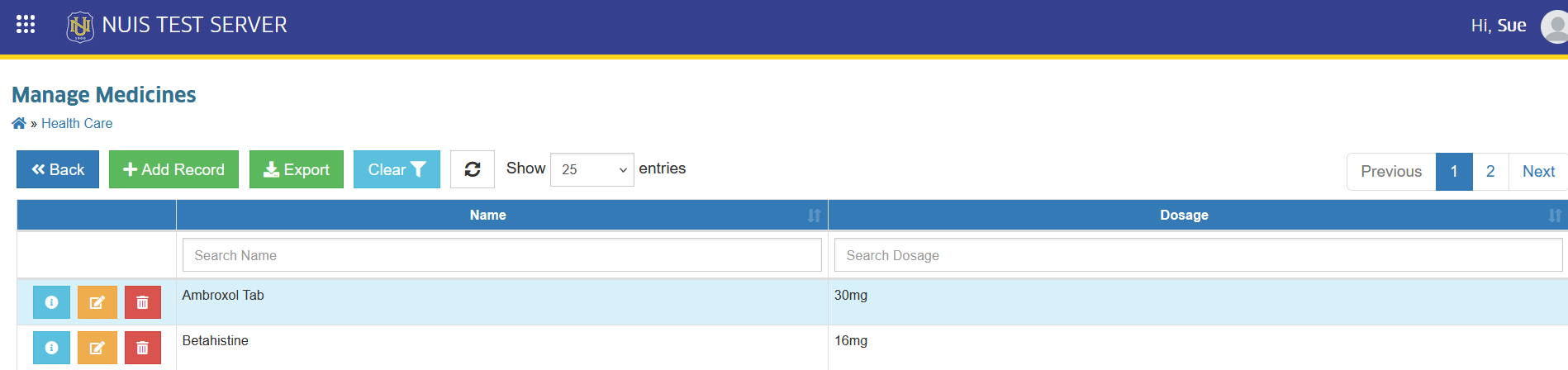
You will see a list of all available medicines. Check the details such as medicine name and dosage.
Adding a New Medicine
This section guides users on how to add a new medicine record in the system. It ensures that the medicine name and dosage are properly entered and saved for accurate tracking and reference.
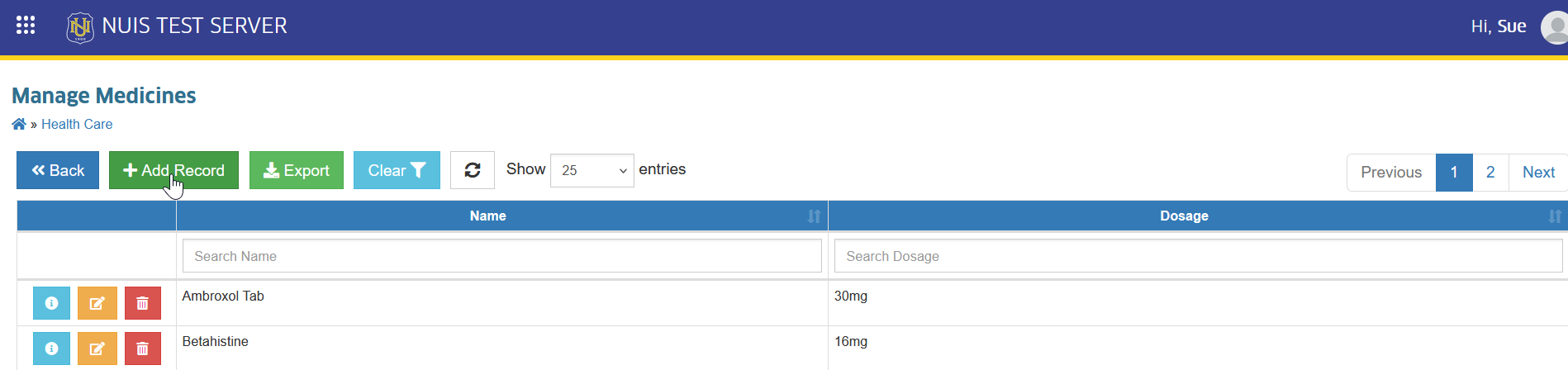
STEP 1. On the Manage Medicines page, locate and click the button. You will be redirected to Add Medicines page.
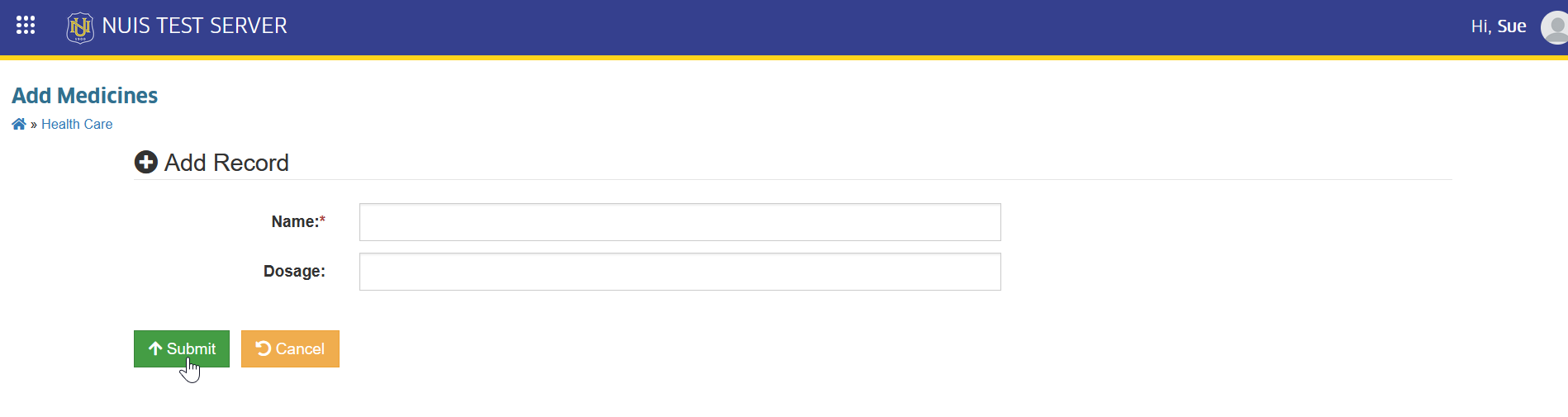
STEP 2. On the Add Medicines page, enter the required details (e.g., medicine name, dosage).
STEP 3. Review the information. Then, click the button. to add the new record.
Editing a Medicine Record
This section guides users on how to update or modify existing medicine information in the system. It ensures that any changes to the medicine name or dosage are correctly applied and saved for accurate records.
STEP 1. On the Medicines page, click the corresponding button of the record you want to update. The system will redirect to Edit Medicine page.
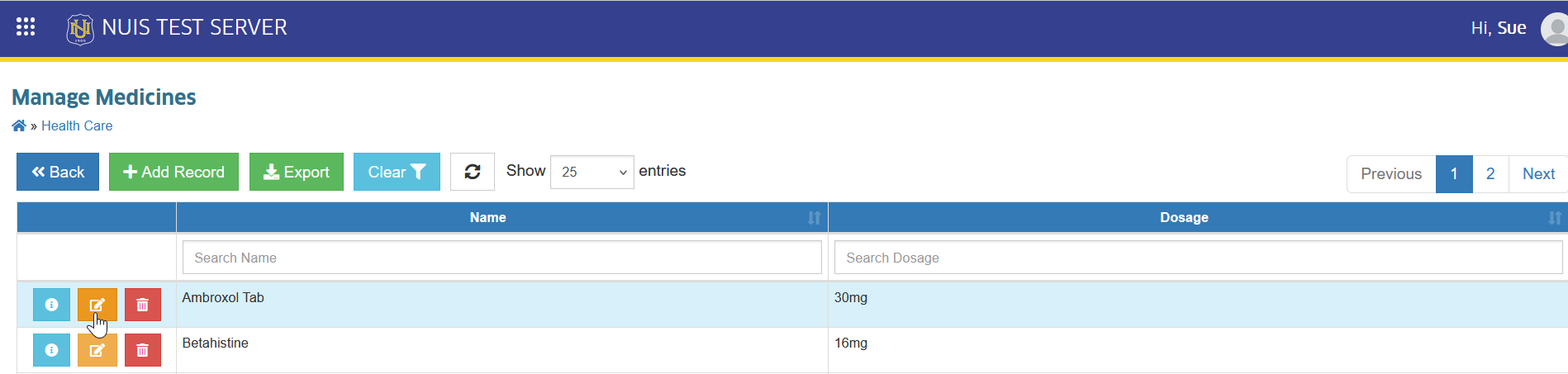
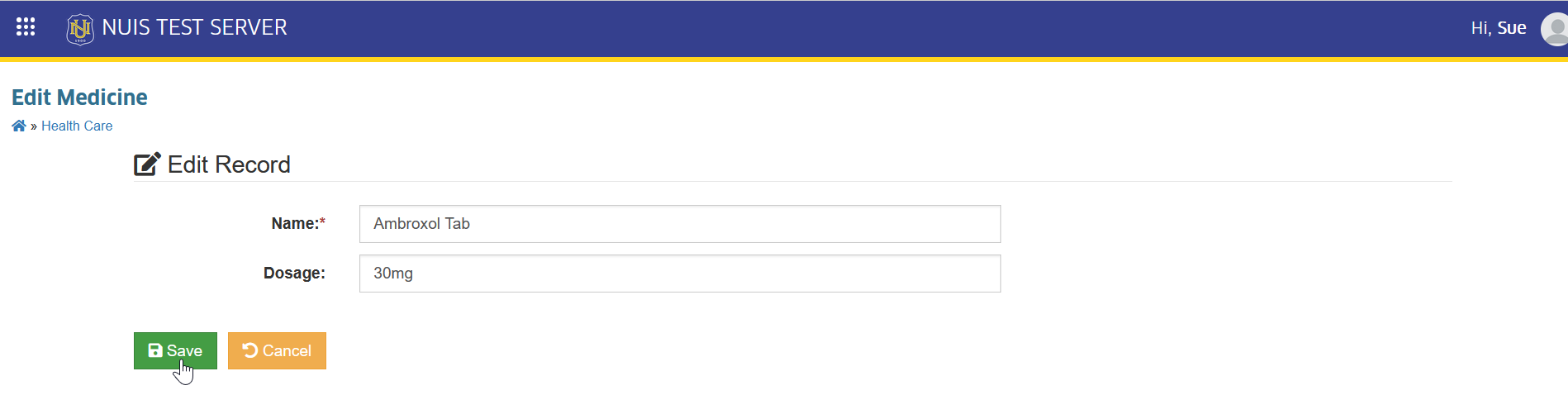
STEP 2. On the Edit Medicine page, update the necessary details.
STEP 3. Click the button to apply changes.
Deleting a Medicine Record
This section guides users on how to remove an existing medicine record from the system. It ensures that only unnecessary or incorrect entries are deleted to maintain accurate and organized records.
STEP 1. On the Medicines page, click the corresponding button of the record you want to remove. The system will redirect to Delete Medicine page.
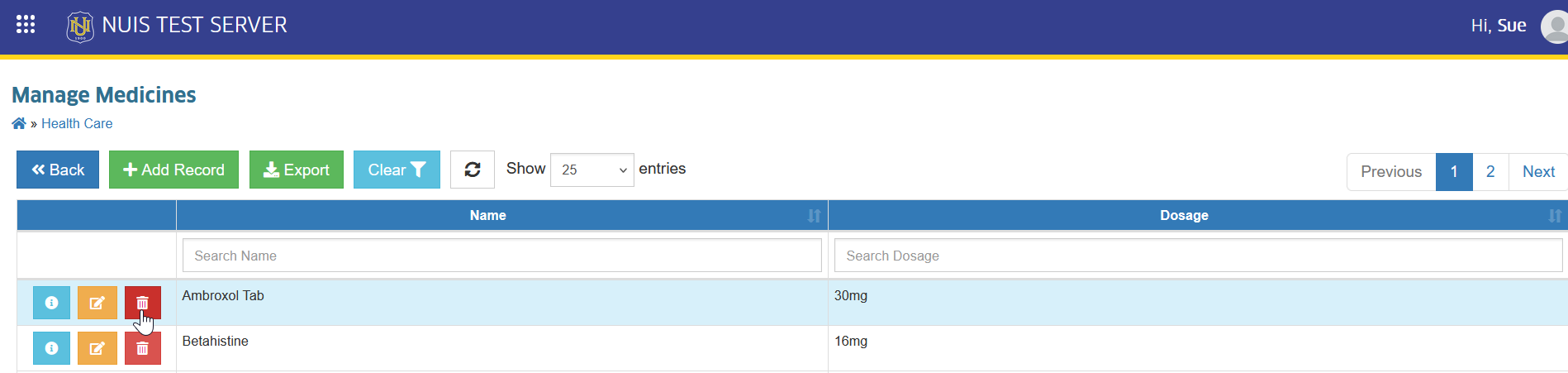
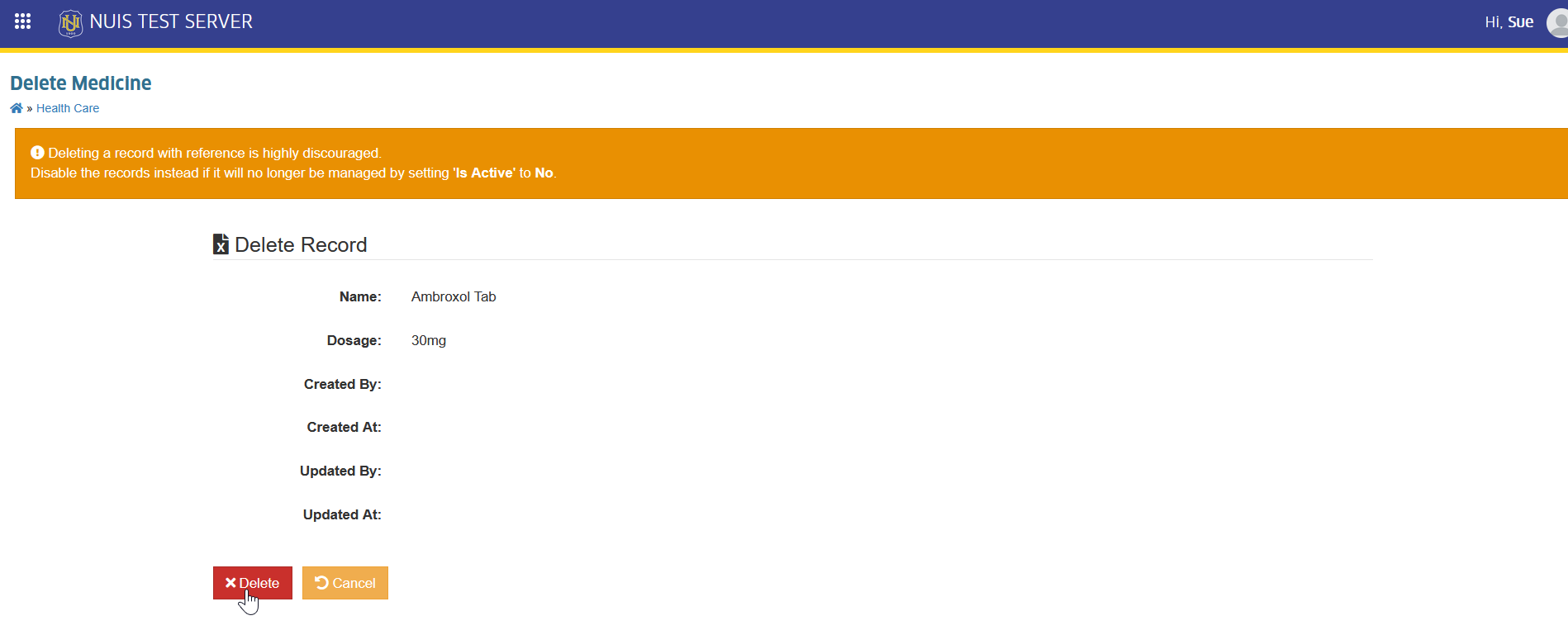
STEP 2. Confirm the action by clicking the button.
For more questions or concerns, email us at nu-desk@national-u.edu.ph