Application for Graduation
Apply as candidate for graduation for the current term.
Required Permission
- Application for Graduation - This permission will enable the user to submit an application for graduation for the students last term.
How to access the module?
To access the module, make sure you have the Application for Graduation permission. If it doesn’t appear in your portal, coordinate with the Registrar Office to include the student in the roster of candidates for graduation.
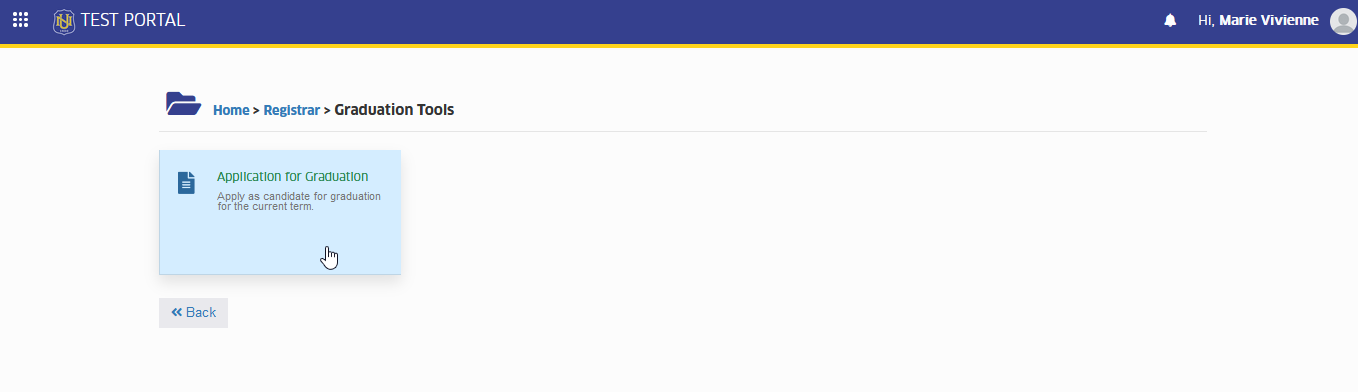
To access the module go to Registrar > Graduation Tools > Application for Graduation
Click the module tab to redirect to Application for Graduation.
How to use the module
Once the Student received the email notification that he/she is candidate for graduation, the student may apply for graduation. Follow the steps below on how to apply.
STEP 1. In Application for Graduation page, all student records should be checked and verified if accurate.
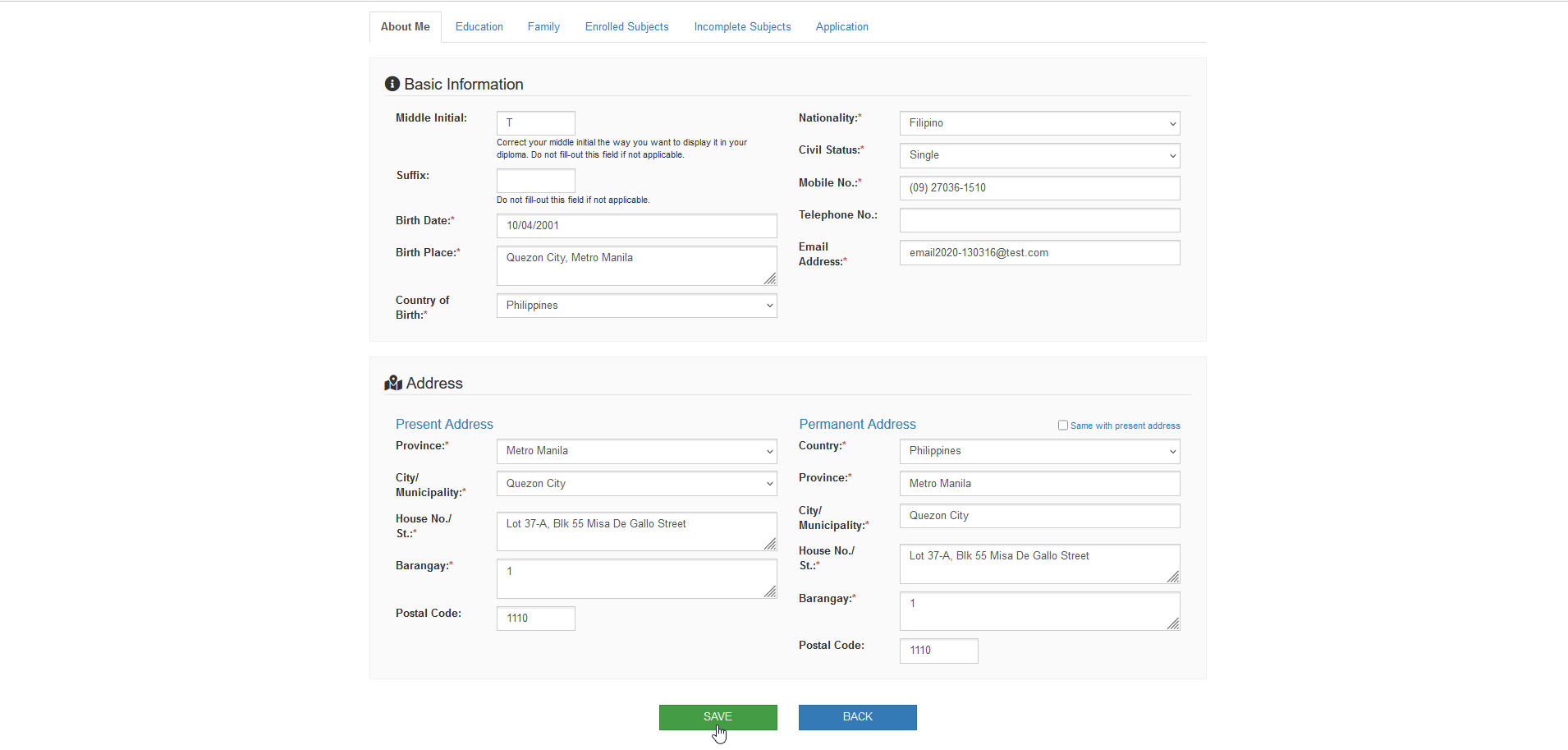
STEP 2. In About Me tab, check the personal information, addresses, and contact details if correct. Update the fields if necessary. Then click the button to update the records.
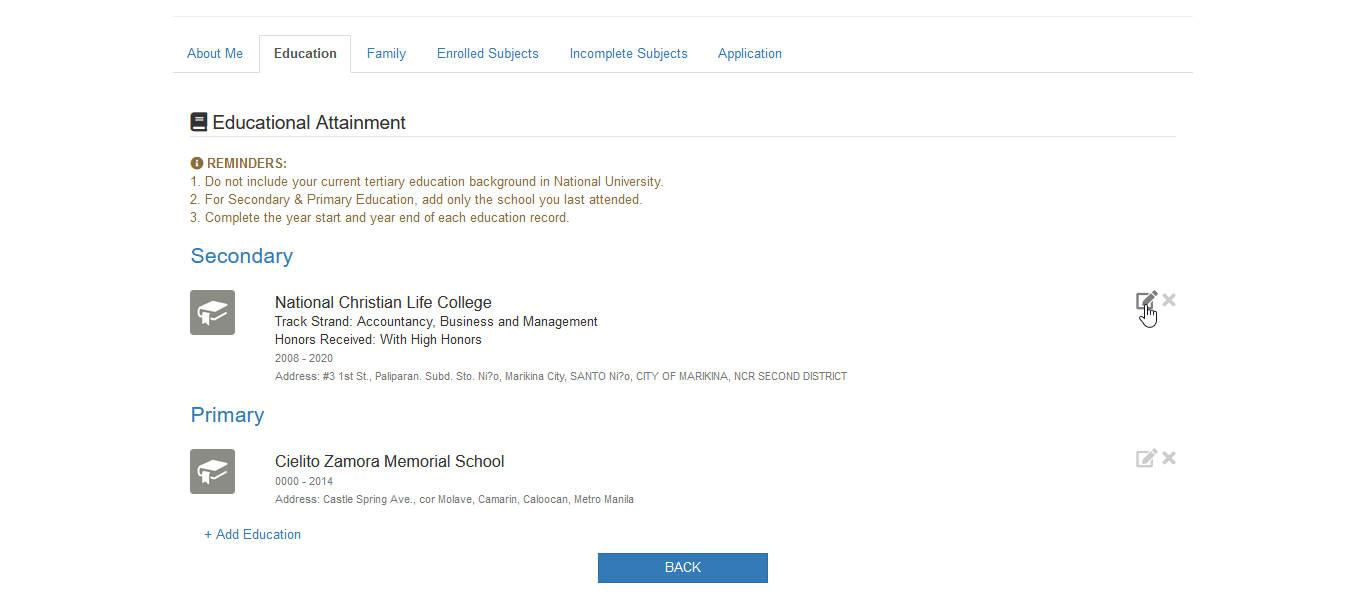
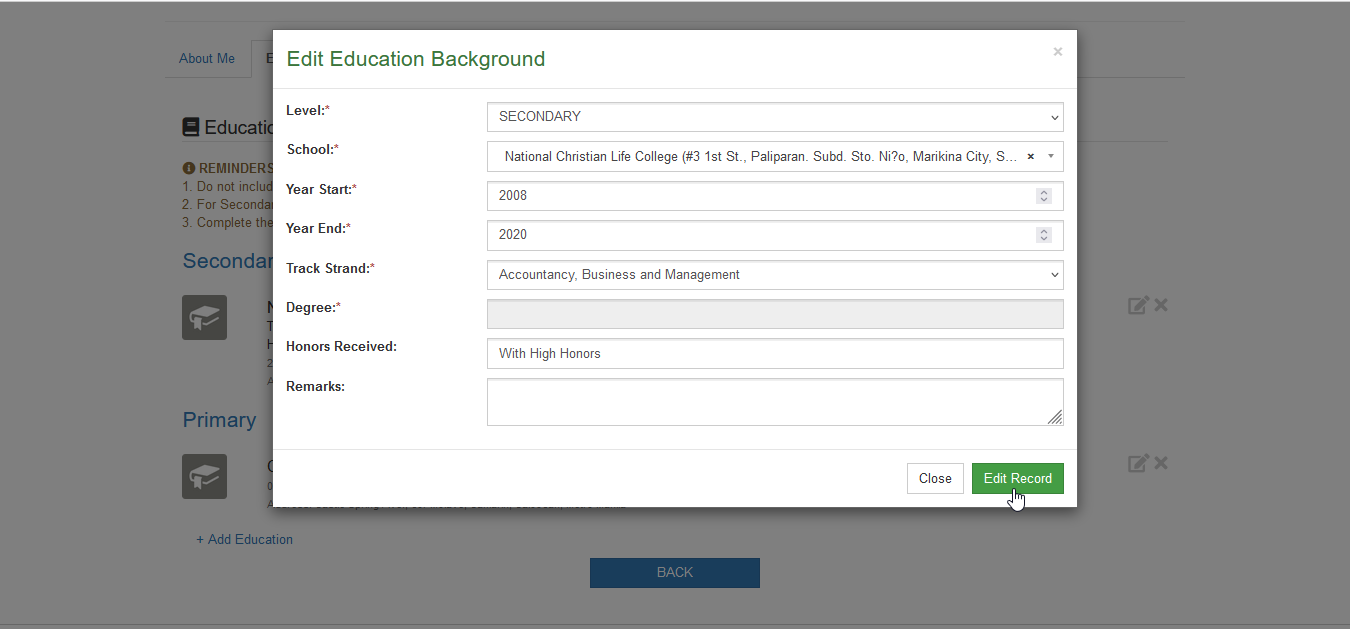
STEP 3. In the Education tab, check and verify if the educational background is updated. Add, modify, or remove records to update the entries by clicking the button and the changes should be saved by clicking the button.
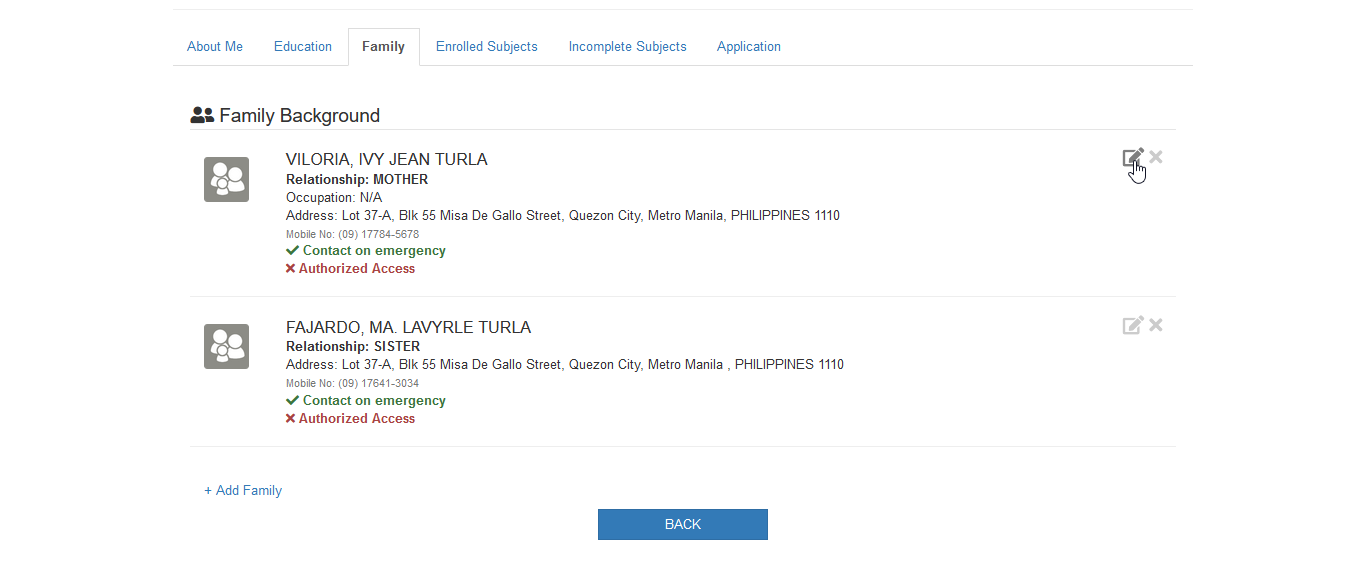
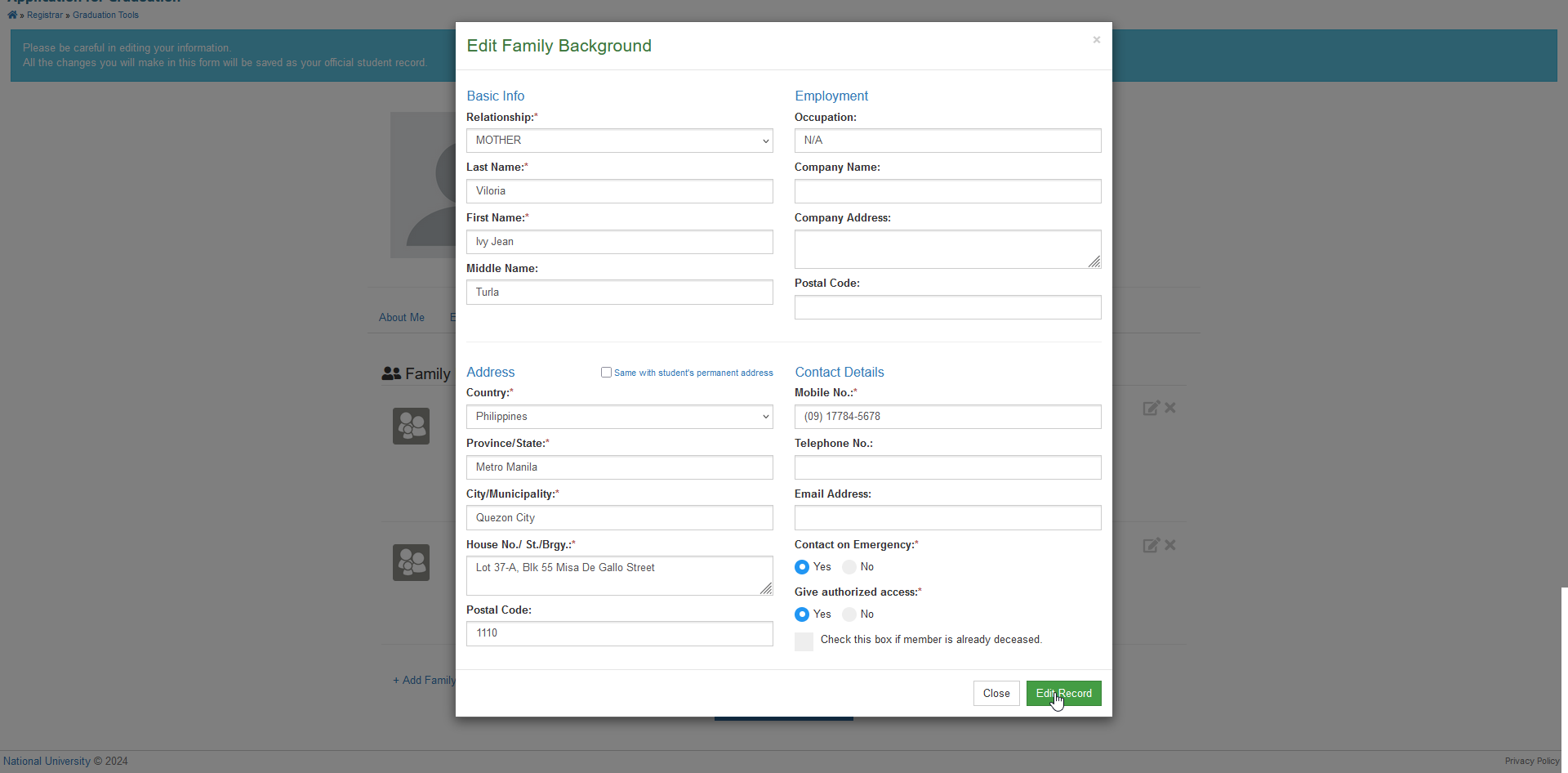
STEP 4. In the Family tab, check and verify if the family background is updated. Add, modify, or remove records to update the entries by clicking the button and the changes should be saved by clicking the button.
STEP 5. In the Enrolled Subjects tab, check and review if the list of enrolled subjects for the specified term is your last enrolled subjects in the University.
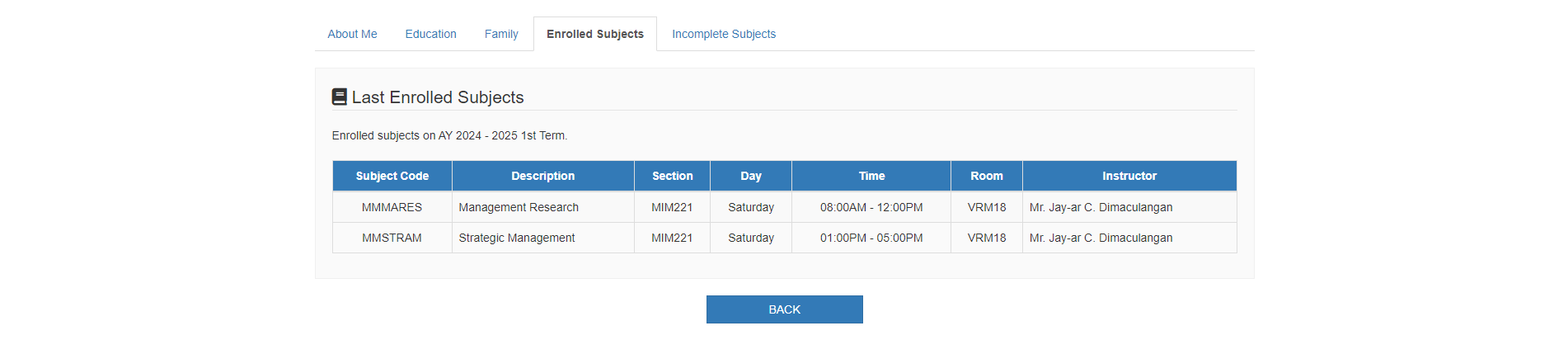
If there is any incorrect or incomplete information in the entries, coordinate with the Registrar Office for clarifications and possible corrections.
STEP 6. In the Incomplete Subjects tab, check if you have an incomplete subject for your curriculum.

If there is an incomplete subject record, coordinate with your Instructor or Registrar Office to update and complete your grades for the specified subject.
STEP 7. In Application tab, review the last school year and term of your enrollment in the University. Then, read the agreement and click the checkbox to indicate that you agree with the statement. Click the button to finalize and submit your application.
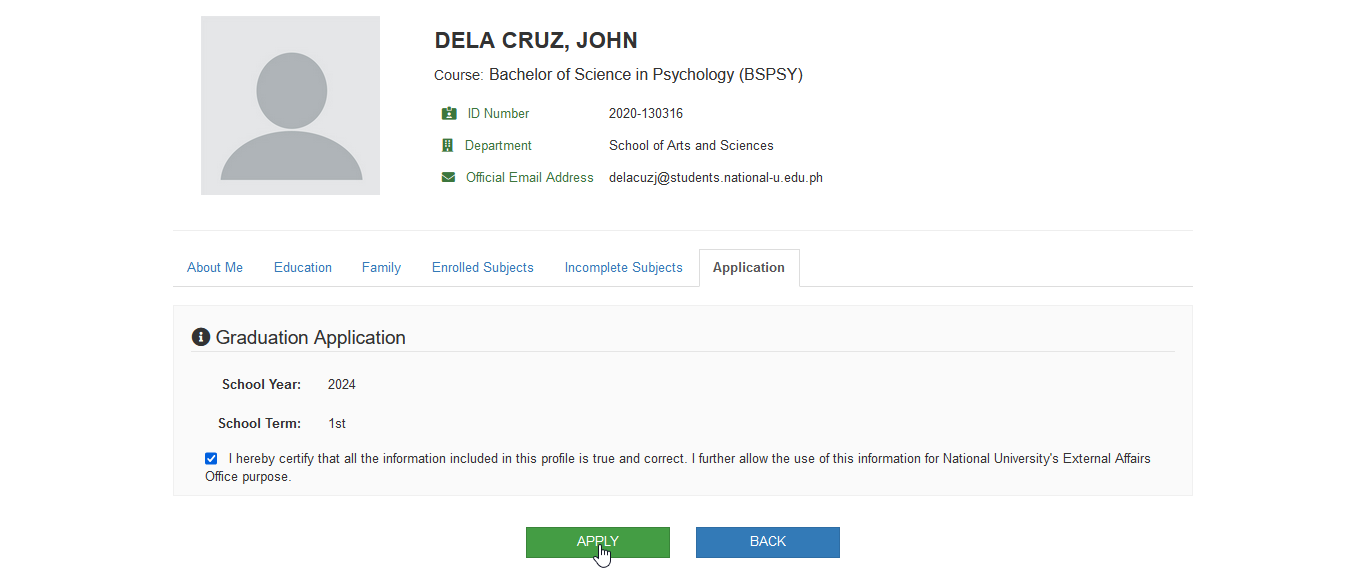
The application has been successfully submitted.
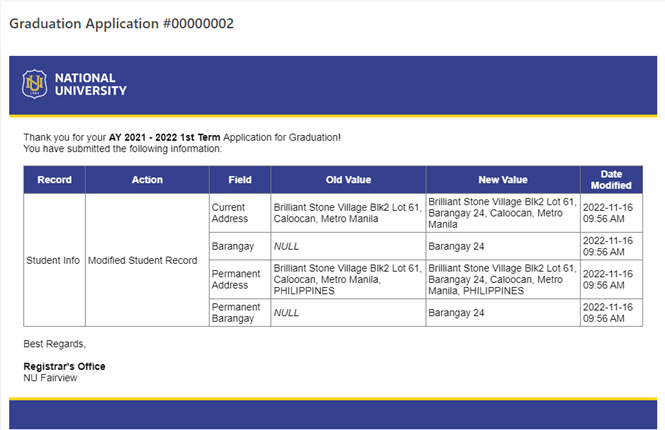
This will send an email notification to Registrar's office, copy furnished to the student.
STEP 8. Wait for the approval of you application. You will soon receive an email notification once your application has been approved by the Registrar Office.