Splitting Faculty Assignment for a Class

Splitting a faculty assignment allows a class with multiple schedules to be handled by more than one faculty member.
This is commonly used when the load needs to be shared — for example, the main faculty handles the lecture class, while another faculty member takes the laboratory class.
Necessary Permissions
To split a faculty assignment for a class, the user must have the following permissions:
- View Faculty Load [Director] – Allows Deans, Program Chairs, and other department schedulers to view the assigned faculty.
- View Faculty Load – Allows the Registrar to oversee all class schedules and faculty assignments.
- Add Faculty Load – Enables assigning faculty to class schedules.
These permissions are typically granted to department schedulers, academic affairs staff, and campus administrators.
How to Split Faculty Assignment
STEP 1. Log in to the system using an account with the required permissions.
STEP 2. Go to Director > College Class Schedules module.
STEP 3. Search for the class you want to update using the course code, or section name.
STEP 4. Click the More Actions dropdown and click Faculty.
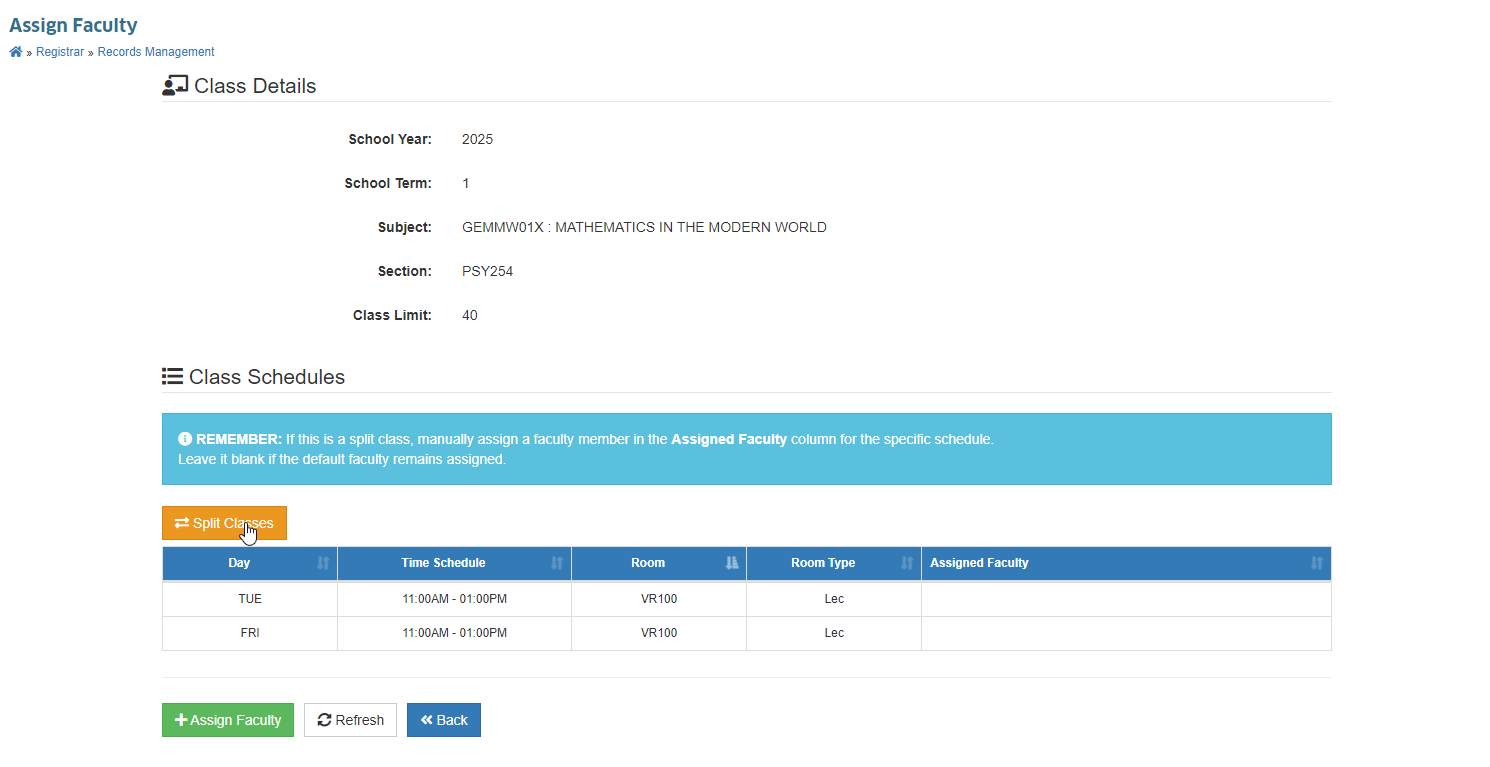
STEP 5. In the Assign Faculty page, click the Split Classes button above the table of class schedules.
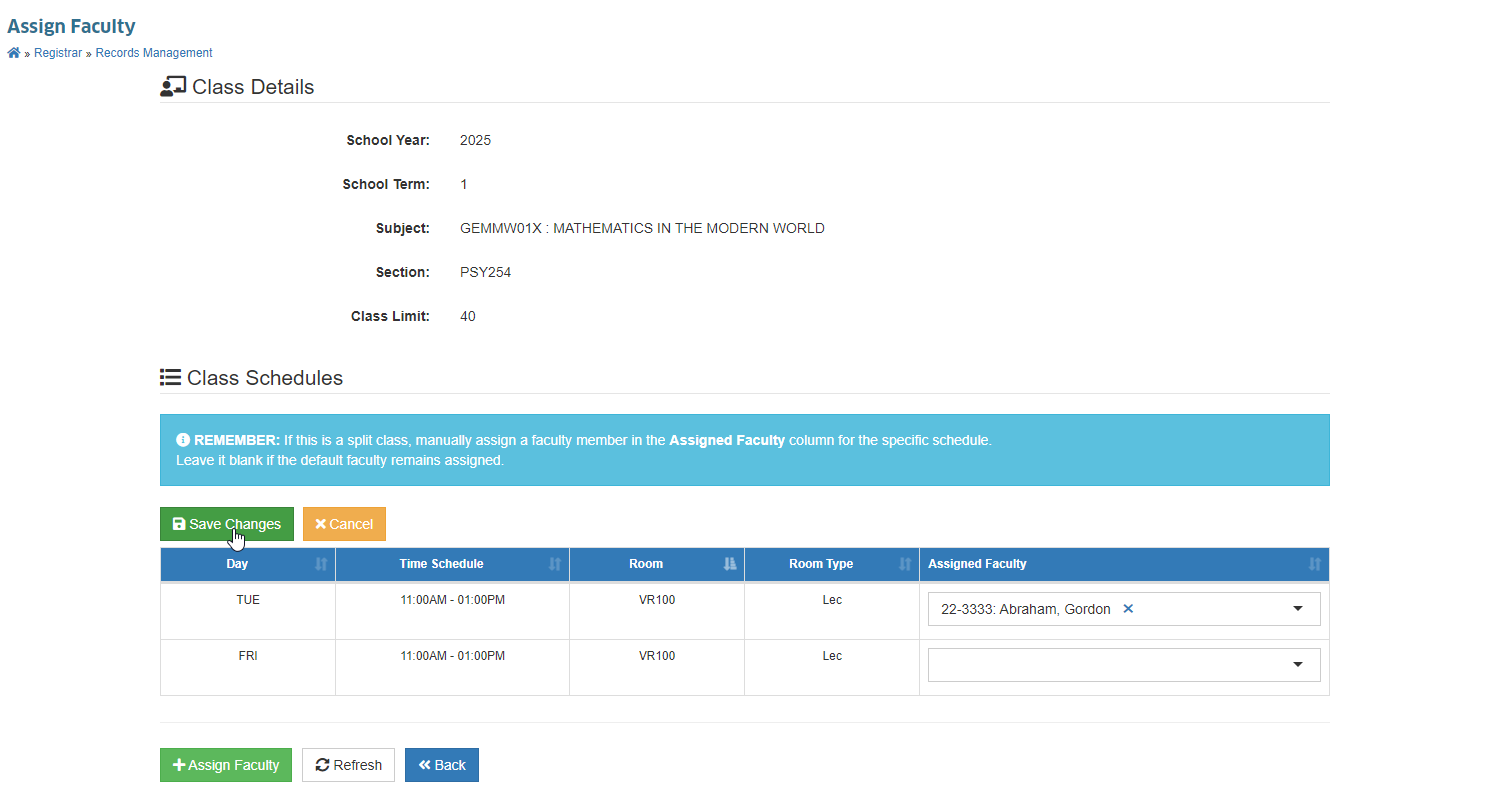
STEP 6. Under the Assigned Faculty column, find and specify the faculty to be assigned per class schedule.
STEP 7. Click Save Changes button once ready to save.
Please be reminded of the following guides:
- If this is a split class, manually assign the faculty in the Assigned Faculty column for each schedule.
- Leave the column blank if the default faculty is the assigned one.
- Always verify the changes in the schedule list to ensure the correct faculty is assigned to each schedule.
Effect on Faculty Load Assignment
When a faculty assignment is split:
- The teaching hours for the schedules assigned to the other faculty are added to their Teaching Load Hours in the Faculty Load Report (FLR) in Faculty Load Assignment module.
- The teaching hours for those same schedules are deducted from the main faculty's Teaching Load Hours.
- This ensures that total teaching hours are accurately reflected for both faculty members, which is important for workload compliance, compensation calculations, and reporting.
Example:
| Schedule | Hours | Faculty Before Split | Faculty After Split |
|---|---|---|---|
| Schedule A | 3 hrs | Main Faculty | Main Faculty |
| Schedule B | 3 hrs | Main Faculty | Other Faculty |
| Schedule C | 2 hrs | Main Faculty | Other Faculty |
Faculty Load Change:
- Main Faculty: from 8 hrs → 3 hrs
- Other Faculty: from 0 hrs → 5 hrs
Additional Reminders
Before performing a faculty split, take note of the following rules to avoid errors:
-
Class must have more than one schedule
- If the class has only one schedule, splitting is not allowed.
Error: "This class has insufficient schedules for splitting."
- If the class has only one schedule, splitting is not allowed.
-
Main faculty must already be assigned
- You must assign the main faculty first before performing the split.
Error: "Assign the main faculty first before splitting classes."
- You must assign the main faculty first before performing the split.
-
Do not assign the main faculty to its own schedules in the split form
- Leave the faculty field blank for schedules handled by the main faculty.
Error: "No need to assign the main faculty to its schedules. Just leave it blank."
- Leave the faculty field blank for schedules handled by the main faculty.
-
Main faculty must retain at least one schedule
- You cannot assign all schedules to the other faculty.
Error: "Main faculty should have at least a schedule."
- You cannot assign all schedules to the other faculty.