Temporary Access

The Temporary Access feature allows administrators to grant a user additional system access for a limited time. This is useful for temporary assignments, substitutions, or special tasks that require extra permissions.
Once the Temporary Role expires, the additional access is automatically removed. The user’s main role remains applied at all times, and no manual update is required from the administrator.
Required Permission
- Edit User - Allows the user to modify existing user account details, roles, access settings, and temporary access configurations.
How to Set Temporary Access
Follow the steps below on how to set temporary access.
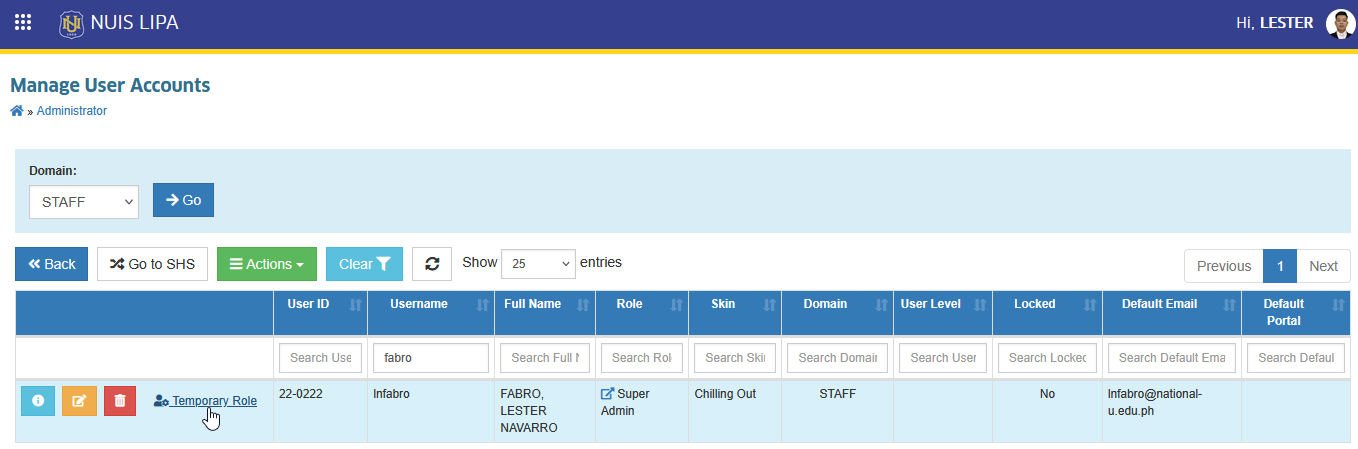
STEP 1. On the Manage User Accounts page, select the user you want to assign temporary access to.
STEP 2. Click the button. The system will redirect you to Assign Temporary Role page.
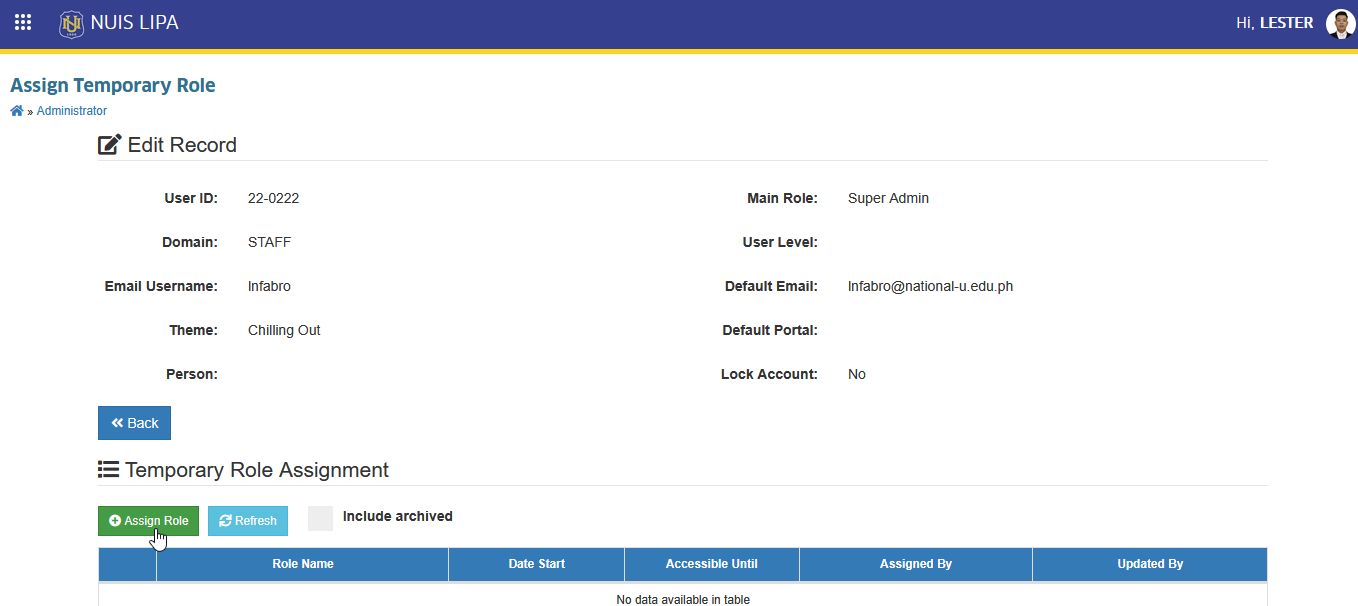
STEP 3. On the Assign Temporary Role page, under Temporary Role Assignment section, click the button. The Assign Temporary Role prompt will appear.
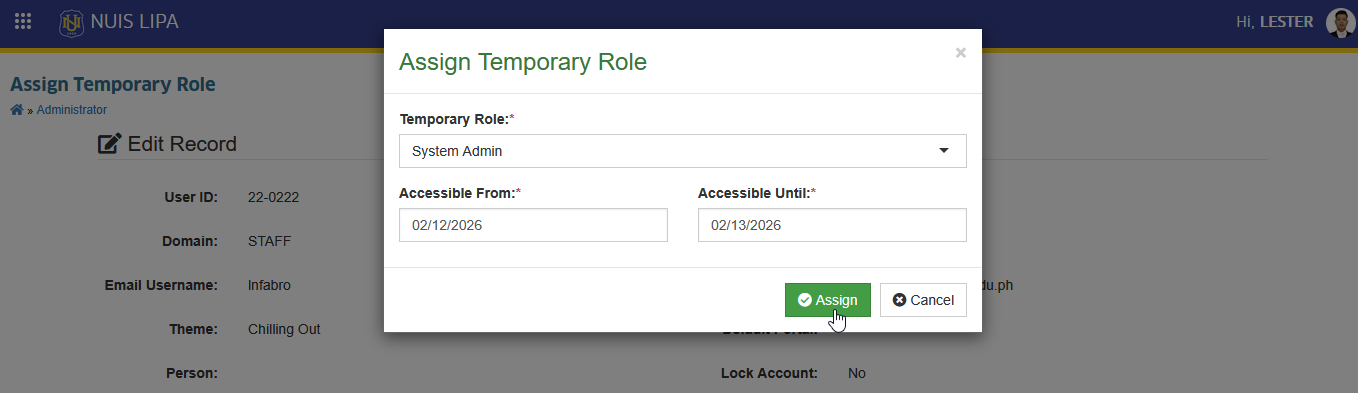
STEP 4. Fill out all the required fields in prompt.
| Field Name | Description |
|---|---|
| Temporary Role | Select the user role to be assigned temporarily from the dropdown list. |
| Accessible From | Set the start date when the temporary role will take effect. |
| Accessible Until | Set the end date when the temporary role will automaticaly expire and the user's main role will resume. |
STEP 5. Click the button to save.
Once assigned, the record will be displayed in the Temporary Role Assignment table.

How to Edit Temporary Role Access to User
Follow the steps below to modify the user's temporary access details.
STEP 1 Go to User's Temporary Access record and click the button. The Edit Temporary Role prompt will appear.

STEP 2. Update the necessary details in the Edit Temporary Role prompt, then click the button
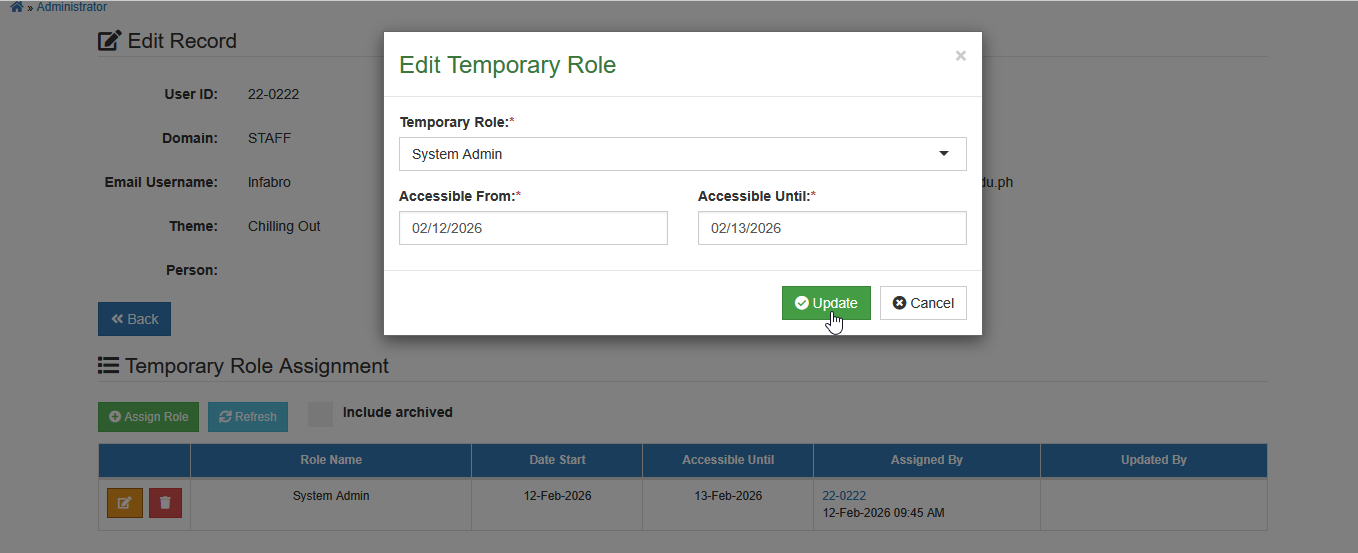
The system will save the updated information.
How to Delete User's Temporary Access Record
Follow the steps below to delete a temporary access record.
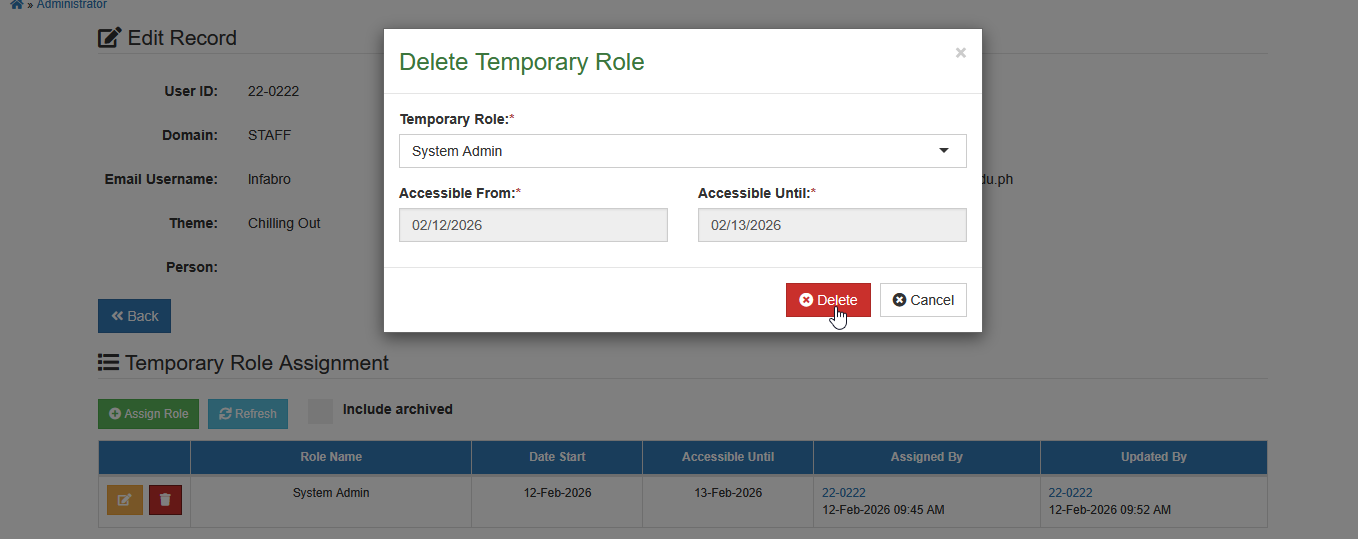
STEP 1 Go to the user's Temporary Access record and click the button. The Delete Temporary Role prompt will appear.

STEP 2. Confirm the deletion in the Delete Temporary Role prompt by clicking the button.
-
Temporary Access does not replace the user’s main role.
-
This feature helps improve security by limiting access to only when it is needed.