Promissory Note Application
The Promissory Application module in NU Bills allows students to apply a Promissory Note (PN) online if they can’t pay their outstanding balance right away and agree to settle their remaining amount on a later date under specific rules.
Eligibility and Payment Rules
-
College Students
- Must pay 50% of the outstanding balance, but promissory value must not exceed PhP 25,000.00.
-
Basic Education (Kinder to Senior High School)
- Must pay 50% of the outstanding balance and settle the remaining balance on or before October 31 of the current academic year.
Late Payment Penalty: A PhP 200.00 monthly penalty applies for delayed payments.
Policy Overview
1. PN applications should be filed online via NU Bills.
2. A student can have only one active PN at any given enrollment period. For SHS students, PN is available during first term only.
3. Each PN must specify:
-
The amount covered, and
-
The agreed settlement date.
4. PN requests are reviewed and approved by the Campus Treasury Head.
5. If the PN requests exceeds the allowed threshold, it must be endorsed to the Executive Director for approval.
Configuration & Setup
System Settings
To ensure the Promissory Application module works correctly, The Campus's IT Administrator must configure the following setting under System Settings module.
| Required Field | Value |
|---|---|
| Category | NU Bills |
| Setting Name | Promissory Note Application Approvers |
| Value | Official Email of Campus' EXD |
Only the Campus' EXD will be set as Approvers in this settings.
Module Permissions
Access to the module must be configured in User Roles and Permissions .
Treasury Personnel

Campus Executive Director (EXD)

Required Permission
-
Promissory Application - This permission allows users to access the Promissory Application module.
-
Approval of Promissory Applications - This permission allows the Treasury Personnel to validate and approve PN requests within their threshold.
-
Final Approval of Promissory Applications - This permission allows Campus Executive Director (EXD) to approve PN requests that are escalated beyond the Treasury Personnel's threshold.
Application Status
| Status Name | Description |
|---|---|
| PENDING | This status indicates application with no successful payment is associated with it. This status is not subject to approval. |
| FOR APPROVAL | The promissory application has a successful payment transaction associated with it and is now subject to the approval of the campus Treasury Office Head. |
| ENDORSED | The promissory application has been endorsed by the Treasury Office Head to the Executive Director for final approval. |
| APPROVED | The promissory application has been approved. |
| DISAPPROVED | The promissory application has been rejected. |
Process Flow
Stage 1. Application by Student
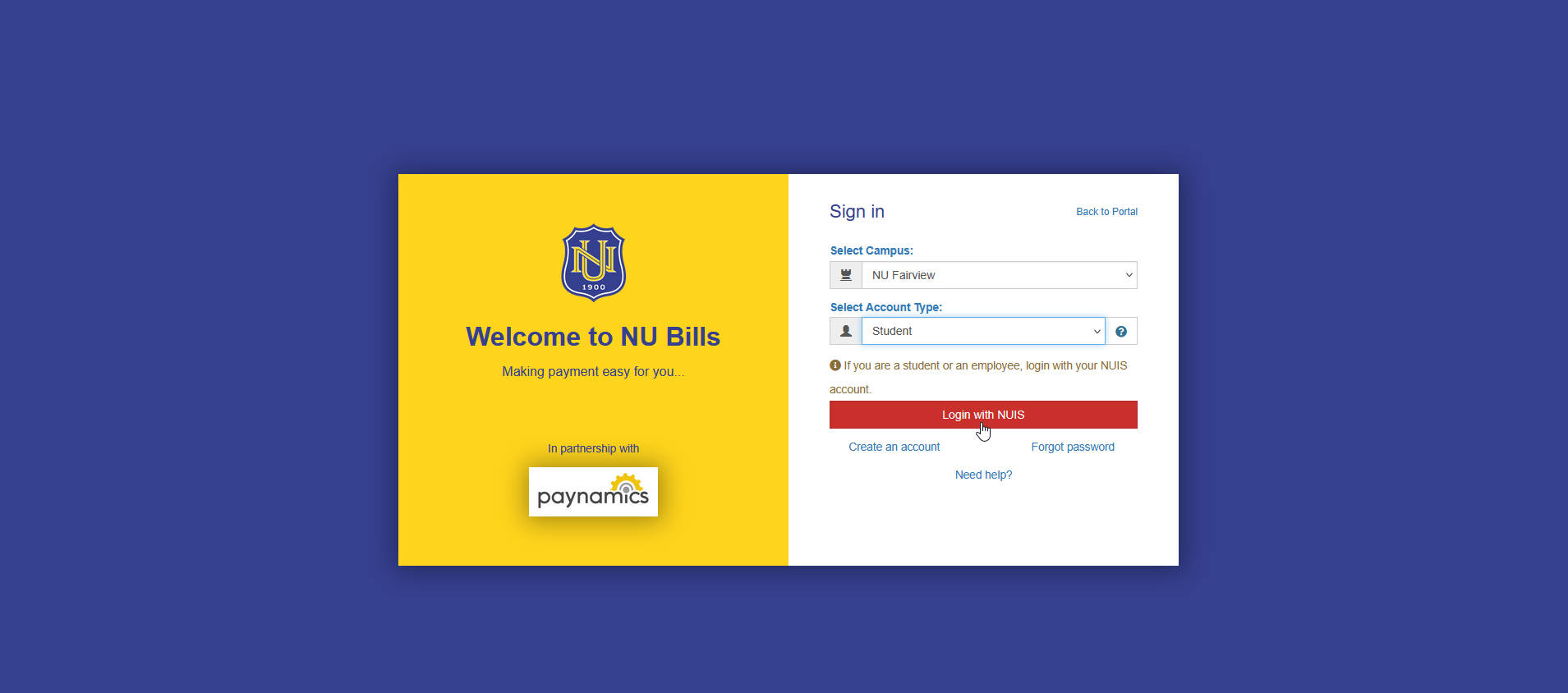
STEP 1. Log in to NU Bills. Select your account type and login using the required credentials. For Students, select Student account and click the button. Login using Microsoft account.
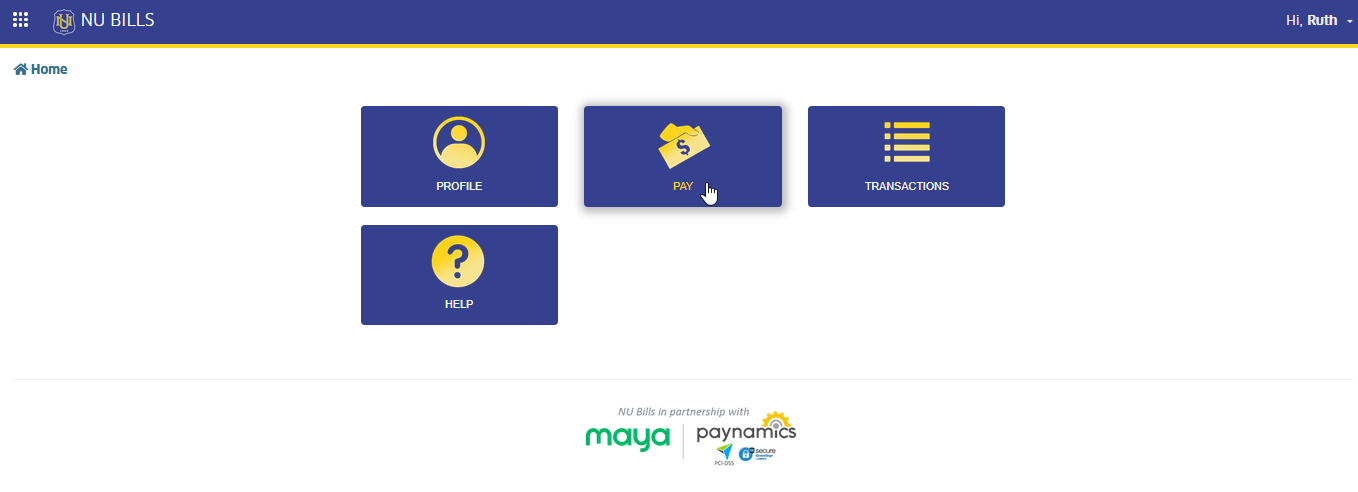
STEP 2. In NU Bills Home page, select Pay module.
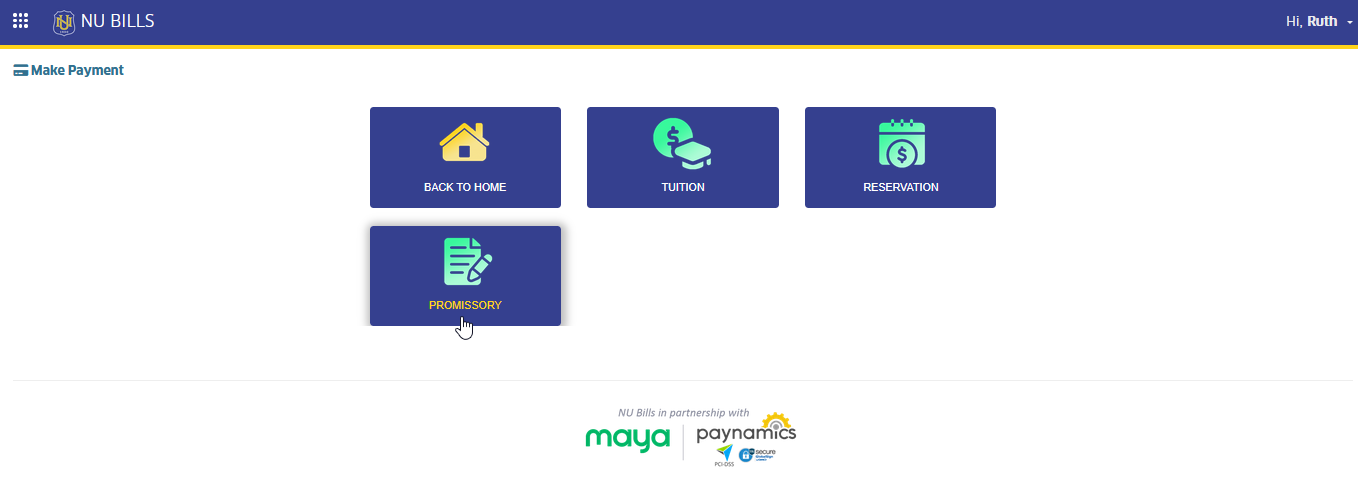
STEP 3. In Make Payment page, click the Promissory module tab.
STEP 4. In Promissory Note Application page, read and agree to Terms and Conditions and click the button to proceed to application page.
STEP 5. In Promissory Note Application page, read and carefully understand the application instructions.
A. Check your details to ensure that your name and student ID are correctly displayed on the page.
B. The address displayed is your current address in your profile. You may modify it during payment and enter the current address during payment.
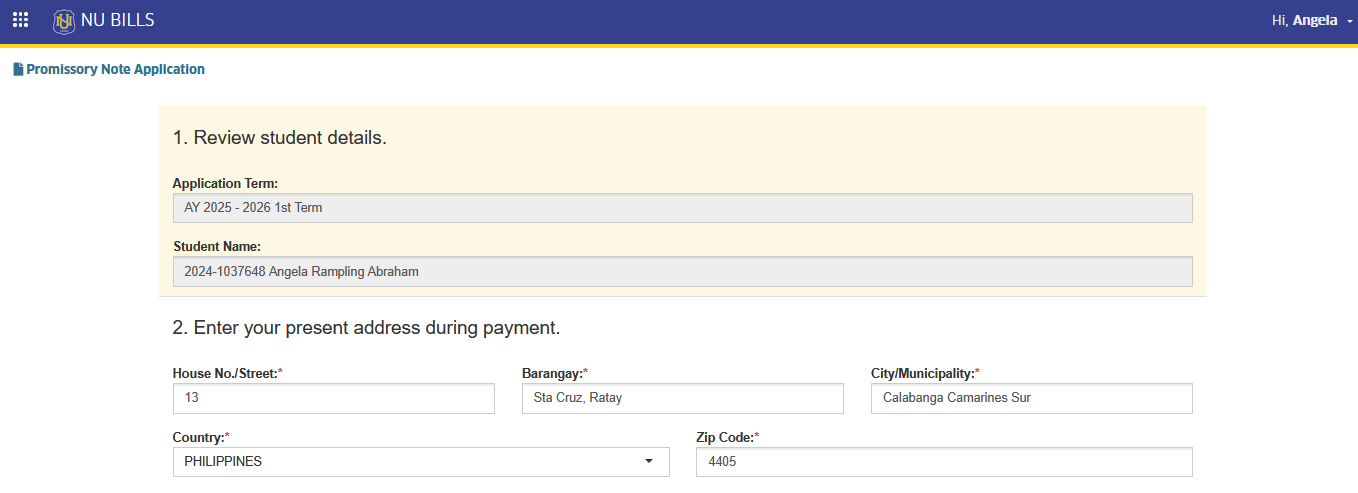
C. Enter the amount to pay in order to apply for promissory note.
- You should pay at least 50% of your outstanding balance, and the promissory value must not exceed Php 25,000.00.
D. If student cannot pay the minimum amount to be paid, click the agreement checkbox then, specify the amount you will be paying. Minimum of Php 500.00 per transaction.
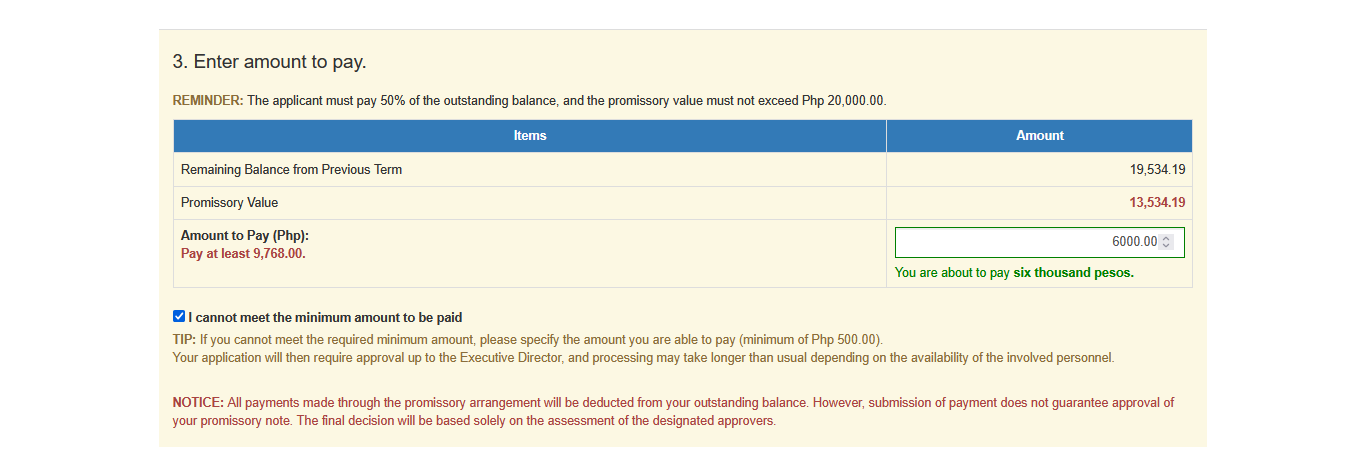
If you cannot meet the required minimum amount, please specify the amount you are able to pay (minimum of Php 500.00).
Your application will then require approval up to the Executive Director, and processing may take longer than usual depending on the availability of the involved personnel.
All payments made through the promissory arrangement will be deducted from your outstanding balance. However, submission of payment does not guarantee approval of your promissory note. The final decision will be based solely on the assessment of the designated approvers.
E. Specify the following promissory details.
-
Promised date of payment - Set the date when you will be able to pay the remaining balance.
-
Reason of Application - State the reason of your application.
-
Attachments - Upload your promissory letter and other necessary documents which are required for approval of your application.
STEP 5. Review and finalize the details. Click the button to proceed.
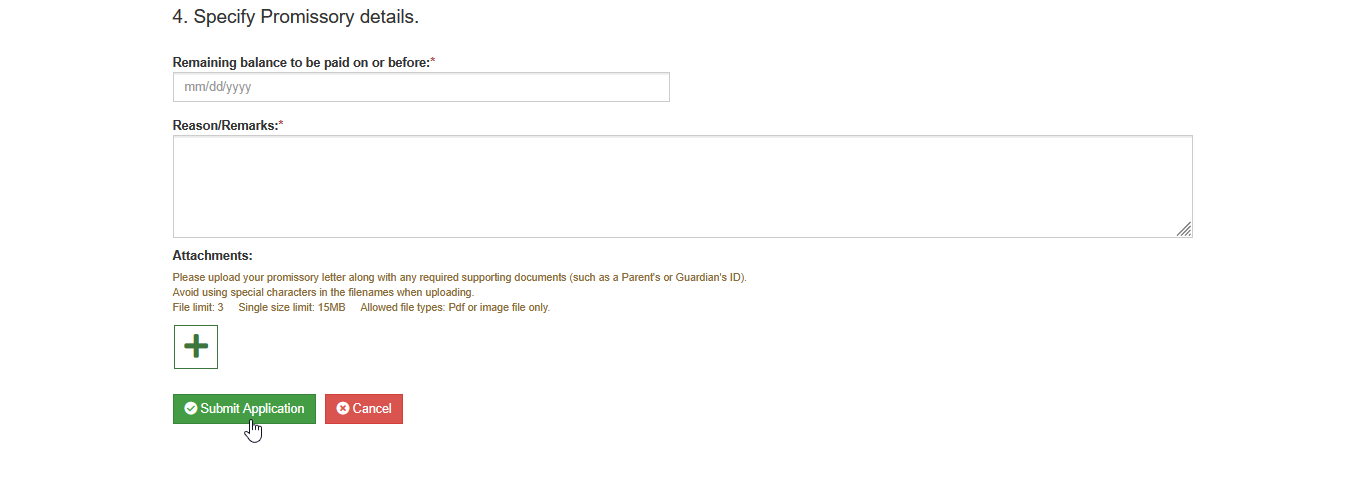
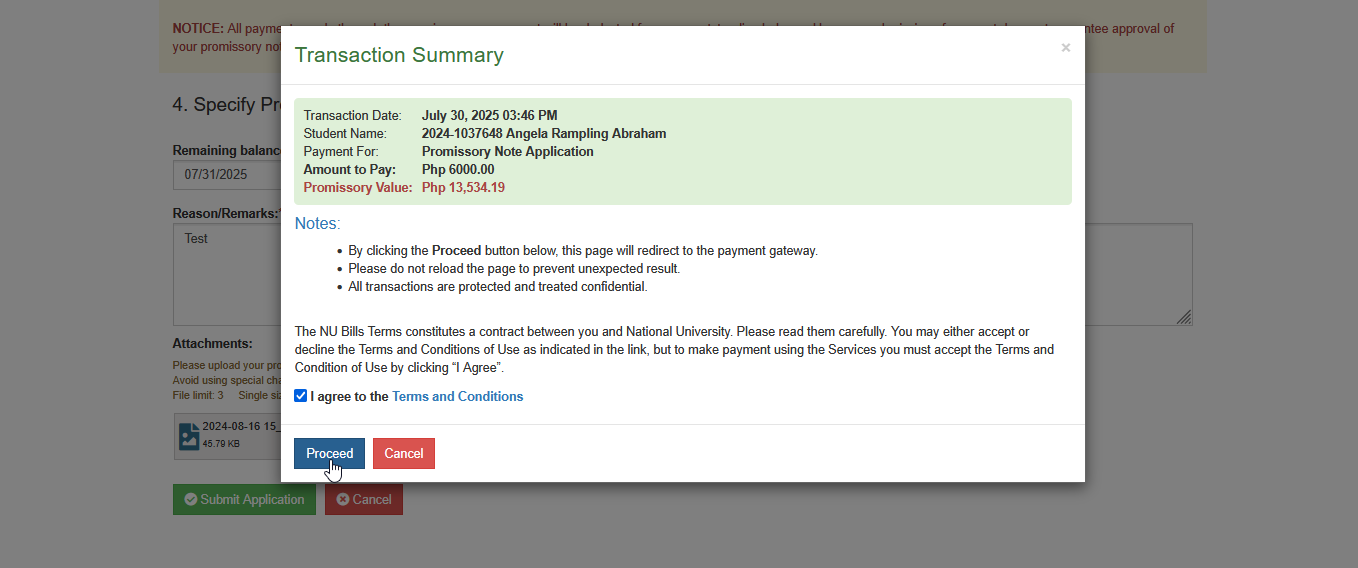
STEP 6. Agree to terms and conditions and click the button. This action will redirect to Select Payment Channel page.
STEP 7. In Select Payment Channel page, read and follow the indicated reminders on the page and select the preferred payment channels.
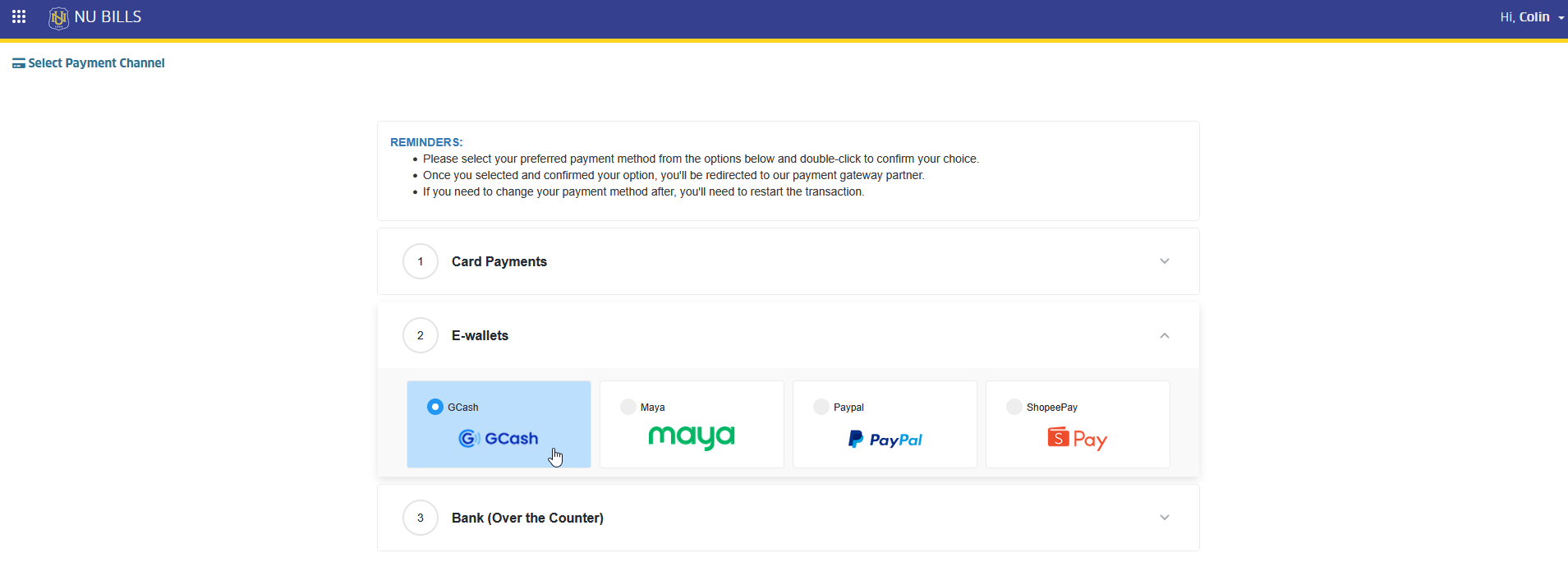
STEP 8. Select payment gateway, and click button. This action will redirect to the selected payment gateway page.
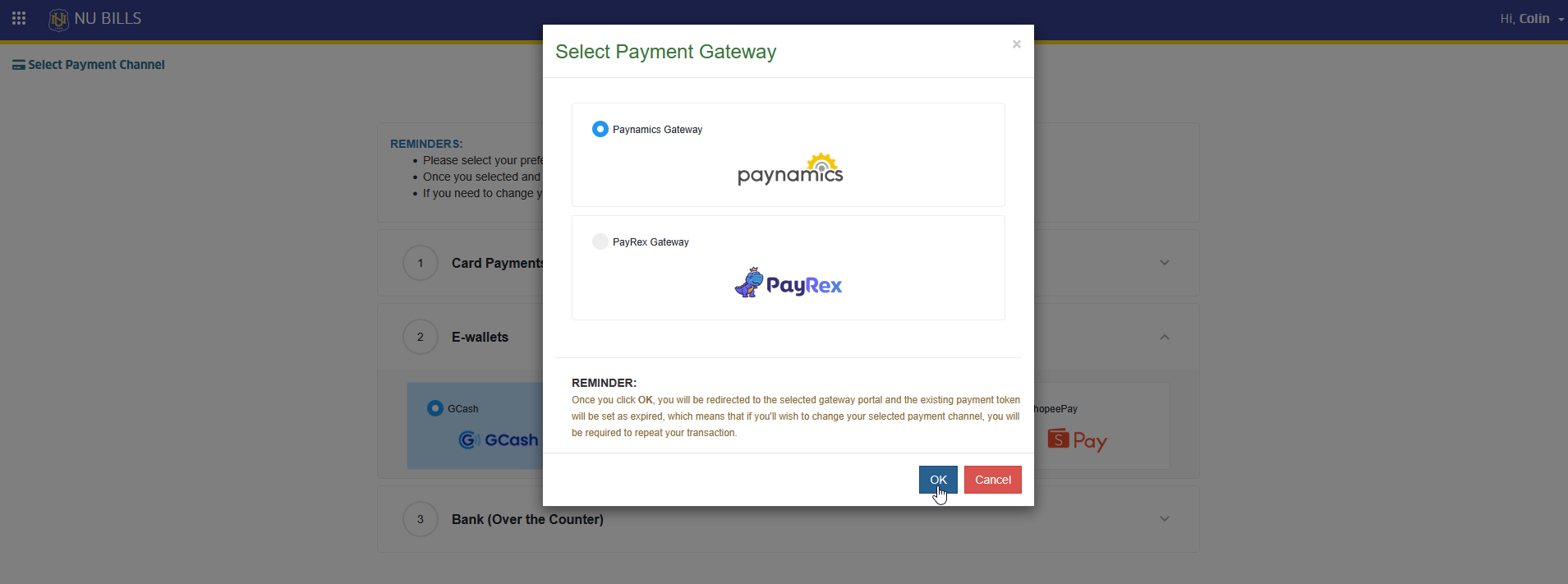
STEP 9. In the selected payment gateway page, process the payment to complete the transaction
STEP 10. Wait for the approval of the application.
Use the comment section to update the status of the application. Comments will be sent to the validators email address.
Submit Application after Disapproval
If Promissory Note application is disapproved, the student can submit a new application once the issues stated in the disapproval remarks are resolved. To resubmit, the student must:
STEP 1. Login to NU Bills portal. From NU Bills Home page, go to Pay > Promissory. Read and agree to Terms and Conditions then click the button to proceed to application page.
STEP 2. In Promissory Note Application page, previous PN application and disapproval remarks will be displayed. Address the issue and click the button.
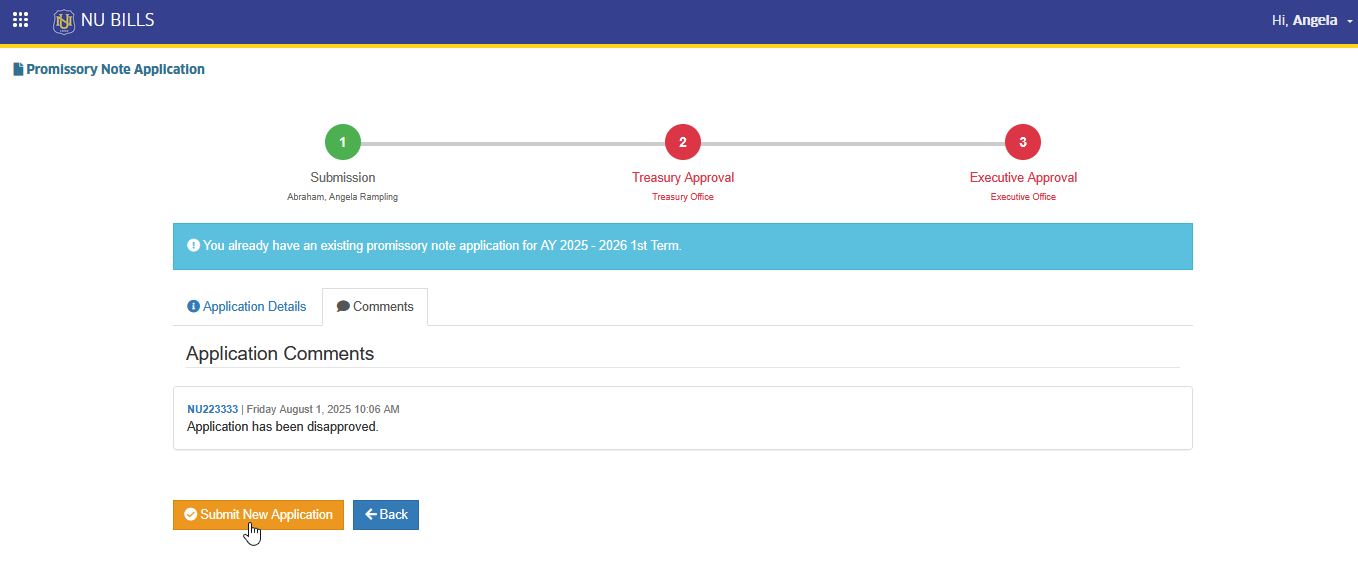
STEP 3. Follow the same procedure for paying and completing the Promissory application.
-
Students have up to 5 chances to submit a Promissory application.
-
Payments made for the previous PN must first be processed by the Treasury Office before a new application can be submitted after disapproval.
Stage 2. Treasury Approval
How to Validate and Approve Promissory Application
Treasury personnel receives the PN request in the module. Follow the instructions below to validate and approve promissory application.
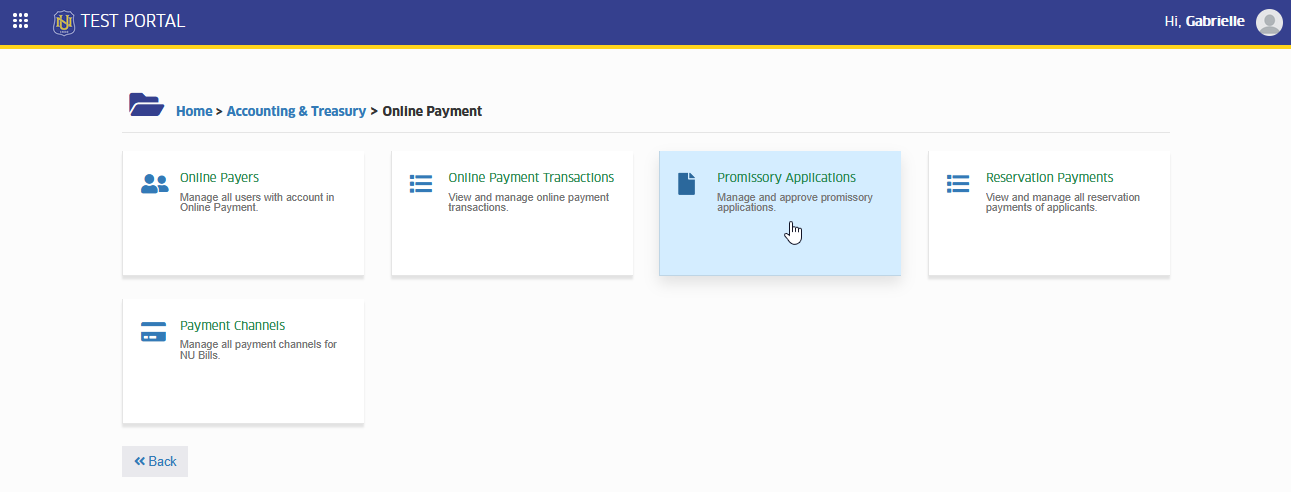
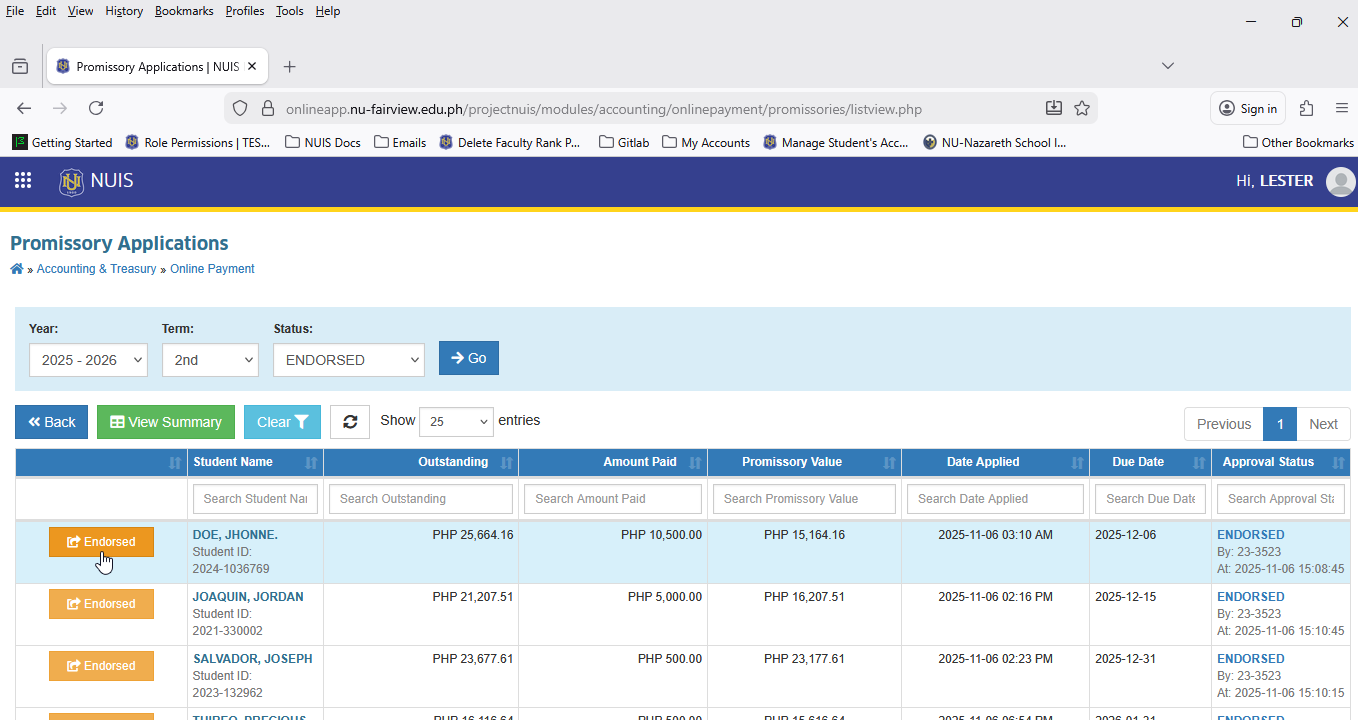
STEP 1. In NUIS portal, go to Accounting & Treasury > Online Payment > Promissory Applications. Click the module tab to access the Promissory Applications page. If it doesn’t appear in your portal, request access from your System Administrator.
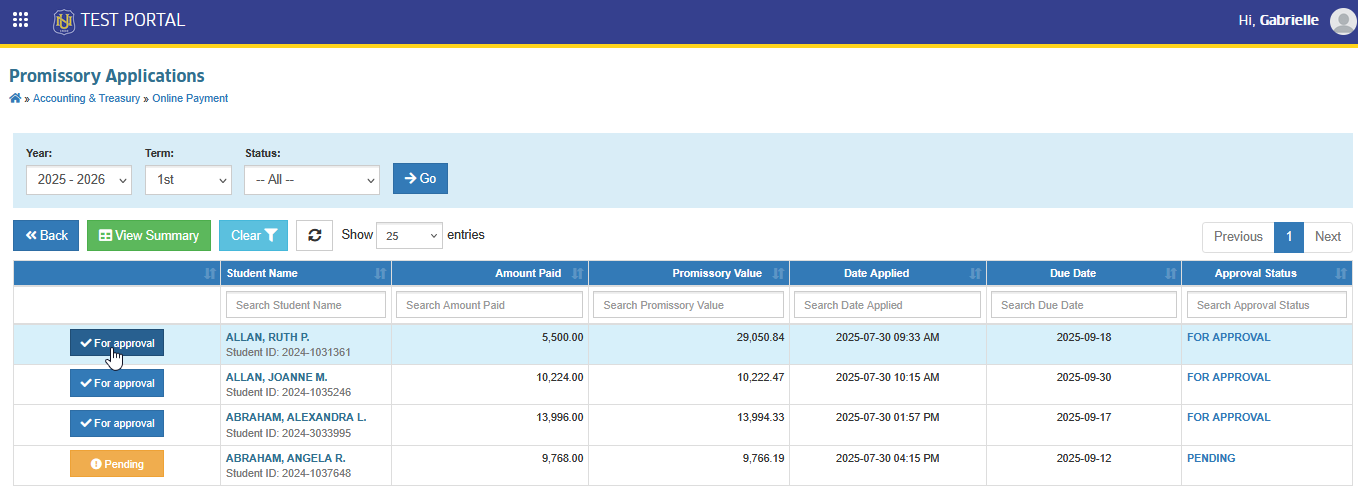
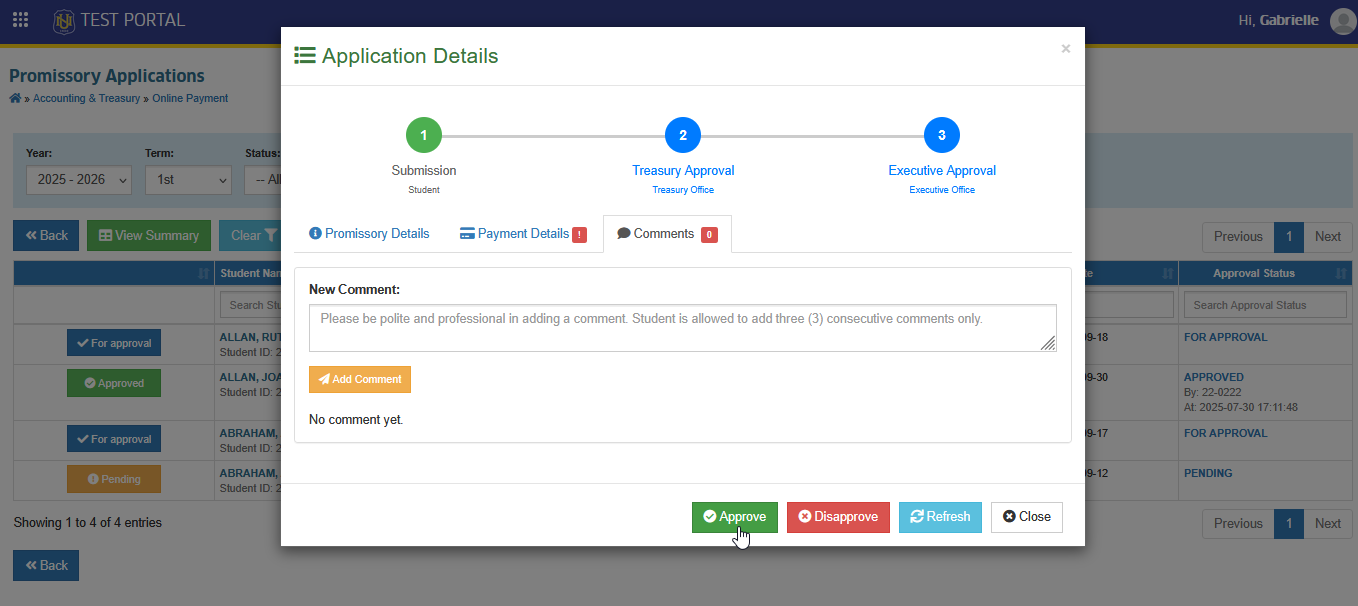
STEP 2. In Promissory Applications page, all applications will be displayed, use the filtering features of the page to search for specific application faster. Click the corresponding button of the application to evaluate.
STEP 3. Validate the application. Specify the Approver's remarks then click the button otherwise, click button.
How to Endorse an Application
The application can only be endorsed when the applicant pays less than 50% of their outstanding balance or the promissory value exceeds Php 25,000.00. In this case, the Promissory Note application cannot be approved directly by the Treasury Head and must be endorsed to the Campus Executive Director (EXD) for approval.
When a PN application requires endorsement, the Treasury Head should click the button in the module. This action routes the application and all its details to the EXD for final approval or disapproval.
Follow the instructions below on how to endorse an application.
STEP 1. In Promissory Applications page, click the corresponding button of the application.
STEP 2. Click the button located at the lower side of the page.
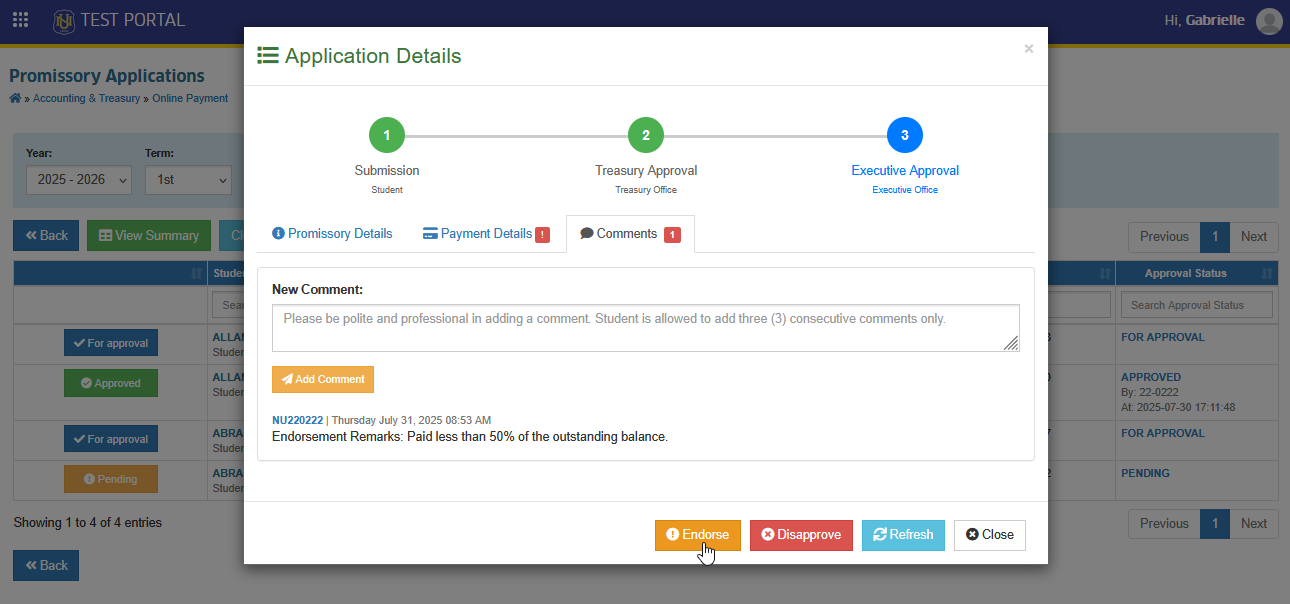
Treasury Personnel can re-endosre an application by clicking the button if the EXD did not receive the notification.
Stage 3. Executive Approval
Executive Approval is the final stage of the Promissory Application process. When a PN request is endorsed, it is routed to the Campus Executive Director (EXD) for review.
The EXD reviews the application details, including the amount paid and the proposed settlement date, and decides whether to approve or deny the request.
There are Two (2) ways designed for EXDs to approve promissory application.
OPTION 1: Approval thru email
STEP 1. After receiving an email notification for promissory application approval, the EXD should review the application. or the application by clicking the appropriate button located in the email.
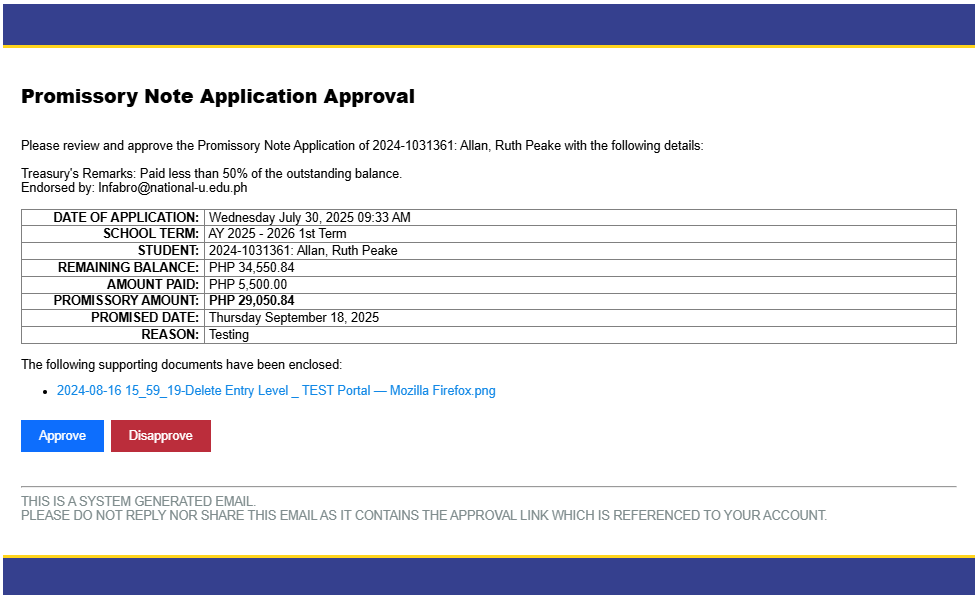
STEP 2. The system will require the user to log in to NUIS portal. Make sure the approver is already logged in to their NUIS account. After logging in, the system will redirect to the Approval of Promissory Note Application page. Review the application details, provide the approver's remarks, and click the button to approve the application.
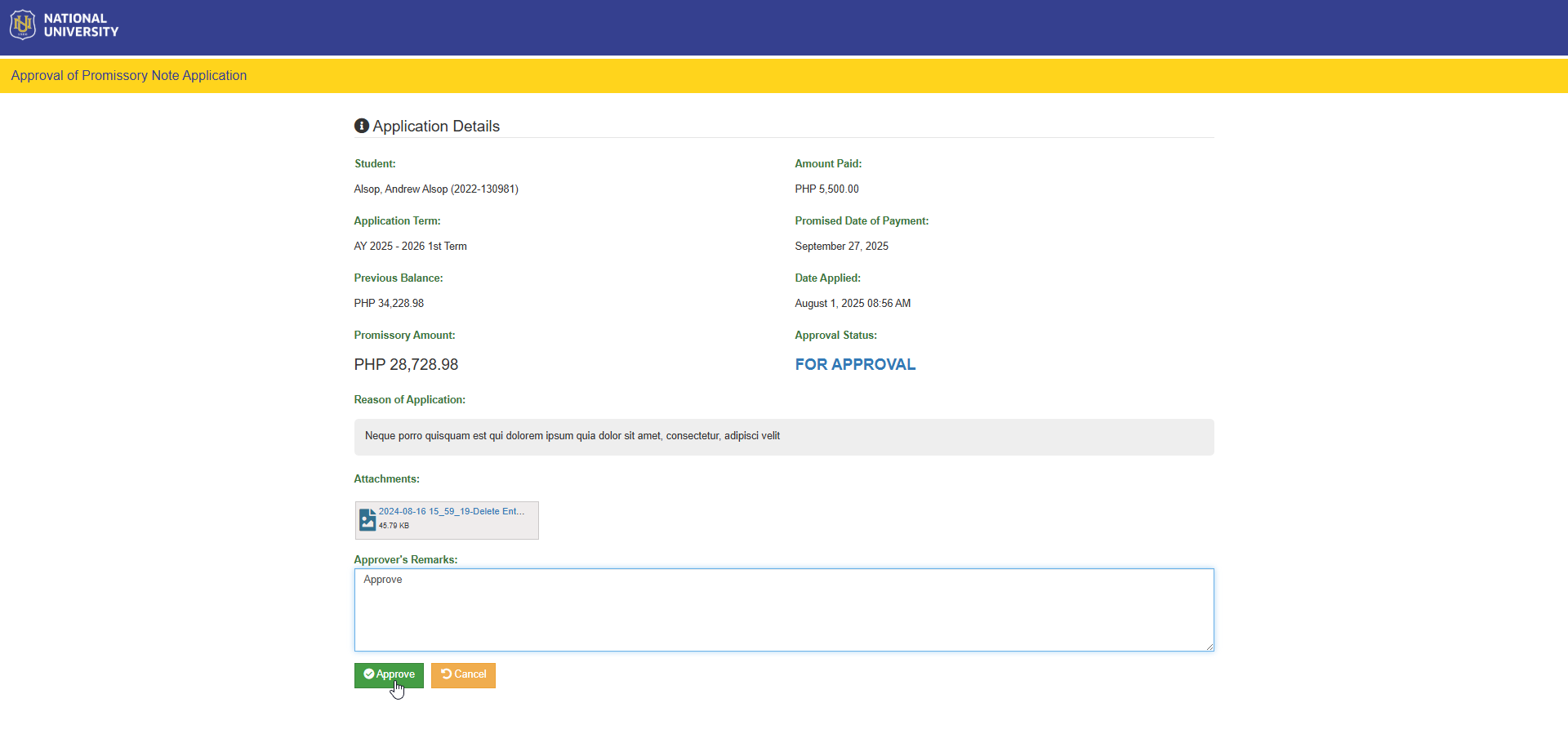
OPTION 2: Through NUIS.
Follow the steps below on how to approve promissory application in NUIS portal.
STEP 1. Log in to NUIS.
STEP 2. Go to Accounting & Treasury > Online Payment > Promissory Applications. If it doesn’t appear in your portal, request access from your System Administrator.
STEP 3. In Promissory Applications page, all applications will be displayed, use the filtering features of the page to search for specific application faster. Click the corresponding button of the application to evaluate.
STEP 4. Validate the application. Specify the approvers remarks then click the button otherwise, click button.
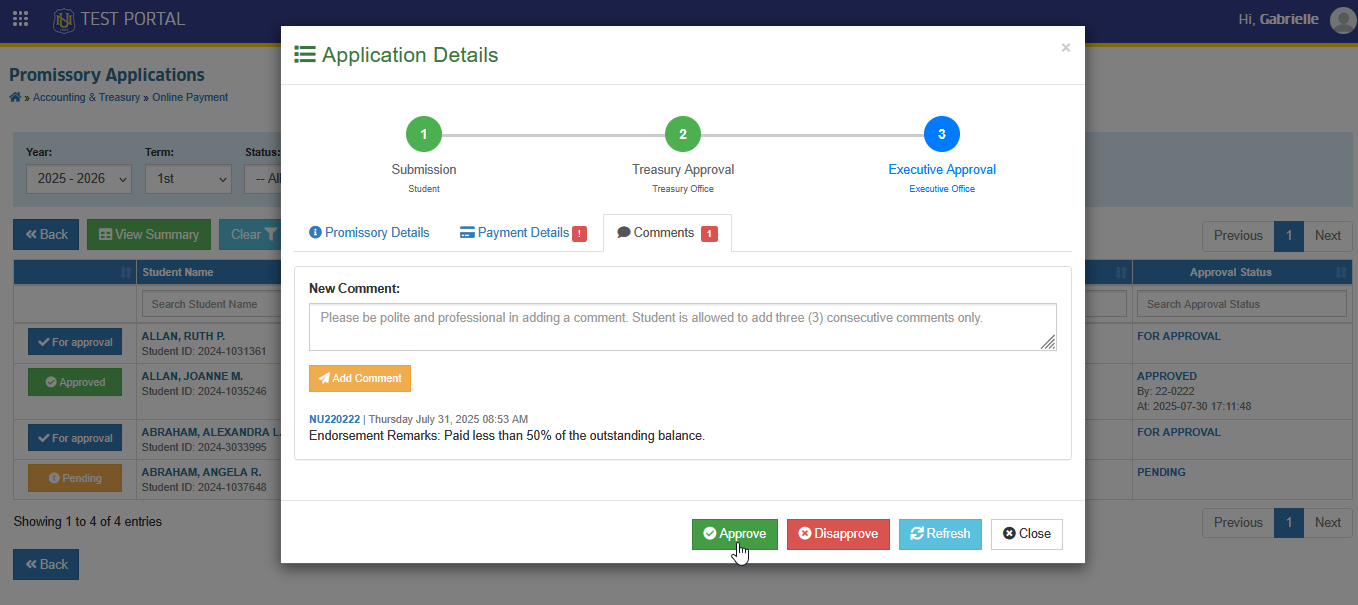
Use the comment section to follow-up the student.
For more questions or concerns, email us at nu-desk@national-u.edu.ph