Tuition
Use this module to pay for matriculation.
This module enables users to securely pay for matriculation fees, ensuring successful enrollment and registration. It offers various payment methods and provides payment confirmation for records.
How to Pay for Tuition
This guide explains the process for paying tuition fees, outlining available payment methods, payment channels, gateways, and necessary steps to ensure timely and successful payment for enrollment.
STEP 1. Log in to NU Bills.
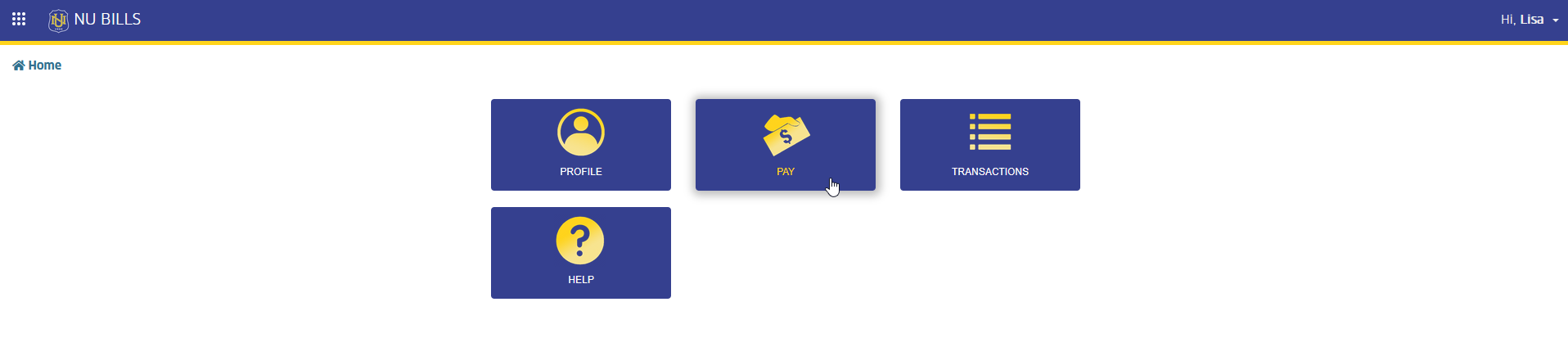
STEP 2. In NU Bills home page, click the Pay module tab. The page will redirect to Make Payment page.
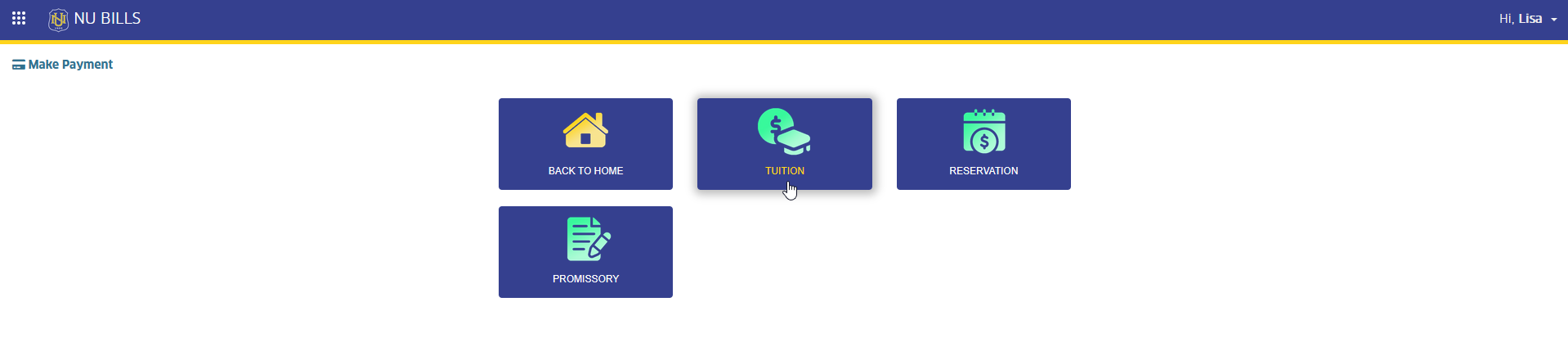
STEP 3. In Make Payment page, click the TUITION module tab. This action will redirect the user to Pay Enrollment Fees page.
STEP 4. In Pay Enrollmet Fees page, select the student benefeciary in the dropdown list , and complete the billing address entries.
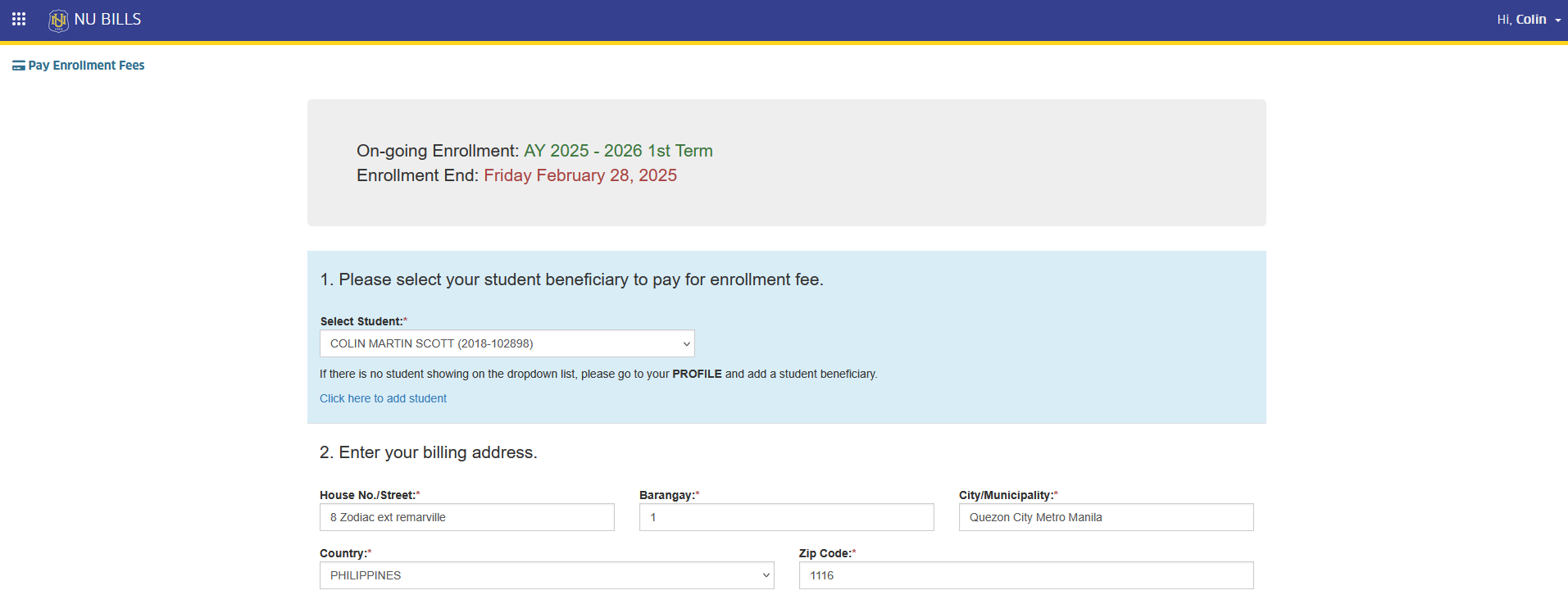
For users without a beneficiary, click the link below the student droplist to initiate the request for a beneficiary first.
Keep your billing address as short as possible and avoid using special characters to reduce errors.
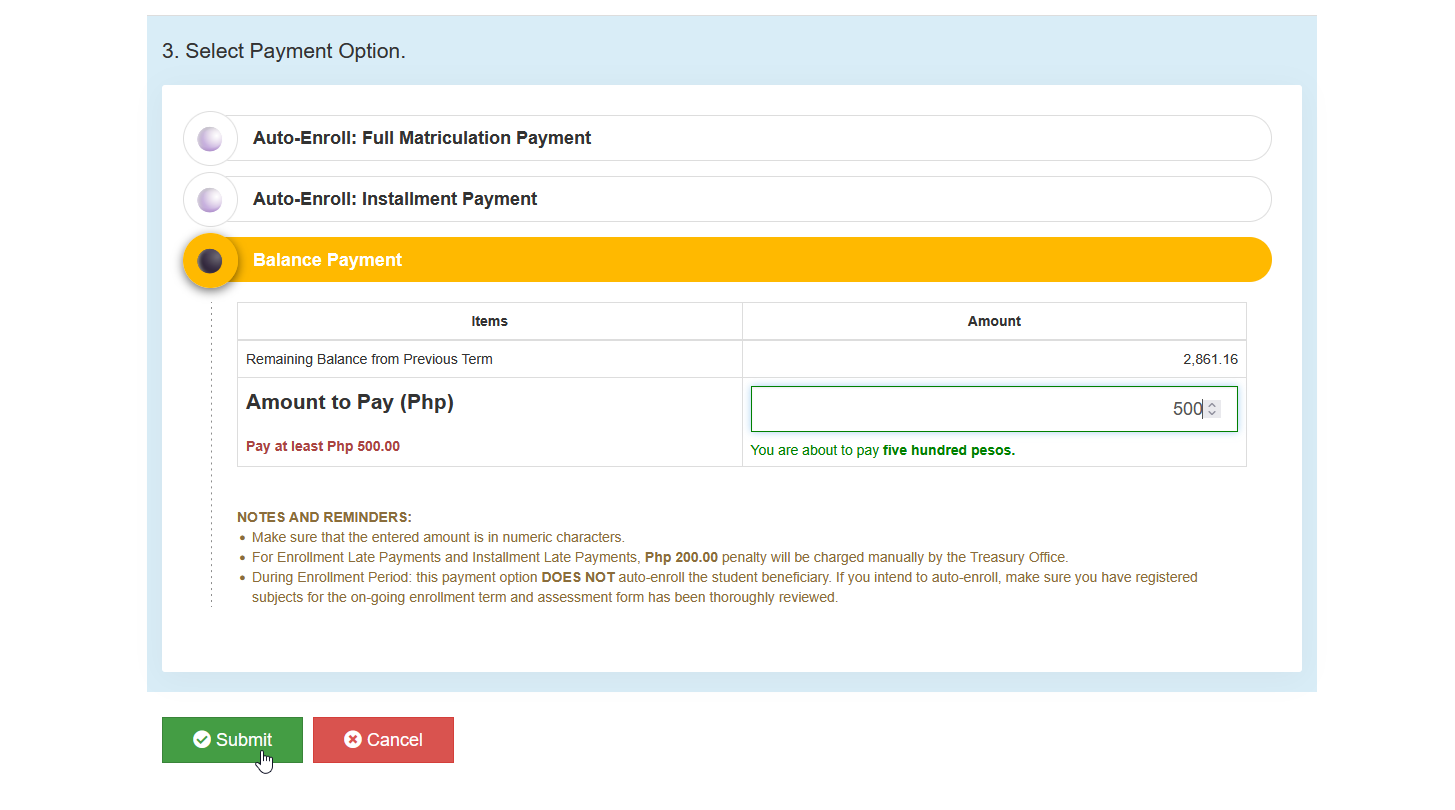
STEP 5. Select payment option.

Payment Option
-
Auto-Enroll Full Matriculation - This option will require the user to pay in full and will be automatically tagged as enrolled after successfull payment.
-
Auto-Enroll Installment Payment - This option will require the user to pay in installments and will be automatically tagged as enrolled.
-
Balance Payment - This payment option will require the user to pay for their term's matriculation balances.
STEP 6. Enter the amount to pay and click button.
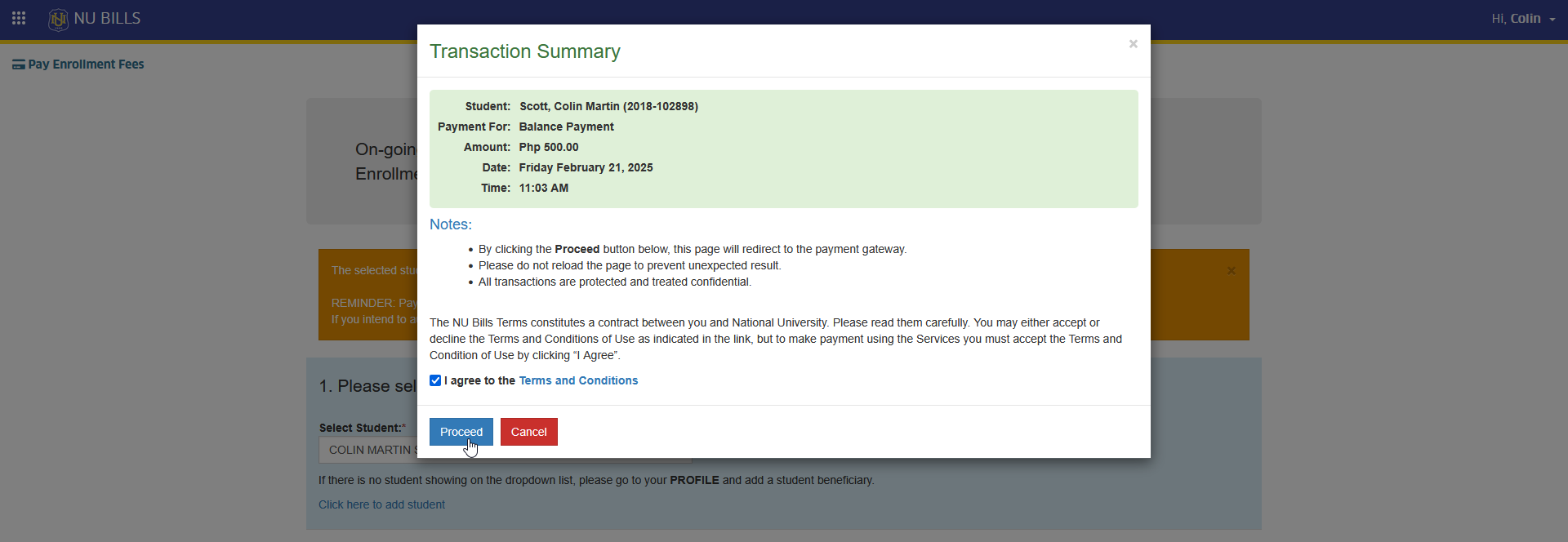
STEP 7. Agree to NU Bills Terms and Conditions, and click button. This action will redirect to Select Payment Channel page.
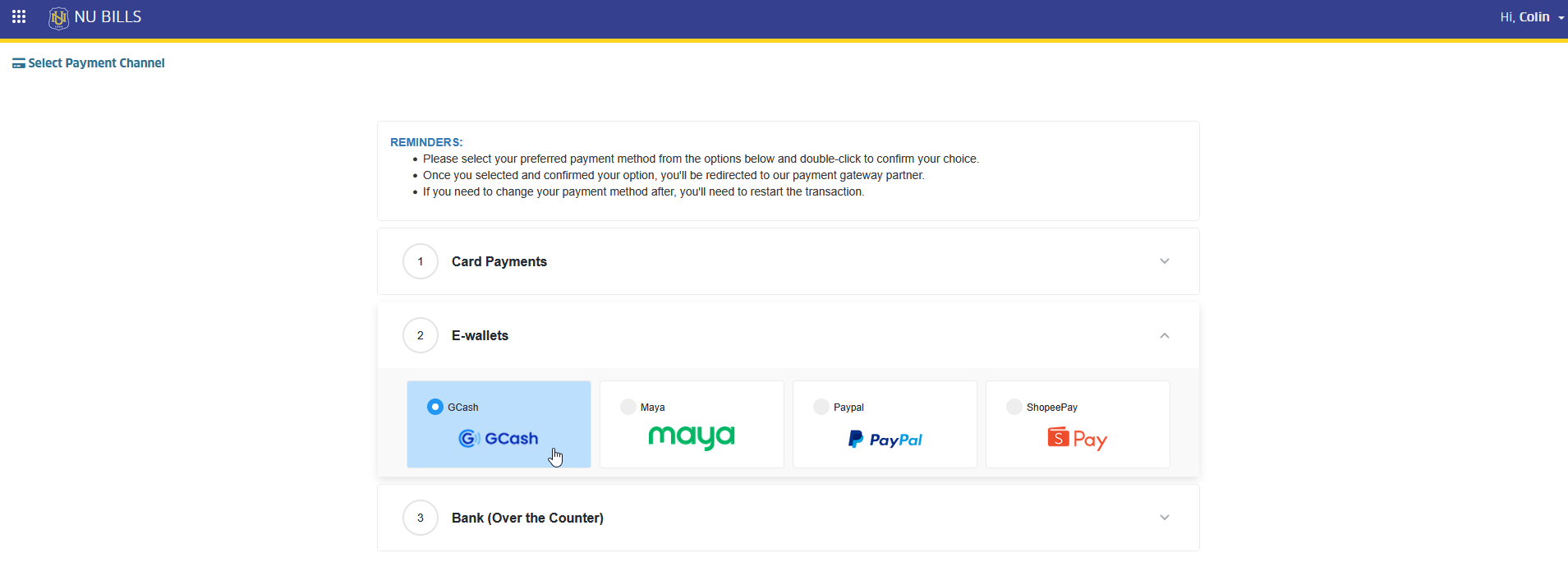
STEP 8. In Select Payment Channel page, read and follow the indicated reminders on the page and select the preferred payment channels.
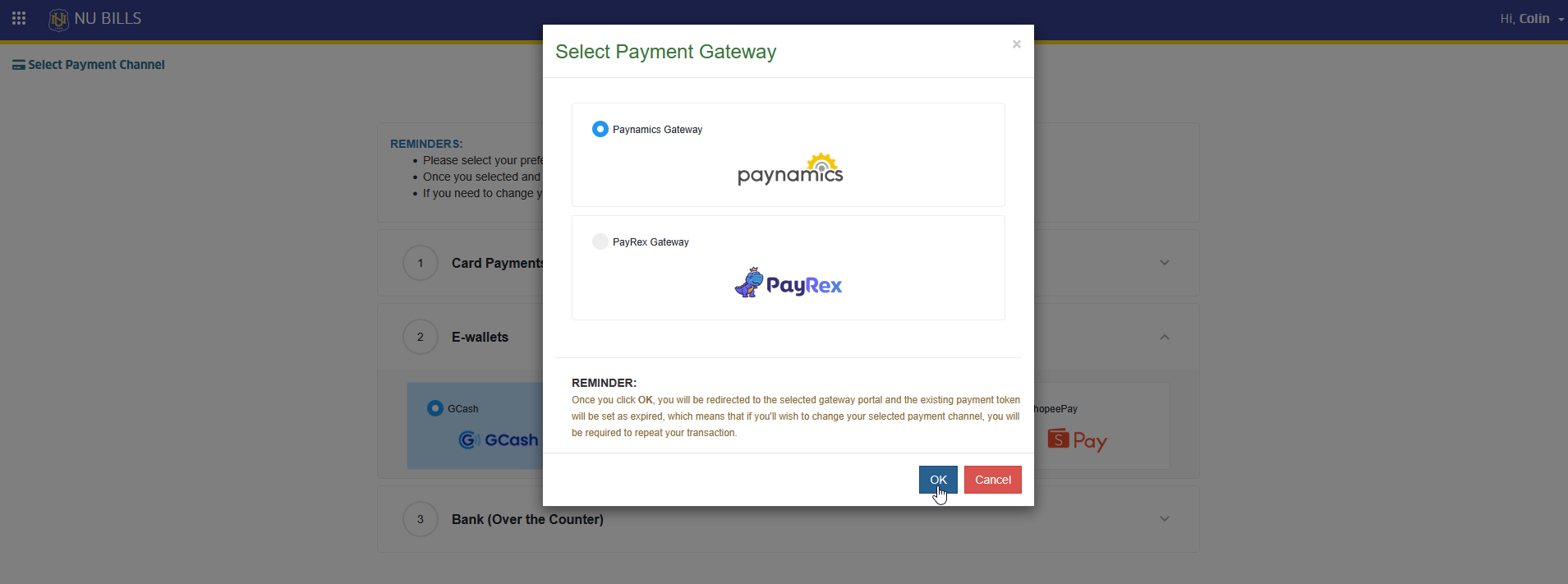
STEP 9. Select payment gateway, and click button. This action will redirect to the selected payment gateway page.
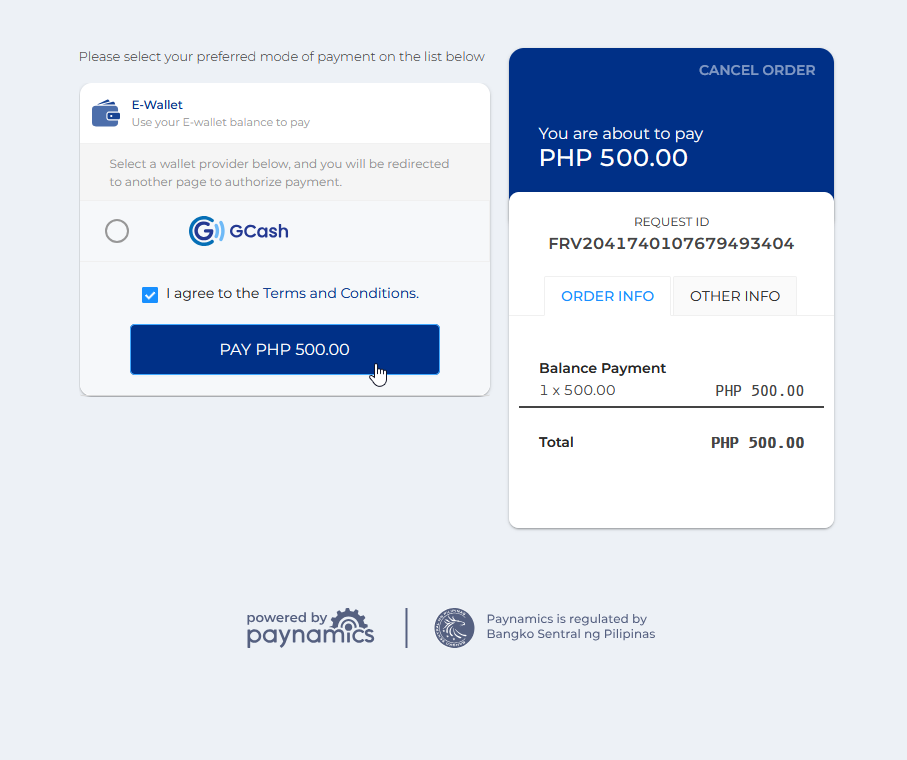
STEP 10. In the selected payment gateway page, make the payment to complete the transaction
-
For successfull payments, kindly wait for the Treasury Office to verify the payment and issue the official receipt before it can be reflected in the student's student ledger module.
-
For Over the Counter payments, take note of the reference number and pay the fees within the given time frame.
-
View your Trasactions by accessing the Transactions module.
For more questions or concerns, email us at nuis@national-u.edu.ph