Rooms
The Rooms module is used by Physical Facilities personnel to manage and maintain the list of rooms in the system. These room records include details like room name, capacity, and assigned department.
Required Permissions
-
View Room - Allows the user to view the list of existing rooms and their details. Users with this permission can only browse or search room records but cannot make any changes.
-
Add Room - Allows the user to create and save new room records in the system, including room details such as name capacity and assigned department.
-
Edit Room - Allows the user to update or modify existing room information, such as correcting details or changing the assigned department.
-
Delete Room - Allows the user to permanently remove room records from the system. This should be given only to users authorized to manage room data completely.
How to Access the Module
To access the module, make sure you have the View Room permission. If it doesn’t appear in your portal, request access from your System Administrator.
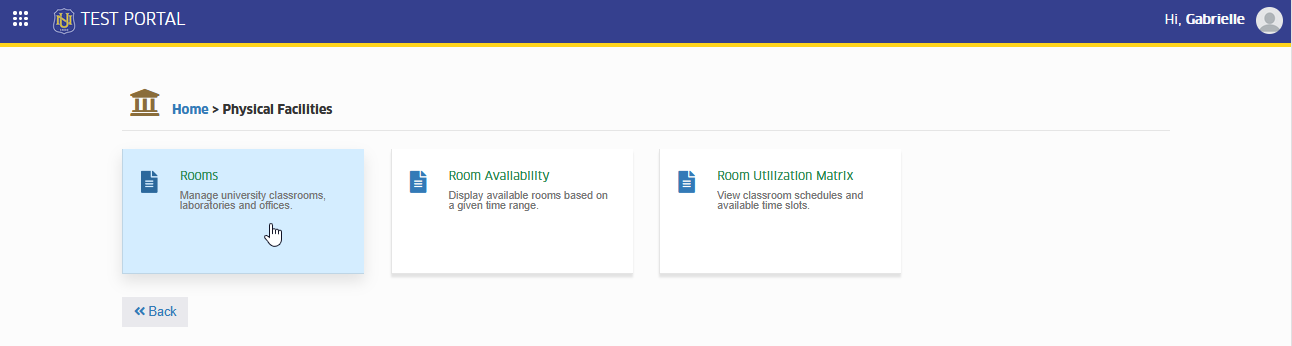
In NUIS portal, go to Physical Facilities > Rooms. Click the module tab to redirect to the Rooms list view page.
Required Fields
This section lists all the information that must be filled out when creating a new room record. Users need to complete these fields to ensure that each room is properly identified and can be used for scheduling and departmental assignments. Leaving any required field blank will prevent the record from being saved.
| Field Name | Description | Is Required |
|---|---|---|
| Room Code | A unique identifier or short code for the room. This helps easily distinguish it from other rooms in the system. | Yes |
| Room Name | The full name or label of the room, usually describing its purpose or location (e.g., Computer Lab 1, Lecture Room A). | Yes |
| Floor | Indicates the floor level or area where the room is located. | Yes |
| Capacity | Specifies the maximum number of people the room can accommodate. | Yes |
| Dept In-Charge | The department responsible for managing or maintaining the room. | Yes |
| Assigned to (Dept) | The department allowed to use the room for classes or other activities. This assignment reflects in class scheduling. | Yes |
| Is Active | Determines whether the room is currently available for use. If set to inactive, the room will not appear in room selection lists for scheduling. | Yes |
How to Use the Module
This section guides you through the different functions available in the Rooms module. Here, you’ll learn how to add, edit, delete, and search room records. Each feature is designed to help you easily manage and organize room information that will be used for class scheduling and departmental assignments.
Add Room
Follow the steps below to add new room record.
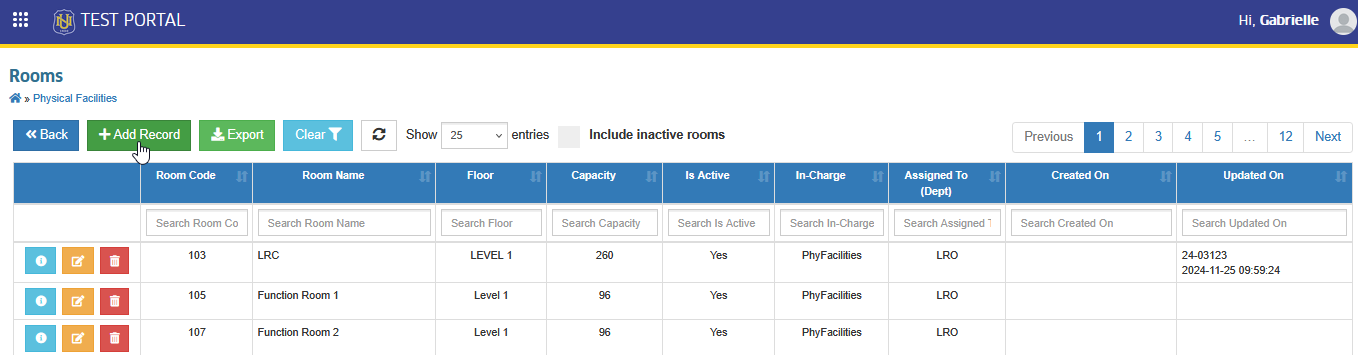
STEP 1. On the Rooms list view page, click the button. You will be redirected to the Add Room page.
STEP 2. On the Add Room page, fill out all the required fields, then click the button to save the new record.
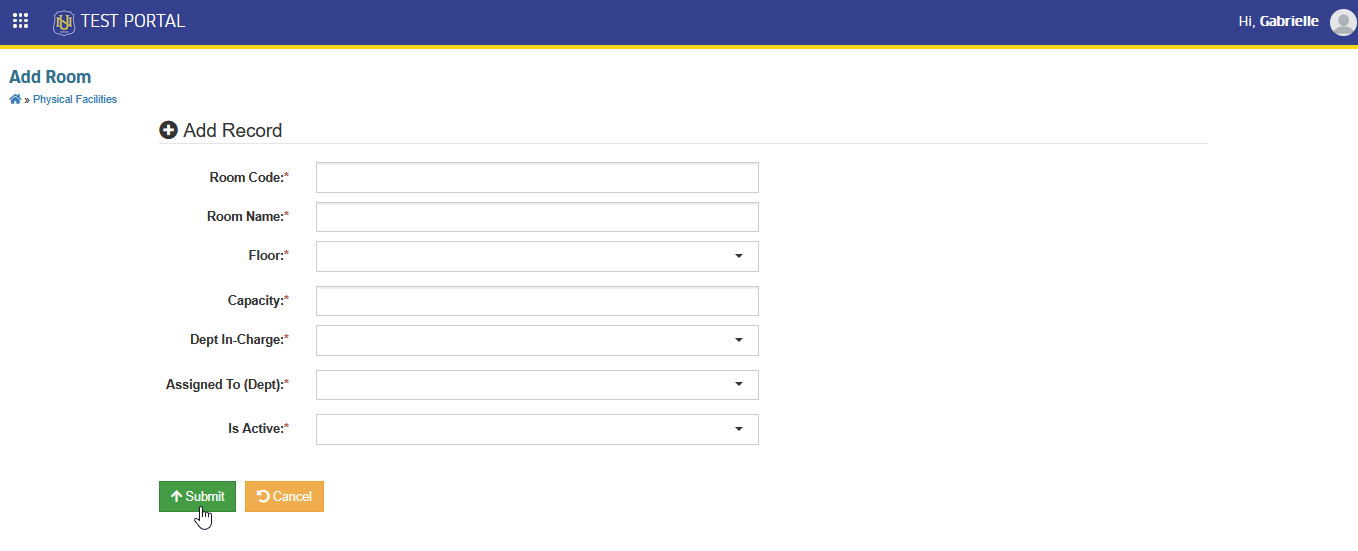
Assigning the correct department ensures accurate room availability during class scheduling.
Edit Room
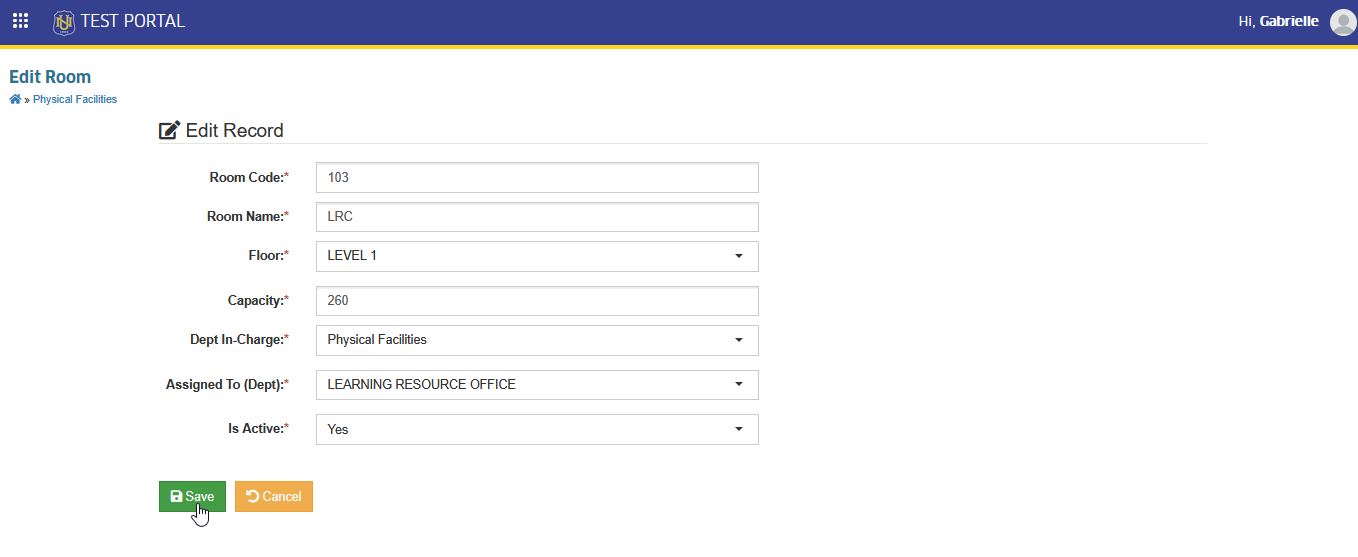
Follow the steps below on how to edit a room record.
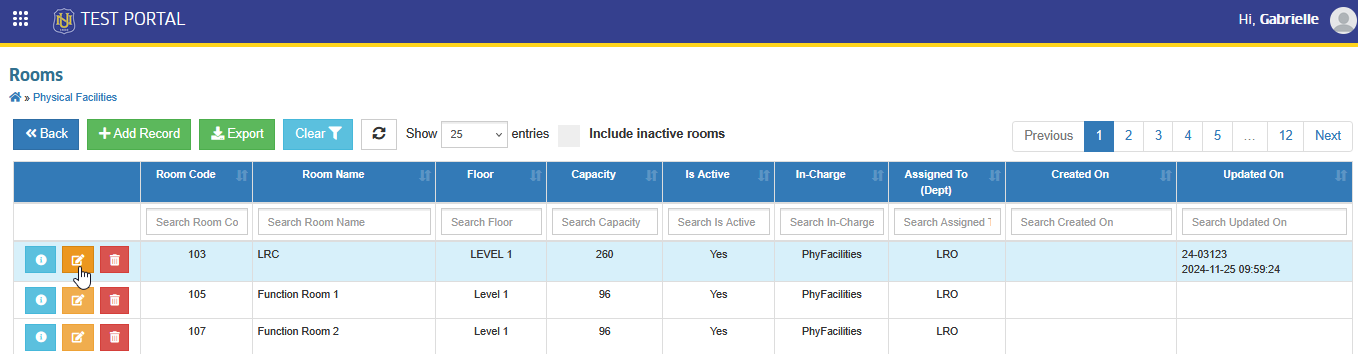
STEP 1. On the Rooms list view page, click the corresponding button of the room you want to modify. You will be redirected to the Edit Room page.
STEP 2. On the Edit Room page, update the necessary information, then click the button to apply the changes.
Delete Room
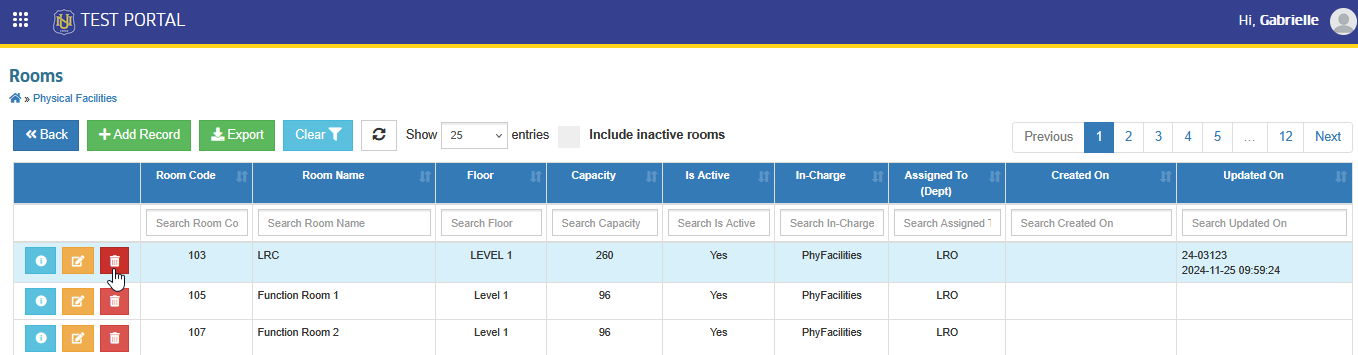
Follow the steps below to delete a room record.
STEP 1. On the Room list view page, click the corresponding button of the room you want to delete. You will be redirected to the Delete Room page.
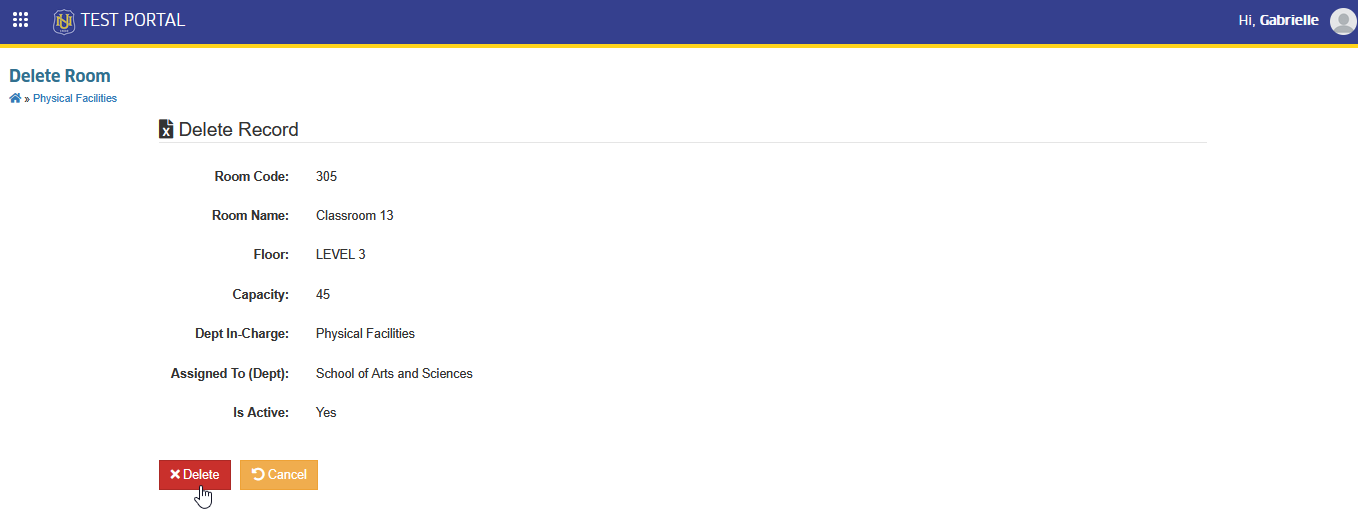
STEP 2. On the Delete Room page, click the button to confirm the deletion of the record.
-
Deleting a record with reference is highly discouraged.
-
Disable the records instead if it will no longer be managed by setting Is Active to No.
For more questions or concerns, email us at nu-desk@national-u.edu.ph