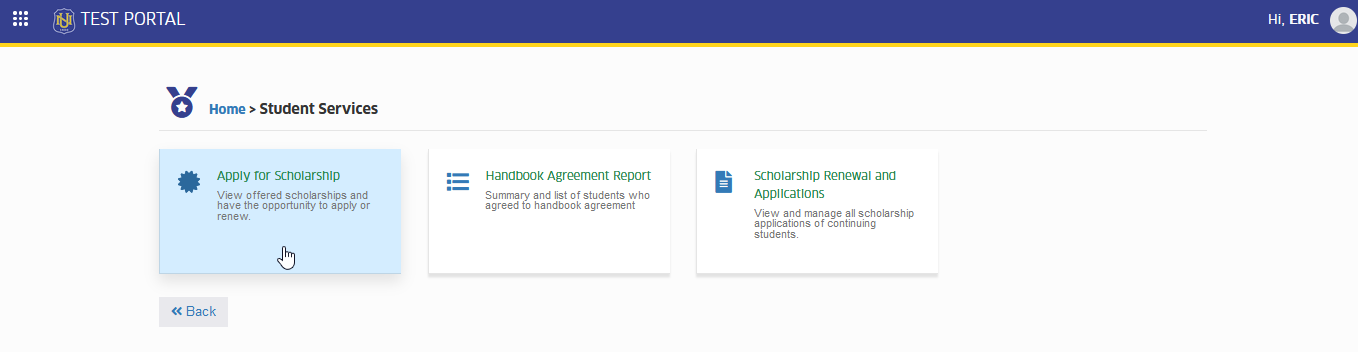
Apply for Scholarship
View offered scholarships and have the opportunity to apply or renew.
When the term's scholarship application period starts. The students must use this module to apply or renew their preferred scholarships.
This module is used by all Continuing Students who wants to apply or renew their preferred scholarship.
For New Students, apply for scholarship using the Apply for Scholarship menu available in NU Quest.
Required Permissions
- Apply for Scholarship - This permission allows the continuing students to apply for their preferred scholarships.
How to access the module?
To access the module, make sure you have the Apply for Scholarship permission. If it doesn’t appear in your portal, request access from your System Administrator.
To access the module go to Student Services > Apply for Scholarship.
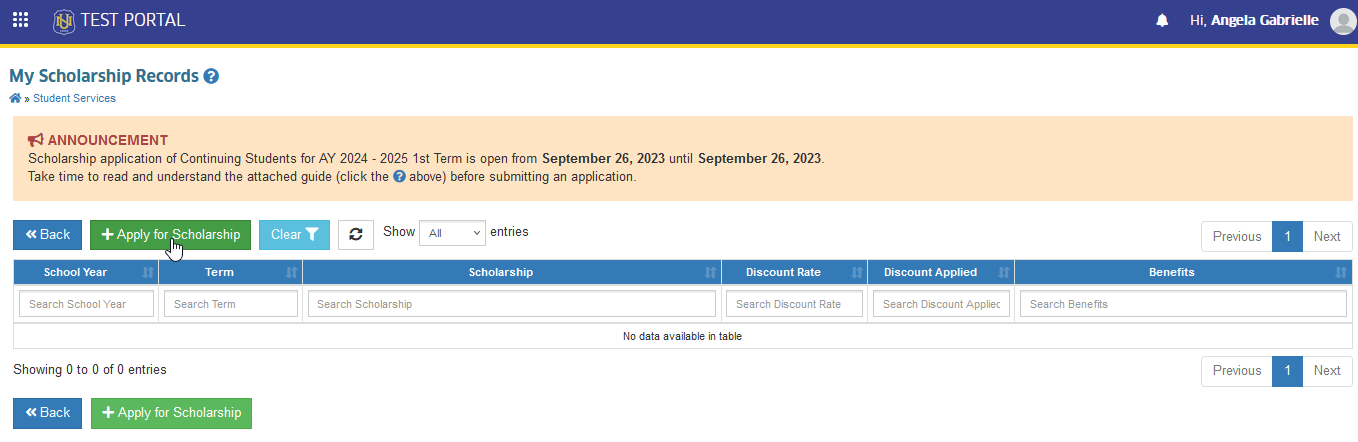
Click the module tab to redirect to My Scholarship Records page.
Rules for Scholarship Application for Continuing Students
-
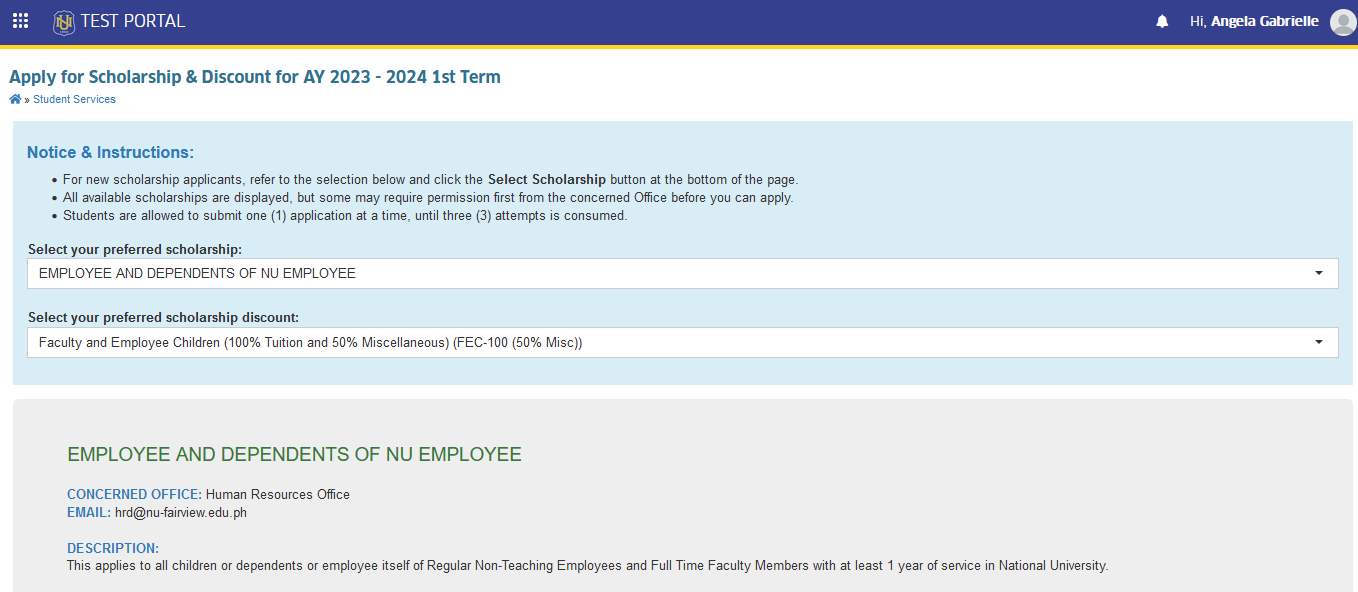
For new scholarship applicants, refer to the selection below and click the Select Scholarship button at the bottom of the page.
-
All available scholarship are displayed, but some may require permission first from the concerned Office before students can apply.
-
Students are allowed to submit one (1) application at a time, until three (3) attempts is consumed.
How to Apply for Scholarship?
Make sure to check first the scholarship application for the term if it is open already. Follow the steps below on how to submit scholarship application using this module.
STEP 1. In My Scholarship Records list view page, click the button.
STEP 2. Select the preferred scholarship and its discount variant from the dropdown list.
STEP 3. Read the scholarship information and click the button at the buttom of the page.
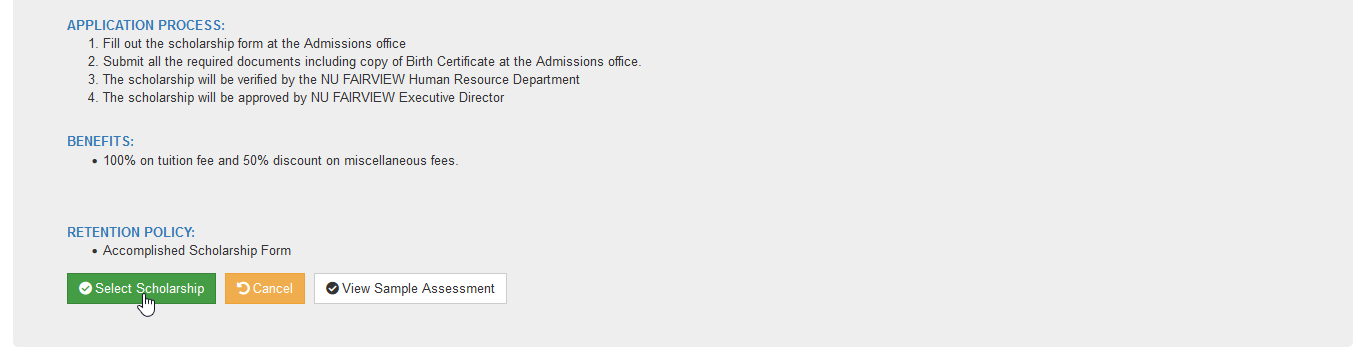
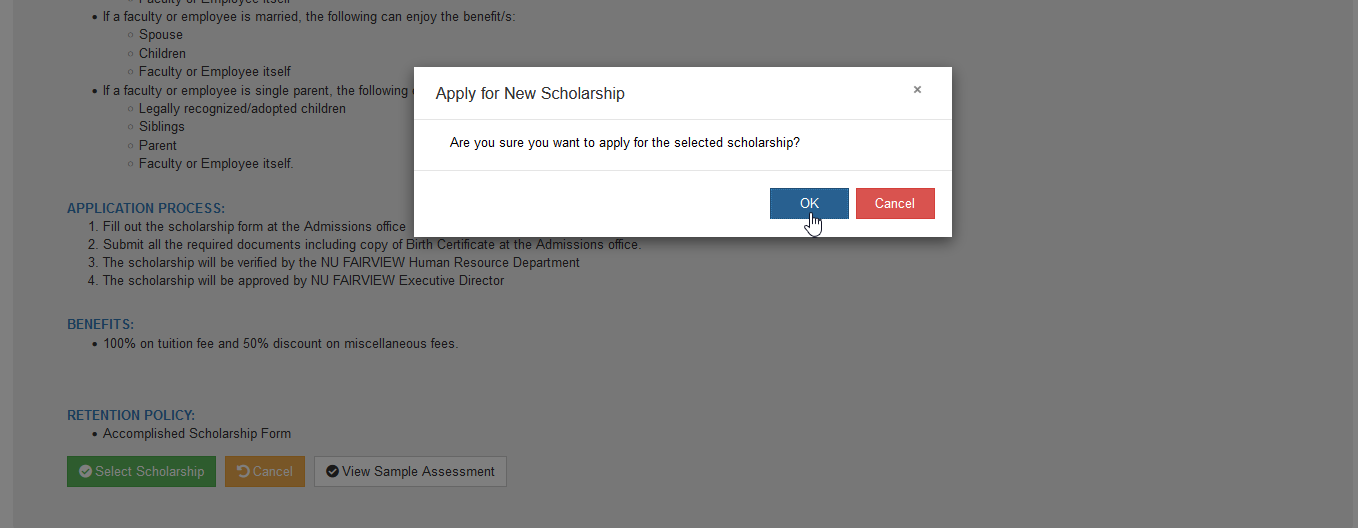
STEP 4. Confirm the application by clicking the button. User will be redirected to the Terms Apply for Scholarship page.
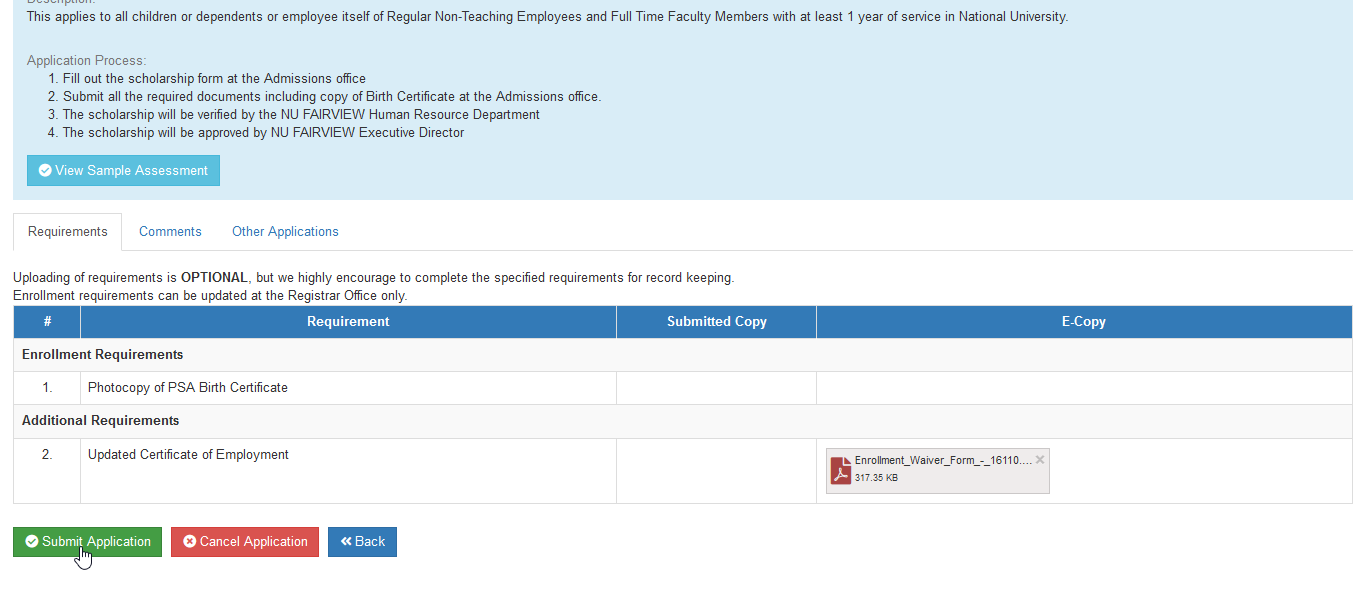
STEP 5. In the Terms Apply for Scholarship page, students will be required to upload the requirements needed for scholarship verification.
STEP 6. Click the button.
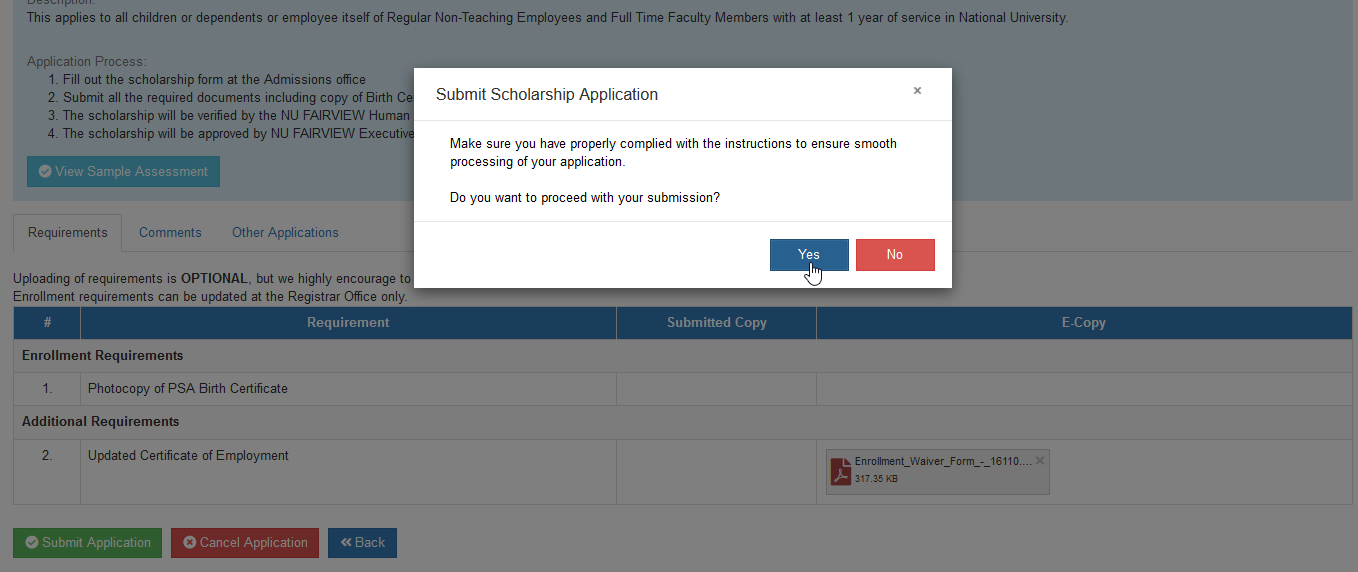
STEP 7. Confirm the submission by clicking the button.
STEP 8. By this time the status of the application will be . Wait for the application to be processed.
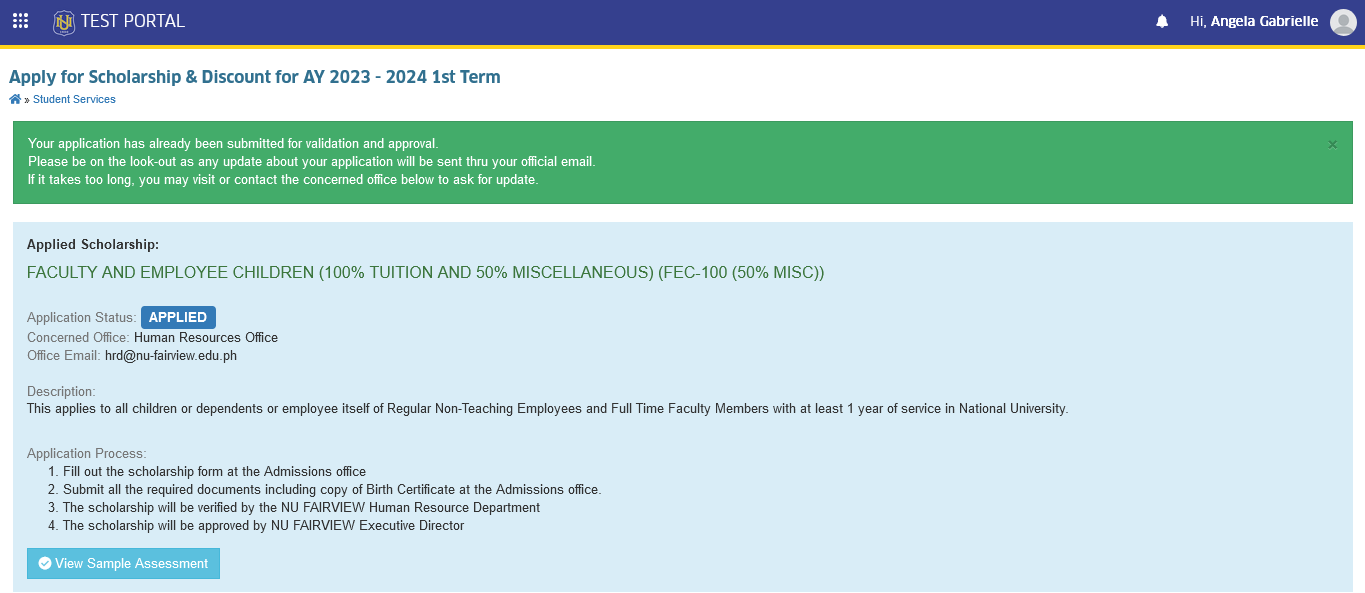
Application has already been submitted for validation and approval. Please be on the look-out as any update about your application will be sent thru your official email. If it takes too long, you may visit or contact the concerned office below to ask for update.
-
To follow up on the status of the application, utilize the comment section. Up until the verifier responds, students may leave up to three (3) comments.
-
To follow up the status of scholarship appplication, make sure to coordinate with the designated office for smooth processing of scholarship.
How to Update Scholarship Requirements
This module has a feature that allows the applicants to update their requirements if necessary. Follow the steps below on how to update the requirements.
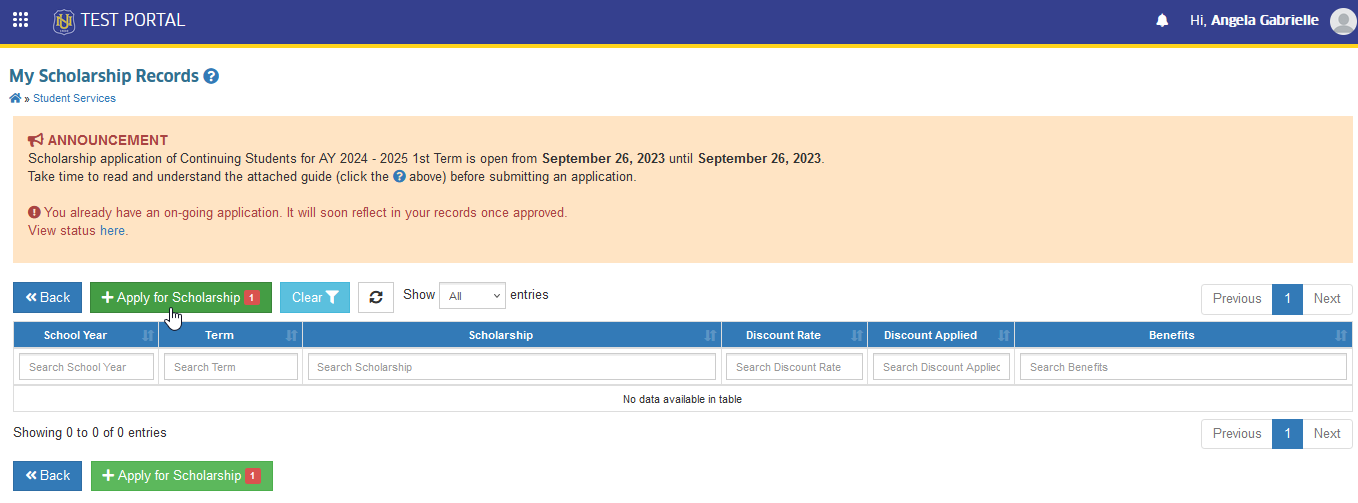
STEP 1. In My Scholarship Records page, click the button. User will be redirected to their pending scholarship application.
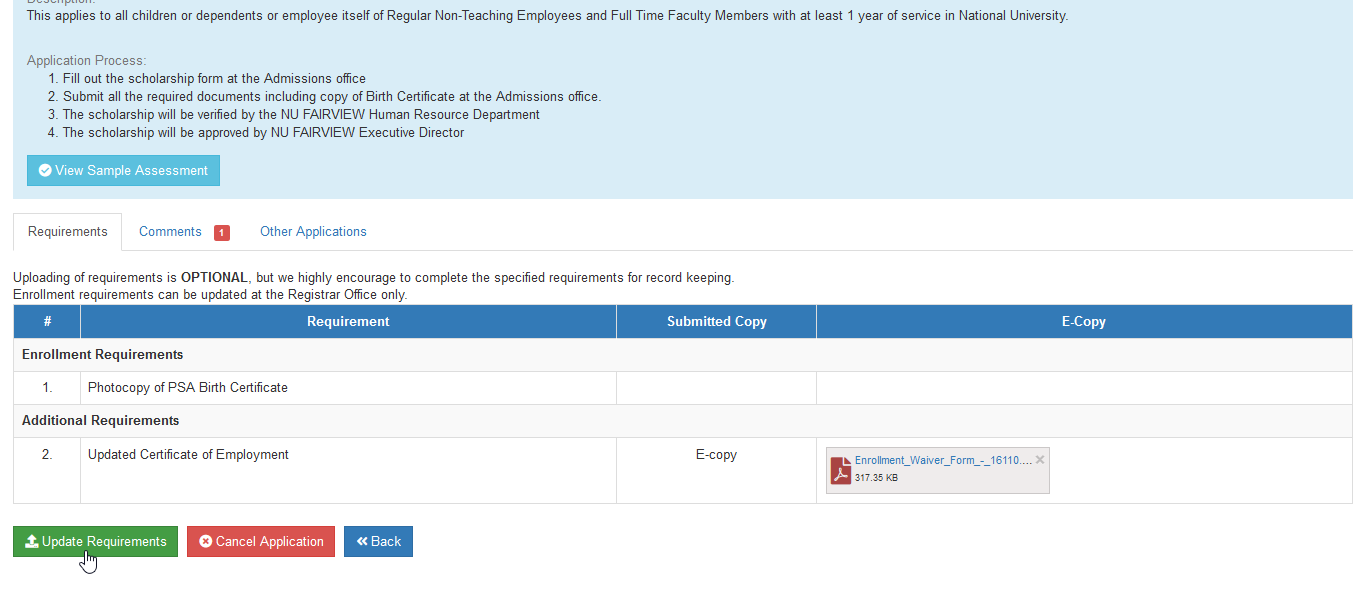
STEP 2. Upload the updated requirements, then click the button.
-
Uploading of requirements is OPTIONAL, but we highly encourage to complete the specified requirements for record keeping.
-
Enrollment requirements can be updated at the Registrar Office only.
How to Cancel Application
Students may cancel their on going application if necessary. Follow the steps below on how to cancel an application.
STEP 1. In My Scholarship Records page, click the button. User will be redirected to their pending scholarship application.
STEP 2. Click the button.
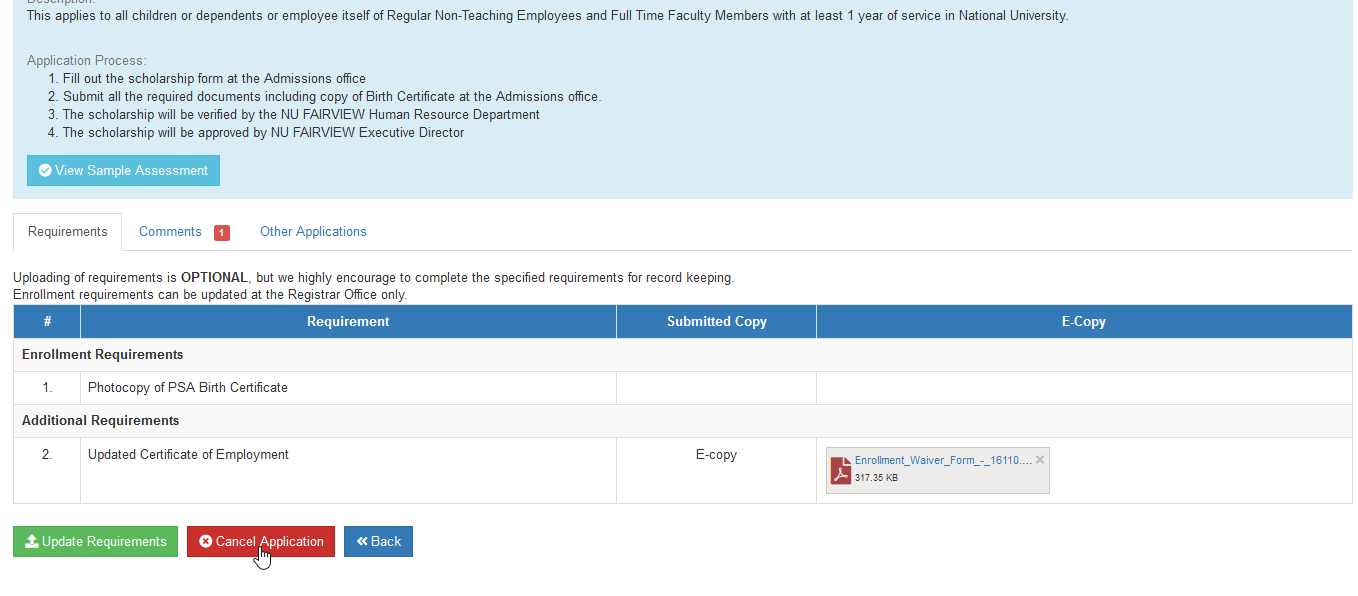
STEP 3. Confirm the cancelation of application by clicking the button.
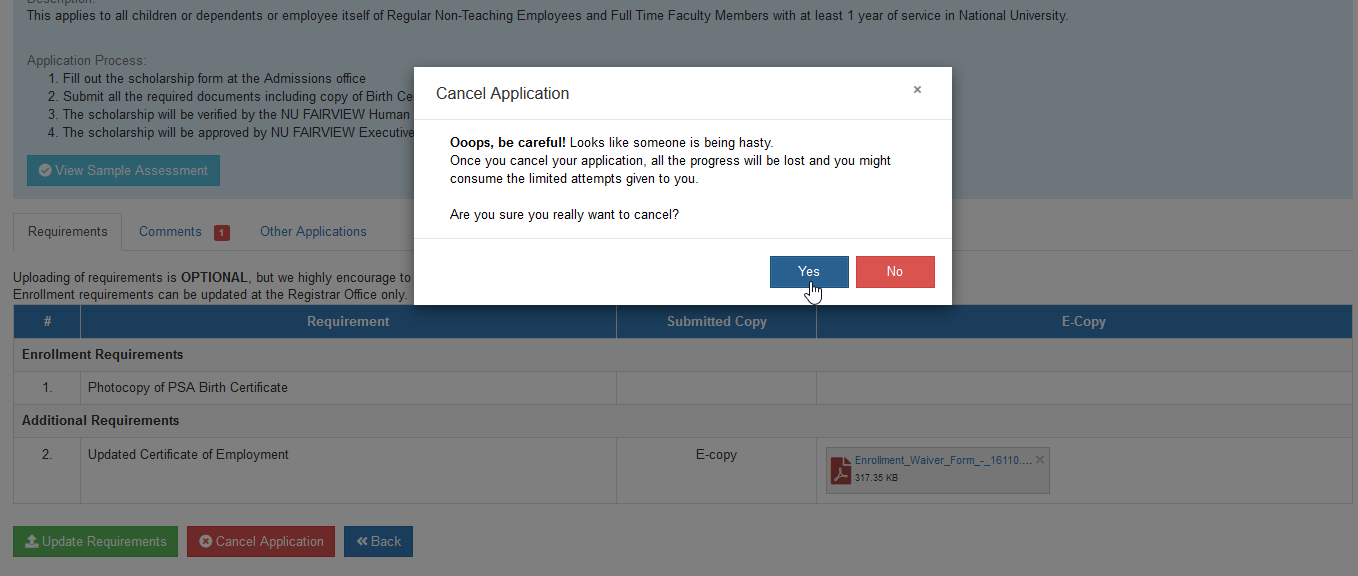
- Cancelation of application will cost one (1) chance for scholarship application. Please be thorough in following the instruction and requirements.
How to Renew Scholarship
For students with approved scholarship discount from the previous term they may utilize this module to renew for their scholarship Follow the step below on how to renew scholarship.
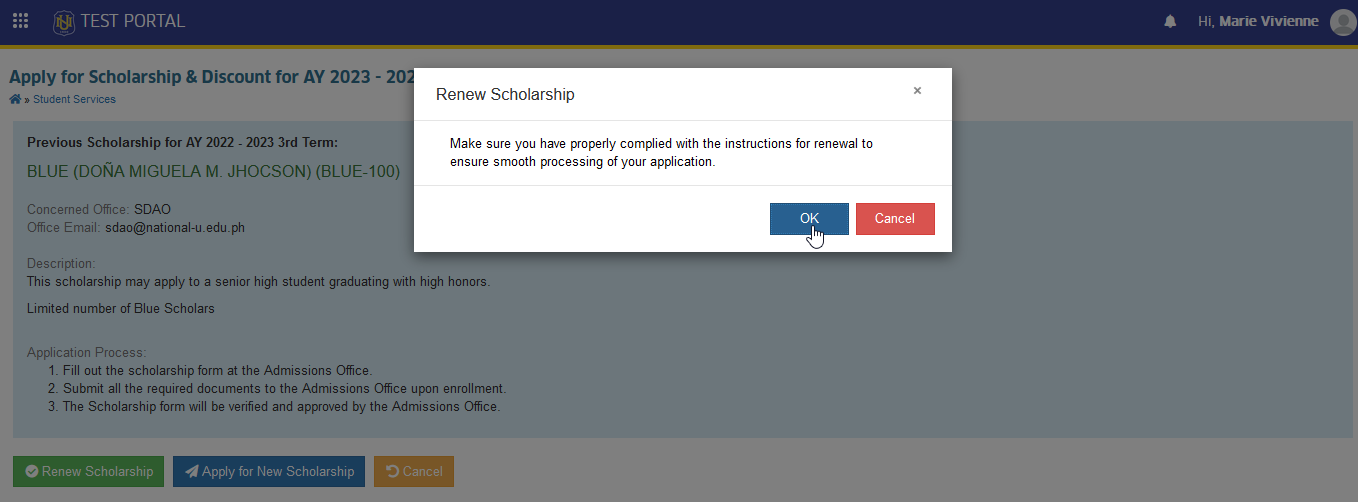
STEP 1. In My Scholarship Records page, click the button. User will be redirected to Apply for Scholarship & Discount for coming term.
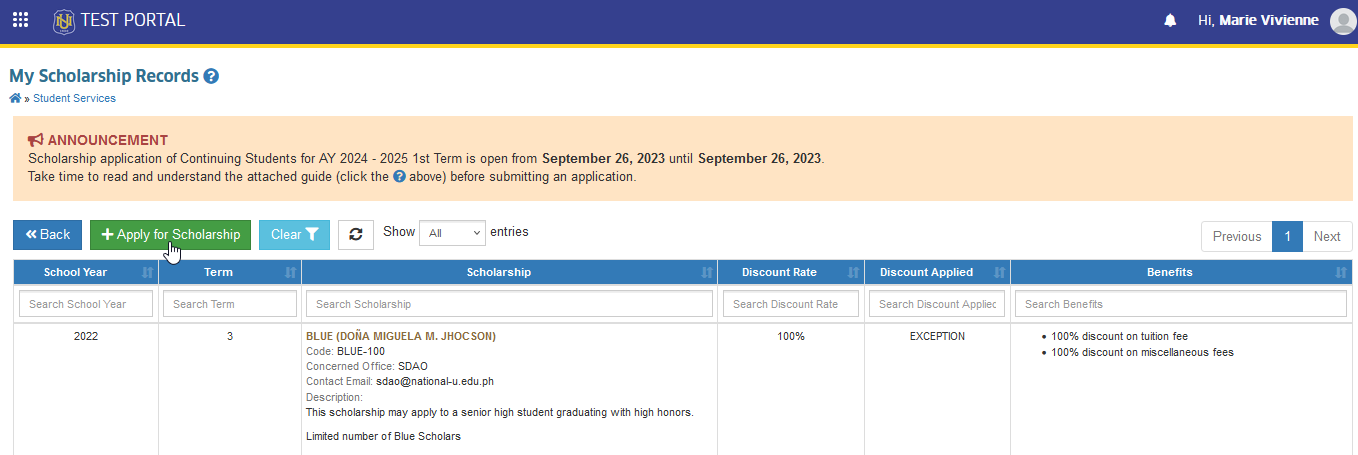
STEP 2. In Apply for Scholarship & Discount for coming term, previous terms discount will be displayed. click the button.
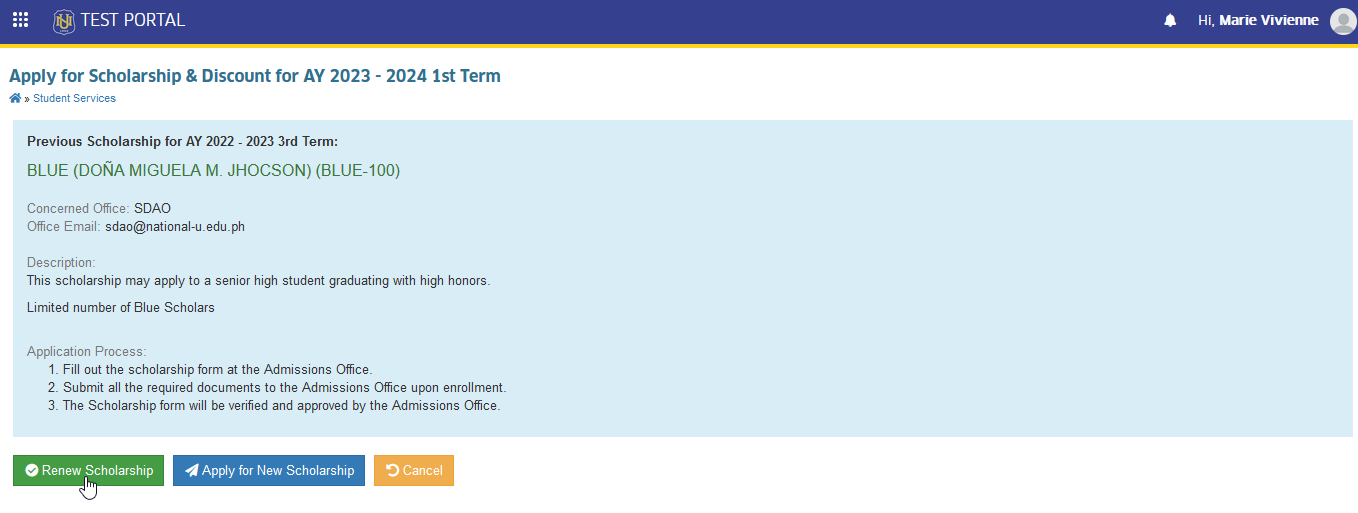
STEP 3. Confirm the renewal by clicking the button.