Scholarship Renewal and Applications
View and manage all scholarship applications of continuing students.
Required Permissions
-
Approve Scholarship Renewal and Applications - this permission allows the user to approve scholarship renewals and applications.
-
Delete Scholarship Renewal and Applications - this permission allows the user to delete specific scholarship applications.
-
Scholarship Renewal and Applications - this permission allows the user to access the module and view scholarship renewal and applications for the specified term.
-
Scholarship Renewal and Applications (All) - this permission allows the user to view all applications that are being managed by other offices.
How to access the module?
To access the module, make sure you have the View Scholarship Renewal and Applications permission. If it doesn’t appear in your portal, request access from your System Administrator.
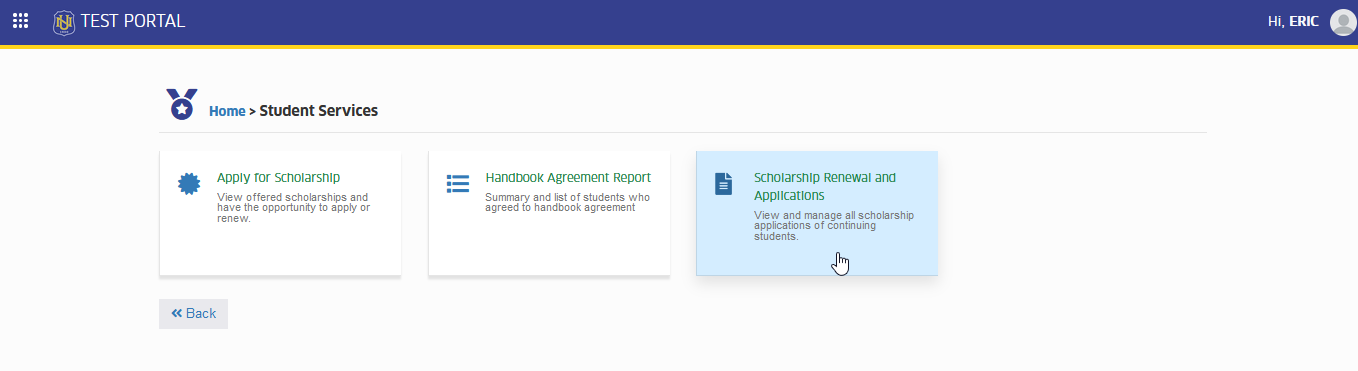
To access the module go to Student Services > Scholarship Renewal and Applications
Click the module tab to redirect to Scholarship Applications of Continuing Students.
Scholarship Application Status
- Scholarship status where the students is allowed to apply for the controlled type of scholarship by the department assigned to manage specific scholarship. This is for student to submit his/her scholarship application.
- scholarship application status where the student cancelled his/her application.
- submission of the scholarship application is successful. This is for office validation of the scholarship assigned.
- scholarship assigned office validated the application. This is for Admissions office endorsement to approvers.
- scholarship status where the students submits the scholarship application renewal and is subject for validation.
- this scholarship applications status indicates that the application is approved by the approver.
- this scholarship applications status indicates the application has been disapproved.
Process Flow
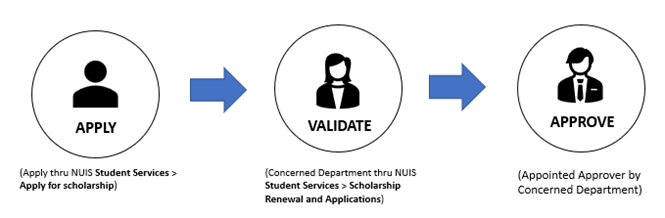
The general process flow of scholarship Renewal and Applications is shown in the image below.
How to Validate Scholarship Renewal and Applications.
Once an email notification for the validation of the scholarship application is received by the concerned department, the following steps should be followed to validate the application.
STEP 1. Go to Student Services > Scholarship Renewal and Applications.
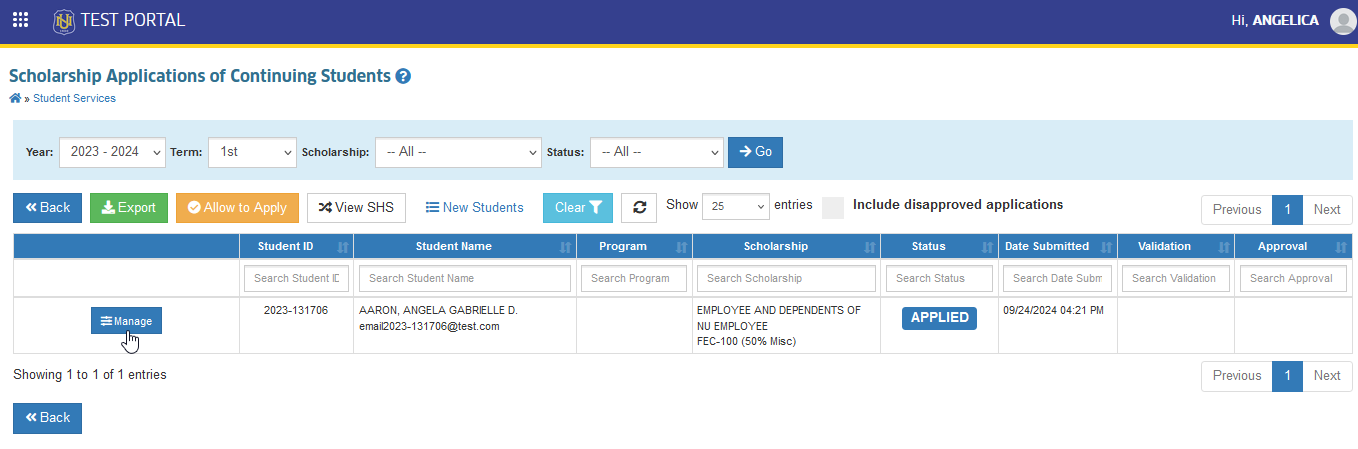
STEP 2. Use the filtering features to search for the application based on the information found in the email notification. In Scholarship Applications of Continuing Students page, click the corresponding button of the application.
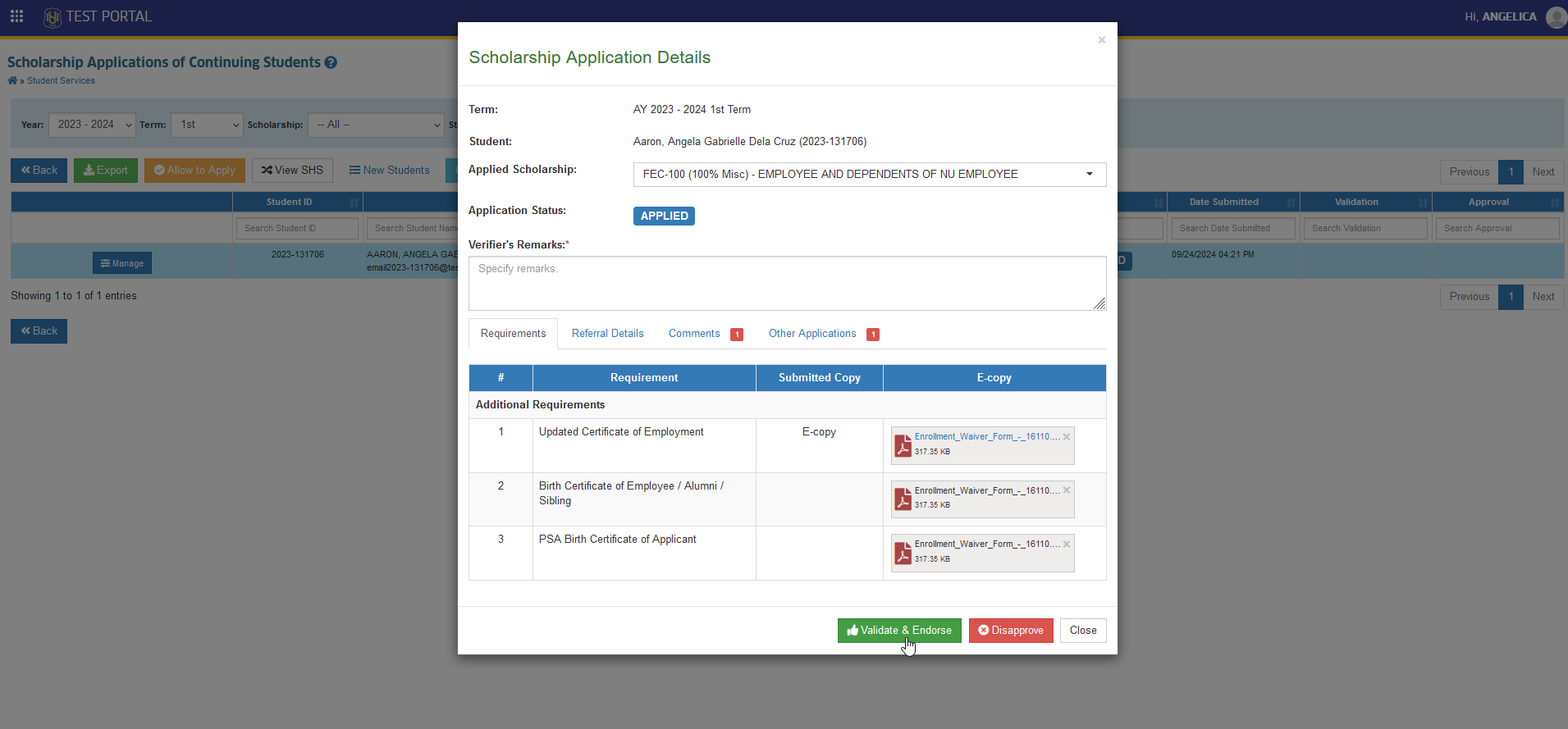
STEP 3. Validate the submitted uploaded requirements, specify the Verifiers Remarks, then click the button.
-
The scholarship to which the student applies can be changed by the validators, provided that the scholarship offering is managed by them.
-
Use the comment feature of the module to directly communicate with the applicants.
STEP 4. Confirm the Validation and Endorsement of the scholarship application by clicking the button.
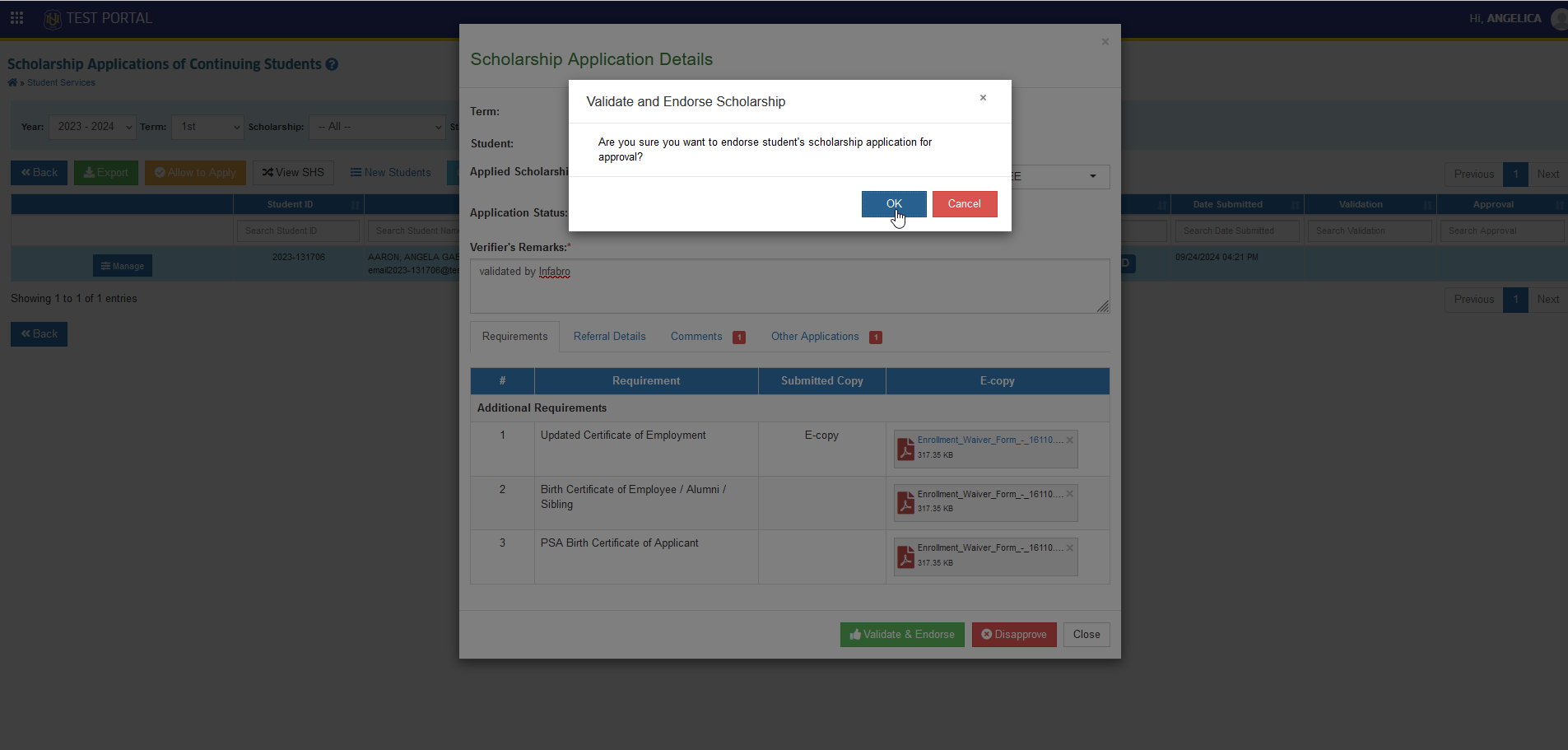
The scholarship application has been successfully validated.
The application status will now be changed from to .
This will send an email notification for scholarship approval by the approvers.
How to Approve / Disapprove an Application.
The Scholarship Approver will receive an email notification for Approval of Scholarship Renewal & Applications. Follow the steps below on how to Approve/Disapprove an application.
There are two (2) ways to approve/disapprove an application.
- Thru Email - On the email notification with the subject Endorsement of Scholarship Application for approval, click the or button.
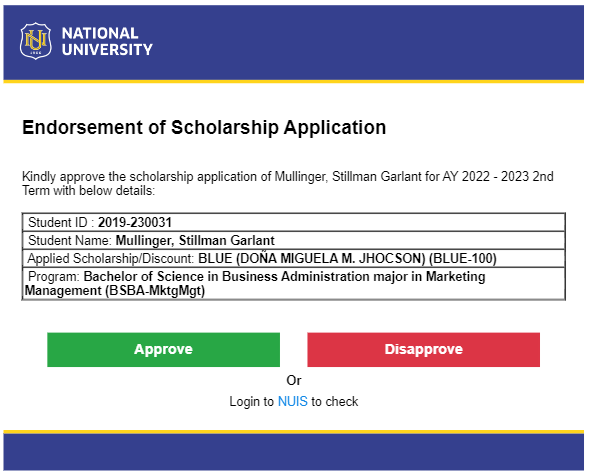
- Thru NUIS - Follow the steps below on how to approve or disapprove an application using NUIS.
STEP 1. In Scholarship Applications of Continuing Students page, click the corresponding button of the application that will be approved.
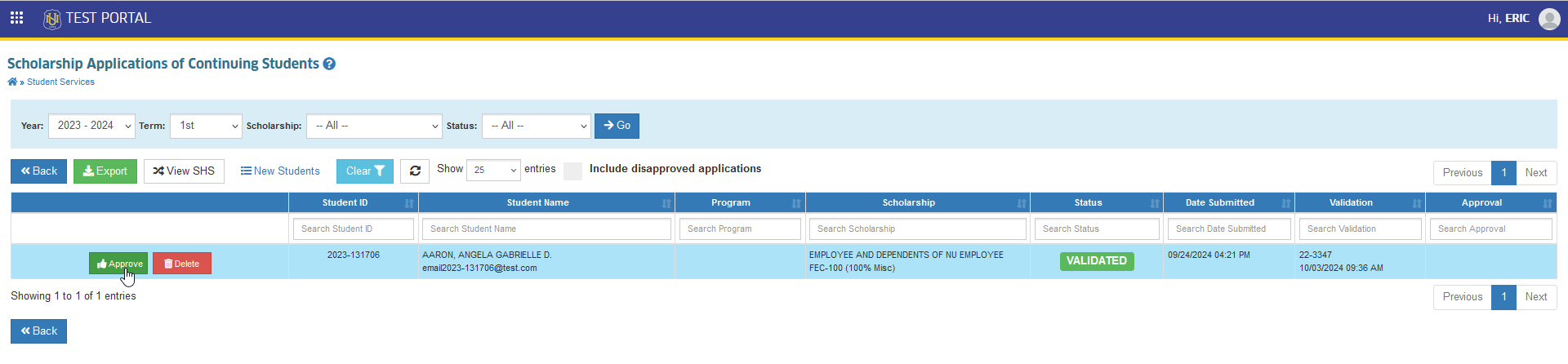
STEP 2. In Scholarship Application Details form, click the button if the application is approved, otherwise .
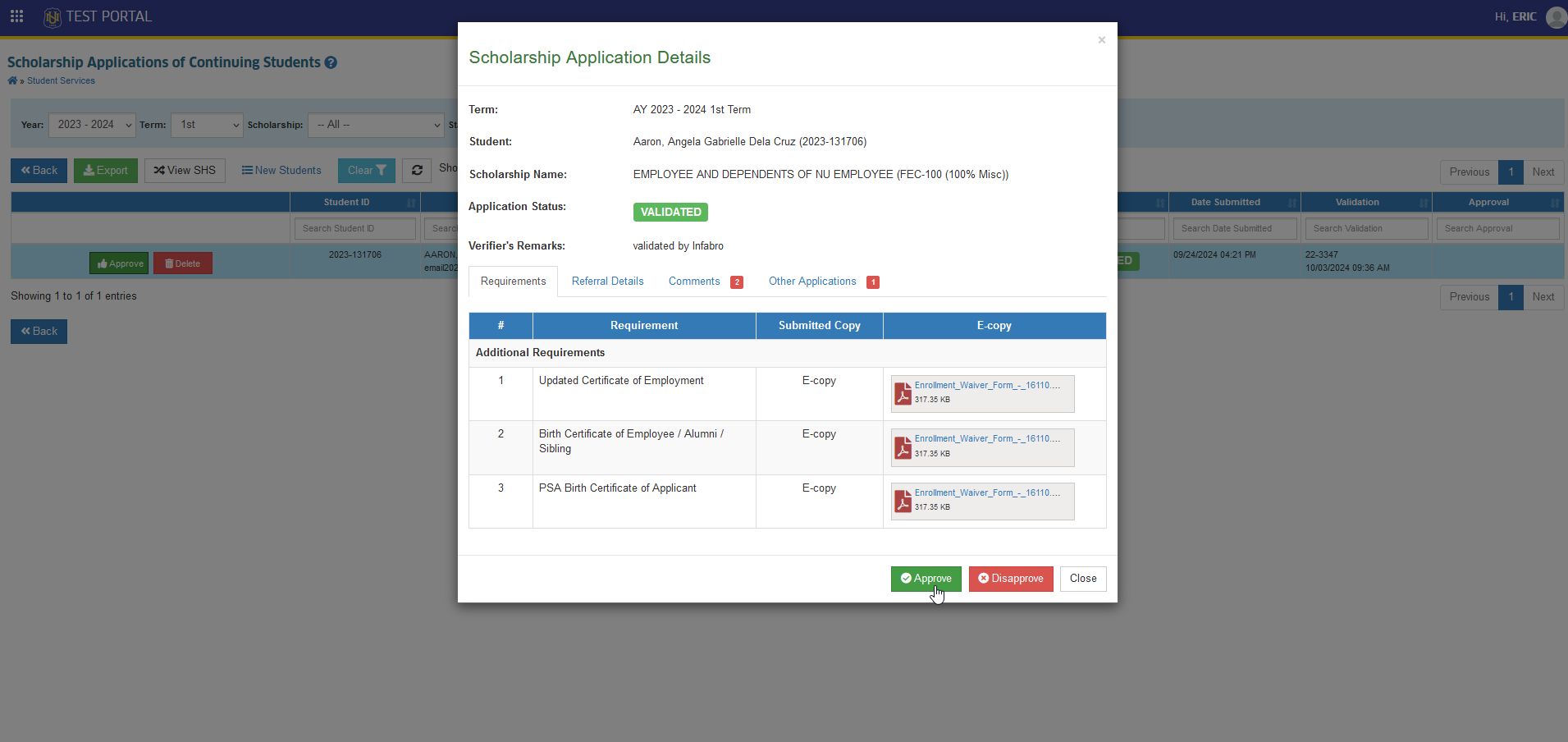
STEP 3. Confirm the approval of the scholarship application by clicking the button.
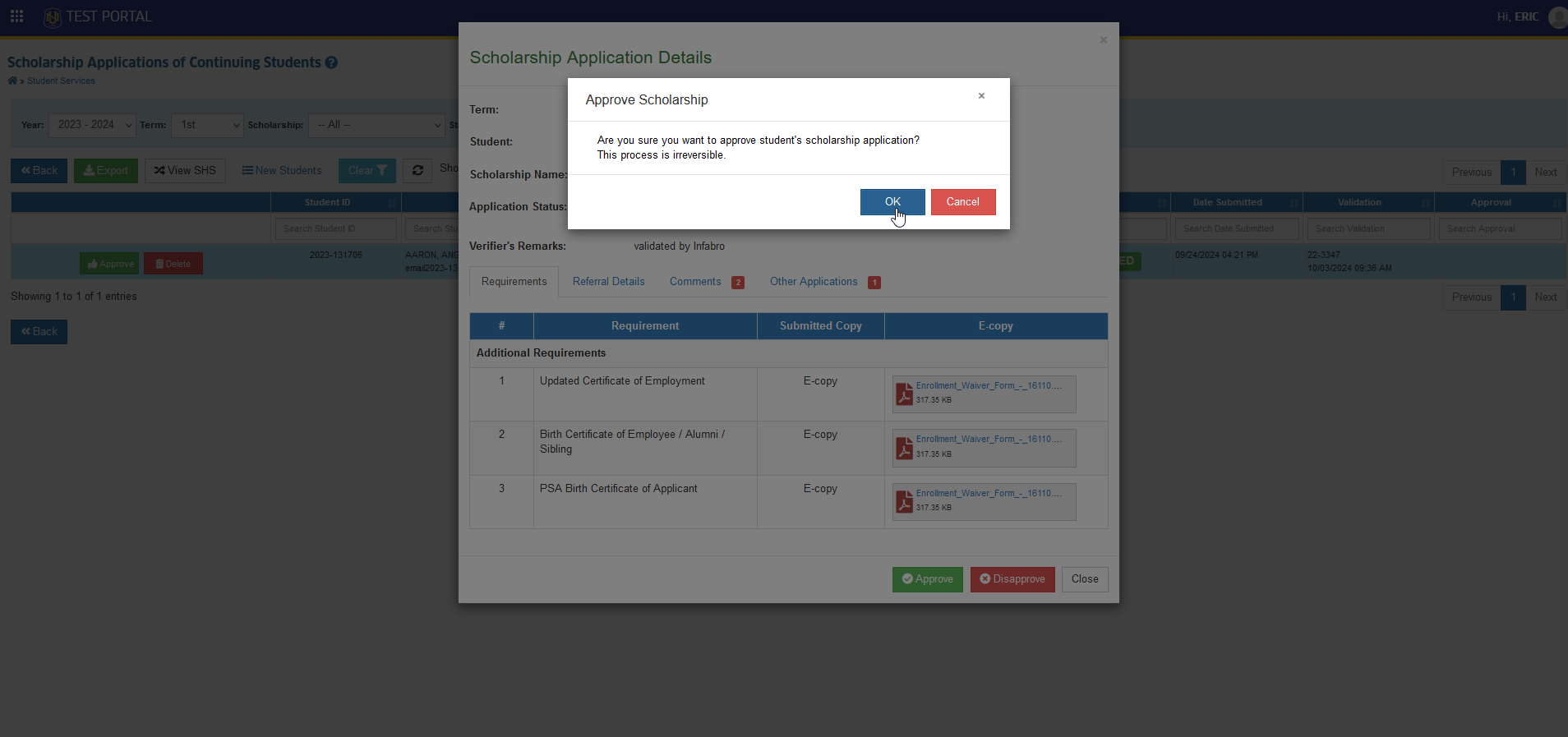
The scholarship application has been approved.
If necessary, approver can Undo the approval of scholarship application by clicking the button.
This discount will now be reflected in the students assessment.
If the discount still does not reflects in students assesment, proceed to treasury office for reassesment.
How to allow students to apply for controlled offered scholarship.
There are some offered scholarship that are being controlled by the assigned department. To allow specific students to apply for the scholarhip, follow the steps below.
STEP 1. In Scholarship Applications of Continuing Students page, click the button.
STEP 2. In Allow Student to Apply form, enter the student id number and the name of the scholarhip, then click the button.
Successfully allowed the student to apply for the scholarship.