Entry Levels
Manage Admissions Entry Levels.
This module is used to manage all admission's entry level.
Required Permissions
To use the complete module features, user must have access to the module permissions below.
-
View Entry Level - This permission allows the user view and access the module.
-
Add Entry Level - This permission allows the user to add an entry level record.
-
Edit Entry Level - This permission allows the user to edit an entry level record.
-
Delete Entry Level - This permission allows the user to delete an entry level record.
How to Access the Module?
To access the module, make sure you have the View Entry Levels permission. If it doesn’t appear in your portal, request access from your System Administrator.
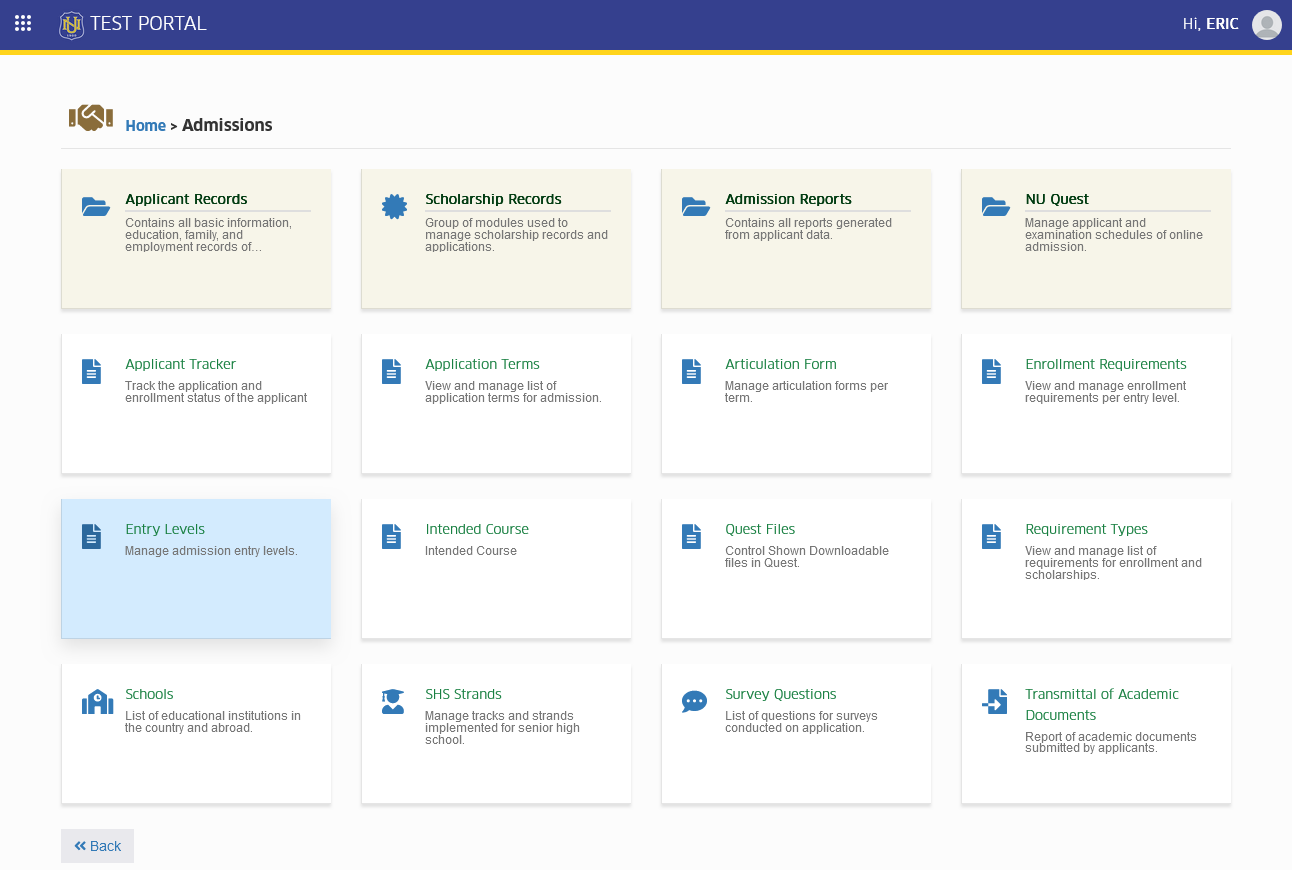
To access the module go to Admission > Entry Levels
Click the module tab to redirect to Entry Levels page.
Manage Entry levels.
User with the right module permission can manage the entry levels. Follow the set of instruction on how to properly manage the National University entry levels.
How to Add a New Entry Level?
When there is a need to accept new type of entry level, follow the steps below to add a new record.
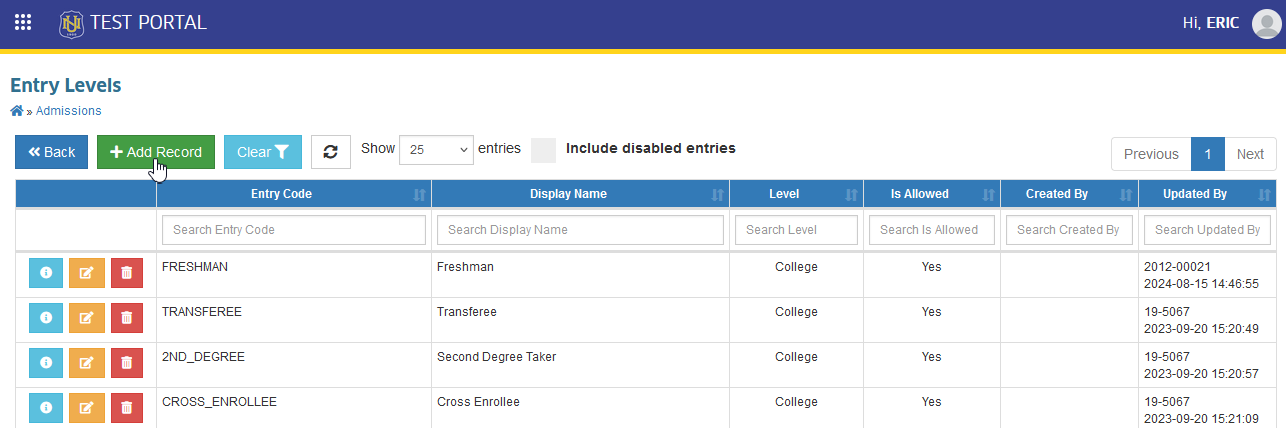
STEP 1. In the Entry Levels list view page, click the button above the table.
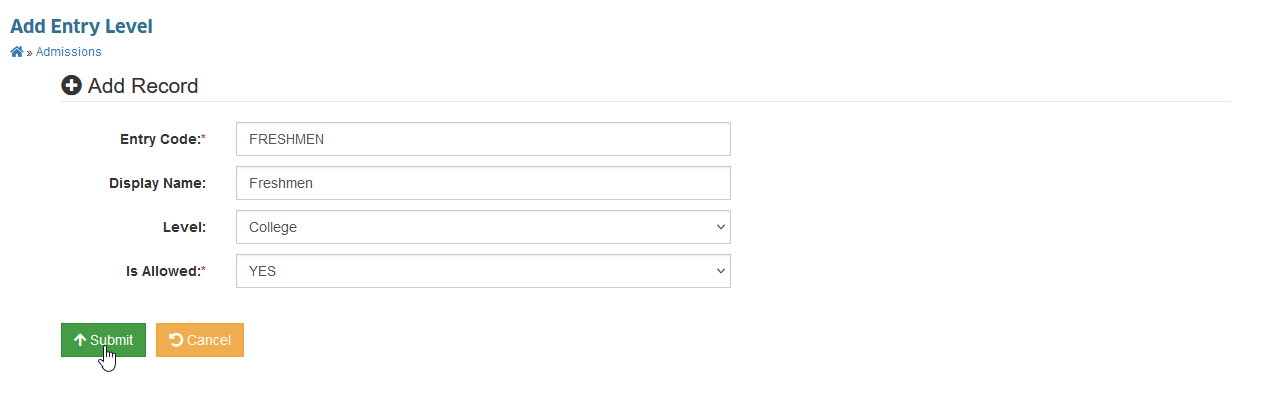
STEP 2. In the Add Entry Level page, enter the information needed in the entry fields.
| Field Name | Description | Required |
|---|---|---|
| Entry Code | The entry level code. | Yes |
| Display Name | The entry level display name. (Displayed in applicants end in NU Quest.) | No |
| Level | The education level of the entry level to create (choose between College or SHS.) | No |
| Is Allowed | The entry level setting (Set Yes if the university will accept this entry level.) | Yes |
STEP 3. After the required information has been encoded, click the button.
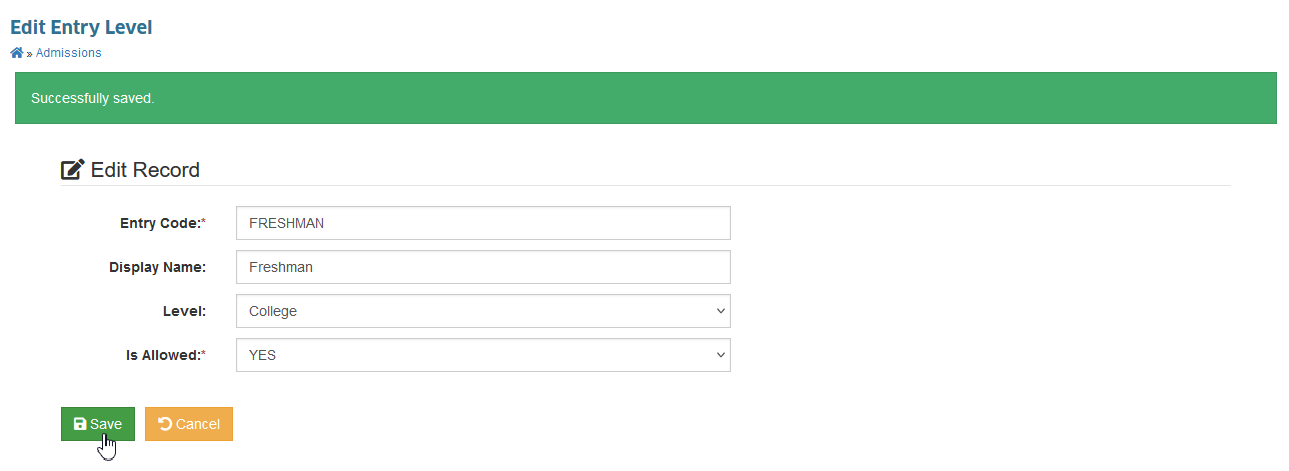
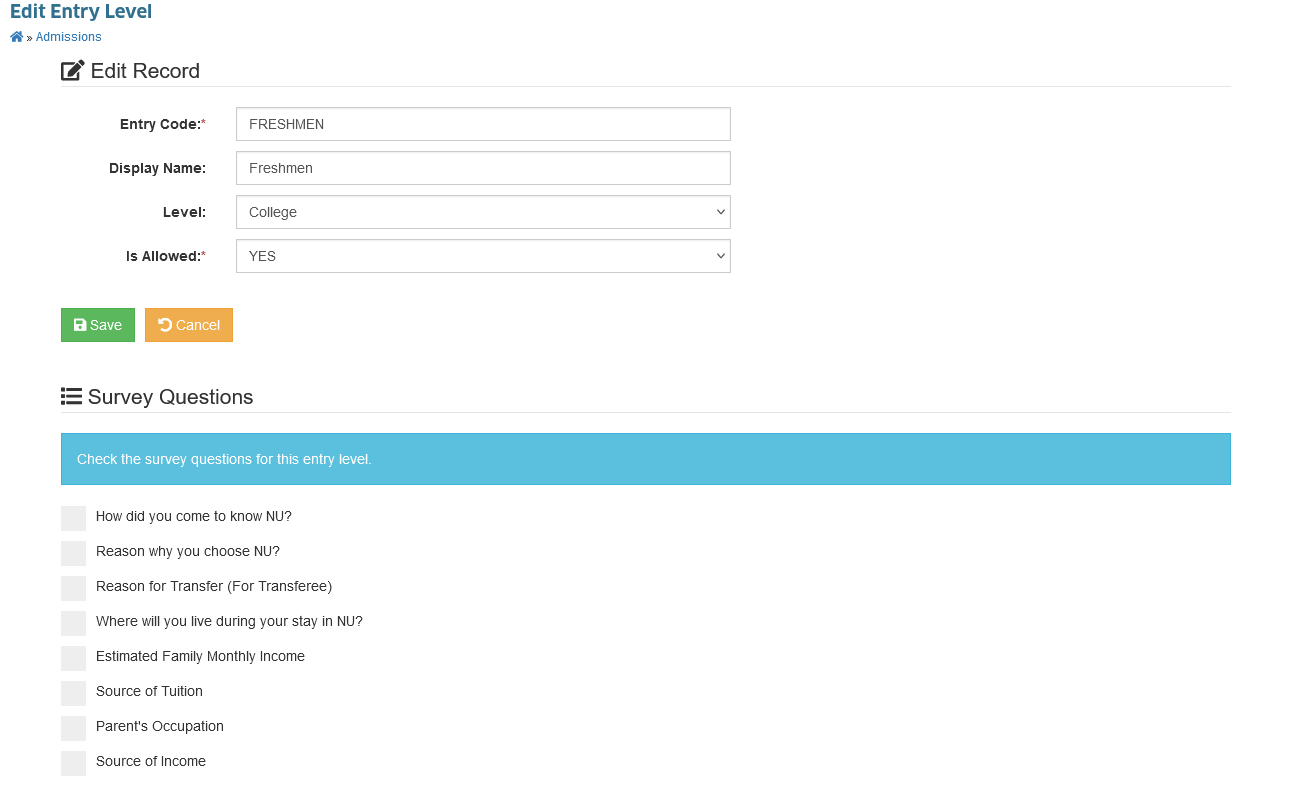
STEP 4. User will be redirected to Edit Entry Level page, to allow the user to manage survey questions for that specific entry level. Check the Survey questions applicable for the specific entry level.
How to Edit an Entry Level?
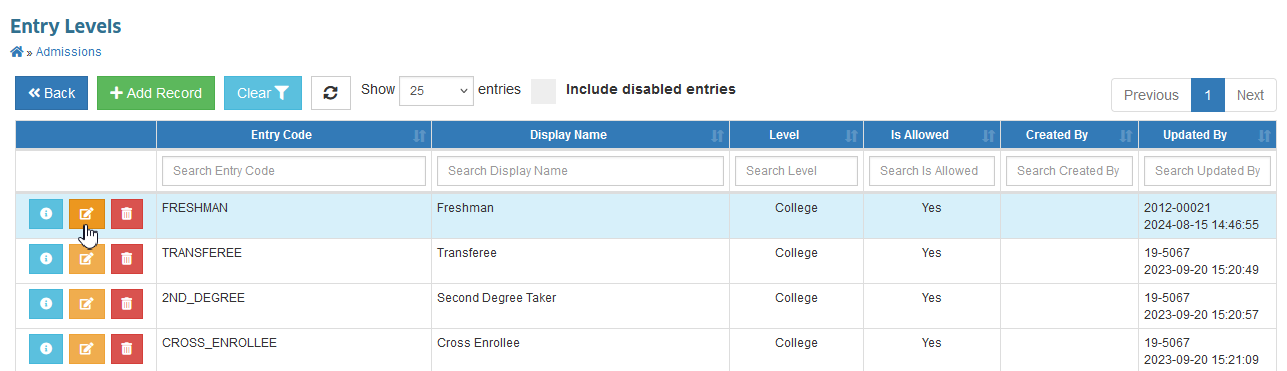
Follow the steps below on how to modify an existing entry level.
STEP 1. In the Entry Level listview page, click the corresponding button of a record.
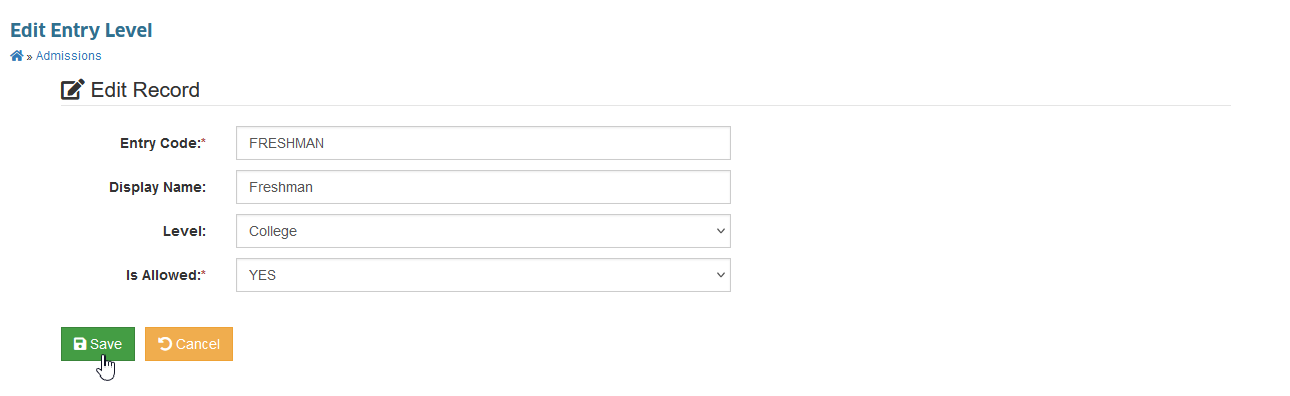
STEP 2. In Edit Entry Level page, modify the necessary fields.
STEP 3. Click button to save changes.
How to Disable an Entry Level?
Follow the steps below on how to disable an entry level record.
STEP 1. Follow the Steps on How to Edit an Entry Level.
STEP 2. Make sure to ser the Is Allowed to NO.
Once an Entry level has been disabled, applicants with this type will not be able to apply.
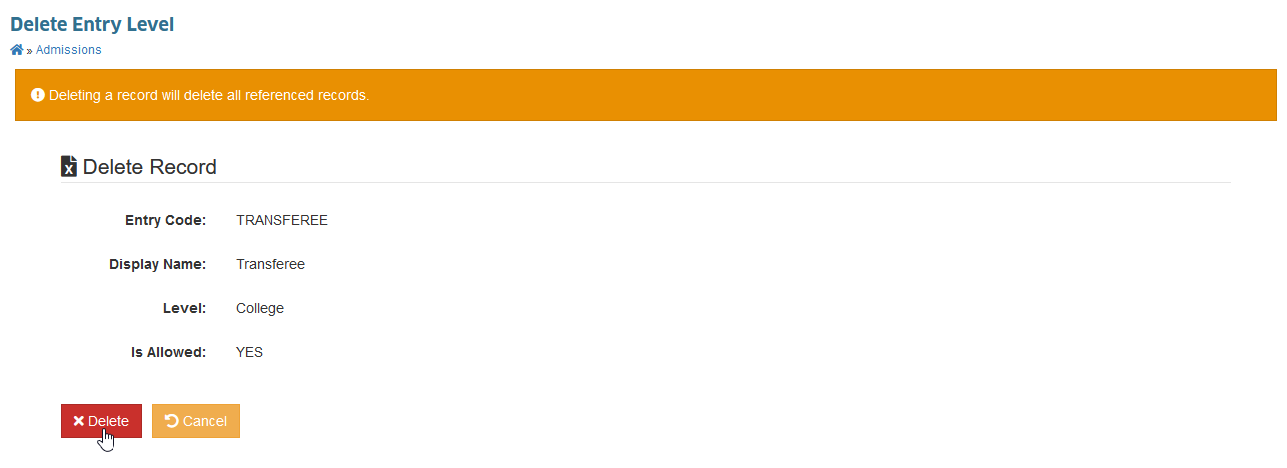
How to Delete an Entry Level?
STEP 1. In the Entry Levels listview page, click the corresponding button of a record. The page will redirect to Delete Entry Level page.
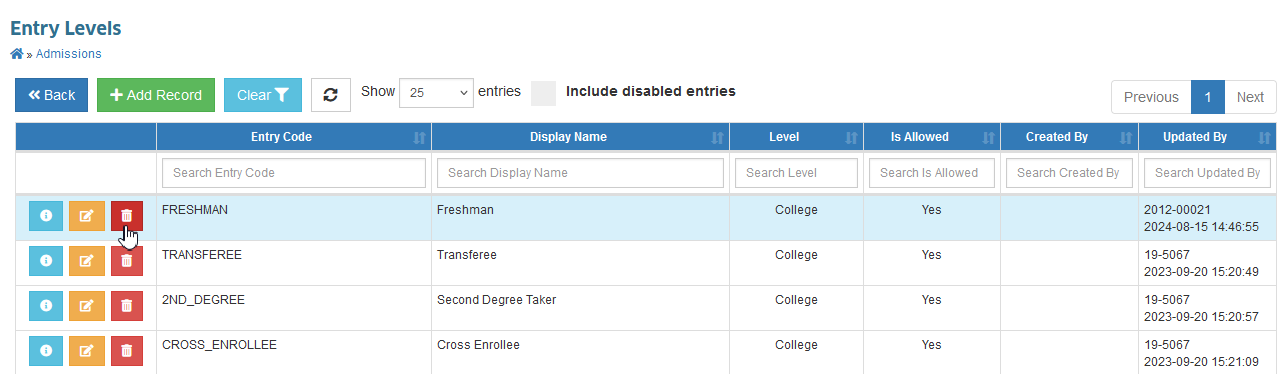
STEP 2. In Delete Entry Level page, click the button.
How to Manage Entry Level's Survey Questions?
Follow the steps below on how to manage active survey questions for each entry level.
STEP 1. In the Entry Level listview page, click the corresponding button of a record.
STEP 2. In the Edit Entry Level page, refer to Survey Questions section.
STEP 3. Check/uncheck the questions which are appropriate for the specific entry level.
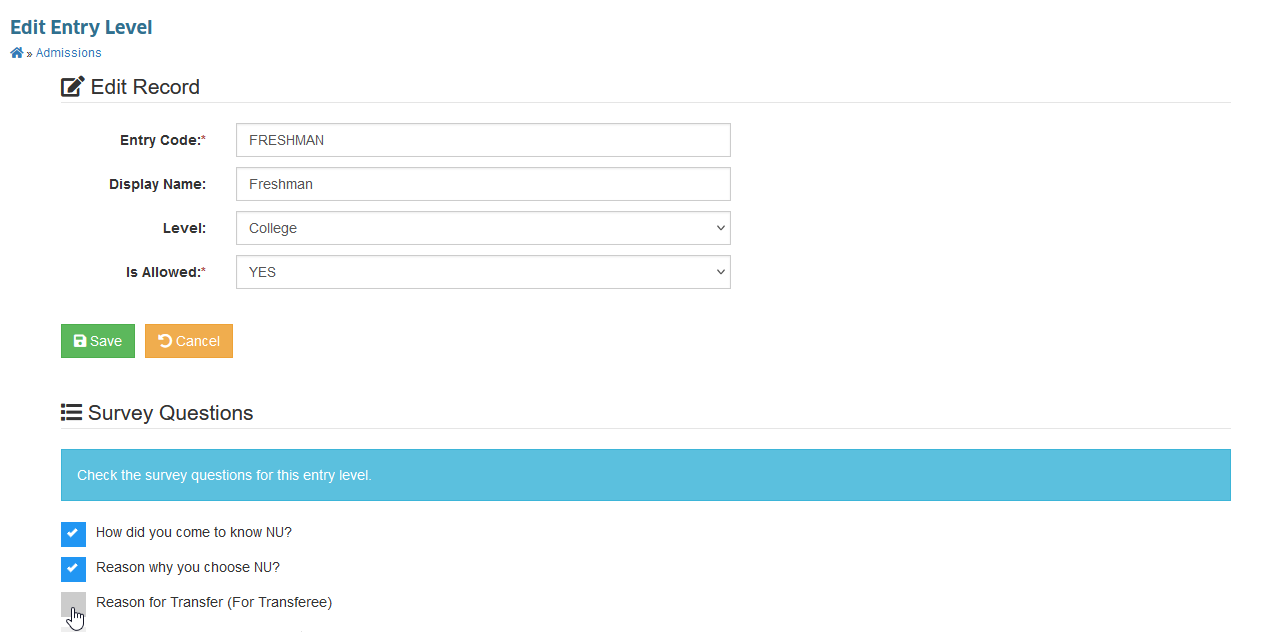
STEP 4. Click the button to reflect changes.