Application Terms
View and Manage list of application terms for Admission.
This module is used to manage application terms of Admission for accepting applicants via NU Quest.
Required Permissions
This module requires the following permissions to be fully used:
-
View Application Terms - this permission allows the user to access the module and export a report.
-
Add Application Terms - this permission allows the user to add a new record.
-
Edit Application Terms - this permission allows the user to edit and update existing record.
-
Delete Application Terms - this permission allows the user to delete an existing record.
How to Access the Module?
To access the module, make sure you have the View Application Terms permission. If it doesn’t appear in your portal, request access from your System Administrator.
To access the module go to Admission > Application Terms
Click the module tab to redirect to Application Terms page.
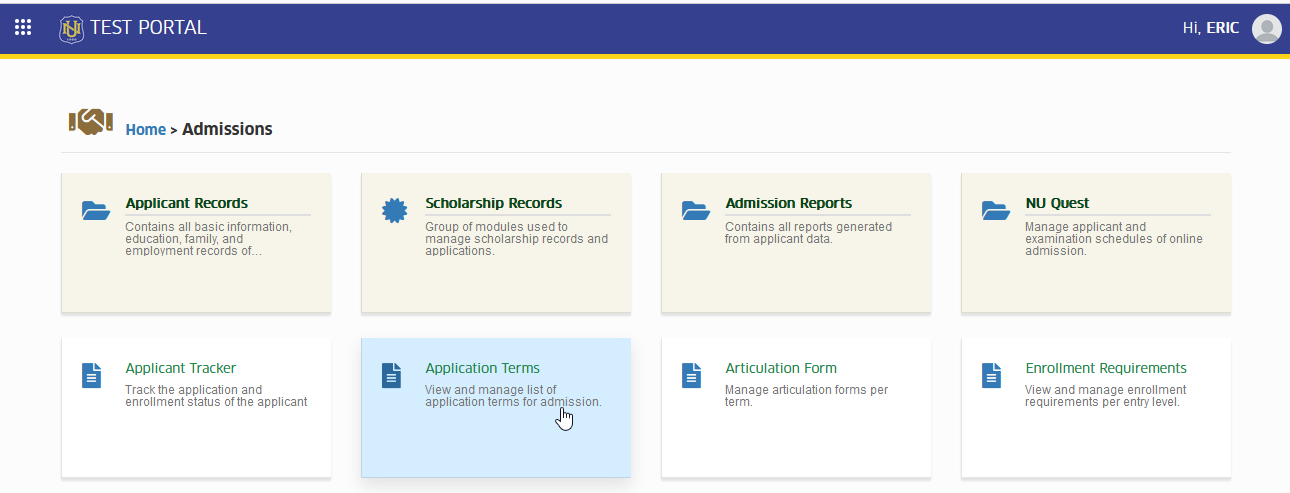
Manage Application term
Users with permission are allowed to manage the Application Term module.
How to Add New Application Term?
To add new application term follow the steps below.
STEP 1. In the Application Terms listview page, click the button.
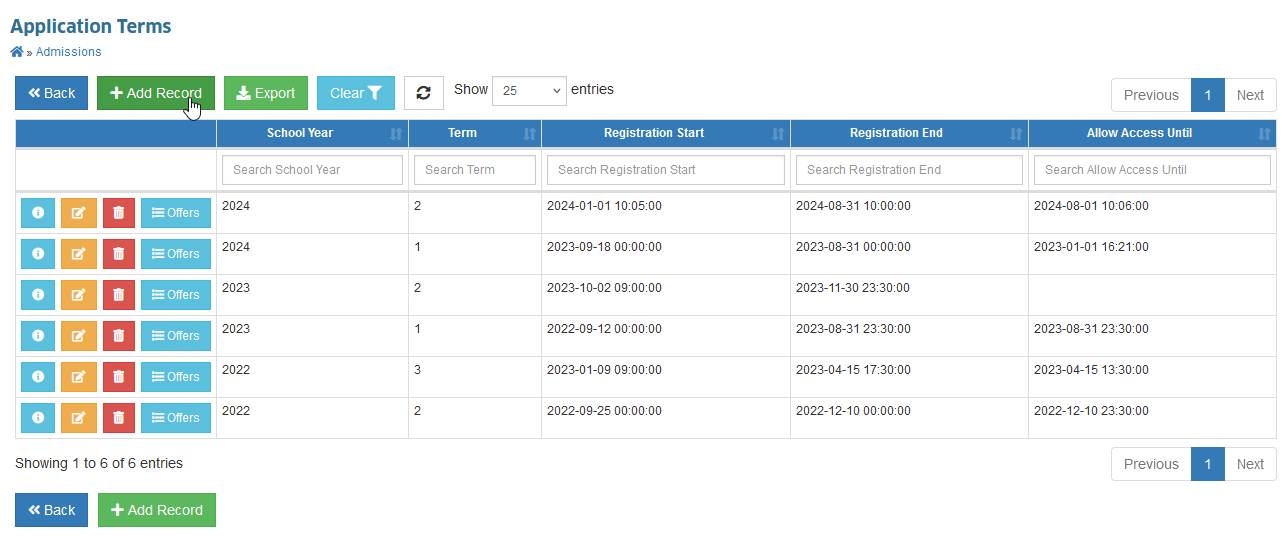
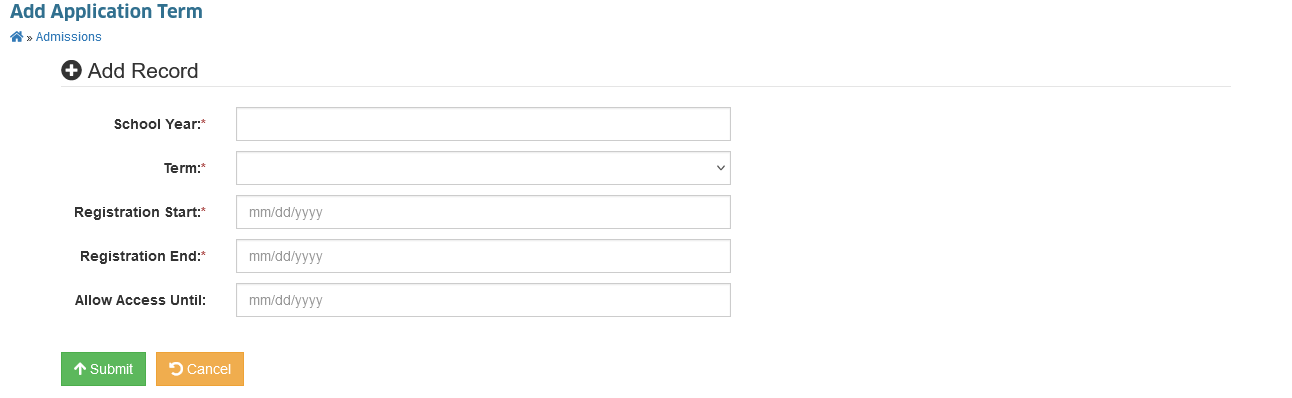
STEP 2. In the Add Application Term page, specify the following fields:
| Field Name | Description | Required |
|---|---|---|
| School Year | The school Year of the new application term. | Yes |
| Term | The school term of the new application term. | Yes |
| Registration Start | Starting date to accept new applicants. | Yes |
| Registration End | Last date of accepting new applicants. | Yes |
| Allow access until | Ending date to access the application term created. (leave it blank if you wish to open the application terms permanently) | No |
STEP 3. Click the button.
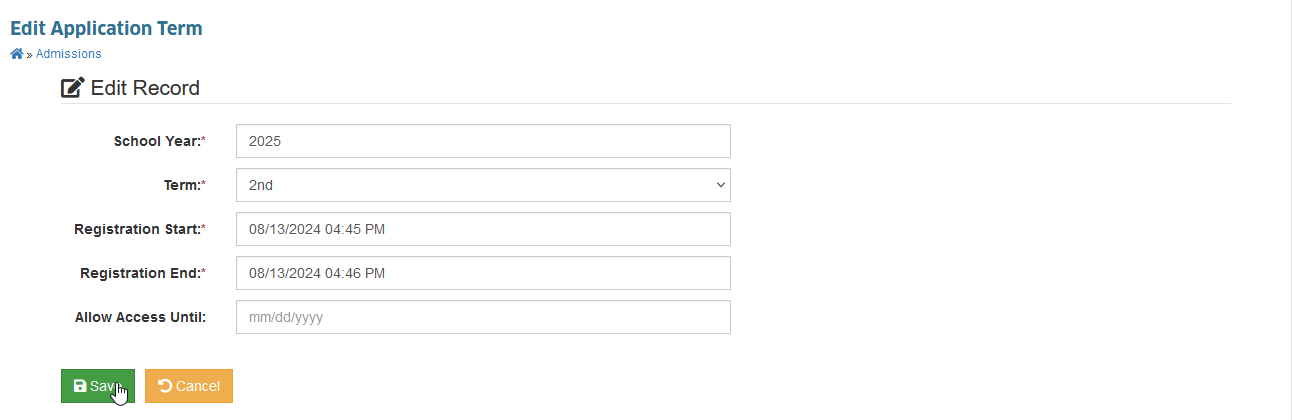
STEP 4. You will be redirected to Edit Application Term page. In Edit Record section, click the to save the new application term record.
How to Edit a Term record?
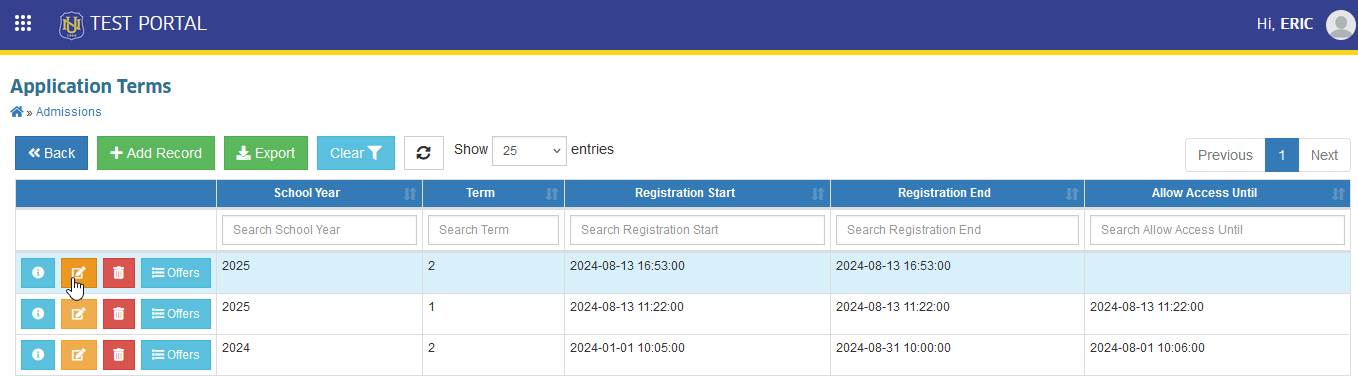
STEP 1. In Application Terms list view page, under the actions column, click the button corresponding to the application term you want to modify. The page will redirect to Edit Application Term page.
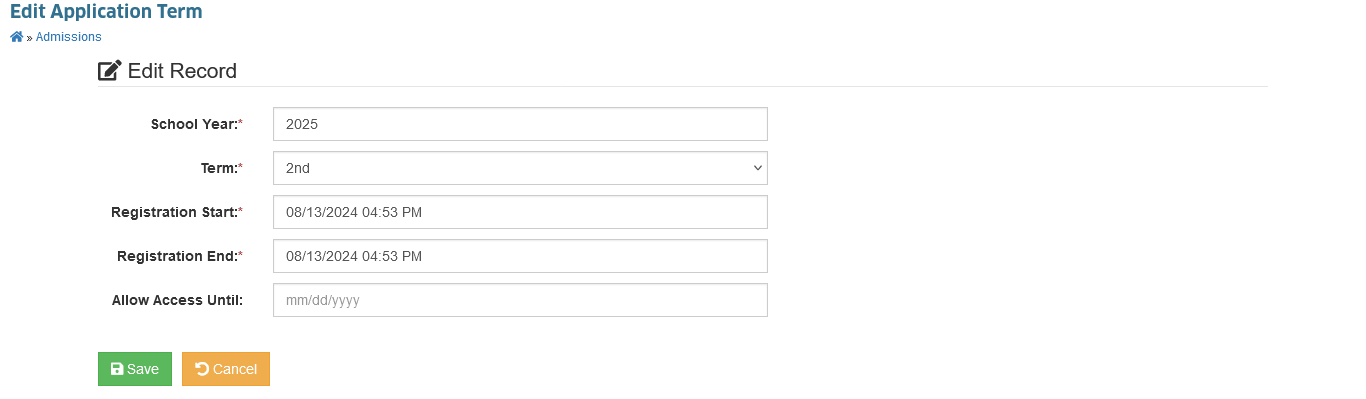
STEP 2. In Edit Application Term module, modify the application term record and click the button.
How to Delete existing Term record?
Follow the steps below on how to delete application term.
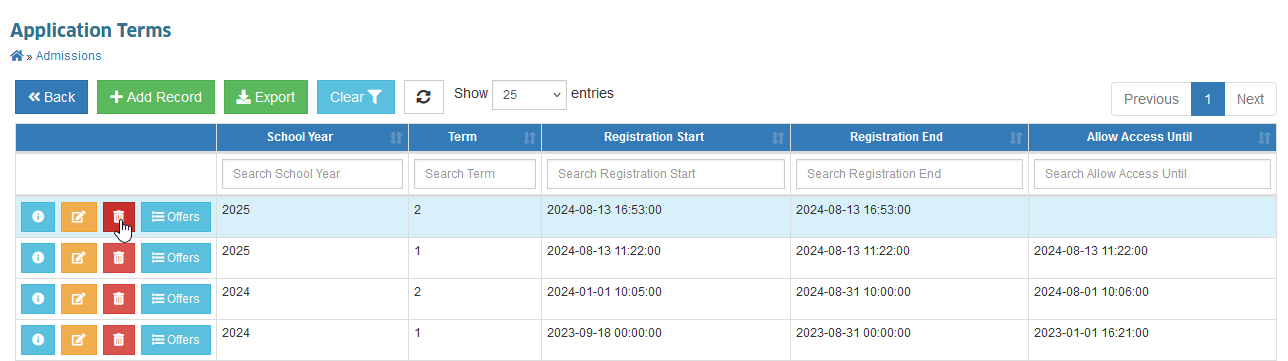
STEP 1. In Application Terms list view page, under the actions column, click the button corresponding to the application term you want to remove.
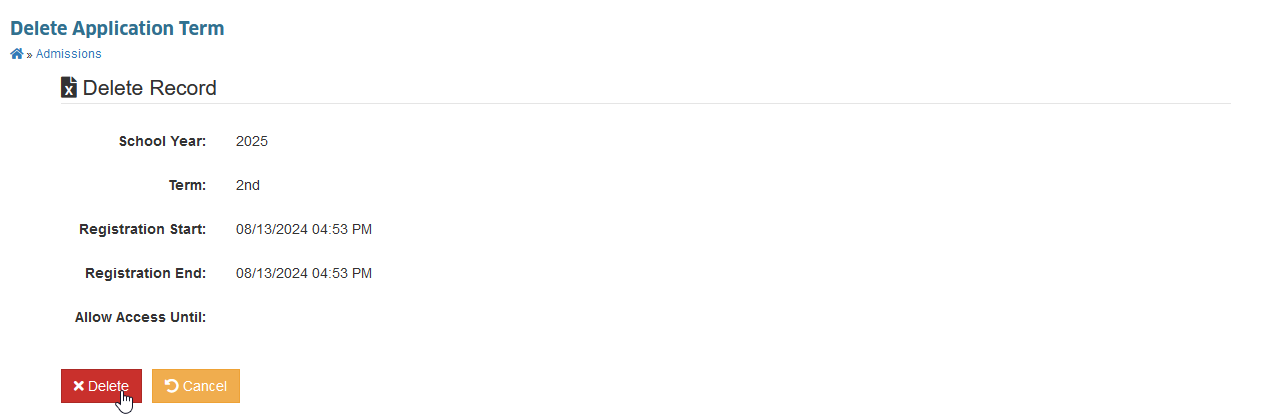
STEP 2. You will be redirected to Delete Application Term page, Proceed with the record removal, by click the button.
Manage Scholarship Application Schedules.
To manage Academic scholarship application dates, go to the term created then click the edit button or you may directly manage the scholarship schedule after creating the application term.
Other scholarship types like Special and Financial are available anytime and do not require application schedules.
How to Add an Event?
To add new scholarship application schedule for the term. Follow the steps below.
STEP 1. In Edit Application Term page, under Manage Scholarship Schedules section, click the button.
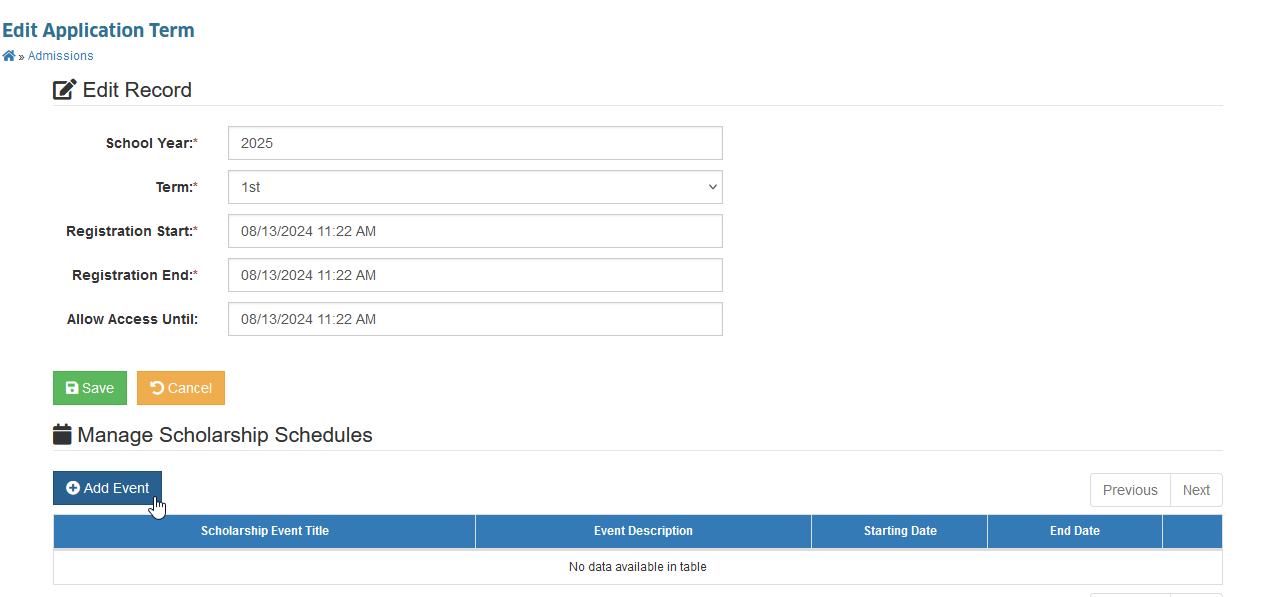
STEP 2. A form will appear, fill out the form by entering the required information of the schedule. Refer to the tables below for the required fields. Then, click the button to save the schedule.
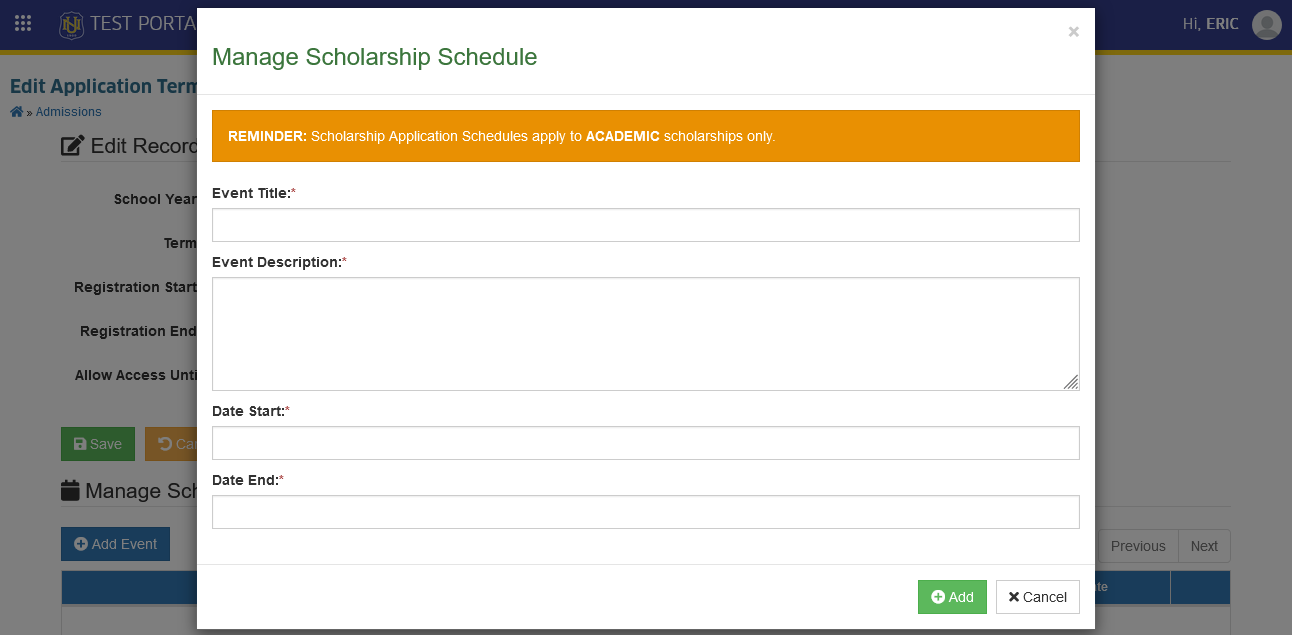
| Field Name | Description | Required |
|---|---|---|
| Event Title | The name of the event. (indicate the name of the scholarship for easier reference.) | Yes |
| Event Description | The event description. (Specify instructions or guides for applicants.) | Yes |
| Date Start | Starting date to accept scholarship applications. | Yes |
| Date End | Last date of accepting scholarship applications. | Yes |
You can manage scholarship application period after saving the new application terms. Or you can manage scholarship application period by editing existing application terms.
How to Delete an Event?
Although it is discouraged, records should be deleted if there is no other option. Follow the steps below to delete a scholarship application schedule for ACADEMIC type of scholarship.
STEP 1. On the Application Terms list view page, under the actions column, click the corresponding button of the term you want to manage.
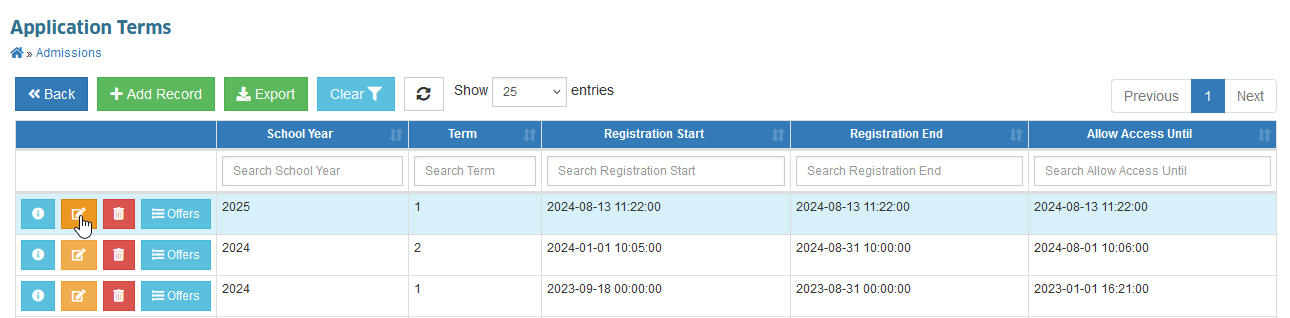
STEP 2. You will be redirected to Edit Application Term page. Scroll down to Manage Scholarship Schedules section. Delete the event by clicking the button and confirm your action.
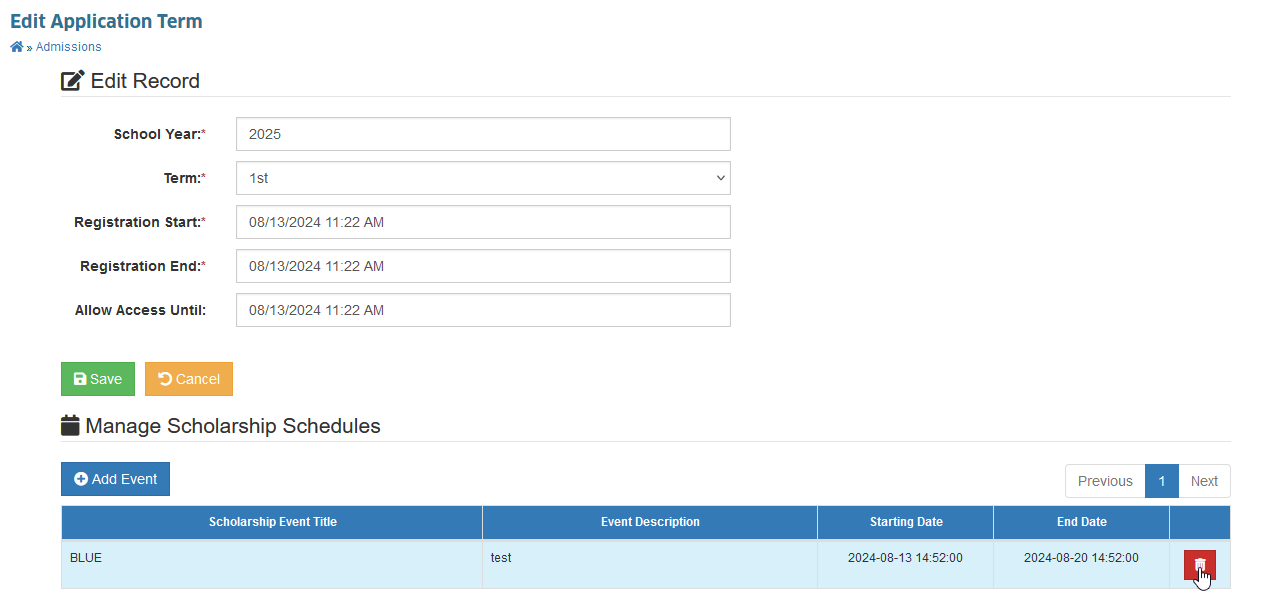
Deletion of scholarship schedule is irreversible. Be careful.
Manage Program Offering for the Term
The Admissions personnel can manage which programs to offer for every applicant's entry level for a given term using this module.
Follow the steps below on how to manage program offering for specific term.
STEP 1. In Application Terms listview page, click the corresponding button of the term you want to manage.
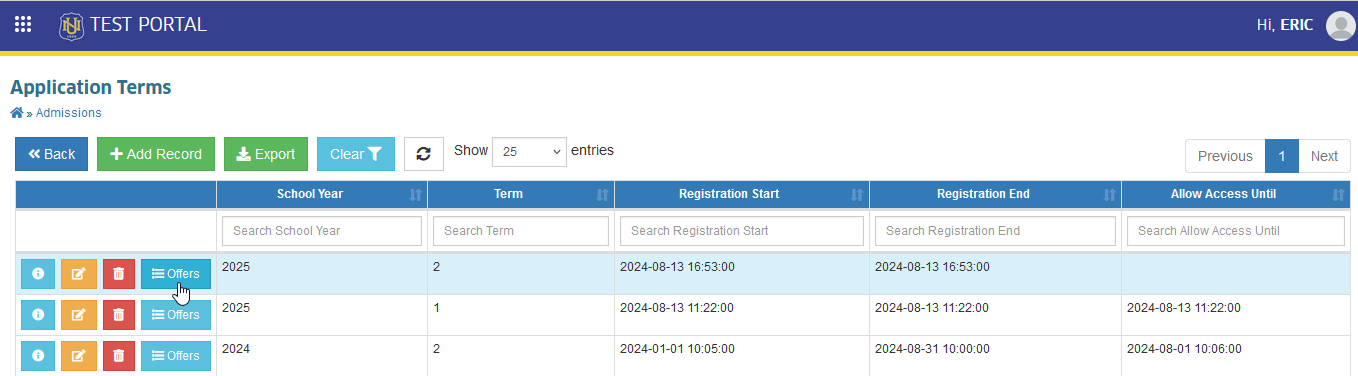
STEP 2. After being redirected to the Offered Programs per Term page, select the programs to be offered for the term by checking the corresponding checkbox on the page.
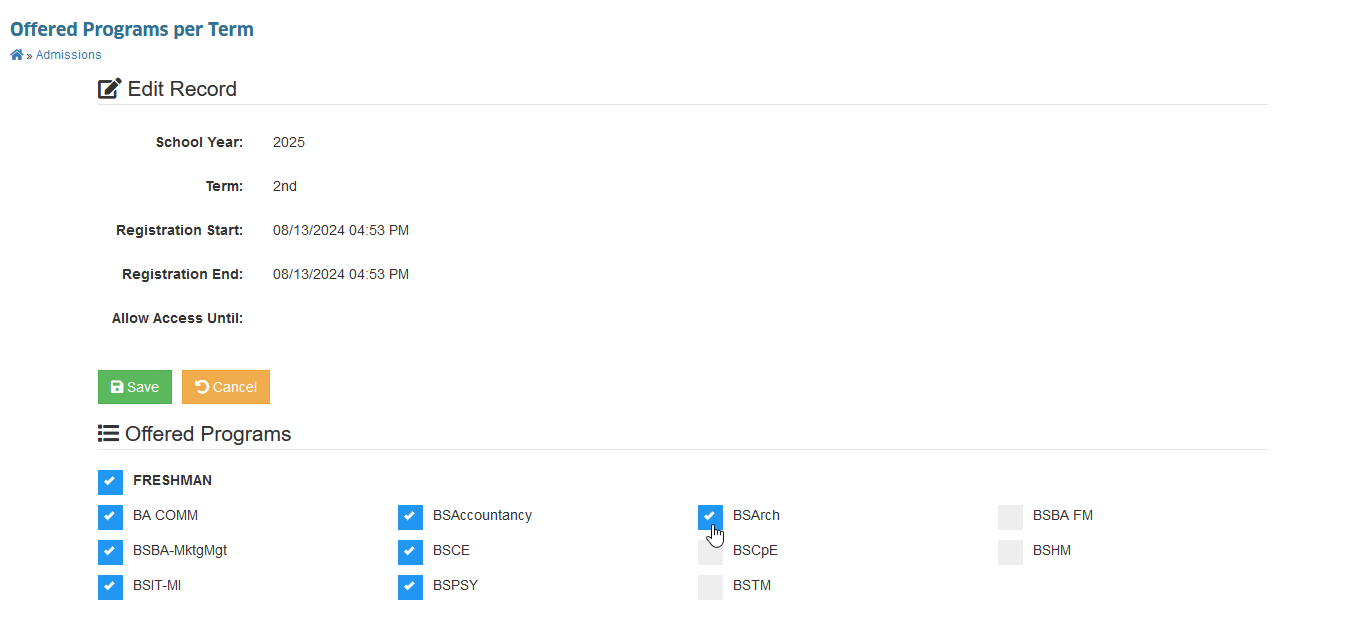
STEP 3. After all the programs has been enabled, click the button.
If no program offering has been set for the specified term, an error message will be displayed indicating that no program offering is available.