Schools
The Schools module contains a complete list of educational institutions both in the country and abroad. This serves as your central database, making it easy to record, view, and manage school information whenever needed.
What You Can Do in the Schools Module
-
Add a school – Record details of a school located in the country or abroad.
-
Edit school information – Update details if there are changes.
-
View schools – Browse the list of all recorded schools.
-
Delete a school – Remove a school from the list if it’s no longer valid or needed.
Required Permissions
-
Add School - Allows the user to record a new school in the system by entering its details, such as name, location, country, and type.
-
Delete School - Removes a school from the list if it is no longer valid or needed.
-
Edit School - Allows the user to update or change the details of an existing school record.
-
View School - Displays the complete list of schools, both local and abroad, for browsing or searching.
How to access the module?
To access the module, make sure you have the View School permission. If it doesn’t appear in your portal, request access from your System Administrator.
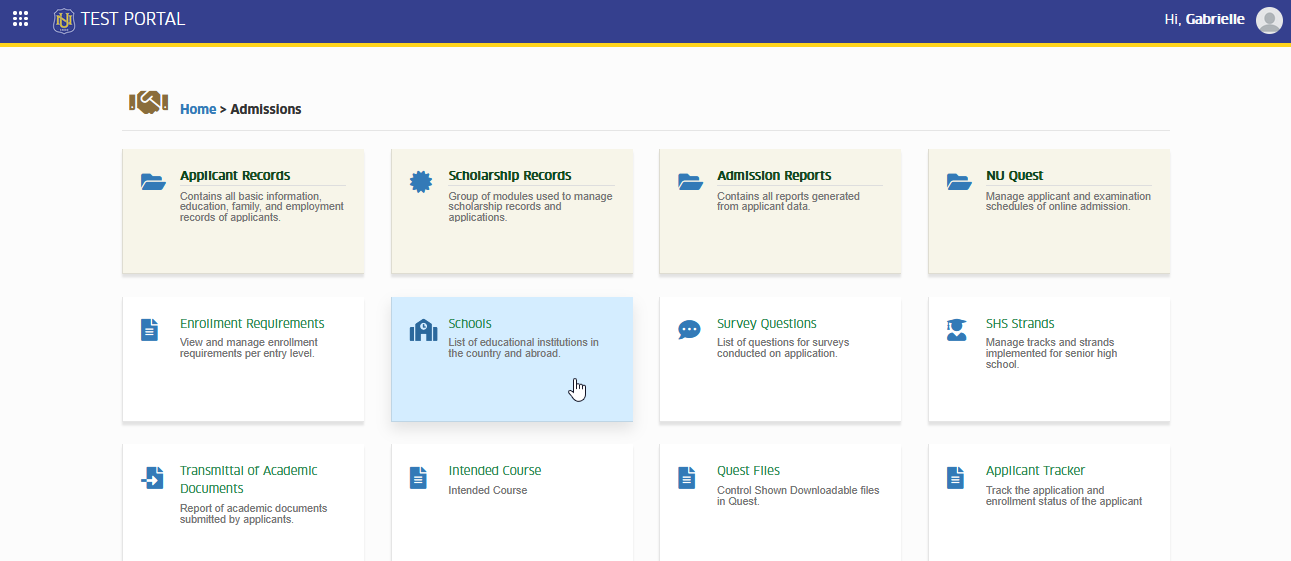
To access the module go to Admissions > Schools
Click the module tab to redirect to Schools page.
How to Use the Module
This section guides you through the basic steps in managing school records. It explains how to add new schools, update existing details, delete records that are no longer needed, and view the full list of schools in the country and abroad.
Viewing the List of Schools
-
The module displays all recorded schools in the country and abroad.
-
Use the search bar to quickly find a school by name or address.
Adding a School
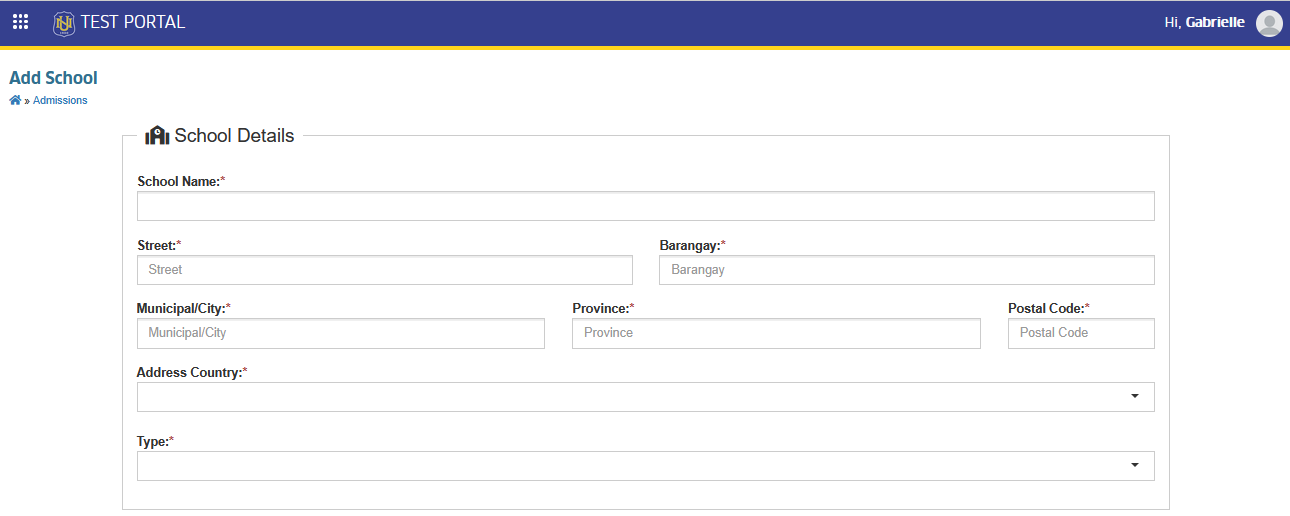
This option lets you record a new school in the system. By filling out the required details such as the school’s name, country, address, and type, you can add both local and international schools to keep the list complete and up to date.
Follow the instruction below on how to add a school
STEP 1. On the Schools list view page, click the button at the top of the table. This will take you to the Add School page where you can enter the school’s details.
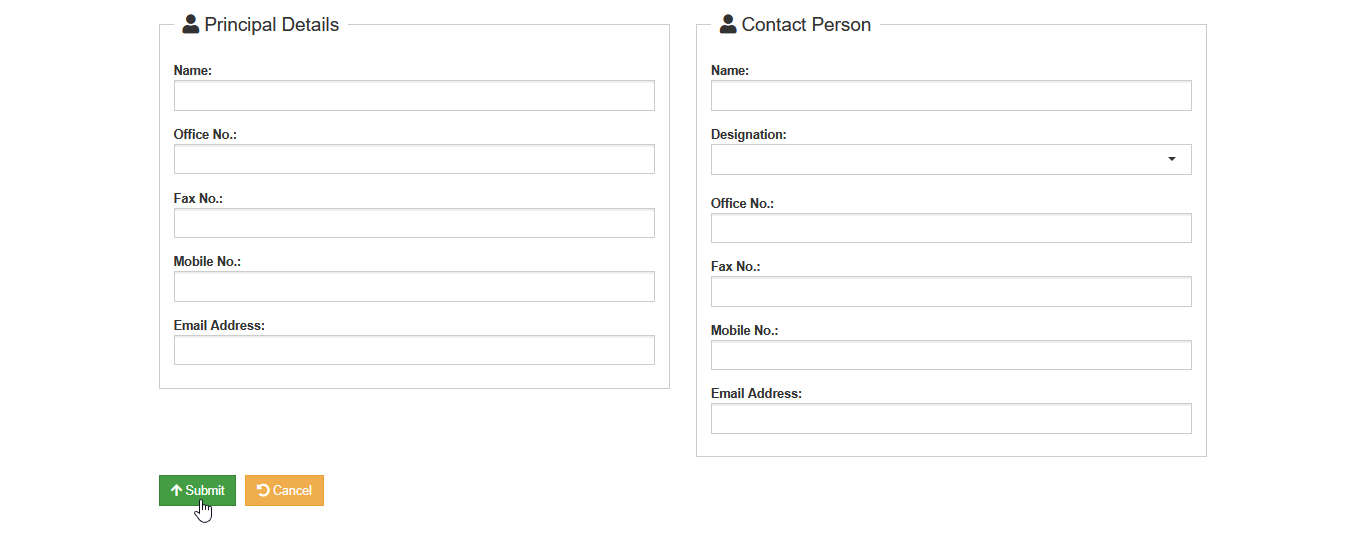
STEP 2. Fill in the required fields, including the School Name, Complete Address, and the Type of school (Private, Public, or Parish). Double-check the information you entered to make sure all details are correct and complete.
STEP 3. Once done, click the button to add the school to the list.
After saving, the system will redirect you back to the Schools list view page, where the newly added school will now appear.
Editing School Information
This option allows you to update the details of an existing school record. If there are changes in the school’s name, address, or type, you can edit the information to keep the records accurate and up to date.
Follow the instruction below on how to update school
STEP 1. On the Schools list view page, click the corresponding button of the school record you want to update. This will redirect you to the Edit School page.
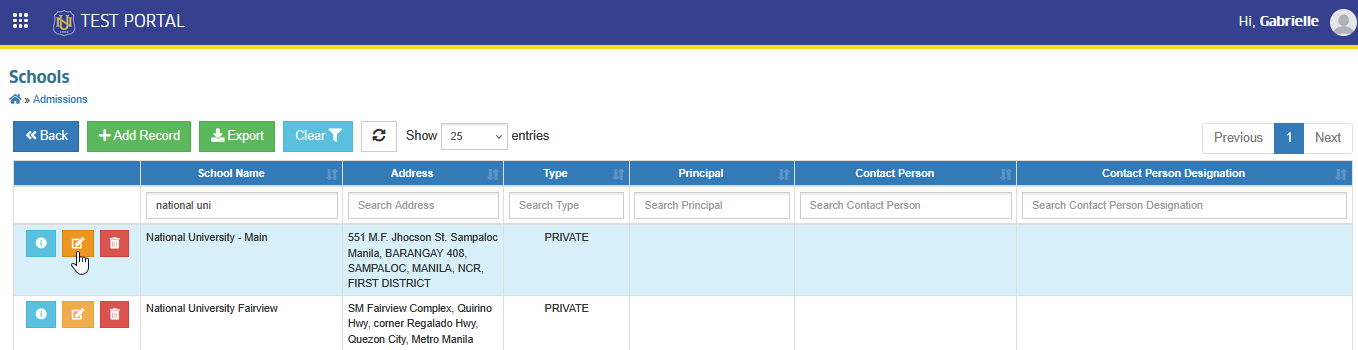
STEP 2. Update the necessary fields, such as the School Name, Complete Address, or Type of school (Private, Public, or Parish). Review the updated information to make sure all details are correct.
STEP 3. Once done, click the button to apply the changes.
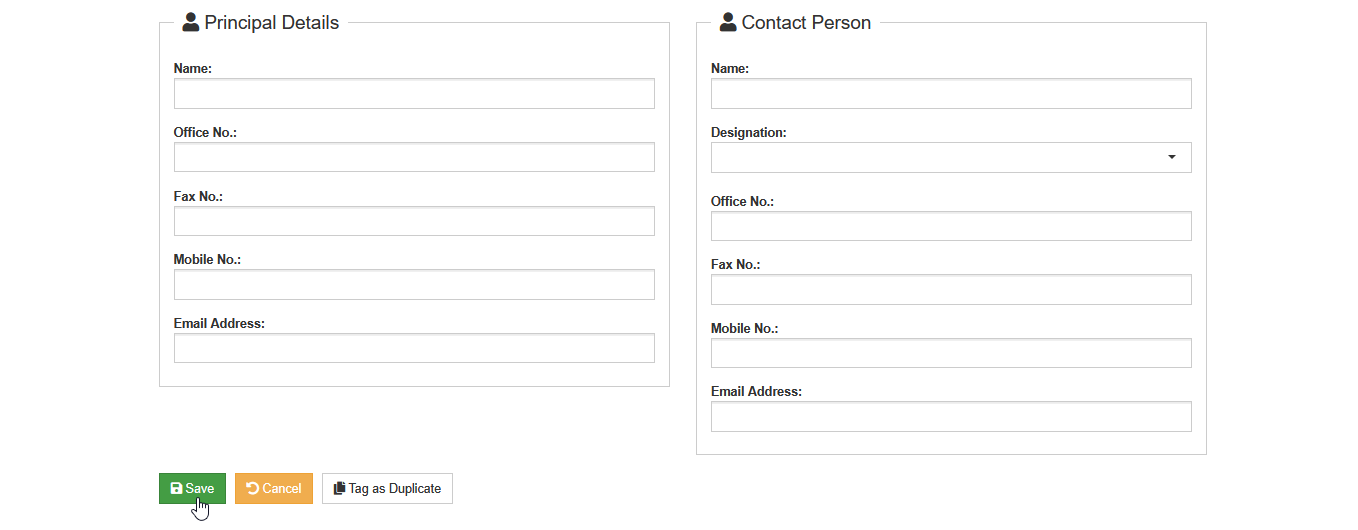
After saving, the system will redirect you back to the Schools list view page, where the updated school information will now appear.
Deleting a School
This option allows you to delete a school record from the system if it is no longer needed. However, if the school is already referenced in another record, it cannot be deleted and will remain stored in the system. This ensures that existing data linked to the school stays intact and consistent.
Follow the instruction below on how to delete a school record.
STEP 1. On the Schools list view page, click the corresponding button of the school record you want to remove. This will redirect you to the Delete School page.
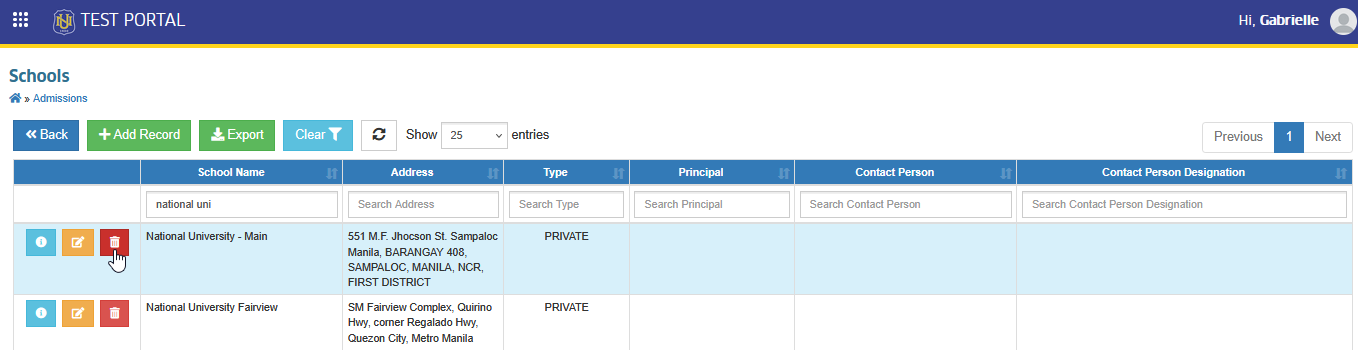
STEP 2. Review the school details displayed on the page to make sure you are deleting the correct record.
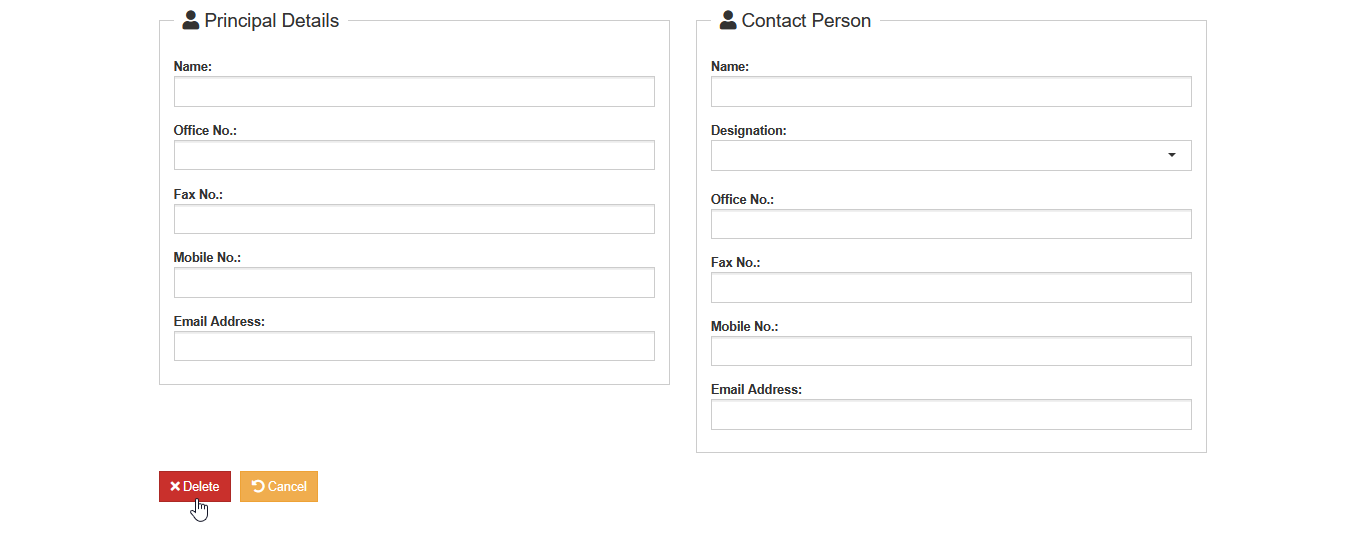
STEP 3. Click the button to confirm the deletion.
-
If the school record is not referenced anywhere else, the system will permanently remove it and redirect you back to the Schools list view page.
-
If the school record is already referenced (e.g., linked to other records), the system will not allow deletion, and the school will remain stored in the list.
Tag as Duplicate
Follow the steps below on how to tag a school record as duplicate.
STEP 1. On the Schools list view page, click the corresponding button of the school record you want to update. This will redirect you to the Edit School page.
STEP 2. On the Edit School page, click the button located at the bottom of the page. Once clicked, the Mark as Duplicate prompt will appear for confirmation.
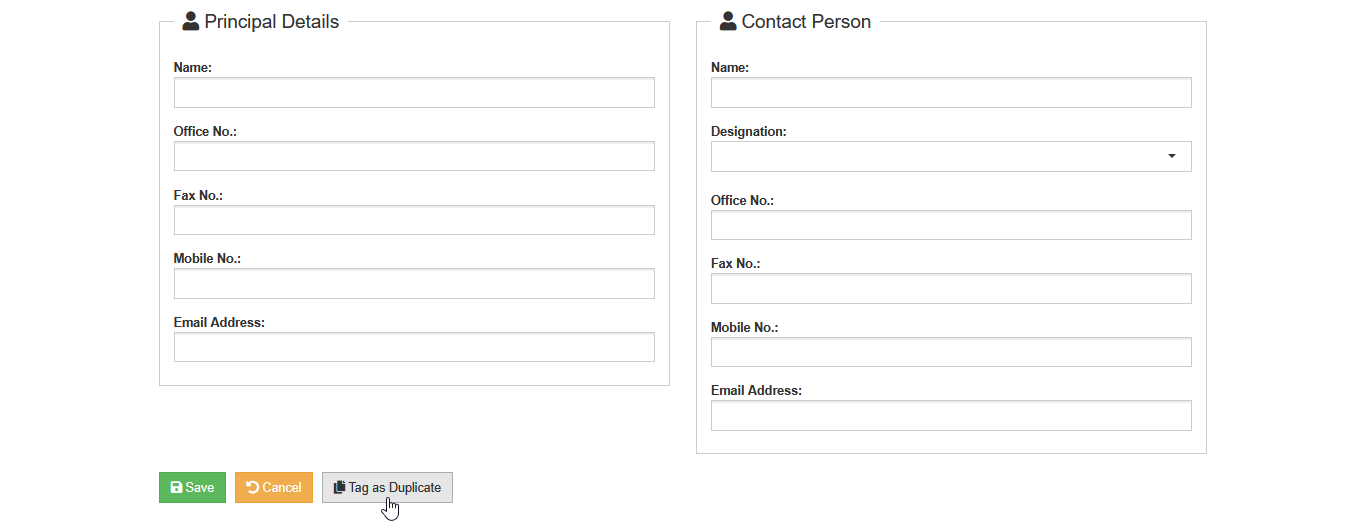
STEP 3. On the prompt, select the Original School in the dropdown and click the button.
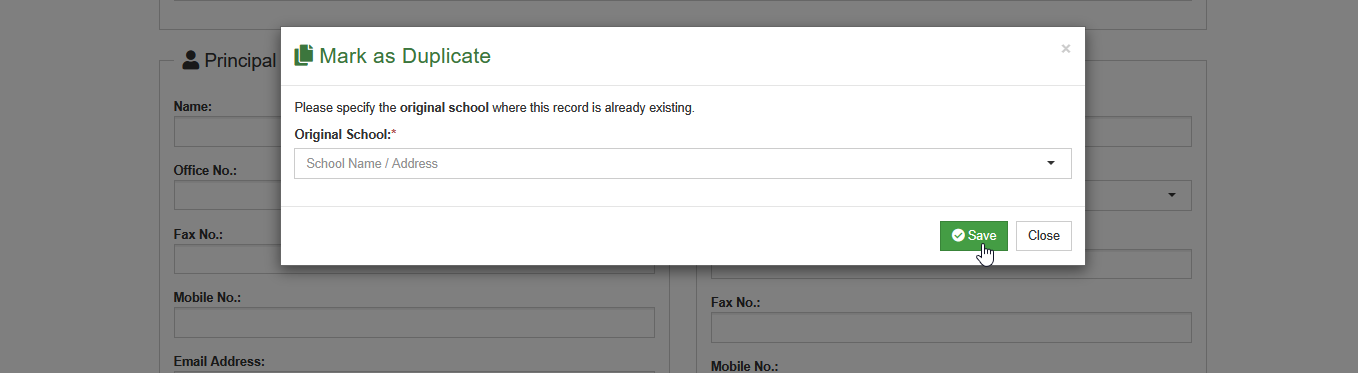
The options that will appear in the Original School selection are records with identical or nearly identical names to the current record being tagged.
For more questions or concerns, email us at nu-desk@national-u.edu.ph