Survey Questions
List of questions for surveys conducted on application.
This module is used to manage the survey questions which appear in NU Quest for applicants.
Required Permissions
To use the complete module features, user must have access to the module permissions below.
-
Permissions to manage survey question.
-
Add Survey Questions - This permission allows the user to add a new record.
-
Delete Survey Questions - This permission allows the user to delete a record.
-
Edit Survey Questions - This permission allows the user to edit and update existing record.
-
View Survey Questions - This permission allows the user to view the module and export a report.
-
Permissions to manage survey choices.
-
Add Survey Choices - This permission allows the user to add survey choice.
-
Edit Survey Choices - This permission allows the user to edit, enable, and disable survey choices.
-
View Survey Choices - This permission allows the user to view survey choices.
-
Delete Survey Choices - This permission allows the user to delete survey choices.
How to Access the Module?
To access the module, make sure you have the View Survey Questions permission. If it doesn’t appear in your portal, request access from your System Administrator.
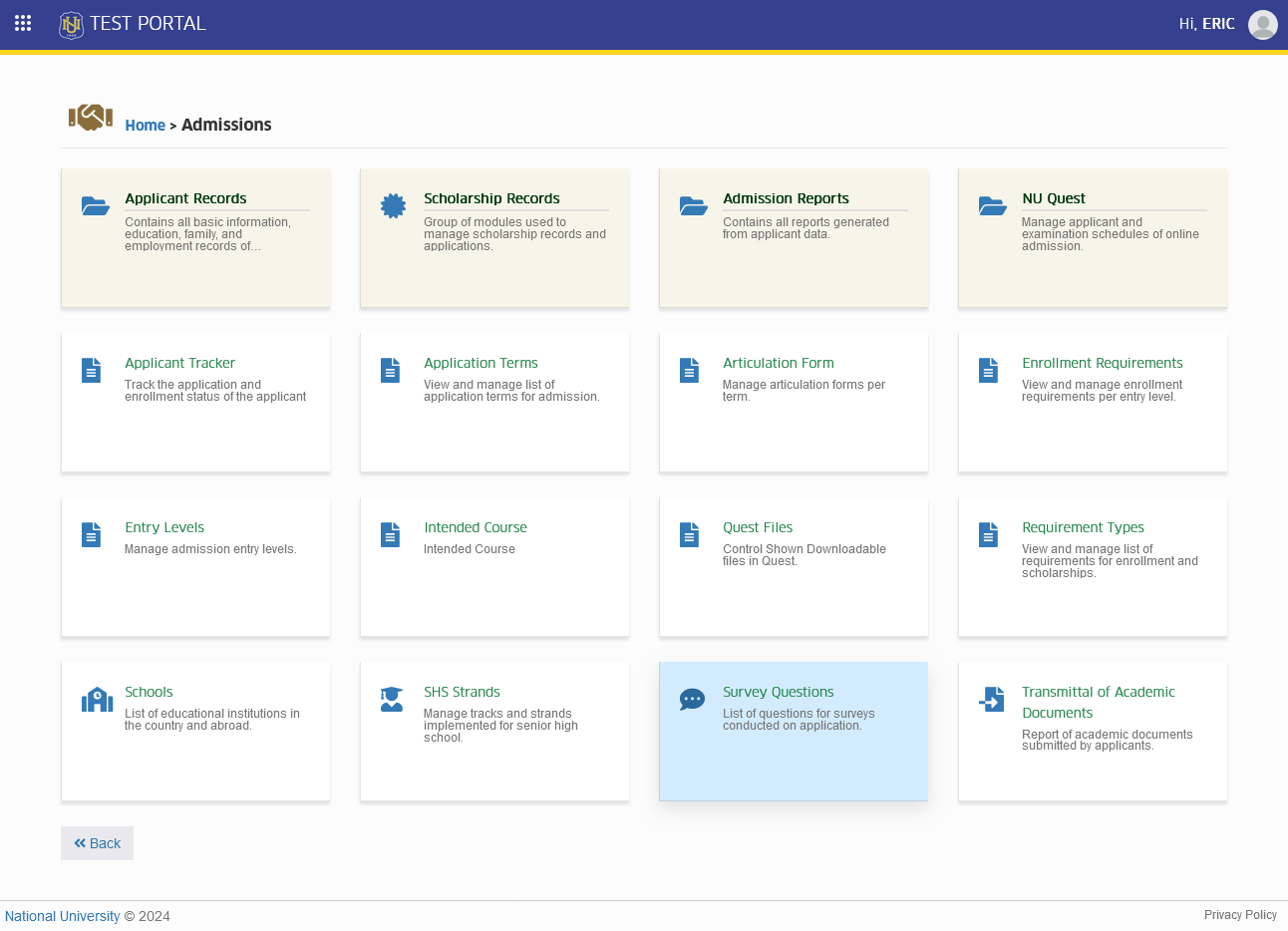
To access the module go to Admission > Survey Questions
Click the module tab to redirect to Application Terms page.
How to Manage Survey Question?
Admissions controllers are allowed to manage the displayed survey question. Follow the steps below on how to manage survey questions.
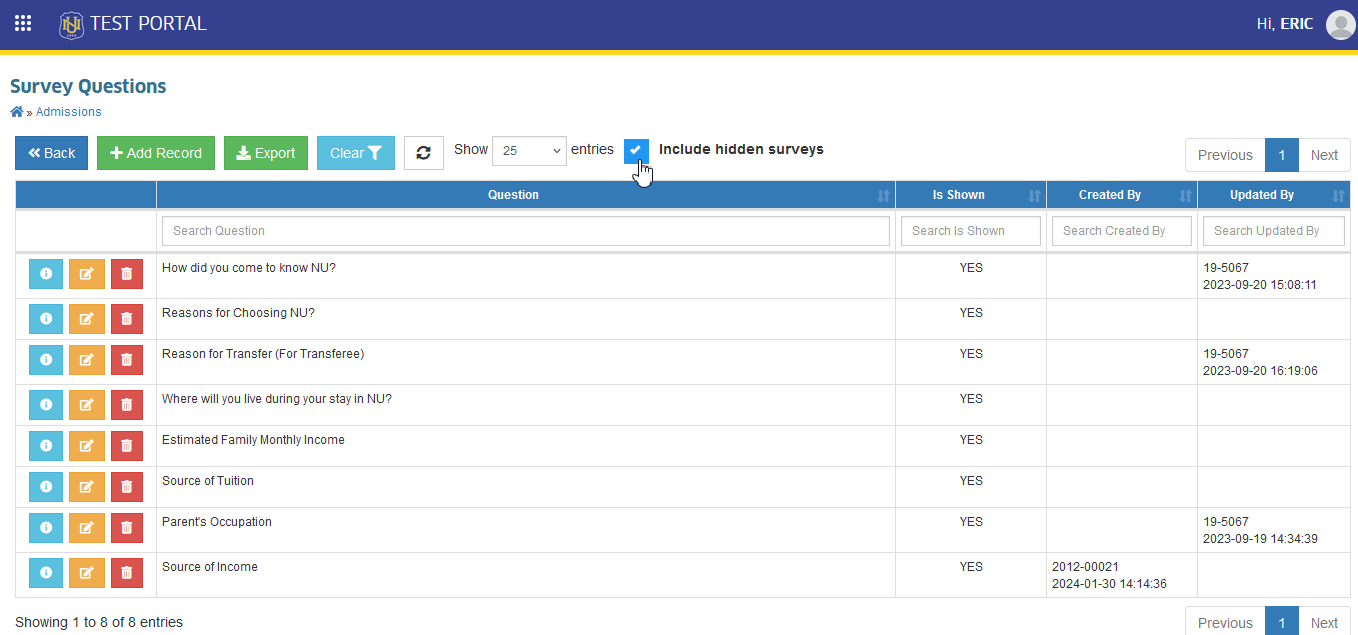
To view disabled survey questions, click the Include hidden surveys check box. This will show all the list of questions saved in this module. Refer to the image below.
How to Add a Survey Question?
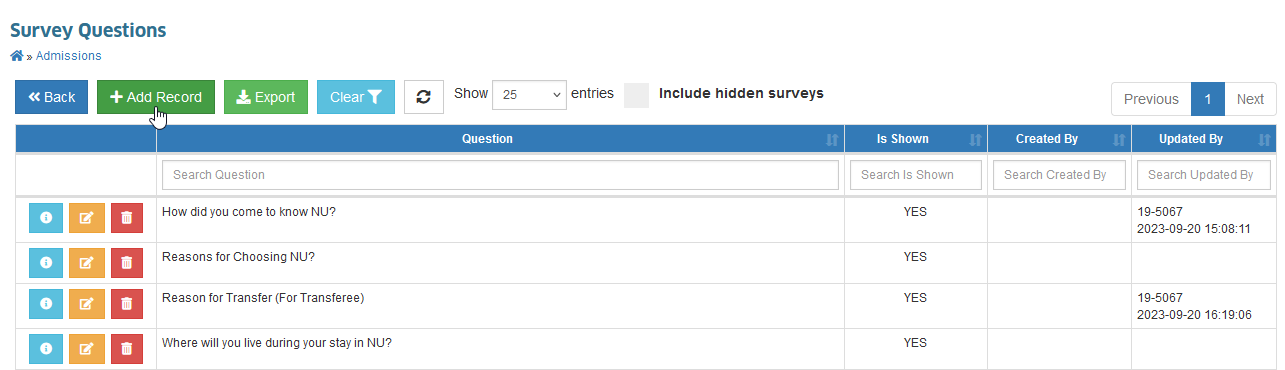
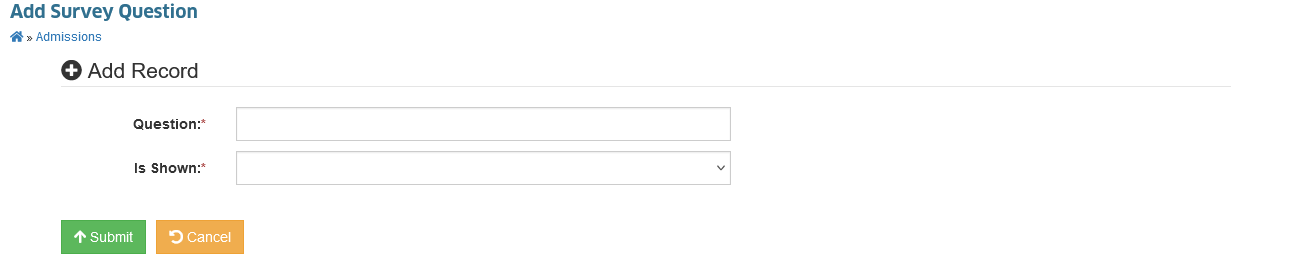
STEP 1. On the Survey Questions page, click the button above the table. You will be redirected to Add Survey Question page.
STEP 2. In the Add Survey Question page, encode all the data required, then click the button. The page will be redirected to Edit Survey Question page. For guidance on what to enter in the entry field, see the table below.
| Field Name | Description | Required |
|---|---|---|
| Question | The survey question | Yes |
| Is shown | If the question is Active, choose YES, If not choose NO. | Yes |
How to Edit Survey Questions?
Follow the steps below on how to edit and update survey questions.
Modifying a record may affect existing records with reference to that record. Be careful.
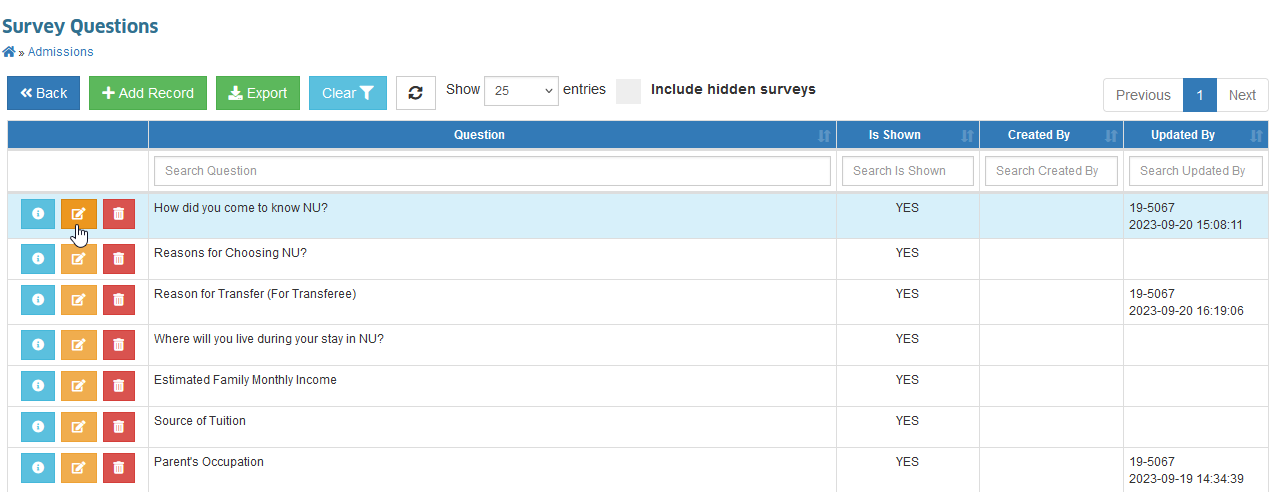
STEP 1. In the Survey Question page, under the actions column, click the corresponding button of the survey question you want to modify.
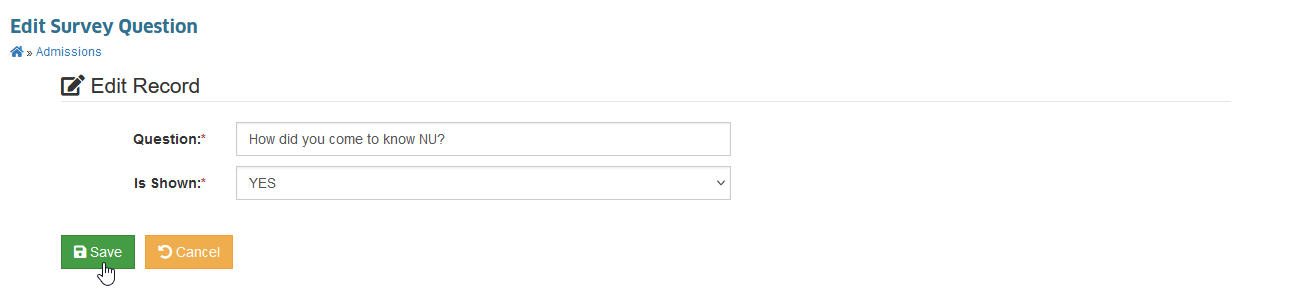
STEP 2. You will be redirected to Edit Survey Question page. Change the information you want to modify and click the button.
How to Delete Survey Questions?
Follow the steps below on how to delete survey question.
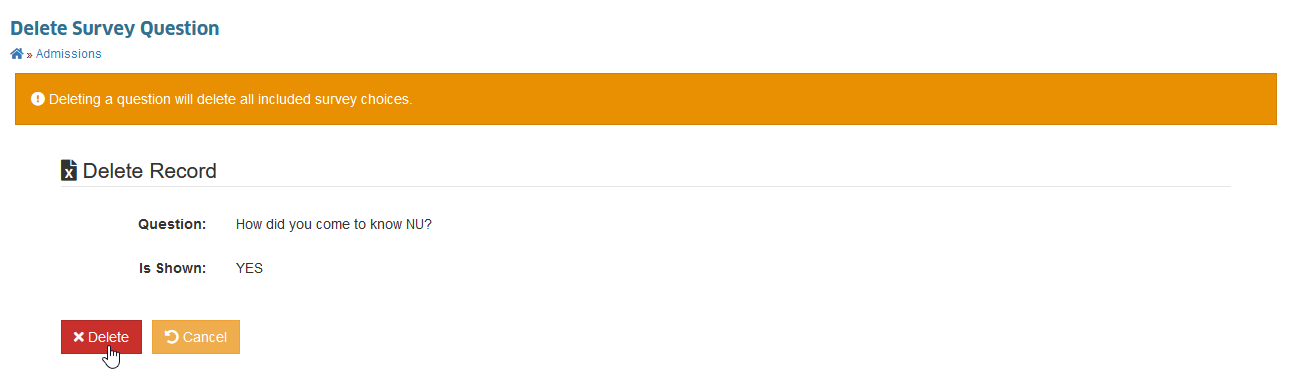
Deleting a survey question will delete all included survey choices.
This action will delete the record permanently from the system. If record to be deleted has already been referenced to other records, user is not allowed to proceed for deletion to keep the integrity of the data.
STEP 1. In the Survey Question page, under the actions column, click the button corresponding to the survey question you want to remove.
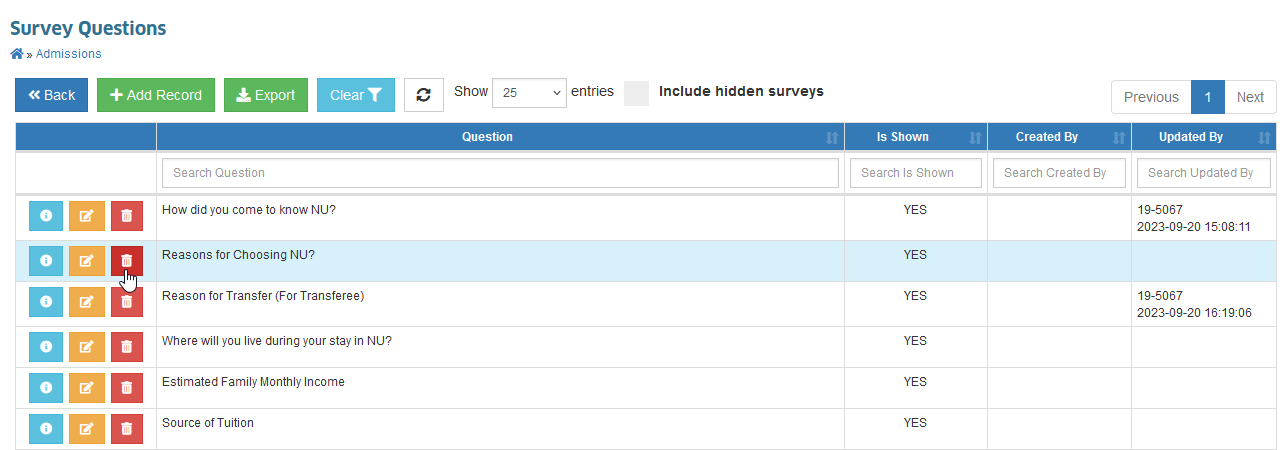
STEP 2. Once redirected to Delete Survey Question page, confirm with the deletion of record by clicking the button.
How to Disable a Survey Question?
If user is not able to delete an existing survey question, it is advisable to disable the question instead so it will not be included in NU Quest Surveys. Disable the survey question by setting Is Shown=NO.
How to Manage Survey Choices?
Admissions controllers are allowed to manage the displayed choices per question. Follow the steps below on how to manage survey choices.
STEP 1. In the Survey Question page, under the actions column, click the button corresponding to the survey question you want to modify.
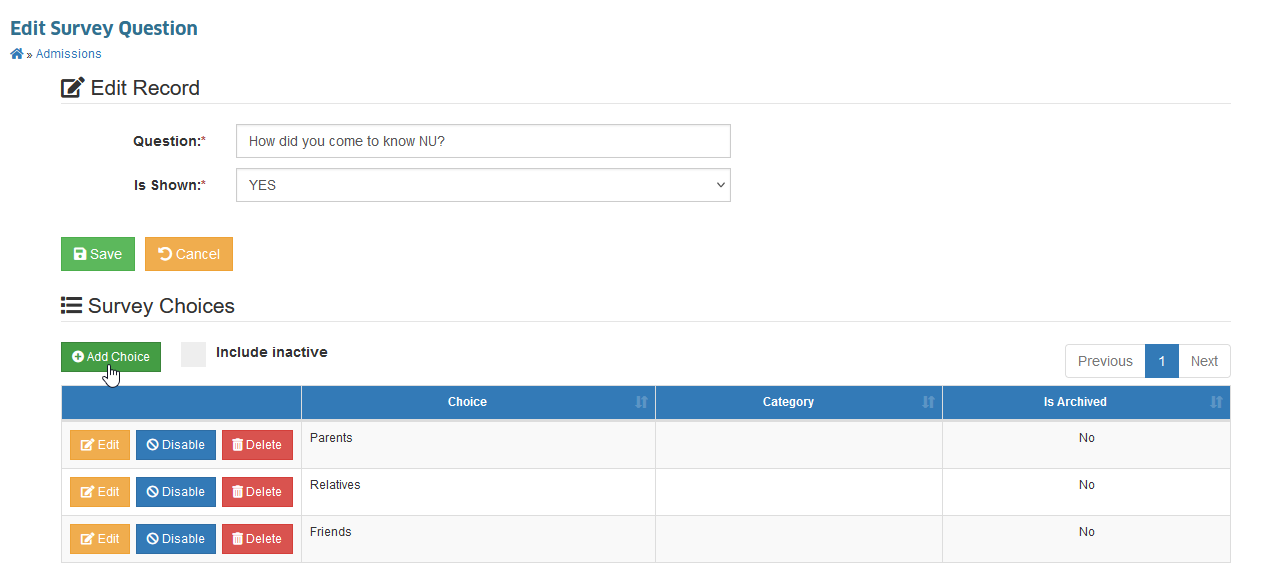
STEP 2. In Edit Survey Question page, scrolldown to Survey Choices section. You can either add, edit, enable, disable survey choices.
How to Add Survey Choices
STEP 1. In Survey Choices section, click the button.
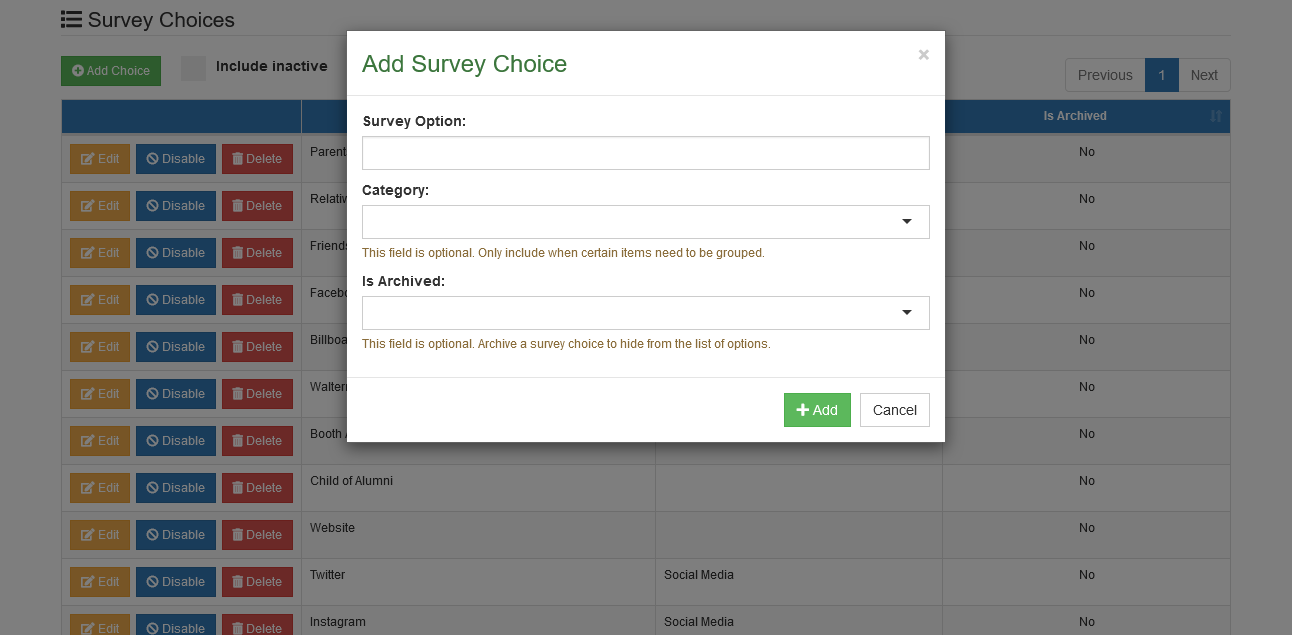
STEP 2. Add Survey Choice form will appear, enter the informations needed, and click the button. To guide you what to enter on the input fields, refer to the table below.
| Field Name | Description | Required |
|---|---|---|
| Survey Option | The survey answer or choice | Yes |
| Category | The category of the survey choice (This field is optional. Only include when certain items need to be grouped. | No |
| Is Archived | This field is Optional. Archive a survey choice to hide from the list of options. | No |
How to Edit Survey Choices?
STEP 1. In Edit Survey Question page, scrolldown to Survey Choices section and click the button of the corresponding survey choice you want to modify.
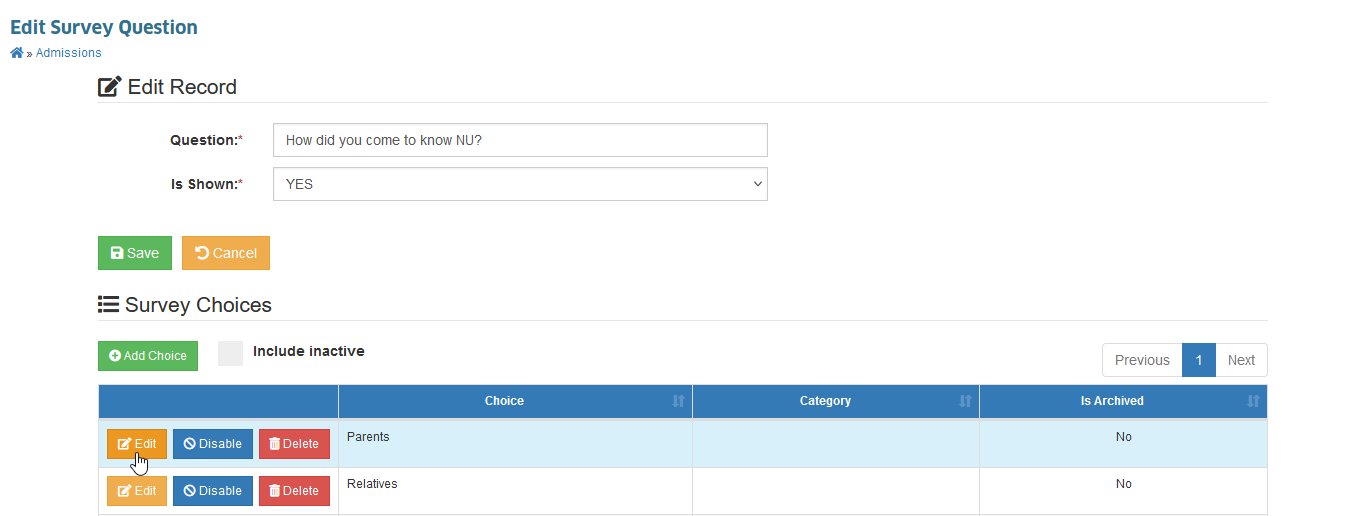
STEP 2. Edit Survey Choice form will appear, modify the survey choices information and click the button to save changes.
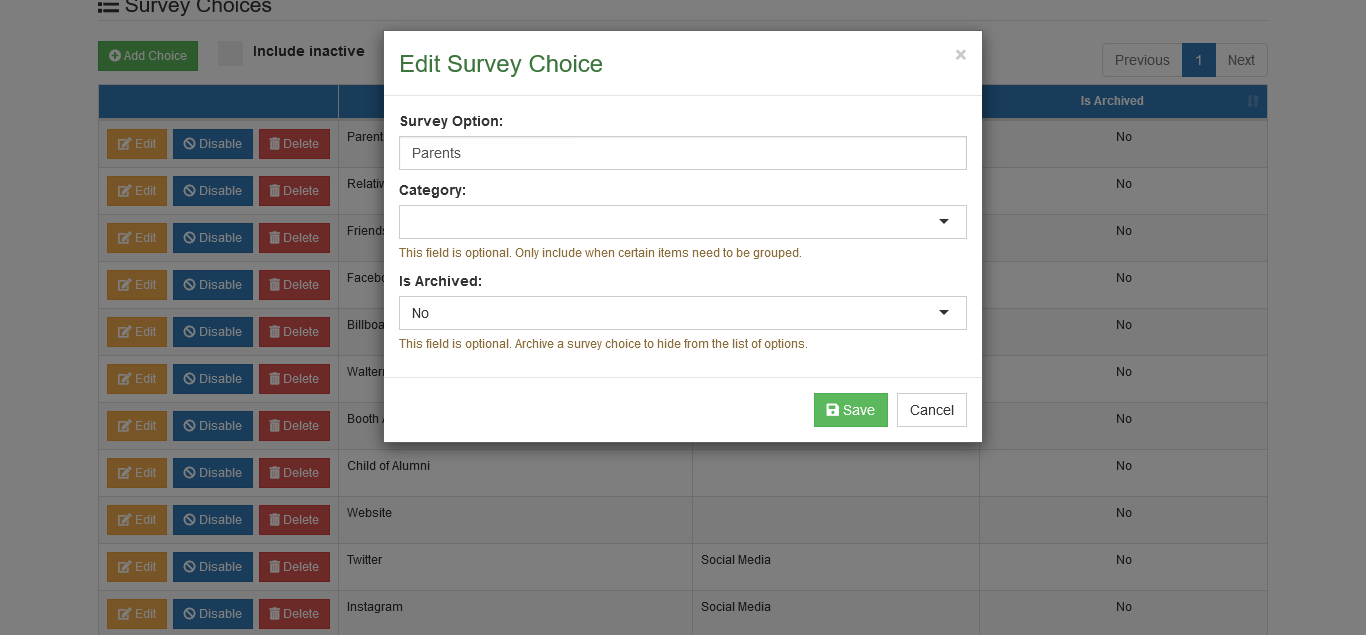
Survey Choice has been successfully updated.
How to Delete Survey Choices?
STEP 1. In Edit Survey Question page, scrolldown to Survey Choices section and click the button of the corresponding survey choice you want to remove.
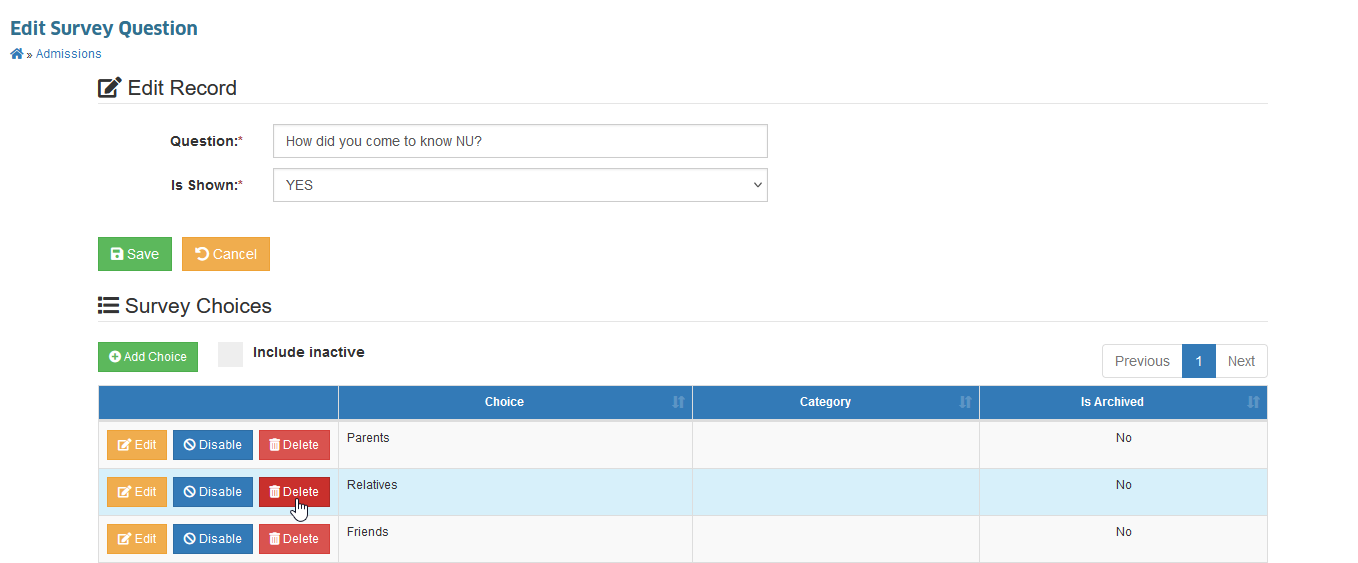
STEP 2. Delete Survey Choice form will appear, proceed with the deletion of survey choice by clicking the button in the form.
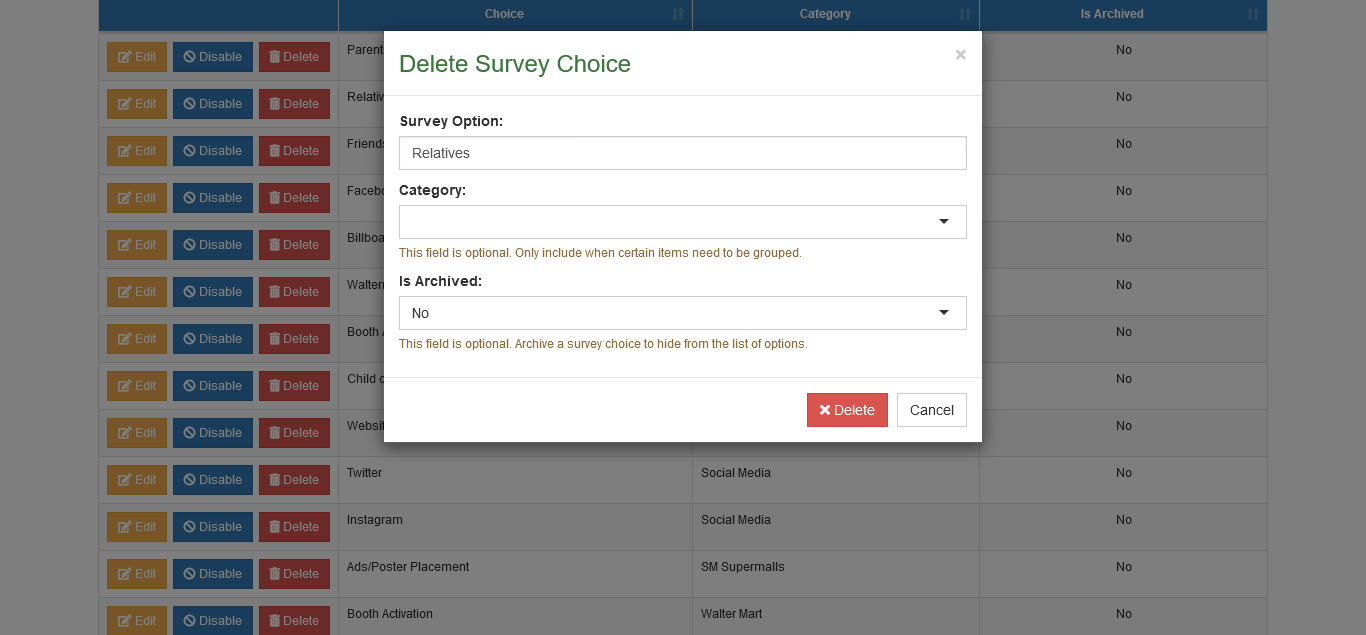
When a survey choice is linked to another record, it cannot be deleted. Simply disable the specific choice so that future applicants are unable to select this survey choice.
How to Enable/Disable Survey Choices?
Admission personnel can manage the survey choices that applicants can see when answering survey questions (NU Quest). The instructions to enable or disable survey choices are provided below.
By dafualt, newly created survey choices is enabled already
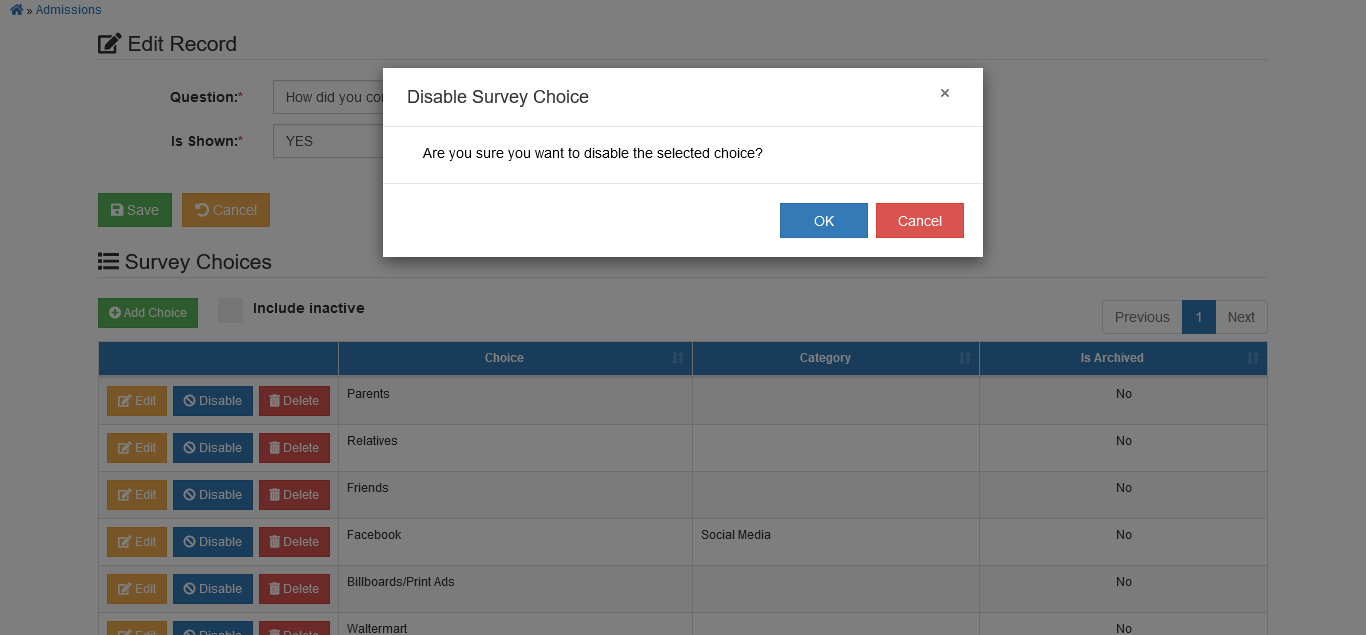
To disable survey choices follow the steps below.
STEP 1. In Edit Survey Question page, scrolldown to Survey Choices section and click the button of the corresponding survey choice you want to disable.
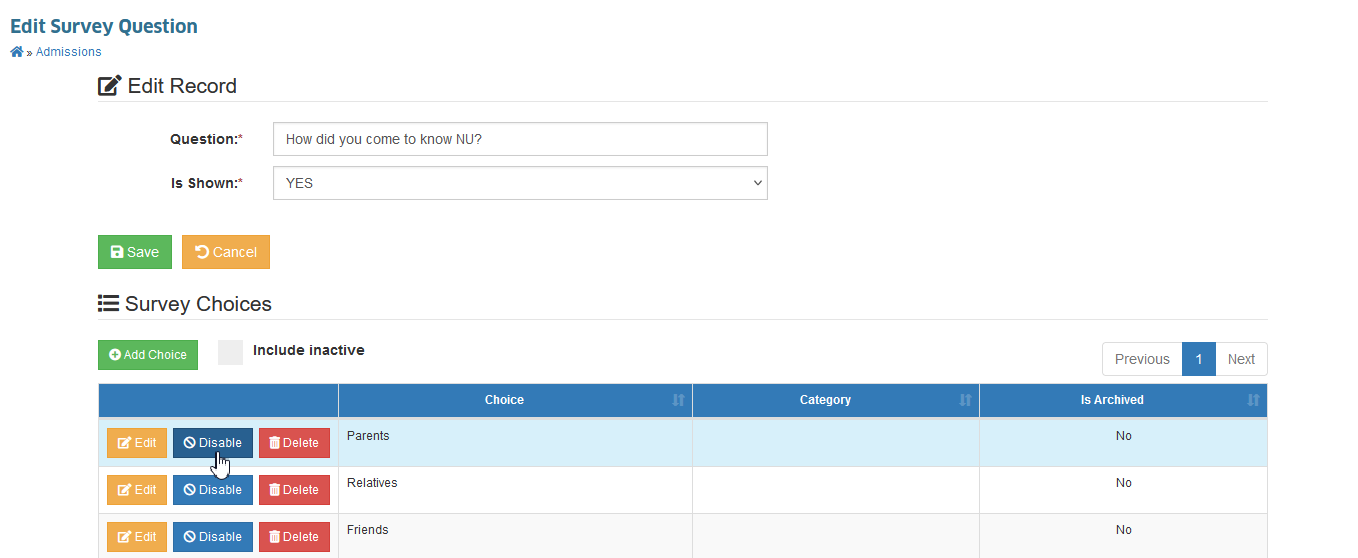
STEP 2. Confirm your action by clicking the button.
To enable the disabled survey choices.
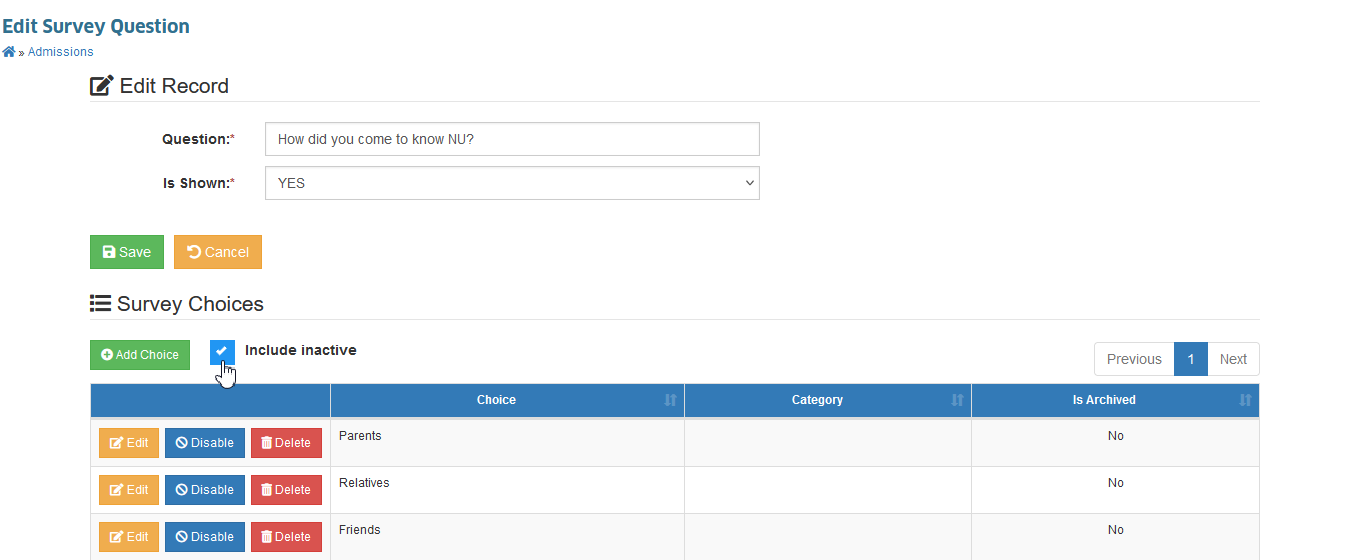
STEP 1. In Edit Survey Question page, scrolldown to Survey Choices section and click the Include Inactive checkbox on top of the survey choices table.
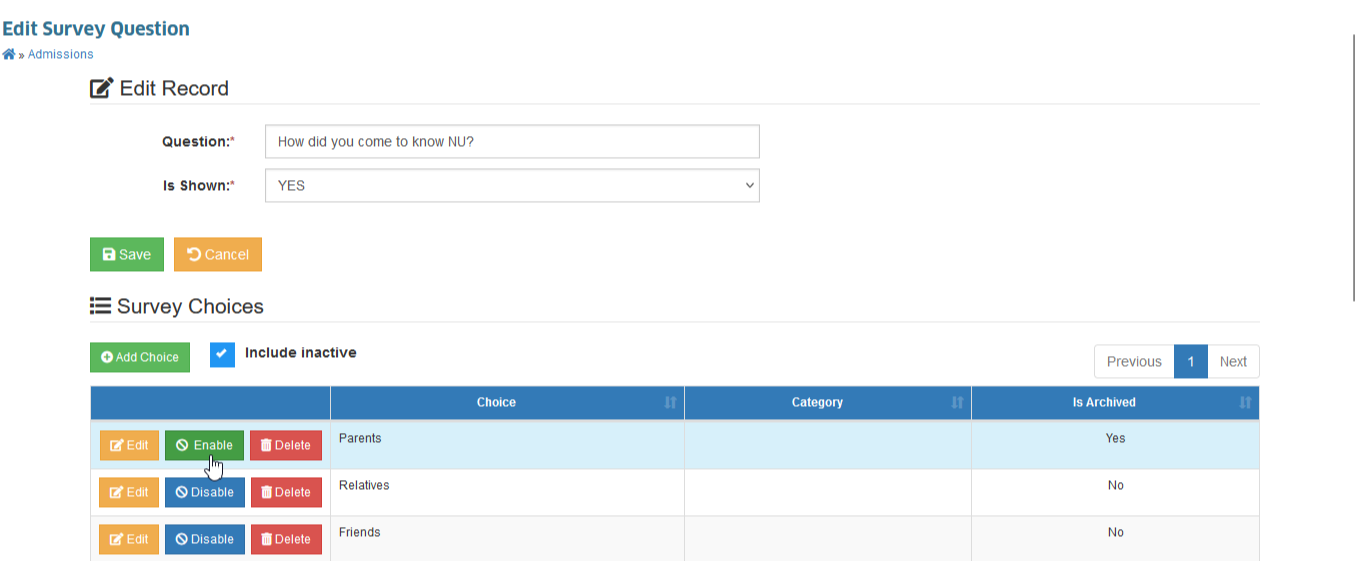
STEP 2. Enable the survey question by clicking the button of the corresponding choice you want to enable.
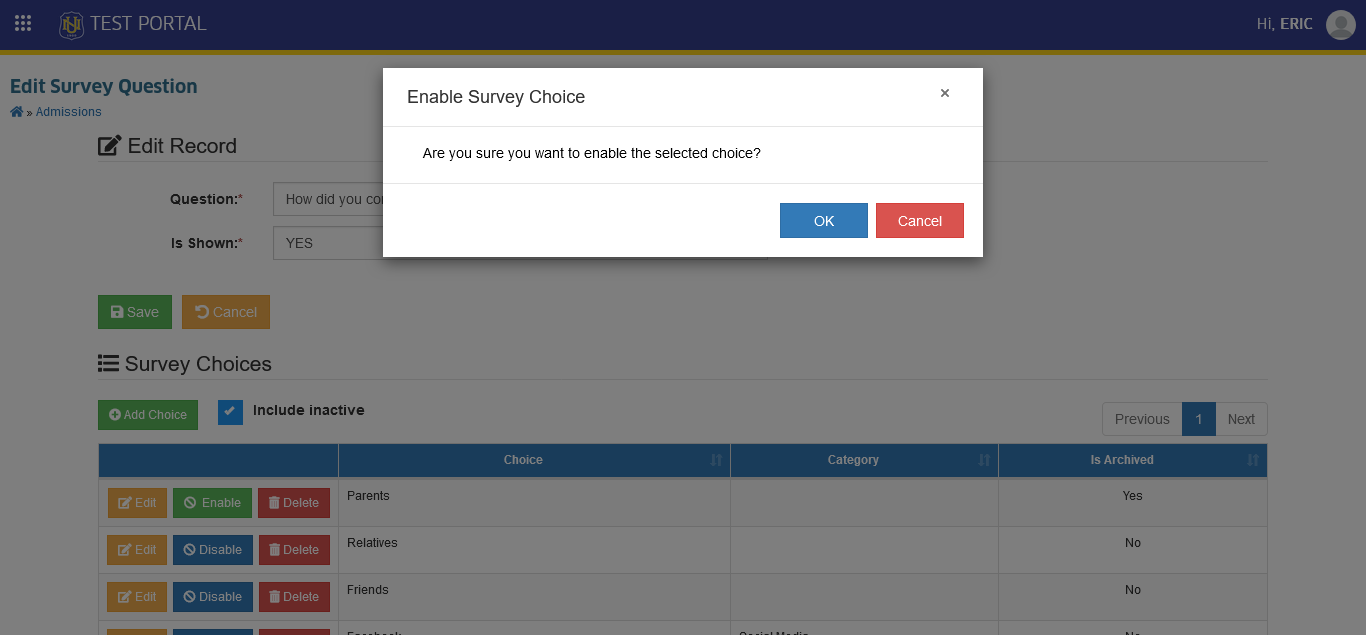
STEP 3. Confirm your action by clicking the button.
How to Backup Offline Data?
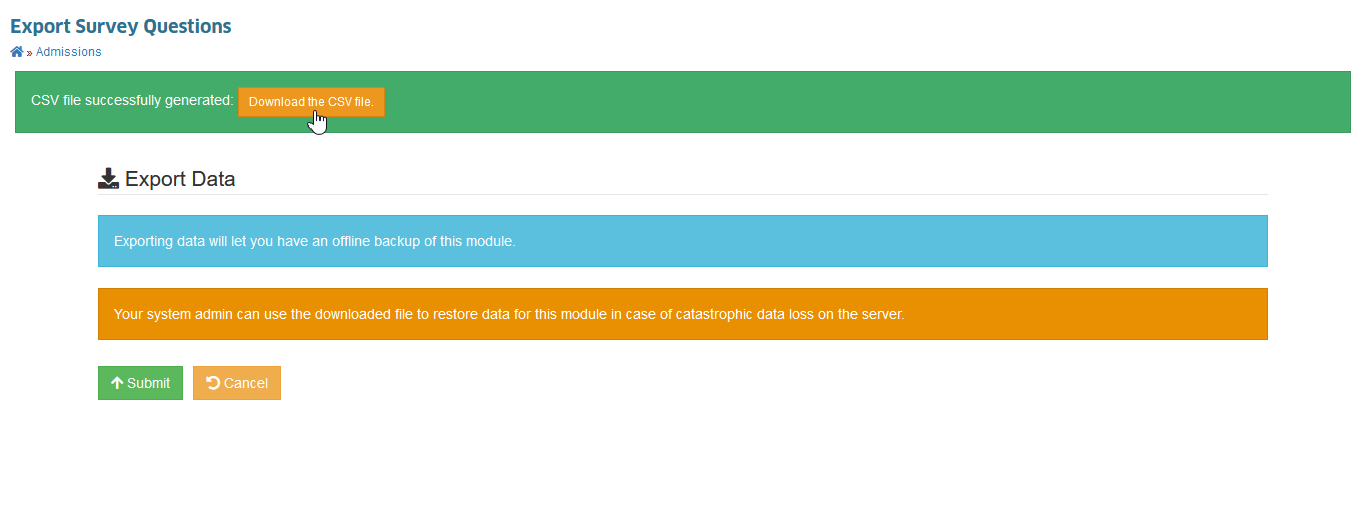
This module has an export feature which enable the user to download the data stored. System admin can use the downloaded file to restore data for this module in case of catastrophic data loss on the server.
Follow the steps below on how to download the file.
STEP 1. In Survey Questions page, click the button above the survey questions table. The page will redirect to Export Survey Questions page.
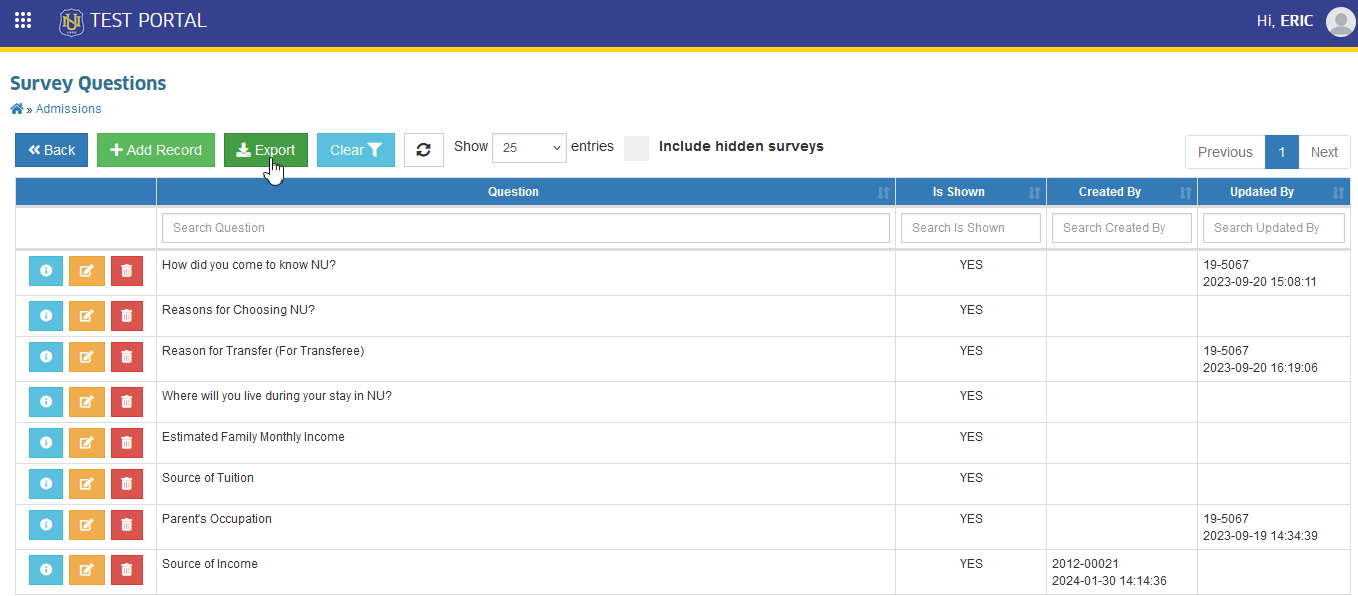
STEP 2. In Export Survey Questions page, click the button.
Exporting data will let you have an offline backup of this module.
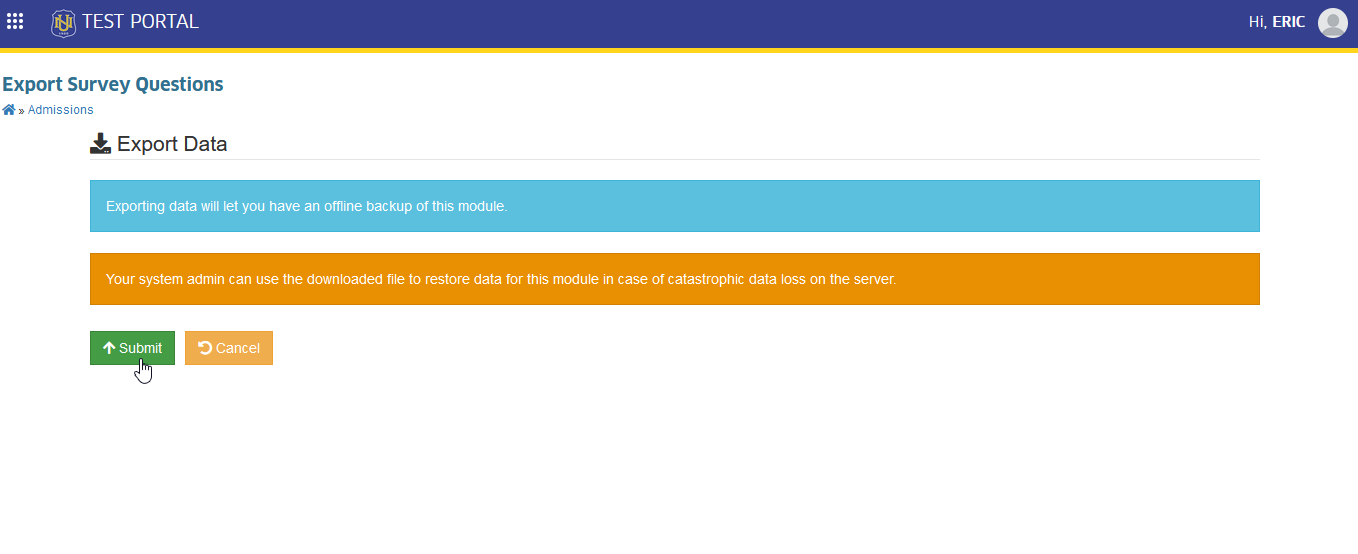
STEP 3. Confirm the downloading of file by clicking the button.