Scholarship Checker
The Scholarship Checker module is used to verify if scholarship fee items are properly aligned with the official fee schedule of the university. This helps offices ensure that scholarships are applied correctly and prevents billing issues for students.
This module is mainly for offices that validate scholarships or manage scholarship offerings.
Required Permission
- Scholarship Checker - Allows the user to view and verify scholarship details by checking if the covered fee items are aligned with the official fee schedule. This permission is required for offices validating scholarships or managing scholarship offerings.
Who Can Use This Module
This module can be accessed by:
- Offices managing scholarship programs and Offerings.
Users must have the required system access to view scholarship and fee details.
How to Access the Module
To access the module, make sure you have the Scholarship Checker permission. If it doesn’t appear in your portal, request access from your System Administrator.
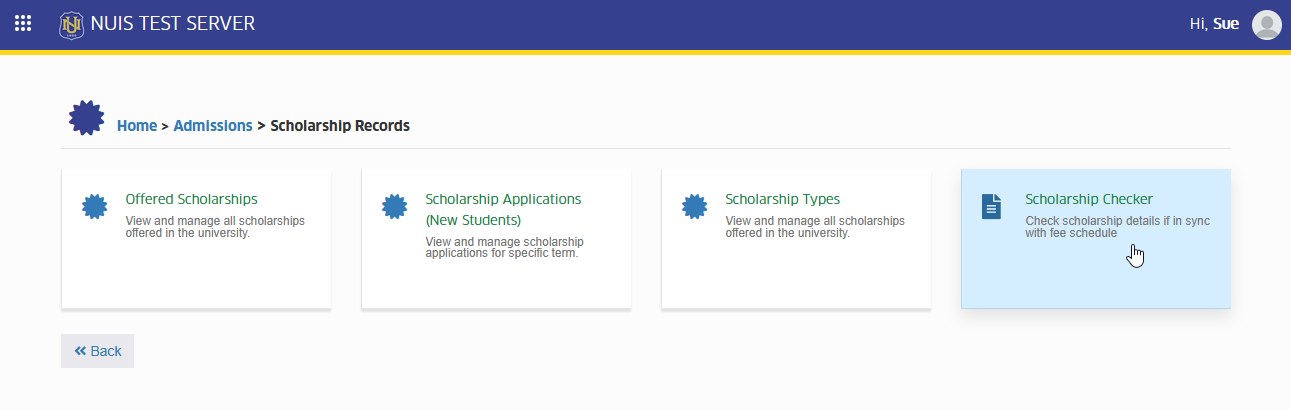
In NUIS portal, go to Admission > Scholarship Records > Scholarship Checker. Click the module tab to redirect to the Scholarship Checker page.
How to Use the Module
This section guides users through the step-by-step process of using the Scholarship Checker module to review scholarship details and verify if the covered fee items are properly aligned with the official fee schedule.
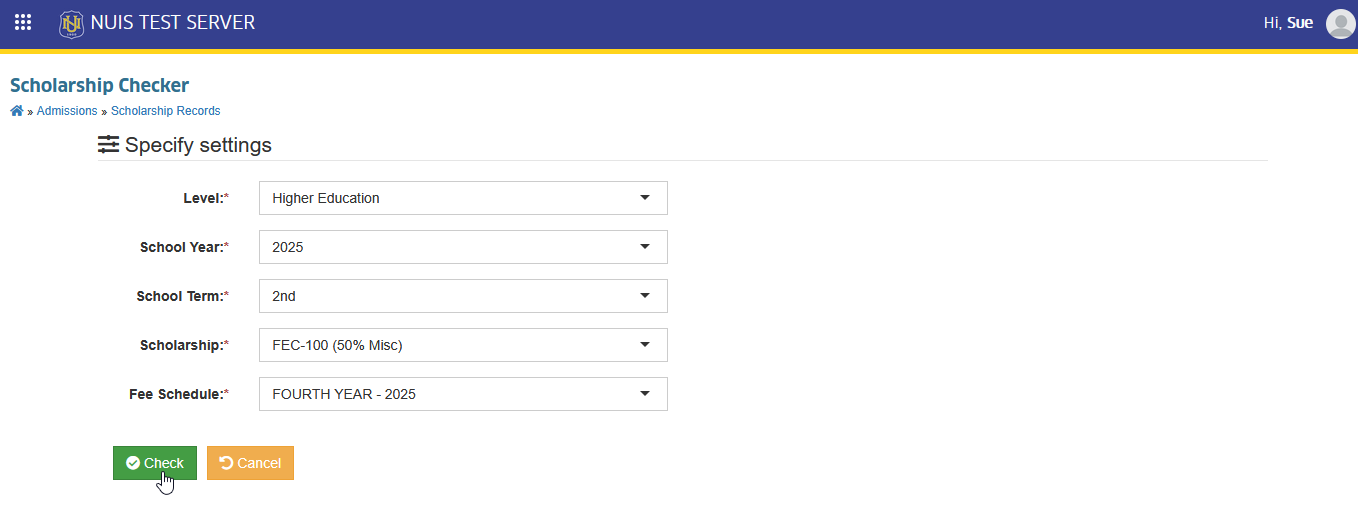
STEP 1. In the Scholarship Checker module, Specify the required information.
| Field Name | Description |
|---|---|
| Level | Select whether the scholarship applies to Higher Education or Basic Education. |
| School Year | Choose the school year where the scholarship and fee schedule are applicable. |
| School Term | Select the term |
| Scholarship | Select from the dropdown list of offered scholarships with Scholarship Apply set to DETAILED. |
| Fee Schedule | Select the fee schedule created for the chosen school year and term. This will be used as the basis for comparing the scholarship's covered fee items. |
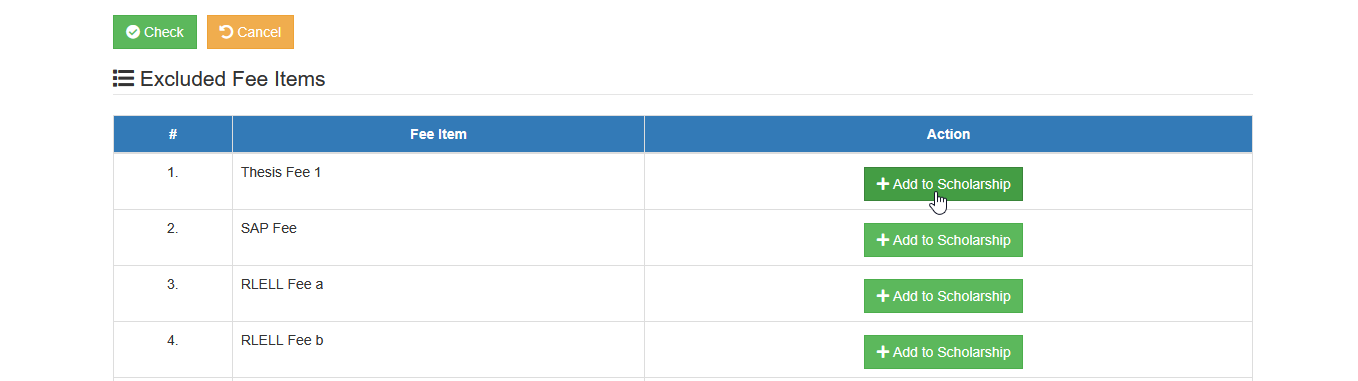
STEP 2. Click the button. After this action, the page will display all excluded fee items
STEP 3. Include the excluded fee items by clicking the button. Add Scholarship Detail prompt will appear.
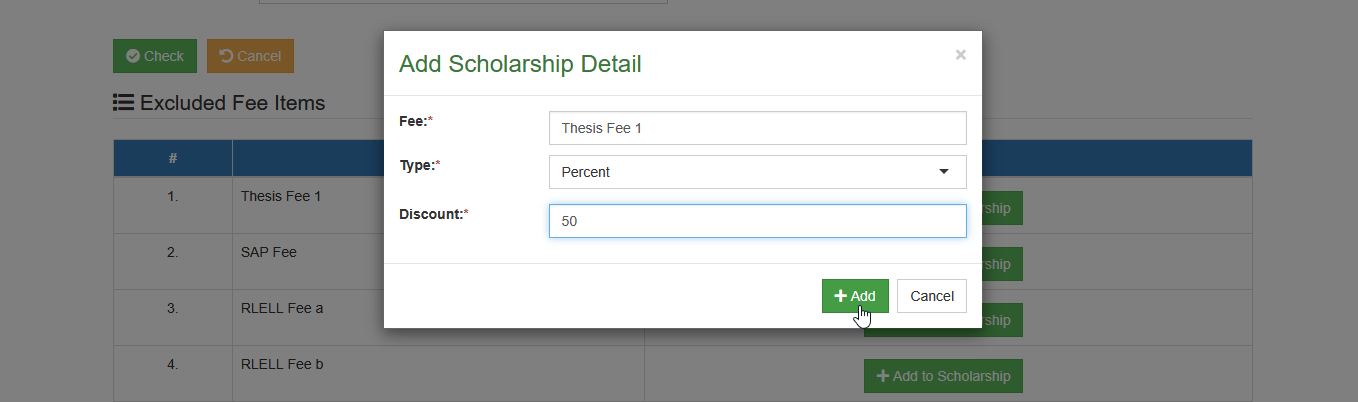
STEP 4. On the Add Scholarship Detail prompt, fill up the required fields. and click the button.
| Field Name | Description |
|---|---|
| Type | Select whether the discount is applied as an Amount or Percent. |
| Discount | Enter the Discount value. If Amount is selected, enter the discount amount. If Percent is selected, enter the percentage value (maximum of 100). |
Repeat this action until the list is empty, You may run the checker using other fee schedule to ensure that all fee items are added to the scholarship for detailed discounts.
For more questions or concerns, email us at nu-desk@national-u.edu.ph