Offered Scholarships
View and manage all scholarship offered in the university.
Offered Scholarships module is where user can manage all the offered scholarship and different types of discounts. This module contains all the rules on how the scholarship will affect the student's assessments, the requirements and the entry levels who are allowed to apply for each offering.
Required Permissions
-
Add Scholarship - This module allows the user to add an offered scholarship record.
-
Edit Scholarship - This module allows the user to edit an existing offered scholarship.
-
View Scholarship - This permission allows the user to access the module.
-
Delete Scholarship - This permissions allows the user to delete an offered scholarship.
-
View all Scholarship - This permission allows the user to view all offered scholarships under all offices.
How to access the module?
To access the module, make sure you have the View Offered Scholarship permission. If it doesn’t appear in your portal, request access from your System Administrator.
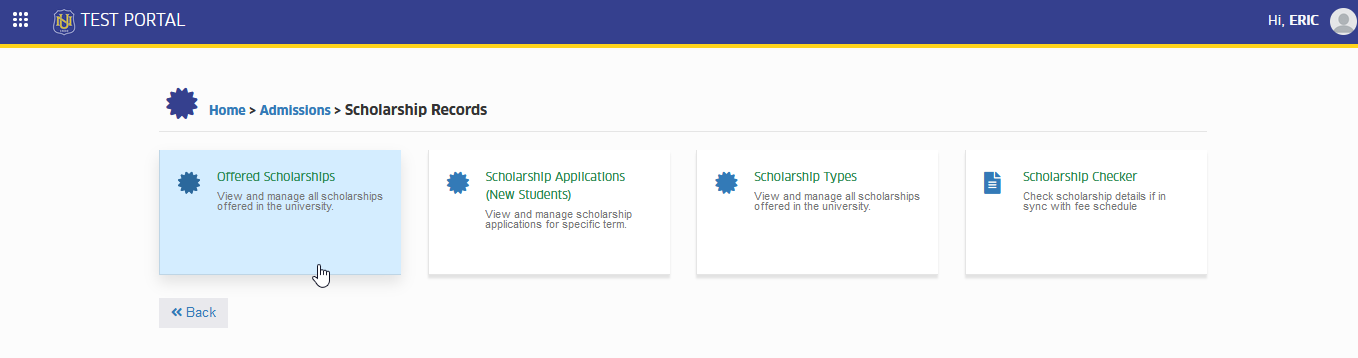
To access the module go to Admissions > Scholarship Records > View Offered Scholarship
Click the module tab to redirect to Offered Scholarship page.
Field Description
Provided are the list of fields, descriptions, and notes to remember to manage offered scholarships.
| Field Name | Description | Notes | Required |
|---|---|---|---|
| Scholarship Code | The scholarship code of the offered scholarship. | Yes | |
| Scholarship Name | The offered scholarship Name. | Yes | |
| Scholarship Group | The scholarship group of the offered scholarship. | For New Students: Financial and Special group are always available for new students. Other scholarship groups are available during scholarship application period. | Yes |
| Scholarship Apply | TUITION - discount rate applies to tuition only. ALL - discount rate applies to tuition and miscellaneous. DETAILED - discount applies to specific fee items only. EXCEPTION - discount applies to all except to the specified items only. DISCOUNT - the discount amount is fixed. | Yes | |
| Discount | The discount rate of the offered scholarship. (ex. 100%=1) | No | |
| GWA Requirement | GWA requirement for the scholarship. | Leave it blank if not necessary. | No |
| Required SA Hours | Required SA hours for the scholarship. | Leave it blank if not necessary. | No. |
| Active | The offered scholarship status. | Select Yes if active, otherwise No. | Yes |
| Program Apply | The programs that are able to apply for the scholarship. | Select Both if the offered scholarship is available for Graduate and Under Graduate programs. If not, choose from the available options. | Yes |
| Available Slots | The remaining slot for the offered scholarship. | Leave it blank for unlimited slots, zero (0) for closed, and positive numbers for limited slots. | Yes |
| Scholarship Type | The scholarship type to which the offered scholarship is under. | Yes |
How to Add New Offered Scholarship
To add new offered scholarship, follow the steps below:
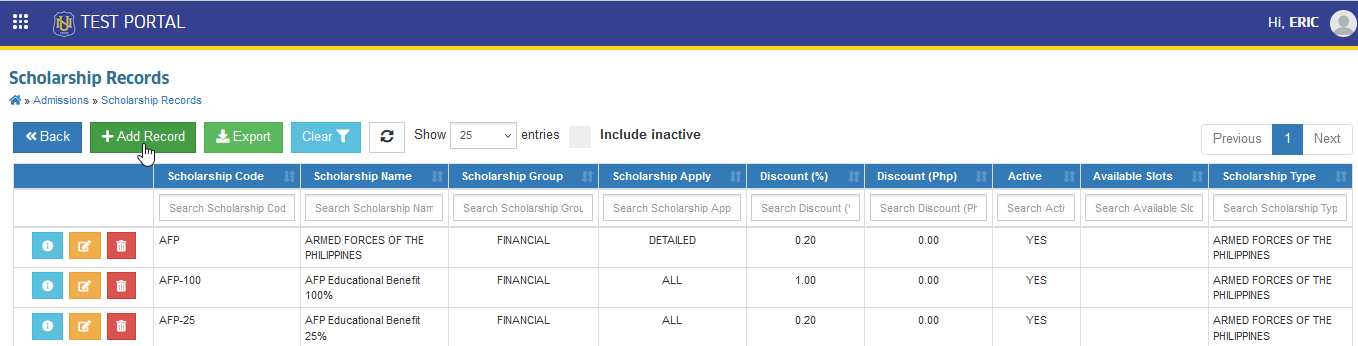
STEP 1. In Scholarship Records list view page, click the button. User will be redirected to Add Scholarship page.
STEP 2. Fill out the required information about the scholarship.
STEP 3. Click the button to save the new offered scholarship record.
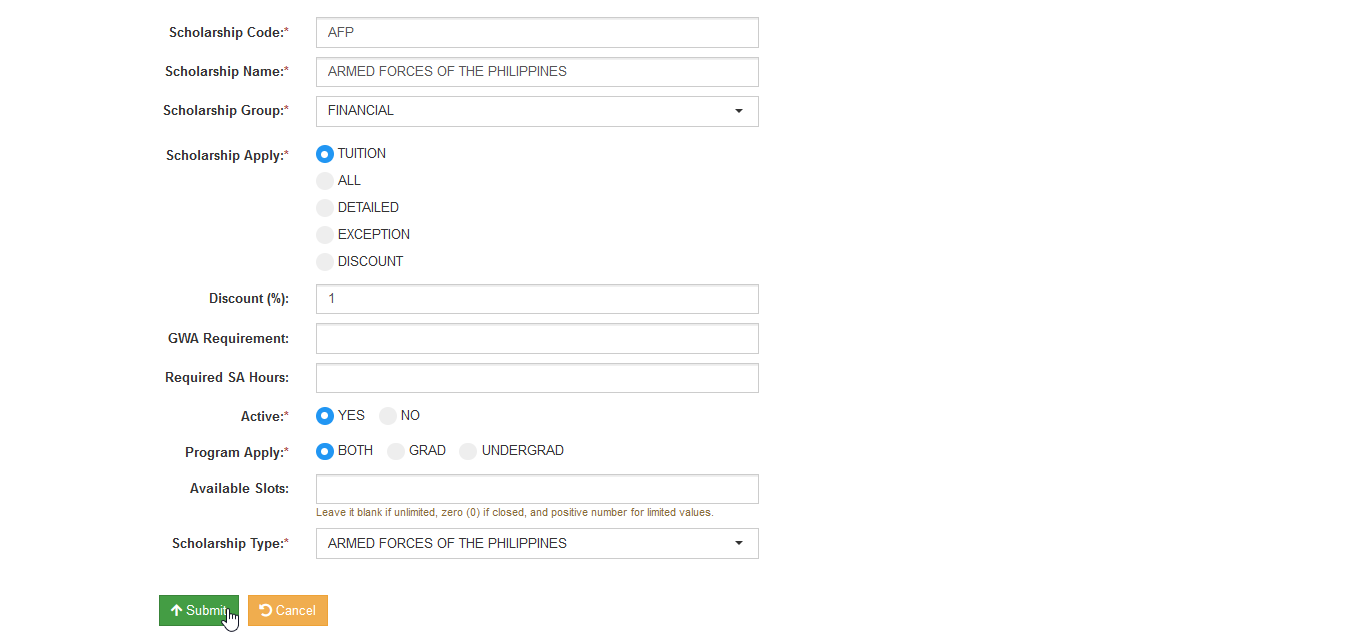
New Offered Scholarship record will be successfully saved if it has unique scholarship code.
How to edit an Offered Scholarship
To modify offered scholarship's information (Requirements, Entry Levels, Fee Items), follow the steps below:
STEP 1. In Scholarship Records list view page, under the Operations column, click the corresponding button of the offered scholarship that will be modified. User will be redirected to Edit Offered Scholarship page.
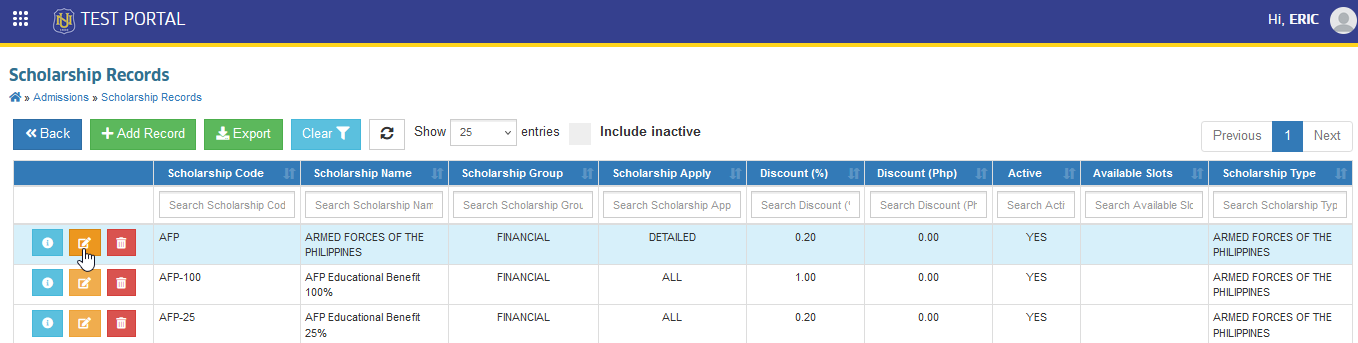
STEP 2. Update the scholarship record, once done, click the button.
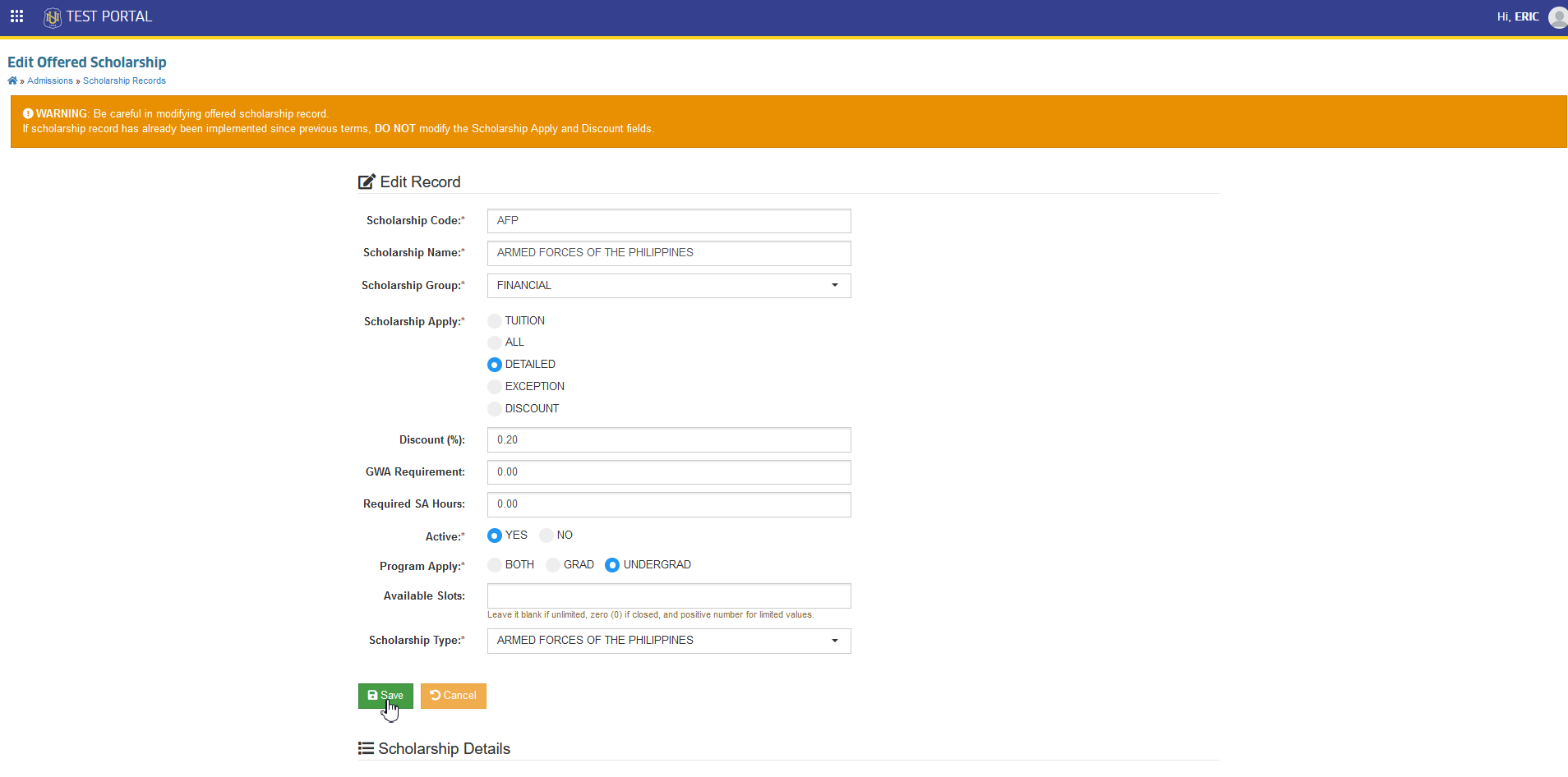
STEP 3. Once the record is successfully saved, click the button to go back to scholarship records list view page.
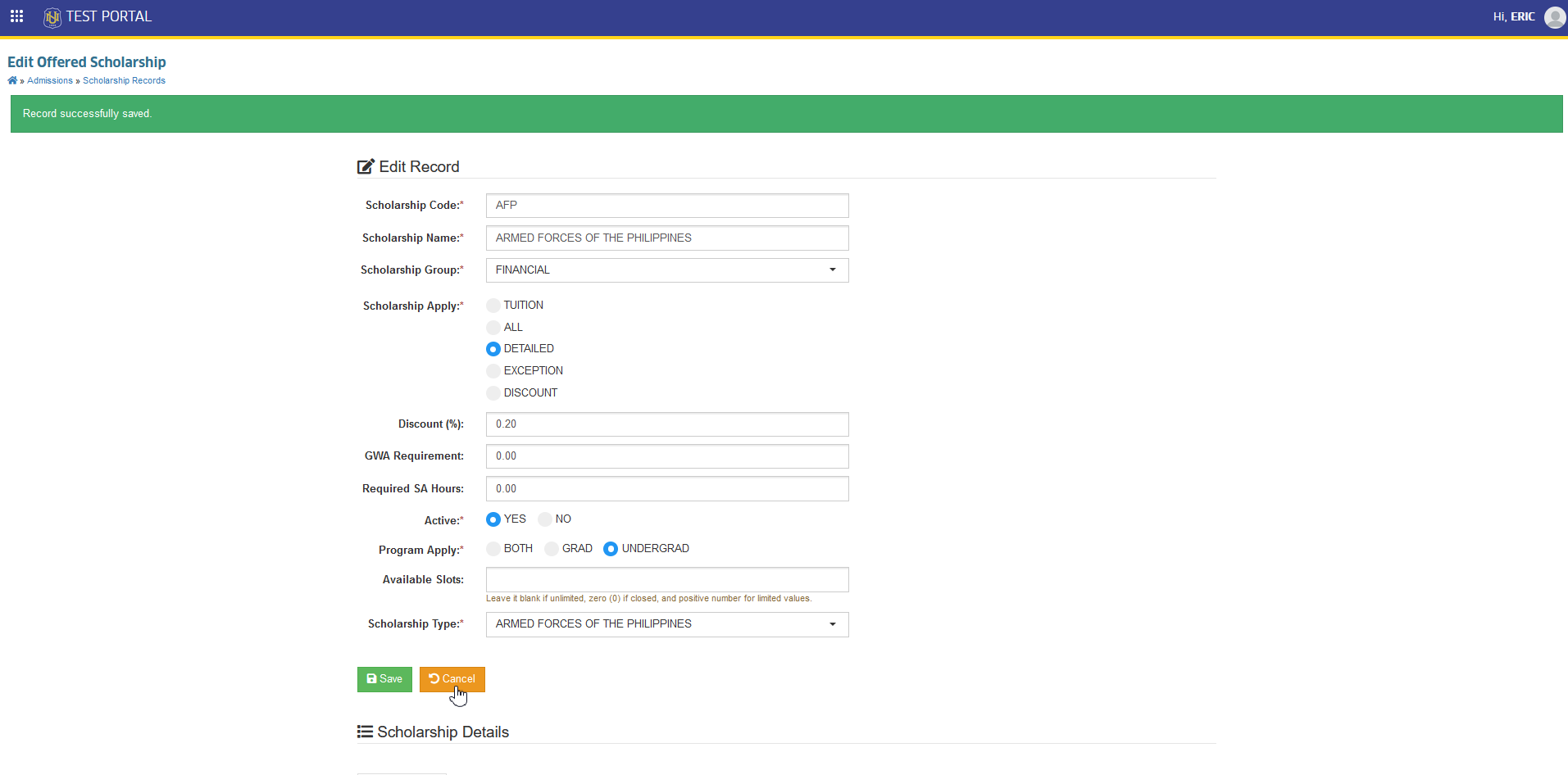
Be careful in modifying offered scholarship record.
If scholarship record has already been implemented since the previous terms, DO NOT modify the Scholarship Apply and Discount fields.
For new computation scheme of same offered scholarship, it is safe to add a new record and archived the old one.
How to update scholarship requirements
Follow the steps below on how to update scholarship requirements.
STEP 1. In Scholarship Records list view page, under operations column, click the corresponding button of a specific scholarship record. User will be redirected to Edit Scholarship page.
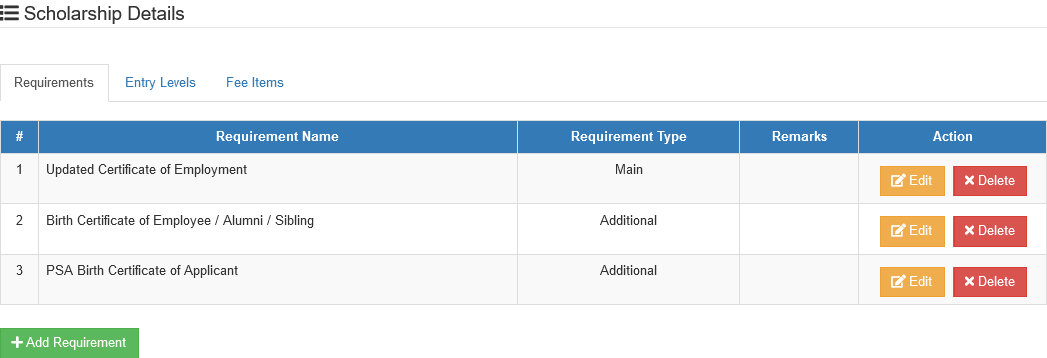
STEP 2. Under Scholarship Details section, in Requirements tab. User may do the following actions:
- Add Requirement - to add new Scholarship Requirement. In adding a requirement, specify the following fields:
| Field Name | Description | Required |
|---|---|---|
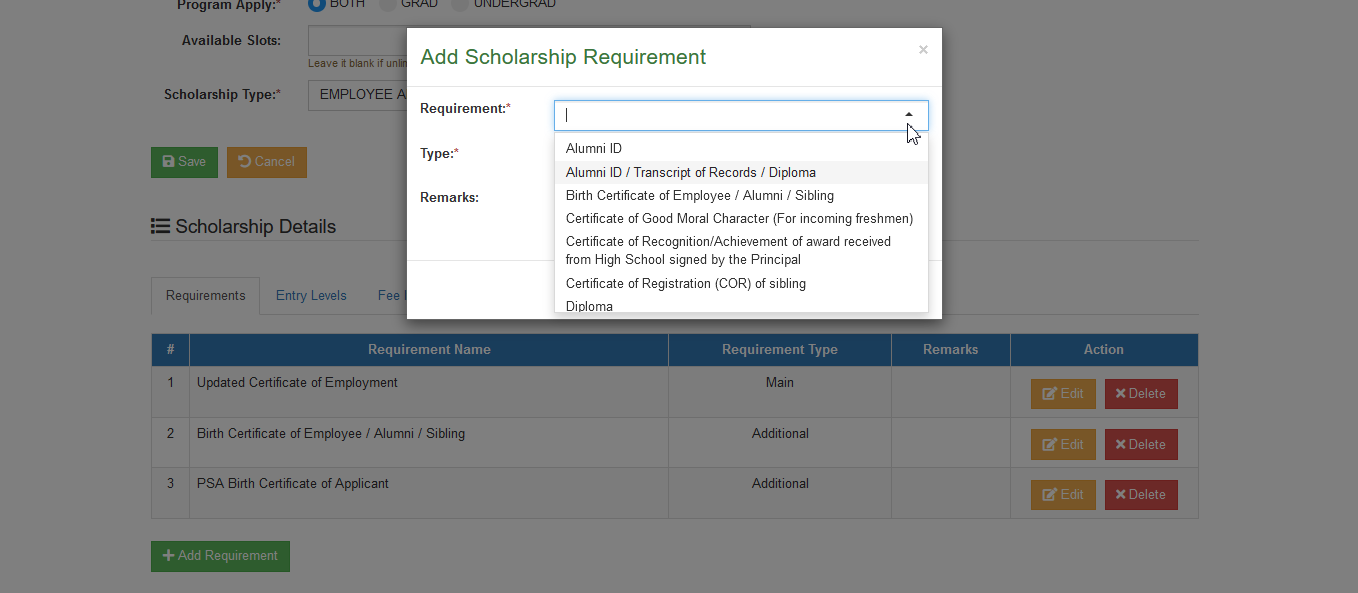
| Requirement | The requirement name. Select from the list which requirement to add. | Yes |
| Type | The type of the requirement. Select either Main or Additional. | Yes |
| Remarks | Some text/notes to add to the requirement. | No |
-
Edit Requirement - to edit existing Scholarship Requirement.
-
Delete Requirement - to delete an existing Scholarship Requirement.
How to Add Scholarship Requirements
Follow the steps below on how to Add Scholarship Requirements.
STEP 1. In Edit Offered Scholarship page, under Scholarship Details section, in Requirements tab click the button.
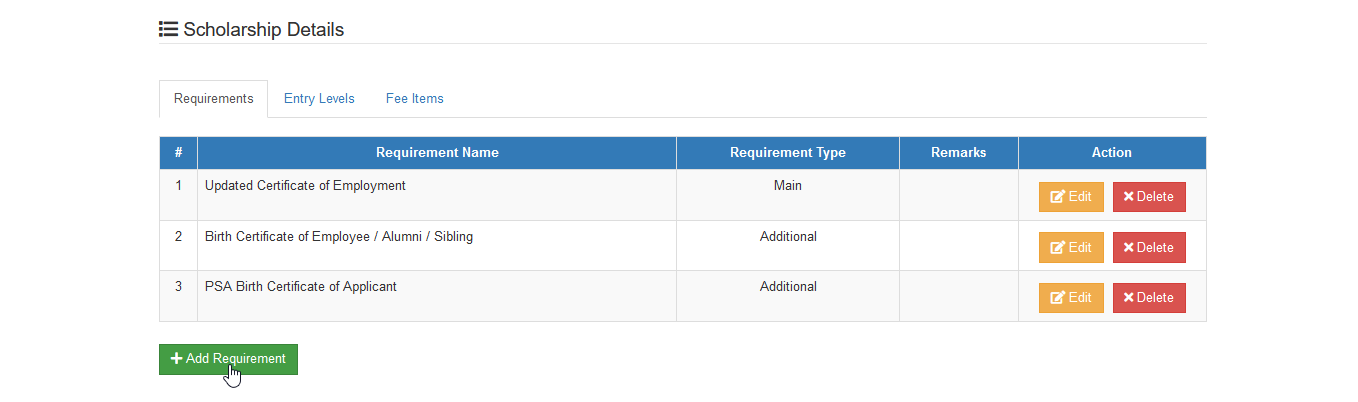
STEP 2. Select the name of requirement and its type from the list available in Add Scholarship Requirement form.
STEP 3. Click the button once done.
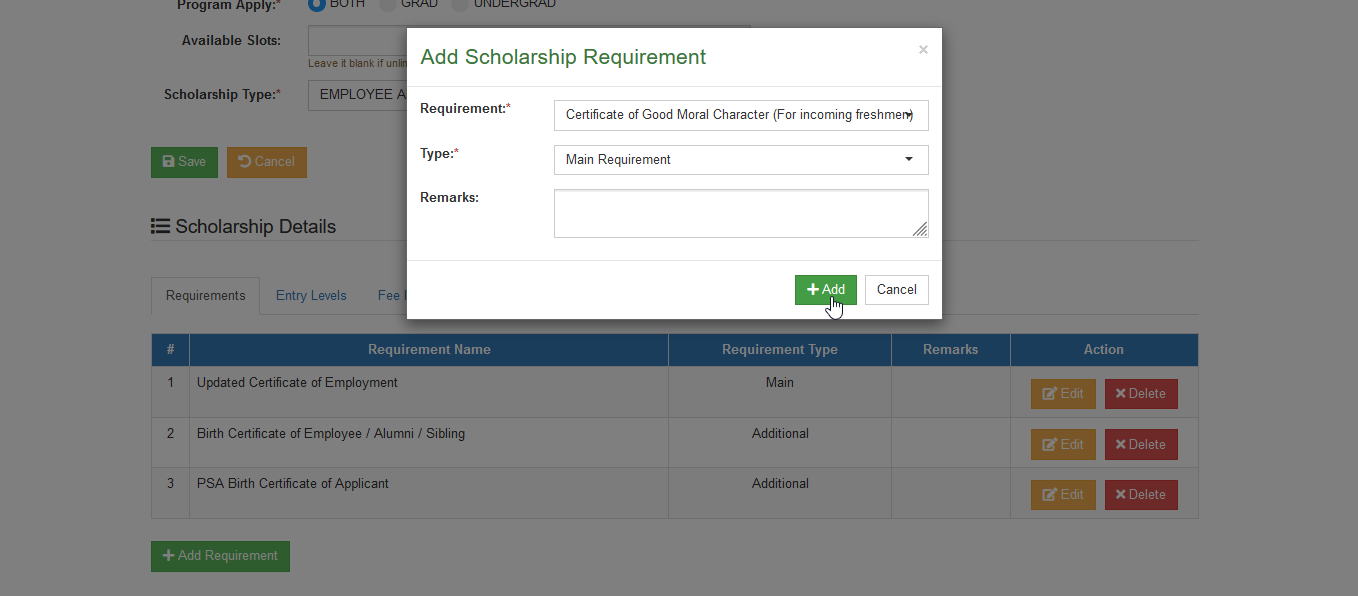
New requirement has been successfully added.
If the specific requirement is not available in the list, add it using the Requirement Types module.
How to Edit Scholarship Requirements
Follow the steps below on how to edit offered scholarship requirements.
STEP 1. In Edit Offered Scholarship page, under Scholarship Details section, under the Requirements tab, click the corresponding button of the specific requirement that will be modified.
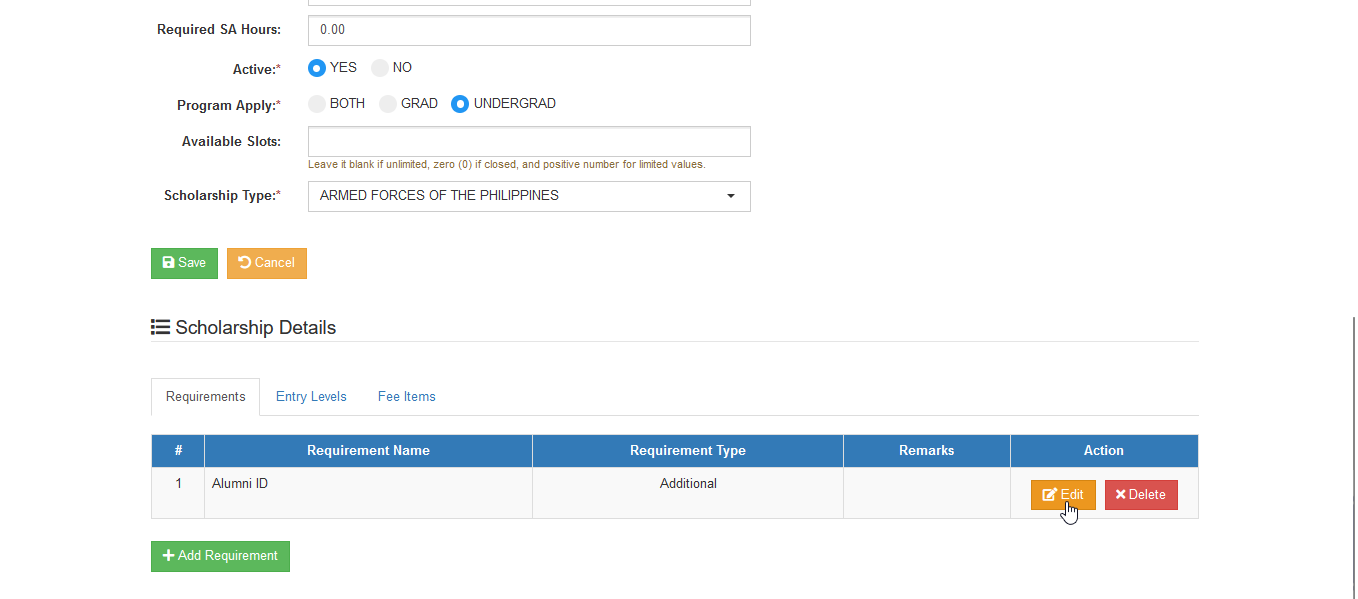
STEP 2. Modify the requirement information in the Edit Scholarship Requirement form and the click button.
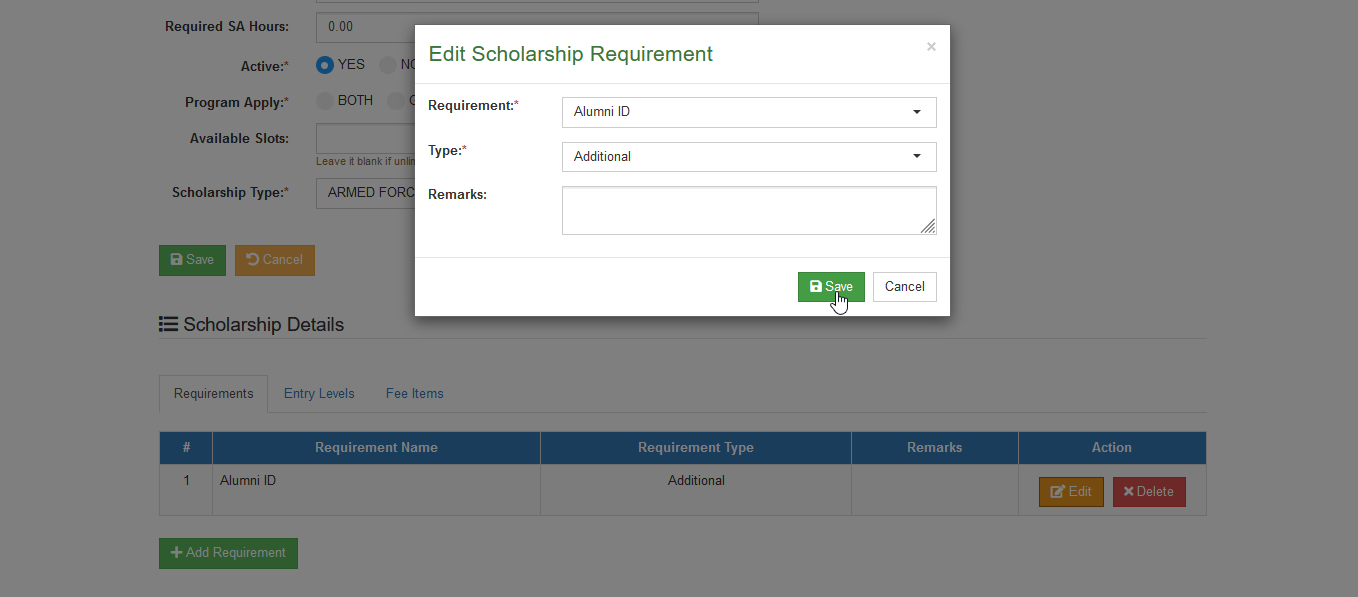
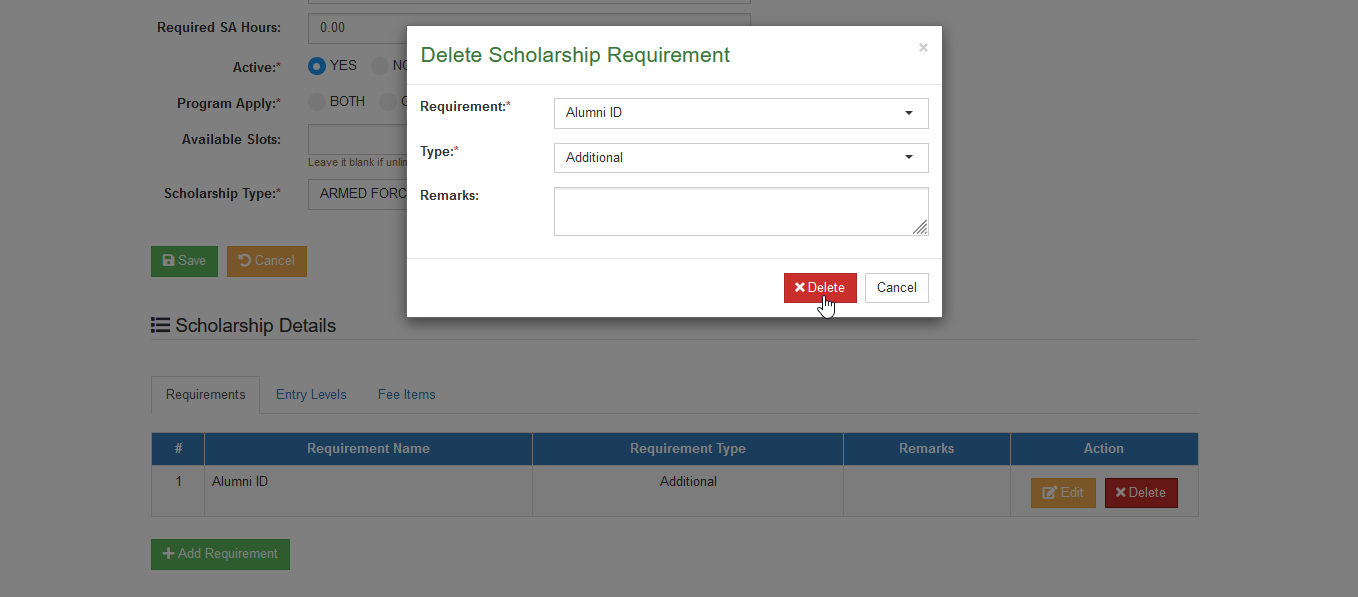
How to Delete Scholarship Requirements
Follow the steps below on how to delete scholarship requirements.
STEP 1. In Edit Offered Scholarship page, under Scholarship Details section, under the Requirements tab, click the corresponding button of the specific requirement that will be modified.
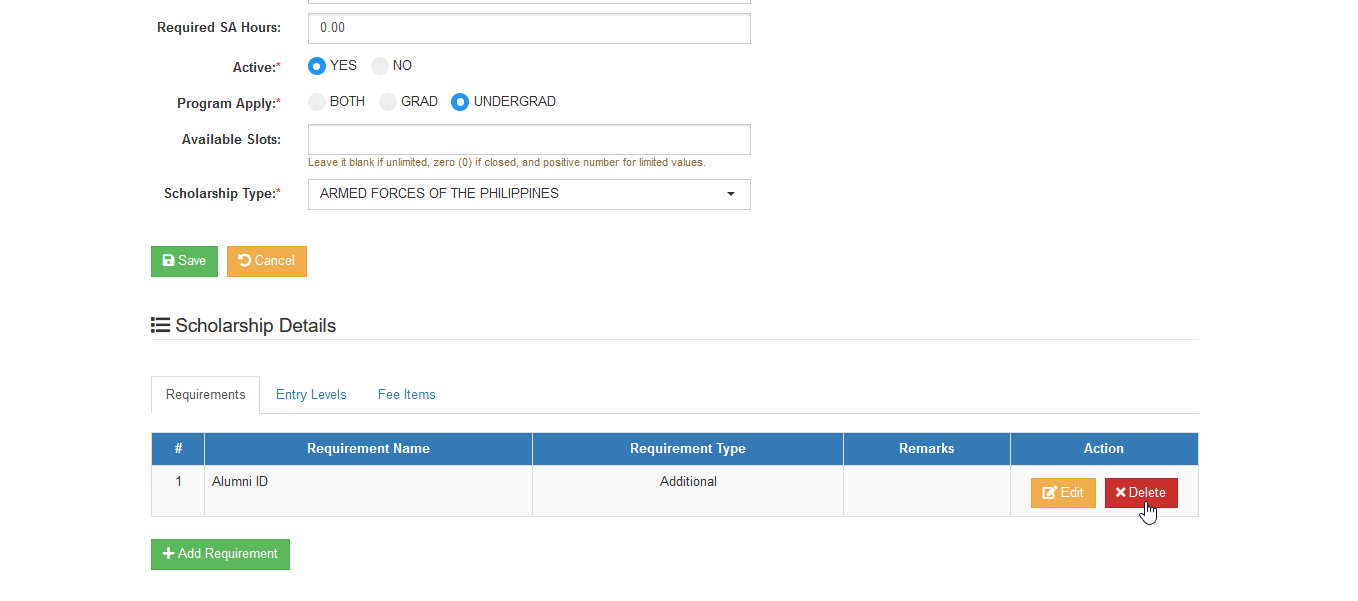
STEP 2. In the Delete Scholarship Requirement form, click button to confirm the deletion.
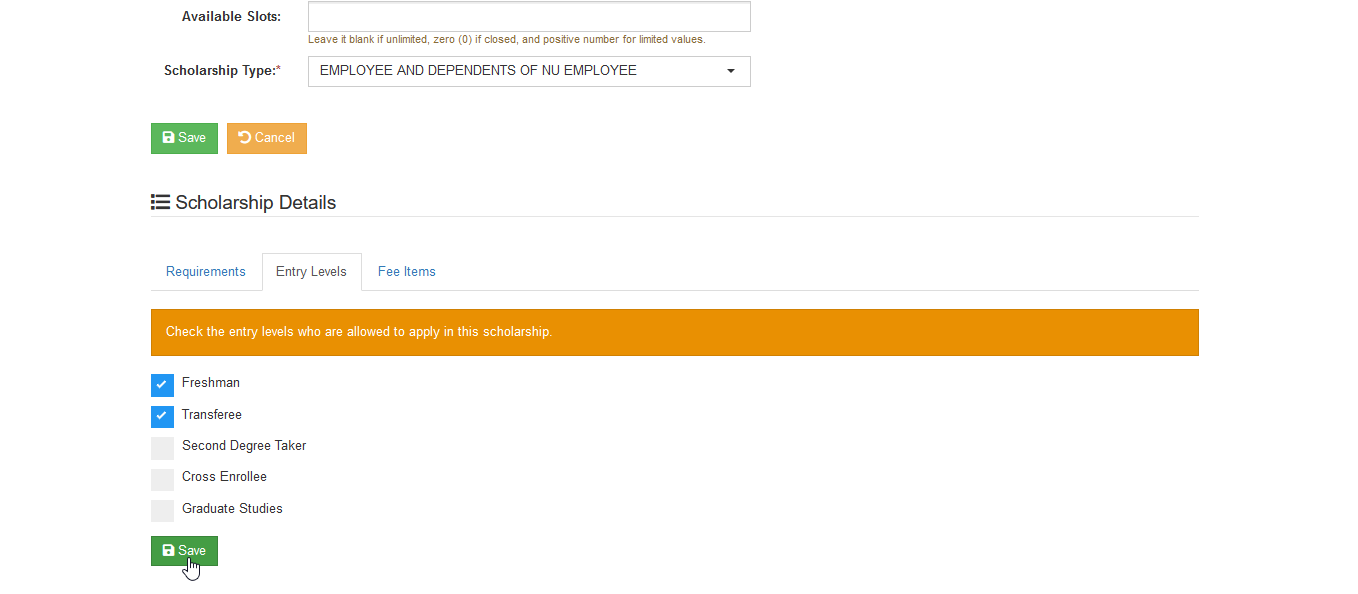
How to Update Scholarship Entry Levels
This module feature is used to manage which applicants can only apply to the specific scholarship.
Follow the steps below on how to update Scholarship's entry levels.
STEP 1. In Edit Offered Scholarship page, under Scholarship Details section, click the Entry Levels tab.
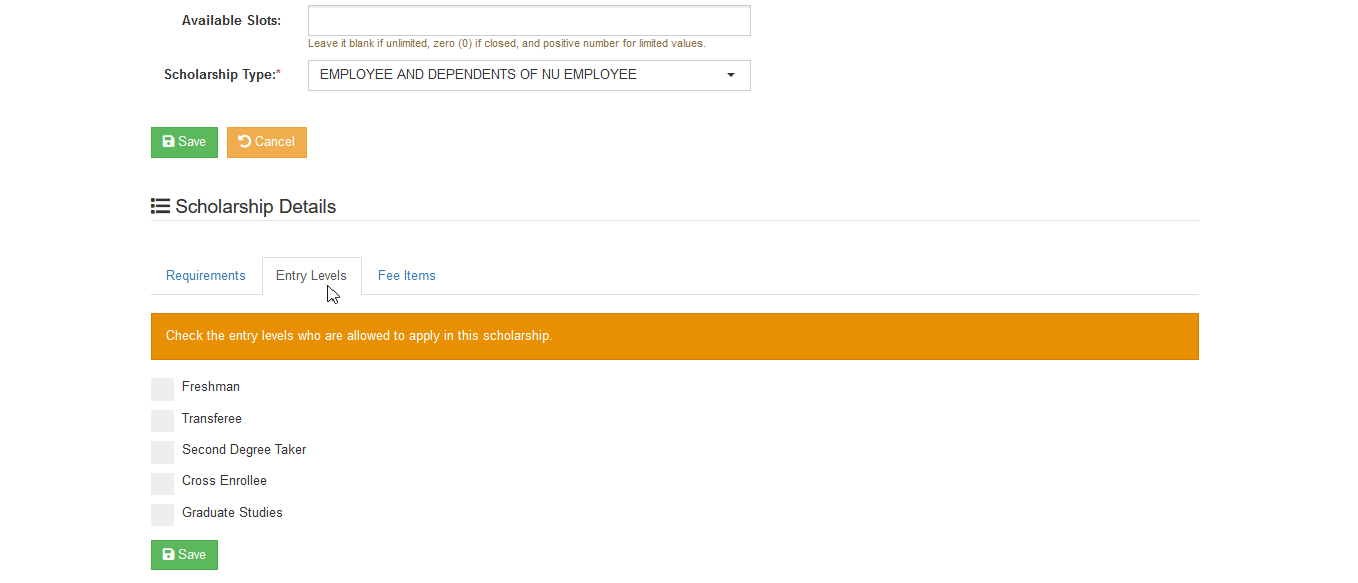
STEP 2. Check the entry levels who are allowed to apply for the offered scholarship.
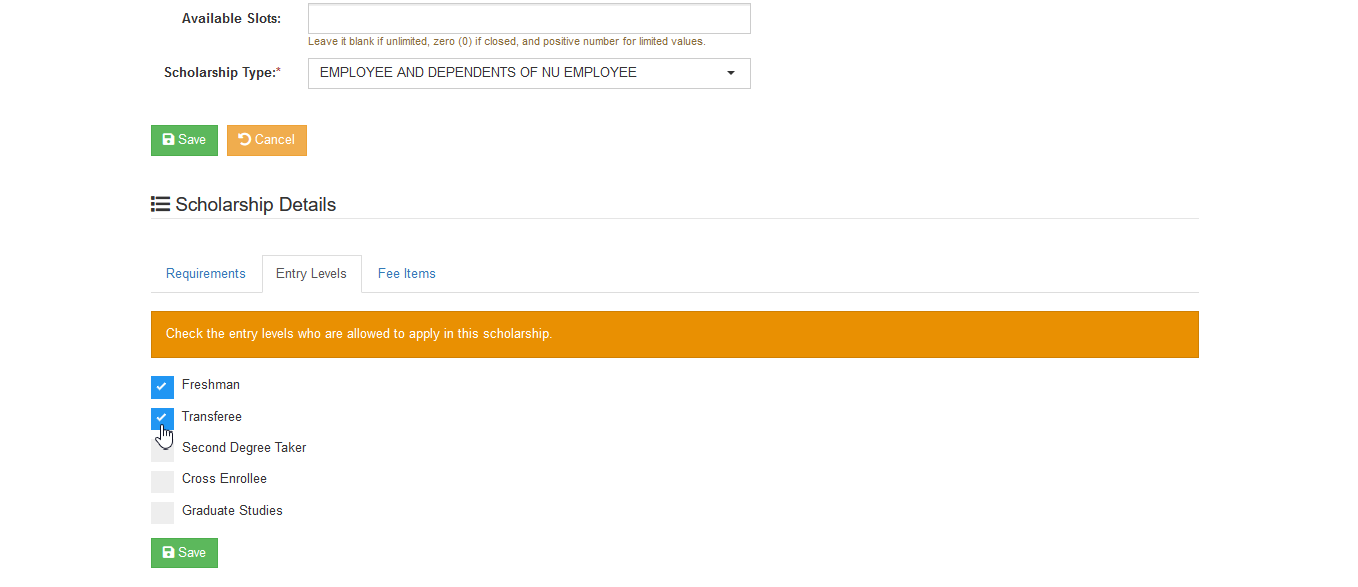
STEP 3. Click the button once done.
How to Update Scholarship Fee Items
Fee items set up is only applicable to those scholarships that have DETAILED or EXCEPTION type of scholarship application. Follow the steps below on how to manage fee items of the scholarship offerings.
STEP 1. In the Scholarship Records list view page, under the operations column, click the corresponding button of a specific scholarship record. User will be redirected to Edit Scholarship page.
STEP 2. Under Scholarship Details section, click the Fee Items tab.
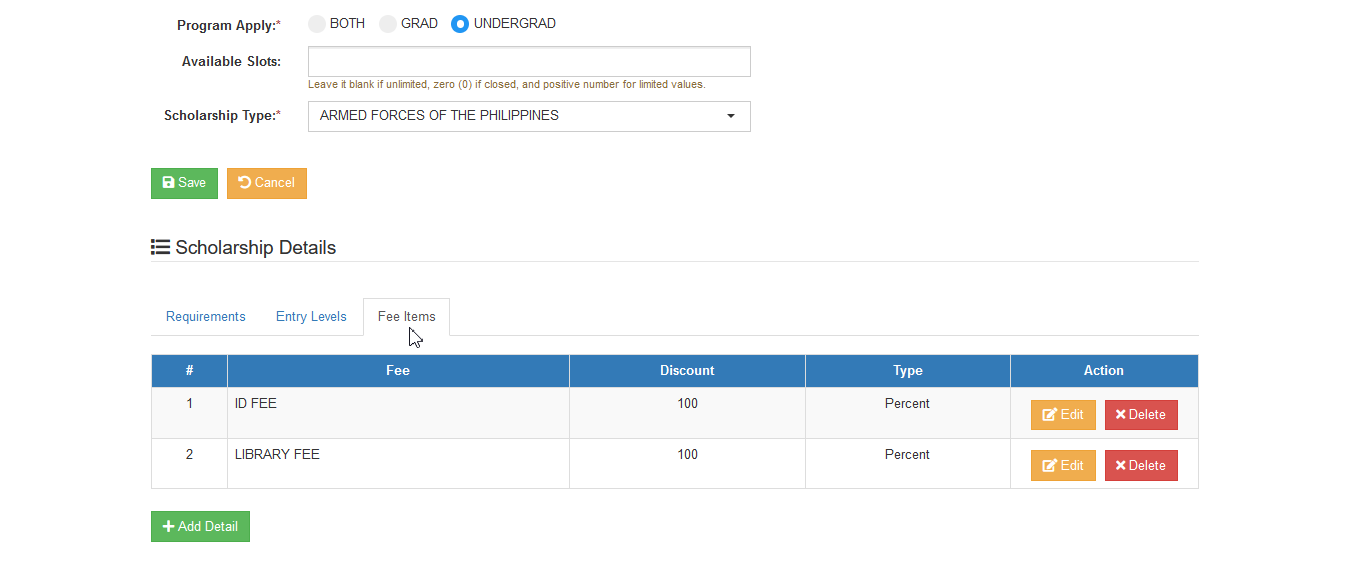
STEP 3. User may do the following actions:
- Add Fee Items - to add new scholarship fee items. In adding fee items, specify the following fields:
| Field Name | Description | Required |
|---|---|---|
| Fee | The fee item name. | Yes |
| Discount | The rate of the discount. | Yes |
| Type | Select if the discount rate applies to the amount or percent. | Yes |
-
Edit Fee Items - to modify existing scholarship fee items.
-
Delete Fee Items - to delete an existing scholarship fee items.
How to Add Scholarship Fee Items
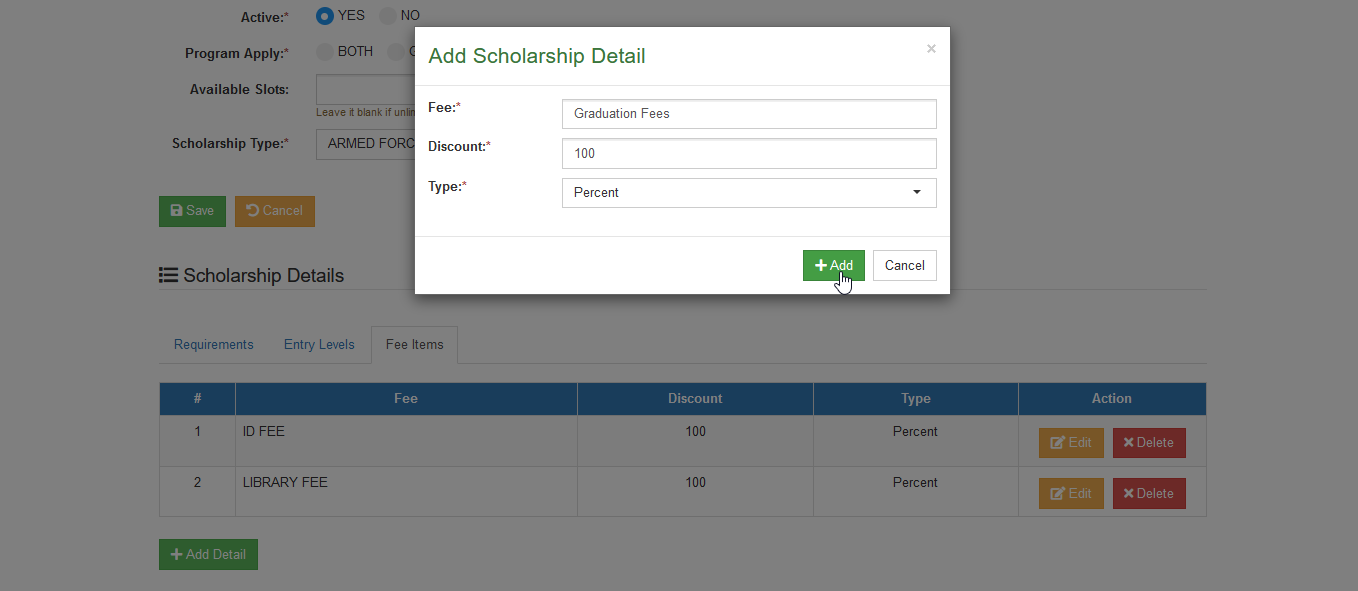
Follow the steps below on how to add scholarship fee items.
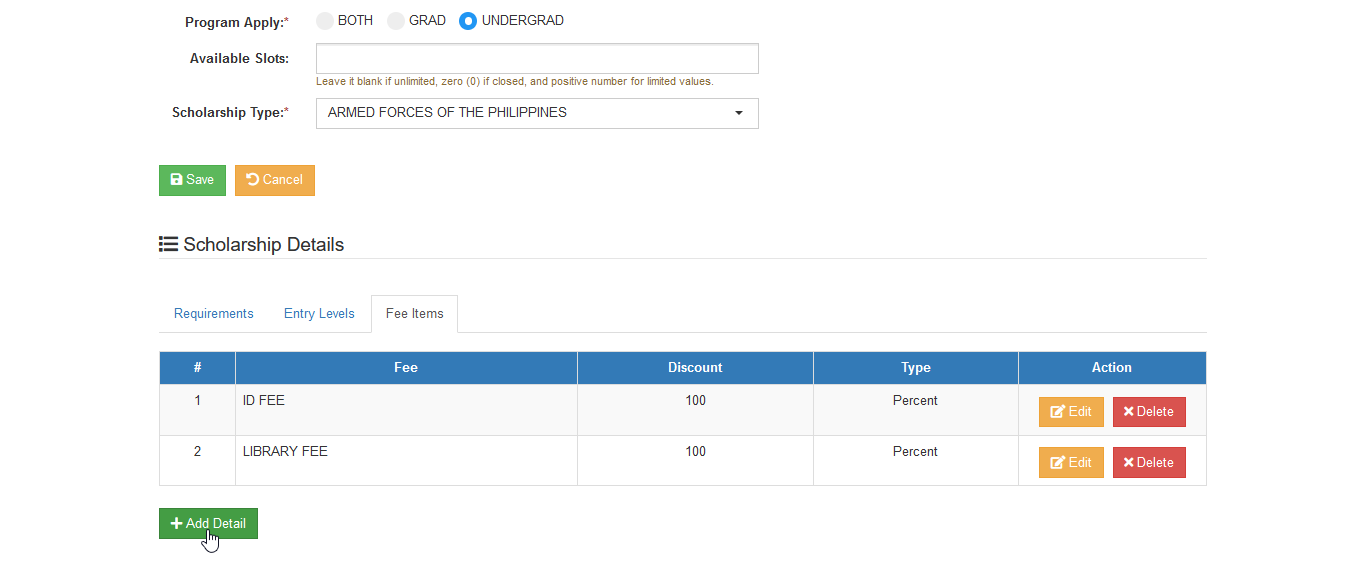
STEP 1. In Edit Scholarship page, under Scholarship Details section, in Fee Items tab, click the button.
STEP 2. Fill out the information needed in Add Scholarship Detail form.
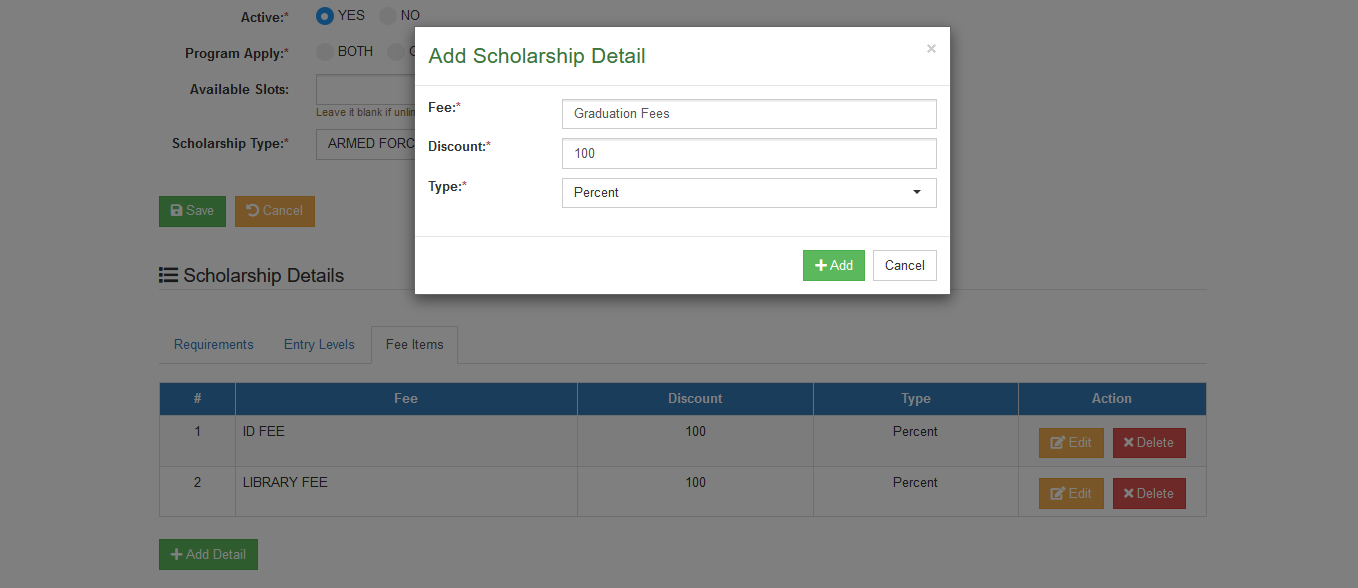
STEP 3. Click the button once done.
How to Edit Scholarship Fee Items
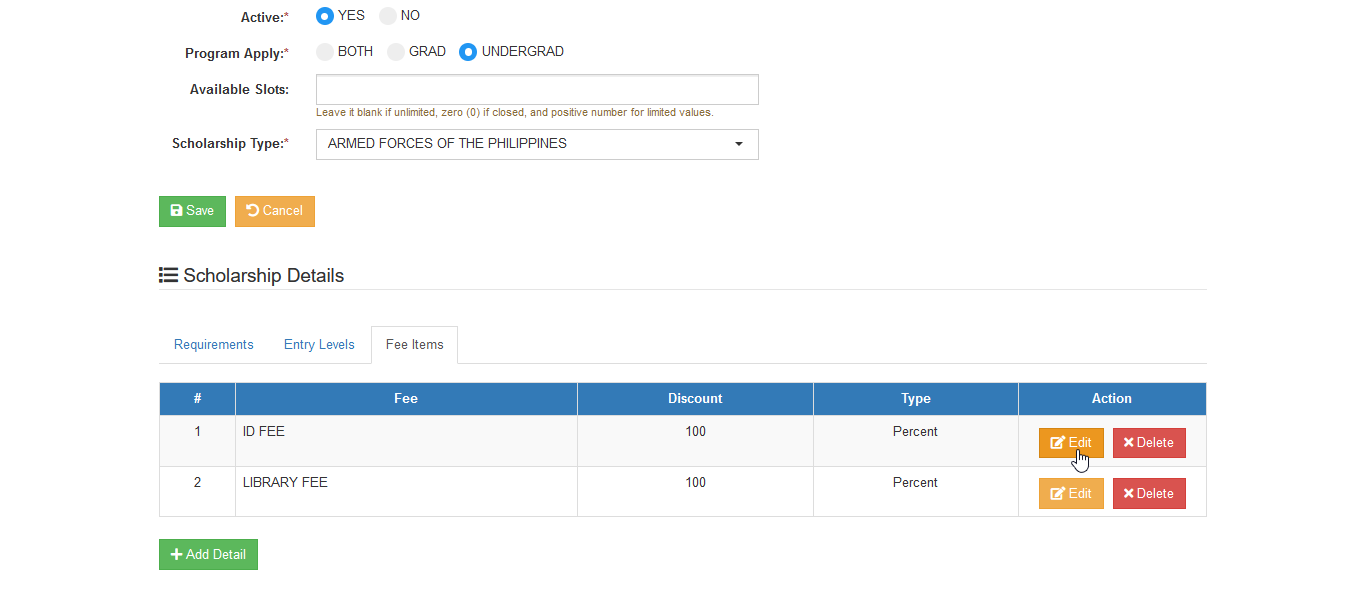
Follow the steps below on how to edit scholarship fee items.
STEP 1. In Edit Offered Scholarship page, under Scholarship Details section, under the Fee Items tab click the corresponding button of the specific fee items that will be modified.
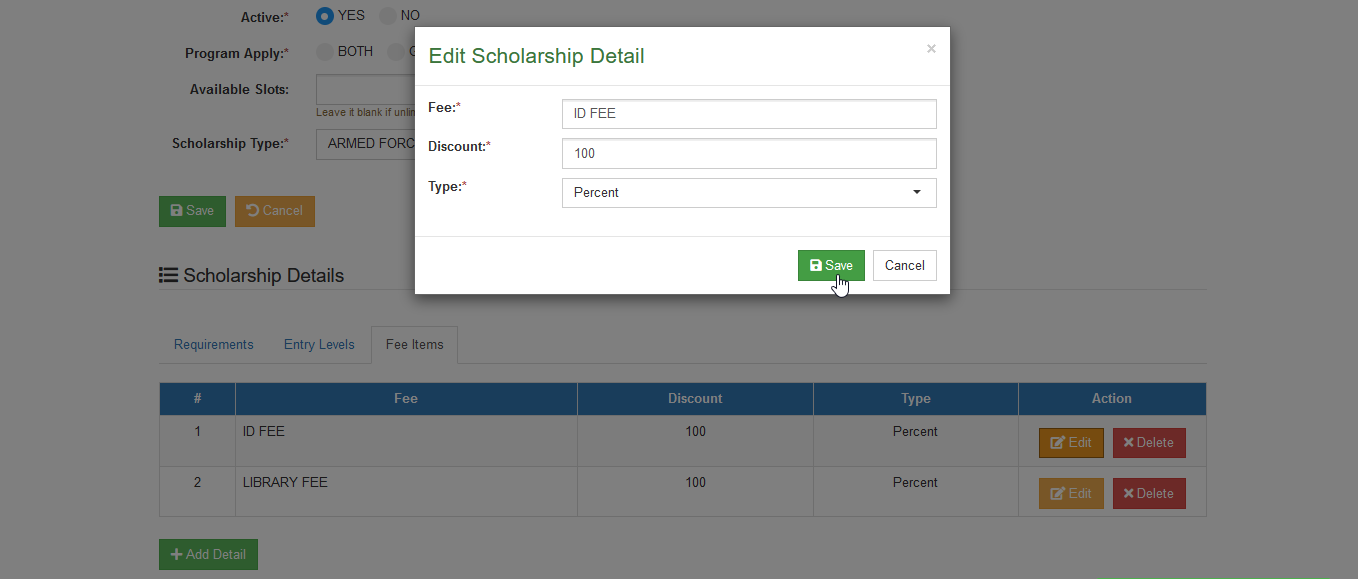
STEP 2. Modify the fee items information in Edit Scholarship Detail form and click the button.
How to Delete Scholarship Fee Items
Follow the steps below on how to delete scholarship requirements.
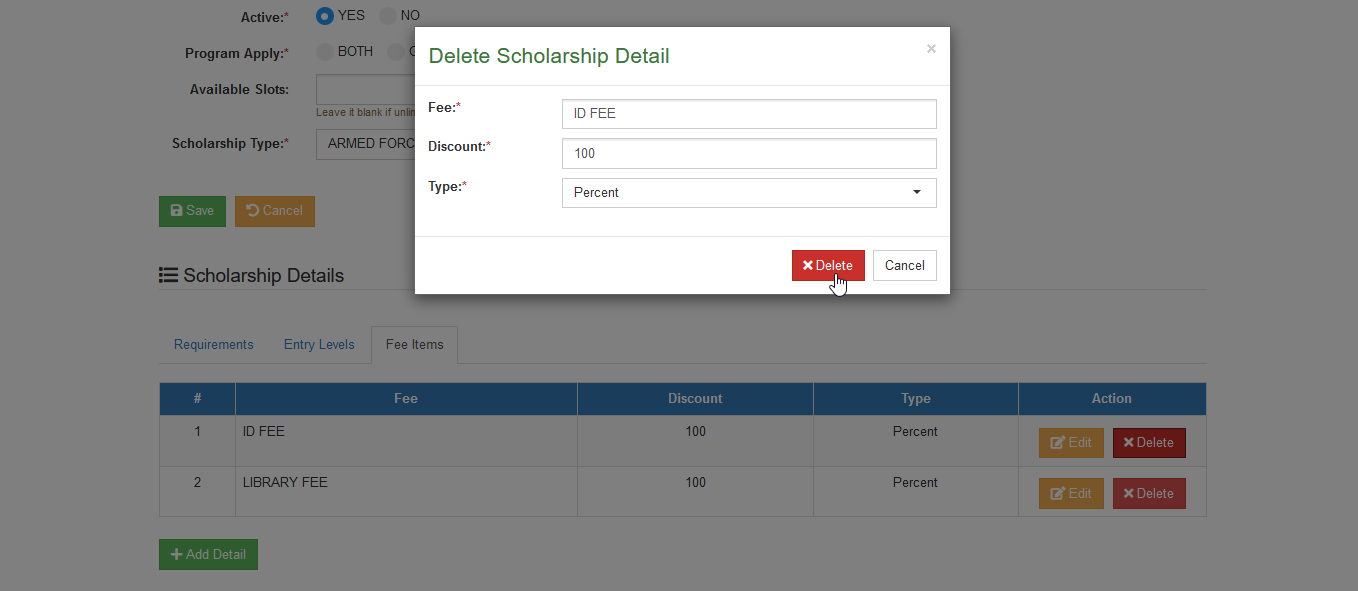
STEP 1. In Edit Offered Scholarship page, under Scholarship Details section, under Fee Items tab, click the corresponding button of the specific fee item that will be modified.
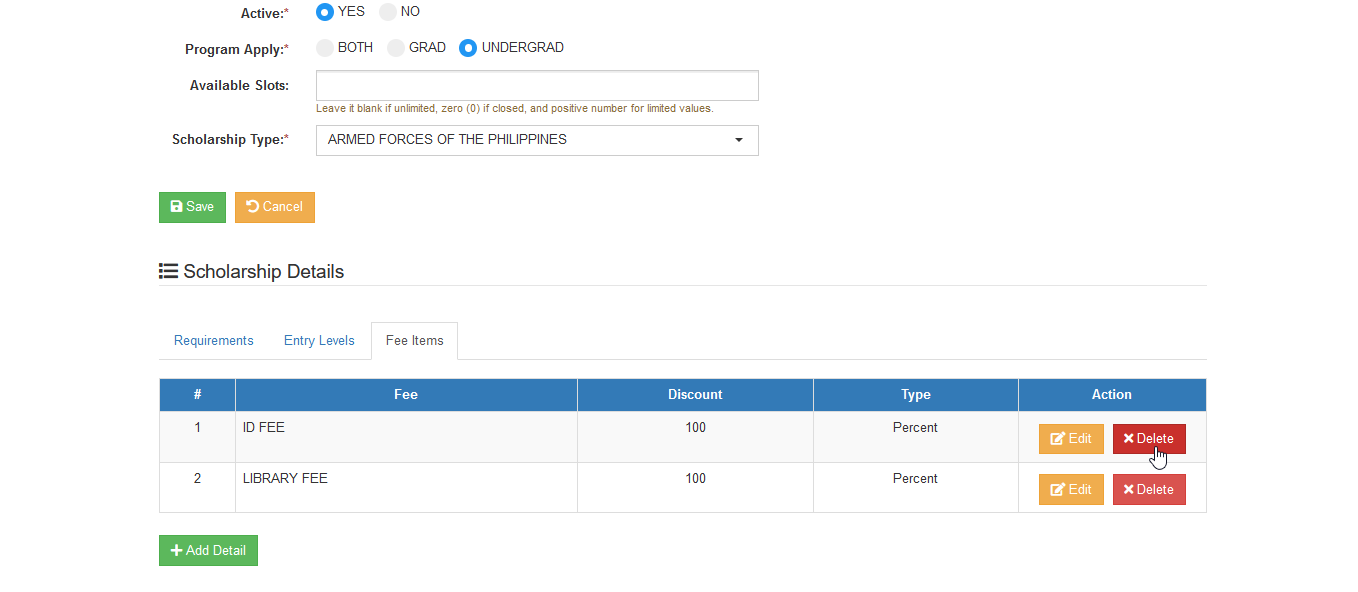
STEP 2. Confirm the deletion by clicking the button in the Delete Scholarship Detail form.
Why can't I find a specific scholarship type?
If a specific scholarship type record cannot be viewed by other user, it means that the user is restricted to access or modify that scholarship type. Make sure that user's assigned department in his/her profile aligns with the scholarship type's assigned department for new and for continuing.