College Load Revision
The College Load Revision module is used by Program Chairs and Deans to revise the class schedules of enrolled students for the current term. This is usually needed when a student changes sections, adds another class, or replaces a subject after enrollment.
-
The College Load Revision module is only available during the load revision period specified in the Term calendar.
-
This module is for enrolled students use only.
-
Program Chairs and Deans: review and process the student’s request.
-
Registrar’s Office: saves the processed request to officially update the student’s record.
-
Once saved, the changes will reflect in the student’s Certificate of Registration (COR).
-
This module is not for official dropping of classes. If a student is requesting to officially drop a subject, coordinate with the Registrar’s Office to process the request through the Change of Grade & Official Dropped module instead.
Who Can Use This Module?
-
Program Chair
-
Deans
Required Permission
- College Load Revision - Allows user to revise the class schedules of enrolled students during the official load revision period. This includes adding, removing, or replacing classes in a student’s schedule.
How to access the module?
To access the module, make sure you have the College Load Revision permission. If it doesn’t appear in your portal, request access from your System Administrator.
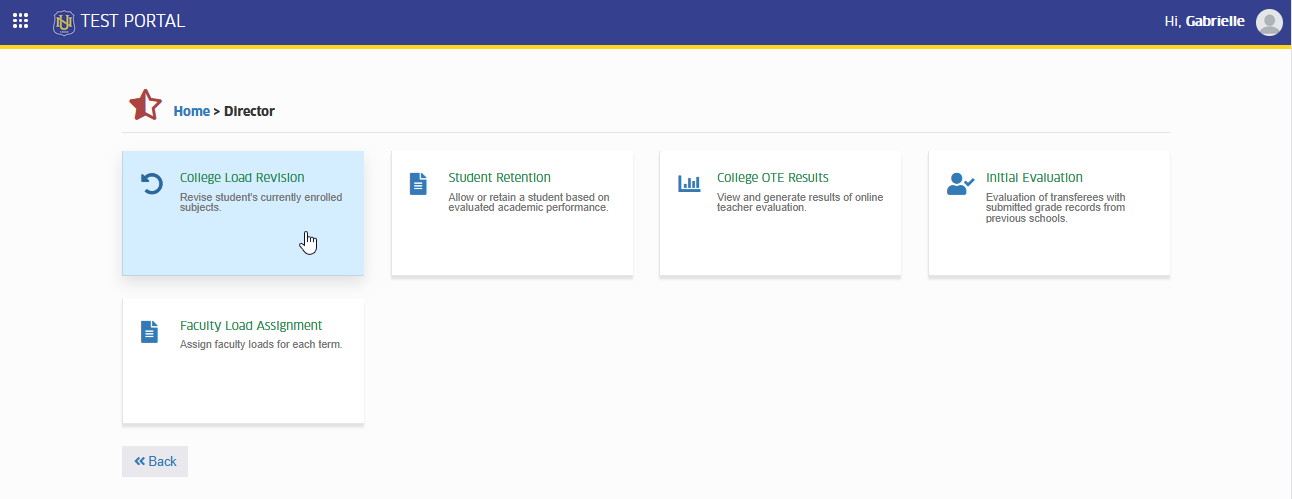
To access the module go to Director > College Load Revision
Click the module tab to redirect to College Load Revision page.
How to Use the Module
This section explains the different actions you can perform inside the College Load Revision module.
How to Drop Classes
This feature allows Program Chairs and Deans to remove a subject from the student’s enrolled load. Dropping a class means the student will no longer be officially enrolled in that subject, and the change must be saved by the Registrar’s Office to reflect in the student’s COR.
Follow the steps below on how to drop or remove an enrolled subject.
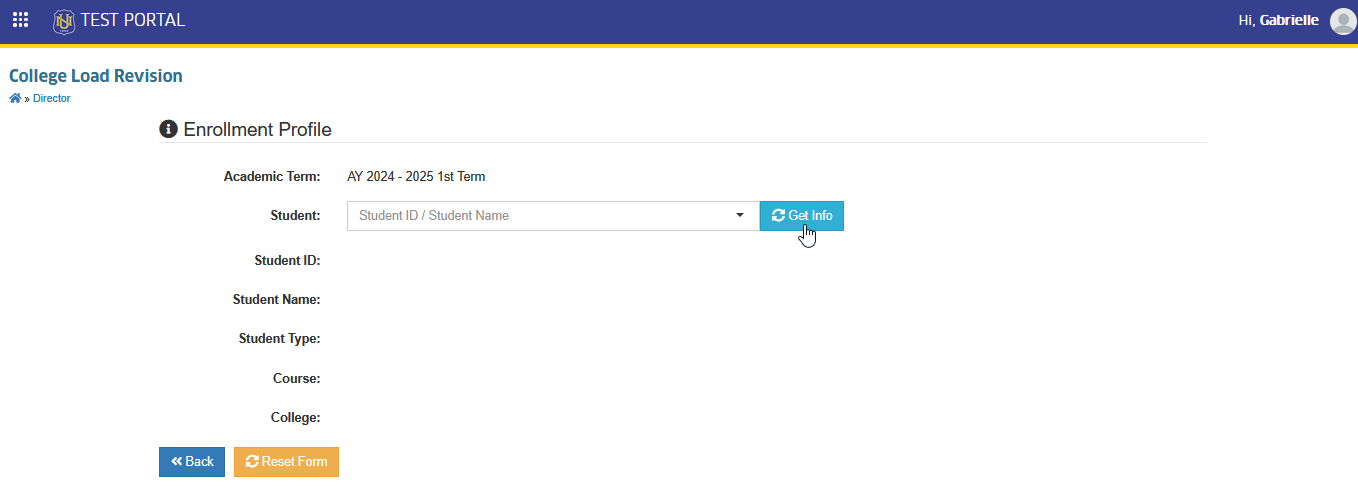
STEP 1. In College Load Revision page, search for the student by typing the student’s ID number and click the button.
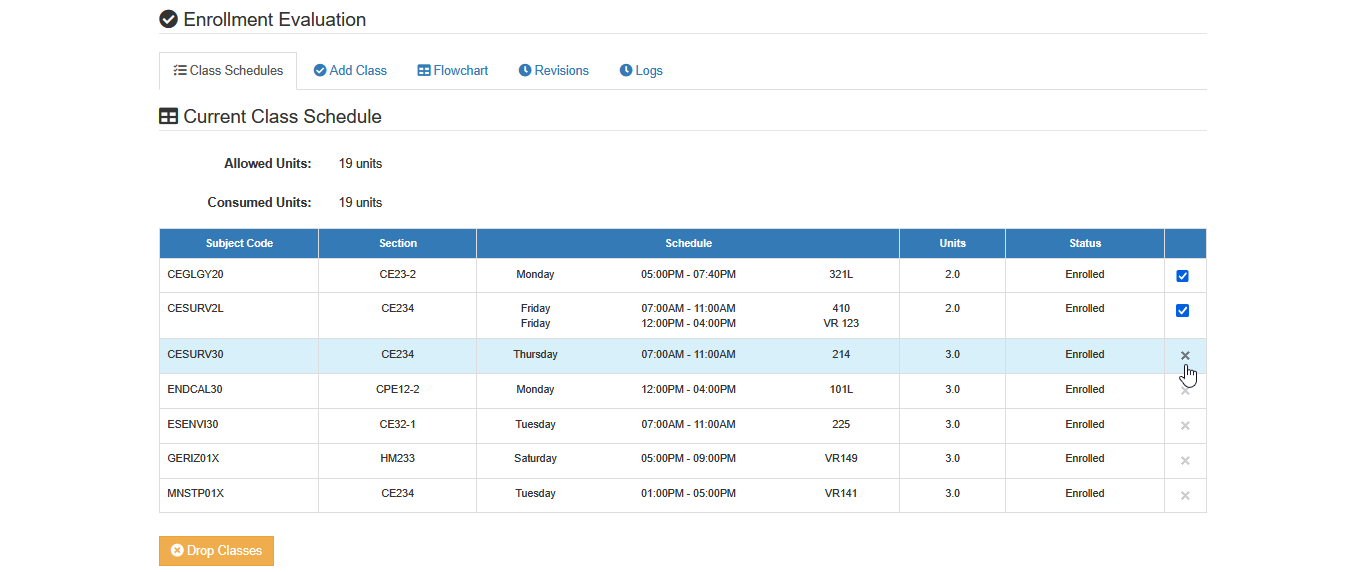
STEP 2. Once you are on the student’s enrollment record, scroll down to the Enrollment Evaluation section. Make sure you are in the Class Schedule tab. Select the subject you want to remove.
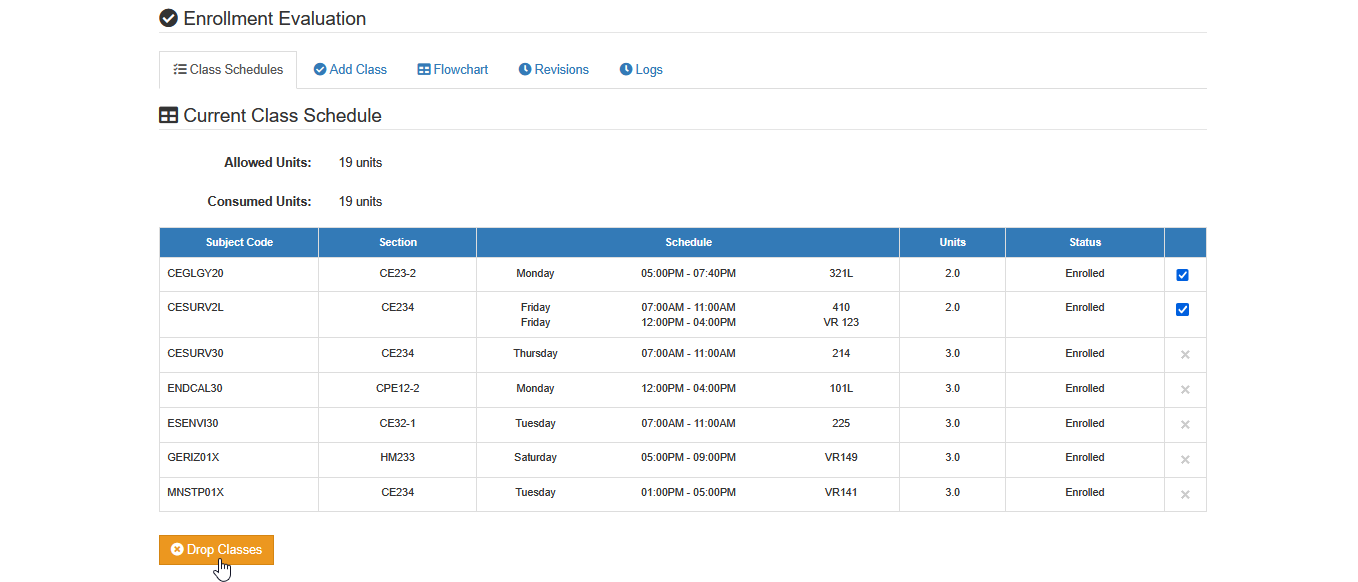
STEP 3. Click the button and confirm your action.
STEP 4. After confirmation, the subjects will now be moved to the Pending Load Revision section.
-
Select the Reason and enter Remarks for dropping the subject.
-
Review the information carefully.
-
Once everything is final, click the button.
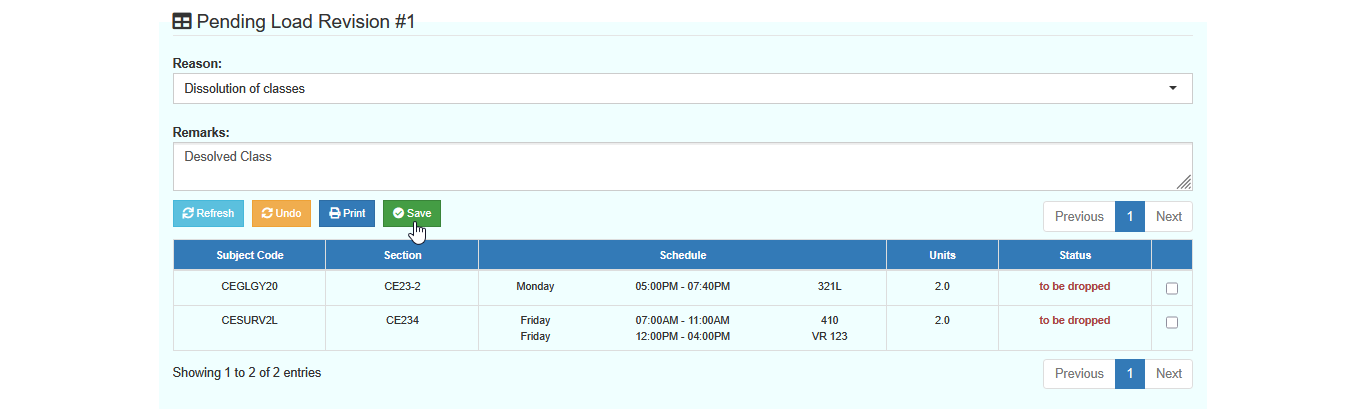
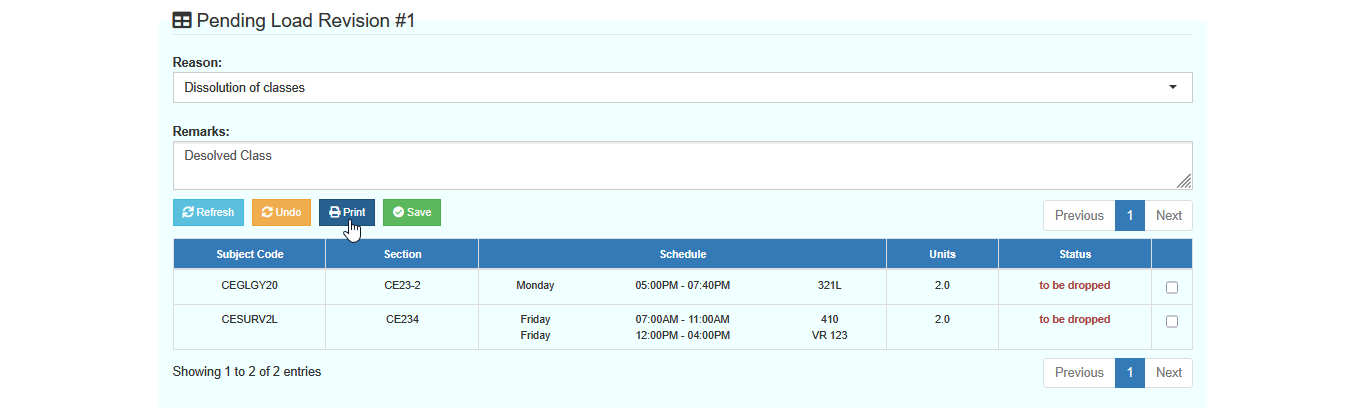
STEP 5. All dropped subjects will now be recorded in the Pending Load Revision module.
-
Print the Load Revision Form and have it signed by the required offices.
-
Only after this step will the request proceed to final saving by the Registrar’s Office.
How to Add Classes
This feature allows Program Chairs and Deans to include an additional subject in the student’s enrolled load. Adding a class ensures the student is officially registered in that subject once the Registrar’s Office saves the revision.
Follow the steps below on how to add a subject to a student’s enrollment.
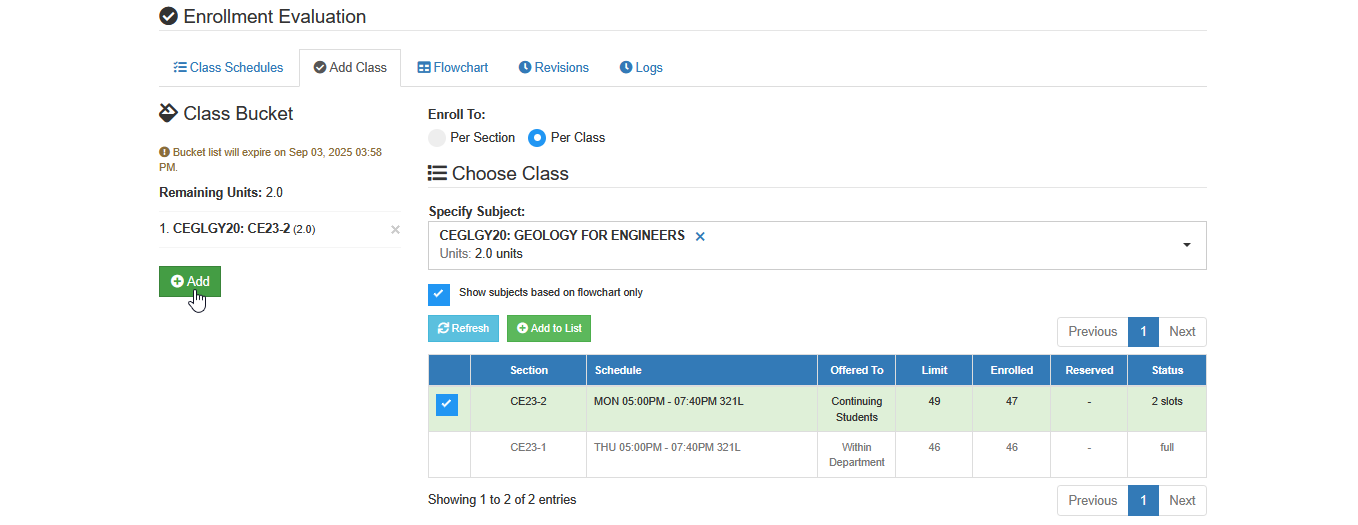
STEP 1. In the College Load Revision page, scroll down to Enrollment Evaluation section and go to Add Class tab.
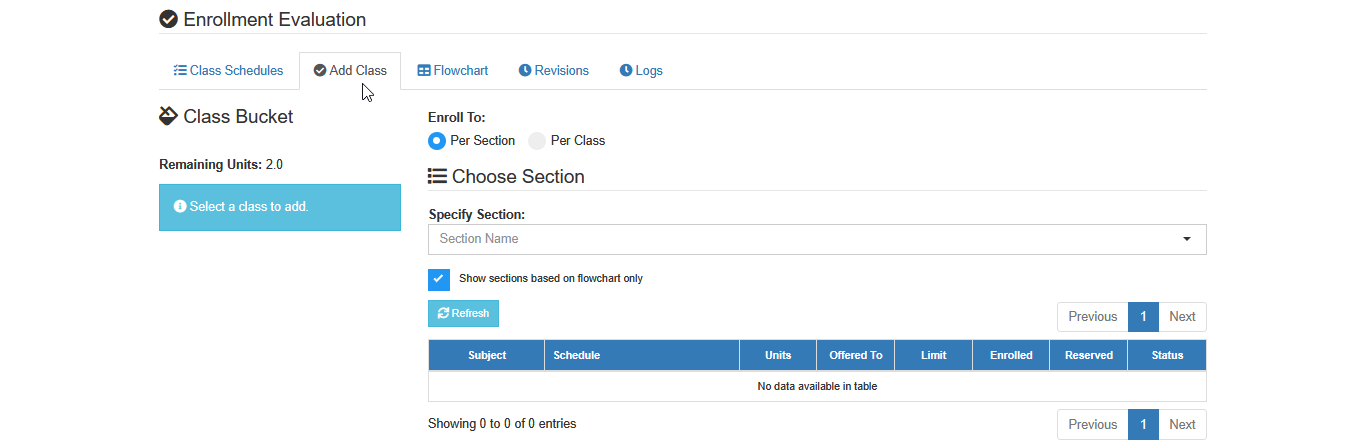
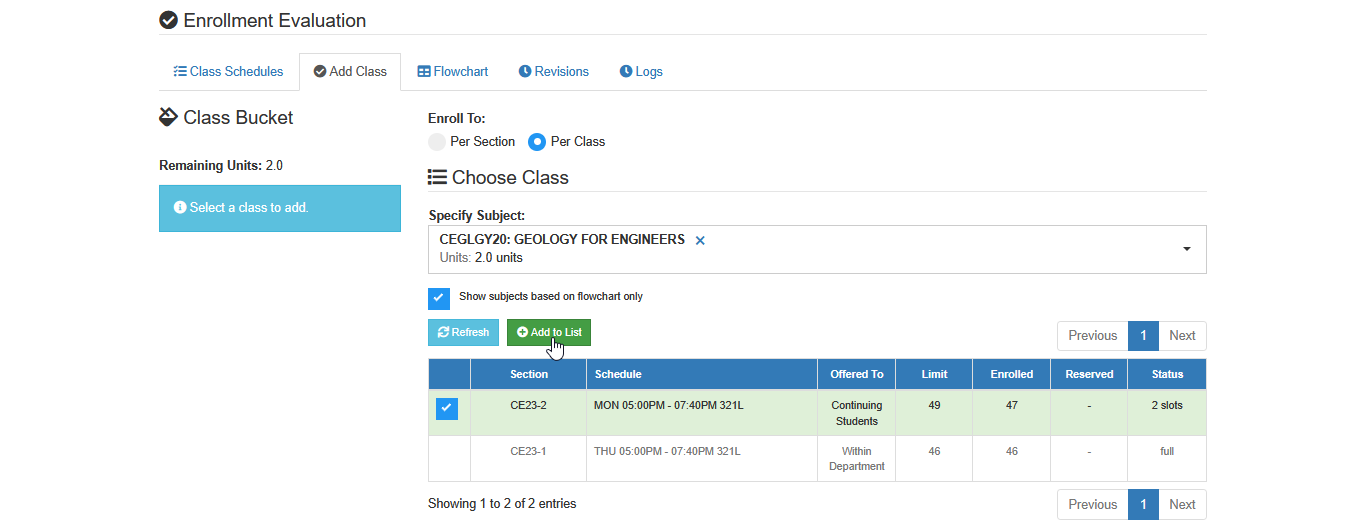
STEP 2. Specify and select the section or class you want to add, then click the button.
-
Make sure the Remaining units are enough to add the subject.
-
The selected subject will now be moved to the Class Bucket.
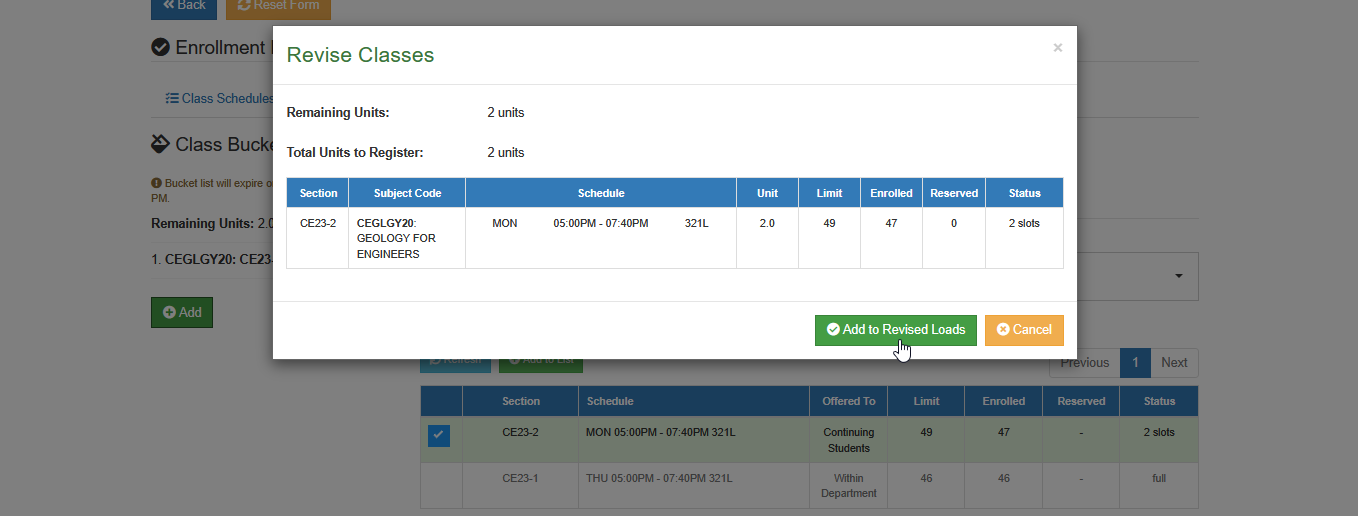
STEP 3. In the Class Bucket click the button. The Revise Classes prompt will appear.
STEP 4. In the Revise Classes prompt:
-
Review the details of the subject.
-
Click the button.
-
The subject will now be move to the Class Schedule tab.
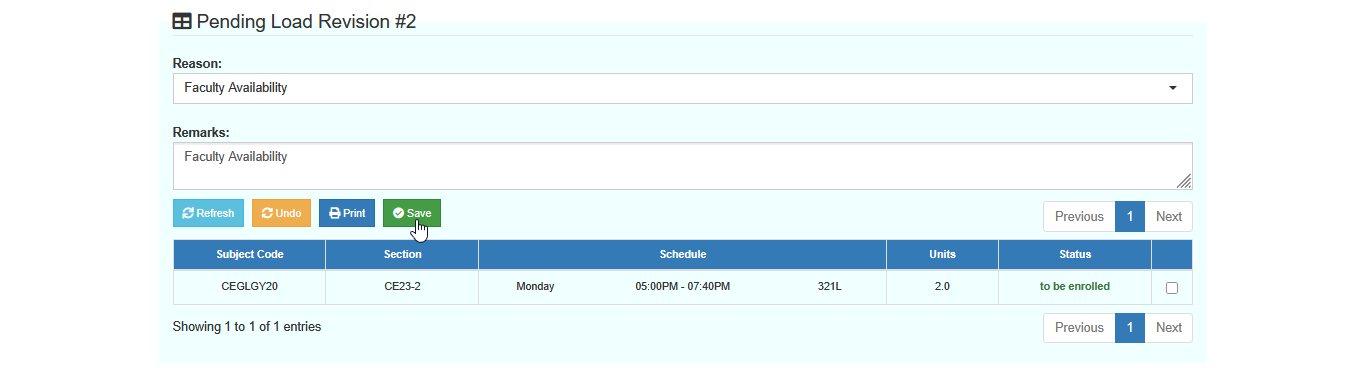
STEP 5. In the Class Schedule tab, scroll down to the Pending Load Revision section.
-
Select the reason for adding and enter any necessary remarks.
-
Once confirmed, click the button.
STEP 6. All added subjects will now be recorded in the Pending Load Revision module.
-
Print the Load Revision Form and have it signed by the required offices.
-
Only after this step will the request proceed to final saving by the Registrar’s Office.
How to Undo Revisions
This feature allows Program Chairs and Deans to cancel a revision before it is finalized. It is mainly used to undo dropping or adding a subject if done by mistake.
STEP 1. In the Pending Load Revision section of the page, select the subject you want to undo by checking the checkbox.
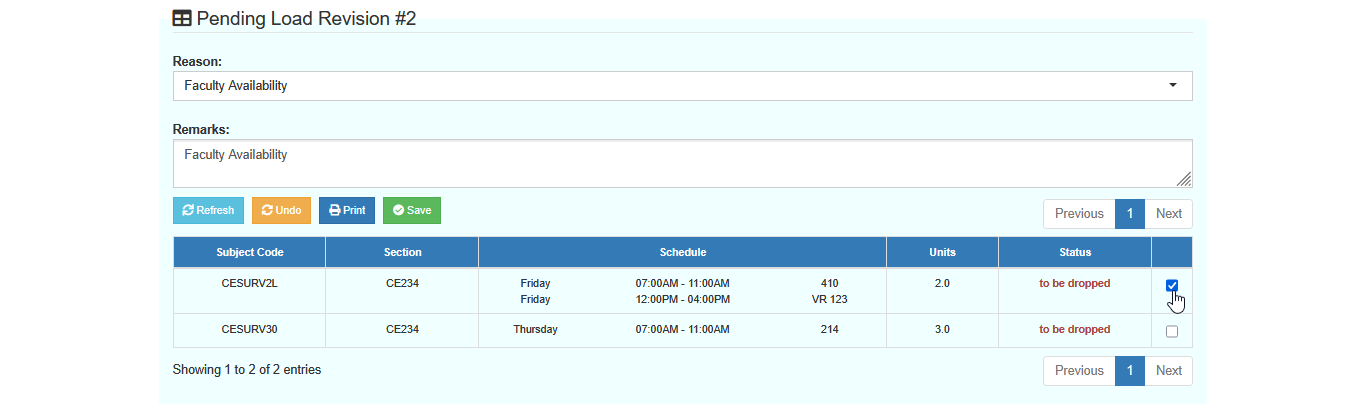
STEP 2. Click the button.
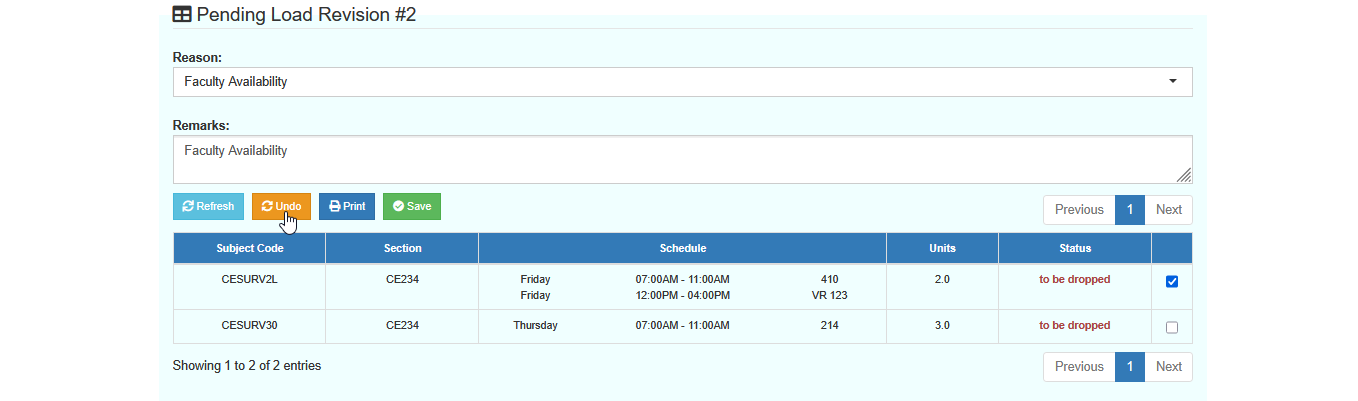
STEP 3. Confirm your action in the prompt that will appear.
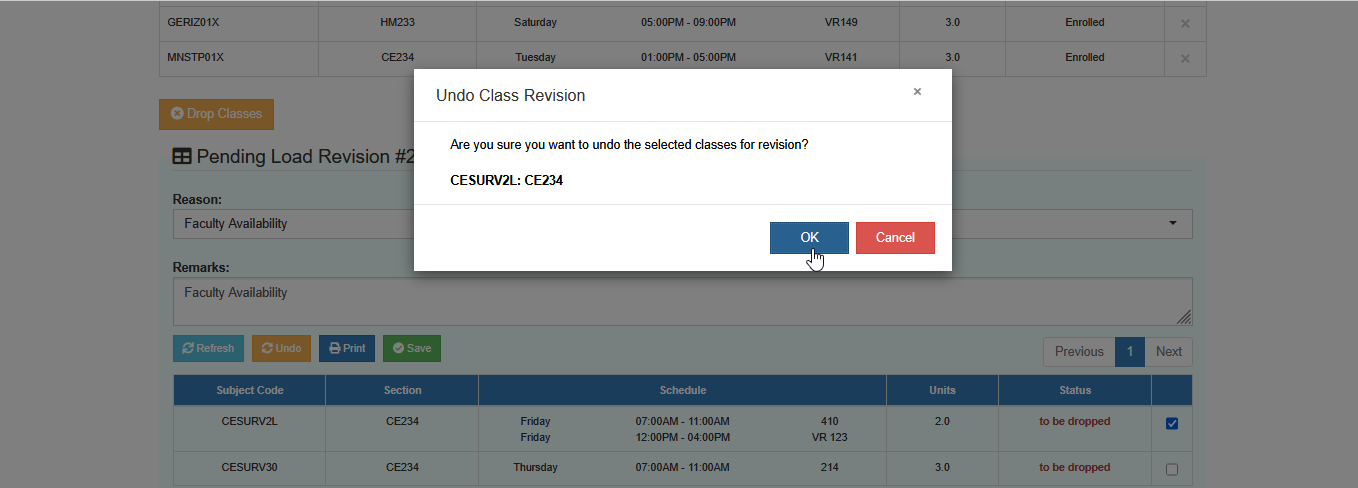
-
If you undo a dropped subject, it will be restored to the Class Schedule tab.
-
If you undo an added subject, it will be removed from the Pending Load Revision list.
For more questions or concerns, email us at nu-desk@national-u.edu.ph