Student Retention
The Student Retention module is an enrollment management tool used to control how many units a student is allowed to enroll for a specific term.
This module enables Deans and Program Chairs to allow, hold, or limit students based on their evaluated academic performance from the previous term.
Students who fail to pass at least 25% of their total enrolled units from previous term are required to undergo Student Retention Management before enrollment approval.
Required permissions
-
Student Retention - This permission allows the user to access the module. This also enables the user to allow or hold the student to enroll for the next enrollment term and modify the number of units a student can take.
-
Student Retention Override - This permission allows the authorized users to modify the allowable units of a student even after enrollment. This permission is restricted to Registrar Heads only.
How to access the module?
To access the module, make sure you have the Student Retention permission. If it doesn’t appear in your portal, request access from your System Administrator.
-
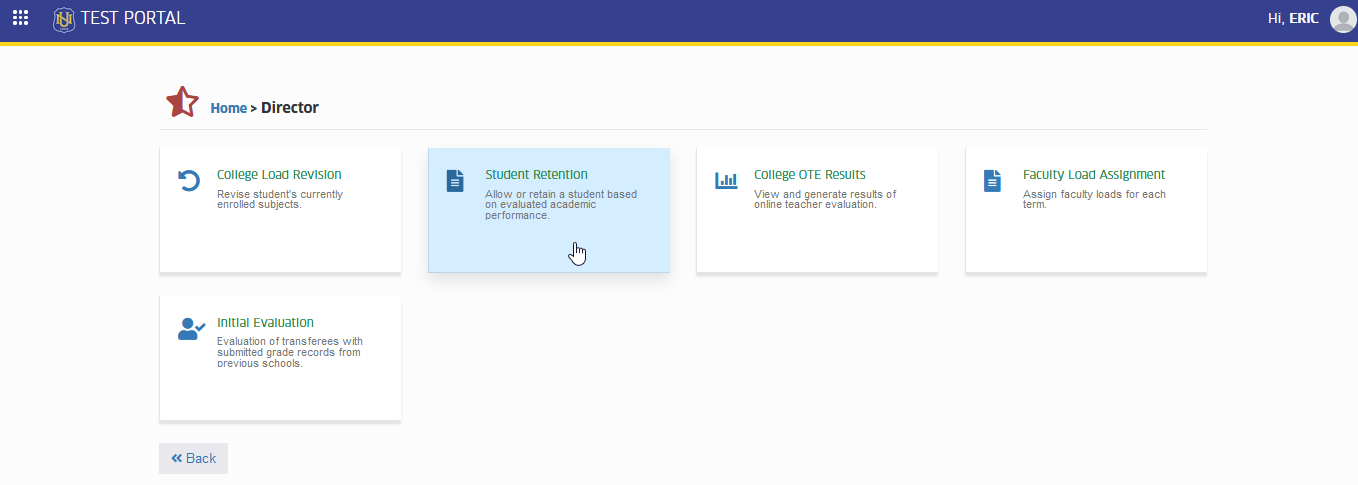
Go to Director > Student Retention
-
Click the module tab to open the Student Retention page.
How to use student retention module
The system automatically computes the allowed units each student can enroll in, based on their program flowchart and total earned units.
This computed limit can be overridden by the Dean or Program Chair using this module if:
- The student requests to overload for the current term; or
- The Dean or Program Chair wishes to limit the student’s allowed units, especially for those under academic probation.
Follow the steps below to use the module properly:
STEP 1. Go to Director > Student Retention.
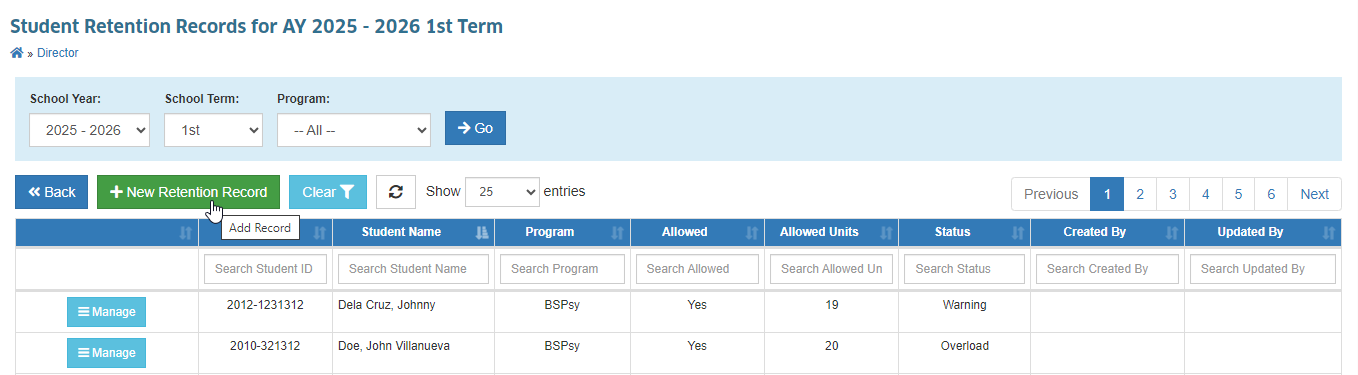
STEP 2. In Student Retention listview page, click the button.
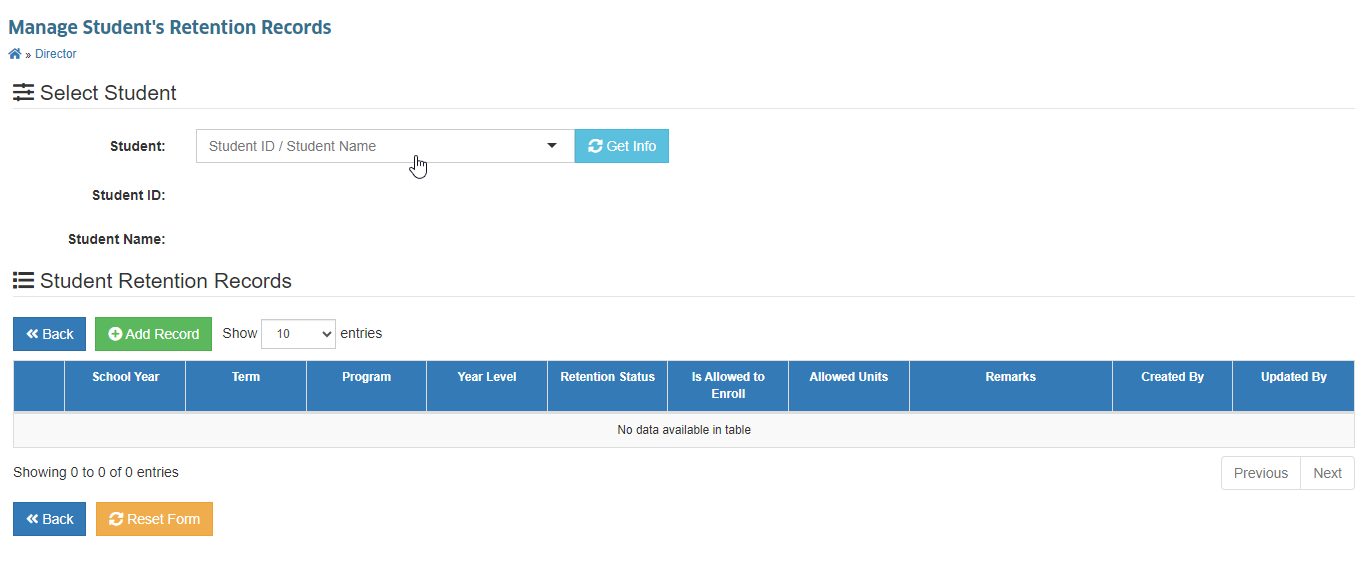
STEP 3. Specify the Student ID or Student Name and click the button.
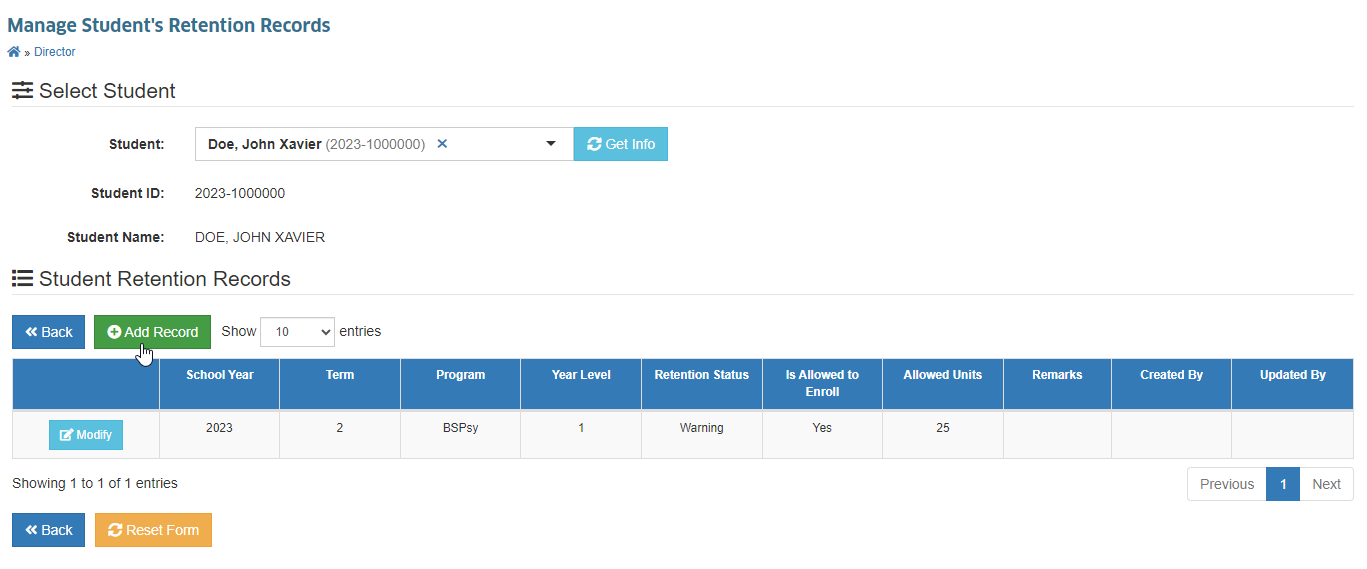
STEP 4. To add a new retention record for the specified student, click the button under Student Retention Records section.
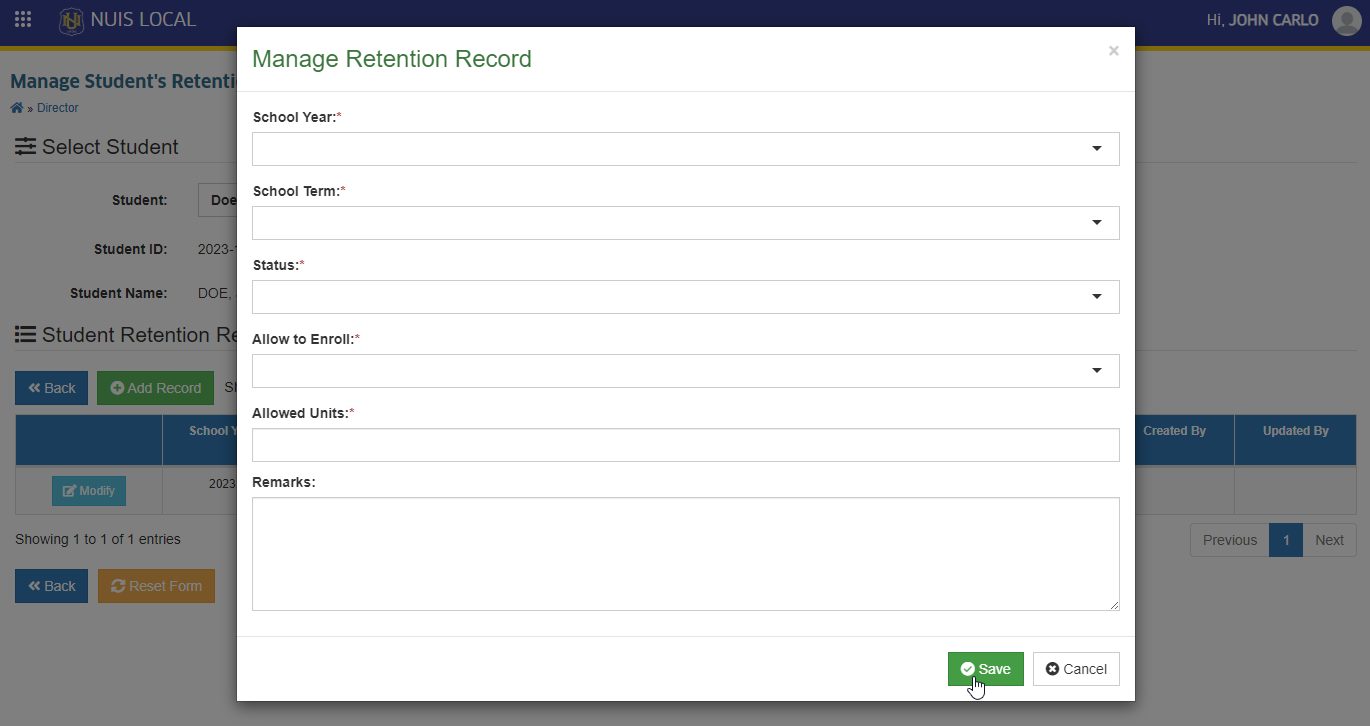
STEP 5. Specify the following fields:
| Field Name | Description | Required |
|---|---|---|
| School Year | Academic year the student will have a retention record. | Yes |
| Term | Academic term the student will have a retention record. | Yes |
| Status | Select from the options of retention status | Yes |
| Allow to Enroll | Select Yes if the student will be allowed to enroll, Otherwise, select No | Yes |
| Allowed Units | Total units the student is allowed to enroll for the specific term. | Yes |
| Remarks | Notes or remarks to include in the record. | No |
STEP 6. Click the button.
STEP 7. Optional. If you need to modify an added entry, click the corresponding button of a specific record.
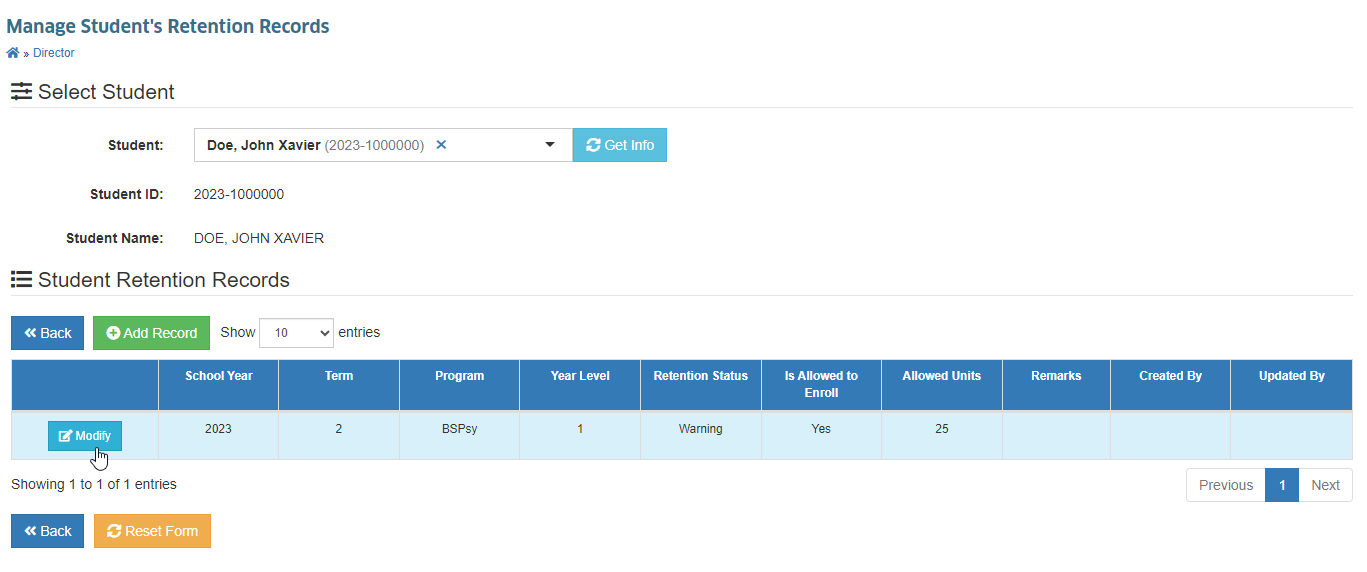
- Deans and Program Chairs can only modify the student's allowed load if the student is NOT yet Enrolled for a specific term. If already enrolled, this action must be coordinated with the Registrar's Office.
For more questions or concerns, email us at nu-desk@national-u.edu.ph