Faculty Load Assignment
The Faculty Load Assignment module is where you encode and manage faculty loads for each term.
-
Research, Administration, and Study Grant loads are entered manually.
-
Teaching Load is automatically calculated based on the faculty's assigned courses in the Class Schedule module.
Required Permission
Access to the Faculty Load Assignment module is based on user roles and assigned departments.
-
Faculty Load Assignment - This permission allows the user to view and manage loads for the departments assigned to them in the Assign Program Access module.
-
Faculty Load Assignment Admin- This permission have full access and can manage loads for all academic departments, even without assigned departments in the Assign Program Access module.
If you cannot access the module or certain departments, contact your system administrator to review your permissions.
How to Access the Module
To access the module, make sure you have the Faculty Load Assignment permission. If it doesn’t appear in your portal, request access from your System Administrator.
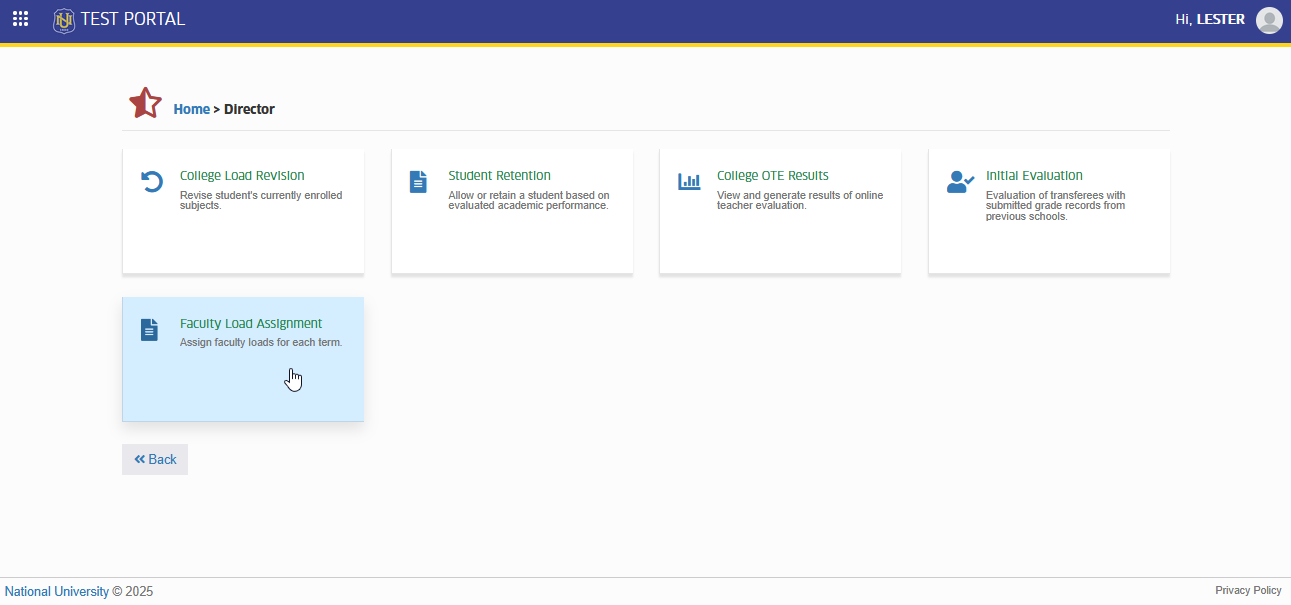
Go to Director > Faculty Load Assignment . Click the module tab to redirect to Faculty Load Assignment page.
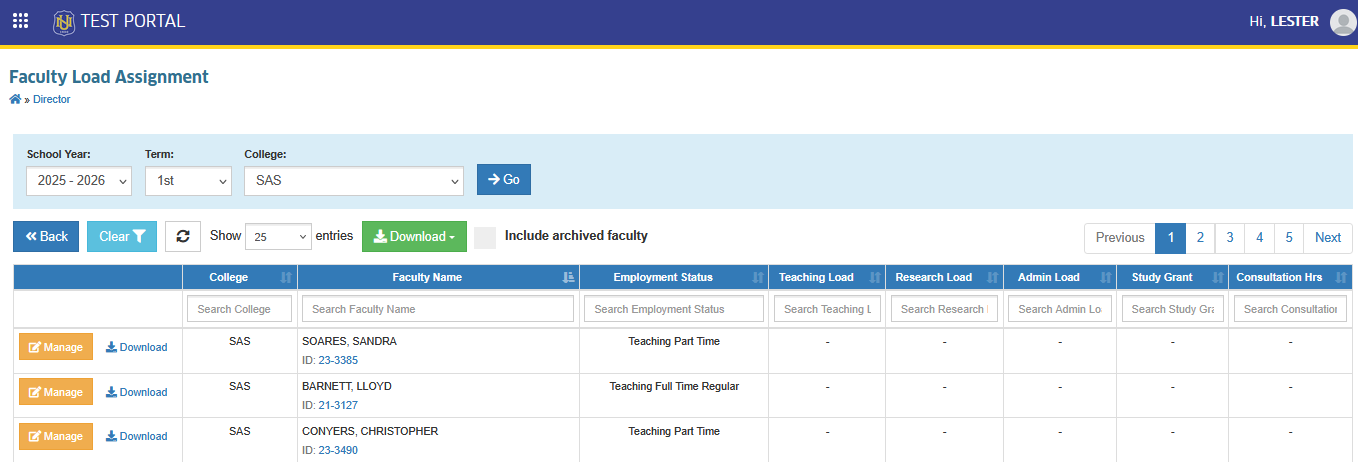
Manage Faculty Loads
This feature allows you to assign and update the total load of each faculty member for a specific term. You can add, edit or delete Research, Administration, and Study Grant loads manually.
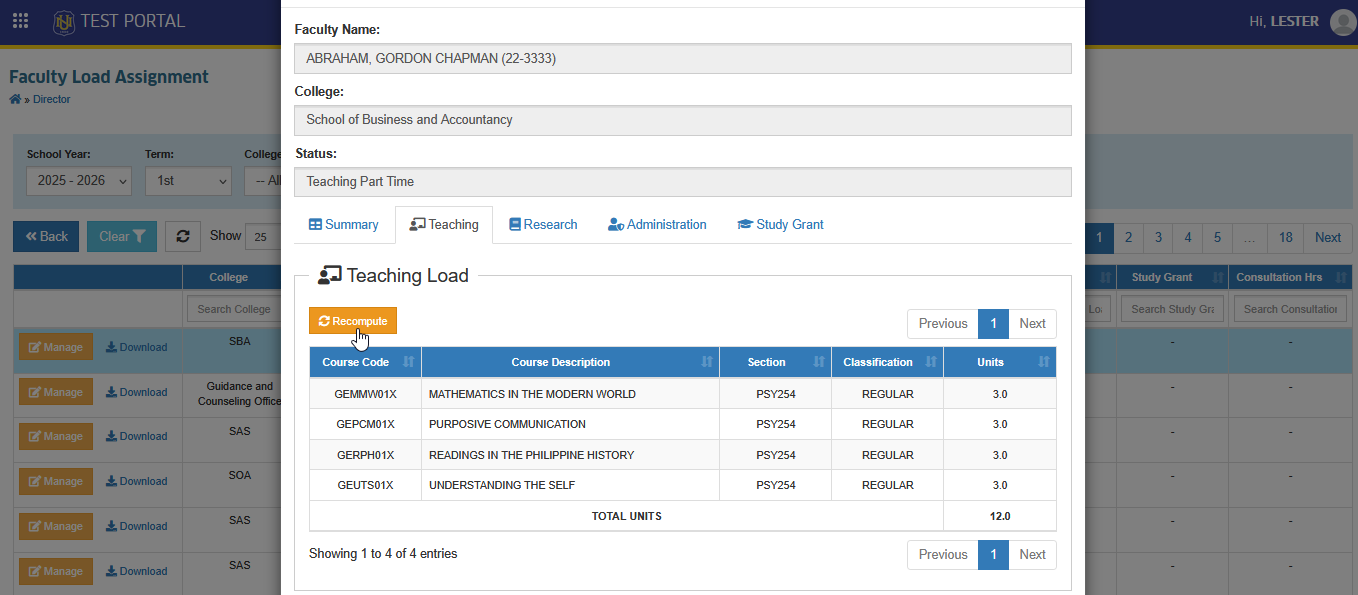
Teaching Loads
Teaching Load is automatically calculated based on the faculty’s assigned classes in the Class Schedule module per term. If total doesn't tally, click the button to update the faculty load displayed in the page.
Research Loads
Research Load is the number of units assigned to a faculty member for research activities during the term.
How to Add Research Load
Follow the instruction below on how to add faculty's research load.
STEP 1. In the Faculty Load Assignment page, click the button next to the faculty member you want to manage. The Manage Faculty Load prompt will then appear.
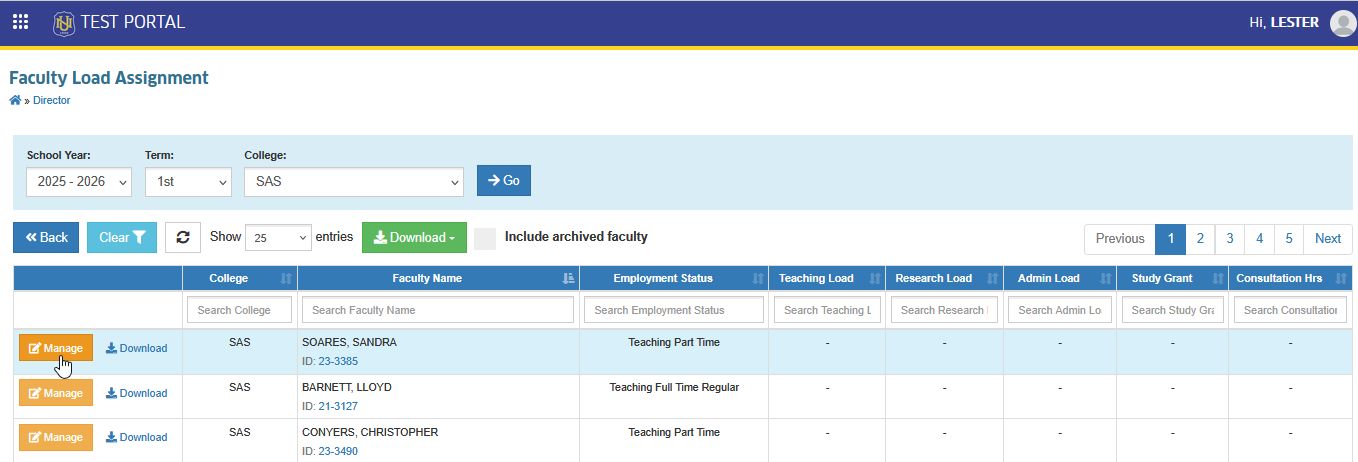
STEP 2. In Manage Faculty Load prompt, go to the Research tab.
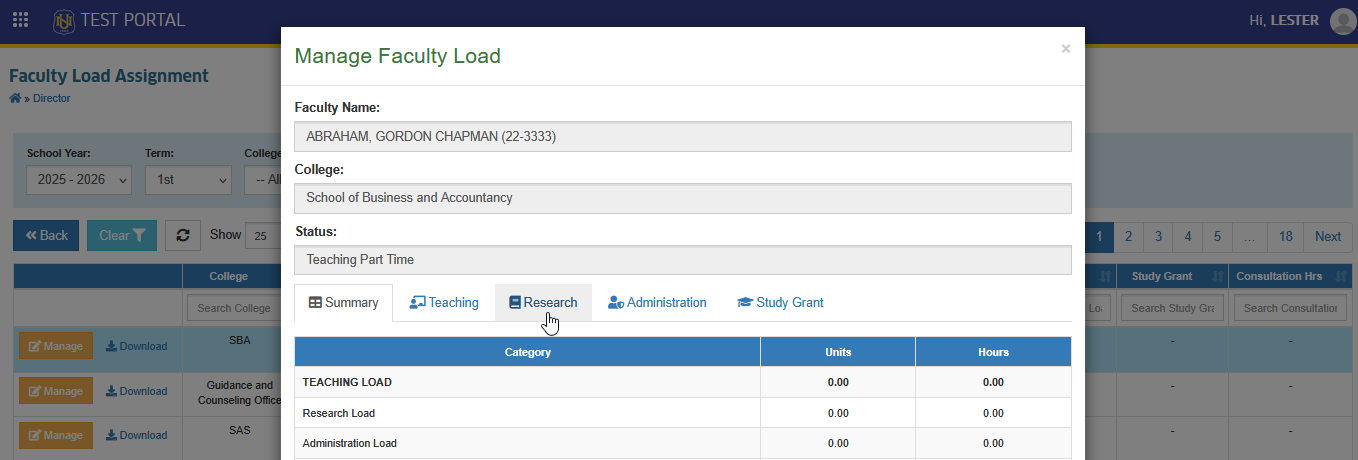
STEP 3. In Research Load section locate and click the button.
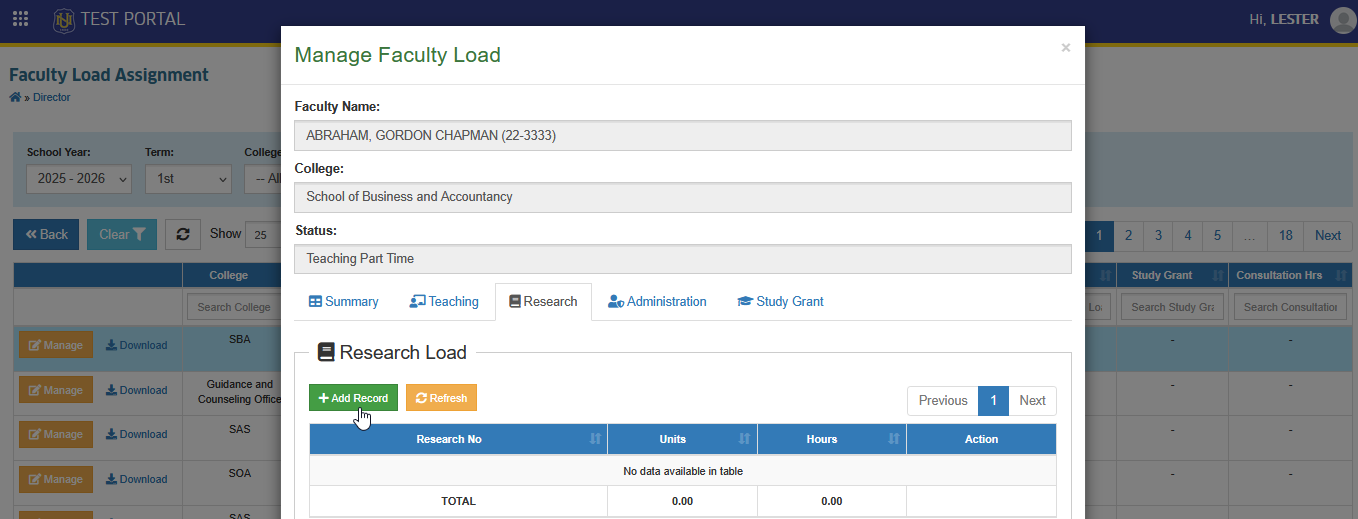
STEP 4. Enter the Research No. and equivalent units, then click the button to save the research load entry.
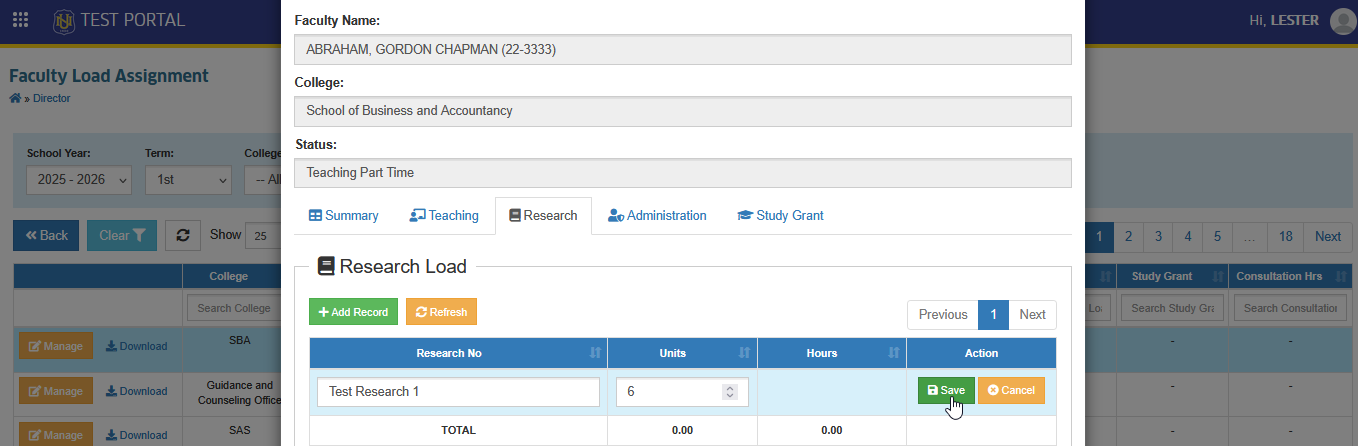
Users may add additional research load entries when necessary.
How to Edit Research Load
User can update the Research Load if there are changes to the faculty's assigned research work.
STEP 1. In Research Load section, click the corresponding button of a specific research load entry you want to modify.
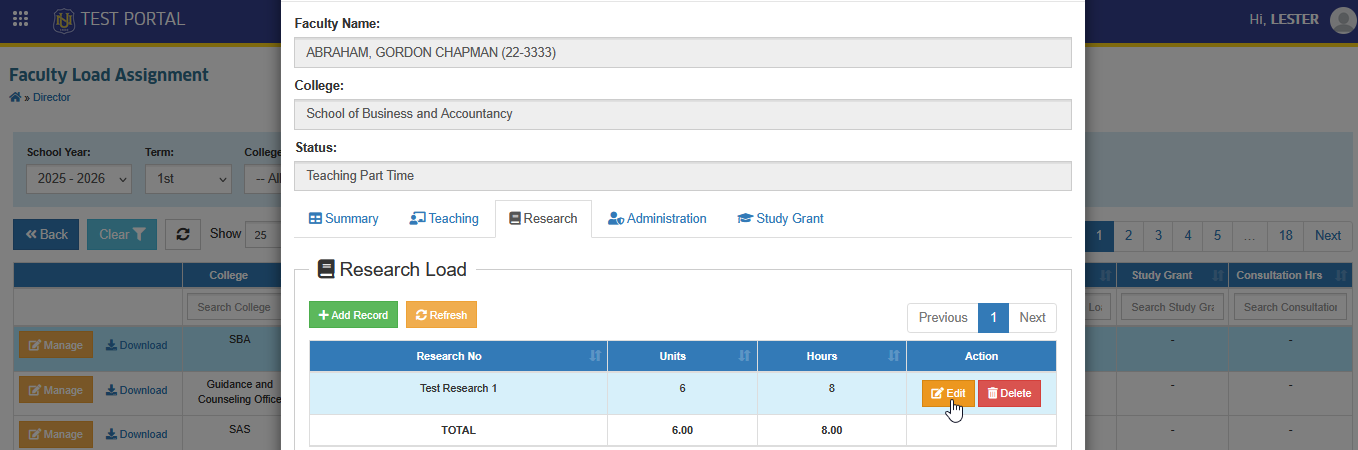
STEP 2. Edit the research entry as needed, then click the button to apply the changes.
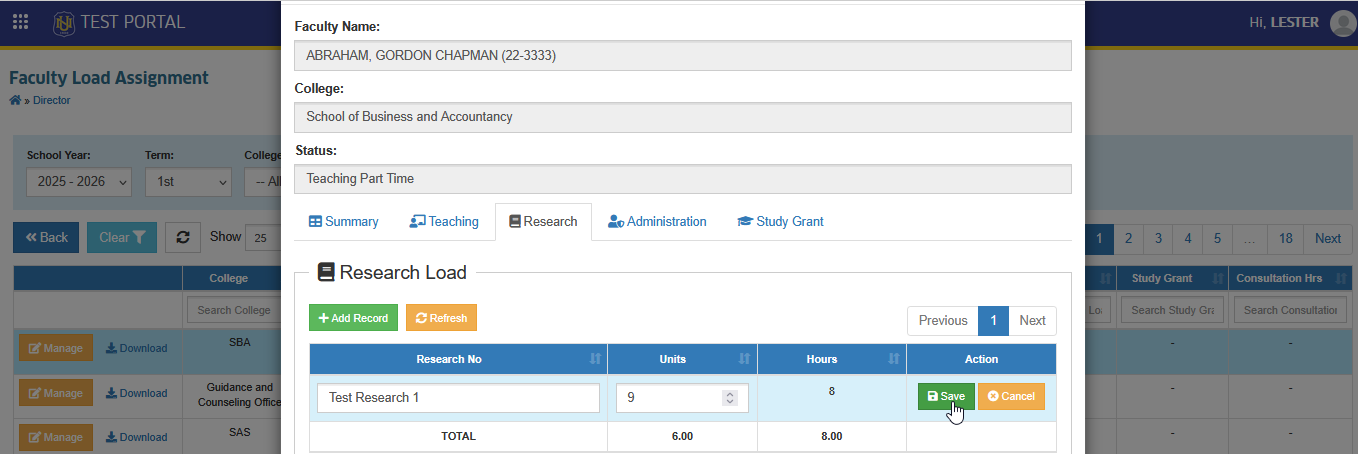
How to Delete Research Load
Follow these steps if you need to remove an existing research load.
STEP 1. In Research Load section, click the corresponding button of the specific research entry you want to remove.
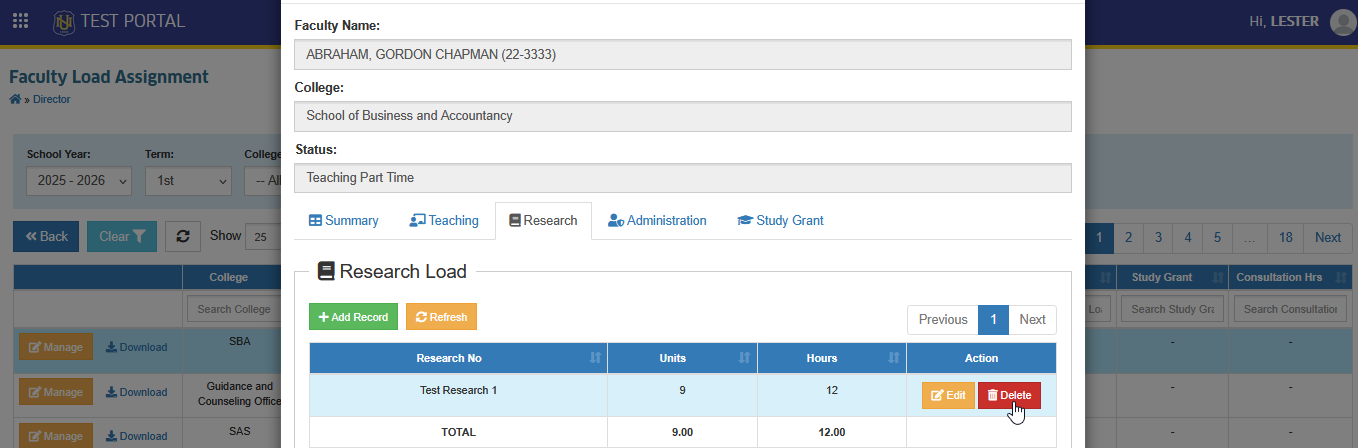
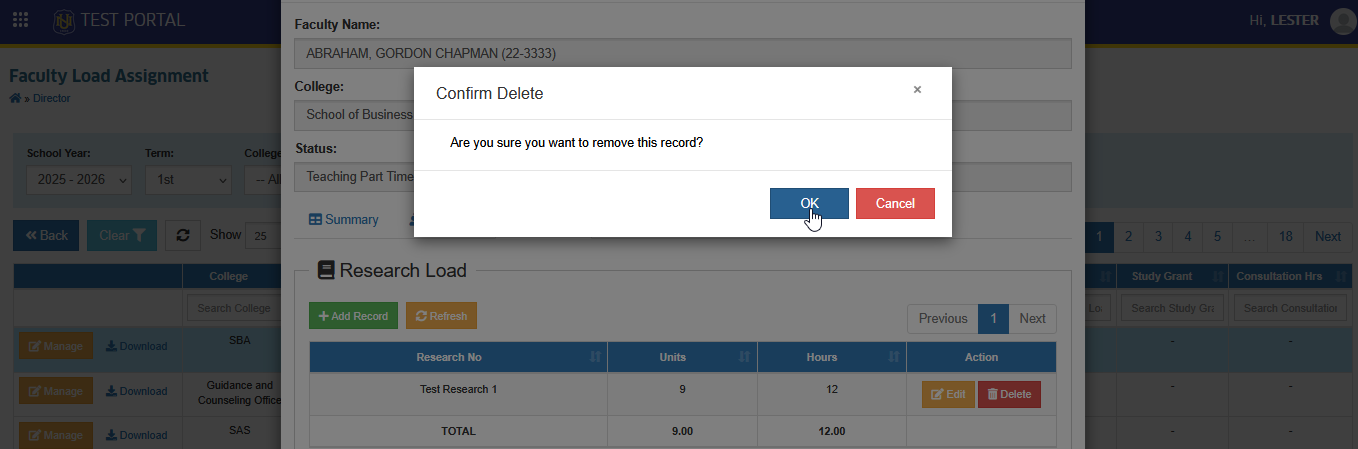
STEP 2. Confirm the deletion to proceed.
Administration Loads
Administration load covers units assigned for administrative duties.
How to Add Administration Load
This section guides you through adding an administration load to a faculty member's record. Follow these steps to input and save a new administration load entry.
STEP 1. In the Faculty Load Assignment page, click the button next to the faculty member you want to manage. The Manage Faculty Load prompt will then appear.
STEP 2. In Manage Faculty Load prompt, go to the Administration tab.
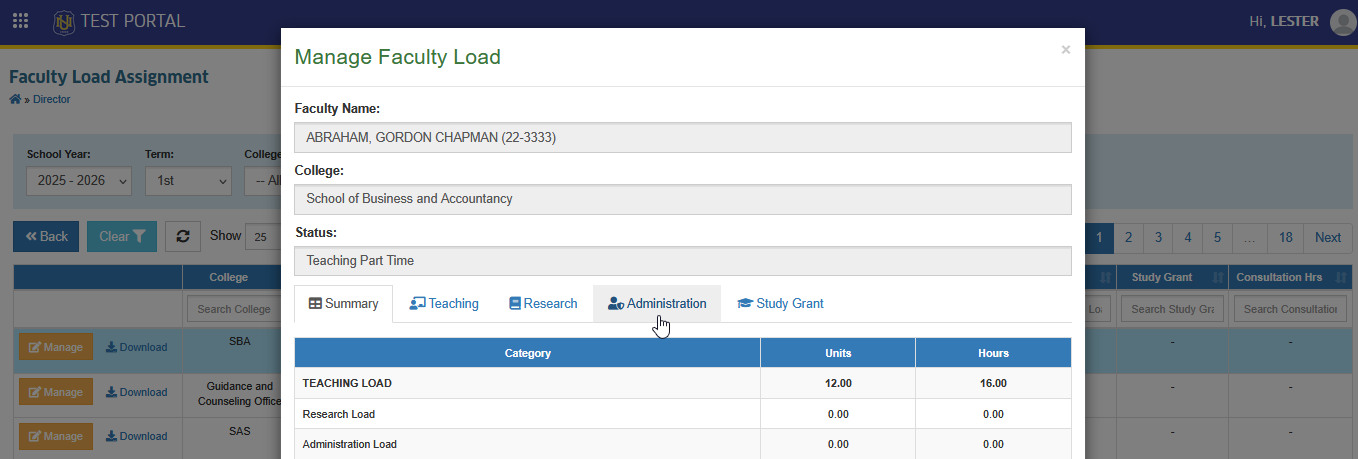
STEP 3. In Administration Load section locate and click the button.
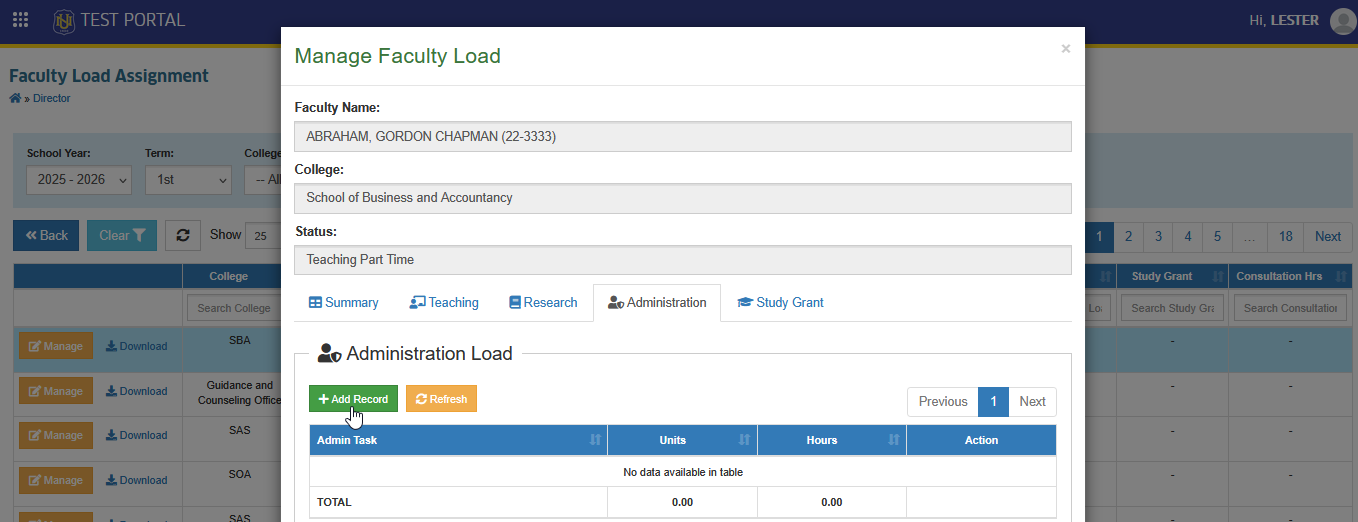
STEP 4. Enter the Admin Task and its equivalent units. If the task is not listed in the dropdown, encode the task/designation and click Add Entry.
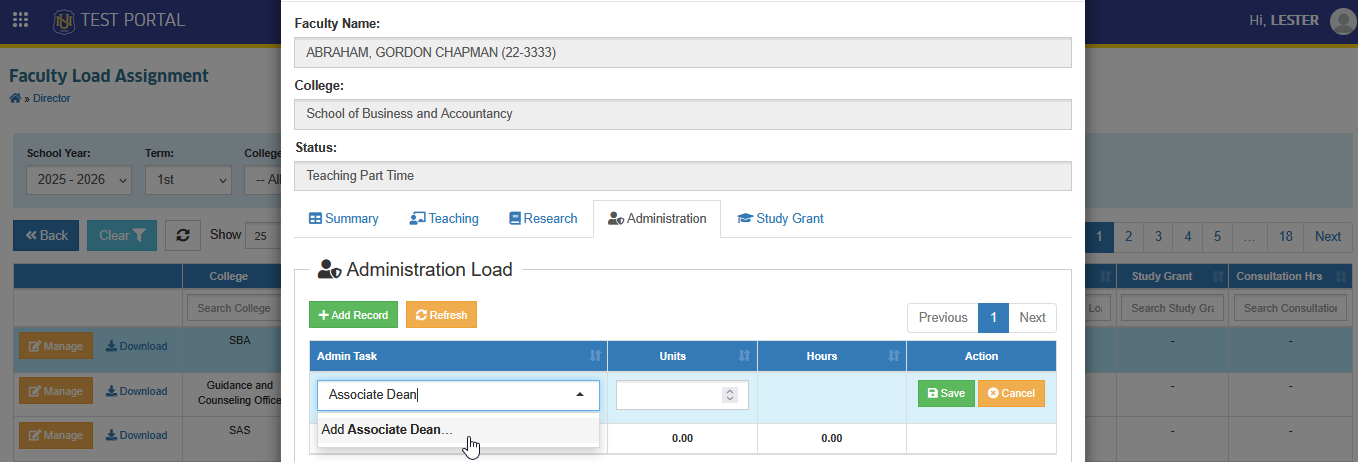
STEP 5. Click the button to save the administration load entry.
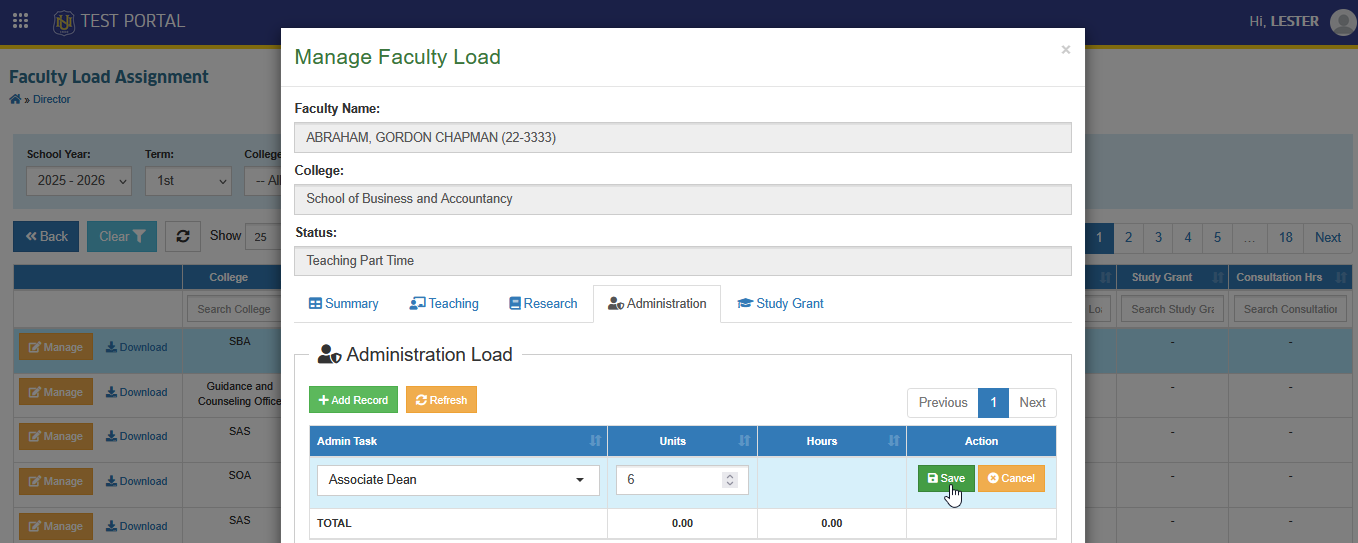
Users may add additional administration load entries when necessary.
How to Edit Administration Load
User can modify the Administration Load if the faculty's administrative responsibilities change.
STEP 1. In Administration Load section, click the corresponding button of the administration entry you want to modify.
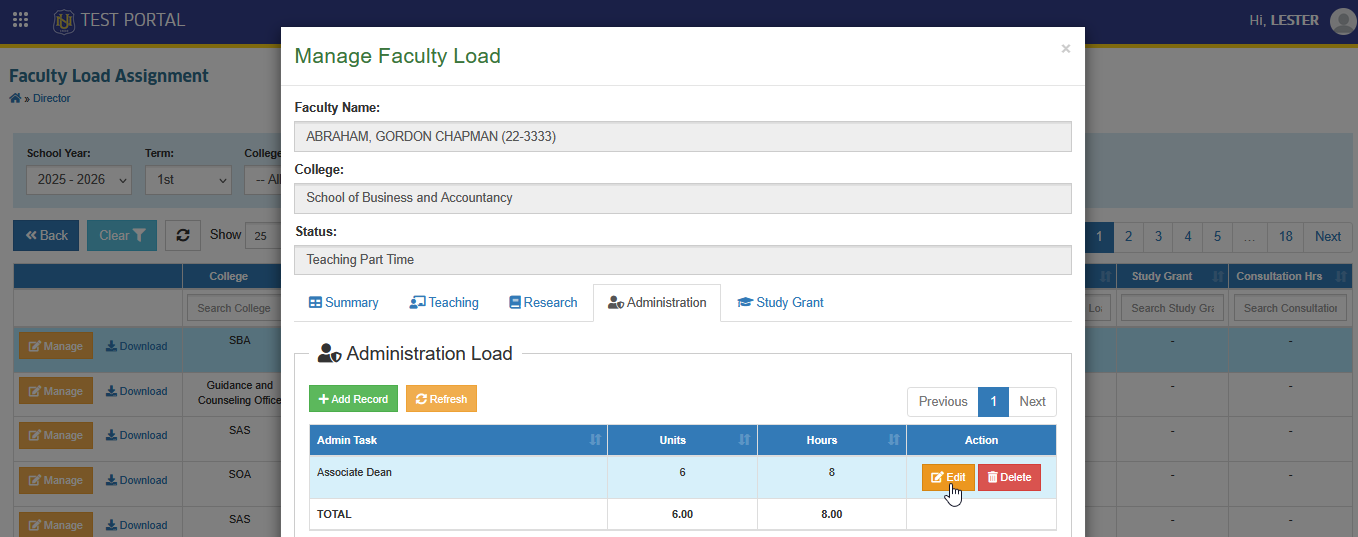
STEP 2. Edit the administration load entry as needed, then click the button to apply the changes.
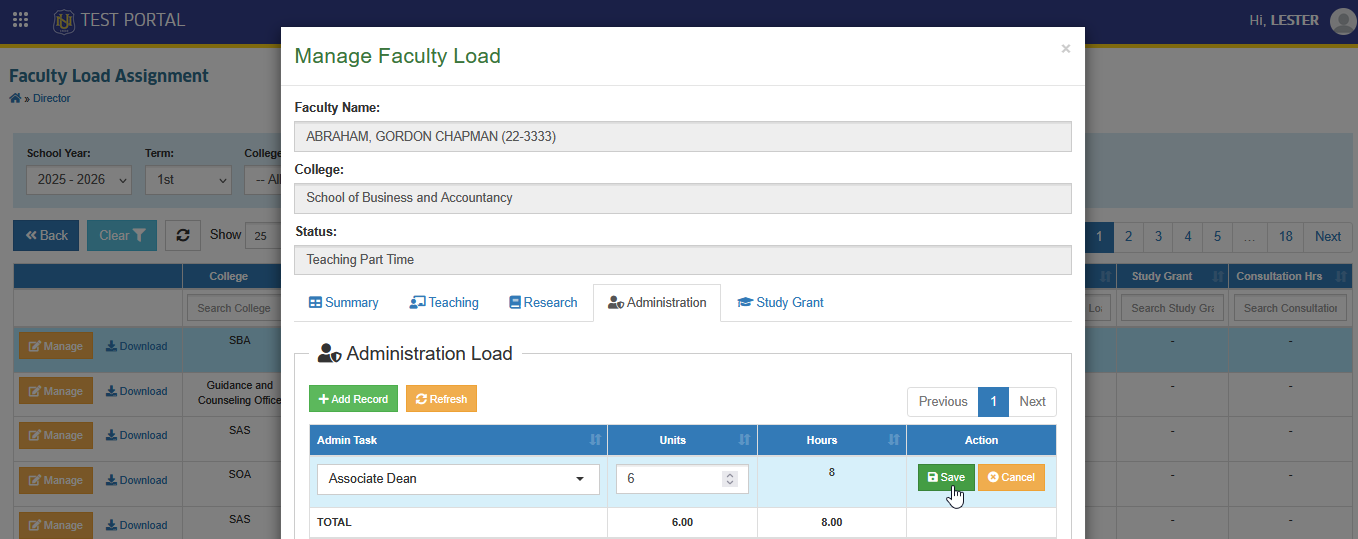
How to Delete Administration Load
Follow these steps if you need to remove an existing administration load.
STEP 1. In Administration Load section, Click the corresponding button of the administration load entry you want to remove.
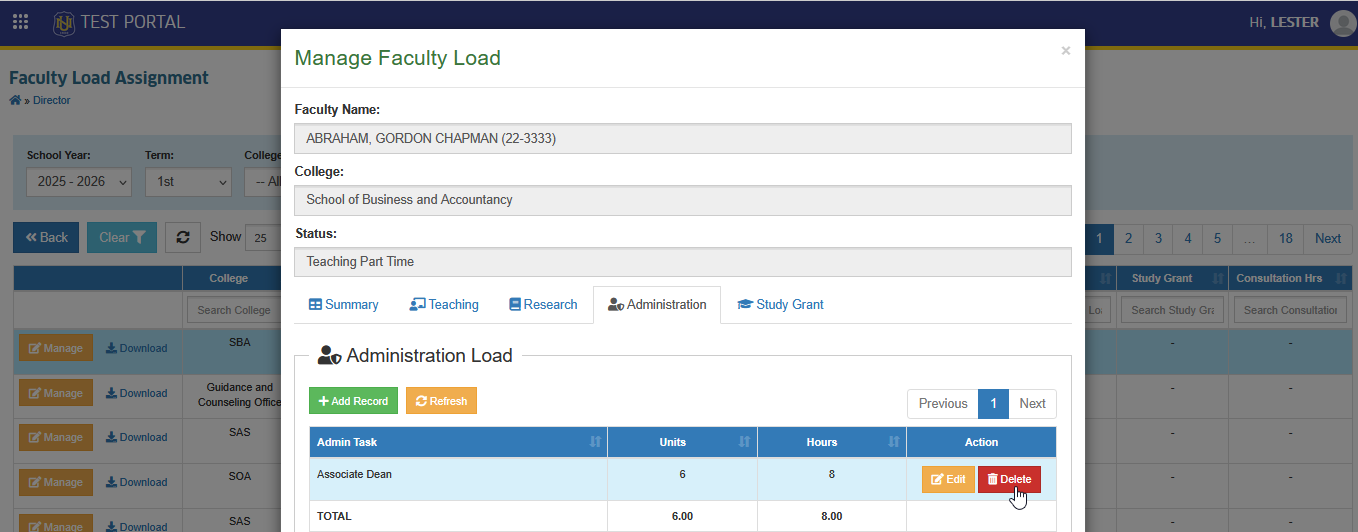
STEP 2. Confirm the deletion to proceed.
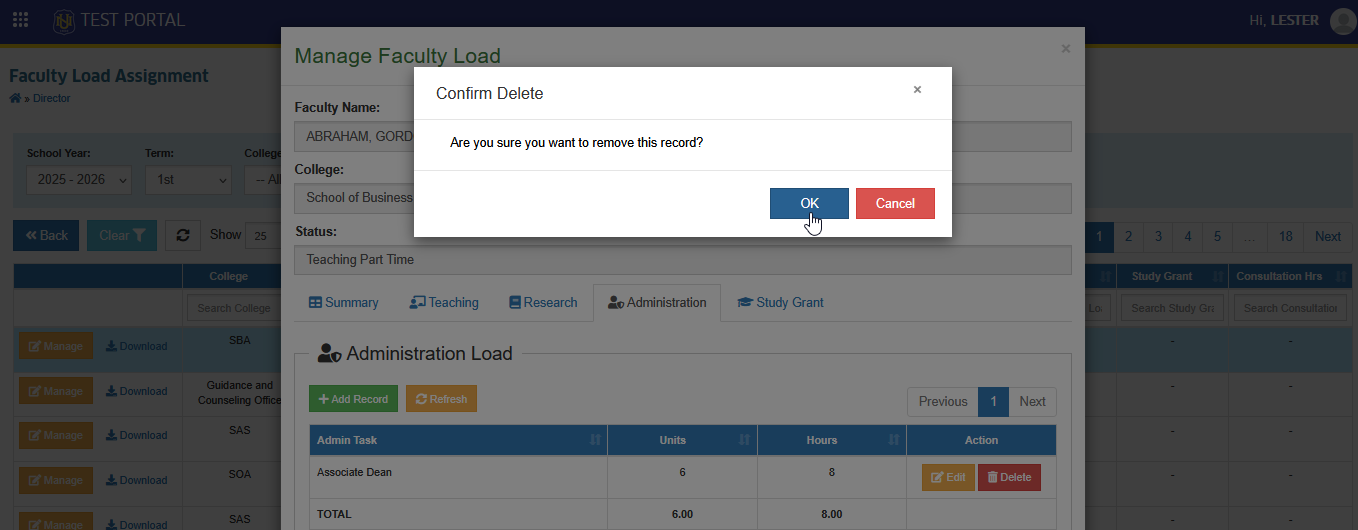
Study Grant
Study Grant load is assigned to faculty members who are on an approved study grant during the term.
How to Add Study Grant
This section explains how to add a study grant to a faculty member's record. Follow these steps to input and save the details of the study grant.
STEP 1. In the Faculty Load Assignment page, click the button next to the faculty member you want to manage. The Manage Faculty Load prompt will then appear.
STEP 2. In Manage Faculty Load prompt, go to the Study Grant tab.
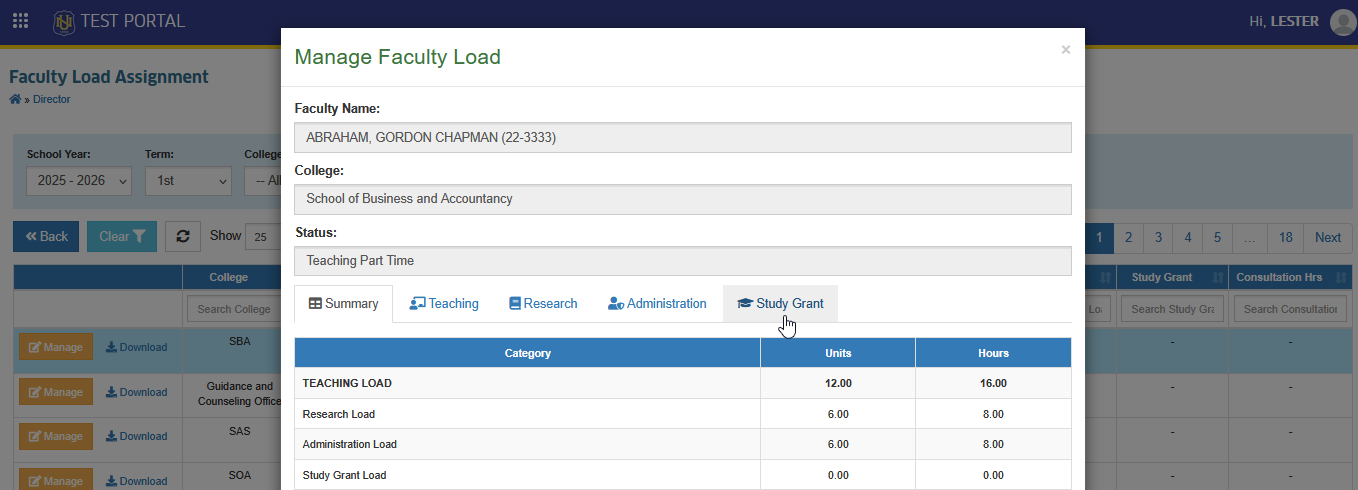
STEP 3. In Study Grant section locate and click the button.
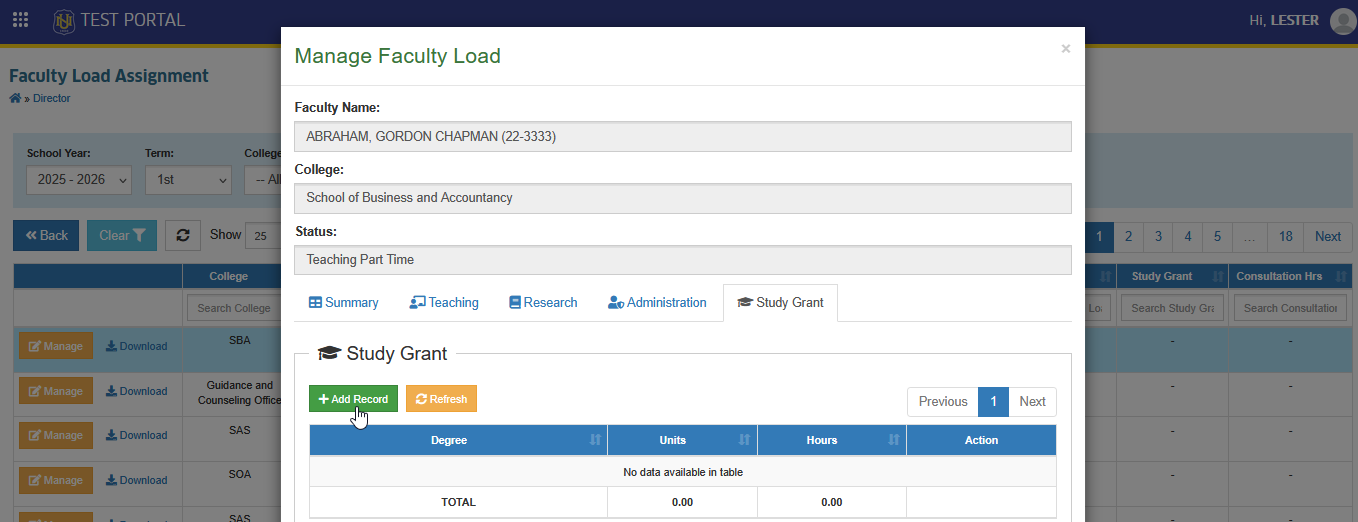
STEP 4. Enter the Degree and equivalent units, then click the button to save the study grant entry.
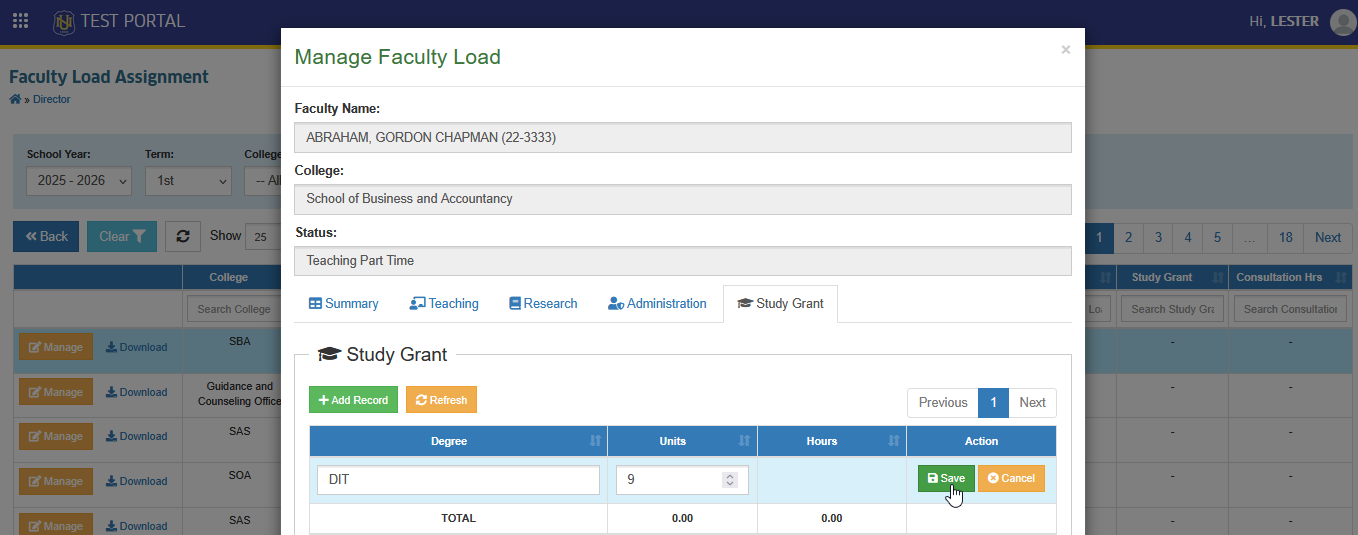
Users may add additional study grant entries when necessary.
How to Edit Study Grant
User can update the Study Grant load if the faculty's study grant details are revised.
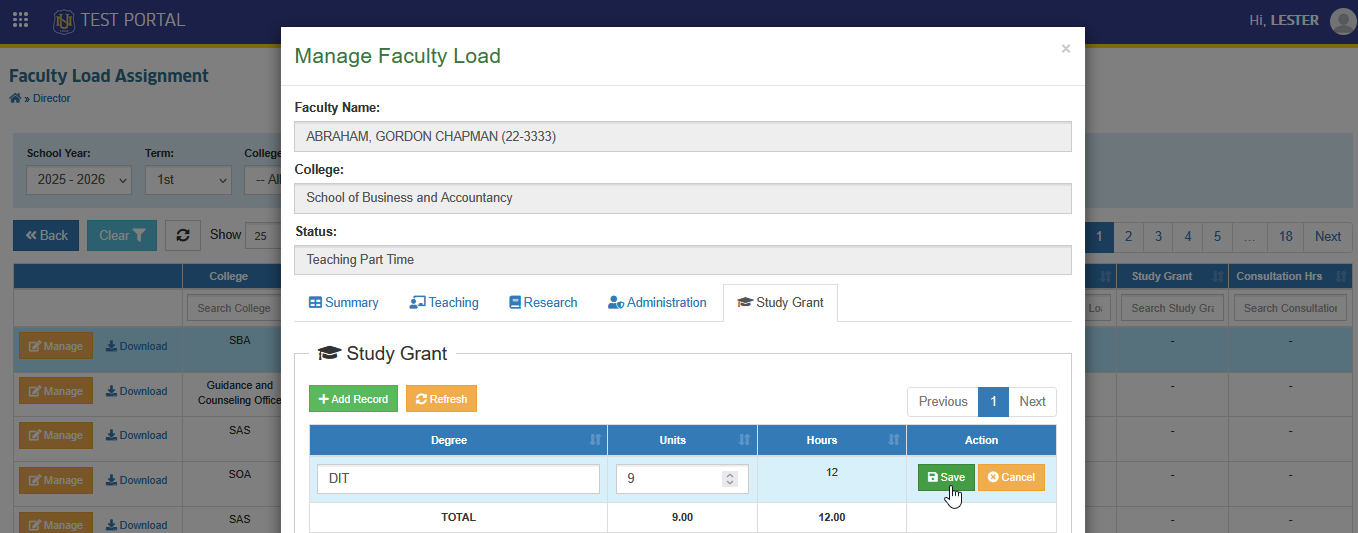
STEP 1. In Study Grant section, click the corresponding button of a specific study grant entry you want to modify.
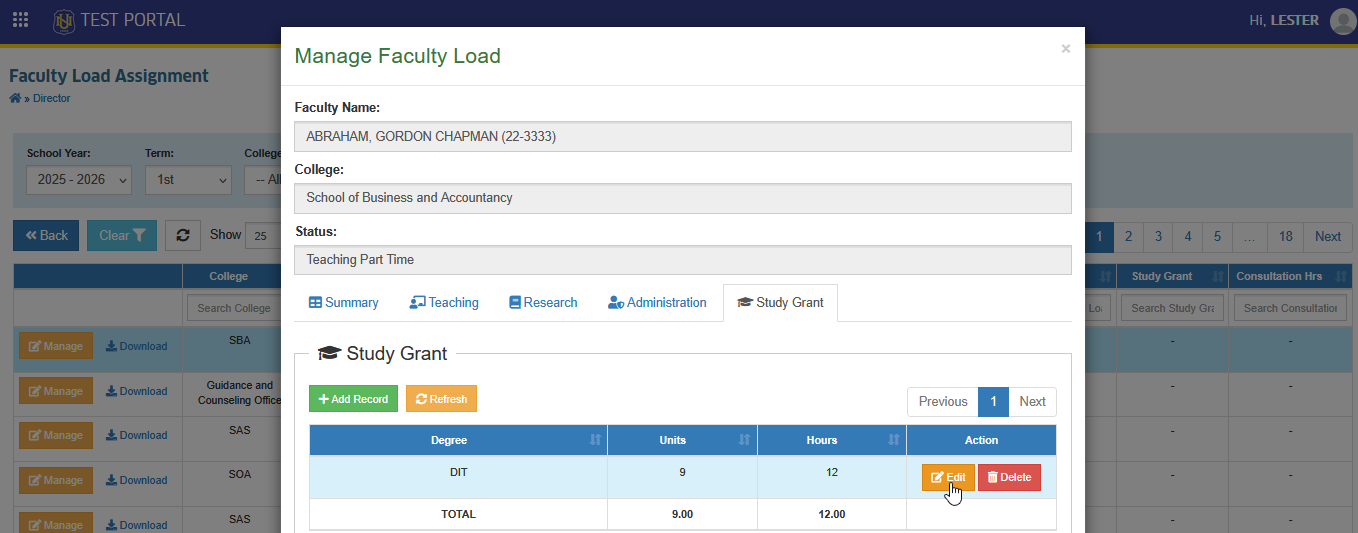
STEP 2. Edit the study grant entry as needed, then click the button to apply the changes.
How to Delete Study Grant
Follow these steps to remove an existing study grant entry.
STEP 1. In Study Grant section, click the corresponding button of a specific study grant entry you want to remove.
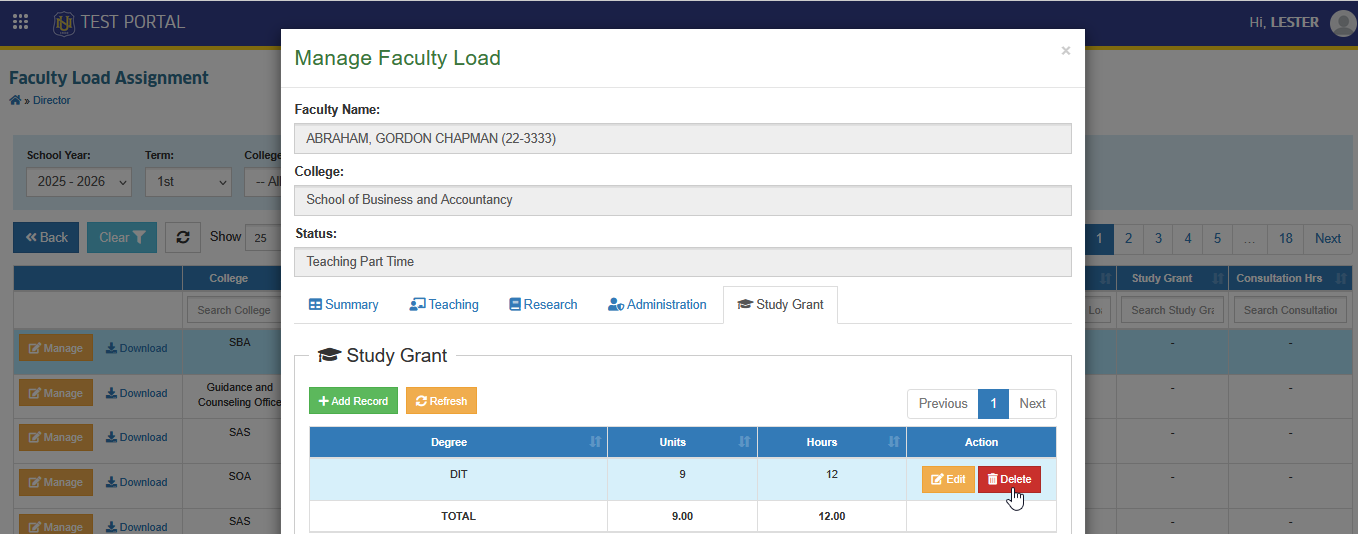
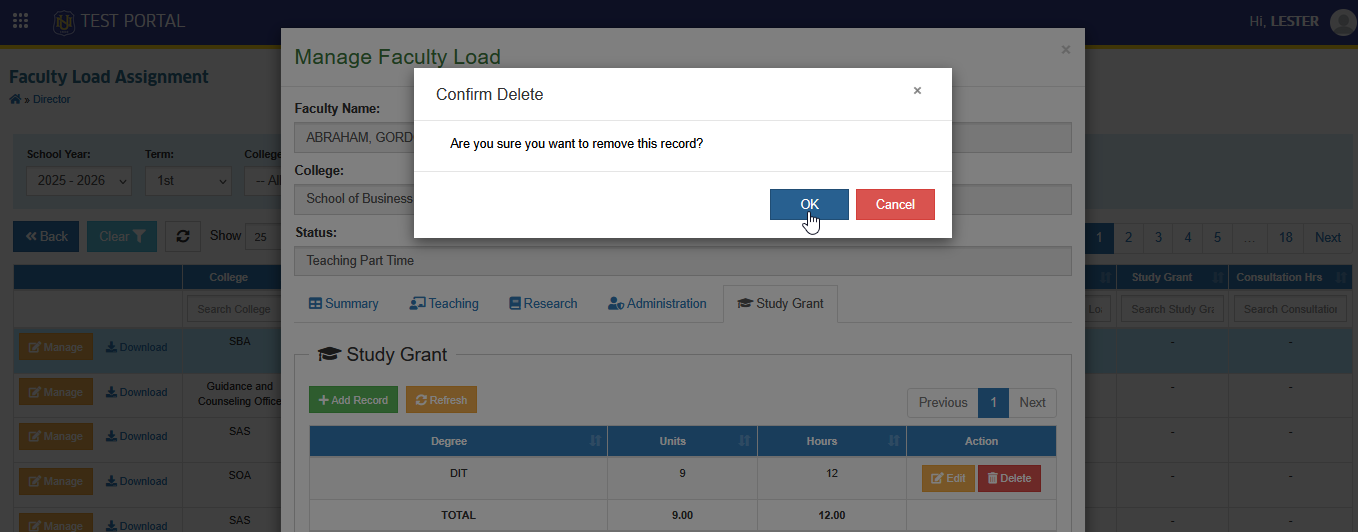
STEP 2. Confirm the deletion to proceed.
Download Faculty Load Report
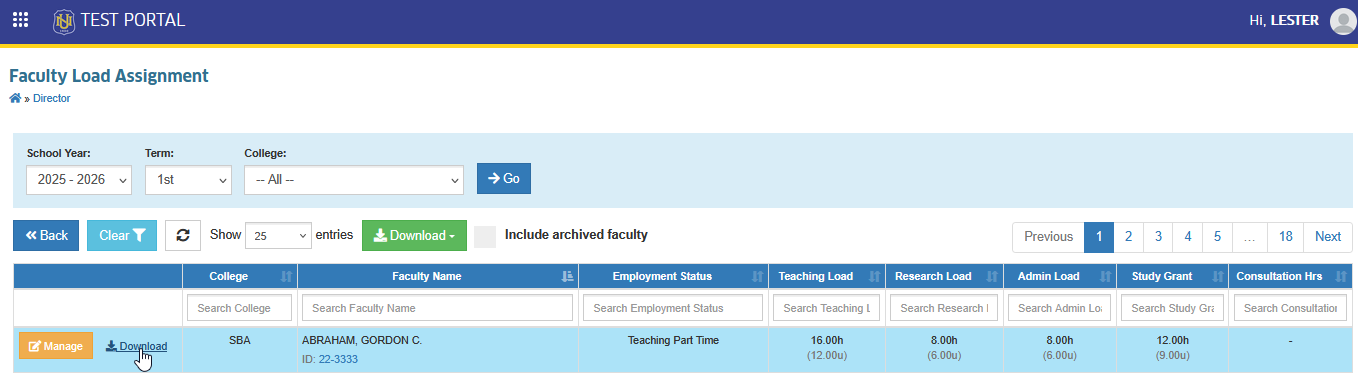
The user can download a faculty load report for each faculty member in Excel format by clicking the button.
For more questions or concerns, email us at nu-desk@national-u.edu.ph