Faculty Rank Periods
Manage faculty rank periods.
The Faculty Rank Periods module lets authorized users add and manage timeframes for faculty ranking applications. These timeframes help ensure that faculty ranking application are conducted only within designated periods.
Required Permissions
To access and perform actions in this module, the following permissions may be required:
-
Add Faculty Rank Period - Allows creation of new rank periods.
-
Delete Faculty Rank Period - Allows deletion of a rank period, only if it has not yet been referenced in any faculty ranking applications.
-
Edit Faculty Rank Period - Allows editing of existing period details.
-
View Faculty Rank Period - Allows viewing of all created periods.
How to Access the Module
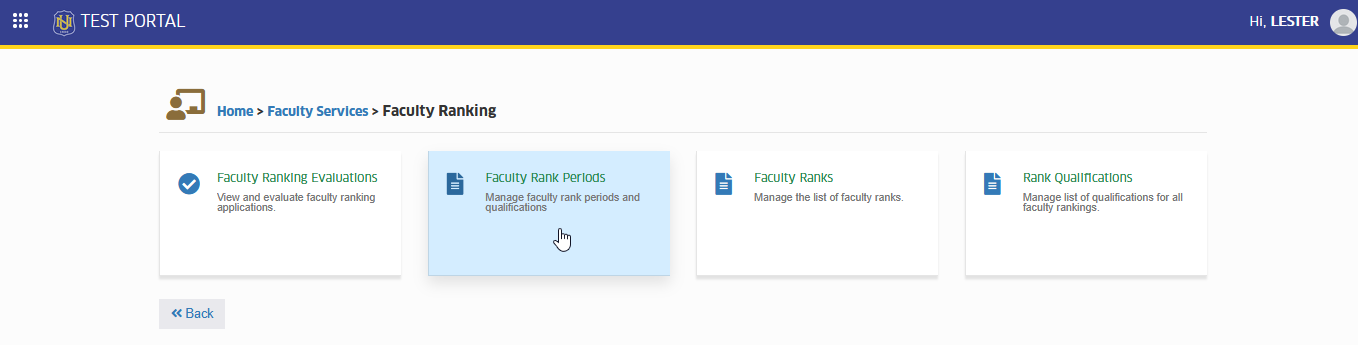
To access the module, make sure you have the View Faculty Rank Period permission. If it doesn’t appear in your portal, request access from your System Administrator.
To access the module go to Faculty Services > Faculty Ranking > Faculty Rank Periods
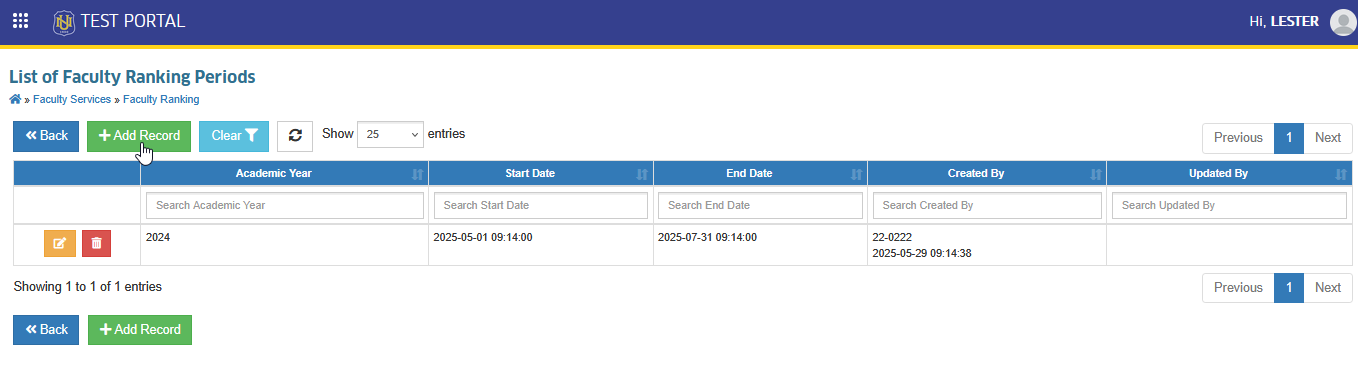
Click the module tab to redirect to List of Faculty Ranking Periods page.
What You Can Do in this Module
This module is designed to help you manage the start and end dates of faculty rank periods. Within this module, you can add new periods, update existing ones, and view all defined rank periods in the system. You can also delete a rank period If it has not yet been used in any faculty ranking application.
View Existing Rank Periods
-
Display a list of all faculty rank periods.
-
Each period includes details such as academic year, start date, end date.
Add a New Rank Period
Follow the steps below on how to add new faculty ranking period.
STEP 1. In the List of Faculty Ranking Periods list view page, locate and click the button. This action will redirect to Add Faculty Rank Period page.
STEP 2. Fill in the following details:
| Field Name | Description |
|---|---|
| Academic Year | The year that the rank period applies to (Select from the dropdown list). |
| Start Date | The date when the faculty rank period begins and applications can start. |
| End Date | The date when the faculty rank period ends and no further applications will be accepted. |
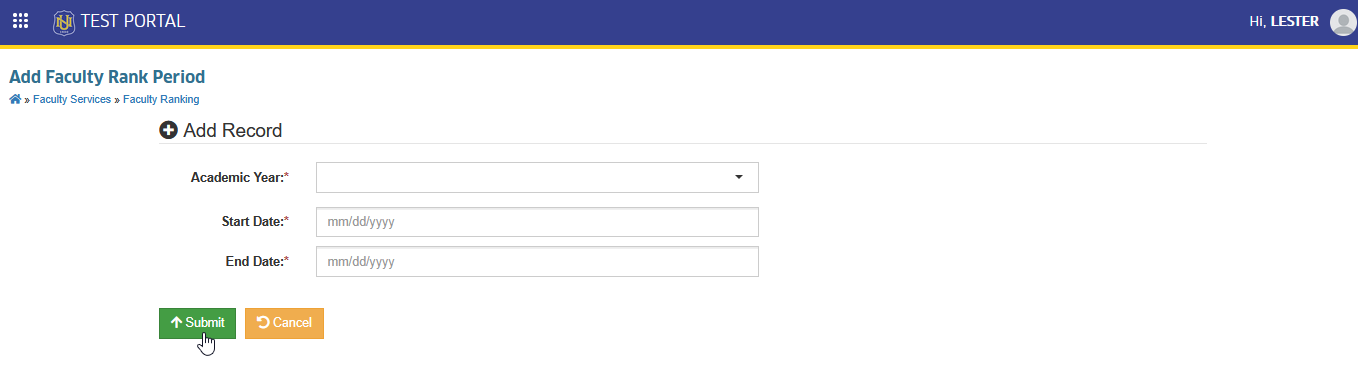
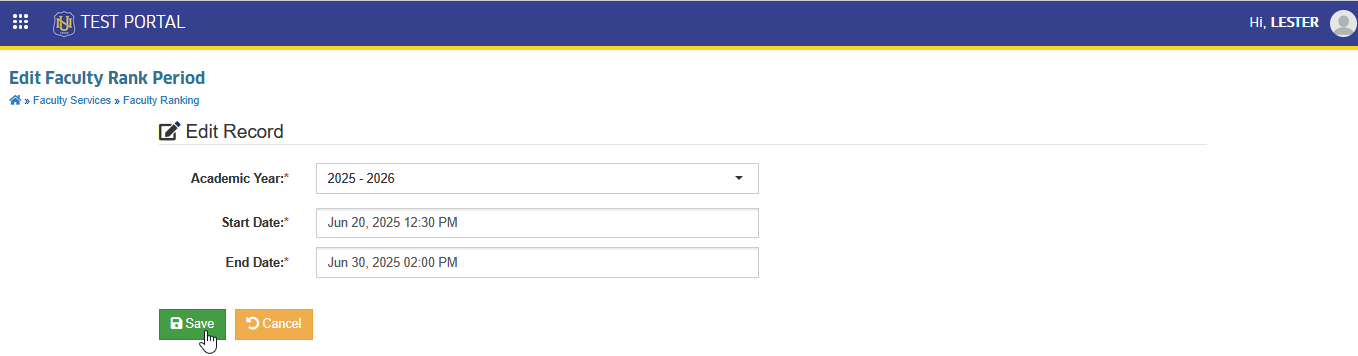
STEP 3. Click the button to add the new record. This action will redirect to Edit Faculty Rank Period page.
STEP 4. Manage qualifications for each rank. This process will be handled by the TSO Development Team. FSO Personnel should skip this part, proceed to STEP 5.
STEP 5. Click the button to save the rank period. Notice that the newly created rank period will be displayed in the list view page along with the previously created rank periods.
Edit an Existing Period
Follow the steps below on how to update or make necessary changes in the existing faculty rank period.
STEP 1. In the List of Faculty Ranking Periods page, navigate to specific rank period record and click the corresponding button. This action will redirect to Edit Faculty Rank Period page.
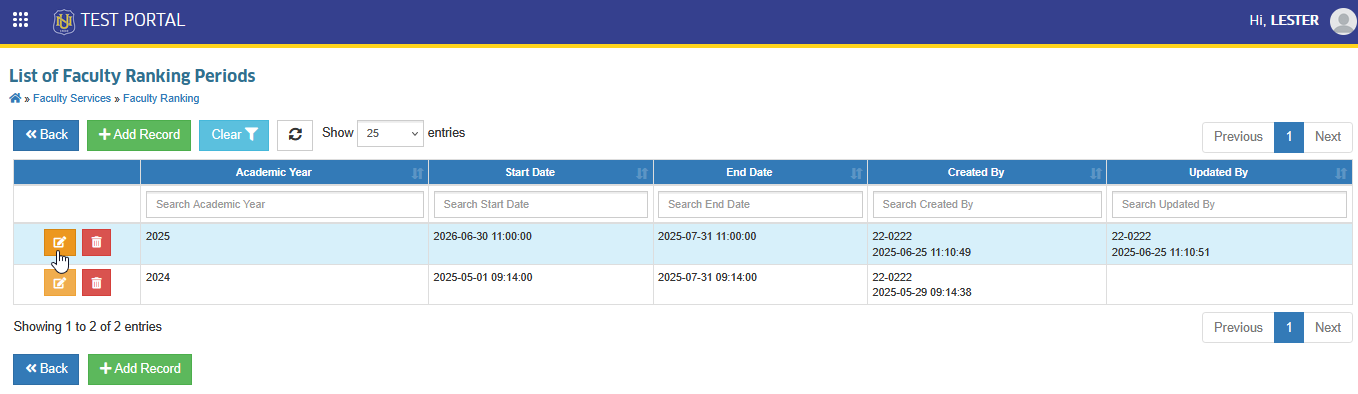
STEP 2. In Edit Faculty Rank Period page, modify the necessay fields.
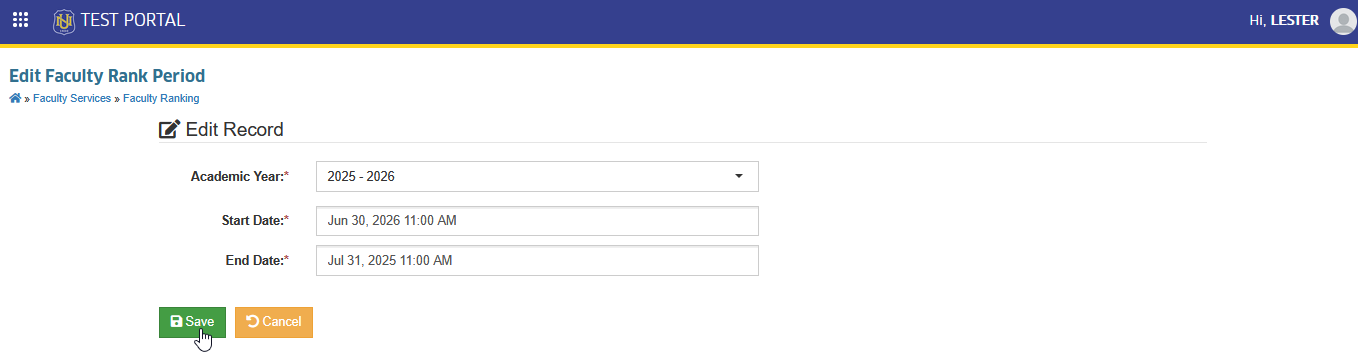
STEP 3. Click the button to update.
Delete Faculty Rank Periods
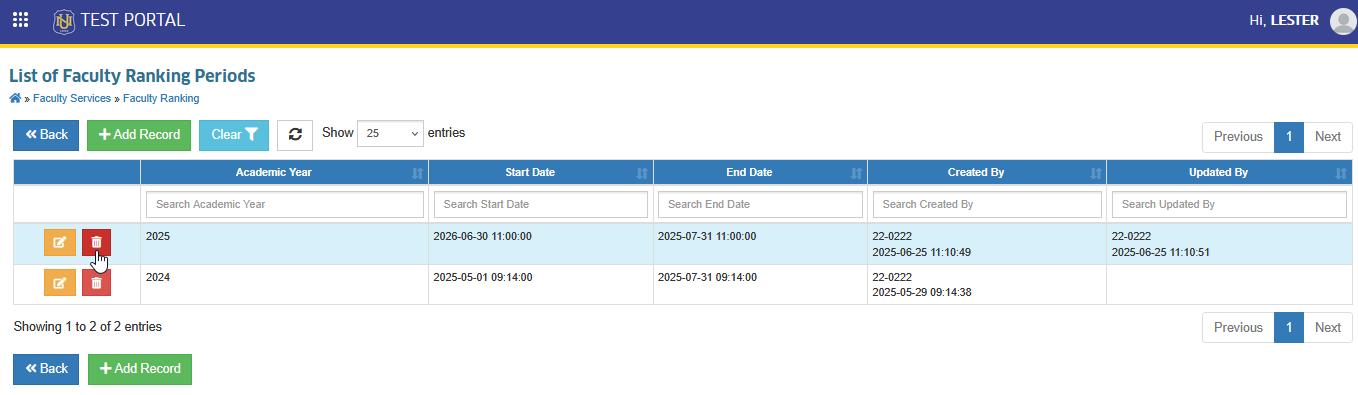
The system allows users to delete a Faculty Rank Period only if it is not referenced or linked to other applications. . If the rank period is already in use or associated with other records, deletion will not be successful to preserve data integrity. Follow this steps to remove a faculty rank period record.
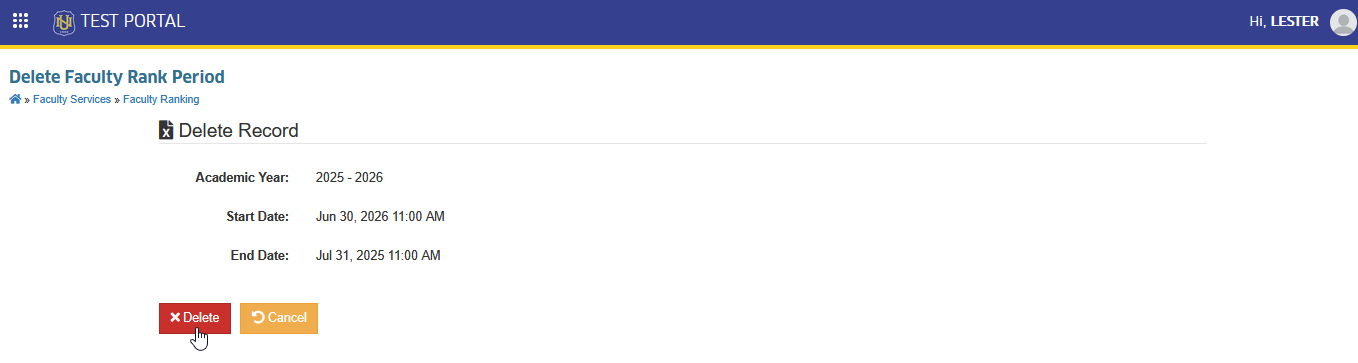
STEP 1. STEP 1. In the List of Faculty Ranking Periods page, navigate to specific rank period record and click the corresponding icon/button. This action will redirect to Delete Faculty Rank Period page.
STEP 2. In the Delete Faculty Rank Period page, click the button to proceed with the removal of record.
For more questions or concerns, email us at nu-desk@national-u.edu.ph