Faculty Ranks
Manage the list of faculty ranks.
Overview
The Faculty Ranks module allows the Shared Services FSO Personnel to manage the list of official faculty ranks used in the ranking application process. Each rank entry contains the required education level and a defined list of signatories responsible for reviewing and approving the application after evaluation.
Default Signatory Flow
Each faculty rank includes the following standard signatories in order:
1. Prepared By
2. Endorsed By
3. Recommended By
4. Reviewed By
5. Approved By
The names assigned to each level are configured per rank and may vary depending on your campus structure.
Required Permissions
Access to the Faculty Ranks module is limited to authorized Shared Services FSO personnel who have been granted the necessary system permissions. Each action within the module requires a specific permission:
-
View Faculty Rank - Allows the user to access and view the list of faculty ranks, including education level and signatories.
-
Add Faculty Rank - Allows the user to create a new faculty rank entry and set its required details.
-
Edit Faculty Rank - Allows the user to update an existing faculty rank, including changes to signatories.
-
Delete Faculty Rank - Allows the user to permanently remove a faculty rank from the list (only if not tied to existing applications).
These permissions must be assigned through the system's user role to ensure secure and controlled access.
How to Access the Module
To access the module, make sure you have the Faculty Ranks permission. If it doesn’t appear in your portal, request access from your System Administrator.
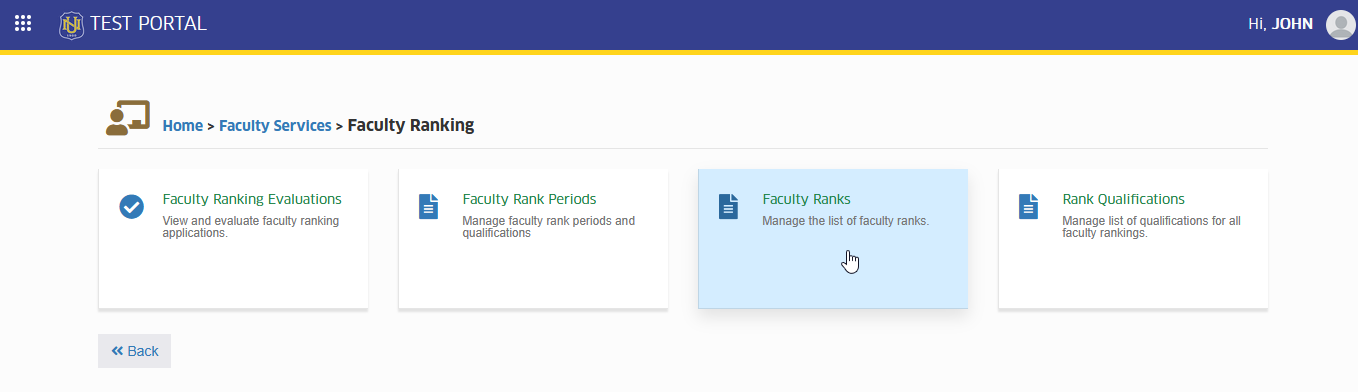
To access the module go to Faculty Services > Faculty Ranking > Faculty Ranks
Click the module tab to redirect to List of Faculty Ranks page.
How to Use the Module
This section provides step-by-step instructions for using the Faculty Ranks module. Through this module, faculty ranks can be viewed, added, updated, or removed. The required education level and list of signatories must be properly set for each rank. Follow the instructions below to ensure that all information is accurately maintained in the system.
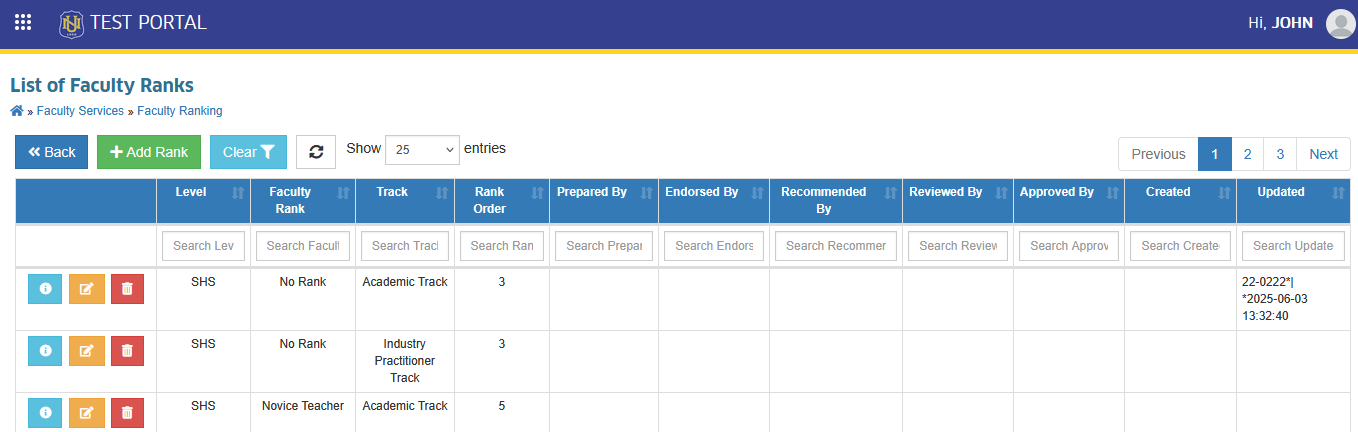
STEP 1. Access the Faculty Rank module in your NUIS portal.
STEP 2. The list of all faculty ranks assigned to the campus will be displayed.
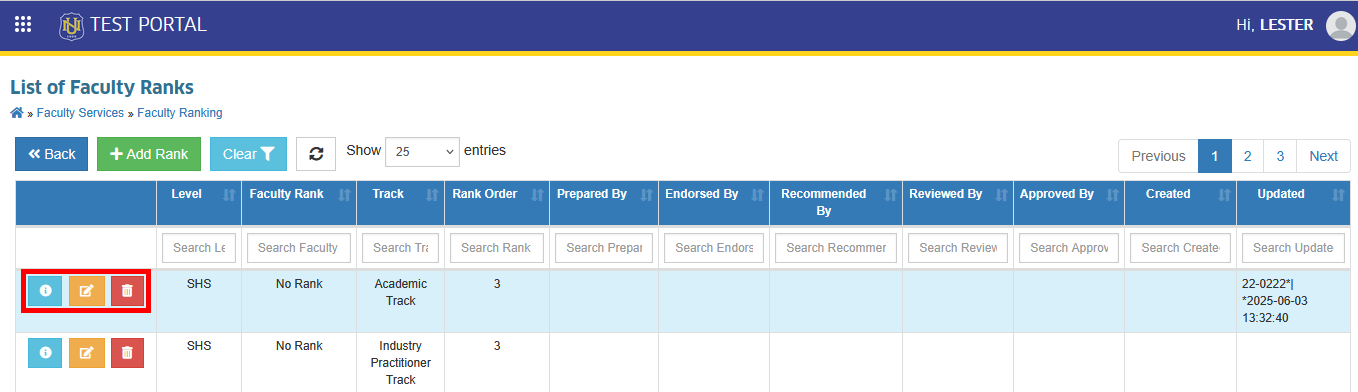
STEP 3. To view, edit, or delete a faculty rank, the corresponding action button should be clicked.
-
Rank Title
-
Education Level
-
Track
-
List of Signatories
For ranks from Associate Professor I to Full Professor IV, the 'Reviewed By' and 'Approved By' fields must be assigned to the Shared Services FSO personnel and the Executive Vice President, respectively.
How to Add a New Faculty Rank
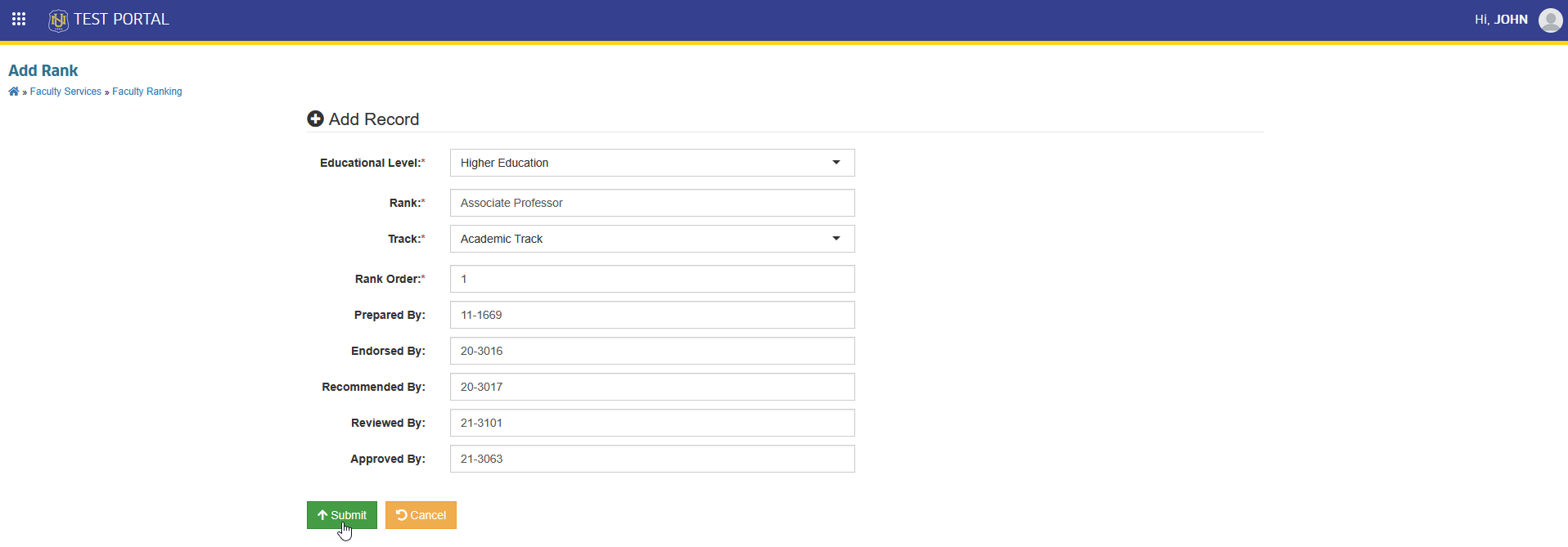
Shared Services FSO personnel can add new faculty ranks. Each entry includes the rank name, education level and a list of signatories responsible for reviewing and approving applications. Follow the steps below to create new rank in the system.
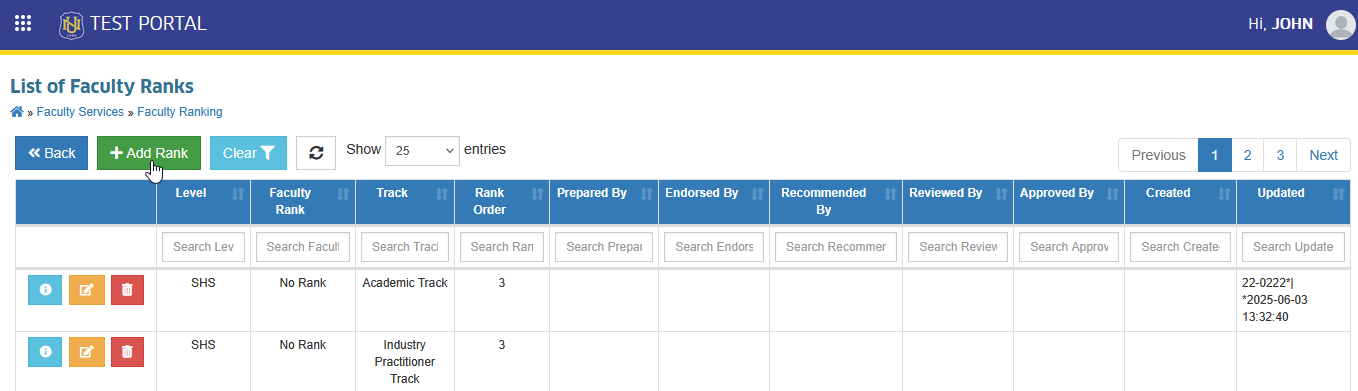
STEP 1. On the Faculty Ranks list view page, locate and click the button. This action will redirect to Add Rank page.
STEP 1. On the Add Rank page, all required fields should be filled out. Once completed, the button should be clicked. The record will then be saved and automatically displayed in the Faculty Ranks list view page.
How to Edit or Update Faculty Rank
Existing faculty ranks may need to be updated to reflect changes in assigned signatories. This section outlines the stpes for modifying an existing faculty rank's details, such as the rank name, required education level, or signatory list.
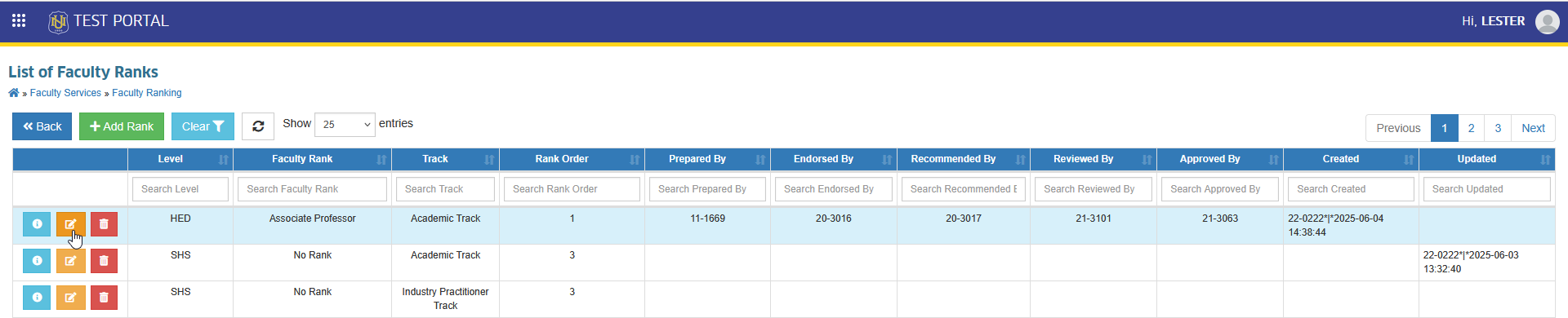
STEP 1. In the List of Faculty Ranks list view page, the rank that needs to be updated should be located.
STEP 2. The corresponding button of the record should be clicked. This will redirect the user to Edit Faculty Rank page.
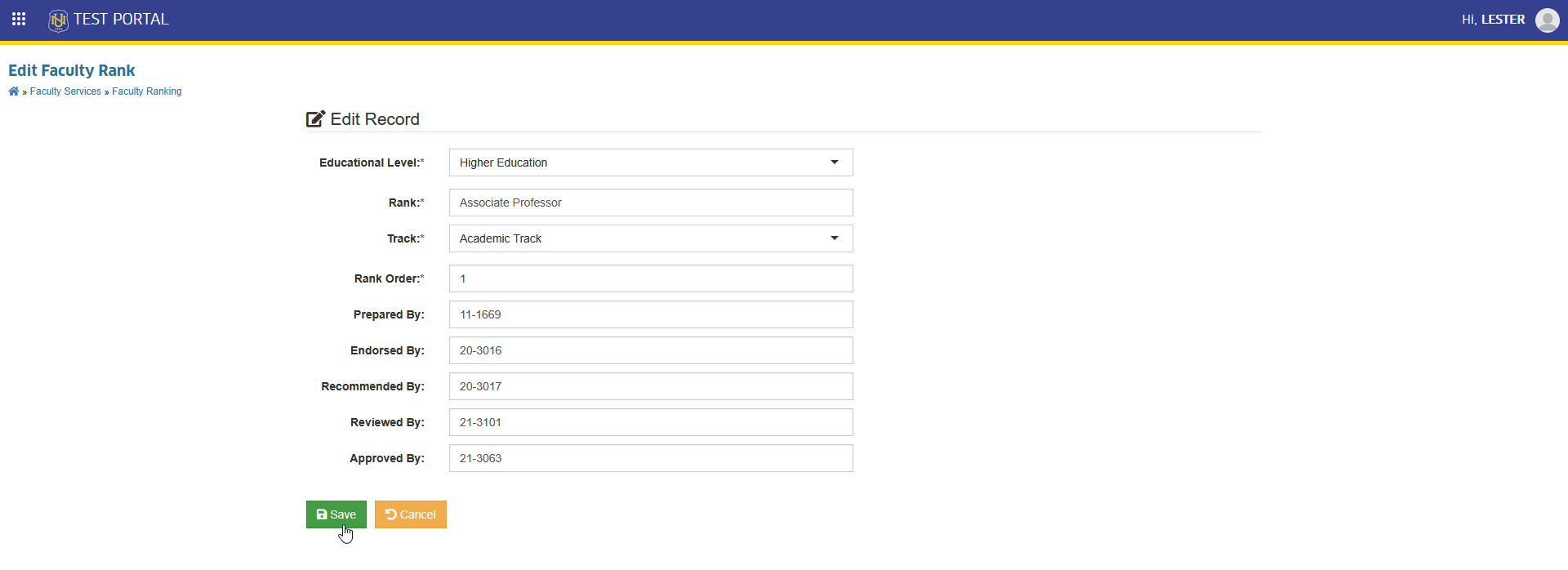
STEP 3. Update the information as needed.
STEP 4. Once the changes are completed, the button should be clicked.
STEP 5. The updated rank will be saved and reflected in the Faculty Ranks list view page.
How to Delete Faculty Rank
This section provides the steps for deleting a faculty rank from the system. Deletion is only allowed if the rank is not linked to any existing records. If a rank is referenced elsewhere (e.g.,in submitted applications), it cannot be removed to ensure data consistency.
STEP 1. In the List of Faculty Ranks list view page, the rank to be removed should be identified.
STEP 2. The icon/button corresponding to the rank should be clicked. This action will redirect the user to Delete Faculty Rank page.
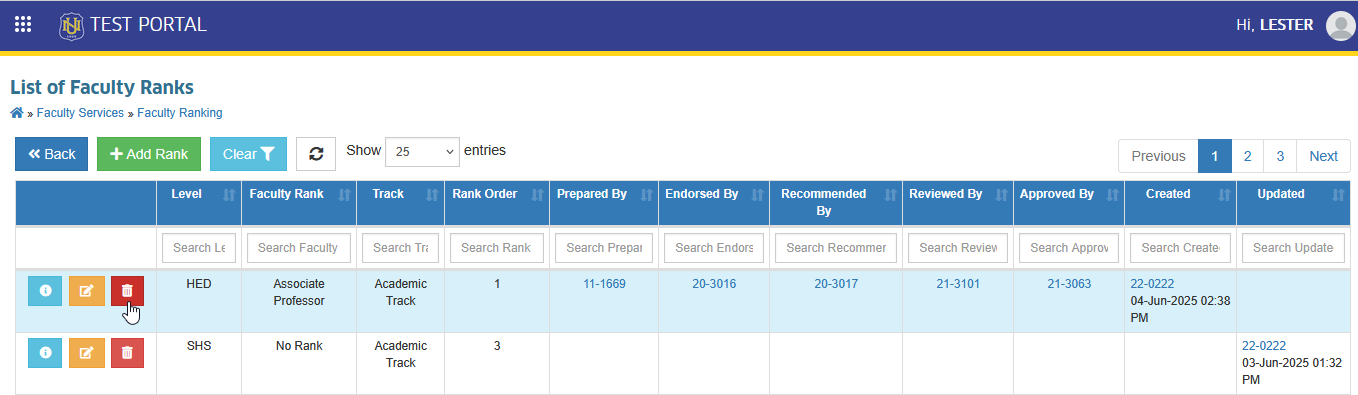
STEP 3. In the Delete Faculty Rank page, click the button to proceed with the removal of record.
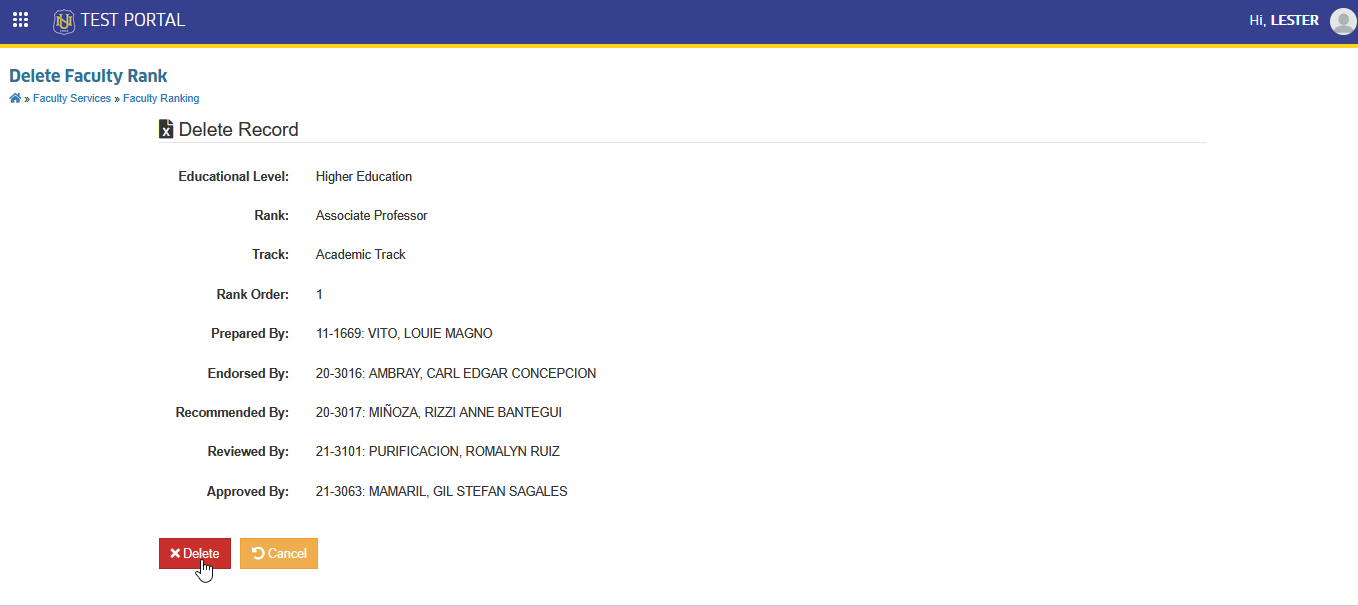
If the rank is not referenced in any existing faculty ranking applications or related records, it will be successfully deleted.
For more questions or concerns, email us at nu-desk@national-u.edu.ph