Community Engagements
Manage and approve submitted community engagement entries.
This module is used by Comex Heads or Personnel to review, validate and approve community engagement activities submitted by faculty for their SPES.
Who can use this module?
Only users assigned as Campus Comex Coordinators can access and perform actions in this module.
Required Permissions
-
View Community Engagement Entries - Allows the user to access the module and see submitted faculty engagements.
-
Approve Community Engagements - This permission allows the user to approve valid engagements for inclusion in the SPES.
This permissions are typically assigned to ComEx Heads or designated ComEx Personnel by the system administrator. If you cannot access the module or certain actions, contact your campus IT or system admin to review your user role and permissions.
How to Access the Module
To access the module, make sure you have the View Community Engagement Entries permission. If it doesn’t appear in your portal, request access from your System Administrator.
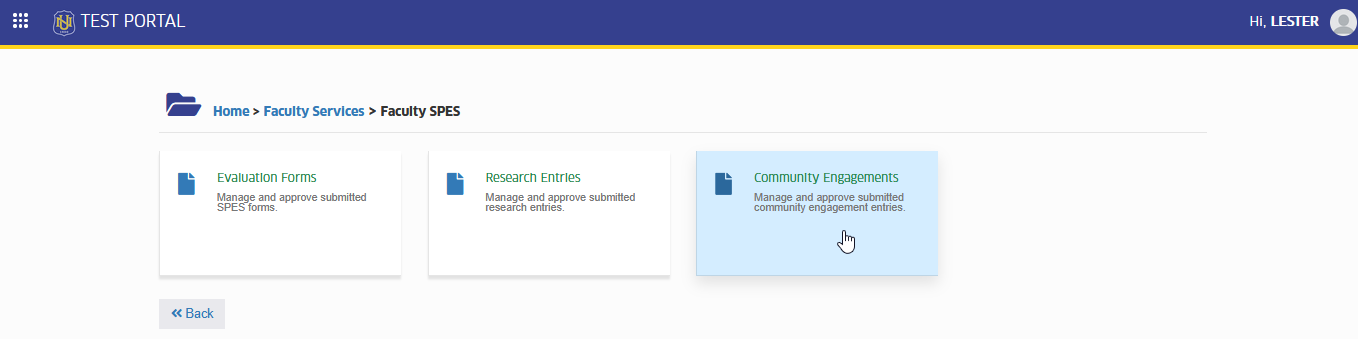
Go to Faculty Services > Faculty SPES > Community Engagements . Click the module tab to redirect to SPES Community Engagement Entries page.
What You Can Do
This section gives you an overview of the key actions you can perform in the Community Engagements module. As ComEx Head or Personnel, you'll be able to view al submitted engagements, filter or search through records, and take action by validating, approving or rejecting submissions. These tools help you manage and monitor faculty community engagements efficiently.
View Submitted Engagements
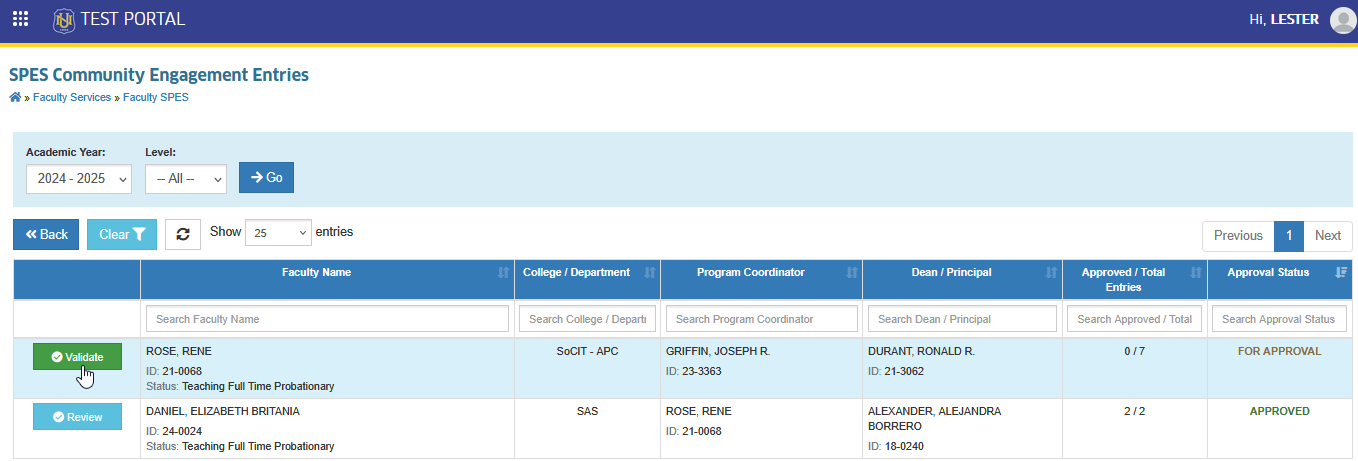
Once you open the module, you'll see a list of community engagement activities from faculty members.
Eacg entry typically includes:
-
Faculty Name
-
College/Department
-
Superiors
-
Approved/Total Entries
-
Approval Status
Filter and Search
Use the seach bar or filters (e.g., by faculty name, Department or status) to easily find specific submissions.
Validate or Approve Entries
This section guides you through the steps to review, validate, approve or reject community engagement submissions made by faculty. As a ComEx Head or Personnel, you are responsible for ensuring each engagement meets the required standards before it gets credited to the faculty's SPES. Follow the steps below to carefully review the submission details, check supporting documents, and take appropriate action.
Review Community Engagement Entries Details
This section explains how to view and assess the details of each submitted community engagement. You'll learn how to open a submission, check description and review any attached documents.
In SPES Community Engagement Entries page, click the button beside an entry to open its full information.
Edit Community Engagement Entries
This section explains how ComEx Personnel can edit submitted community engagement entries when necessary.
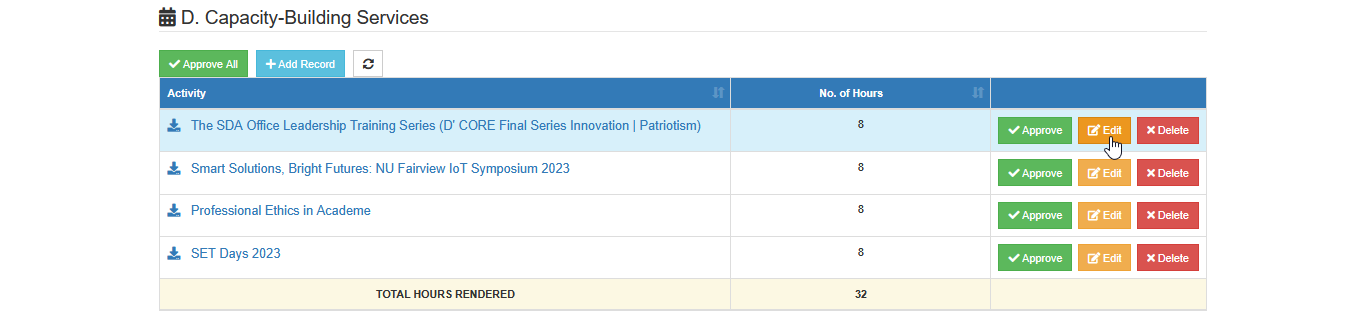
STEP 1. In the Validate Faculty's Community Engagement Entries page, click the corresponding button of specific entry to be updated.
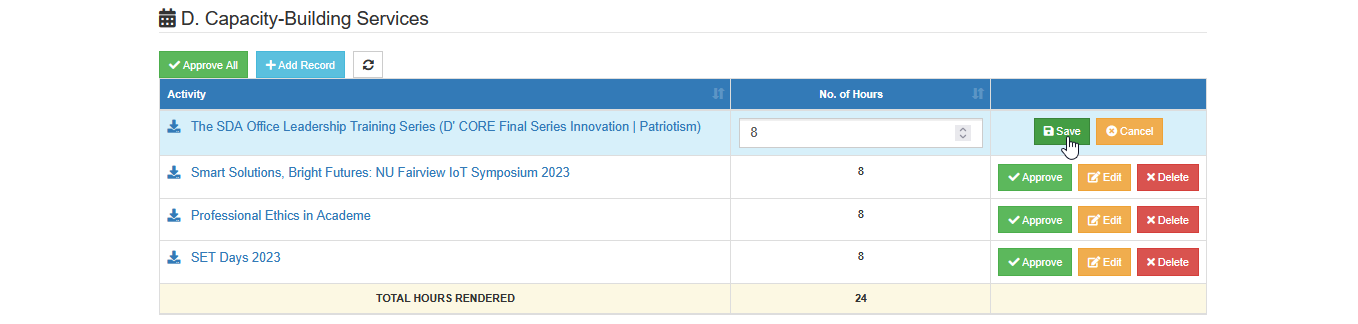
STEP 2. Make the necessary changes to the entry fields.
STEP 3. After editing, click the button to apply the updates.
Approve Community Engagement Entries
This section guides you on how to approve community engagement entries that have already been reviewed and validated. Approving an entry means it meets all the necessary criteria and is ready to be credited to the faculty member's SPES. Once approved, the entry becomes final and will be included in the faculty's performance evaluation.
There are two ways to approve entries :
-
Approve per entry - approve individual submissions one at a time.
-
Approve all entries within a category - approve multiple entries in one action based on their category.
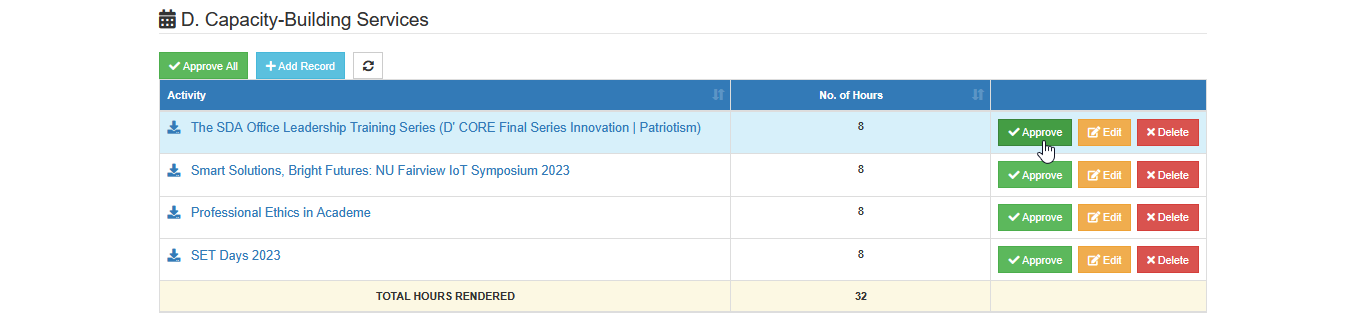
To approve an entry, click the button beside the entry then confirm the approval when promted.
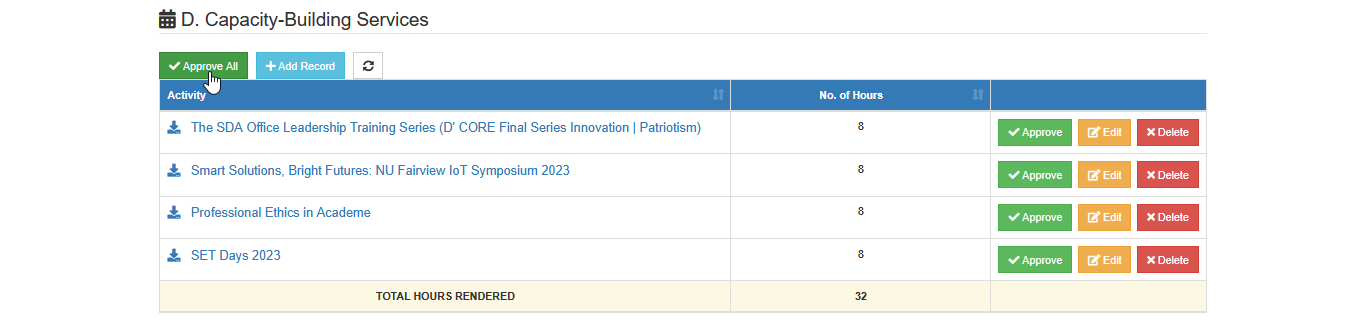
To approve all entries per category, click the button located at the top of the table of entries, then confirm the approval when prompted.
Undo Approval of Community Engagement Entries
This feature allows Campus ComEx Coordinators to undo a previously approved community engagement entry in case there was an error or if the entry needs further revision.
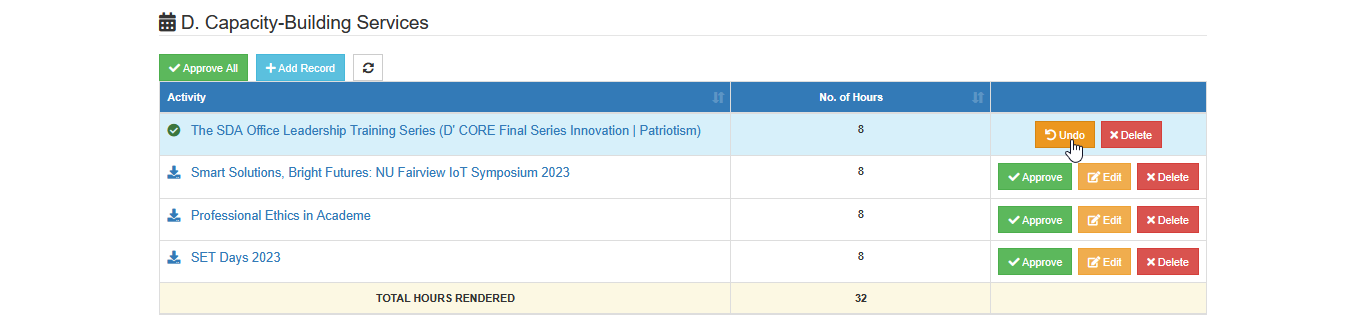
To undo an approved entry, click the corresponding button beside the entry, then confirm the action to revert the approval of the selected entry.
Disapprove (Delete) Community Engagement Entry?
This section explains how to delete community engagement entries that do not qualify under specific category. This action is used to clean up invalid or irrelevant entries.
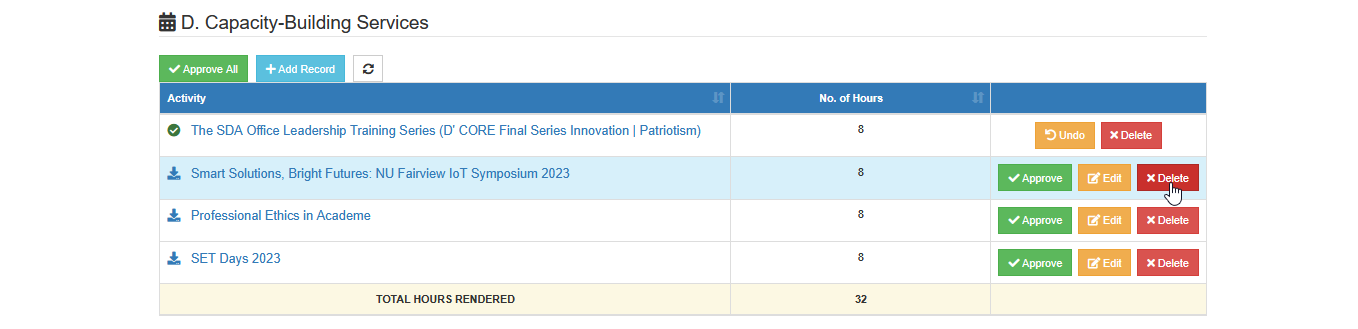
In the faculty community engagement entries, click the button beside the entry you want to remove, then confirm the action to permanently delete the record from the form.
Validators may use the comment section on the page to provide updates or follow up with the faculty regarding concerns about their entries.
For more questions or concerns, email us at nu-desk@national-u.edu.ph