Evaluation Forms
Manage and approve submitted SPES forms.
The Evaluation Forms module is used by Deans, Program Chairs, and Principals to review and approve SPES forms submitted by faculty members.
Required Permissions
To access and perform actions in this module, the following permissions may be required:
-
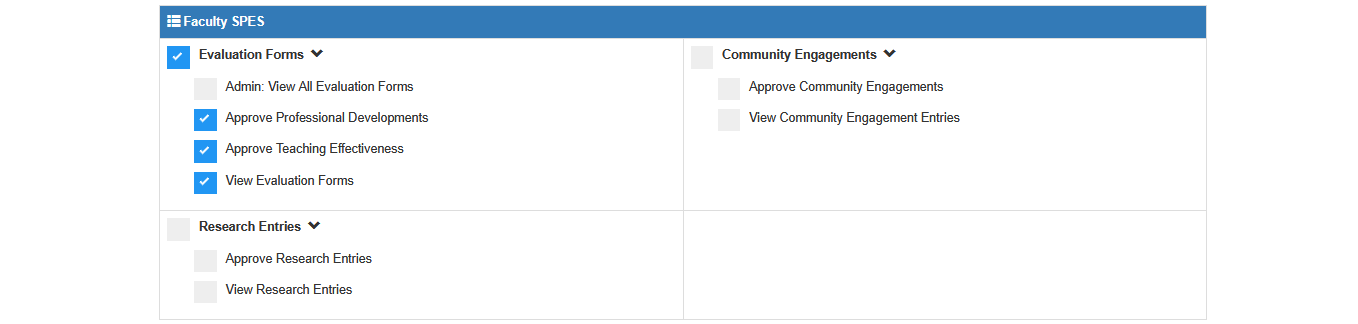
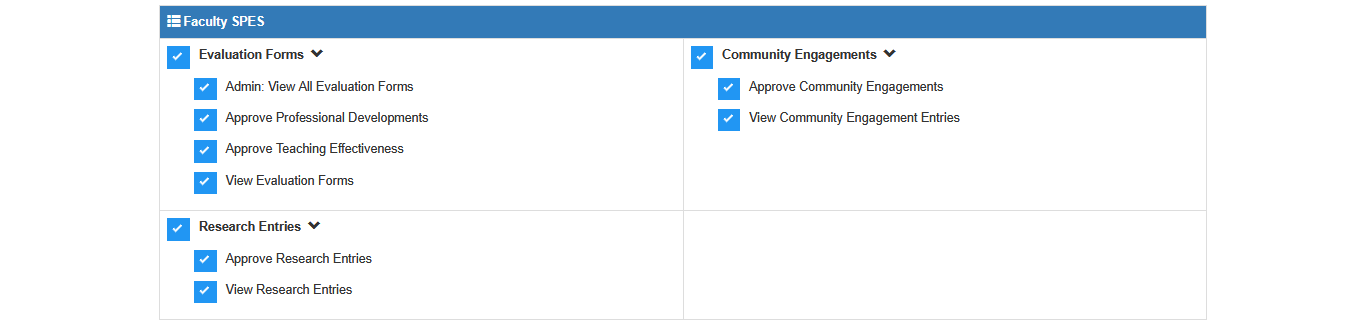
Admin: View All Evaluation Forms - This permission allows the user to view all submitted SPES forms of faculty members across all departments. It also grants the ability to change SPES Forms to any faculty member if needed. This permission is assigned to FSO personnel only.
-
Approve Professional Developments - This permission allows the user to review and approve submitted professional development entries (such as trainings, seminars or workshop) by faculty or staff. Assign this permission to faculty's immediate superior.
-
Approve Teaching Effectiveness - This permission allows the faculty member’s superior (such as the Dean, Program Chair, or Principal) to encode and submit the class observation rating for the faculty member’s teaching effectiveness per term. Assign this permission to faculty's immediate superior.
-
View Evaluation Forms - This permission allows the user to access the Evaluation Forms module and view submitted SPES form. Assign this permission to faculty's immediate superior.
Permission per Role
- Deans, Program Chair, Principal
- FSO Personnel
Who Can Use This Module?
-
Deans
-
Program Chairs
-
Principals
-
FSO Coordinators
They are the ones responsible for evaluating and approving the submitted SPES forms for faculty under their area.
Tabs in Evaluation Form Module
The Evaluation Form is divided into several tabs, each focusing on a key area of faculty performance, The availability of tabs depends on the faculty member's employment type.
-
For part-time faculty members, only the Summary and Teaching Effectiveness tabs are applicable.
-
For full-time faculty members, all tabs are available and required to be completed with the necessary entries or uploads.
1. Summary
This tab provides an overview of the faculty member’s evaluation. It shows the combined ratings from different sections and may include remarks from the evaluator.
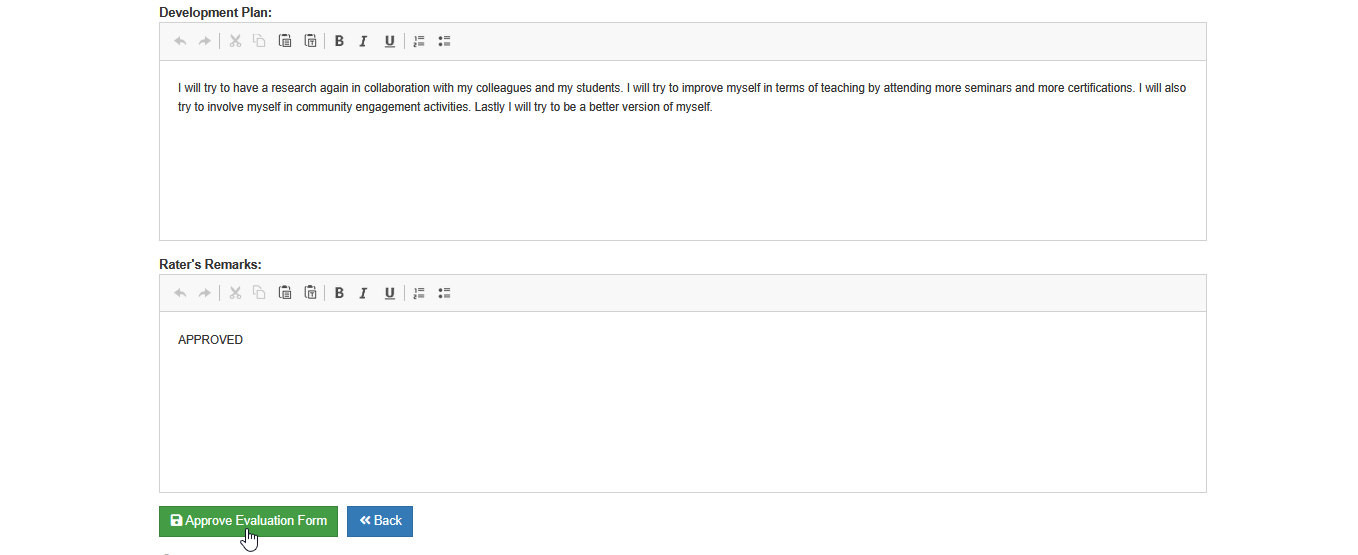
This is also where the main approval button is located, allowing the evaluator to officially approve the SPES form after reviewing all sections.
2. Teaching Effectiveness
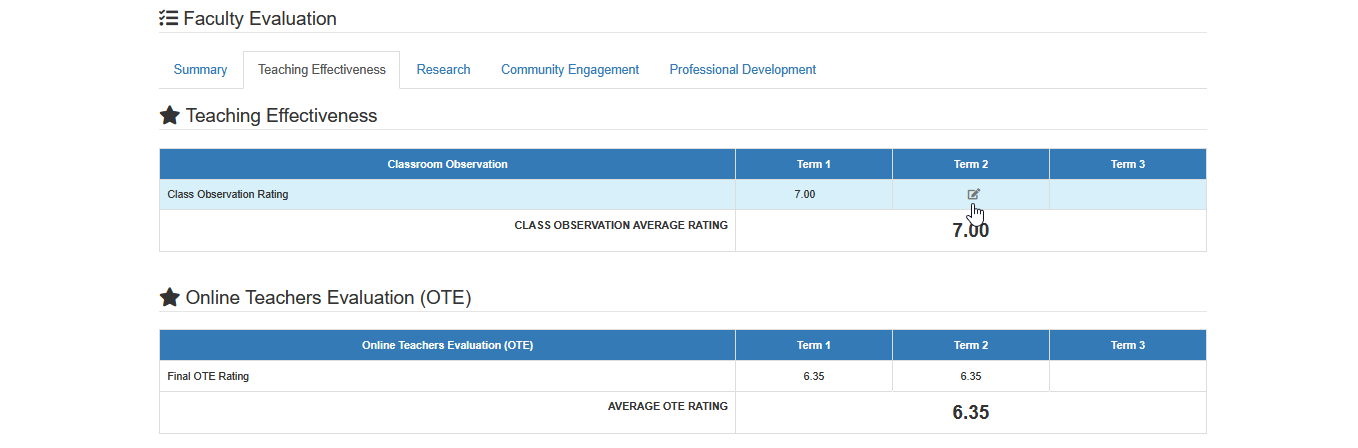
This tab is used to record class observation ratings for the faculty member per term. It reflects how well the faculty teaches, engages students, and manages the classroom.
OTE (Online Teaching Evaluation) ratings are also included in this tab. These ratings are automatically pulled from the OTE Rating report and are not editable. They serve as part of the overall assessment of teaching performance.
3. Research
For full-time faculty only. This tab lists research outputs accomplished during the evaluation period. These may include:
-
Publications
-
Internally and Externally Funded Projects
-
Creative Outputs
-
Intellectual Property/Innovation
-
Awards and Recognition
-
Citations
Faculty members are expected to input or upload relevant details under each applicable category.
4. Community Engagement
For full-time faculty only. This tab includes community involvement and outreach activities conducted during the evaluation period. These may include:
-
Extension Services
-
College-Driven Initiatives
-
Institutional Programs
-
Capacity-Building Services
Faculty members must provide details or upload proof of participation in these activities.
5. Professional Development
For full-time faculty only. This section records seminars, workshops, or training programs the faculty attended to improve their skills and qualifications.
How to Access the Module
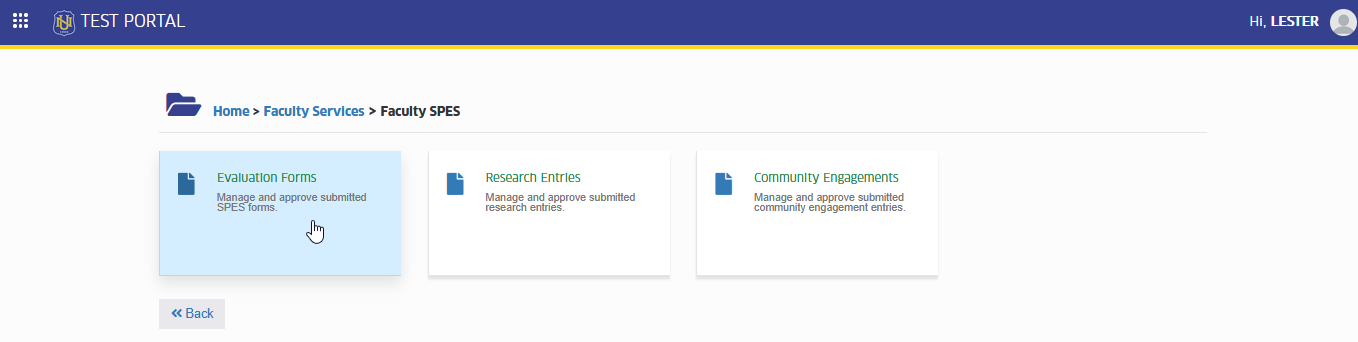
To access the module, make sure you have the View Evaluation Forms permission. If it doesn’t appear in your portal, request access from your System Administrator.
Click the module tab to redirect to SPES Forms of Faculty Members page.
How to Use the Module?
STEP 1. Open the module. Log in to NUIS using your account. Go to the Evaluation Forms module.
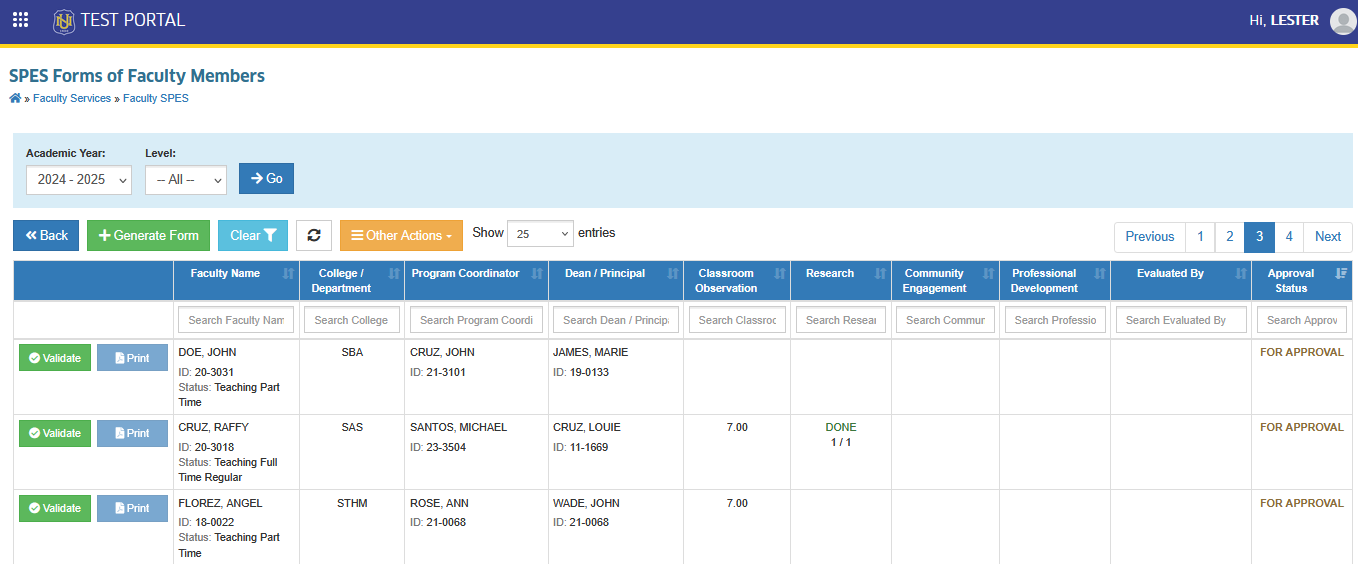
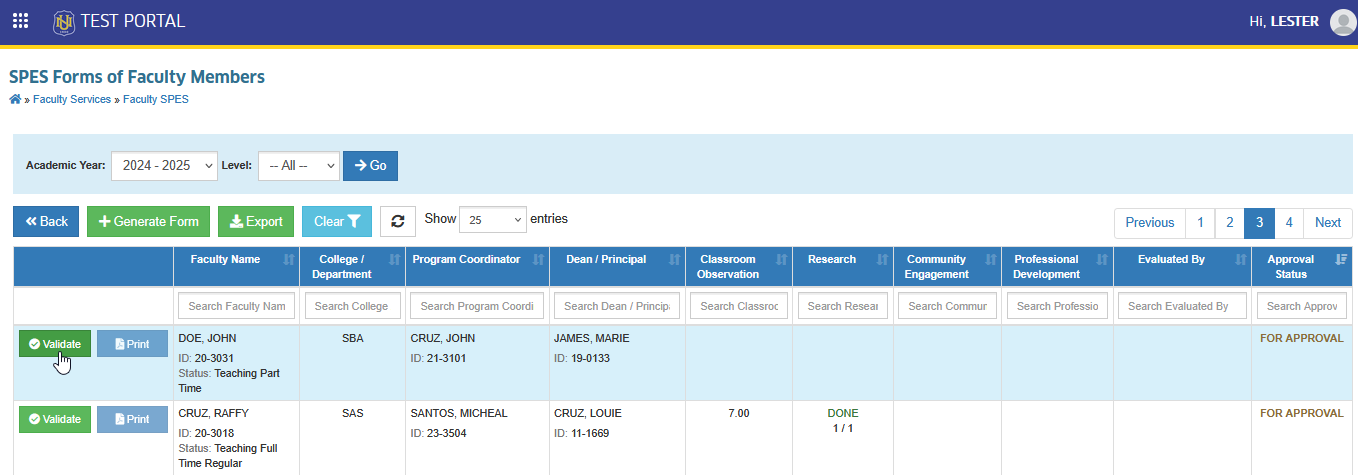
STEP 2. View submitted forms. Once inside the module, you'll see a list of submitted SPES forms from faculty members.
You can usually see:
-
Faculty Name
-
College/Department
-
Name of Superiors
-
Current Status (e.g., For Approval, Approved)
STEP 3. Open a form for review. Search for the faculty SPES form to be evaluated. Click the corresponding button.
STEP 4. Instruction on how to use the module will be displayed, click the button to proceed to evaluation form.
STEP 5. Encode the faculty's Class Observation Rating in the Teaching Effectiveness tab. To encode, Hover your cursur to terms field, and edit icon will appear.
STEP 6. Approve the evaluation form by going to Summary tab, and click the button then confirm the approval.
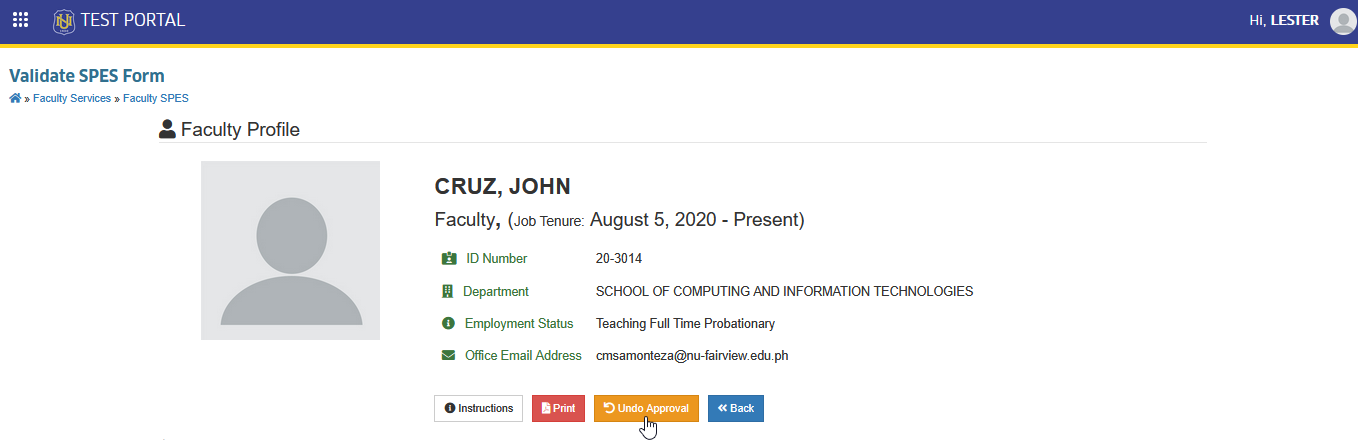
Approvers may undo the approval of evaluation form if necessary by clicking the button.
How to Validate and Approve Professional Development Entries
Users with approval access (e.g., Deans, Program Chairs, Principals) can validate and approve professional development activities submitted by faculty.
How to Approve Entries
Follow the steps below on how to approve professional development entries.
STEP 1. Open the evaluation form. Go to Evaluation Forms module. Select the faculty members whose form you want to review. Click the button to open the evaluation form.
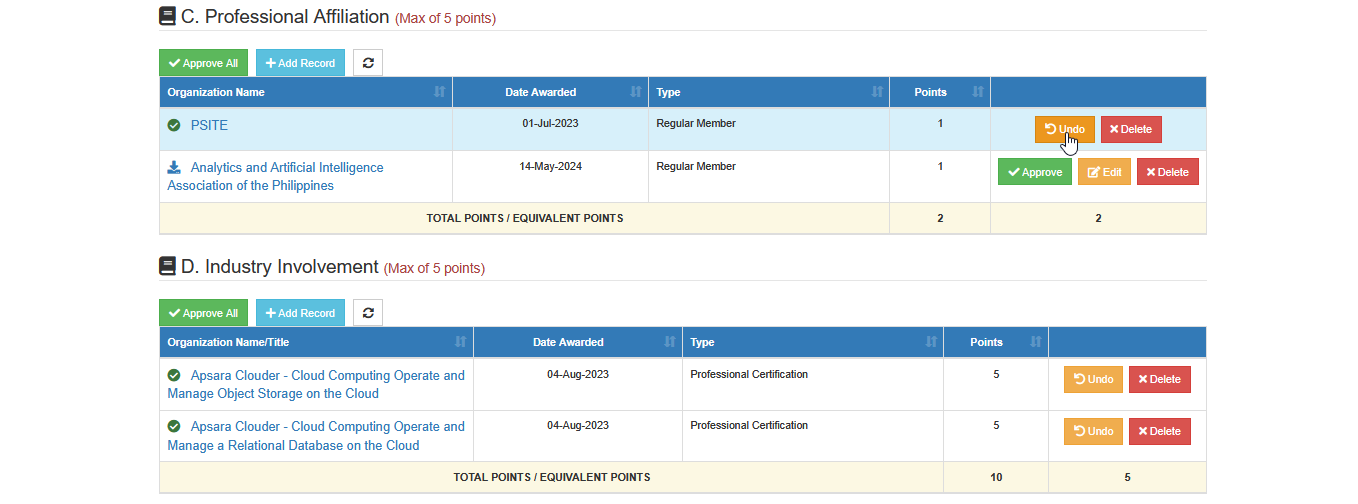
STEP 2. Click the Professional Development tab. You will see the list of entries submitted by the faculty, such as trainings, workshop, or seminars.
STEP 3. Review all entries.
- You may approve all entries per category at once by clicking button

- Or, you can approve entries individually by clicking the corresponding button per entries.

How to Undo Approved Entries
If you’ve approved an entry by mistake or need to make corrections, you can undo the approval by clicking corresponding the button next to the entry.
How to Edit/Modify Entries
Both faculty members and approvers can edit entries, depending on the status of the entry.
Faculty members can edit their own entries as long as they have not yet been approved.
Approvers (e.g., Deans, Program Chairs, Principals) may edit submitted entries as long as they are not yet approved.
STEP 1. If you encounter slight errors during validation, you may edit the entry directly by clicking the button beside the entry. No need to send it back to the faculty for minor corrections.

STEP 2. Continue with the modification.
STEP 3. Click the corresponding button to save changes.

How to Delete Invalid Entries
Invalid or mistakenly submitted entries can be deleted by the faculty member (before approval) or by the approver (before validating the entry). Follow the instruction below to delete invalid entries.
Locate the invalid entry and click the corresponding button next to it.

Deleting an entry means it is disapproved and permanently removed from the evaluation form.
Validators may use the comment section on the page to provide updates or follow up with the faculty regarding concerns about their SPES form.
For more questions or concerns, email us at nu-desk@national-u.edu.ph