SPES Period
The SPES Period module is used by the Campus FSO Personnel to set and manage the start and end dates of the Standard Performance Evaluation System (SPES) period for a specific term. This ensures that employees can only access and submit their SPES evaluations within the official schedule.
What You Can Do in This Module
-
Add a new SPES Period – Define the start and end dates for a term.
-
Update an existing SPES Period – Change the schedule if needed.
-
View SPES Period details – Check the current evaluation period for a specific term.
-
Delete a SPES Period – Remove the period if it is no longer valid.
Required Permissions
-
Add SPES Period - Allows the user to create and set a new SPES period by defining its start and end dates for a specific term.
-
Edit SPES Period - Allows the user to update or change the dates of an existing SPES period.
-
View SPES Period - Allows the user to see the list and details of SPES periods set for each term.
-
Delete SPES Period - Allows the user to remove an existing SPES period from the system.
When setting up the terms in the system, there are special rules:
-
1st Term and 2nd Term → Only Part-Time Faculty are allowed to submit applications during these terms.
-
3rd Term → This is the only period when all faculty members (Regular, Probationary, and Part-Time) can submit applications.
The 3rd Term calendar should be set up to cover the whole academic year.
How to access the module?
To access the module, make sure you have the View SPES Period permission. If it doesn’t appear in your portal, request access from your System Administrator.
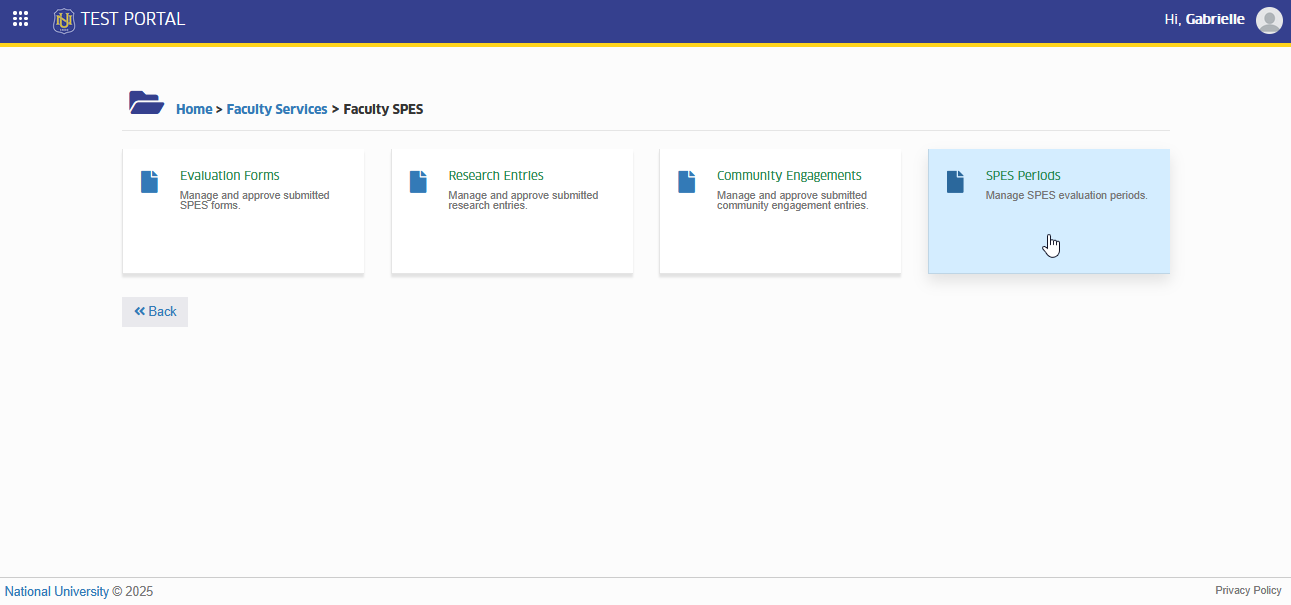
To access the module go to Faculty Services > Faculty SPES > SPES Periods
Click the module tab to redirect to Faculty SPES Periods page.
How to Use the Module
In this module, you can add, edit, view, or delete SPES periods. This is where the Campus FSO sets the official start and end dates for employee SPES submissions in each term.
Adding a SPES Period
This feature allows the Campus FSO to create a new SPES period by setting the start and end dates for a specific term. Once saved, this schedule will determine when employees can access and submit their SPES.
Follow the instruction below on how to add new spes period.
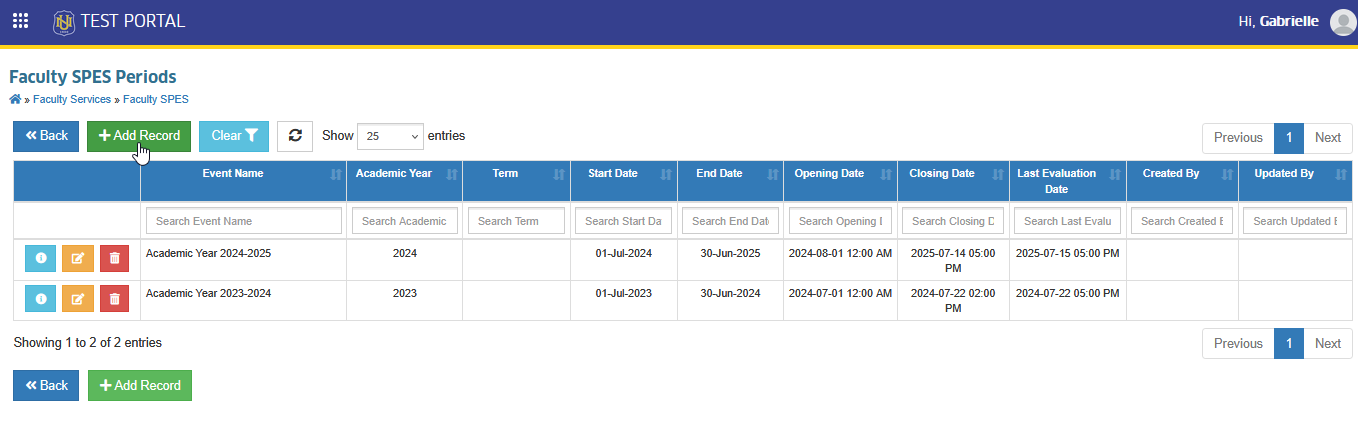
STEP 1. On the Faculty SPES Periods list view page, click the button at the top of the table. This will take you to the Add SPES Period page.
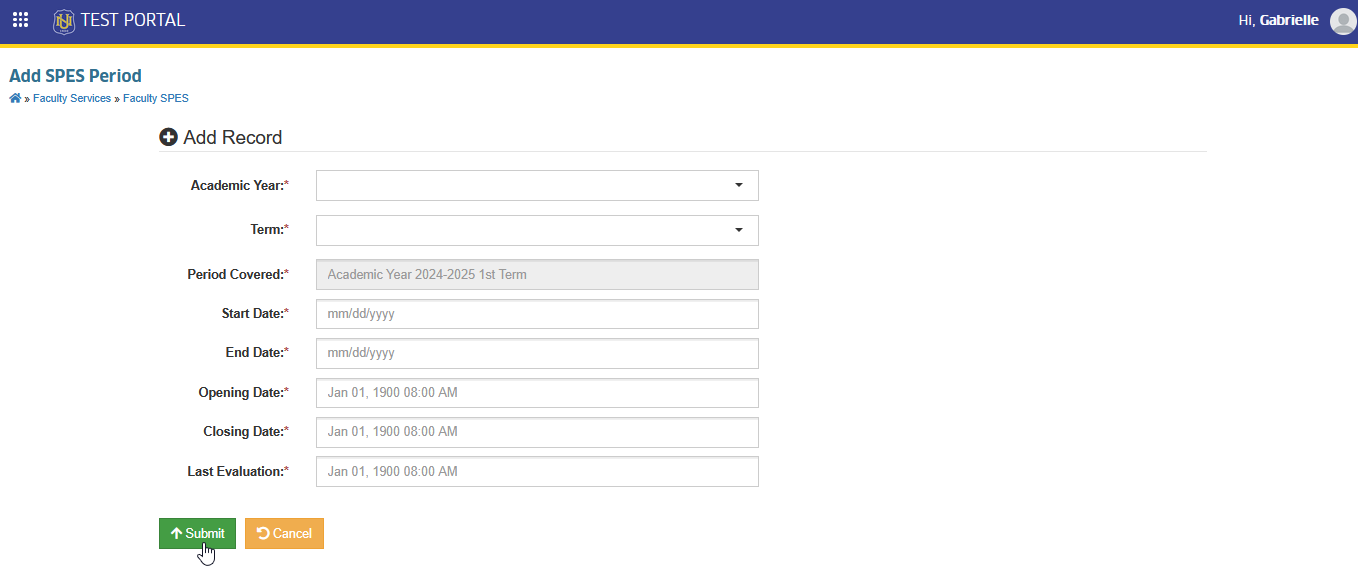
STEP 2. Fill in the required fields, including the Year, Term, and the Start Date and End Date for SPES submission.
STEP 3. Once finished, click the button to save the record.
After saving, the system will automatically return you to the Faculty SPES Periods list view page, where the newly added SPES Period will now appear in the table.
Editing a SPES Period
This feature allows the Campus FSO to update or adjust the start and end dates of an existing SPES period if changes to the schedule are needed.
Follow the instruction below on how to edit existing record.
STEP 1. On the Faculty SPES Periods list view page, locate the SPES Period you want to update. Click the button beside the record. This will open the Edit SPES Period page.
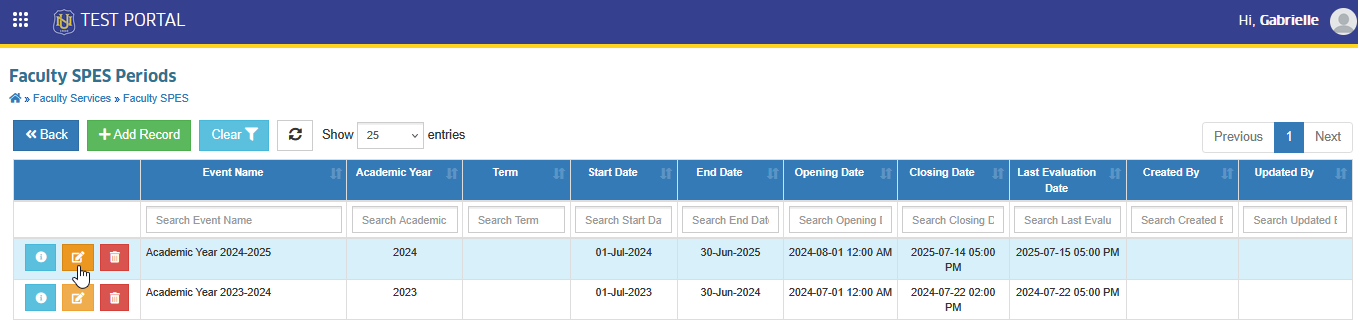
STEP 2. Update the necessary details, such as the Year, Term, or the Start Date and End Date.
STEP 3. Once finished, click the button to save the changes.
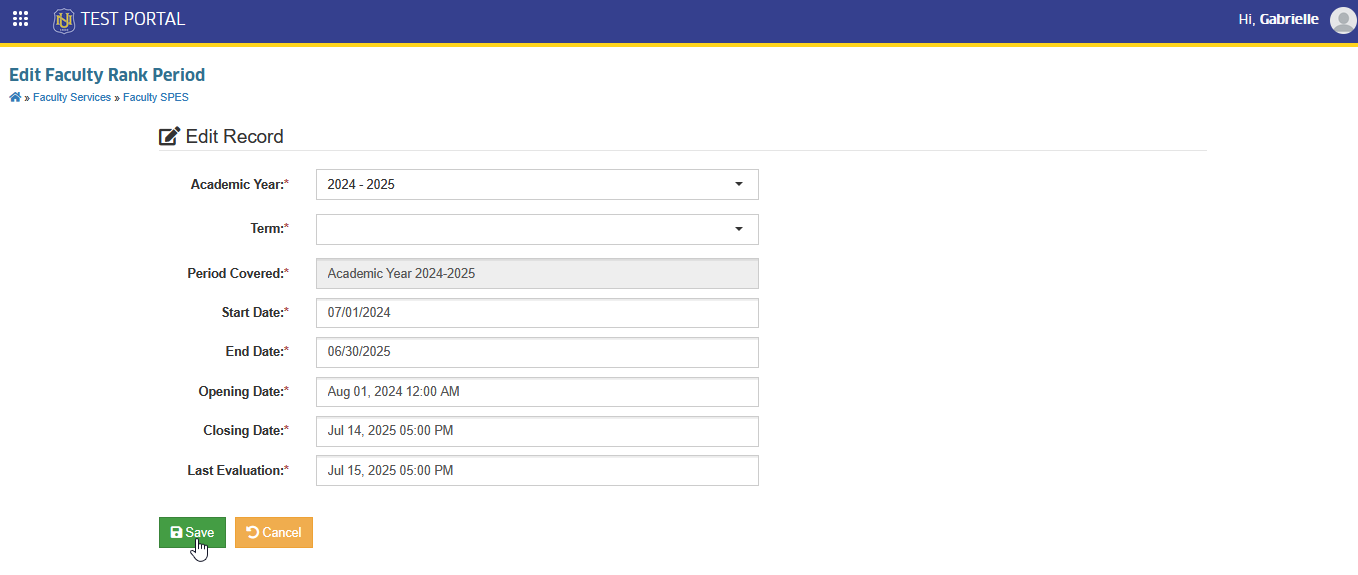
After saving, the system will return you to the Faculty SPES Periods list view page, where the updated details will now appear in the table.
Deleting a SPES Period
This feature allows the Campus FSO to remove an SPES period that is no longer valid or was created by mistake. However, if the SPES period already has references (such as employee submissions linked to it), the system will not allow deletion. In such cases, the record can only be edited, not deleted.
Follow the instruction below on how to delete a record.
STEP 1. On the Faculty SPES Periods list view page, locate the SPES Period you want to remove. Click the button beside the record. This will redirect you to Delete Faculty SPES Period page.
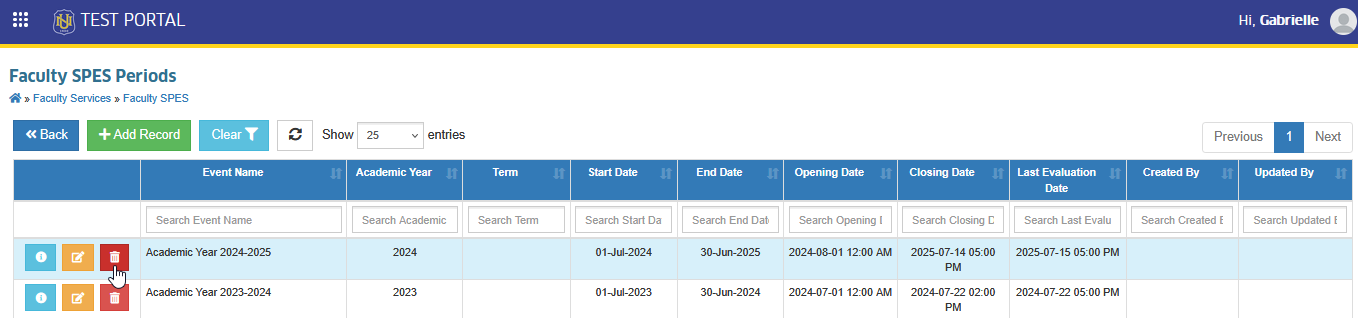
STEP 2. In Delete Faculty SPES Period page, click the button.
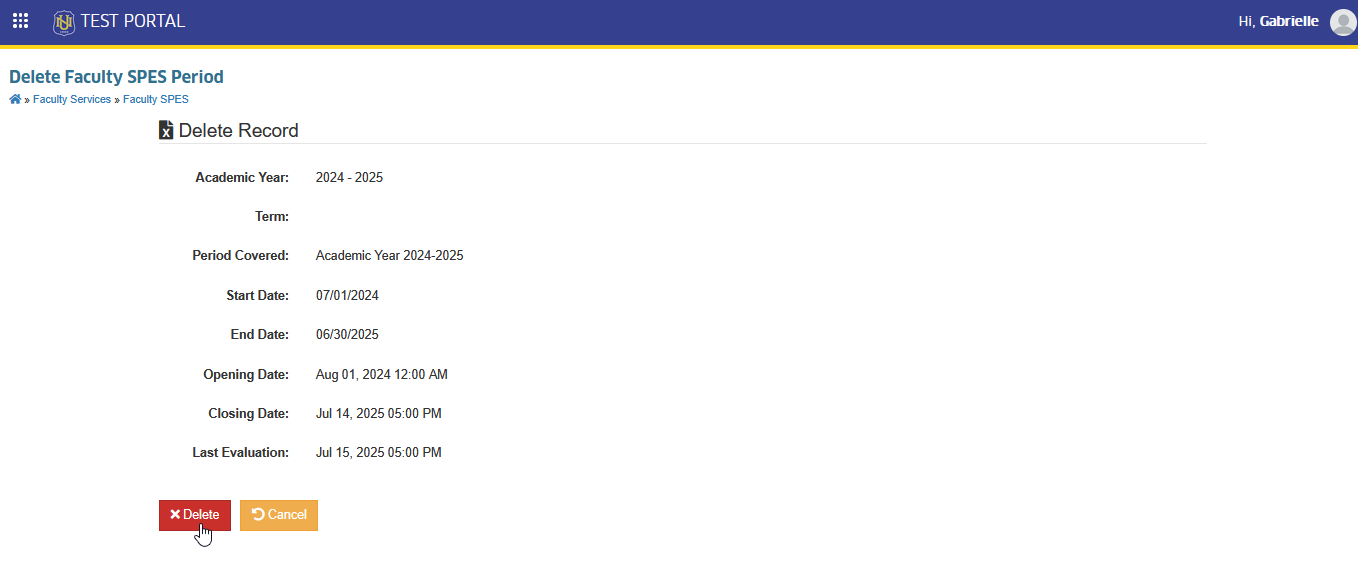
If the SPES Period already has references (e.g., employees have submitted SPES within that period), the system will not allow deletion. In this case, you may only edit the record if adjustments are needed.
After confirming (and if there are no references), the system will remove the SPES Period from the list, and it will no longer appear in the table.
For more questions or concerns, email us at nu-desk@national-u.edu.ph