Load Revision
Revise student's enrolled classes for the specified term.
-
This module is used by Registrar personnel only. For Deans and Program Chair you may use the College Load Revision module under Director's group module.
-
Load Revision module is only used for revising class schedules of enrolled students. For official dropping of classes, utilize the Change of Grade & Official Dropped module.
-
Registrar personnel may use Load Revision module to revise New Student's enrolled class without following the load revision period specified on Term Calendar.
Required Permission
- Load Revision - Permission to access the module.
How to access the module?
To access the module, make sure you have the Load Revision permission. If it doesn’t appear in your portal, request access from your System Administrator.
To access the module go to Registrar > Enrollment Tools > Load Revision
Click the module tab to redirect to Load Revision page.
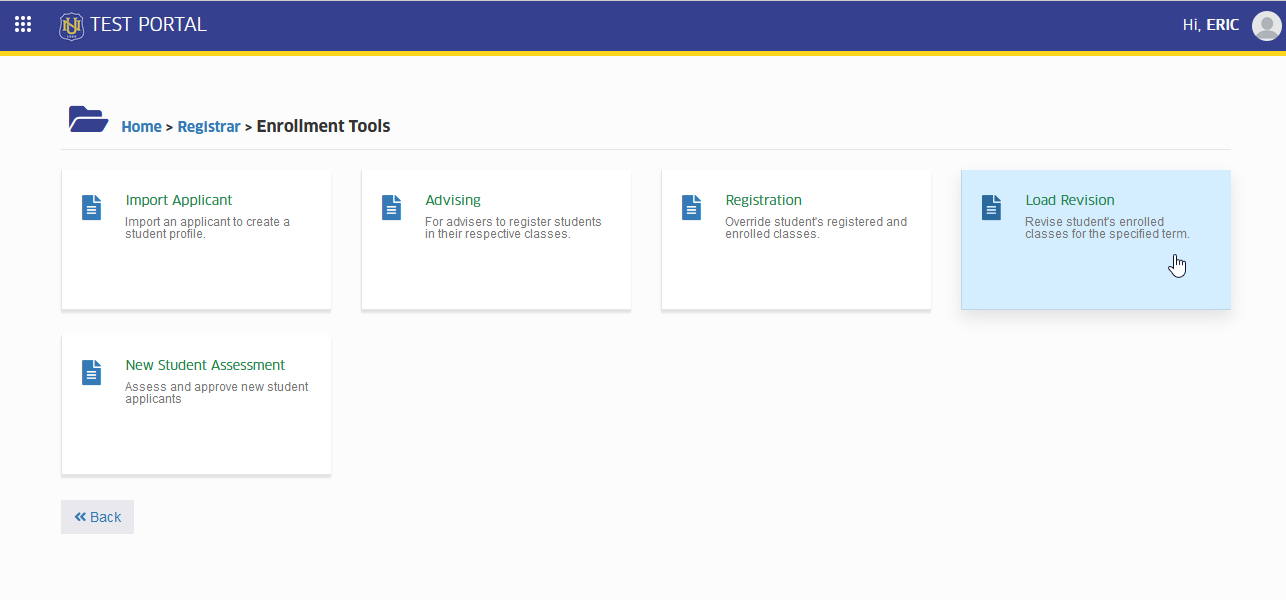
This module is for enrolled students use only.
How to reset student's enrollment status?
In this module the user can reset students enrolled status to register. Follow the steps below on how to reset enrollment of the student.
The button becomes unavailable if atleast one revision has been saved.
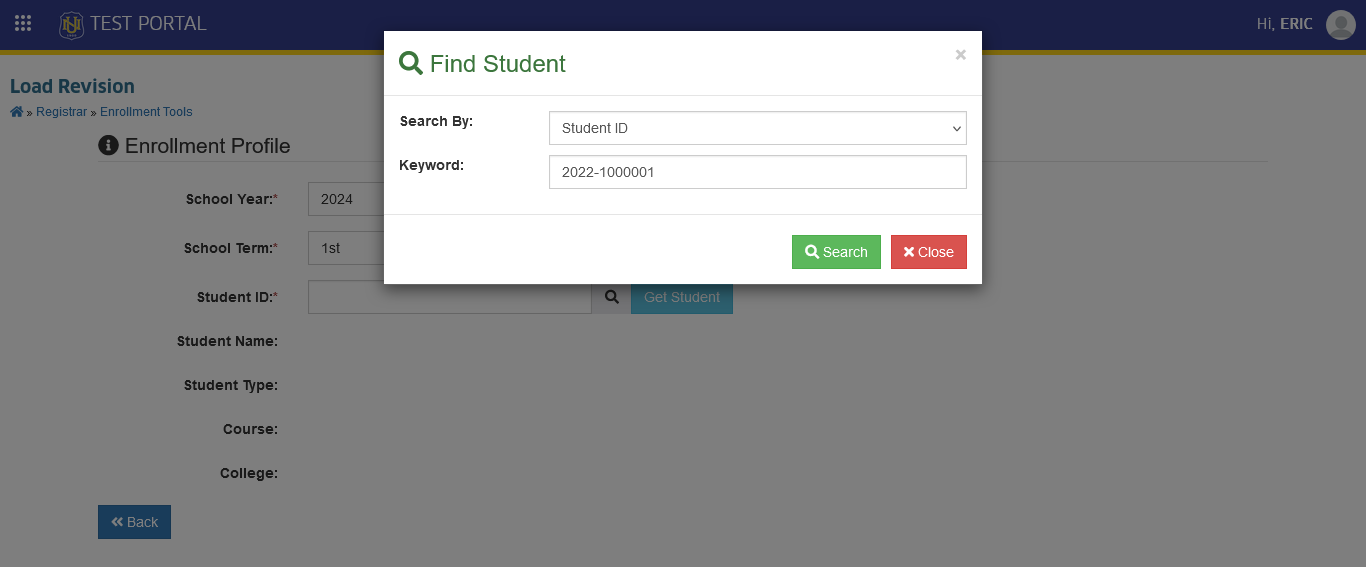
STEP 1. In Load Revision page, find the student for load revision by clicking the button and enter the search keyword
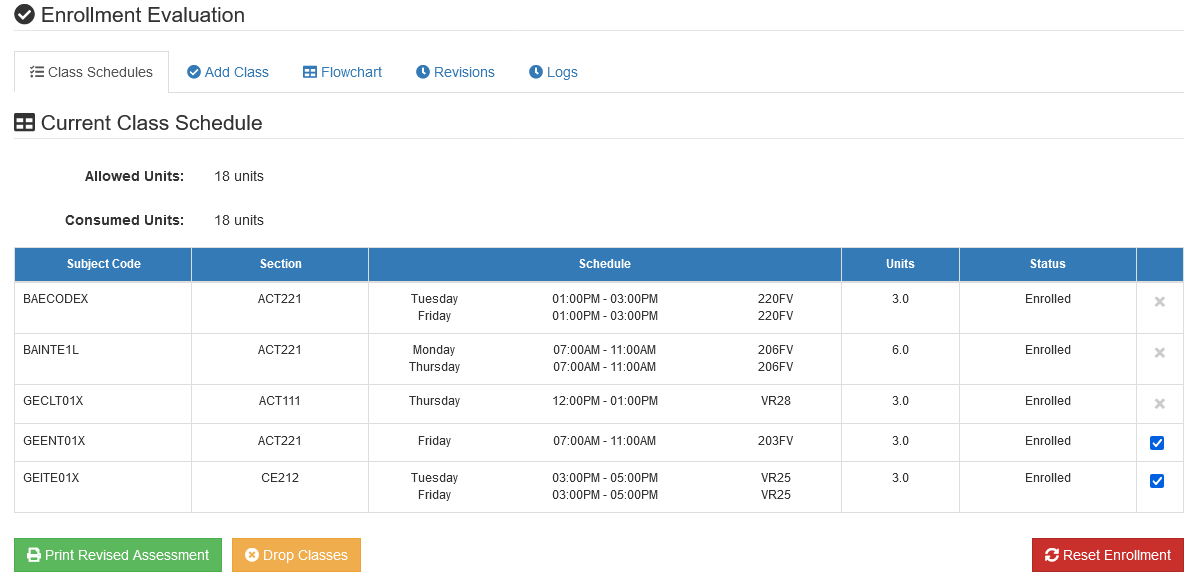
STEP 2. In Load Revision page, the student's information and their enrolled subjects will be displayed. Scroll down to Enrollment Evaluation section, under Class Schedules tab, click the button.
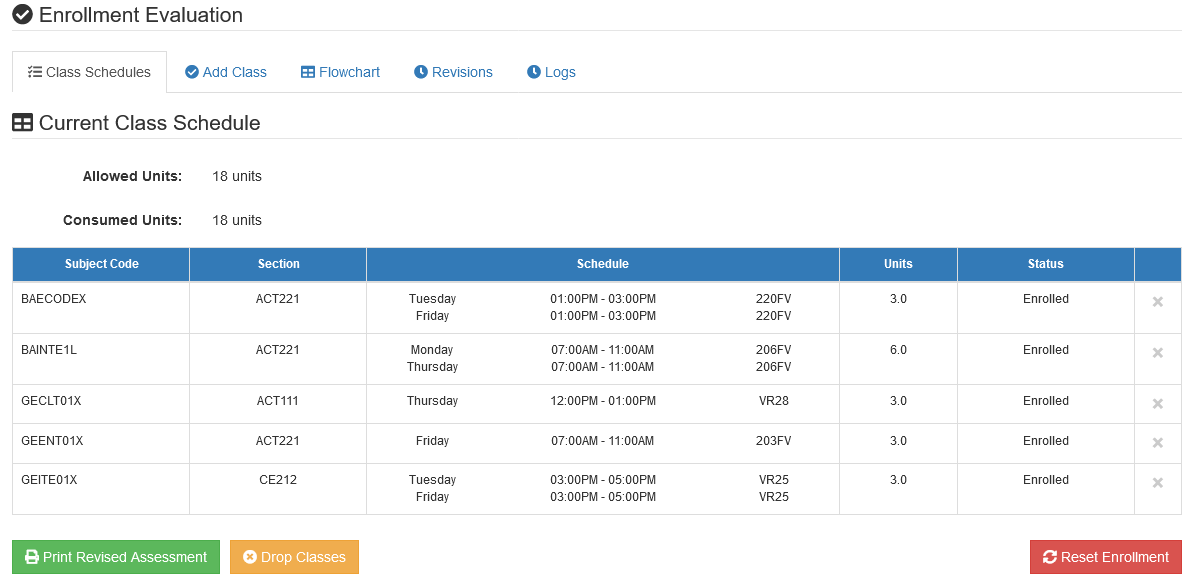
Reset Enrollment is used to modify the enrollment status of the student classes from Enrolled to Registered.
The student's list of enrolled classes has been reset and is now in registered status.
How to drop student's classes?
Follow the steps below on how to drop classes during load revision period.
STEP 1. In Load Revision page, under Enrollment Evaluation section, select the class to be dropped by clicking the checkbox of the class.
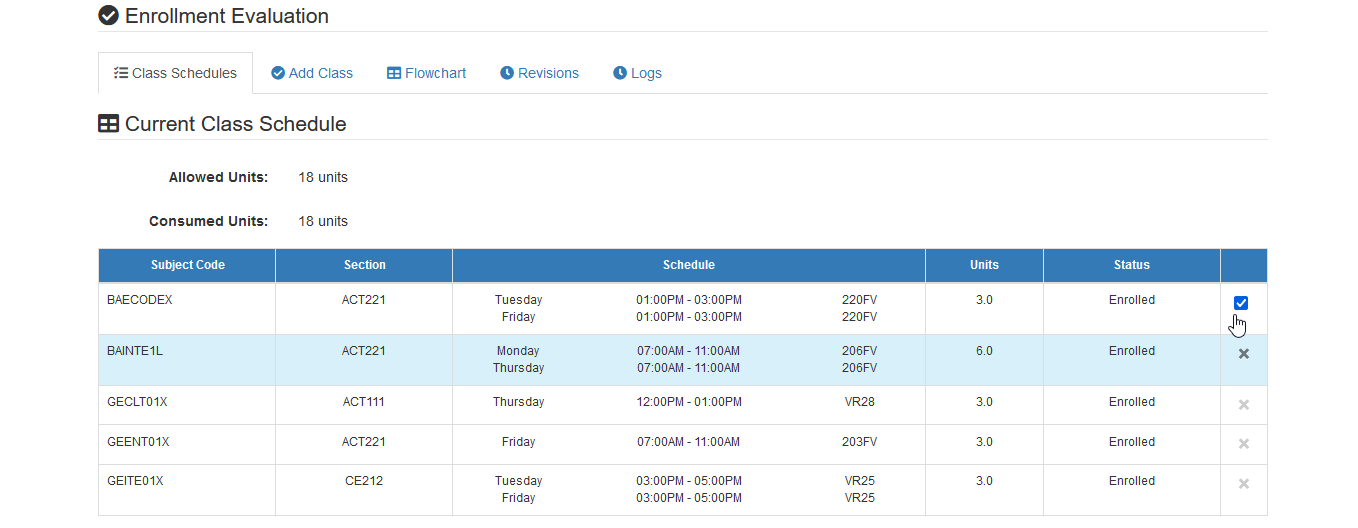
STEP 2. Click the button and confirm your action to move dropped subject information to Pending Load Revision section.
How to add students' classes?
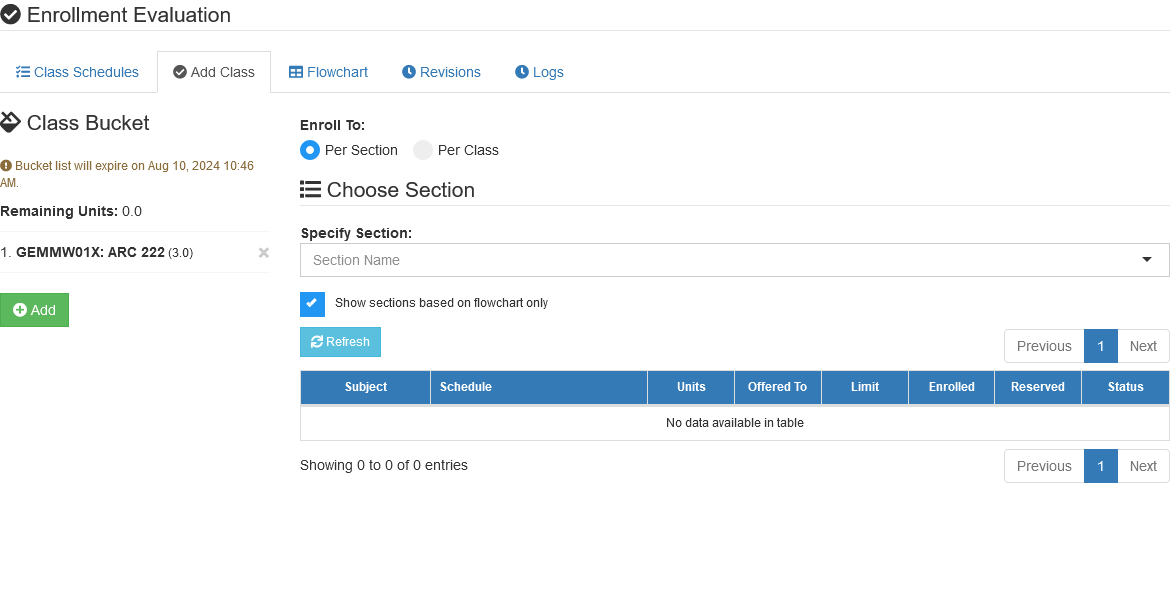
The user can add and remove classes from the list of enrolled students' class schedules in this module. To add students to the load to be enrolled.
On the Add Class tab in the Enrollment Evaluation section. Register the students by opting Per Section or Per Class. Click the link and follow the steps on How to Register students to classes in Advising module.
How to save load revision request of Deans & Program Chairs?
Only the registrar personnel has the capability to save the load revision. First,check the Pending Load Revision module for load revision requests for the current term. Follow the steps below on how to save students' load revisions.
-
Some load revision reasons have corresponding charge.
-
Shown below is the list of reasons for load revision.
| Reason | Has Charge |
|---|---|
| Dissolution of classes | No |
| Evaluator Error | No |
| Faculty Availability | No |
| Merging of Classes | No |
| Split Classes due to Overload | No |
| Withdraw Enrollment | Yes |
| Student Preferrence | Yes |
STEP 1. Find the student on the Load Revision page using the search feature.
STEP 2. Scroll down to the Pending Load Revision section to view the list of classes that need to be enrolled or to be dropped.
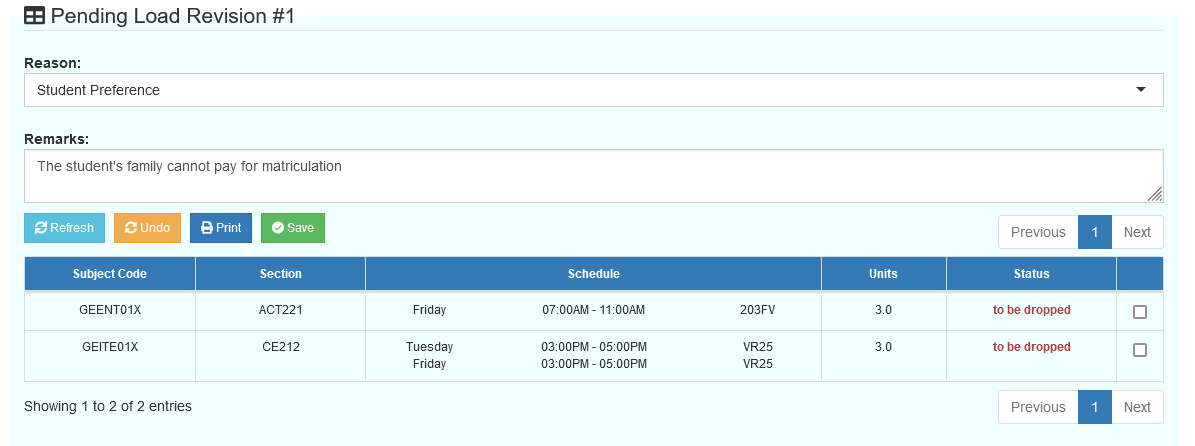
STEP 3. Click the button after selecting the subjects in the load revision request that need to be enrolled or dropped.
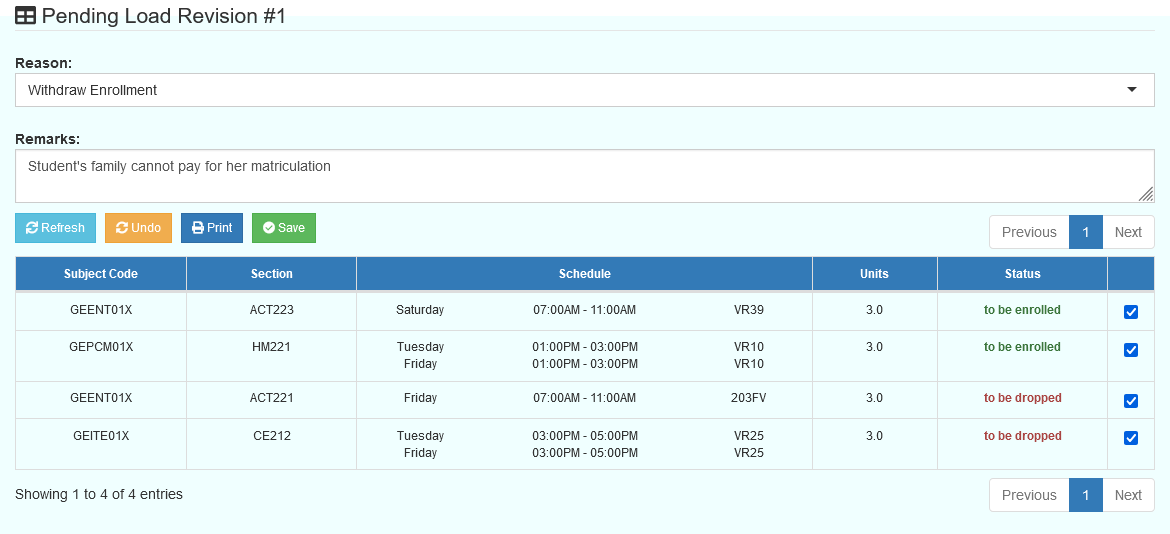
Student's load revision has been successfully saved.
Check the Students revision record in Load Revision History.
- If the load revision period for the term has not yet opened, registrar personnel can accomodate the student's load revision directly for New Students only. As for Continuing Students, they should seek assistance from their College/School Deans and Program Chairs.