Registration
Registration module is used by the Regisrtrar personnel to officially enroll the registered classes of the students.
Required Permission
- Registration - Permission to access the module.
- Registration Override - Permission to override registration validations. ( Override has been deactivated for NUIS, since it is already included in Load Revision Permission)
How to access the module?
To access the module, make sure you have the Registration permission. If it doesn’t appear in your portal, request access from your System Administrator.
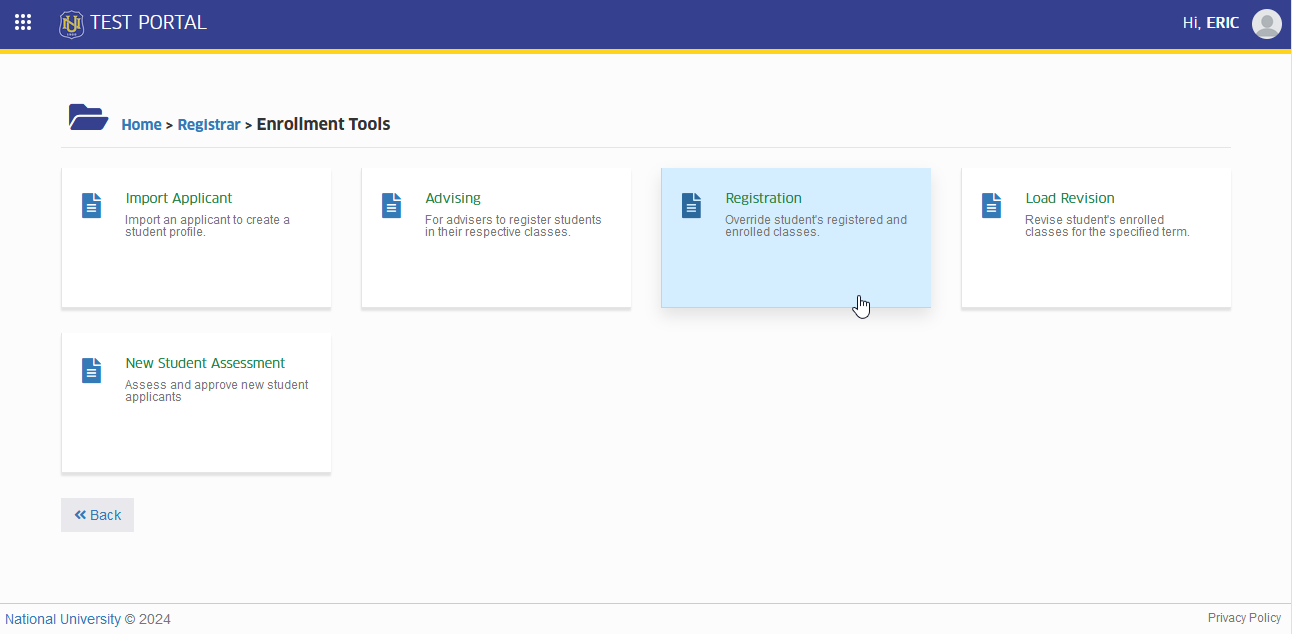
To access the module go to Registrar > Enrollment Tools > Registration
Click the module tab to redirect to Registration of Classes page.
How to enroll the student on their registered class?
Follow the steps below on how to enroll the students to their registered classes.
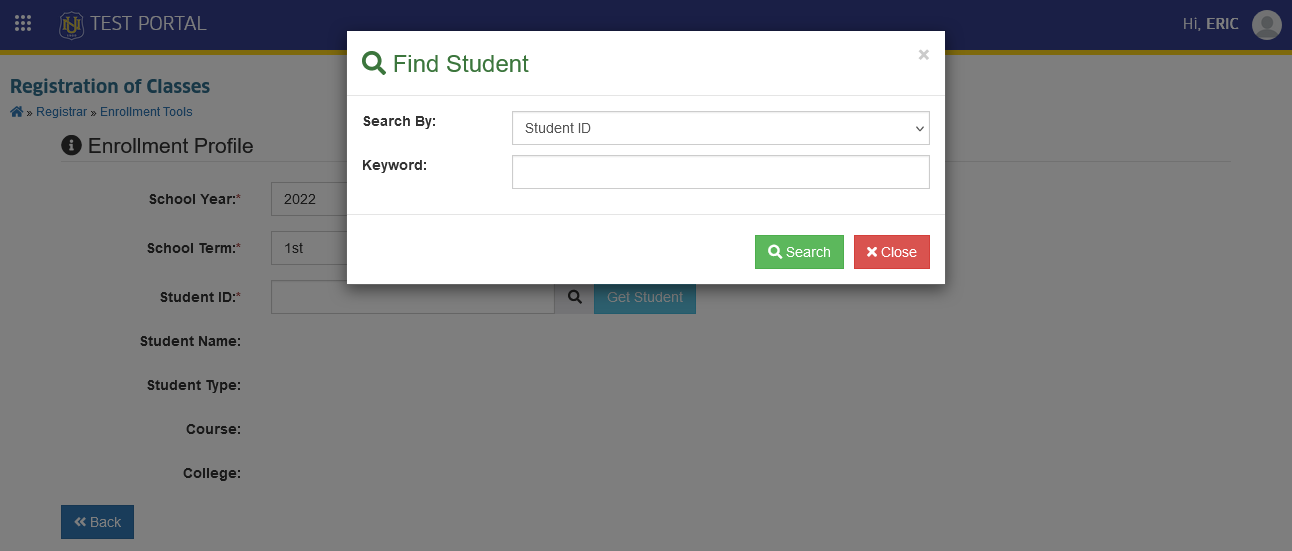
STEP 1. In Registration of Classes module, find the student by entering the student ID number, or use the search button and enter your preffered search keyword.
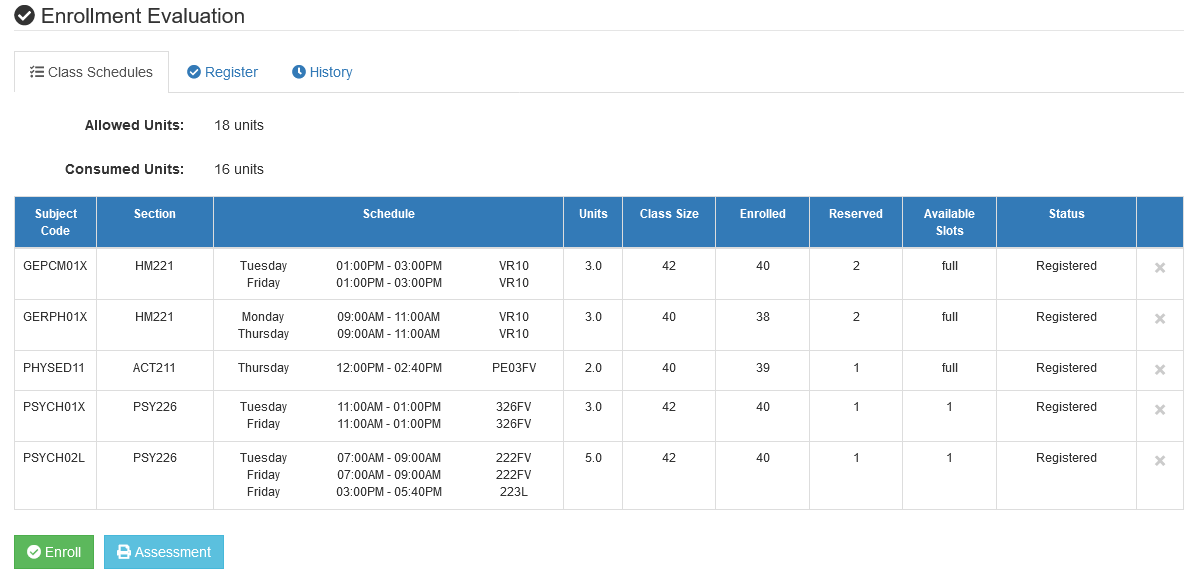
STEP 2. In Registration of Classes page, under Enrollment Evaluation section, in Class Schedules tab click the button and confirm your action to enroll the student's registered classes.
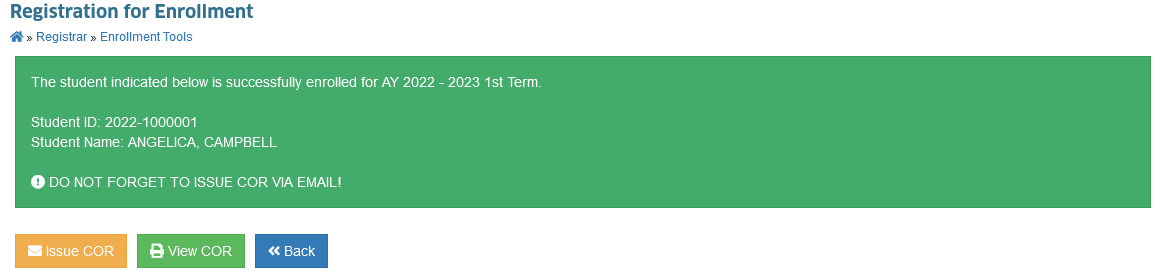
The student has been successfully enrolled. You may email or print their Certificate of Registration (COR).
How to modify student's registered classes?
In Registration module, user can remove or edit student's registered classes. Follow the steps below on how to remove or edit student's registered classes.
STEP 1. In Registration of Classes page, under Enrollment Evaluation section in Class Schedules tab, you will see the student's registered classes.
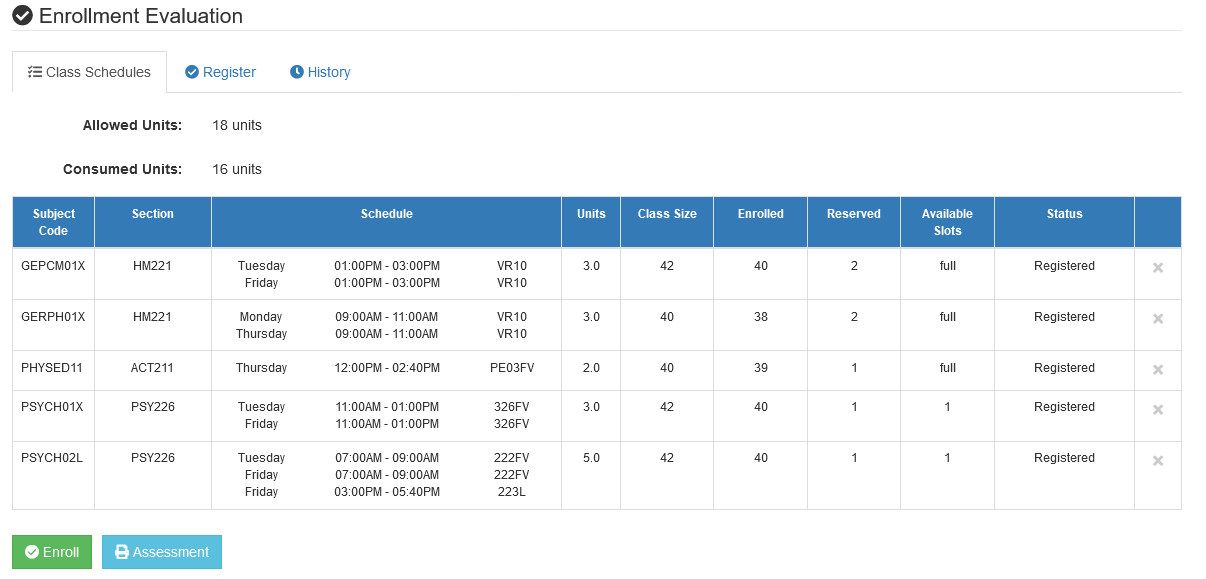
STEP 2. Select the classes you want to remove by clicking the checkbox of the corresponding classes. Click the button to remove classes from the list.
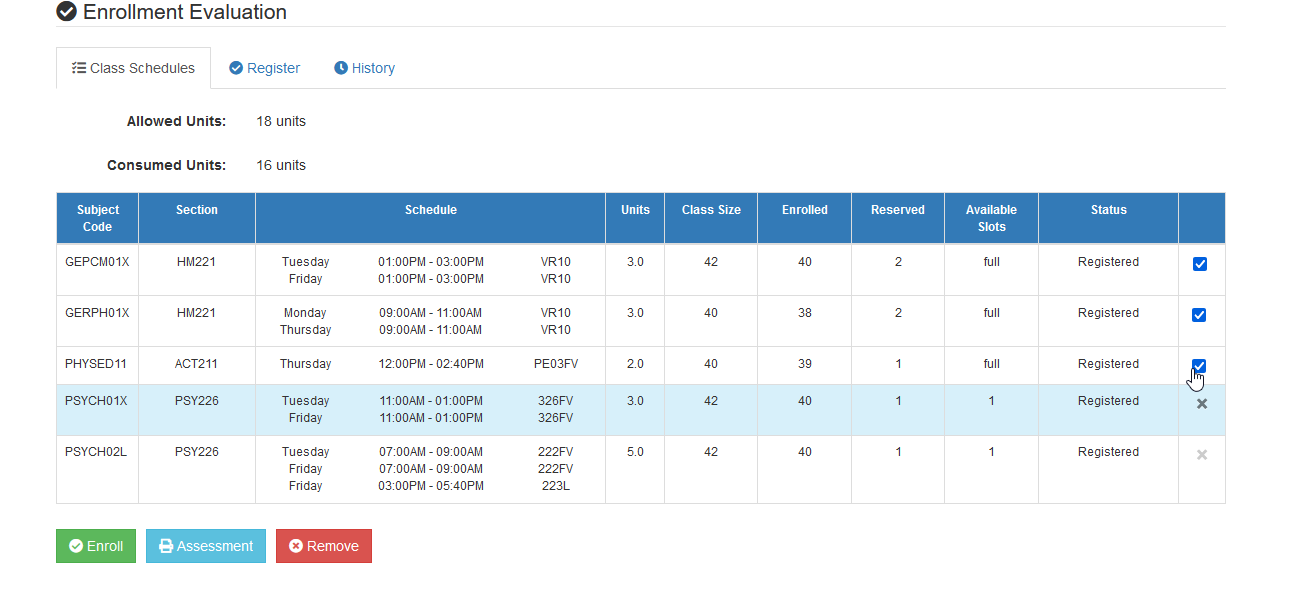
Successfully removed the selected registered classes of the student.
STEP 3. Follow the steps on how to register the students per section or per classes in Advising module.